
Last Updated: October 23, 2026
Overview
The Incident Workspace tab of an incident type is where you build incident workspace layouts. A workspace is the arrangement of widgets that investigators see on the incident page. You build it by dragging widgets onto a canvas, then assign it to incident types, roles and groups.
To open the tab, go to Configuration > Incident Type Manager, select the incident type, then select Incident Workspace. See Incident Type Manager.
Working with Incident Workspace Layouts
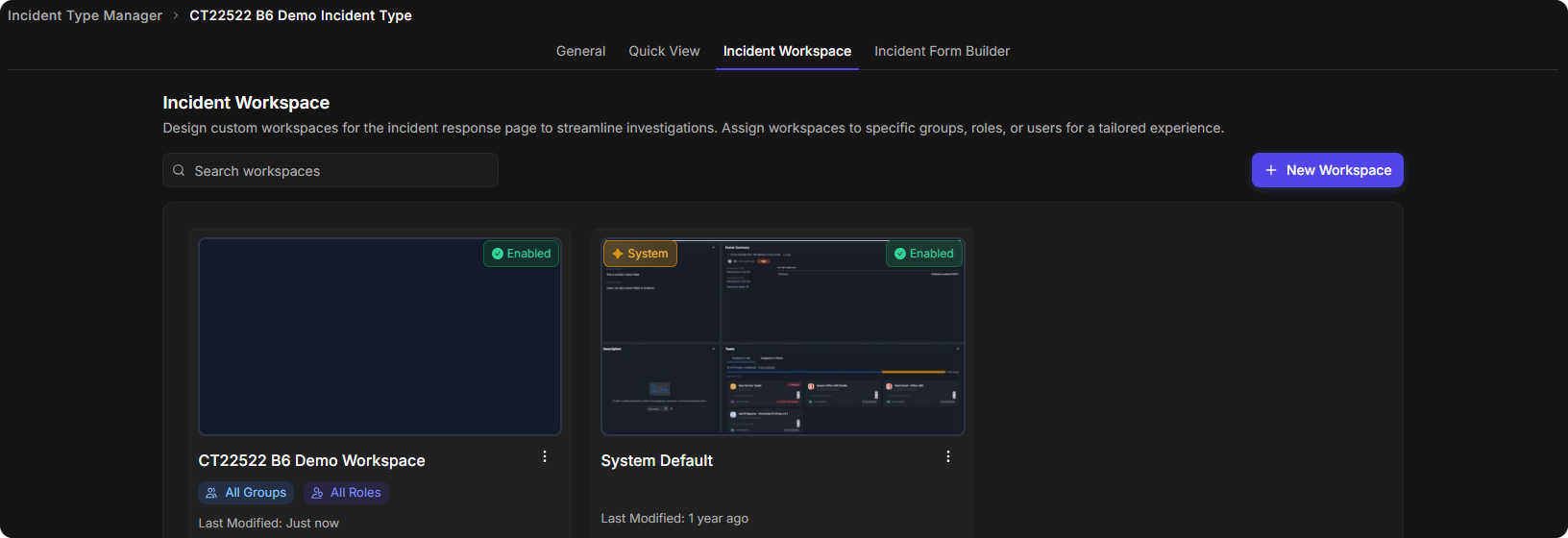
The tab lists the workspaces assigned to the incident type as cards. Each card shows the workspace name, its status (for example Enabled), the groups and roles it is assigned to, and when it was last modified. To find a workspace, type in Search workspaces.
The Incident Workspace tab
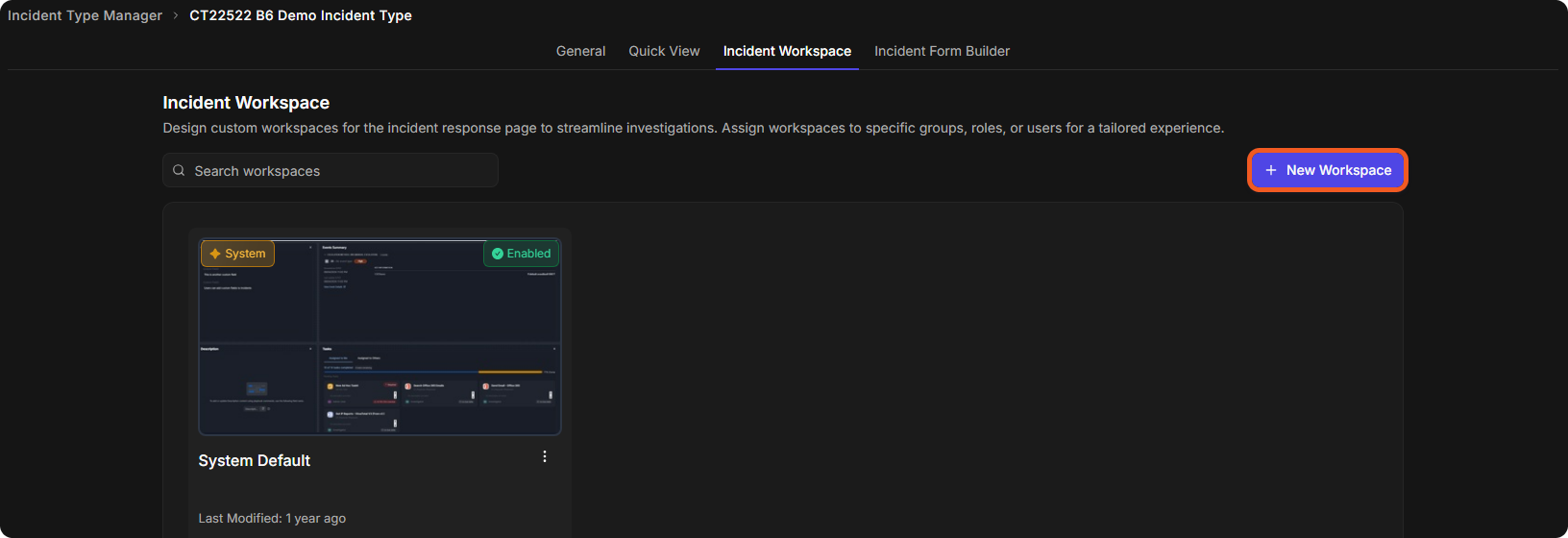
The System Default card is marked System. It is on the Incident Workspace tab of every incident type, including a new one.
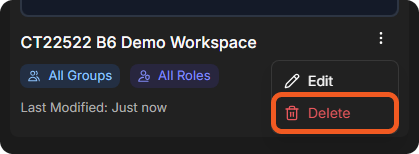
To open a workspace, select ⋮ on its card, then Edit. The same menu has Delete.
The workspace menu
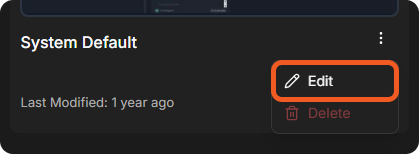
The System Default card is shared by every incident type. Edit it with care: a change to it is not limited to the incident type you opened it from.
To build a new workspace, select New Workspace. The builder opens on its Build tab.
Building a Workspace
The builder has two tabs, Build and Settings. On the Build tab:
-
Workspace Name (required) is filled in with "Workspace on" and the current date and time. Replace it with a name your team will recognize.
-
Widgets lists the widgets you can add, with a search box. Each one has a short description.
-
The canvas on the left holds the widgets of the workspace.
The workspace builder
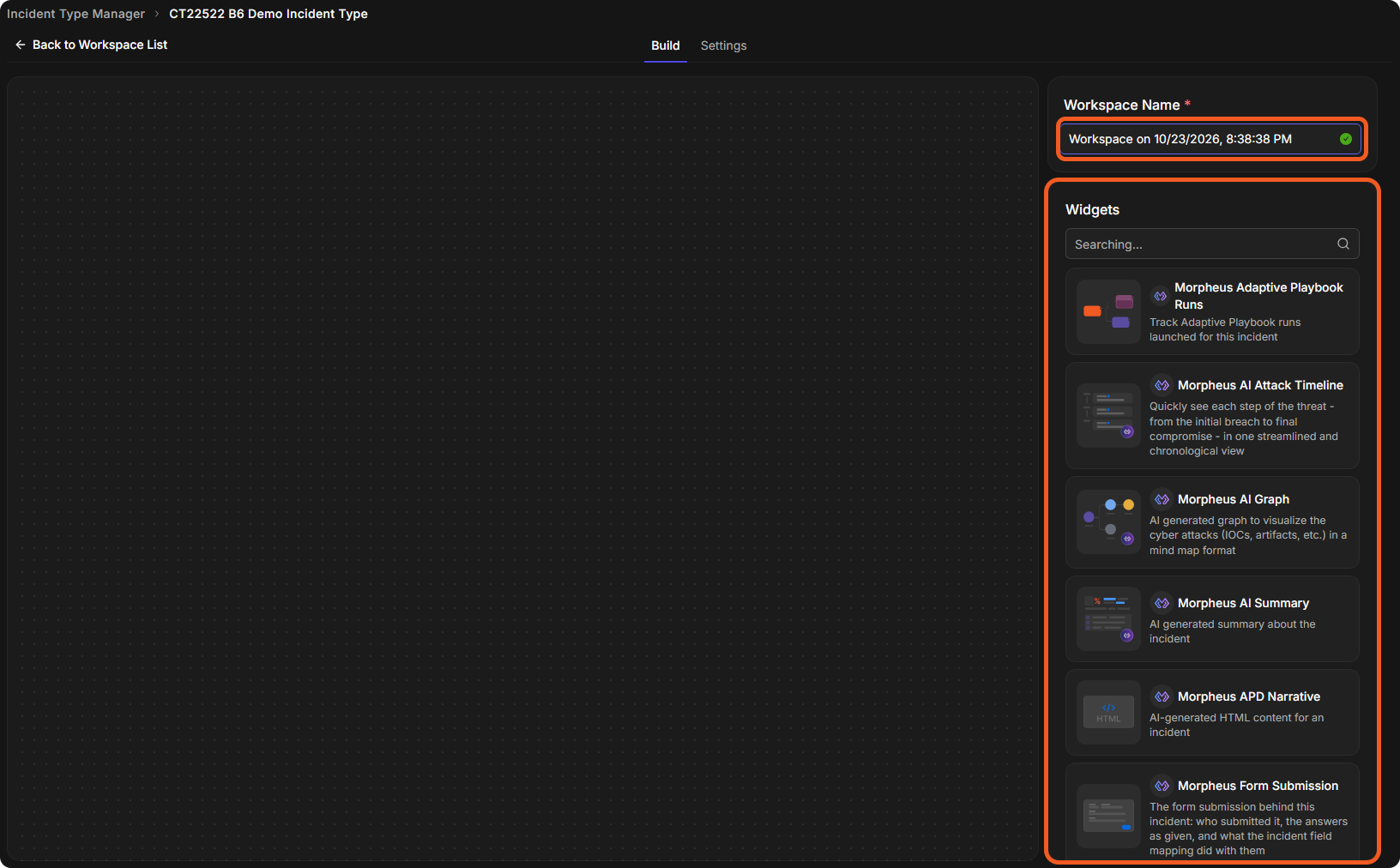
For what each widget does, see Incident Workspace Widgets.
Adding a Widget
Drag a widget from the Widgets list onto the canvas.
Widgets added to the canvas
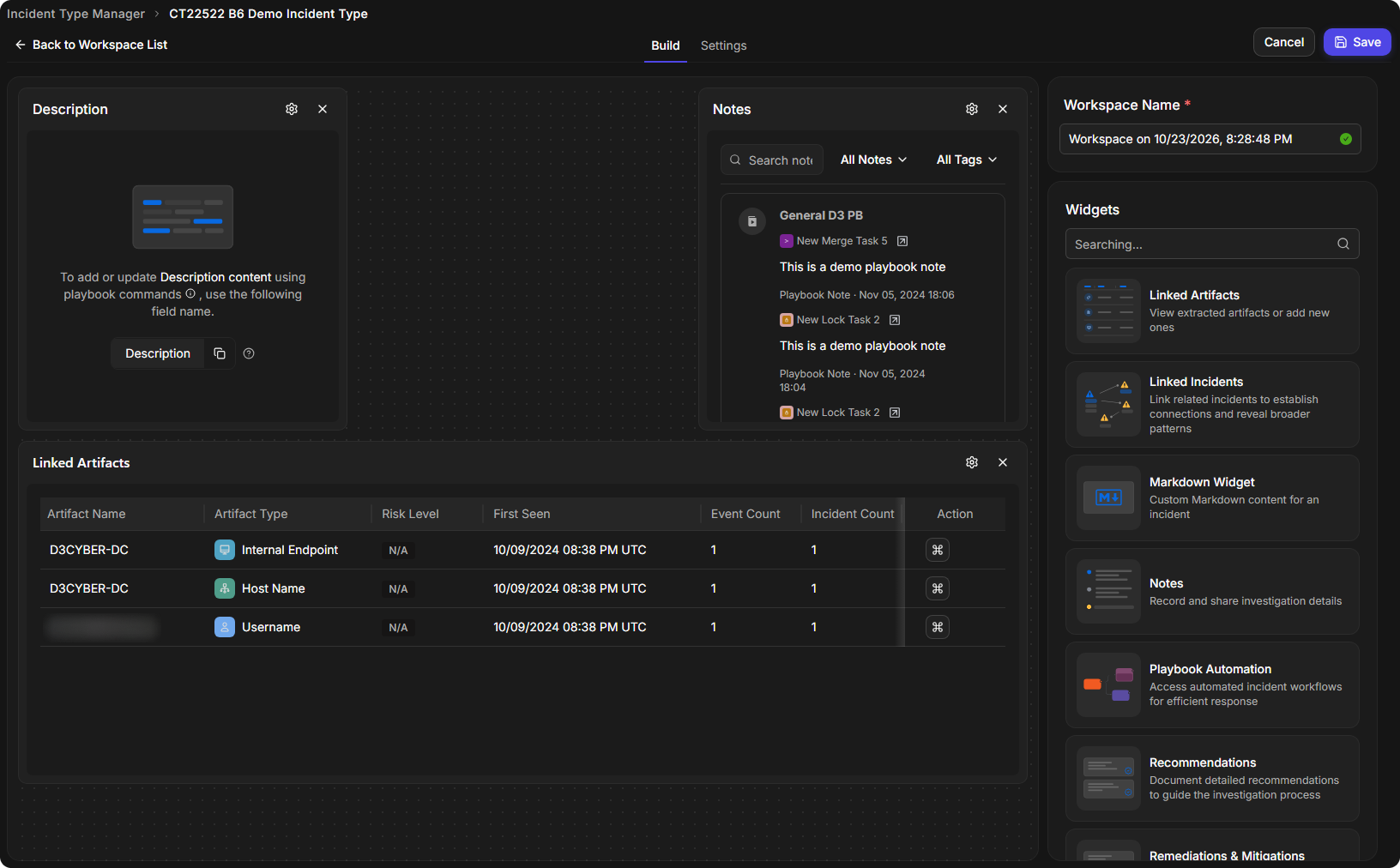
The builder fills each widget with sample content, so you can see how it will look. Widgets that hold a field, such as Description, also show the field name to use in playbook commands, with a copy button.
Resizing a Widget
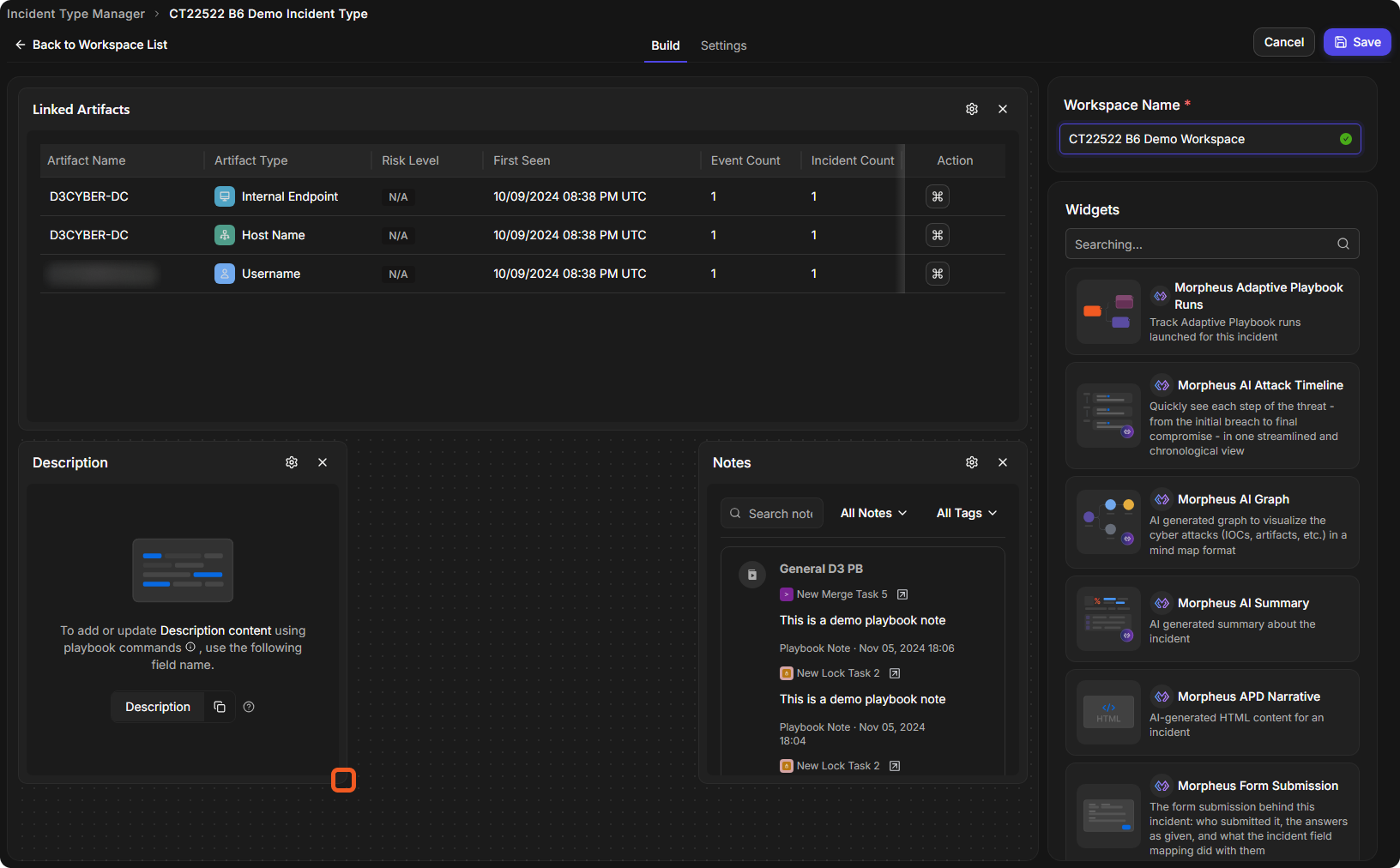
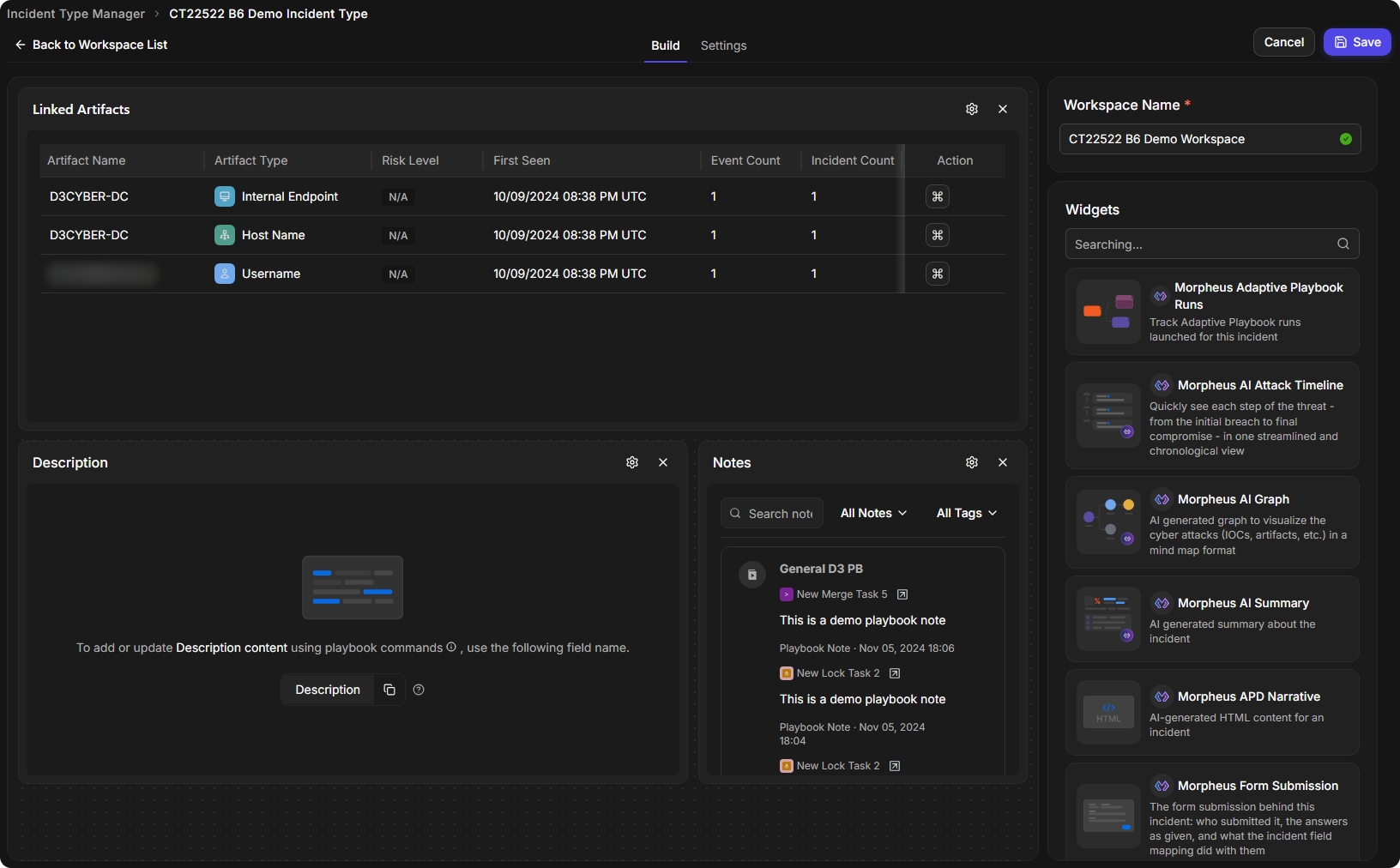
Drag the edge or the bottom right corner of a widget to change its width or height.
The resize corner of a widget
A widget made wider
Rearranging Widgets
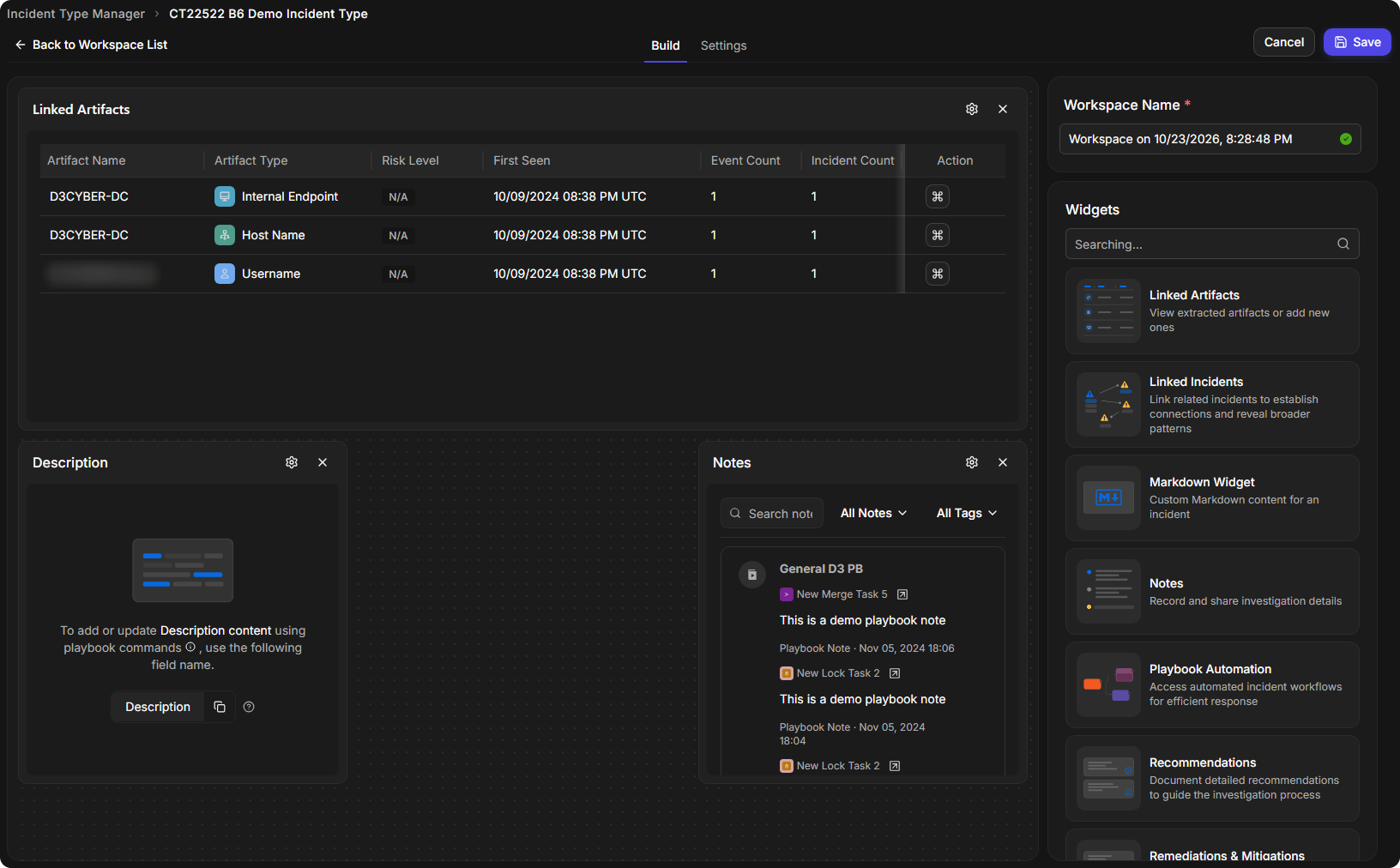
Drag a widget by its header to a new place on the canvas. The other widgets move to make room.
Widgets rearranged
Removing a Widget
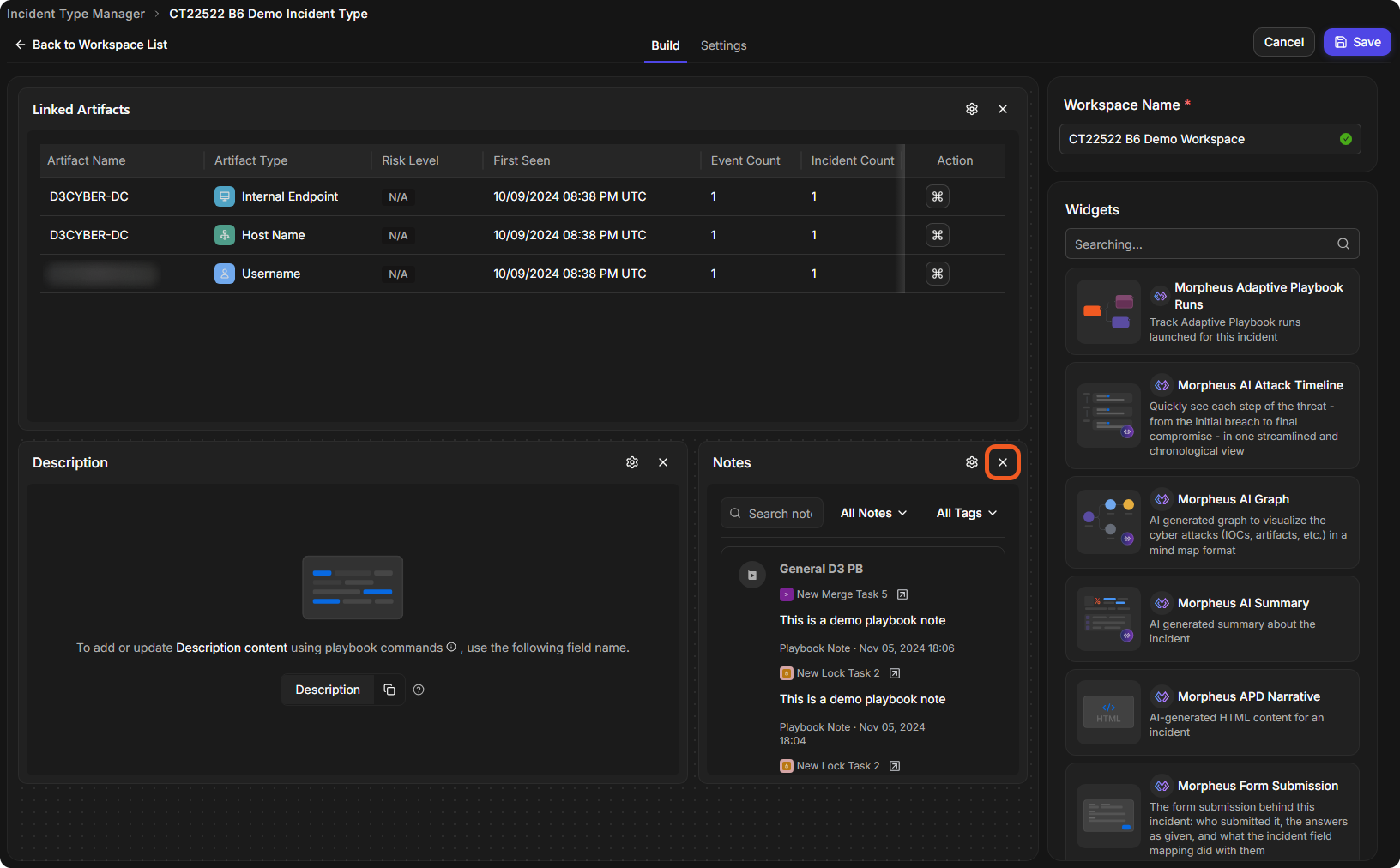
Select the × button in the widget's header. The widget is removed from the canvas straight away.
The remove button
The gear icon beside × opens the widget's visibility settings. See Incident Workspace Widget Visibility.
Assigning an Incident Workspace
A workspace is used only by the incident types, roles and groups it is assigned to. Set them on the builder's Settings tab.
-
General: Workspace Name and Workspace Status. Enabled reads "Assigned user roles or groups will be able to use this workspace".
-
Assign Workspace:
-
Assign to Incident Types (required): the incident type you opened the builder from is already filled in.
-
Assign to Roles: the roles, or All Roles.
-
Assign to Groups: the groups, or All Groups.
-
The tab explains: "Users have access to a workspace only when both the role and group match the assignment of the workspace. They can switch between available workspaces on the incident page."
Assigning roles and groups
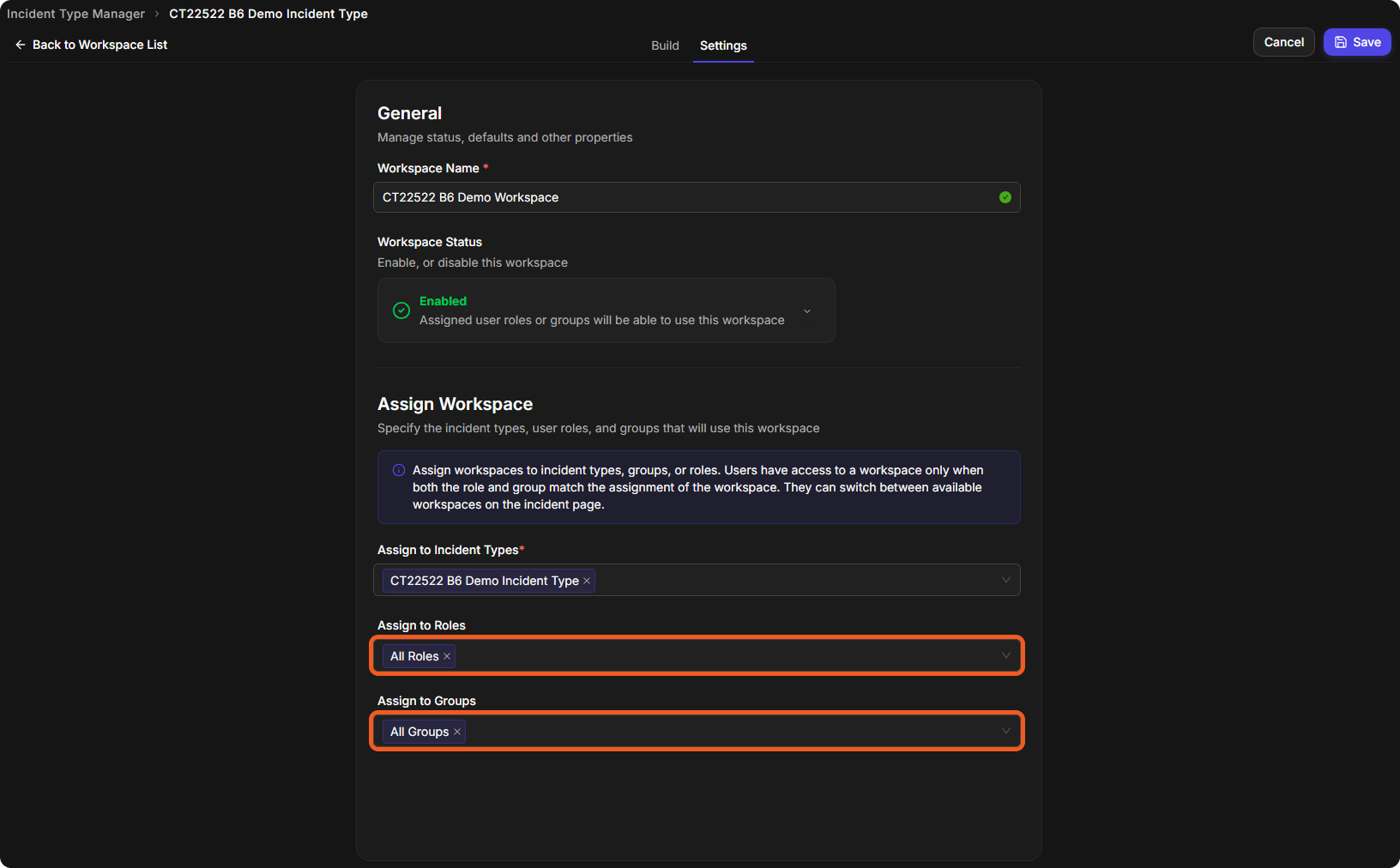
Assign at least one role and one group. The fields warn that users cannot access the workspace if no roles, or no groups, are assigned.
For example, a workspace assigned to the Phishing incident type, the Analyst role and All Groups is available to every Analyst, in any group, on Phishing incidents.
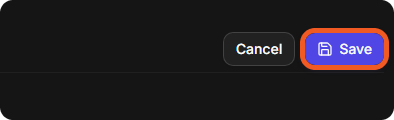
When the workspace is ready, select Save, at the top right of the builder.
Saving the workspace
The builder closes and the workspace is listed on the Incident Workspace tab, with its groups and roles.
The saved workspace
Deleting a Workspace
-
On the Incident Workspace tab, select ⋮ on the workspace card, then Delete.
The Delete option
-
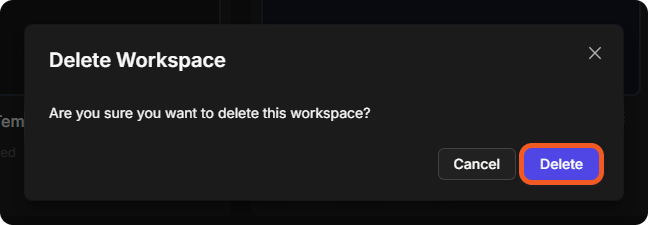
In the Delete Workspace window, select Delete.
The Delete Workspace window
The workspace card is removed from the tab.