
Last Updated: October 22, 2026
Overview
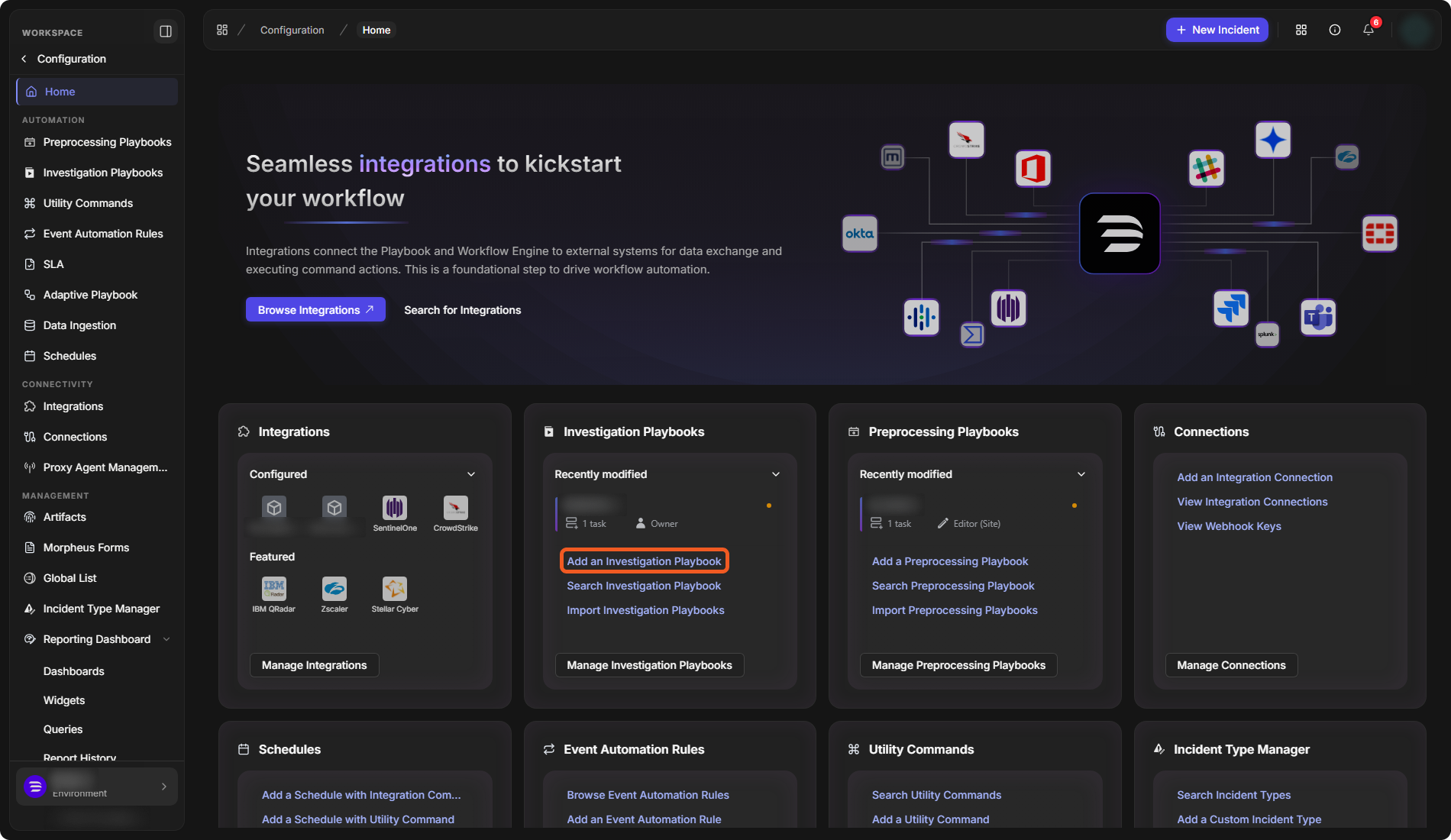
The Home page of Configuration is the starting point for setting up D3. It gathers the configuration modules you use most into one page of cards, each with shortcuts to the common tasks in that module, so you can start a task without first finding the module in the sidebar.
To open it, select Configuration > Home in the sidebar.
The Configuration Home page
The Integrations Banner
The banner at the top of the page is about integrations, which connect D3's playbooks to external systems so they can exchange data and run commands. It has two buttons:
-
Browse Integrations opens the Integrations page.
-
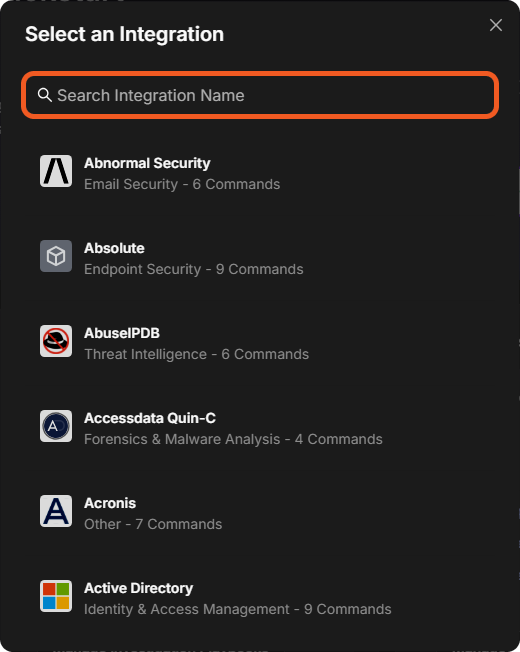
Search for Integrations opens the Select an Integration window. Type in Search Integration Name to find an integration by name. Each integration is listed with its category and its number of commands.
The Select an Integration window
The Cards
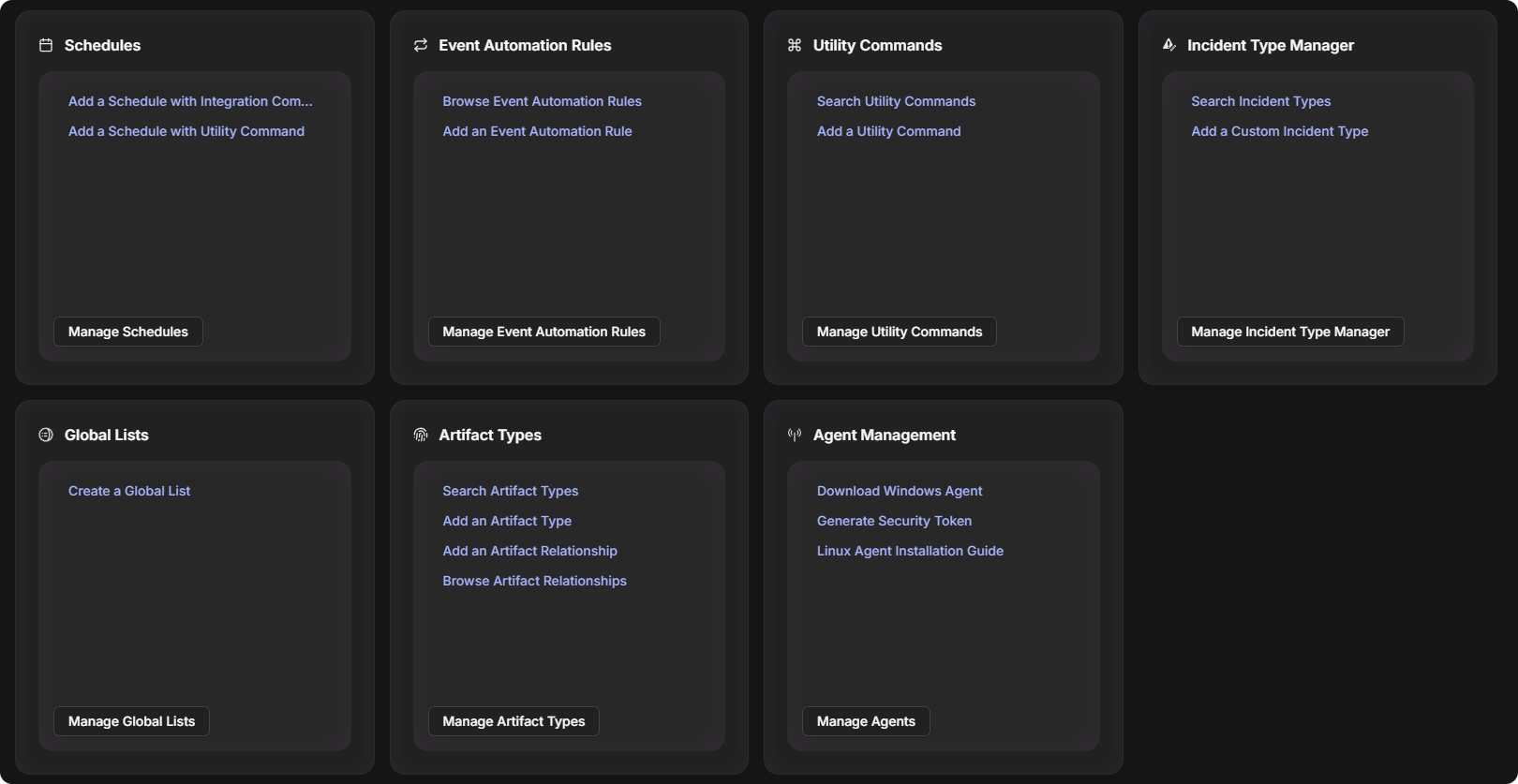
Each card below the banner covers one configuration module. Its links start a task in that module, and the button at the bottom of the card, such as Manage Integrations, opens the module itself.
|
Card |
What it shows and links to |
|---|---|
|
Integrations |
Two rows of integration shortcuts, Configured and Featured. Manage Integrations opens the Integrations page. |
|
Investigation Playbooks |
Recently modified shows a recently changed investigation playbook, with its number of tasks and your permission on it, such as Owner. Add an Investigation Playbook opens a window to name a new playbook. Search Investigation Playbook opens a searchable list of playbooks. Import Investigation Playbooks and Manage Investigation Playbooks open the Investigation Playbooks page. |
|
Preprocessing Playbooks |
The same layout for preprocessing playbooks: Add a Preprocessing Playbook, Search Preprocessing Playbook, Import Preprocessing Playbooks and Manage Preprocessing Playbooks. |
|
Connections |
Add an Integration Connection opens the New Integration Connection window, where you choose the integration to connect. View Integration Connections opens the Connections page, and View Webhook Keys opens its Webhook Keys tab. |
|
Schedules |
Add a Schedule with Integration Command and Add a Schedule with Utility Command open the Schedule Your Command window. Manage Schedules opens the Schedules page. |
|
Event Automation Rules |
Browse Event Automation Rules, Add an Event Automation Rule and Manage Event Automation Rules open the Event Automation Rules page. |
|
Utility Commands |
Search Utility Commands opens a searchable list of utility commands. Add a Utility Command opens the Add Command window. Manage Utility Commands opens the Utility Commands page. |
|
Incident Type Manager |
Search Incident Types opens a searchable list of incident types. Add a Custom Incident Type opens the New Incident Type window. Manage Incident Type Manager opens the Incident Type Manager page. |
|
Global Lists |
Create a Global List opens the Add Global List window. Manage Global Lists opens the Global List page. |
|
Artifact Types |
Search Artifact Types opens a searchable list of artifact types. Add an Artifact Type, Add an Artifact Relationship, Browse Artifact Relationships and Manage Artifact Types open the Artifacts page. |
|
Agent Management |
Generate Security Token opens the Generate Security Token window, which creates a token for installing a proxy agent. Linux Agent Installation Guide opens the Linux agent installation article in a new tab. The card also has Download Windows Agent. Manage Agents opens the Proxy Agent Management page. |
The lower cards
Creating a Playbook from Home
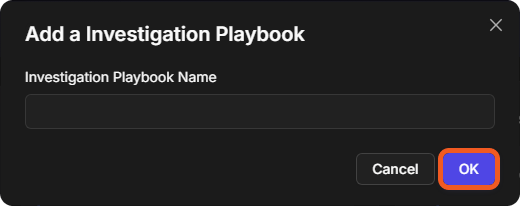
The playbook cards let you create a playbook without leaving the page.
-
On the Investigation Playbooks card, select Add an Investigation Playbook. For a preprocessing playbook, select Add a Preprocessing Playbook on its card.
-
Enter the Investigation Playbook Name.
-
Select OK.
The Add a Investigation Playbook window
To build the playbook's tasks, see Investigation Playbooks.