
Last Updated: October 23, 2026
Overview
The Reporting Dashboard module turns your security data into charts, tables and numbers that security managers, SOC teams and MSSPs can read at a glance. It is under Configuration › Reporting Dashboard.
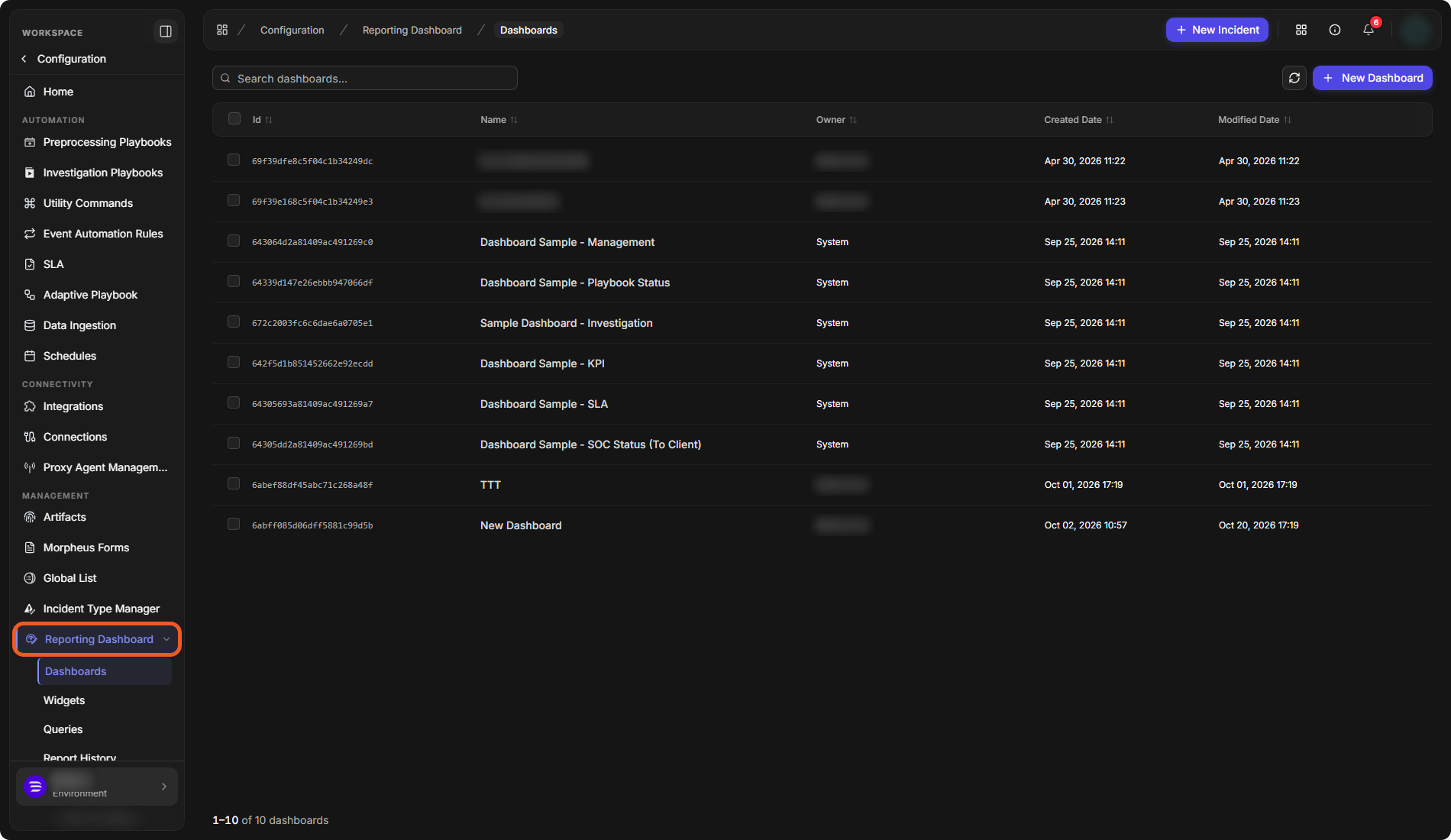
Reporting Dashboard in the Configuration menu
The Parts of Reporting Dashboard
Reporting Dashboard expands into these pages:
-
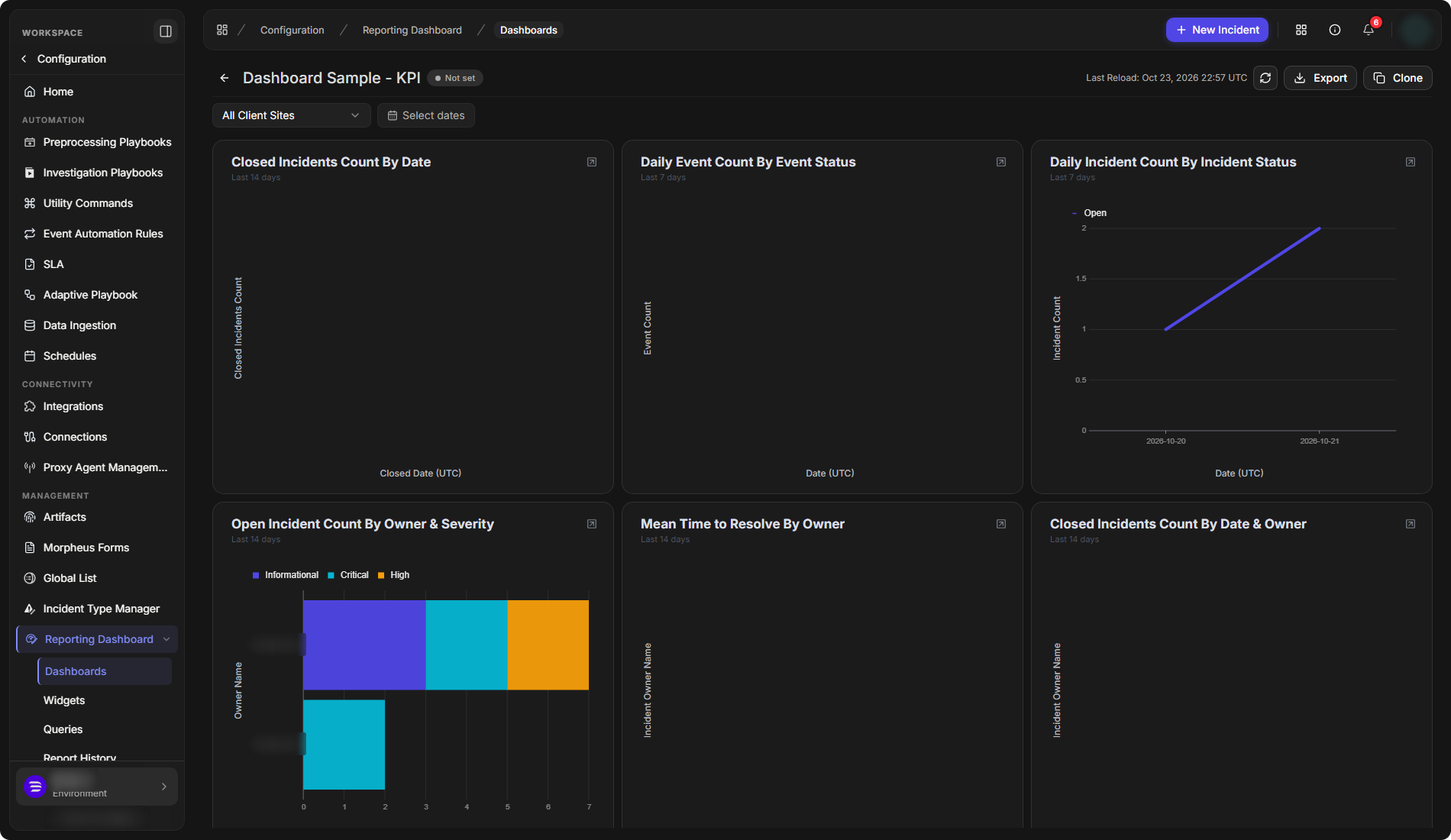
Dashboards: pages that arrange widgets side by side, with a site filter and a date range. See RD Dashboards.
-
Widgets: the building blocks. Each widget draws the data of one query as a chart, table, number or list. See RD Widgets.
-
Queries: the saved queries that widgets take their data from. See Reporting Queries.
-
Report History: the dashboard reports that were sent by email, with the dashboard, recipients, sent time, site and status of each, and a Revoke action.
A dashboard of widgets
How a Widget Is Built
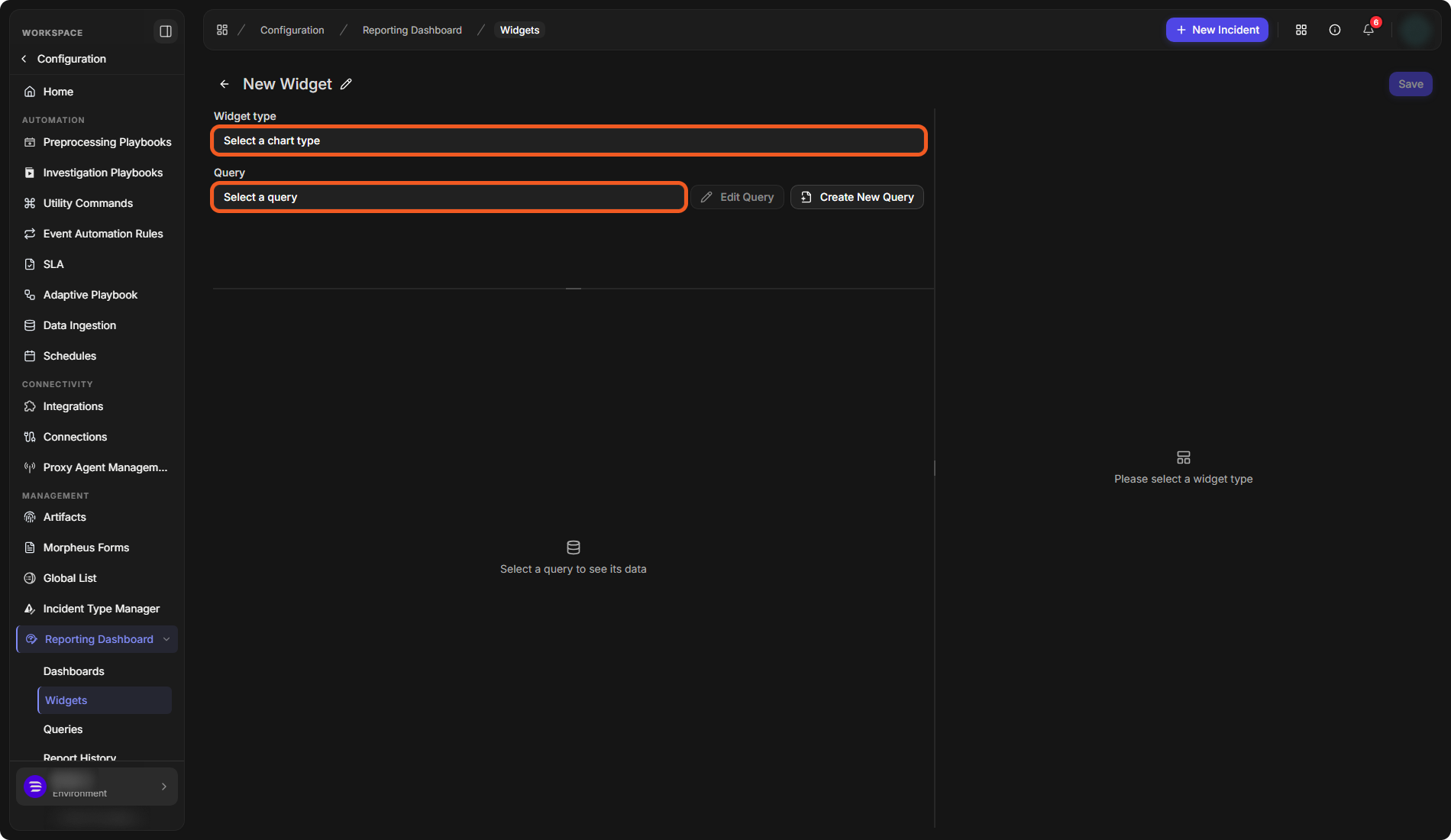
A widget is built on one screen, in three parts:
-
Query: select a saved query in the Query field, or select Create New Query to build one. The query sets the data source, the filters and the time range.
-
Widget type: select a chart type, for example a line, bar, column or pie chart, a data table, or a number.
-
Settings: complete the settings the chosen widget type asks for, such as which fields to chart.
The widget editor
For the full steps, see RD Widgets. For what changed in the 18.6 dashboard and widget pages, see Reporting Dashboards and Widgets.