
Last updated: October 20, 2026
Overview
A Reporting Query is a saved question about your data: which data source to read, for which site, over what date range, and with which filters. You build it once on the Queries page and attach it to as many widgets as you like, so a change to the question reaches every widget that uses it instead of being repeated widget by widget.
Before queries had their own page, every widget carried a private copy of its question. Two widgets that needed the same incidents meant building the same filters twice, and the two copies drifted apart as soon as someone edited one of them. A saved query keeps one version of the question and lets you share it, control who can change it, and see exactly which widgets depend on it before you edit or delete it.
READER NOTE
The Queries page is part of the new reporting experience. If you do not see Queries under Reporting Dashboard, contact D3 Support to have the new reporting experience turned on for your instance.
In short
|
# |
Stage |
Where it happens |
|---|---|---|
|
1 |
Create and save a query |
Configuration > Reporting Dashboard > Queries > New Query |
|
2 |
Attach it to a widget |
The Query field in the widget editor |
|
3 |
Check which widgets use it |
Used by button in the query editor |
|
4 |
Decide who can see and change it |
Permissions button in the query editor |
|
5 |
Share or remove several at once |
Row checkboxes on the Queries list |
|
6 |
Delete it when no widget needs it |
Trash icon on the Queries list |
Roles and Access
You need the new reporting experience turned on for your instance, and you need access to the Configuration area. Your role needs the Reporting Dashboard privilege (or Client Access), the same requirement as for Widgets. Anyone who can open the Queries tab can create queries.
What you can do with an individual query depends on the access level it gives you:
|
Access level |
What you can do |
|---|---|
|
Owner |
Everything an Editor can do. The person who created the query is always its owner. |
|
Editor |
Open, change, save, share, and delete the query. |
|
Viewer |
Open the query and read it. The editor is read-only and the query cannot be deleted. |
|
Blocked |
The query is hidden from you. |
New queries start owner-only. Queries that existed before this release take their sharing from the widgets that already used them—refer to Controlling Who Can Use a Query.
The Queries List
The Queries page lists every saved query you can see, so you can find the one you need, open it, or clean up the ones you no longer use. Open it from Configuration > Reporting Dashboard > Queries.
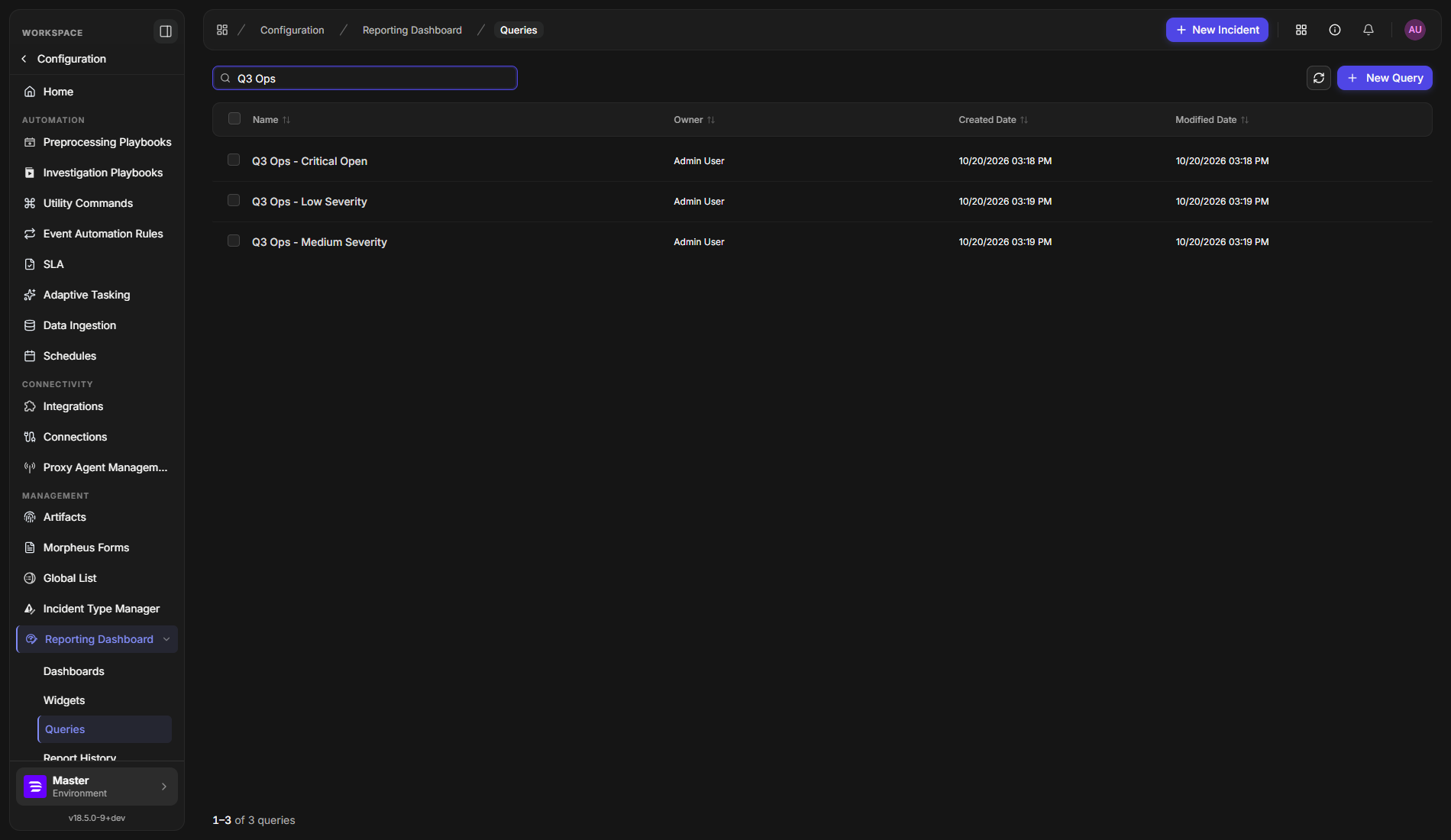
Each row shows the query's Name, its Owner, its Created Date, and its Modified Date. Select a column heading to sort by it; select it again to reverse the order, and a third time to return to the default order, which is by name. The page shows 48 queries at a time, and the counter at the bottom—for example, 1–48 of 159 queries—tells you how many there are in total.
-
Search: type in Search queries to narrow the list by name. If nothing matches, the page says No queries match and offers Clear search.
-
Refresh: select the refresh icon to reload the list.
-
New Query: select + New Query to create a query.
-
Open a query: select its row.
-
First-time view: before anyone has created a query, the page says No queries yet and points you to New Query.
Queries owned by System are built-in queries that D3 supplies. You can open them but not change or delete them, and their checkboxes are disabled.
Creating a Query
Creating a query defines the data a set of widgets will share. You choose the data source, the site, and the date range, then narrow the data with filters.
READER NOTE
Save stays disabled until the query has a name and a data source. Run Query stays disabled until you have chosen a data source, a site, and a date range. Hover over a disabled button to see what is missing.
-
Go to Configuration > Reporting Dashboard > Queries.
-
Select + New Query.
-
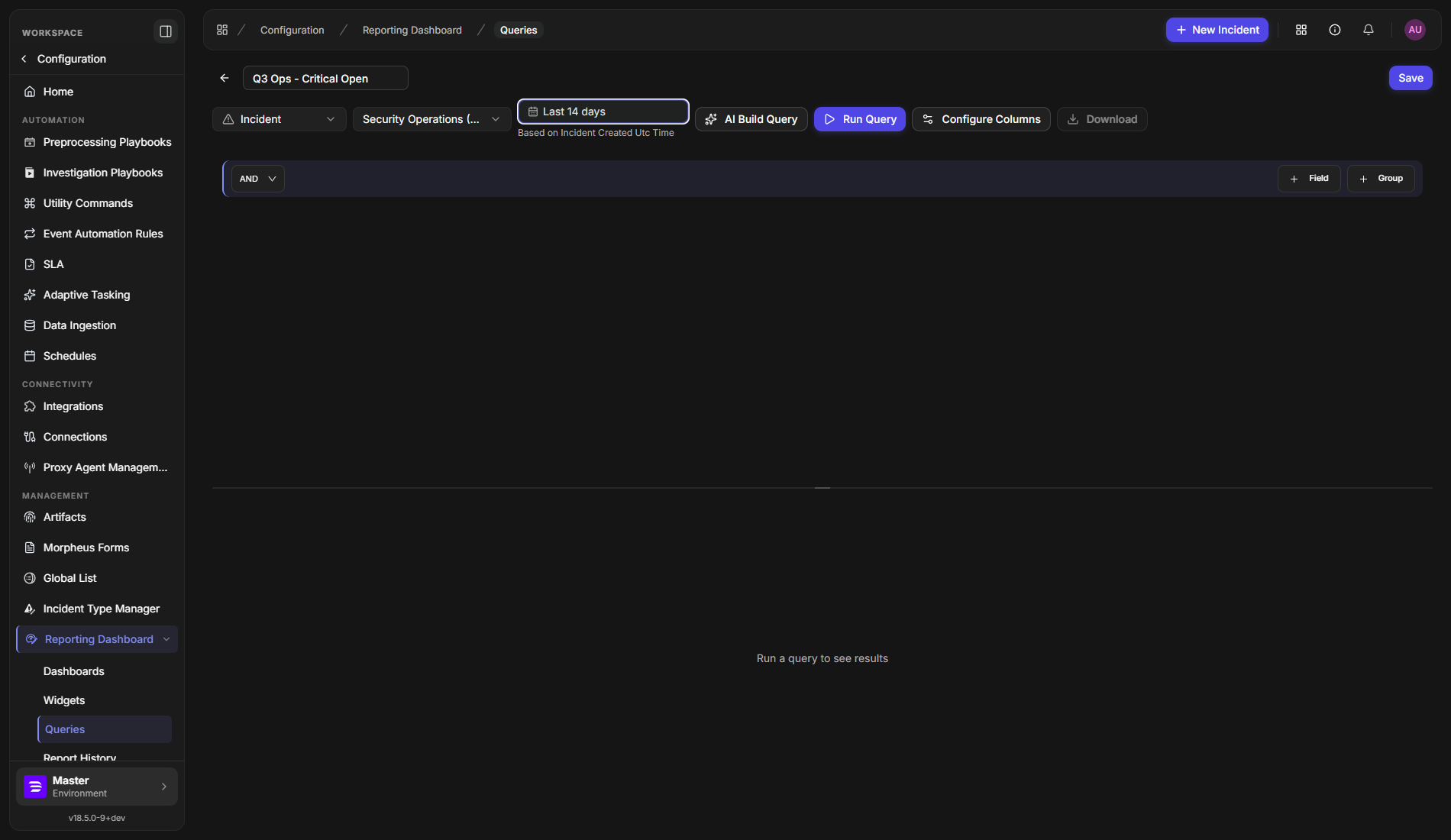
Enter a name in Query name. Choose a name that tells other people what the data is, such as
Q3 Ops - Critical Open. -
Select a Data source: Artifact, Event, Global List, or Incident. If you choose Global List, select which list to use.
-
Select a Site.
-
Select the date range. Choose a preset such as Last 7 days, Last 30 days, Last 12 months, or Last full month, or pick exact dates on the calendar. The line under the control, such as Based on Incident Created Utc Time, tells you which date the range is measured against. Global Lists have no date range.
-
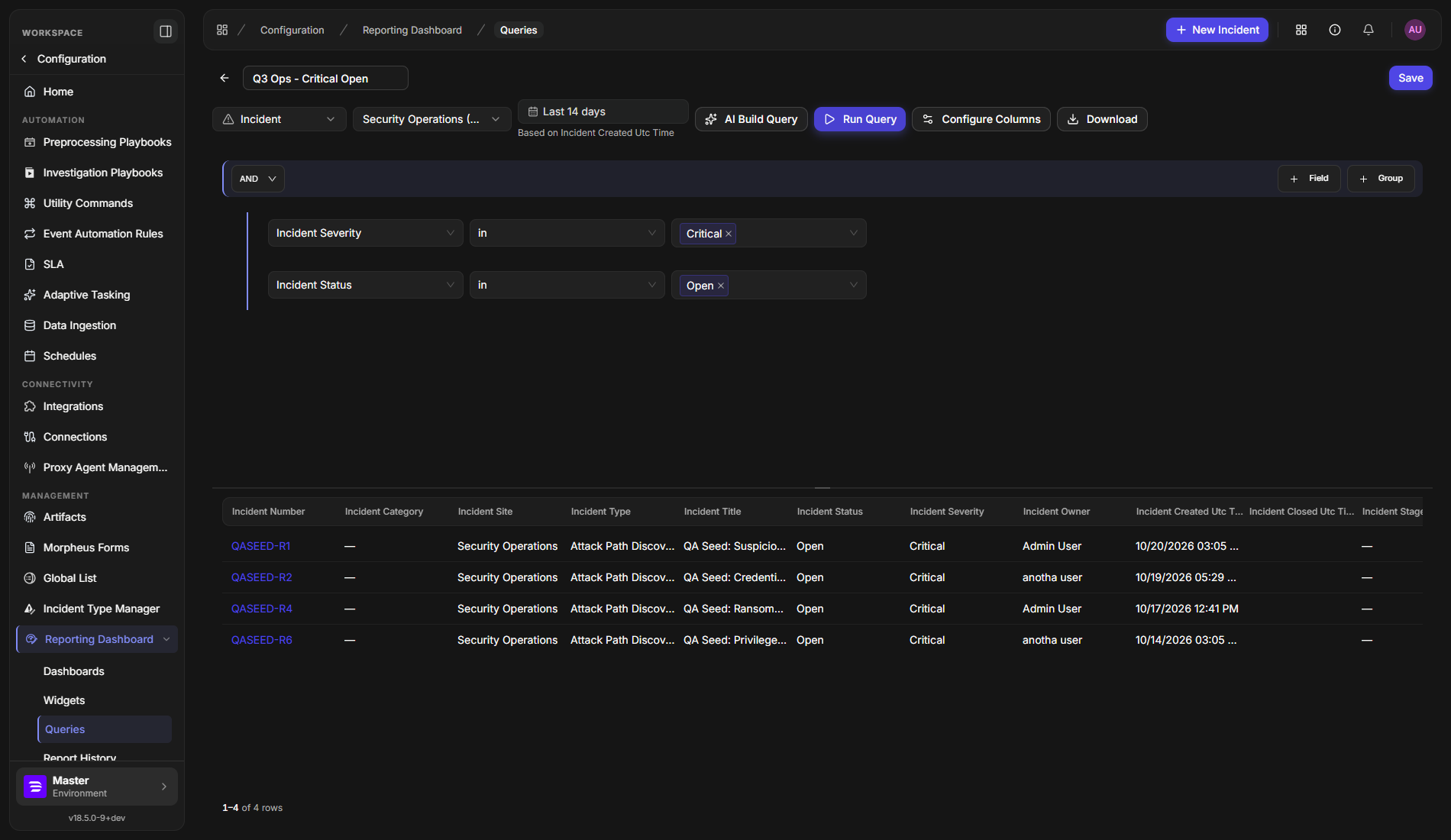
Select + Field to add a filter rule. Choose a field, an operator (in, not in, is empty, or is not empty), and one or more values. Select + Group to add a nested set of rules. Use the AND menu at the top of a group to choose how its rules combine.
-
Select Run Query to preview the results.
-
Select Save.
RESULT
The preview lists the matching rows below the filters, with a count such as 1–15 of 15 rows. After you select Save, a Query created message appears and you stay on the query's own page.

Other controls in the editor help you shape the data before you save:
-
AI Build Query (shown when AI reporting is turned on for your instance) writes the filters for you from a plain description.
-
Configure Columns chooses which columns the query returns and in what order.
-
Download saves the previewed results to a file. It is available once a run returns rows.
-
Simple Mode and Advanced Mode (shown only to people who can write their own aggregation scripts) switch between the filter builder and a script editor. Use Advanced Mode when the filter builder cannot express what you need: you write your own Python aggregation script, run it, and see its output. The toggle appears only when script aggregation is turned on for your instance and your role is allowed to use it.
Saving and Applying Changes
Saving works the same way in the query editor and the widget editor: one Save button, no separate Cancel, and you stay on the page afterward so everything else you can do with the record is still in front of you.
-
Save keeps you on the record's own page. A new query or widget moves to its own page after the first save, which is why Permissions and Used by appear straight away instead of after you reopen it.
-
Back arrow (top left) leaves the page. Anything you have not saved is discarded, which is why there is no Cancel button.
-
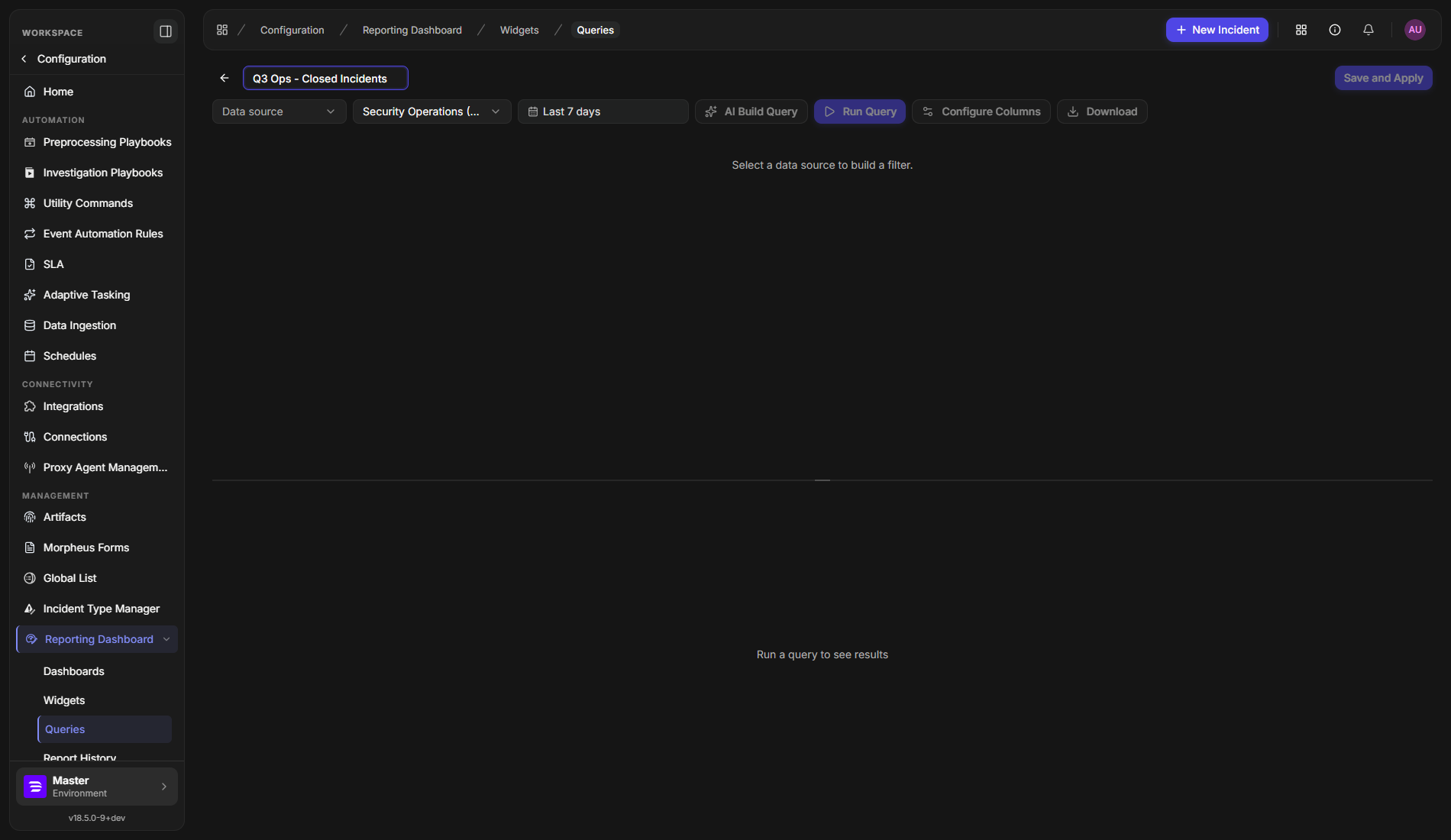
Save and Apply replaces the old Save followed by Back to Create Widget. It appears when you open the query editor from a widget by selecting Create New Query.
To create a query while you are building a widget:
-
In the widget editor, select Create New Query.
-
Name the query, choose its data source, site, and date range, and add any filters.
-
Select Save and Apply.
RESULT
The query is saved and you return to your widget with the new query already selected and everything else you entered in the widget unchanged.
NOTE
If you select the back arrow instead, you return to the widget exactly as you left it, and no query is created or selected.
Using a Query in a Widget
A widget gets its data from a query, and picking a saved query means the widget always shows the current version of it. Several widgets can use the same query.
-
Go to Configuration > Reporting Dashboard > Widgets and select + New Widget, or open an existing widget.
-
Under Widget type, select Select a chart type and choose a type.
-
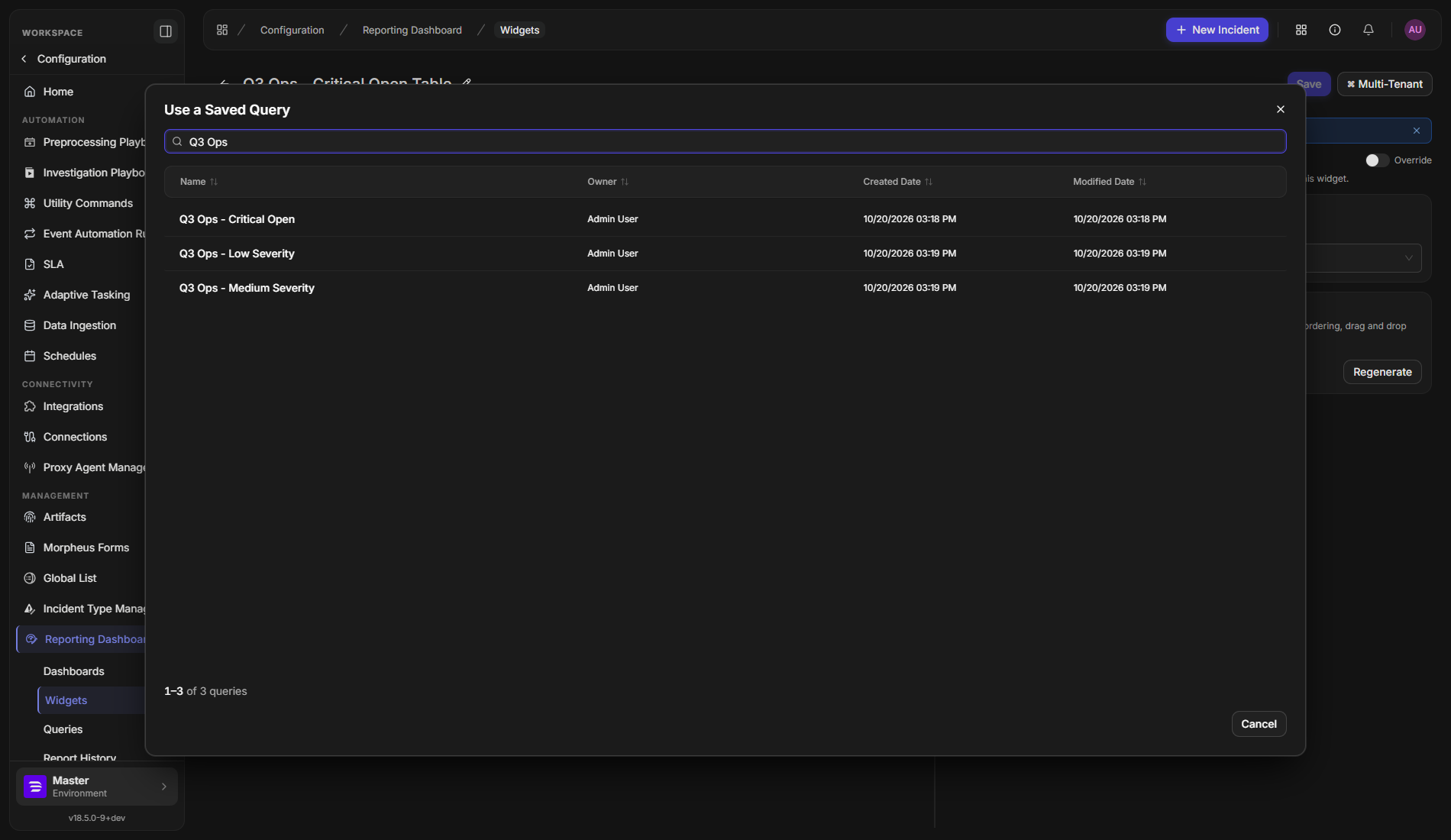
Under Query, select Select a query.
-
In Use a Saved Query, search for the query by name and select its row.
RESULT
The query's name appears in the Query field, its data source appears under Data Source for reference, and the widget previews the query's rows.
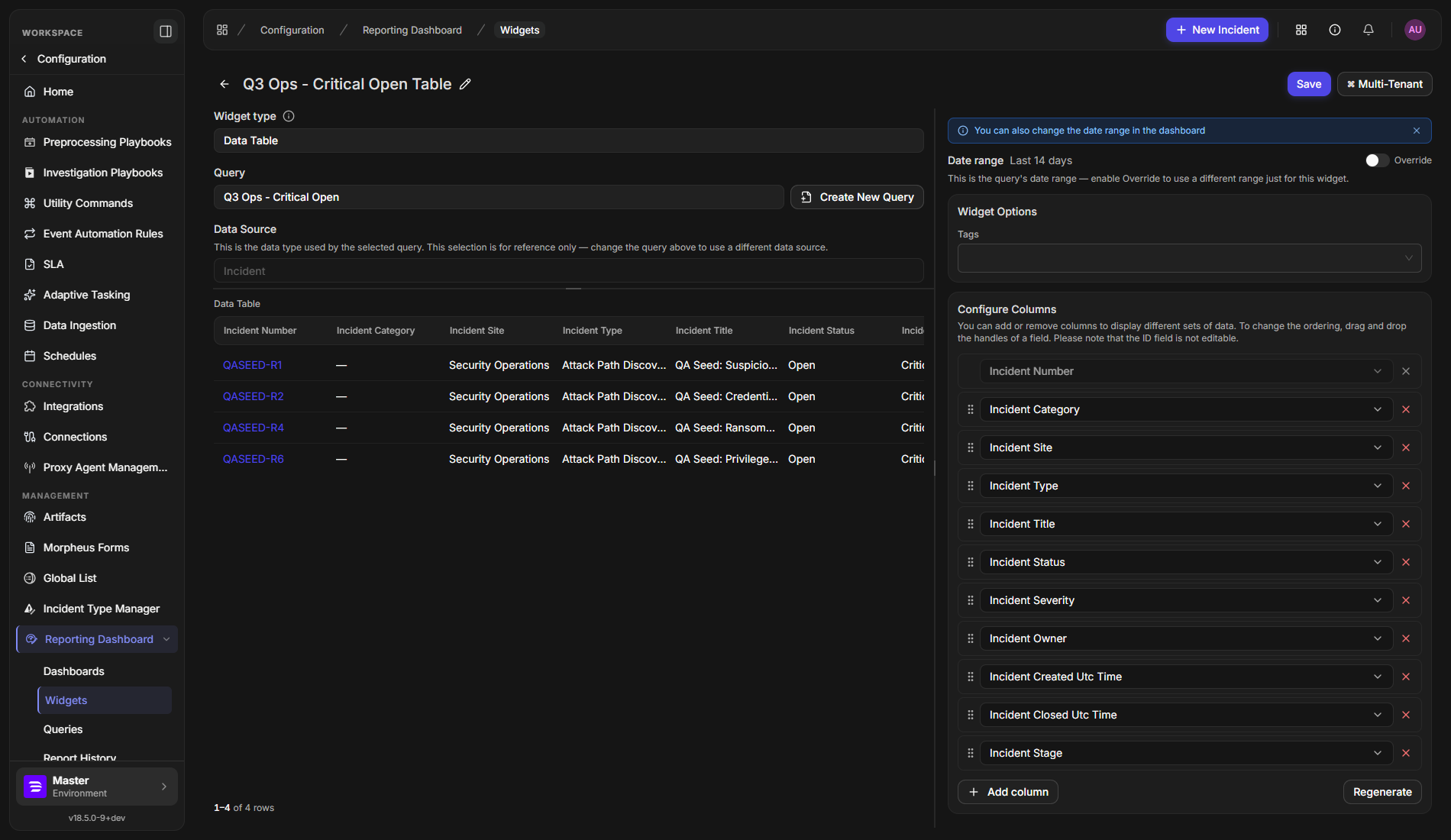
Three things to know when a widget uses a saved query:
-
Editing the query updates every widget that uses it. Change the filters once on the Queries page and each widget shows the new data the next time it loads.
-
The date range comes from the query. The widget shows the query's date range. Turn on Override next to Date range to give just this widget a different range.
-
The data source is for reference only. To use a different data source, pick a different query.
Widgets that carry their own query from before this release are unaffected and keep working as they did.
READER NOTE
Select Create New Query next to the Query field to build a new one without leaving the widget—see Saving and Applying Changes.
Checking Where a Query Is Used
Because editing a query changes every widget that uses it, the query editor tells you how many widgets depend on it so you can check the impact before you edit or delete it.
On an existing query, the Used by button in the header shows the live count, for example Used by 2 widgets.
-
Open the query.
-
Select Used by 2 widgets.
-
Select a widget's name to open that widget's editor.

RESULT
The widget's editor opens, so you can review it before changing the query it depends on.
When no widget uses the query, the button is disabled and reads Used by 0 widgets. Hover over it to see Not used by any widgets. The count and the list include every widget that uses the query, including widgets you do not have permission to open.
Controlling Who Can Use a Query
A saved query can feed widgets that many people depend on, so you decide who may read it and who may change it. Queries use the same access model as dashboards and widgets, which means sharing a query works the way you already share those.
The permission badge
Next to the query name, a badge shows the query's sharing state at a glance. Hover over it for a short explanation.
|
Badge |
What it means |
|---|---|
|
Not set |
Nobody has been added yet, so only the owner can use the query. |
|
Shared |
At least one site or user has been given access. |
|
Private |
Private mode is on: only you can view or edit the query, and every other permission is suspended. |
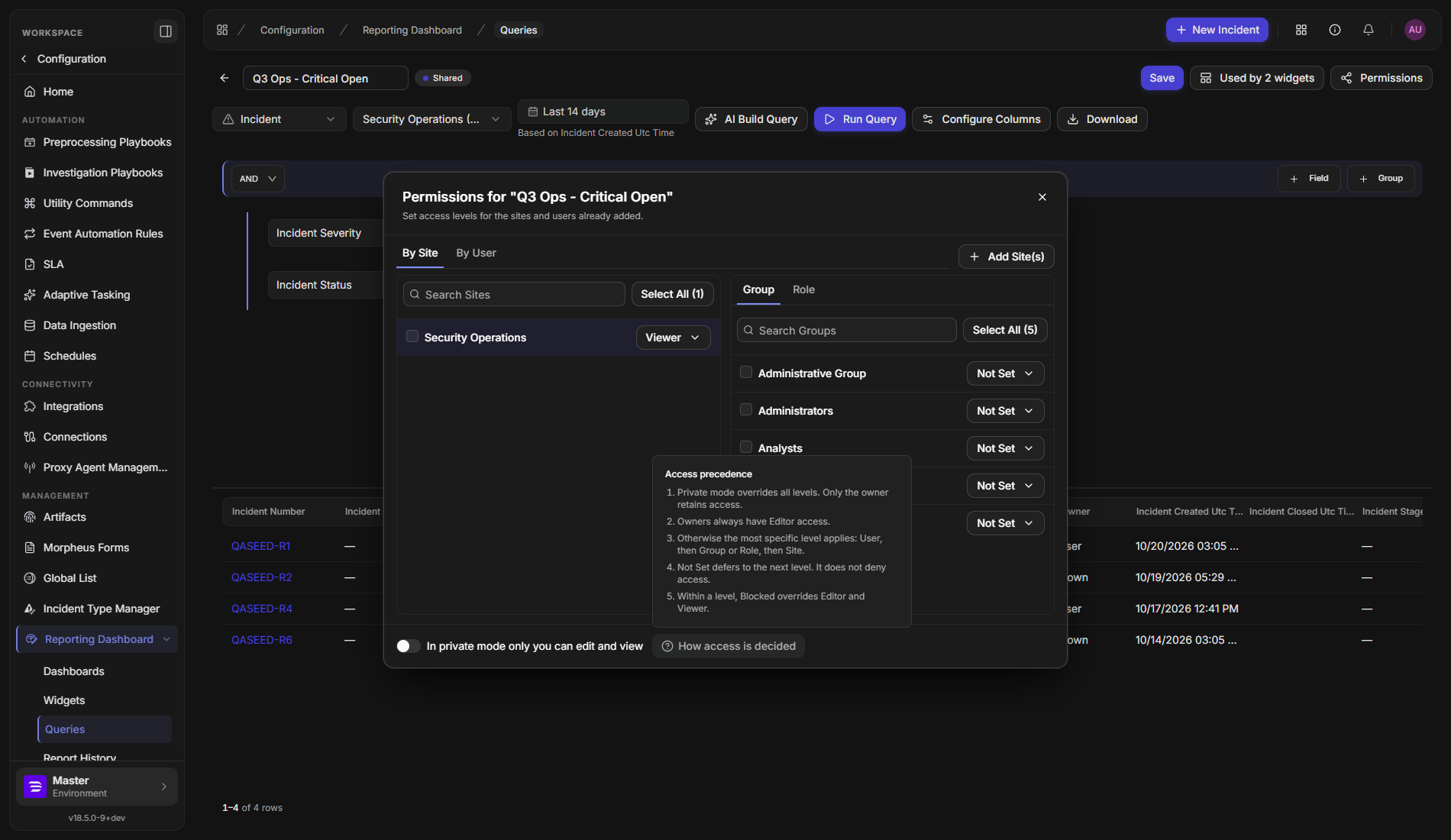
Setting permissions on a query
You need Editor access to a query to change its permissions. The Permissions button appears in the query editor's header once the query is saved.
-
Open the query and select Permissions.
-
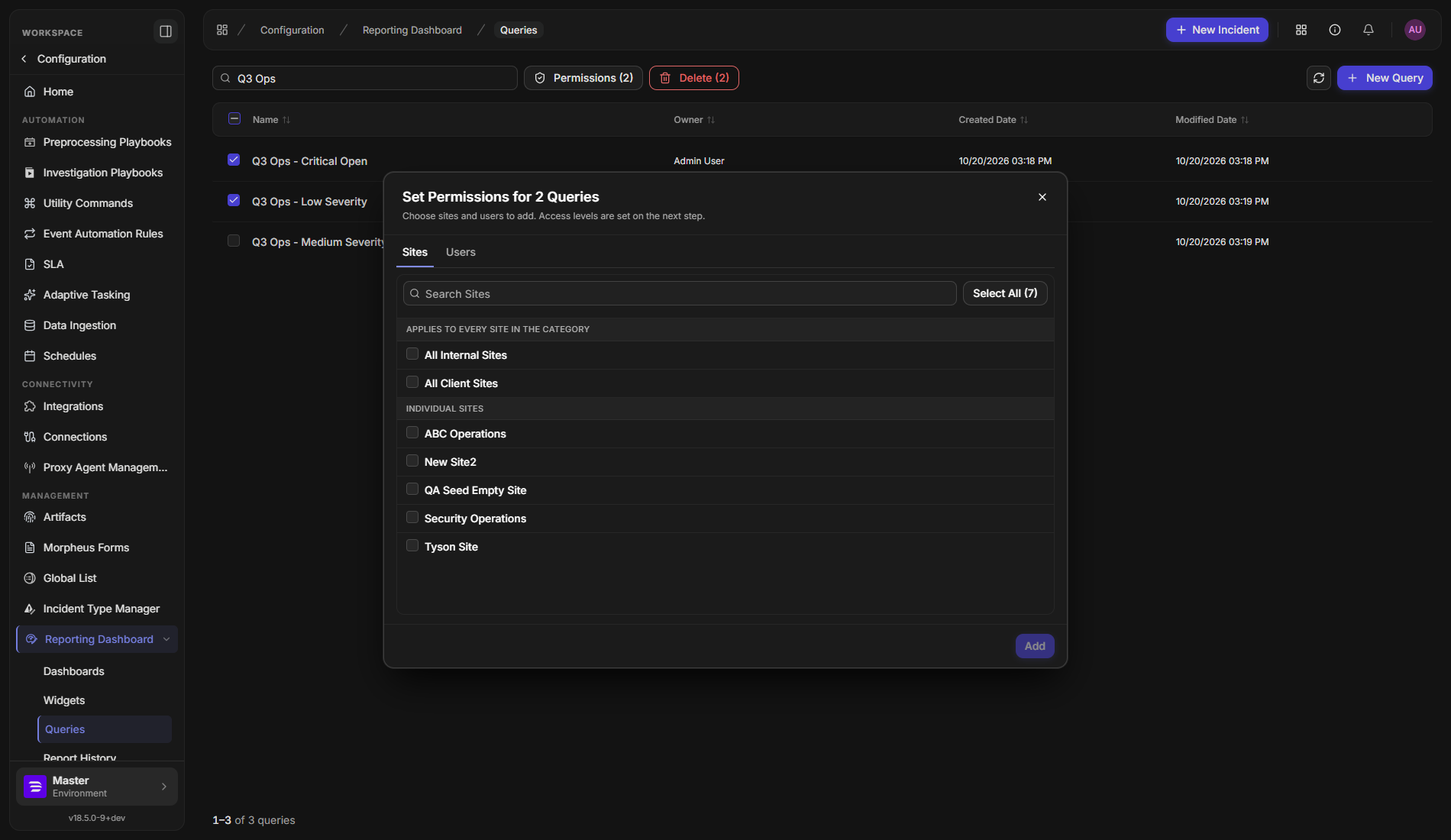
On the Add Site(s) tab, tick the sites to give access to. Choose All Internal Sites or All Client Sites to cover a whole category, or tick individual sites. Use the Add User(s) tab to add individual people.
-
Select Add.
-
On the next step, use the access-level menu beside each site or user to set what they can do. Newly added sites start as Viewer.
-
Close the dialog.
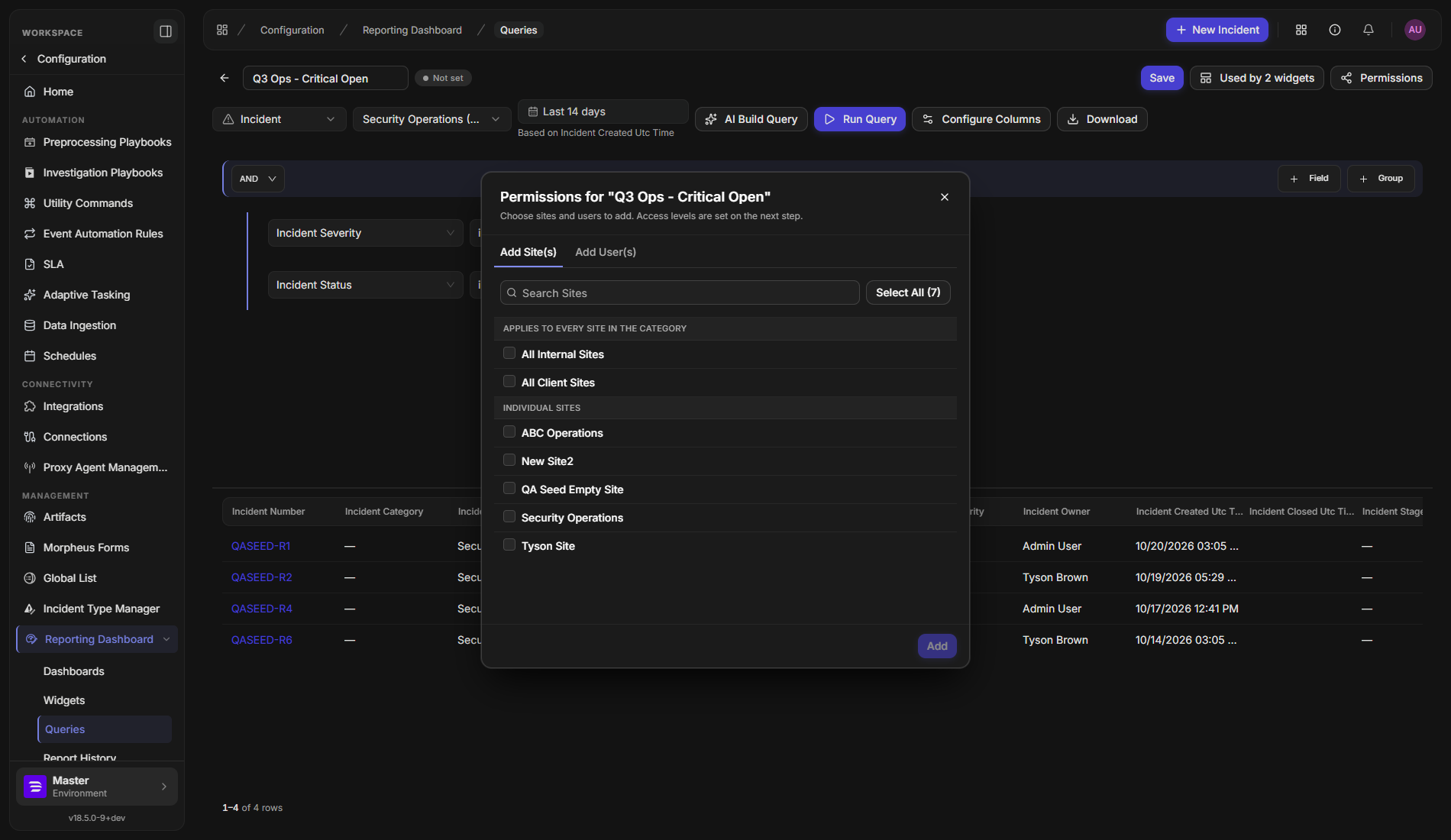
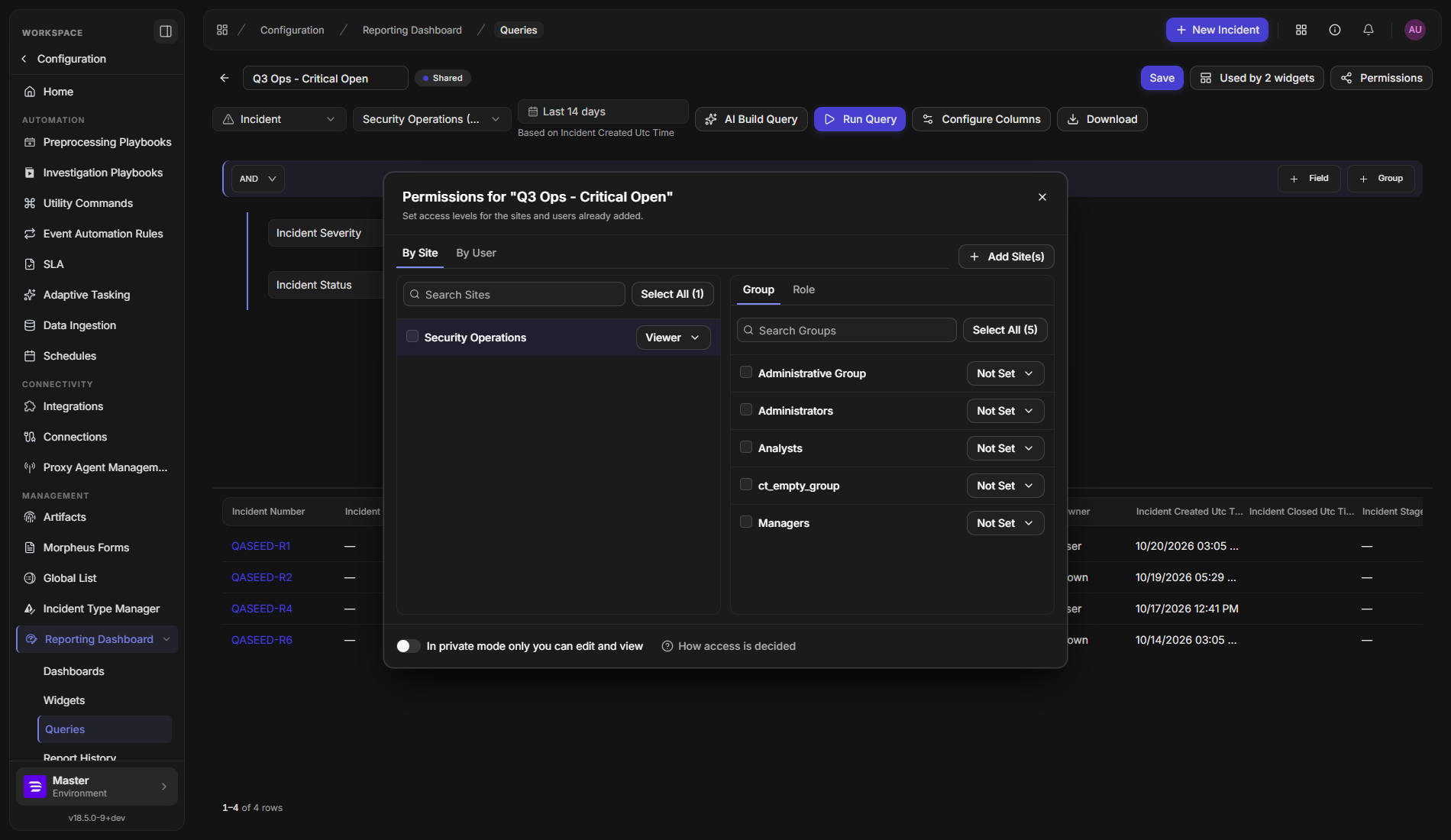
Changes save as you make them; the dialog confirms All changes saved. The badge beside the query name updates when you close the dialog.
WARNING
The first time you add a site or user to a query, the query switches to private mode, and private mode suspends every other permission. Adding people does not turn it off. To make the sharing take effect, turn off In private mode only you can edit and view in the dialog and check that the badge reads Shared.
Access levels
|
Level |
What it allows |
|---|---|
|
Editor |
View, edit, and schedule email. |
|
Viewer |
View only. |
|
Blocked |
No access. Overrides other levels. |
|
Not Set |
Defers to the next level. It does not deny access. |
Groups and roles are set under a site: select a site in the By Site tab, then use its Group and Role tabs.
How access is decided
When more than one setting applies to you, select How access is decided in the dialog to see the order. In short, private mode overrides everything and only the owner keeps access; owners always have Editor access; otherwise the most specific setting wins, in the order user, then group or role, then site; Not Set passes the decision down to the next level; and within one level, Blocked beats Editor and Viewer.
What a viewer sees
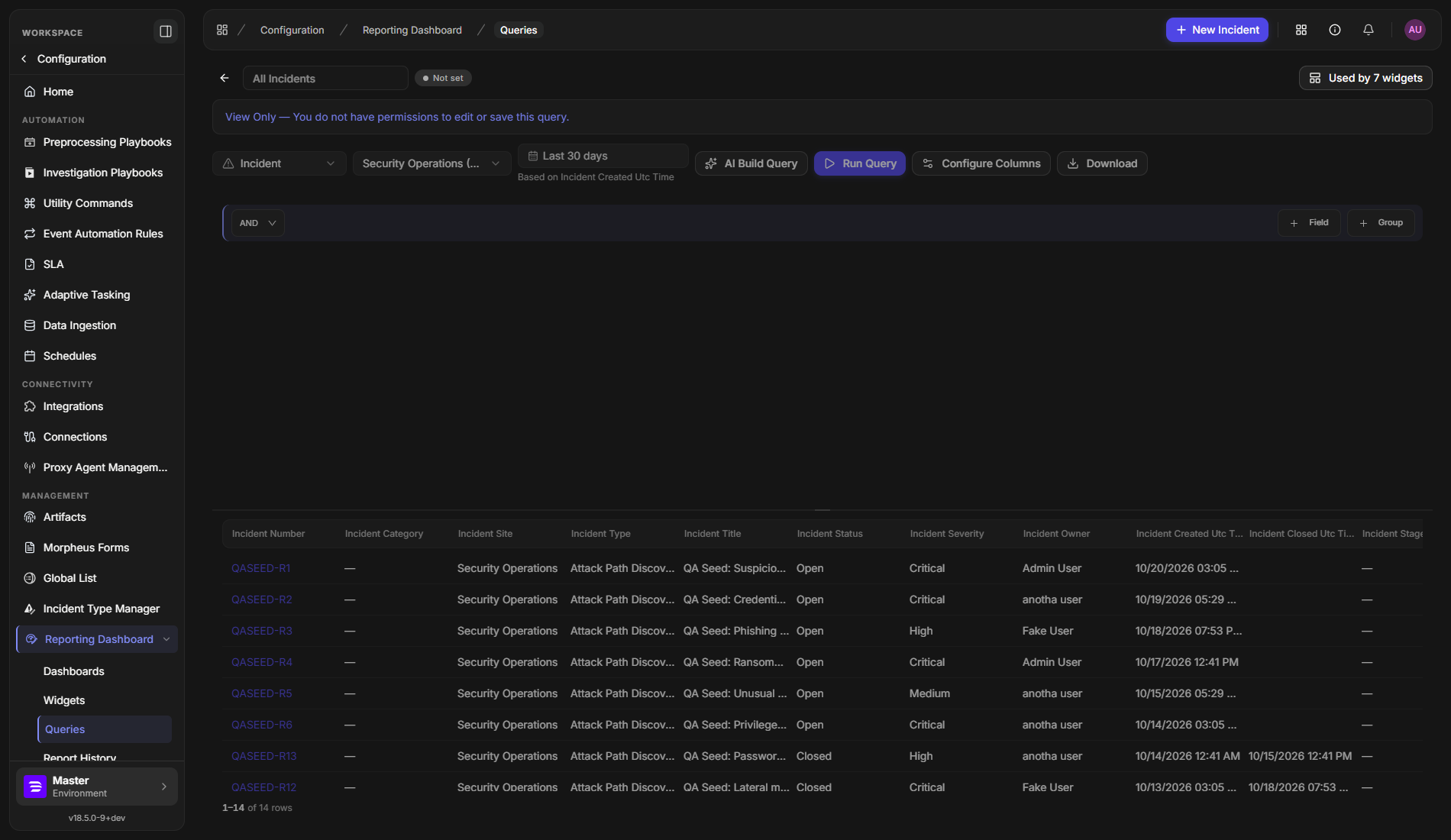
If you can see a query but cannot edit it, the page opens with View Only — You do not have permissions to edit or save this query. The editor is read-only, Save and Permissions are not offered, and the query cannot be deleted. This protects a shared query from being changed by someone who should only read it.
Existing queries and defaults
-
Queries created before this release that are used by shared widgets take their sharing from those widgets. If several shared widgets used a query, it gets the combined sharing of all of them.
-
Every other existing query, including one that no shared widget uses, starts out visible only to its owner, the same as dashboards and widgets.
Sharing Several Queries at Once
When you need to give the same people access to many queries, you can set permissions on all of them in one pass instead of opening each query.
-
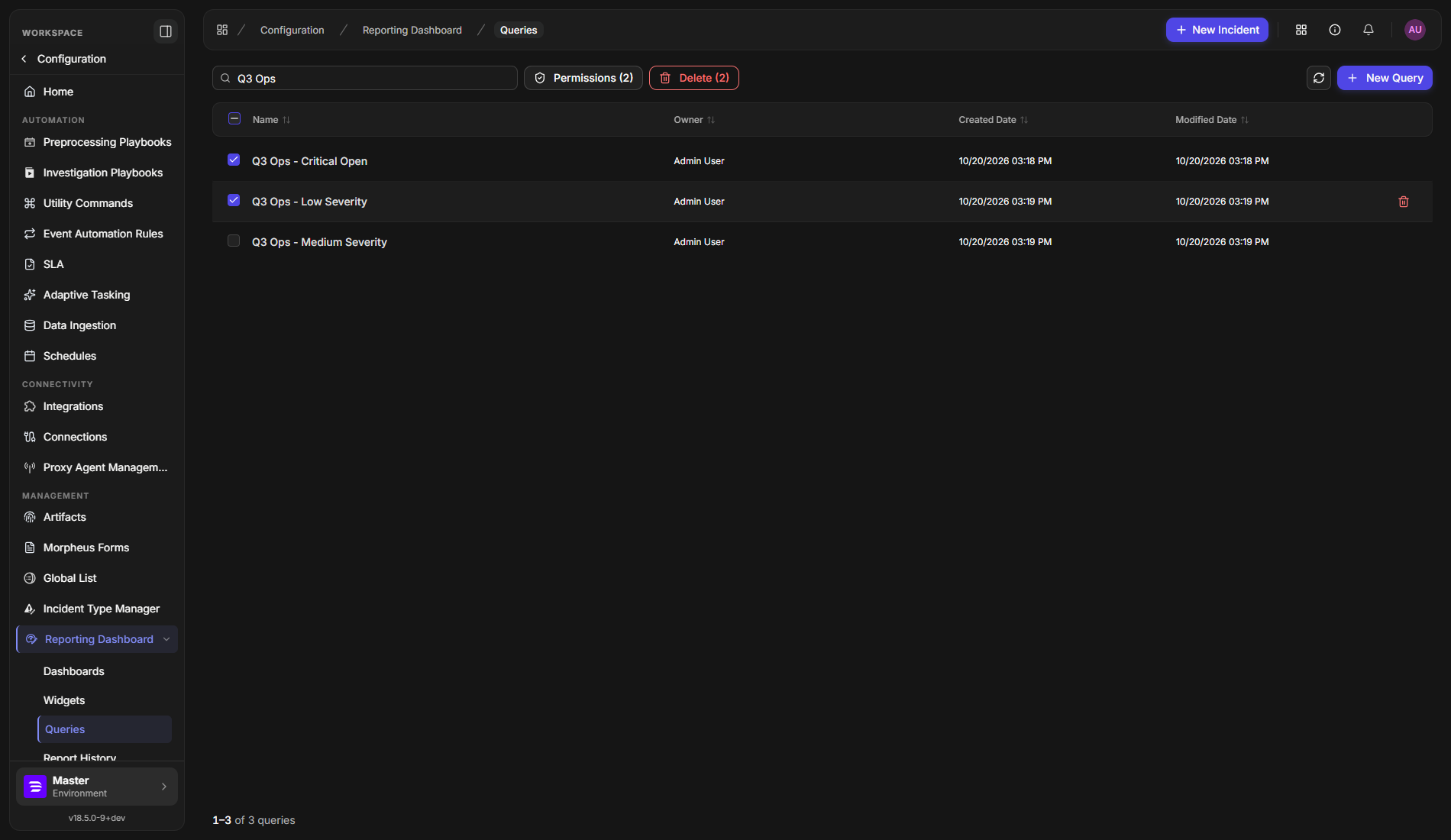
On the Queries list, tick the checkbox beside each query. Tick the checkbox in the header row to select every query on the page.
-
Select Permissions (N), where N is the number of selected queries.
-
In Set Permissions for N Queries, choose the sites and users to add, then select Add.
-
On the second step, choose an access level for each site or user (Editor, Viewer, Blocked, or Not Set), or select Revoke Access to remove one. Select Apply to N Queries.
RESULT
A message tells you how many queries were updated, for example Permissions updated for 2 queries. If some queries could not be fully updated, the message names them so you can check each one.
READER NOTE
Adding a site that already has access to a query leaves that site's existing group and role settings in place. Bulk changes can lower access as well as raise it: you can move a site or user from Editor to Viewer, or remove it with Revoke Access.
Deleting Queries
Delete a query when no widget needs it any more. Deleting is blocked while a widget still depends on the query, so a delete can never leave a widget without its data.
To delete one query, hover over its row and select the trash icon at the end of the row, then confirm Delete Query. To delete several, tick them and select Delete (N).
WARNING
Deleting a query cannot be undone.
The trash icon is greyed out when you cannot delete the query, and hovering over it tells you why:
|
Message |
What to do |
|---|---|
|
Can't delete — used by 2 widgets: … |
Open the query, check Used by, and move or delete those widgets first. |
|
Can't delete — you don't have permission to edit this query. |
Ask the query's owner for Editor access. |
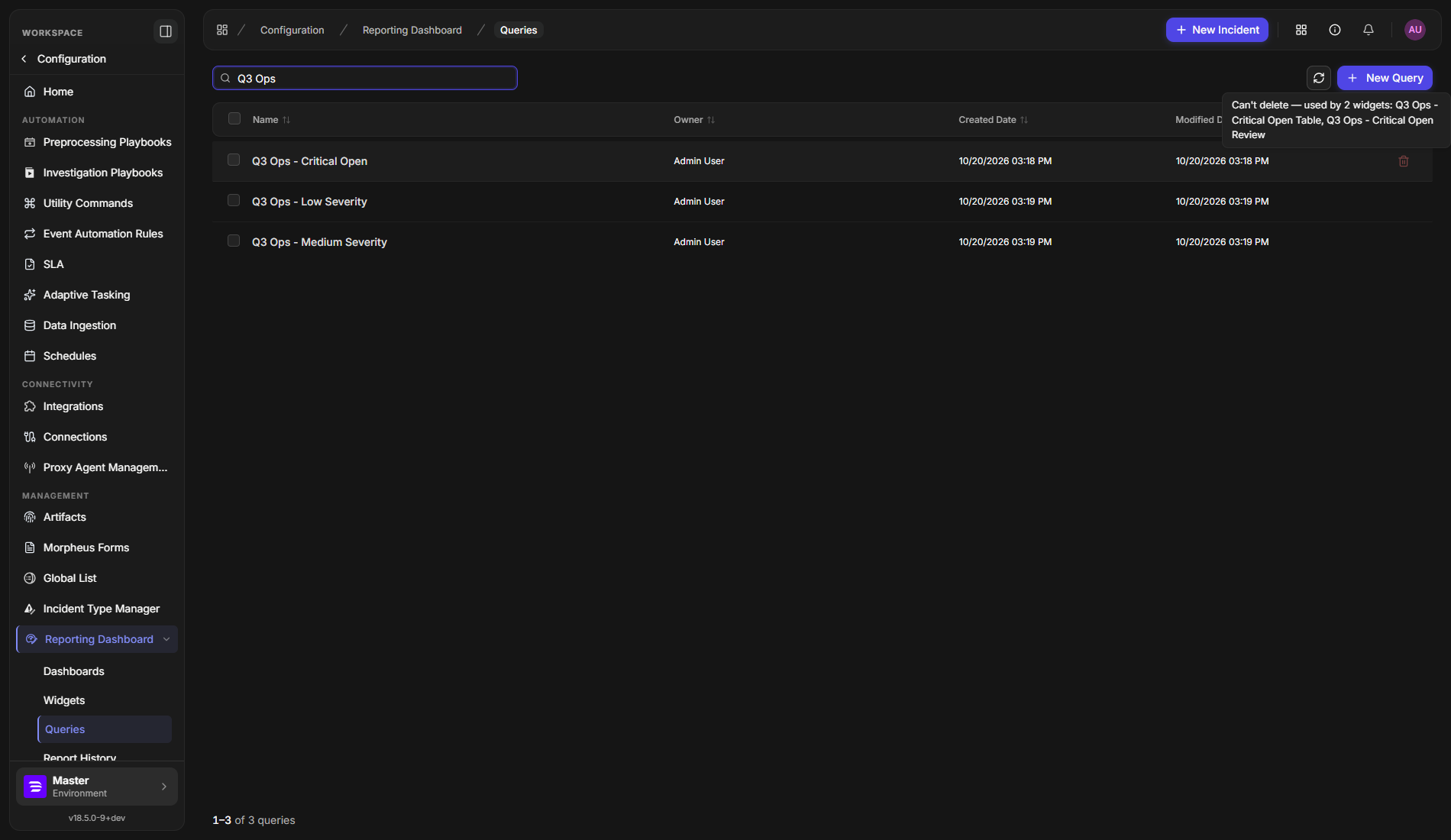
If you delete several queries at once and some are still in use, the in-use ones are skipped and a message lists them and the widgets using them. Built-in queries owned by System have no delete option.
RESULT
Query deleted (or Deleted N queries) appears and the rows leave the list.