
Last Updated: October 27, 2026
Overview
Office hours let SLA time count only while a site is working. "While a site is outside its office hours, SLA timers for that site's incidents pause. Hours are set per site and read in the site's own time zone, so one rule can behave differently for two sites."
Hours can differ by severity. For example, Critical incidents can be measured around the clock while lower severities count only on weekdays.
Office hours on the SLA page
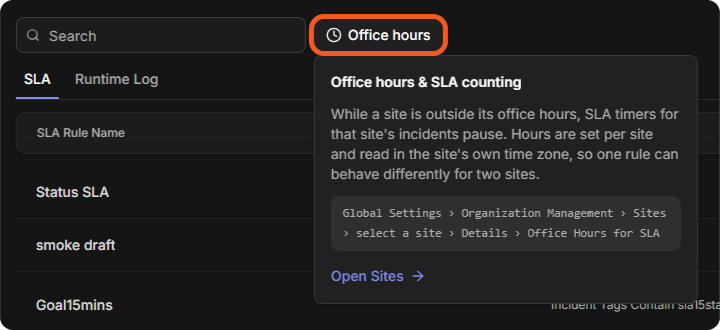
The Office hours button on the SLA page (Configuration > AUTOMATION > SLA) shows this summary and links to the sites with Open Sites. For the SLA rules themselves, see SLA Rules.
Office hours apply to SLAs that start after the change. SLAs already running keep their original deadlines. A severity with no office hours is measured around the clock.
Seeing Which Sites Have Office Hours
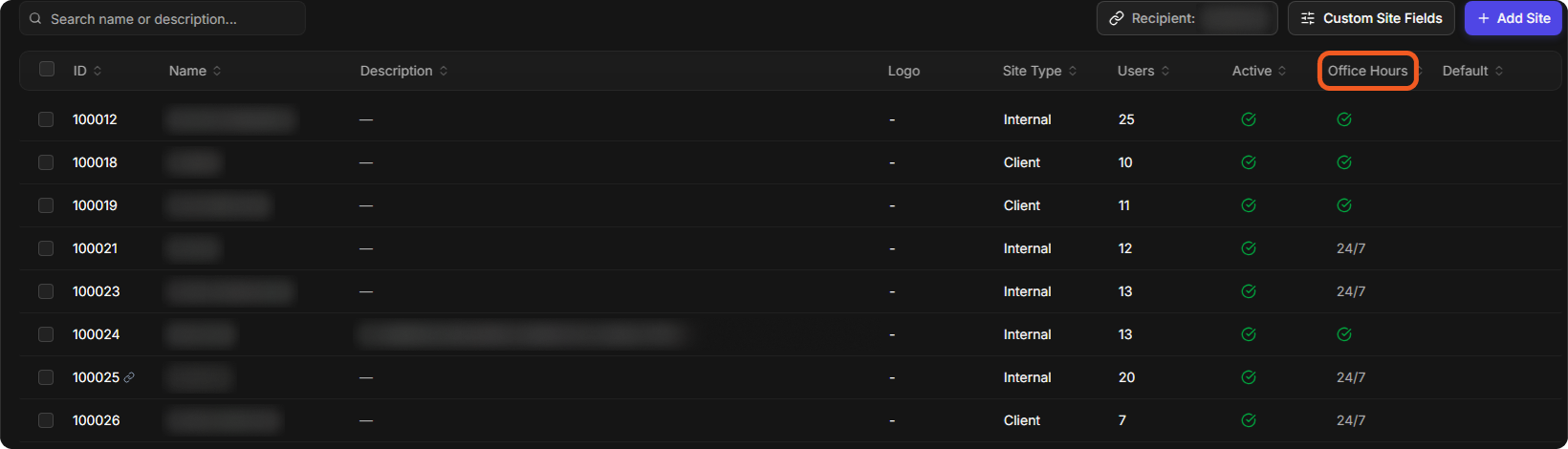
Go to Global Settings > Organization Management > Sites. The Office Hours column shows a check mark for a site with office hours, and 24/7 for a site without them.
The Office Hours column
Viewing a Site's Office Hours
Select a site to open its panel. On the Details tab, Office Hours for SLA lists each severity with its hours ("Times are in the site's local time"). The site's time zone is the Time Zone under Regional, just above.
A site's office hours
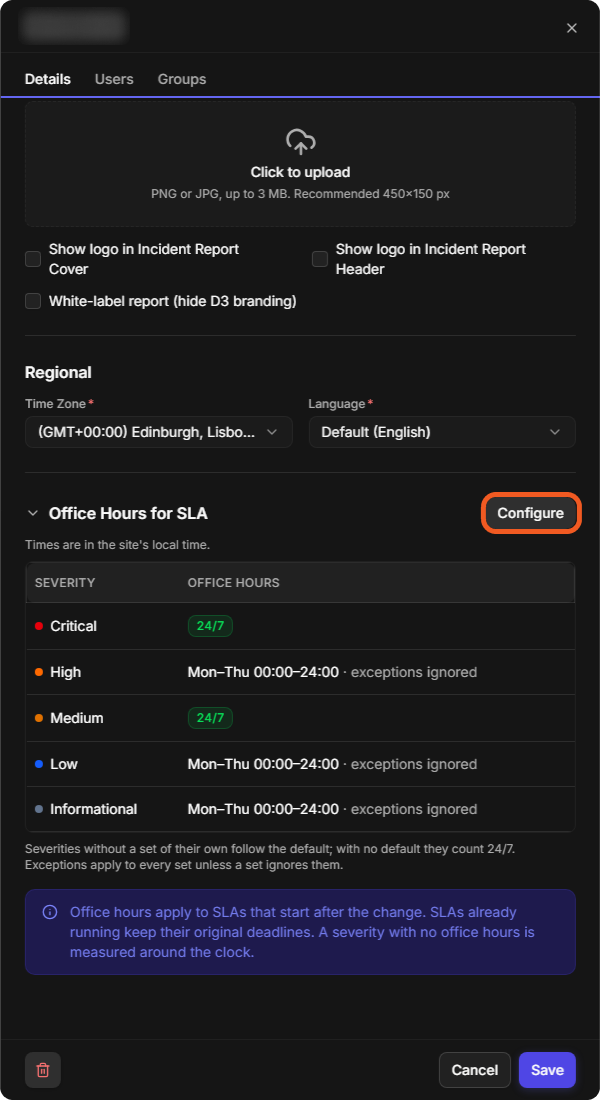
A severity marked 24/7 is measured around the clock. exceptions ignored means the severity's hours do not change on exception dates.
A new site gets office hours after it is saved: in the New Site panel, Configure Office Hours reads "Available after the site is created." For adding sites, see Organization Management.
How Office Hours Are Organized
Select Configure to open Office hours for SLA. The window names the site and its time zone. On the left, SETS lists:
-
Default · all other severities: "Every severity without a set of its own follows these hours."
-
One severity set for each group of severities that need different hours, such as Critical.
-
Exceptions: dates with different hours, such as holidays.
The rule at the bottom of the window: "Severities without a set of their own follow the default; with no default they count 24/7. Exceptions apply to every set unless a set ignores them."
Setting the Default Hours
-
Select Default · all other severities.
-
Select each working day, and choose its start and end time, such as 09:00 to 17:00.
-
Clear the days with no working hours. They show Closed.
-
To add a second period on the same day, select Add time range. To remove a period, select its delete button.
The default hours
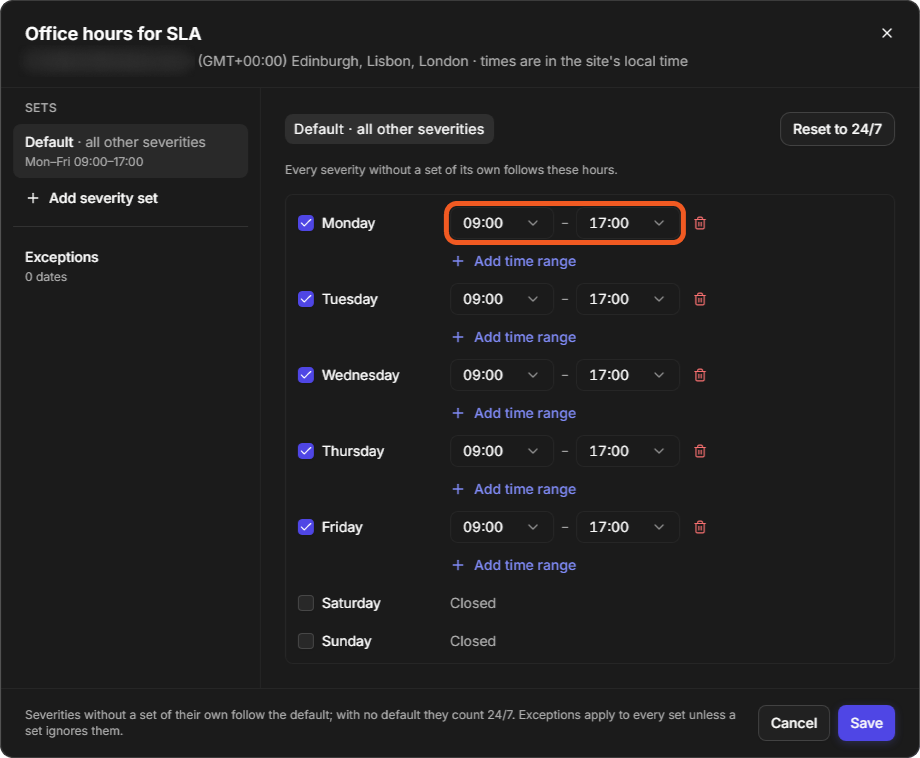
Reset to 24/7 at the top right returns the set to around the clock.
Adding Hours for Some Severities
-
Select Add severity set, and choose the severities. A severity that already belongs to a set is marked "in another set".
-
Set the days and times as for the default, or select Open all week to count the whole week.
-
Optionally, select Ignore exceptions for these severities.
A severity set
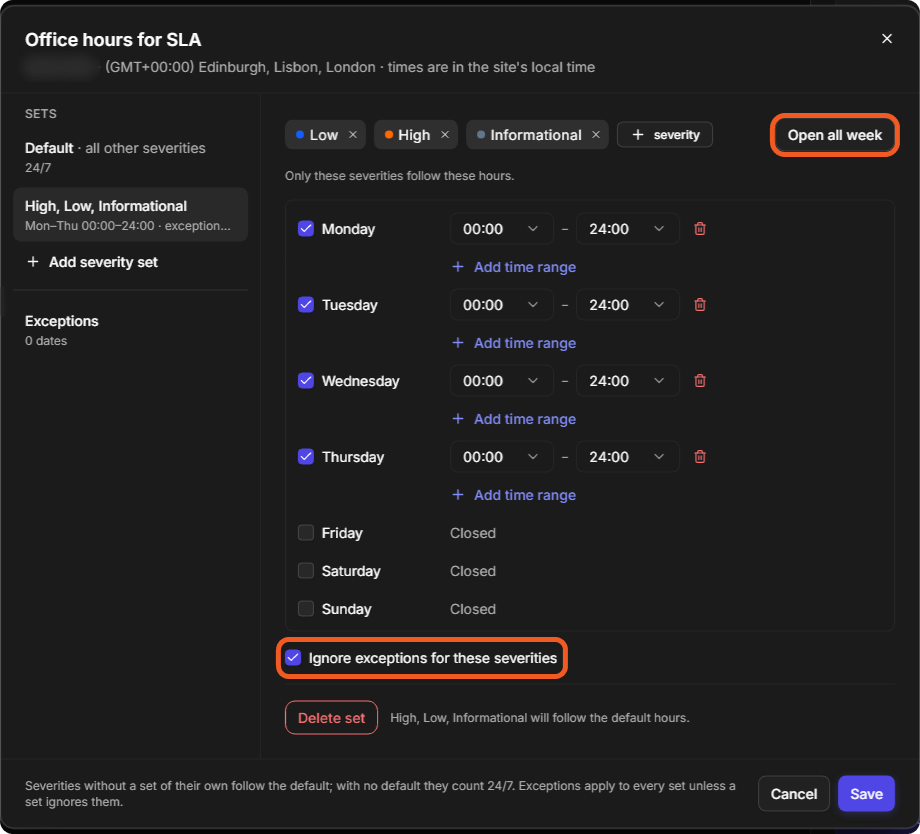
In a set, + severity adds a severity and × removes one ("Only these severities follow these hours"). Delete set removes the set, and its severities then follow the default hours.
Adding Exceptions
"An exception replaces that day's regular hours in every set that does not ignore exceptions."
-
Select Exceptions, then Exception.
-
Pick the date in the calendar.
-
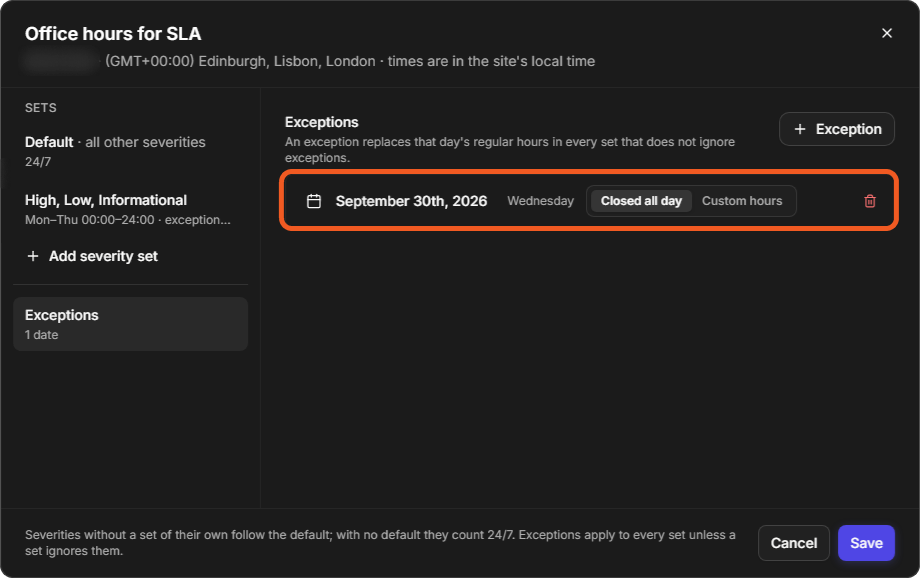
Choose Closed all day, or Custom hours for different hours that day. To remove the exception, select its delete button.
Exceptions
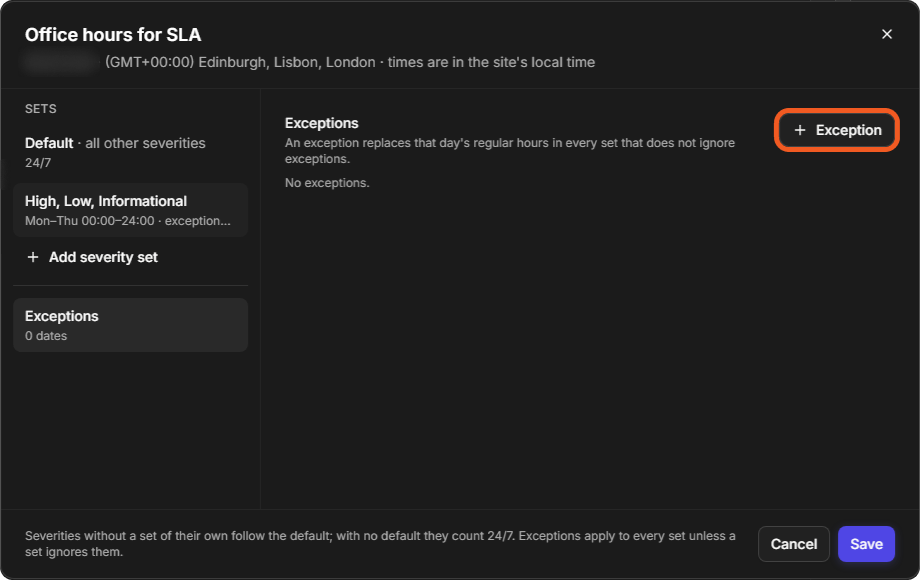
An exception date
Saving the Hours
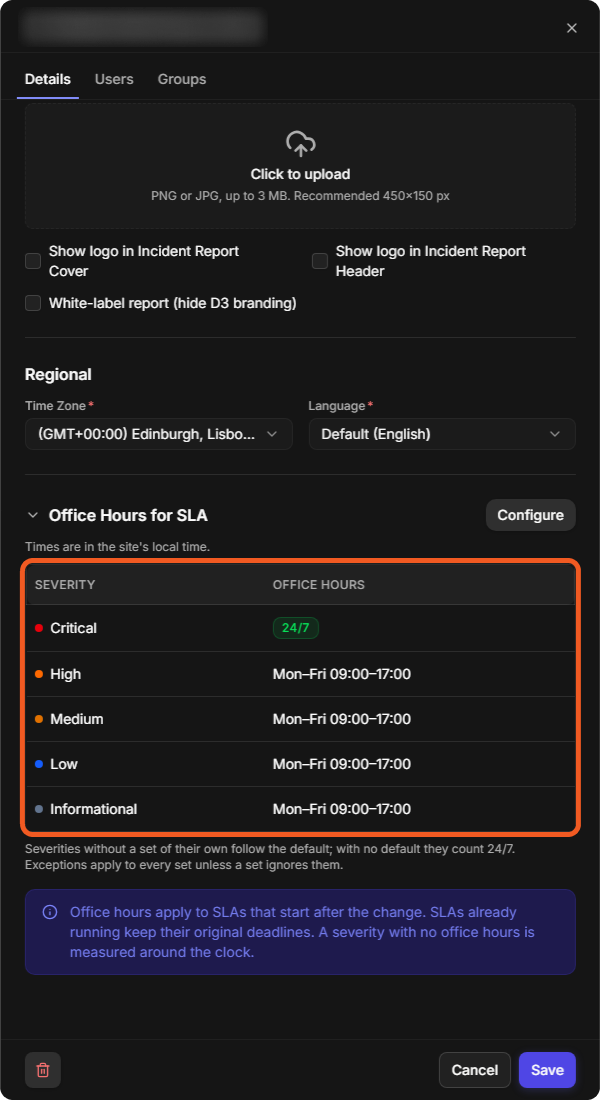
Select Save in the Office hours for SLA window. The hours are saved with the site straight away, and the site's panel shows them under Office Hours for SLA. Cancel closes the window without changes.
The saved office hours
Setting Office Hours on Several Sites
-
On the Sites list, select the sites' check boxes. A bar shows the number of sites selected.
-
Select Set office hours, then Start blank ("Author the hours from scratch") or Start from a site… ("Copy another site's sets as a starting point").
-
Set the default and the severity sets.
-
Select Replace on the number of sites, for example Replace on 1 site. Until the default has hours or a severity set exists, the window reads "Set hours on the default or add a severity set to continue."
Set office hours for selected sites
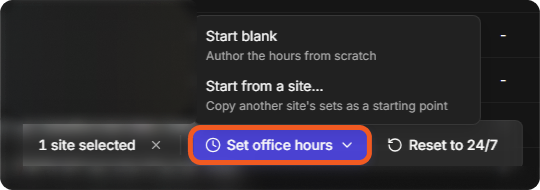
Office hours for several sites
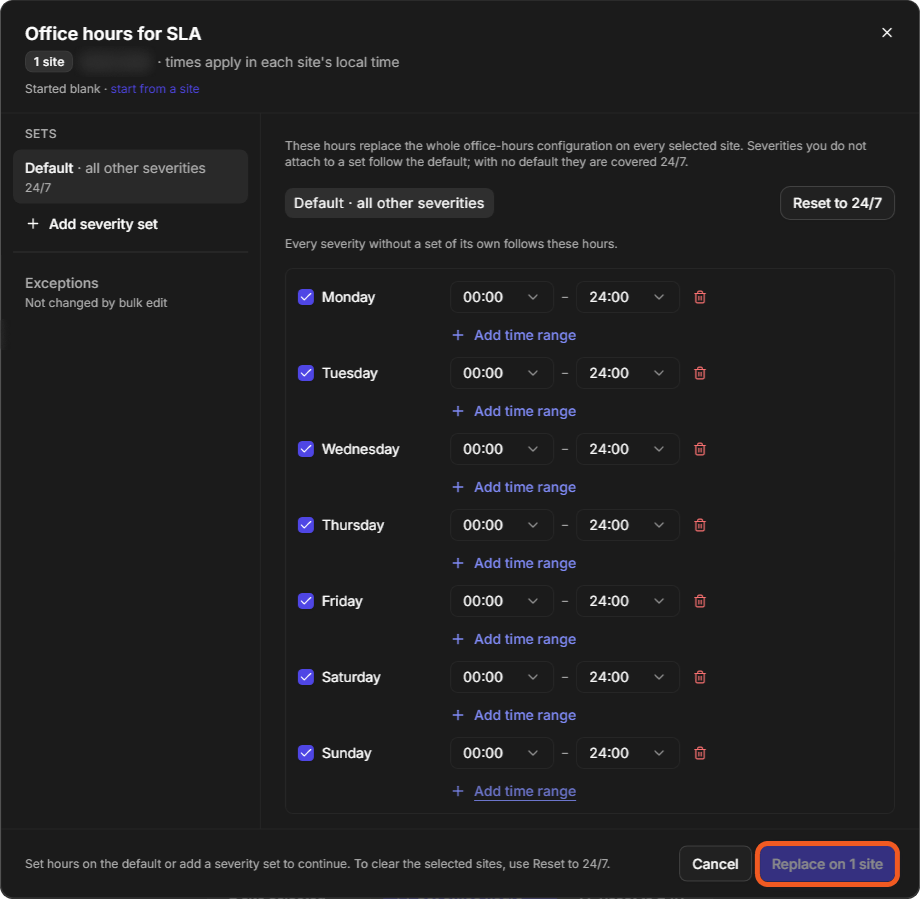
"These hours replace the whole office-hours configuration on every selected site." Severities you do not attach to a set follow the default. Exceptions are not changed by a bulk edit. Times apply in each site's local time.
Reset to 24/7 on the bar clears the selected sites ("To clear the selected sites, use Reset to 24/7.").