
Last updated: October 20, 2026
Overview
Reporting Dashboards and Reporting Widgets are how you turn your security data into pages your team can read at a glance: a widget draws one answer as a chart, table, number, or list, and a dashboard arranges widgets into a page. These pages, along with the My Dashboards page that displays dashboards in your workspace, now run directly in the new interface instead of loading an embedded classic-view frame, so they open without waiting for that frame to load.
Everything you could do before—creating and editing dashboards and widgets, configuring them, sharing them—works the same way. This article shows where each page lives, what the widget and dashboard editors look like, and what changed in how you save.
READER NOTE
These pages are part of the new reporting experience. If you do not see Reporting Dashboard under Configuration, or you still see the older embedded pages, contact D3 Support to have the new reporting experience turned on for your instance.
In short
|
# |
Stage |
Where it happens |
|---|---|---|
|
1 |
Build the data a widget shows |
Configuration > Reporting Dashboard > Queries |
|
2 |
Create a widget |
Configuration > Reporting Dashboard > Widgets > + New Widget |
|
3 |
Arrange widgets on a dashboard |
Configuration > Reporting Dashboard > Dashboards > + New Dashboard |
|
4 |
View a dashboard day to day |
My Dashboards in the workspace menu |
Where These Pages Live
The reporting tools sit together under one entry in the Configuration menu, so you move between them without leaving the area.
Under Configuration > Reporting Dashboard you will find three tabs, in this order:
-
Dashboards: the pages that arrange widgets.
-
Widgets: the charts, tables, numbers, and lists.
-
Queries: the saved questions widgets draw their data from. Refer to Reporting Queries.
Administrators also see Report History. Dashboards you read every day open from My Dashboards in the main workspace menu.
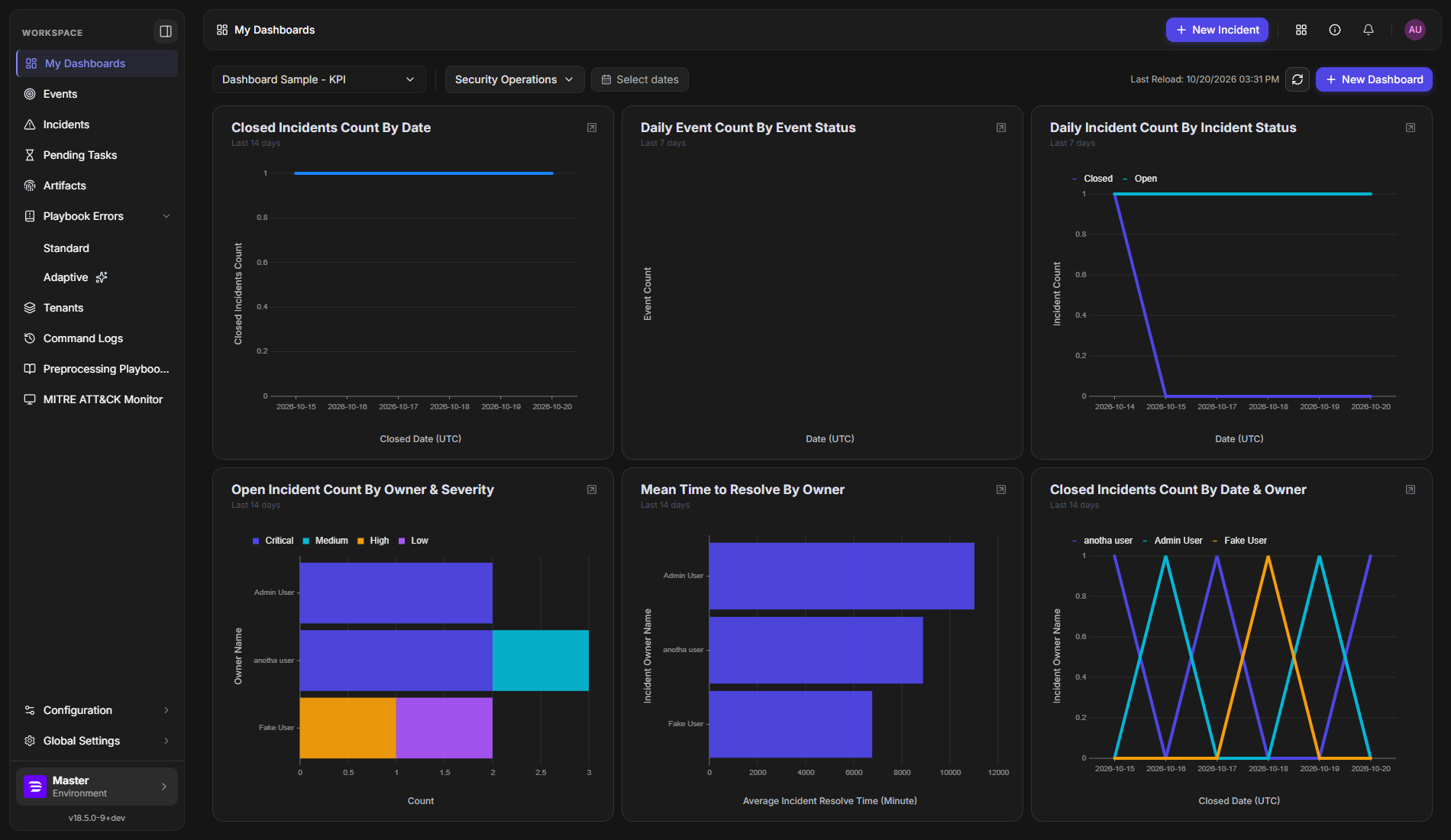
Use the picker at the top left to switch between dashboards, and the site and date controls to change what they show. A widget with no data for the chosen site and range appears empty.
What Changed
Before this release, My Dashboards, Dashboards, and Widgets each loaded a classic-view page inside a frame, and you waited for that frame to load every time. They now render natively, which removes that wait. Nothing about what you can build or configure was removed or reorganized: your existing dashboards and widgets, their sharing, and their settings carry over unchanged.
Three things look different when you work in the editors:
-
Query selection is a field, not a separate step. A widget picks its data in a Query field on the same screen as its chart type.
-
Save keeps you where you are. After you save a widget, you stay on its page instead of returning to the list.
-
There is no separate Cancel button on the widget editor. The back arrow leaves the page.
The Widgets List
The Widgets page lists every widget you can see, so you can find one, open it, or create another.
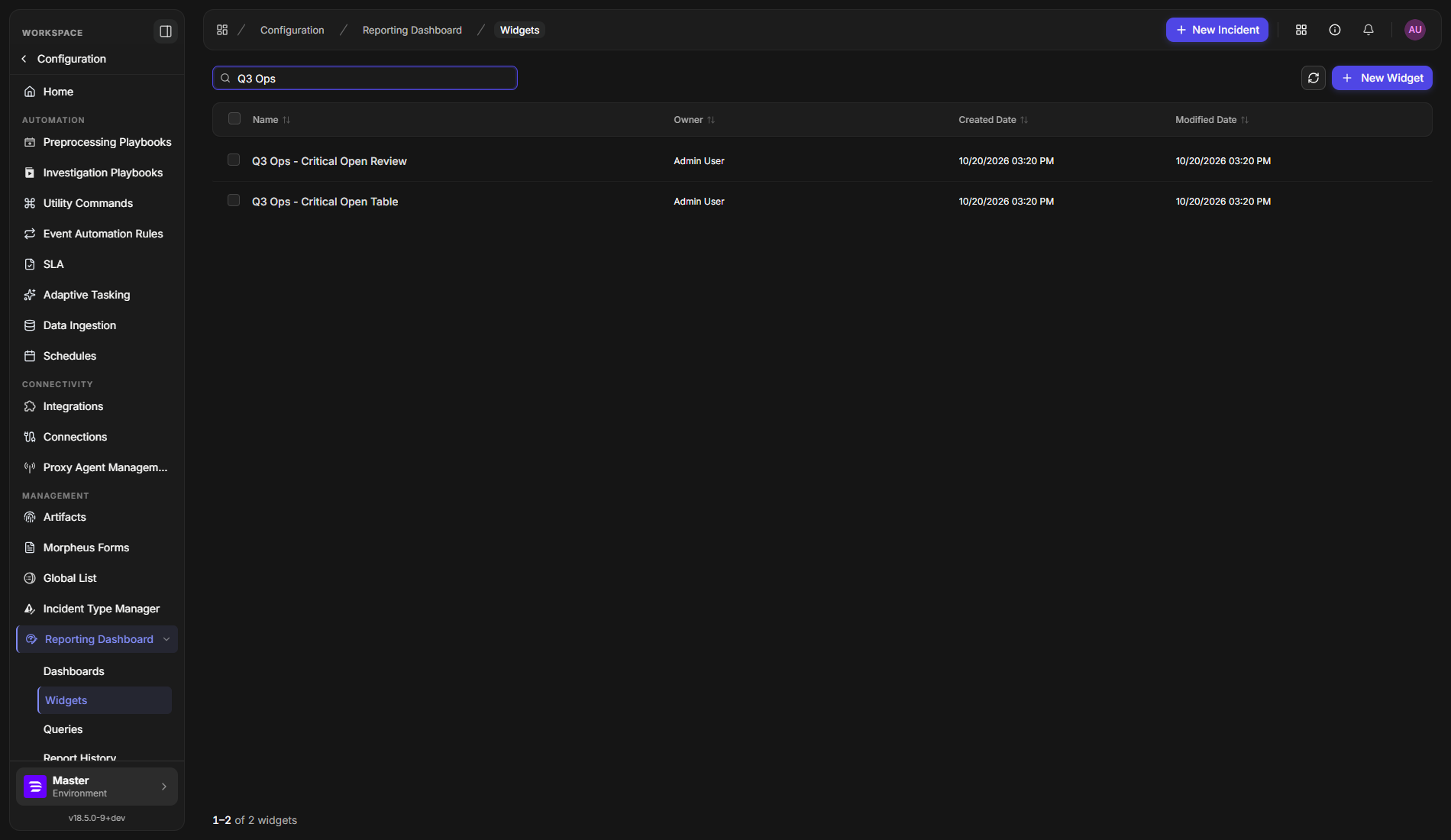
It works like the Queries list: columns for Name, Owner, Created Date, and Modified Date that sort when you select them, a Search widgets box, a refresh icon, and + New Widget. Tick several rows to act on them together.
Creating a Widget
A widget turns a query into something you can read at a glance. You pick how to draw it, point it at a query, and the editor previews the result as you go.
-
Go to Configuration > Reporting Dashboard > Widgets.
-
Select + New Widget.
-
Select the pencil icon next to New Widget and enter a name.
-
Under Widget type, select Select a chart type and choose from Charts (such as Line, Bar, Column, Pie, and Donut), Series Charts (such as Stacked Column and Sankey), Table (Data Table), or Others (Numbers, HTML, List, and Summary). AI Chart appears when AI reporting is turned on.
-
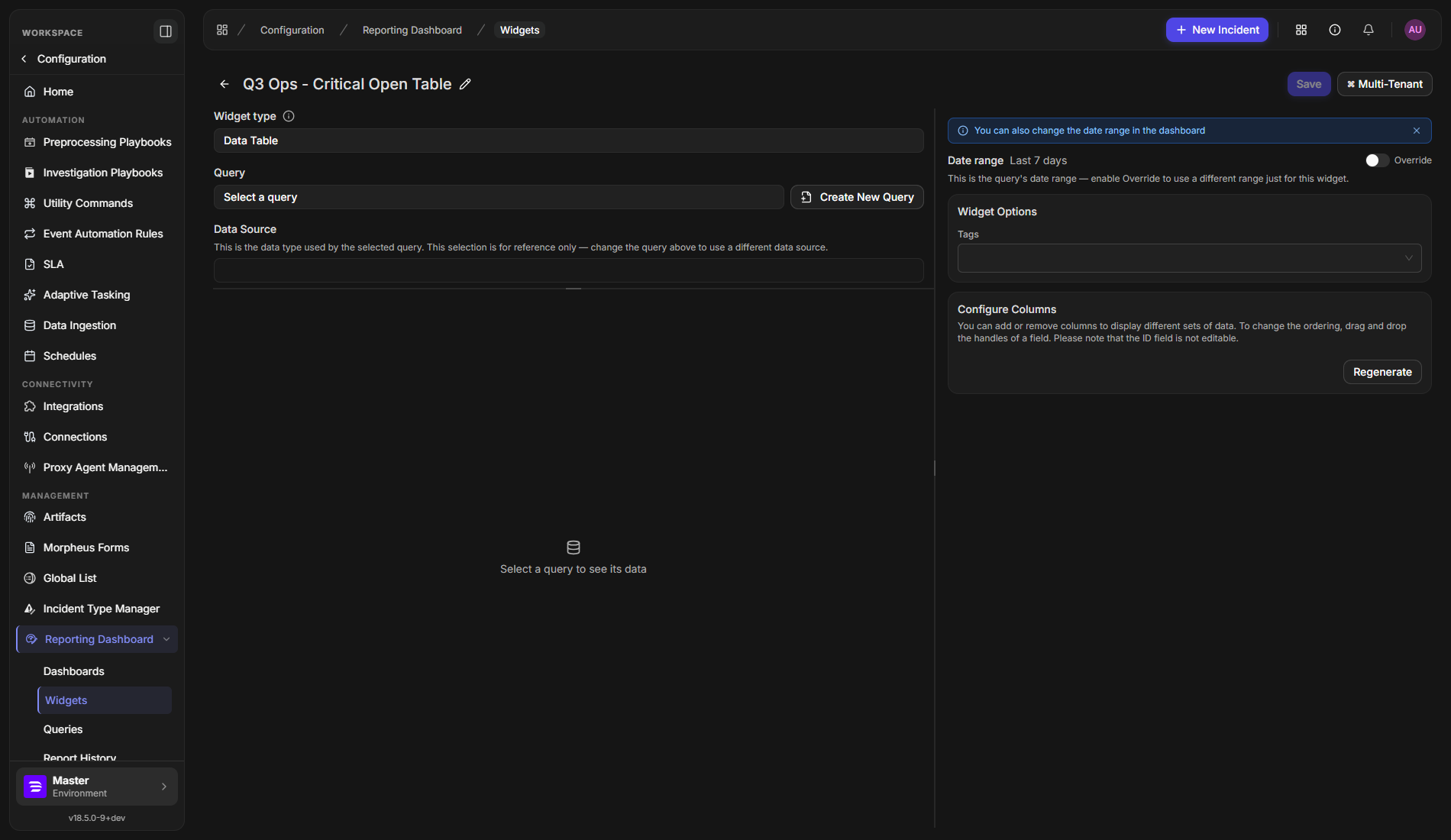
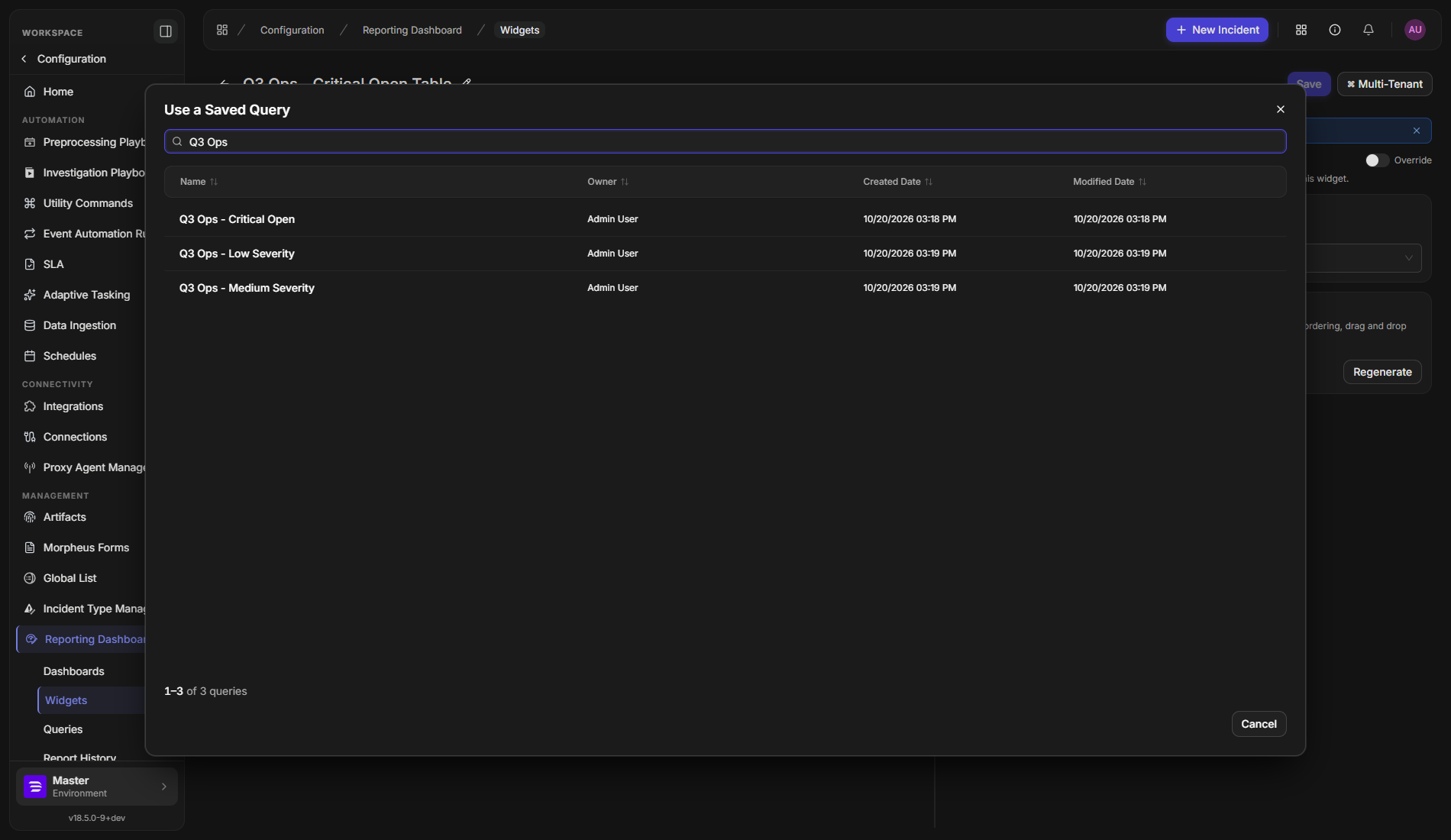
Under Query, select Select a query, then choose a saved query. To build a new one on the spot, select Create New Query.
-
Complete any settings the chosen widget type asks for, such as which fields to chart.
-
Select Save.
READER NOTE
Save stays disabled until the widget has a name, a data source, and a query. Hover over it to see what is missing.
RESULT
The widget previews its data, and after you select Save it stays open on its own page, now with Permissions and the ... menu available.
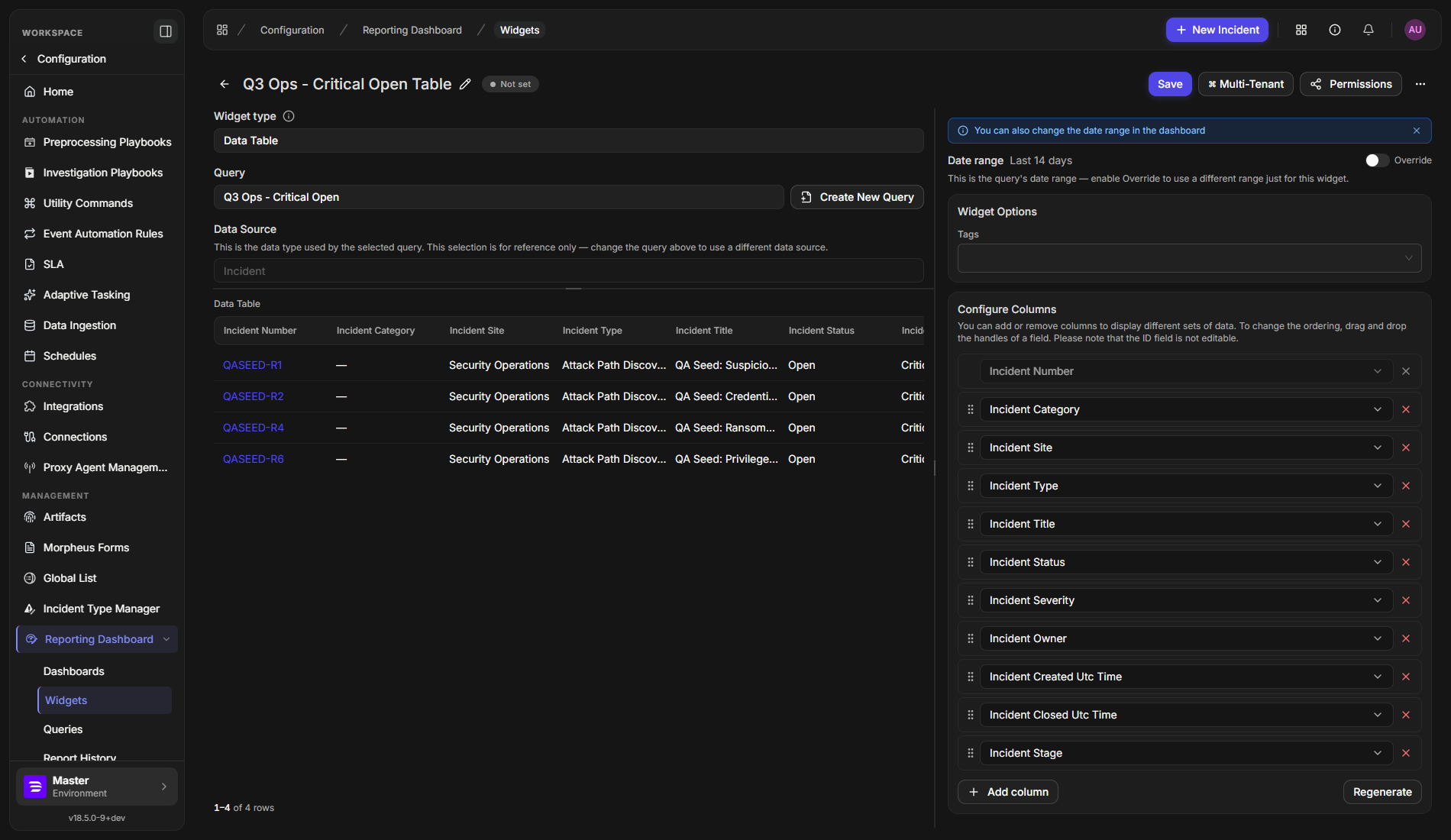
When a widget uses a saved query, the editor shows the query's data source under Data Source for reference and the query's date range under Date range. Turn on Override to give the widget its own range. Refer to Reporting Queries for how saved queries work and how editing one affects every widget that uses it.
Saving and Leaving the Widget Editor
The widget editor saves in place, so you can keep working after a save, and its back arrow is the one way out.
-
Save is always visible and enabled once the widget has a name, a data source, and a query.
-
After you save a new widget, it moves to its own page, so Permissions and the ... menu appear without reopening it.
-
The back arrow, top left, leaves the editor. If you have unsaved changes, it asks You are about to navigate away without saving, any unsaved changes will be discarded. Are you sure you want to continue? Select Yes to leave or No to stay.
If you select Create New Query from a widget, the query editor offers Save and Apply, which saves the query and brings you back to this widget with the query selected. Refer to Saving and Applying Changes in Reporting Queries.
The Dashboards List
The Dashboards page lists every dashboard you can see, with the same search, sort, refresh, and bulk-select controls as the other two lists.
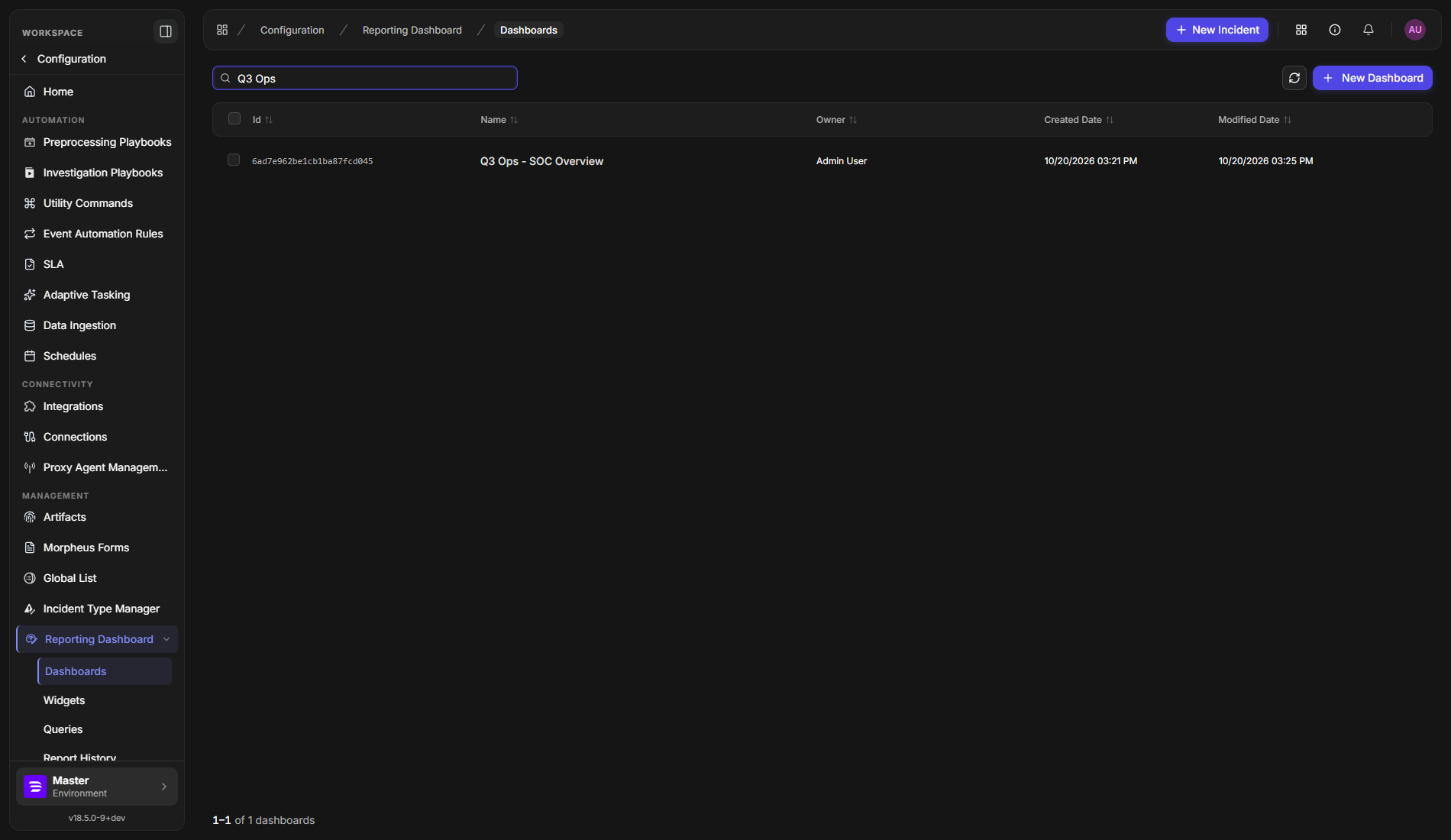
Select a row to open the dashboard, or select + New Dashboard to build one.
Building a Dashboard
A dashboard puts the widgets you care about on one page so a team can watch them together. You drag widgets from a panel onto the page and arrange them.
-
Go to Configuration > Reporting Dashboard > Dashboards.
-
Select + New Dashboard.
-
Enter a name in the title box.
-
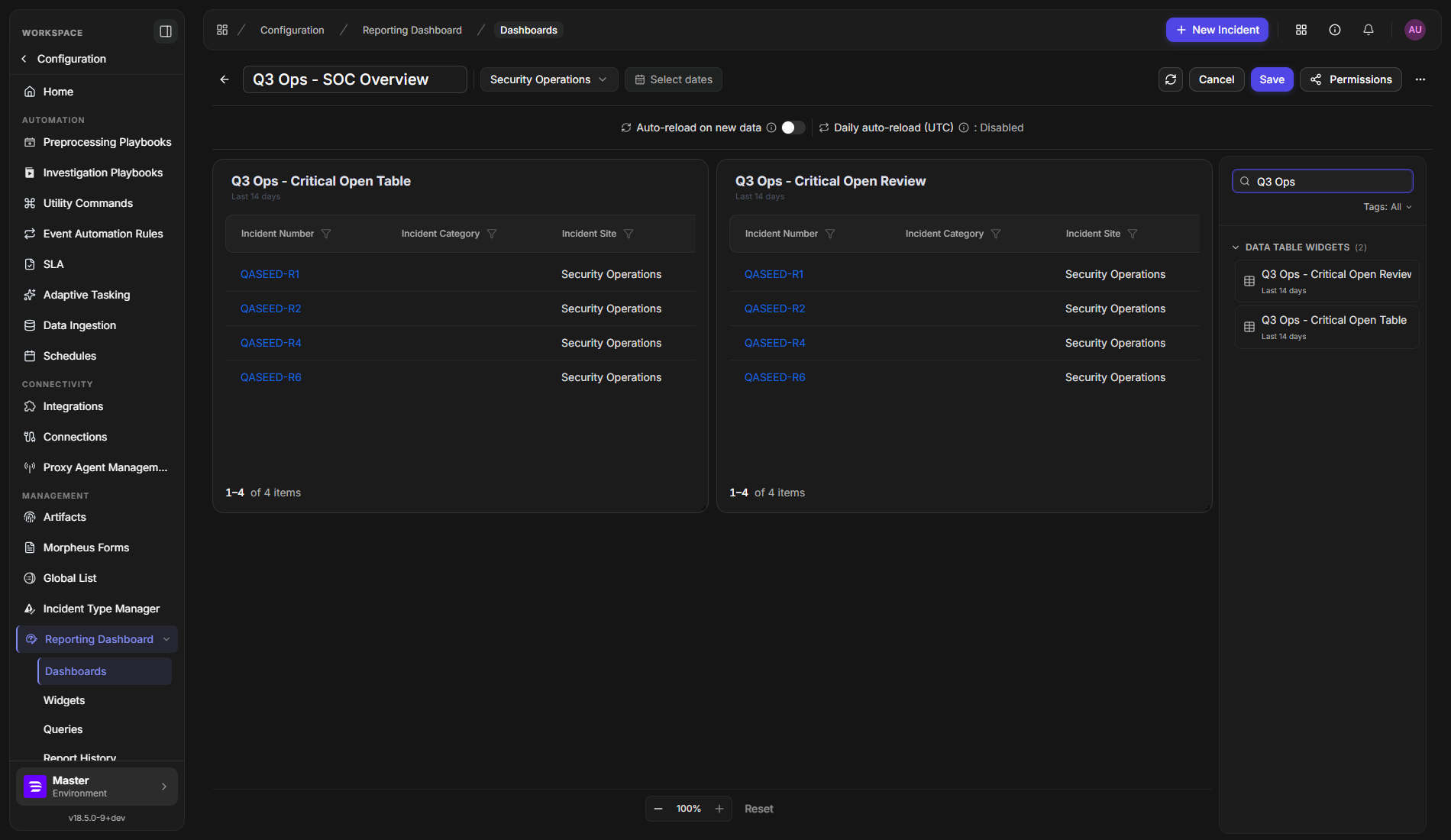
In the widget panel on the right, search for a widget by name or filter by tag, expand its category, and drag it onto the page.
-
Drag and resize widgets to arrange them. Use the zoom controls at the bottom to see the whole page.
-
Optionally, turn on Auto-reload on new data, or set a daily time under Daily auto-reload (UTC). The data is refreshed at that time, so it is current the next time someone opens the dashboard.
-
Select Save.
NOTE
The dashboard editor keeps its Cancel button. Only the widget and query editors dropped it.
RESULT
The dashboard opens in the viewer, ready to read.
Viewing a Dashboard
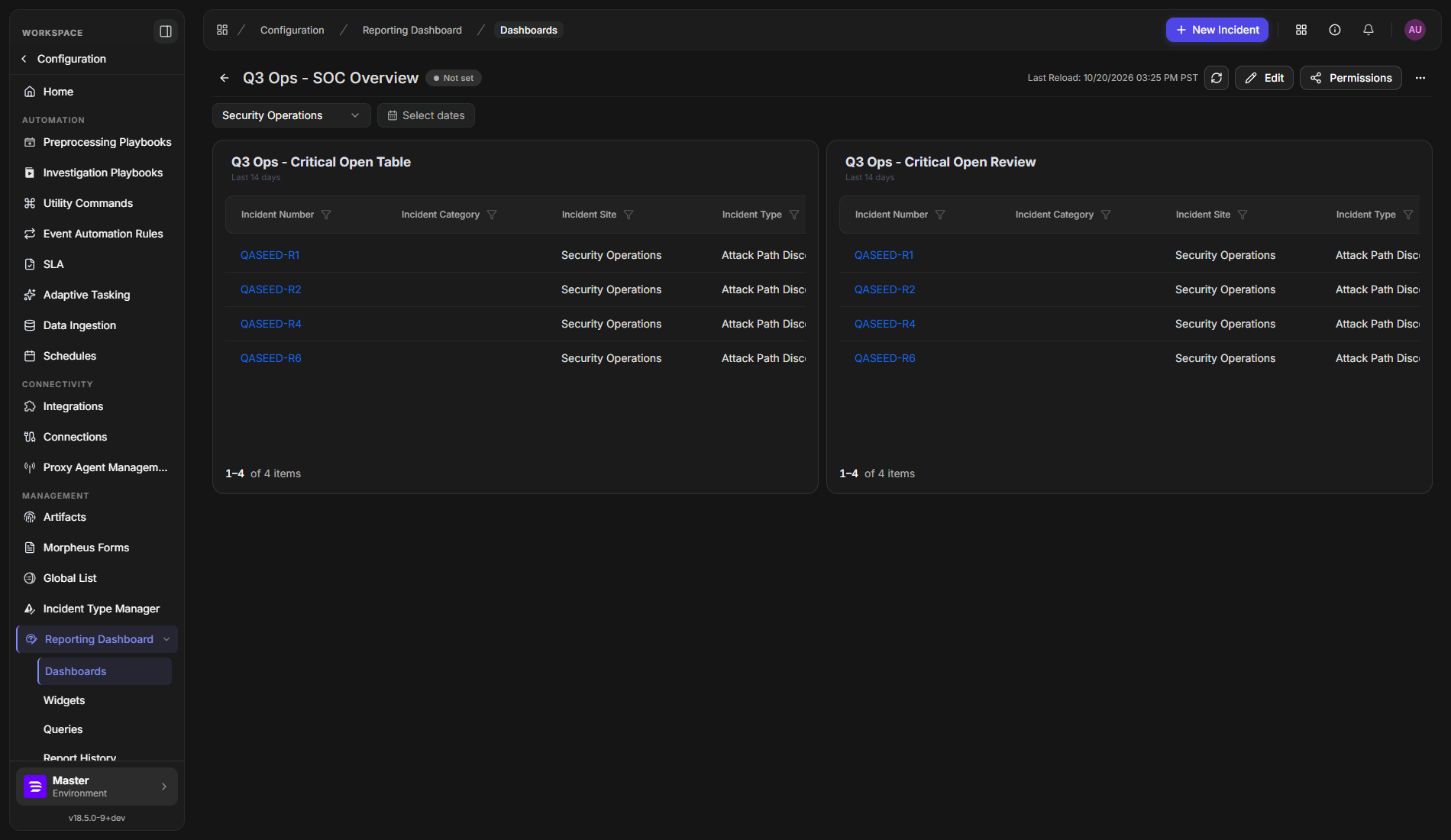
The viewer shows your dashboard as the people reading it see it. Choose a site and a date range at the top, and use the refresh icon to reload the data. Last Reload tells you when the data was last refreshed, and Edit and Permissions let you change the dashboard or who can see it.
READER NOTE
When a widget includes rows you do not have permission to see, those rows appear masked and a banner such as 4 items hidden because you do not have sufficient permission to view them explains why. The widget still shows the rows you can see.
Related Capabilities
The pages above carry over every capability they had before, including widget sharing, dashboard permissions, cloning, export, and email scheduling. This article does not cover those because they did not change.