
Last Updated: October 26, 2026
Overview
The workspace layout of an incident type decides which widgets its incidents show. Besides the built-in widgets, two widgets hold content that your own playbooks write: the Markdown Widget ("Custom Markdown content for an incident") and the HTML Widget ("Custom HTML content for an incident"). Add one to a workspace, give it a name, and point a playbook at its field name.
Workspaces are built for each incident type. To open the builder, assign a workspace and save it, see Configuring an Incident Type: Incident Workspace. For every widget the builder offers, see Incident Workspace Widgets.
Adding a Markdown or HTML Widget
-
Go to Configuration > Incident Type Manager and select the incident type. See Incident Type Manager.
-
Select Incident Workspace, then open a workspace with ⋮ > Edit, or select New Workspace.
-
In Widgets, type Widget in the search box. The list shows HTML Widget and Markdown Widget.
-
Drag Markdown Widget or HTML Widget onto the canvas.
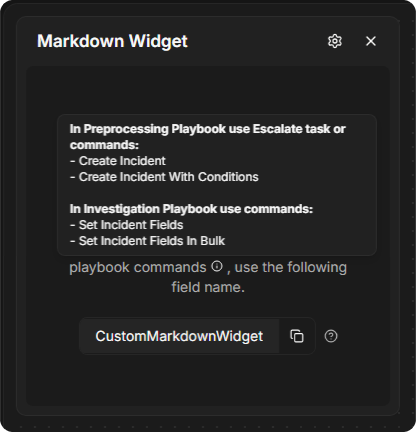
Result: The widget reads "To add or update Markdown content using playbook commands, use the following field name." (or HTML content), followed by its field name, CustomMarkdownWidget or CustomHtmlWidget, and a copy button.
Markdown and HTML widgets in the builder
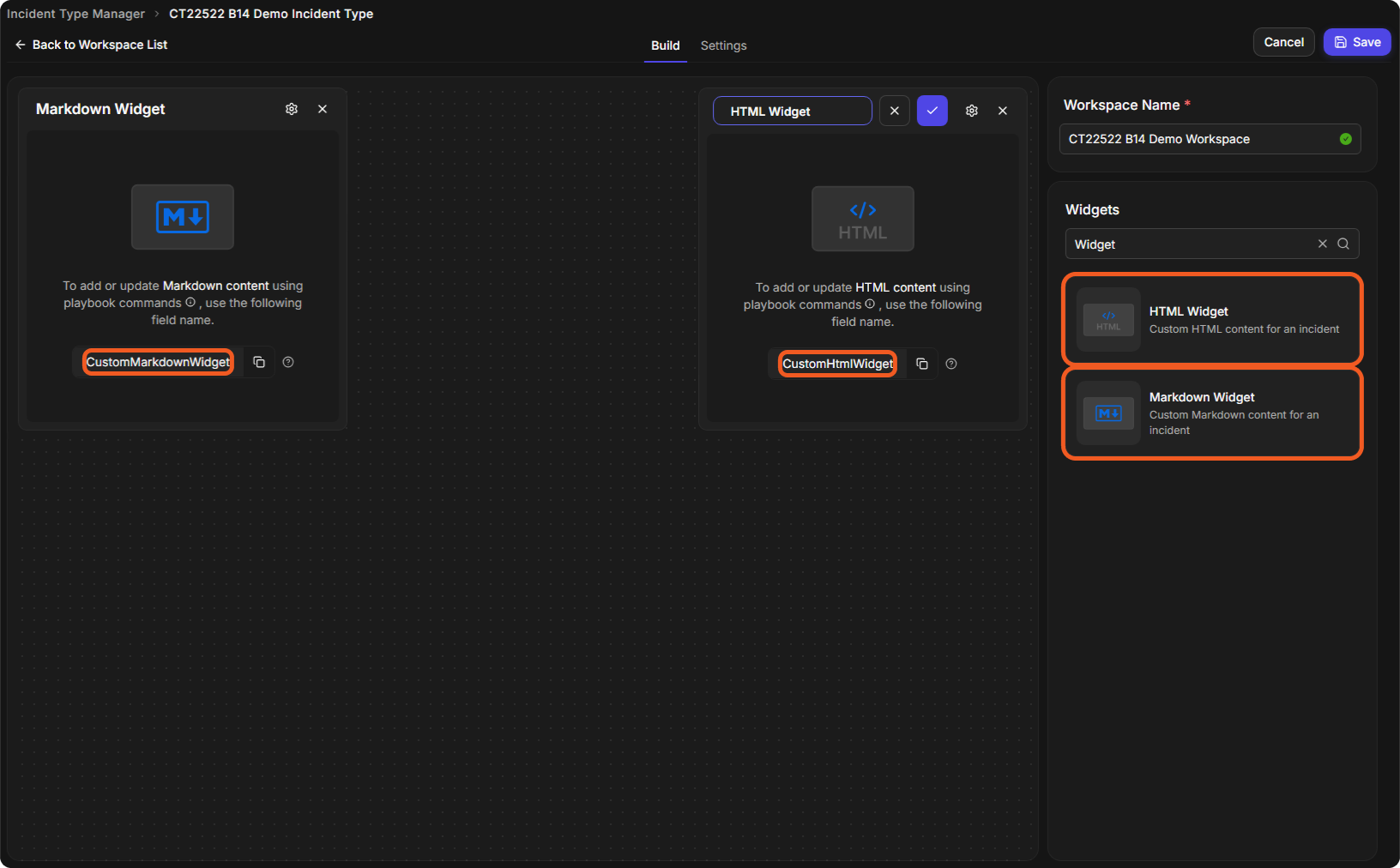
Resize and move the widget like any other, then select Save at the top right of the builder.
Naming the Widget
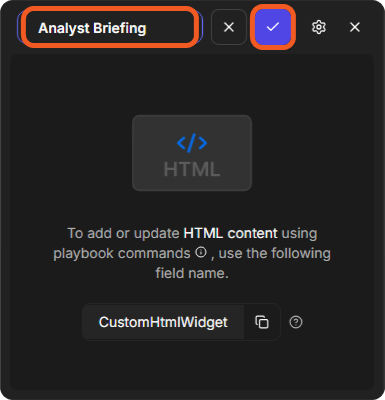
When you add the widget, its title opens in a box with ✓ and ×. Type a name for it and select ✓.
Naming a new widget
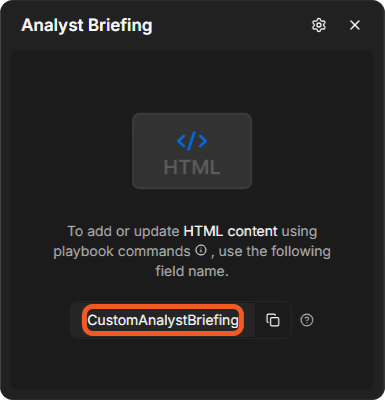
The field name follows the title. A widget named Analyst Briefing gets the field name CustomAnalystBriefing.
The new field name
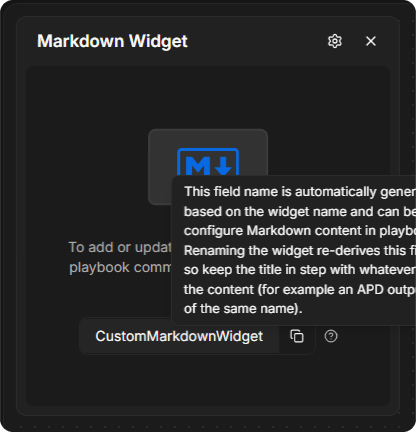
The ? beside the field name explains: "This field name is automatically generated based on the widget name and can be used to configure Markdown content in playbooks. Renaming the widget re-derives this field name, so keep the title in step with whatever writes the content (for example an APD output section of the same name)."
How the field name is made
Filling the Widget from a Playbook
A playbook writes the widget's content to its field name. The ⓘ beside playbook commands lists what to use:
|
Playbook |
Use |
|---|---|
|
Preprocessing playbook |
The Escalate task, or the commands Create Incident and Create Incident With Conditions |
|
Investigation playbook |
The commands Set Incident Fields and Set Incident Fields In Bulk |
Which playbook commands to use
Select the copy button beside the field name to copy it into the command or task. For building the playbooks themselves, see Investigation Playbooks and Preprocessing Playbooks.
Other Widgets You Can Add
-
Email and SLA Widgets: the incident's emails and its SLAs.
-
AI Summary and APD Widgets: what Morpheus AI found while investigating the incident.
-
Incident Workspace Widgets: every widget, one by one.