
Last updated: October 20, 2026
Overview
A pause condition is an optional part of an SLA rule that stops the SLA clock while something about the incident is true—for example, while nobody owns it, or while it is on hold—and starts the clock again on its own when that stops being true. It keeps SLA time a measure of the time your team could act on an incident, so a run is not marked late for time it spent waiting.
An SLA rule measures how long your team takes to respond to an incident. It starts counting when its Start condition is met, stops when its Finish condition is met, and compares the time in between to a time goal from the rule's SLA Profiles. Each measurement is a run. A pause condition sits between Start and Finish and decides when a run waits.
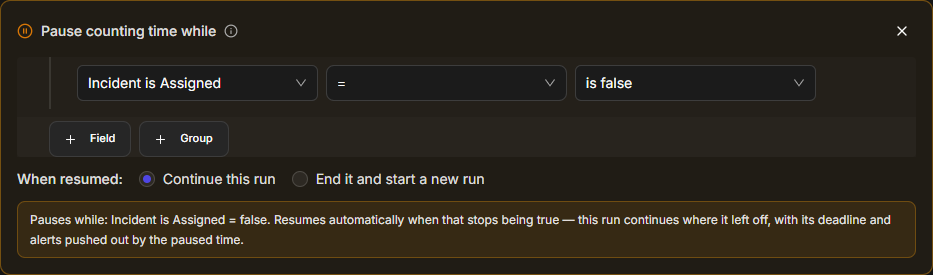
You also choose what happens when the pause ends: the same run carries on with its deadline pushed out by the paused time, or the run ends as Stopped and a new run starts with a fresh time goal. Pause conditions are set up in the new UI under Configuration > AUTOMATION > SLA; the classic view's SLA editor shows the same pause card.
In short
|
# |
Stage |
Where it happens |
|---|---|---|
|
1 |
Set the rule's Start and Finish conditions |
The rule editor, Time Measurement Conditions |
|
2 |
Add a pause condition and its fields |
+ Add pause condition on the same panel |
|
3 |
Choose what happens when the pause ends |
When resumed on the pause card |
|
4 |
Publish the rule |
Go Live at the top right of the editor |
|
5 |
Check paused, stopped, and new runs |
The Runtime Log tab on the SLA page |
|
6 |
See SLA state on an incident |
The incident's SLA widget |
Roles and Access
Pause conditions are configured by SOC administrators, because they change how every incident covered by a rule is measured. The SLA page and every action on it, including opening the list of rules, need the Administrator permission in your role. To check a role, open Global Settings > Organization Management > Roles and select the role: Administrator is a switch below Access Type when the access type is General. Analysts do not configure anything: they see the effect of a pause on the incidents they work, as described in The Analyst View of an Incident.

Opening the SLA Page
The SLA page lists every SLA rule and is where you add, edit, and publish them.
-
In the sidebar, open Configuration.
-
Under AUTOMATION, select SLA.
-
On the SLA tab, select a rule to open it, or select Add SLA, enter an SLA Name, and select Save to create one.
RESULT
The rule editor opens under SLA Configuration with the rule's name. A draft rule shows Draft and SLA Rules below, ready to edit. A live rule opens read-only with Live, Edit, and the Measurement Lifecycle panel.
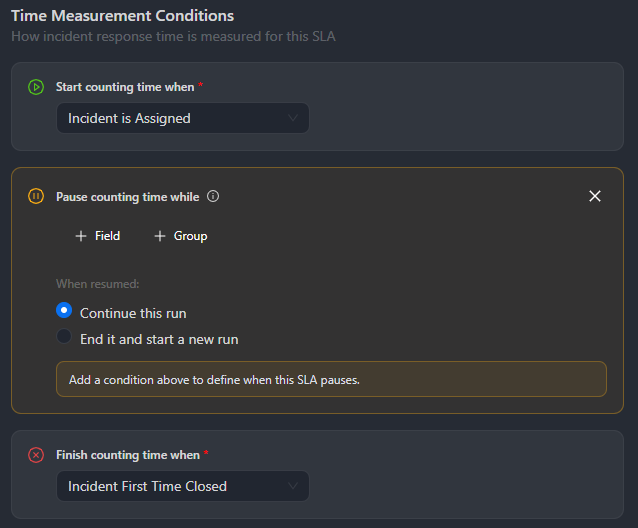
The pause condition belongs to the rule's Time Measurement Conditions, between Start counting time when and Finish counting time when. To change a live rule, select Edit first; your changes stay in a draft until you select Go Live.
Adding a Pause Condition
Add a pause condition when part of an incident's life should not count against its SLA.
READER NOTE
+ Add pause condition stays greyed out until the rule has a Start counting time when condition, so set Start first.
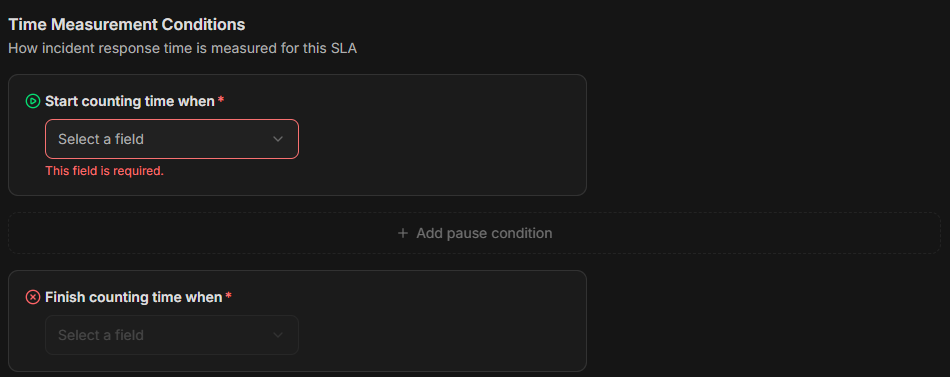
WARNING
Changing Start counting time when after you add a pause condition can reset more than Start. Some Start changes, such as setting Start to (Not Set), open Change Start Field? with the message "This will reset End, the pause condition, and all Goal filters." Continue clears Finish counting time when, the pause condition with its When resumed choice, and every Goal filter, and you must set them up again. Cancel keeps the rule as it was. Other Start changes keep your pause rows and Finish, so check that the rows still fit the new Start, and enter the Start value again if the field needs one.
-
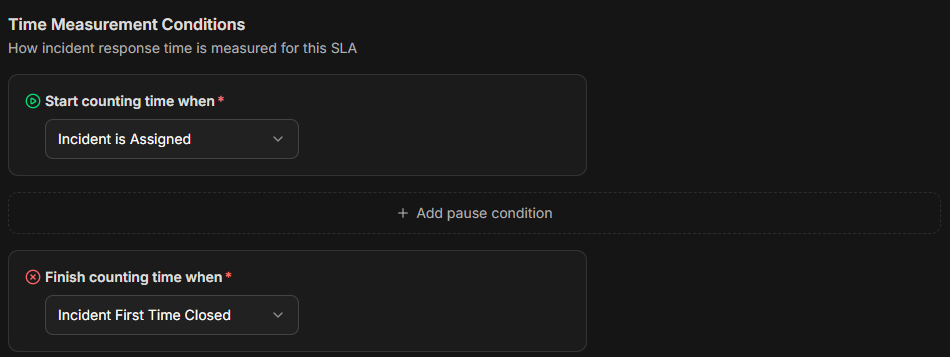
Under Time Measurement Conditions, choose a Start counting time when condition—for example, Incident is Assigned—and a Finish counting time when condition, such as Incident First Time Closed.
-
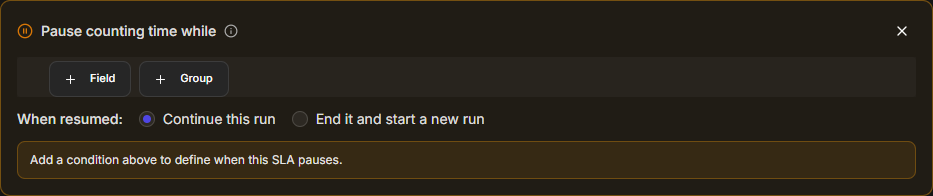
Select + Add pause condition. The Pause counting time while card opens, with the hint "Add a condition above to define when this SLA pauses."
-
Select + Field. A condition row appears with a field, an operator, and a value.
-
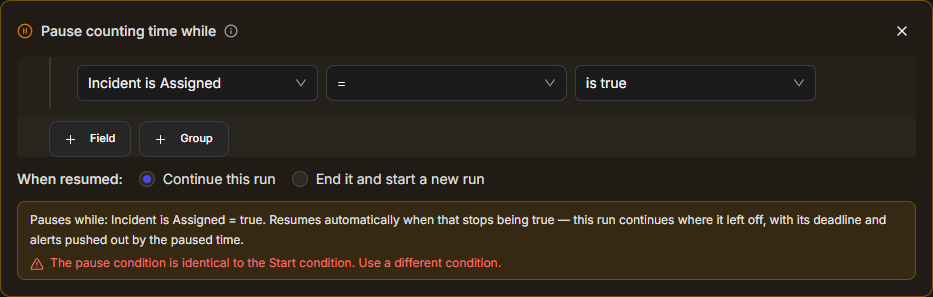
Choose the field, the operator, and the value. For example, to pause while nobody owns the incident, choose Incident is Assigned, =, and is false.
-
Optionally, add more rows with + Field, or a nested set of rows with + Group, as described in Combining Conditions.
-
Under When resumed, choose Continue this run or End it and start a new run. See Choosing What Happens When the Pause Ends.
-
Read the summary sentence at the bottom of the card to check that it says what you mean.
RESULT
The editor saves your changes as you go and shows Saved next to SLA Rules. The pause condition starts to apply to incidents when you publish the rule with Go Live.
COMMON ERROR
A new row starts as Incident is Assigned = is true. If your Start condition is also Incident is Assigned, the card shows "The pause condition is identical to the Start condition. Use a different condition." until you change the row—for example, to is false.
Pause Condition Fields
A pause condition can test these incident fields. The editor shows them as one flat list; the kinds below only make the table easier to scan.
|
Kind of field |
Fields |
|---|---|
|
Ownership |
Incident is Assigned, Incident Owner Username, Incident Owner's Groups, Incident Owner's Role |
|
Workflow |
Incident Status, Incident Stage, Incident Tags |
|
Classification |
Incident Severity, Incident Type, Incident Site |
|
Content |
Incident Title, Incident Description, Incident Conclusion, Incident Number |
|
Time |
Incident Created Time Utc, Incident Close Time Utc |
The operators and values depend on the field. Incident is Assigned offers = and != with is true or is false. Incident Status offers in and not in with one or more of Open, In Progress, On Hold, and Closed. Incident Severity offers Critical, High, Medium, Low, and Informational.
Combining Conditions
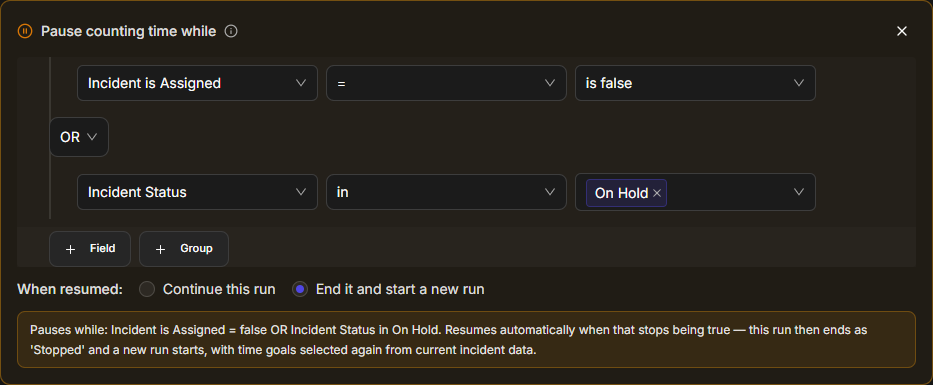
Several rows let one pause condition cover more than one waiting state. Between two rows, choose AND (pause only while both are true) or OR (pause while either is true). + Group adds a nested set of rows with its own AND or OR, for a condition such as "unassigned, or on hold and low severity." The summary sentence shows nested groups in parentheses.
When you point at a row, a copy button and a delete button appear at its right. To remove the pause condition entirely, select × at the top right of the card; the dashed + Add pause condition row comes back. A card with no rows in it is saved as no pause condition.
Choosing What Happens When the Pause Ends
When resumed decides whether the time before and after a pause belongs to one measurement or two. Choose it by asking what the SLA is for.
|
Option |
What happens when the pause ends |
Use it when |
|---|---|---|
|
Continue this run (default) |
The same run carries on where it left off. Its deadline and its alerts move out by the time it spent paused. |
The SLA measures the incident as a whole, and the pause only removes waiting time—for example, time on hold waiting for a reply. |
|
End it and start a new run |
The paused run ends as Stopped. A new run starts, and its time goal is chosen again from the incident's data at that moment. |
Each new owner or each new phase deserves a fresh clock—for example, a response-time SLA that should restart whenever the incident is reassigned after sitting unowned. |
The summary sentence on the card changes with the option. With Continue this run it reads: "Resumes automatically when that stops being true — this run continues where it left off, with its deadline and alerts pushed out by the paused time." With End it and start a new run it reads:
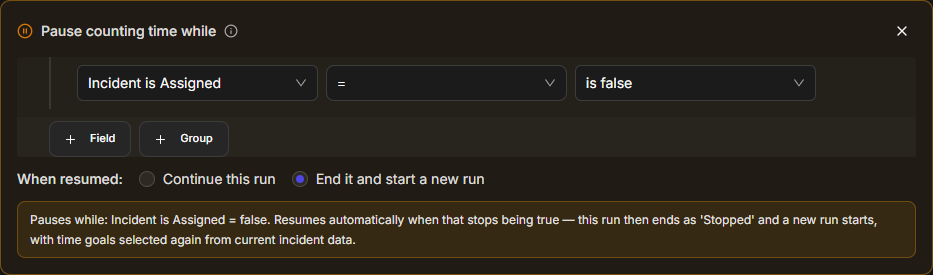
A new run passes through the rule's Start condition again, so it starts only if the incident still meets it. Because its time goal is chosen again, a change made while the incident was paused—a new severity, for example—can give the new run a different goal.
Validation Messages
The pause card checks your condition as you build it, so a rule does not go live with a pause that simply repeats its Start or Finish, or with a row left half-finished.
|
Message |
When it appears |
What to do |
|---|---|---|
|
"The pause condition is identical to the Start condition. Use a different condition." |
Every row repeats the Start condition. |
Change the row so it describes a waiting state, not the start of the SLA. Go Live is blocked until you do. |
|
"The pause condition is identical to the Finish condition. Use a different condition." |
Every row repeats the Finish condition. |
Change the row. A finished incident does not need a pause. Go Live is blocked until you do. |
|
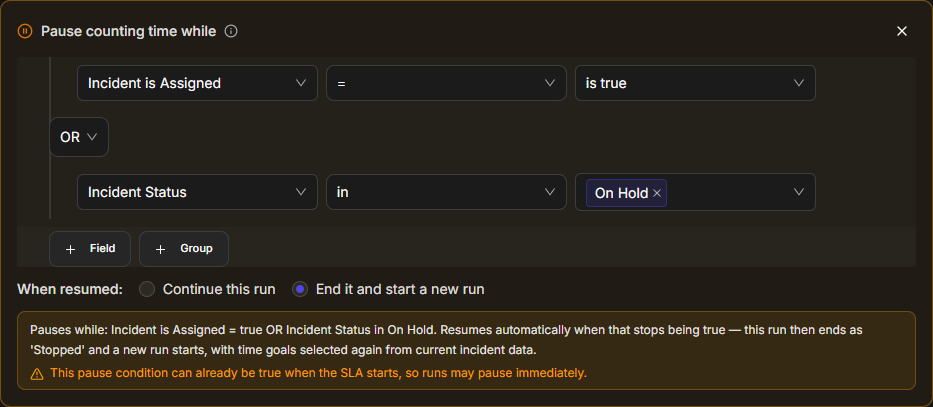
"This pause condition can already be true when the SLA starts, so runs may pause immediately." |
Part of the condition can be true at the moment the Start condition is met—for example, an OR that includes the Start condition. |
Check that this is what you want. It is a warning and does not block Go Live. |
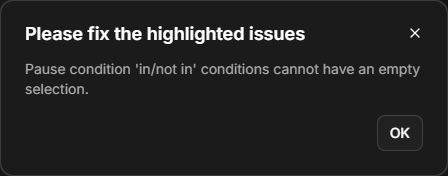
When you select Go Live with a problem still on the rule, a Please fix the highlighted issues dialog lists it. For a pause condition, the messages are "The pause condition must be different from the Start and Finish conditions." and "Pause condition 'in/not in' conditions cannot have an empty selection." The second one appears when an in or not in row has no values chosen.
Publishing the Rule
Publishing makes the pause condition apply to incidents; until then it exists only in the draft.
-
Check that the editor shows Saved next to SLA Rules.
-
Select Go Live.
-
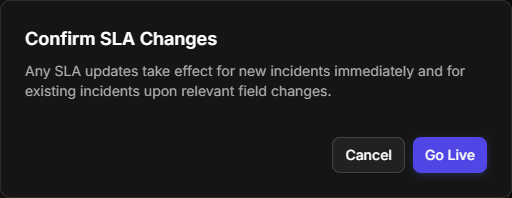
In Confirm SLA Changes, select Go Live.
RESULT
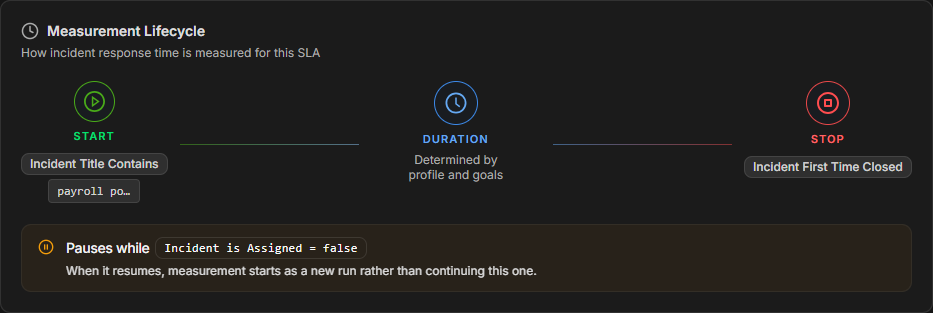
"SLA rule has been successfully published to live." appears, and the rule opens read-only with a Live badge. The Measurement Lifecycle panel shows the rule's Start, Duration, and Stop, and a Pauses while strip with the pause condition and what happens when it resumes.
READER NOTE
Changes reach new incidents straight away, and existing incidents the next time a relevant field changes. For example, after switching When resumed on a live rule, an incident that is already being measured follows the new choice the next time it pauses and resumes.
Pause Behavior on Incidents
A pause is evaluated every time a relevant incident field changes, so a run pauses and resumes without anyone touching the SLA.
-
While paused, the run's status is Paused and its clock does not move. The Planned End stays where it was until the run resumes.
-
On resume with Continue this run, the run returns to its active status, keeps its run number, and its Planned End moves out by the time it spent paused.
-
On resume with End it and start a new run, the paused run ends with the status Stopped. Its Actual End is the moment it paused, so it keeps the time it actually ran. A new run starts with the next run number.
-
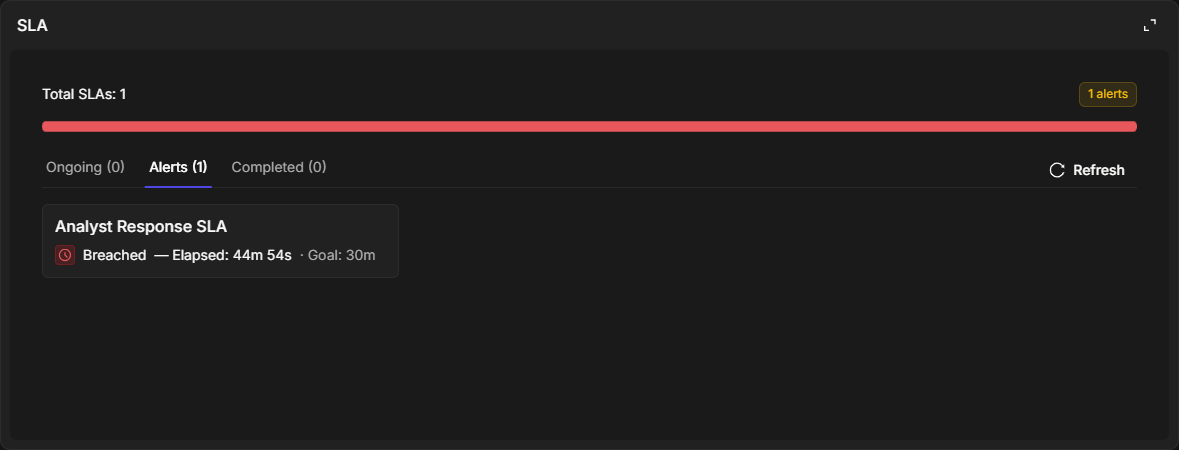
A run marked Breached never pauses and never starts a new run. A run is marked Breached when the SLA check finds it still open, and not paused, past its Planned End; no alert has to be set up for this. Once a run is Breached, unassigning or putting the incident on hold changes nothing: the run stays Breached until the Finish condition ends it as Overdue. A pause cannot be used to hide a response that is already marked late.
-
A run that is paused when its deadline passes is not marked Breached while it stays paused. When it resumes, its deadline moves out by the time it spent paused, or, with End it and start a new run, it ends as Stopped.
-
Finished runs do not change. A run that has ended as Succeeded, Overdue, or Stopped keeps its result whatever happens to the incident later.
-
Stopped runs do not trigger anything. No playbook action or notification runs when a run ends as Stopped, and Stopped runs are not counted as outcomes in the reporting module, which reports only real results—succeeded, overdue, and breached runs.
-
Removing a pause condition from a live rule and publishing it resumes any paused runs the next time they are evaluated, with their deadlines extended by the time they spent paused.
READER NOTE
With Incident is Assigned = is false, handing an incident directly from one owner to another does not pause it: the incident is never unassigned, so the run carries on. Only a period with no owner pauses the run.
Monitoring Runs in the Runtime Log
The Runtime Log is the record of every SLA run on your incidents, and it is where you confirm that a pause condition behaves as you intended. Open it from the Runtime Log tab on the SLA page.
|
Column |
What it shows |
|---|---|
|
Incident ID |
The incident the run measures. |
|
SLA Rule Name |
The rule that started the run. |
|
Playbook Runtimes |
Links to the alert playbooks that ran for the run, such as View Breach Alert. |
|
SLA Status |
The run's status, such as Ongoing, Paused, Breached, Stopped, or Overdue. |
|
Run # |
Which run of this rule on this incident it is: 1 for the first, 2 after a new run starts. |
|
End reason |
Why a finished run ended: Finished when it reached the Finish condition, Stopped when it ended at a pause so that a new run could start. An unfinished run shows —. |
|
Actual Start and Actual End |
When the run started and ended. |
|
Planned End |
The run's current deadline. |
|
Goal (min) |
The run's time goal in minutes. |
|
Elapsed |
Time counted so far, or Completed in a duration for a finished run. |

With End it and start a new run, the first run ends as Stopped when the incident is reassigned, and a second run starts with its own goal and deadline:

With Continue this run, the same run resumes and its deadline moves. In this example the run paused for about two minutes, and its Planned End moved from 01:17 to 01:19:


A run that reaches its Finish condition after its deadline ends as Overdue with the End reason Finished, and its breach alert appears under Playbook Runtimes. The Stopped runs below it ended at a pause, well before their deadlines.

An open run that has been marked late shows Breached, with its breach alert under Playbook Runtimes and no End reason yet. A pause does not apply to it. In this example, the incident in the bottom row was unassigned after its run was marked Breached: the run is still Breached and still Run 1, and no new run started. The two rows above it belong to another incident, whose first run paused and ended as Stopped in the usual way.

The Analyst View of an Incident
The incident's SLA widget shows each SLA rule measuring the incident, so an analyst can see at a glance whether the clock is running, paused, or late, and why.
-
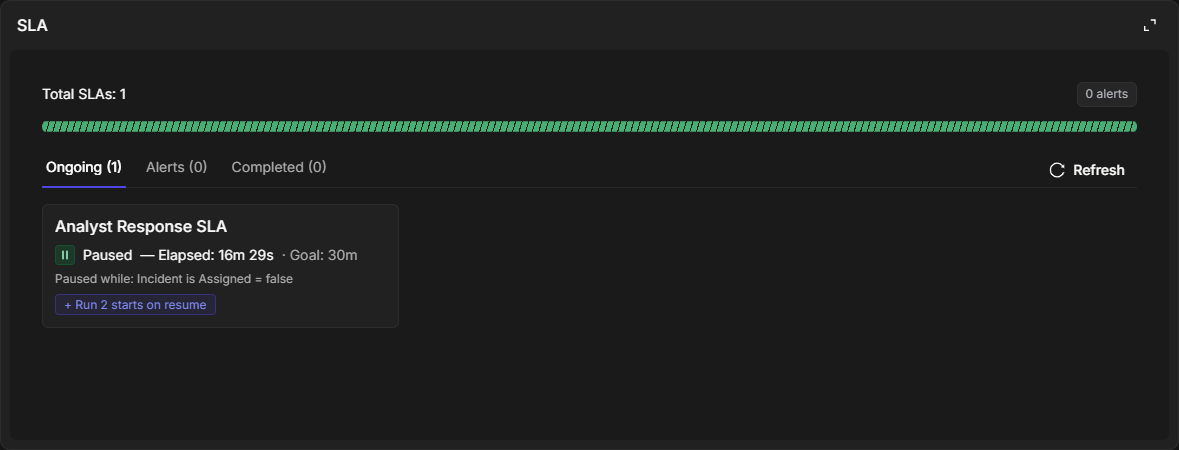
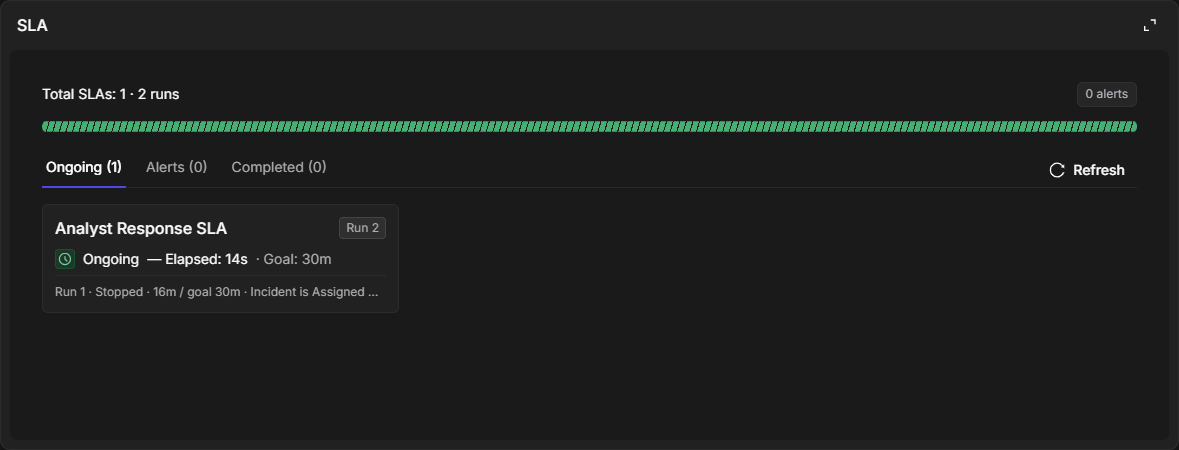
The status line shows the run's status, the time counted so far, and its goal, for example Paused — Elapsed: 16m 29s · Goal: 30m.
-
Paused while: names the condition that is pausing the run, in the rule's own words, for example Paused while: Incident is Assigned = false.
-
+ Run 2 starts on resume appears on a paused run when the rule starts a new run on resume, so you know the current run will end as Stopped.
-
A Run chip, such as Run 2, appears once a rule has measured the incident more than once.
-
Earlier runs are listed under the current one as "Run 1 · Stopped · 16m / goal 30m", followed by the pause condition for a stopped run. Up to three earlier runs are shown; when there are more, +N earlier runs shows the rest, and Show fewer runs hides them again. Hover over an earlier run's line for its Started, Ended, and Goal, and for a stopped run, Stopped while.
-
The widget's header reads Total SLAs: 1 · 2 runs once any rule has run more than once on the incident.
-
A Breached run moves to the Alerts tab and is counted in the alerts badge at the top right.
READER NOTE
The SLA widget shows only in incident workspaces that include it. An administrator adds it under Configuration > MANAGEMENT > Incident Type Manager: select the incident type, open a workspace on the Incident Workspace tab or select New Workspace, drag the SLA card (Incident SLA Indicator) from the widget list onto the canvas, and select Save. Workspaces are assigned to incident types, roles, and groups, and an analyst switches between the workspaces available to them with the layout switcher button in the incident header.
|
Status |
What it means on the incident |
|---|---|
|
Ongoing |
The clock is running and the run is within its goal. |
|
Paused |
The pause condition is true; the clock is stopped. |
|
Before Breach Alert |
A before-breach alert set on the rule has fired, and the run has not been marked late yet. |
|
Breached |
The run is still open and has been marked as past its deadline. A Breached run does not pause. |
|
Succeeded |
The run reached its Finish condition within its goal. |
|
Overdue |
The run reached its Finish condition after its deadline. |
|
Stopped |
The run ended at a pause so that a new run could start. |
|
Not Started |
The rule applies to the incident, but its Start condition has not been met yet. |
Pause Conditions in the Classic View
Pause conditions are set up in the new UI, and the classic view's SLA editor shows the same pause card. Open Configuration in the classic view, then the SLA list, and open a draft rule: + Add pause condition sits between Start counting time when and Finish counting time when, and the card offers the same + Field, + Group, and When resumed choices.
Sample Cases
These three configurations cover the waiting states SOC teams most often pause on.
A fresh clock for each owner. Start: Incident is Assigned. Finish: Incident First Time Closed. Pause: Incident is Assigned = is false, End it and start a new run. When an owner gives the incident back to the queue, the run pauses; when someone picks it up, the old run ends as Stopped and the new owner gets a full time goal.
Waiting time does not count. Start: Incident is Assigned. Pause: Incident Status in On Hold, Continue this run. While the incident is on hold, waiting for the requester, the clock stops; when it comes off hold, the same run continues with its deadline pushed out by the hold time.
Either waiting state. Pause: Incident is Assigned = is false OR Incident Status in On Hold. The run pauses while the incident has no owner or is on hold, and resumes only when neither is true.
FAQs
Can a pause hide a Breached run?
No. Once a run is Breached, it never pauses and never starts a new run. It stays Breached until the Finish condition ends it as Overdue.
Does reassigning an incident from one analyst to another pause it?
Not with Incident is Assigned = is false. A direct handover never leaves the incident unassigned, so the run continues.
What happens to a paused run when the rule changes?
The change applies the next time a relevant field changes on the incident. If you remove the pause condition and publish, paused runs resume with their deadlines extended by the time they spent paused.
Why is + Add pause condition greyed out?
The rule has no Start counting time when condition yet. Choose one first.
Do Stopped runs appear in SLA reports?
No. The reporting module counts succeeded, overdue, and breached runs. A Stopped run appears in the Runtime Log and on the incident.