
Last Updated: October 24, 2026
Overview
A quick view layout is a named arrangement of the incident side panel on the Incidents dashboard. It chooses which sections and tabs the panel shows, in what order, and which incident workspace widgets sit alongside them. A layout lets each team open an incident and see what matters for that type first, without opening the full incident workspace.
Layouts are built on the Quick View tab of each incident type in Incident Type Manager. Each layout is assigned to incident types, groups and roles. When no layout applies, the panel keeps the built-in System Default arrangement, so nothing changes until you create a layout.
|
Stage |
Where it happens |
|---|---|
|
Open the incident type |
Configuration > Incident Type Manager, then select the type |
|
Start a layout |
Quick View tab > New Quick View Layout |
|
Name and assign it |
Settings: Name, Incident Types, Groups, Roles |
|
Choose what it shows |
Blocks: Sections and Tabs, plus Add Widget |
|
Check it and save |
Live preview, then Save |
Layouts have no site setting.
The Quick View Panel
The quick view panel is the side panel that opens when you select an incident row on the Incidents dashboard. It shows the incident's details and tabs without leaving the queue, and View Full Details at its top opens the full incident.
The quick view panel
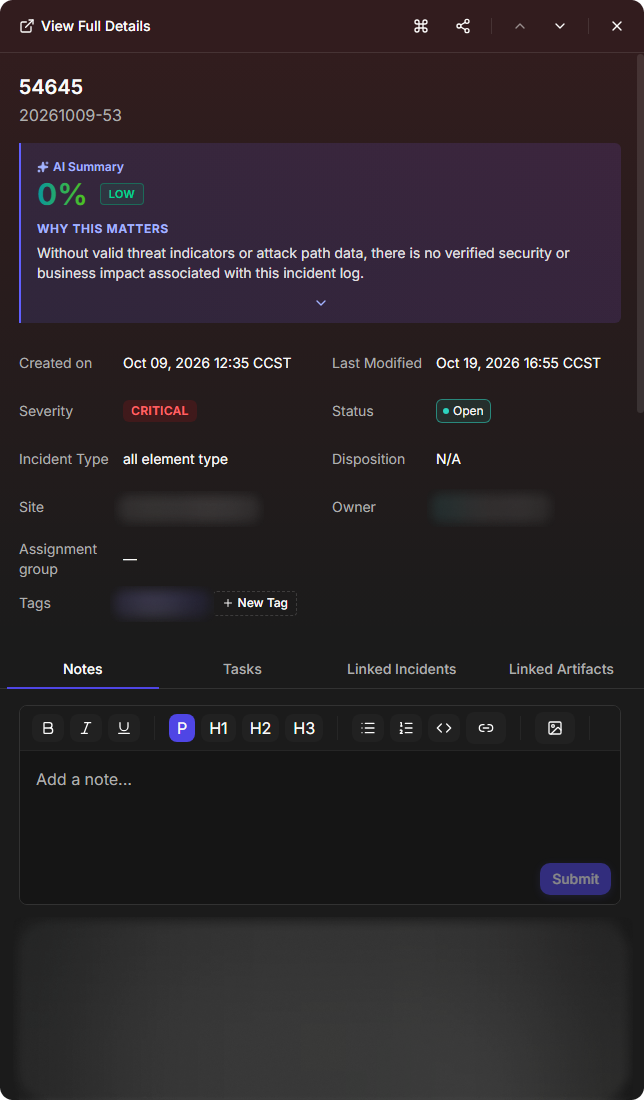
The panel has two regions:
-
Sections: "Stacked, visible when the panel opens."
-
Tabs: shown one at a time below the sections. "The first visible tab opens by default."
Each region is made of blocks. The panel has eight built-in blocks. Six of them are shown in a new layout, and two are listed but hidden until you tick them.
|
Block |
Region |
Shown in a new layout |
|---|---|---|
|
AI Summary |
Sections |
Yes |
|
Details |
Sections |
Yes |
|
Notes |
Tabs |
Yes |
|
Tasks |
Tabs |
Yes |
|
Linked Incidents |
Tabs |
Yes |
|
Linked Artifacts |
Tabs |
Yes |
|
Remediations & Mitigations |
Tabs |
No |
|
Recommendations |
Tabs |
No |
The Quick View Tab
The Quick View tab is the catalog of layouts for one incident type. It is the second tab of an incident type, after General and before Incident Workspace and Incident Form Builder.
The Quick View tab
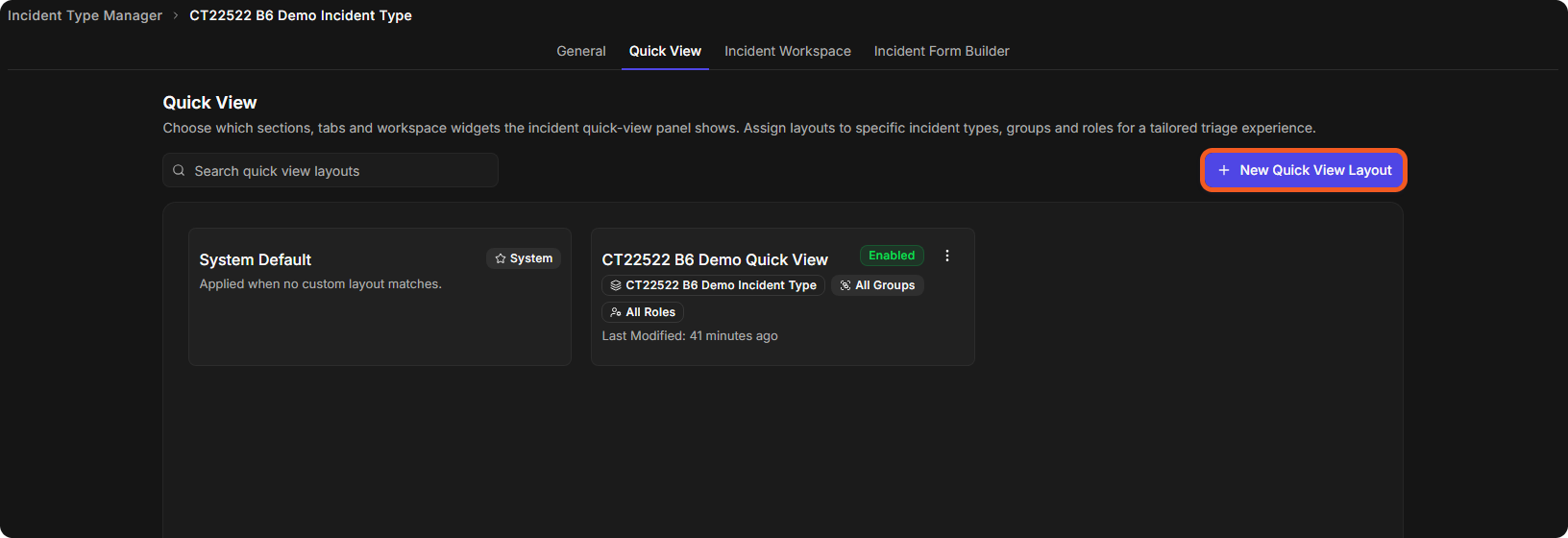
The catalog shows:
-
System Default: a card marked System that reads "Applied when no custom layout matches."
-
One card per layout for this incident type, with its name, an Enabled or Disabled badge, its incident types, groups and roles, and Last Modified.
-
New Quick View Layout: starts a new layout.
Before any layout exists for a type, the catalog reads No custom quick view layouts yet, with a New Quick View Layout button.
Creating a Quick View Layout
-
Go to Configuration > Incident Type Manager and select an incident type.
-
Select the Quick View tab.
-
Select New Quick View Layout.
-
Enter a Name. The field arrives filled with "Quick View on" and the current date and time.
-
Set Incident Types, Groups and Roles (see Settings).
-
Under Sections and Tabs, tick the blocks to show and drag them into order.
-
Optionally, select Add Widget in either region to add incident workspace widgets.
-
Check the result in the Live preview.
-
Select Save.
The layout editor
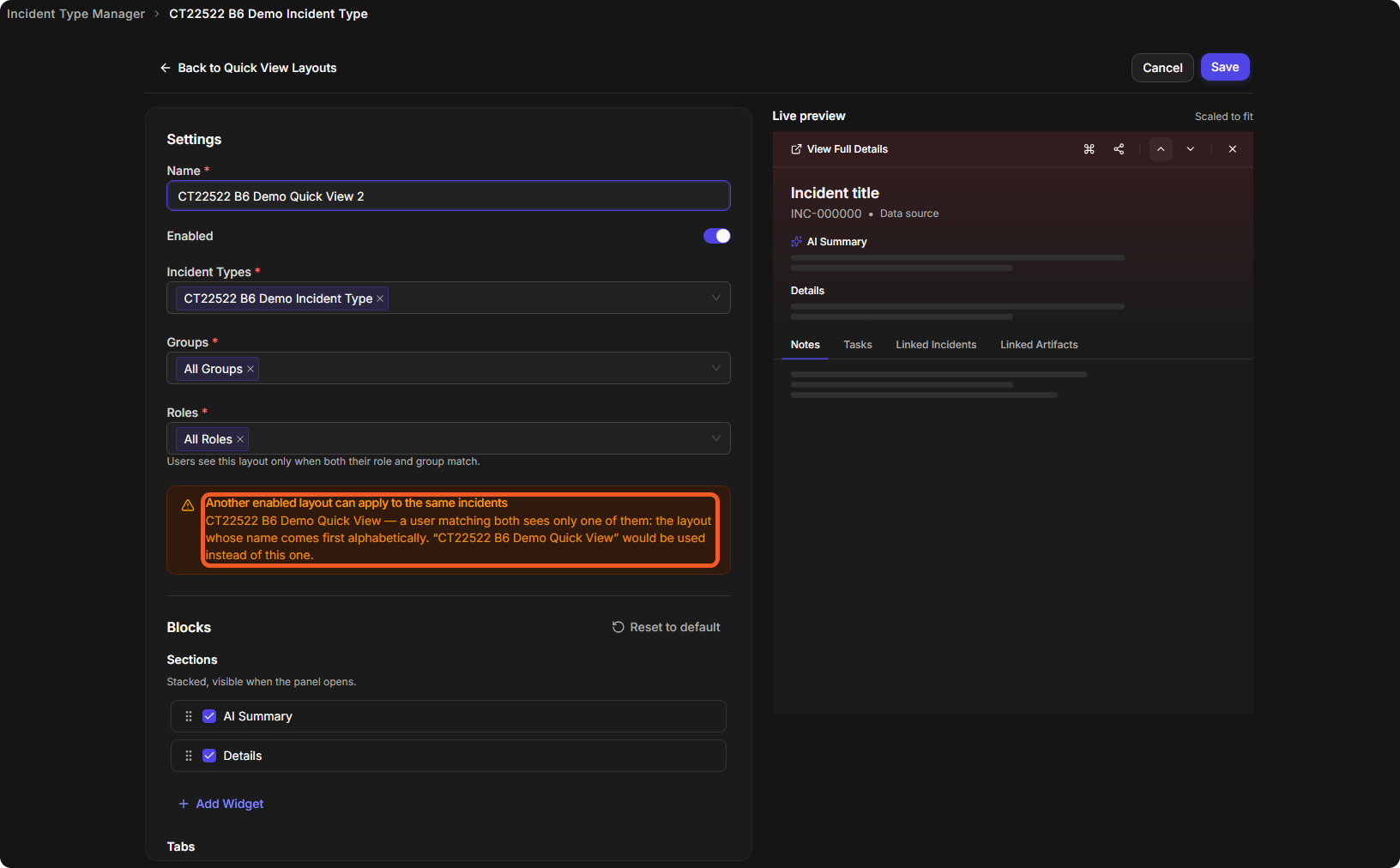
The editor closes and the catalog shows the new card.
Settings
|
Field |
What it does |
|---|---|
|
Name (required) |
The layout's name in the catalog. Two quick view layouts cannot share a name. |
|
Enabled |
On by default. A disabled layout stays in the catalog but is not used. |
|
Incident Types (required) |
The incident types the layout applies to. Defaults to the type you are editing. |
|
Groups (required) |
The groups the layout applies to. Defaults to All Groups. |
|
Roles (required) |
The roles the layout applies to. Defaults to All Roles. |
"Users see this layout only when both their role and group match."
With the Name empty, the editor shows "A layout name is required." and Save is unavailable.
An empty name
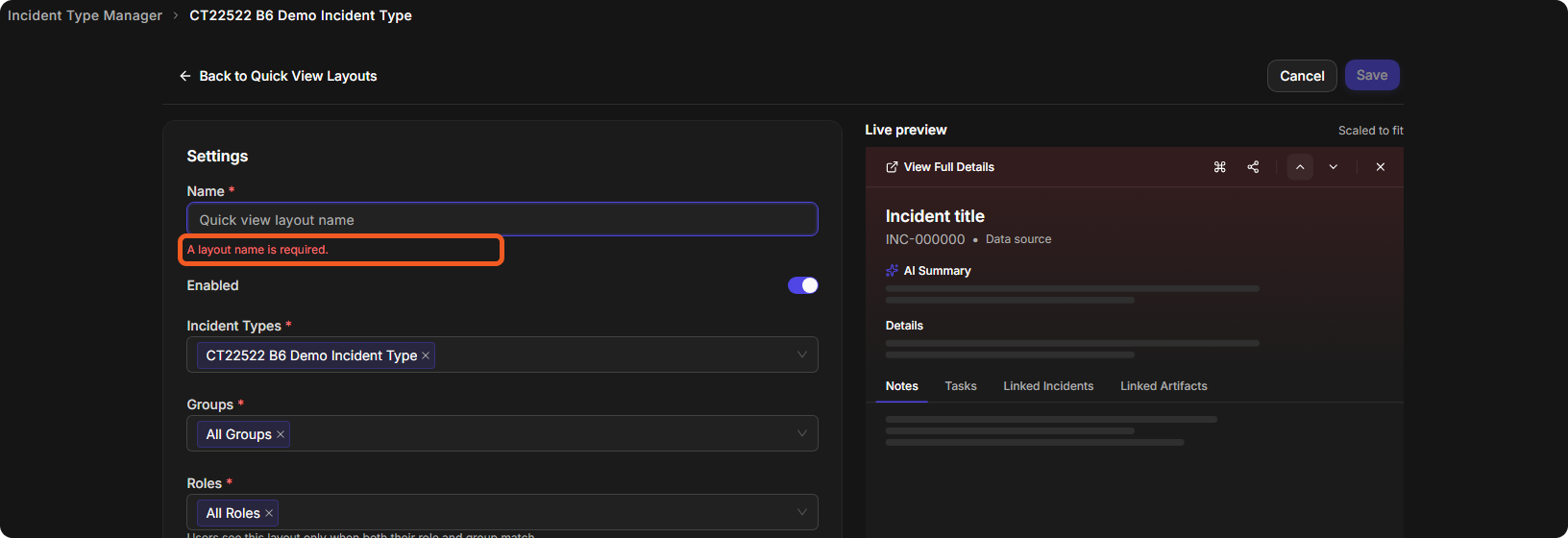
If another quick view layout already has the name, the editor warns: "A quick view layout with this name already exists — saving will be rejected until you rename this one."
Choosing Sections and Tabs
The Blocks card sets what the panel shows and in what order, one list per region.
-
Tick a block to show it; clear it to hide it. A hidden block stays in the list so you can bring it back.
-
Drag a block by its handle to reorder it.
-
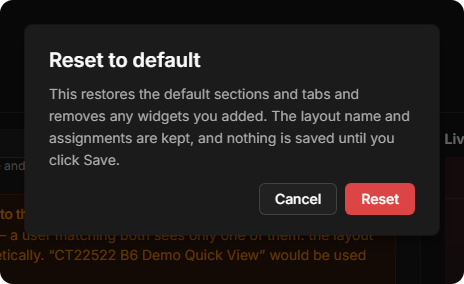
Reset to default asks first: "This restores the default sections and tabs and removes any widgets you added. The layout name and assignments are kept, and nothing is saved until you click Save."
Resetting the blocks
Adding Widgets
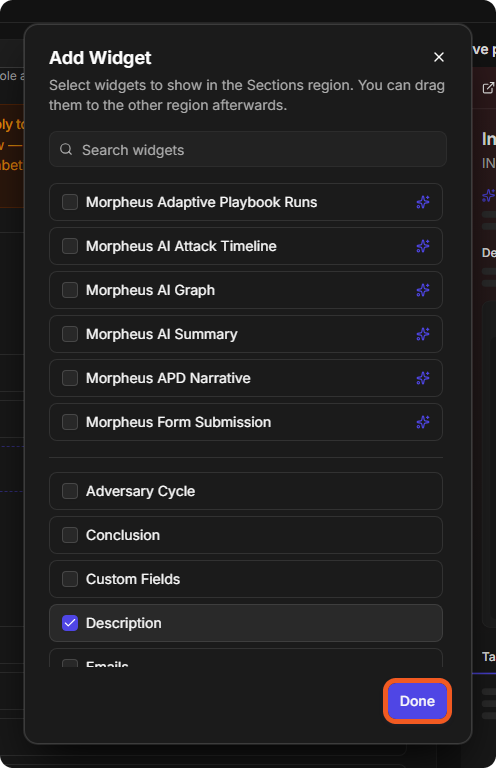
A widget block is an incident workspace widget placed in the panel. Select Add Widget under Sections or Tabs to open the widget list. The window reads "Select widgets to show in the Sections region. You can drag them to the other region afterwards."
The Add Widget window
-
The Morpheus widgets are listed first, followed by the other workspace widgets.
-
Tick each widget to add, then select Done.
Widgets that a built-in block already covers, such as Notes or Tasks, are not offered.
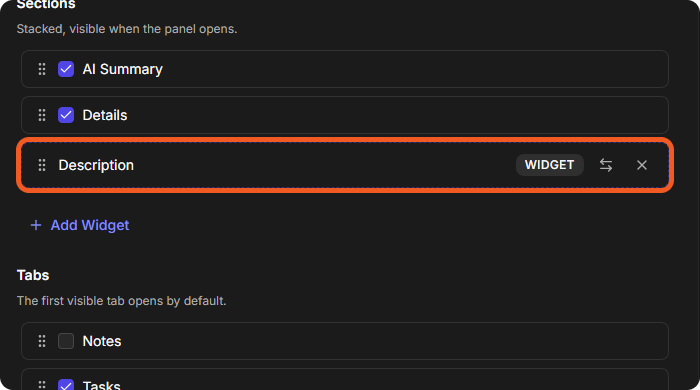
In the block list, a widget row has a dashed border and a WIDGET badge. A widget is added and removed rather than shown and hidden: its move button (Move to Tabs or Move to Sections) moves it to the other region, and its × button removes it.
A widget row
Live Preview
The Live preview beside the editor shows the panel as the layout arranges it, "Scaled to fit", with sample content. It updates as you edit.
How a Layout Is Chosen
|
Situation |
What the panel shows |
|---|---|
|
No enabled layout matches the user's role and group for the incident type |
The System Default |
|
One layout matches |
That layout |
|
Two enabled layouts match the same incidents |
The layout whose name comes first alphabetically |
The editor warns you while you work when a layout would compete with another enabled one. The warning names the other layout and says which one will be used: "a user matching both sees only one of them: the layout whose name comes first alphabetically." The warning does not stop you saving. To decide the winner yourself, rename a layout so that it sorts first, narrow its assignments, or disable the other one.
Managing Layouts
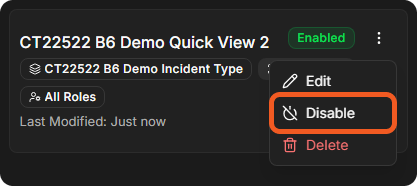
Each layout card has a ⋮ menu with Edit, Disable (or Enable) and Delete.
The layout menu
-
Edit opens the layout in the editor. Changes apply once you select Save.
-
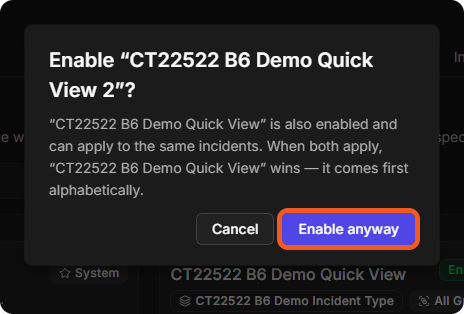
Disable takes the layout out of use without deleting it; its badge changes to Disabled. Enable puts it back into use. If it would compete with another enabled layout, a window names the other layout and says which one wins; select Enable anyway to go ahead.
Enabling a competing layout
-
Delete removes the layout after a window that names it.
Deleting a layout
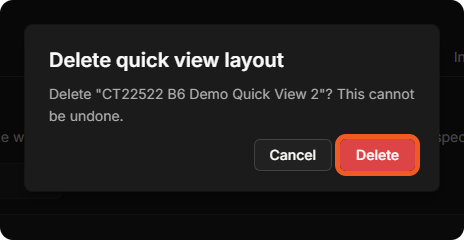
Deleting a layout cannot be undone. To take a layout out of use and keep it for later, disable it instead.
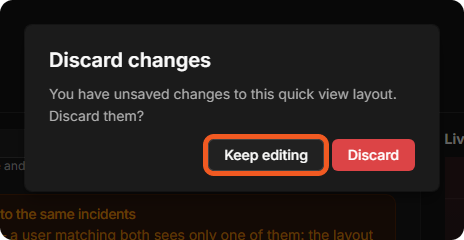
Leaving the editor with unsaved changes through Cancel asks "You have unsaved changes to this quick view layout. Discard them?" Select Keep editing to return to the layout, or Discard.
Unsaved changes
Troubleshooting
|
Symptom |
What to check |
|---|---|
|
The panel still shows the old arrangement |
Is the layout Enabled? Do both your role and your group match? Does another layout win (see How a Layout Is Chosen)? |
|
Save is unavailable |
The Name is empty. The editor shows "A layout name is required." |
|
The editor says the name already exists |
Names must be unique among quick view layouts. Rename the layout and save again. |
FAQs
Can I copy a layout? There is no copy action. Create a new layout and set its blocks the same way.