
Last Updated: October 23, 2026
Overview
The General tab of an incident type holds its basic settings: its name and description, the dispositions it offers, and the playbook that is preselected for each site.
To open it, go to Configuration > Incident Type Manager and select the incident type. The incident type opens on the General tab. See Incident Type Manager.
The General tab
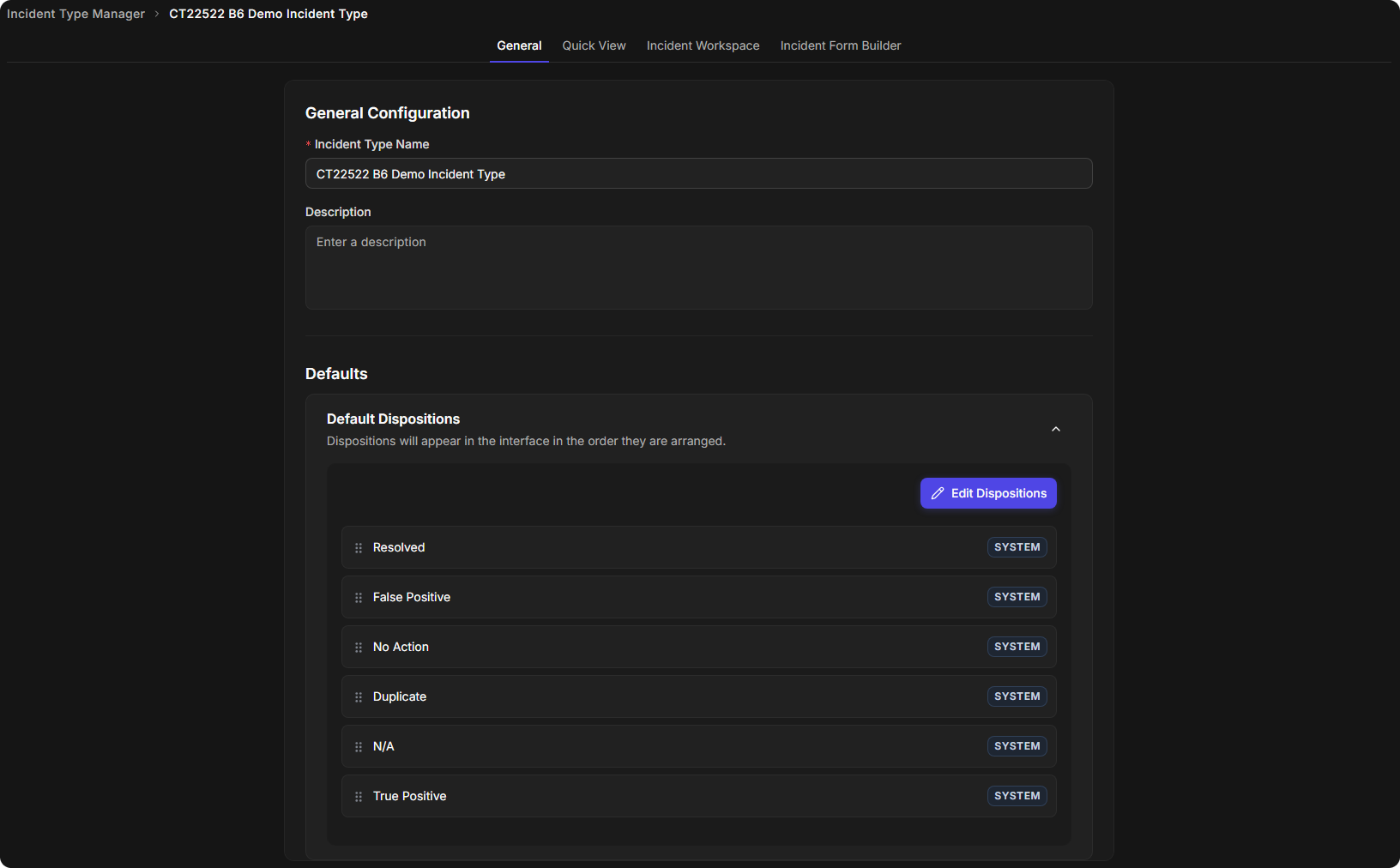
The tab has two sections:
-
General Configuration: the Incident Type Name and the Description.
-
Defaults: Default Dispositions and Default Playbook. Each one is a panel that you can collapse and expand.
General Configuration
-
Change the Incident Type Name or enter a Description. Cancel and Save appear under the section as soon as a field changes.
-
Select Save.
Saving a description
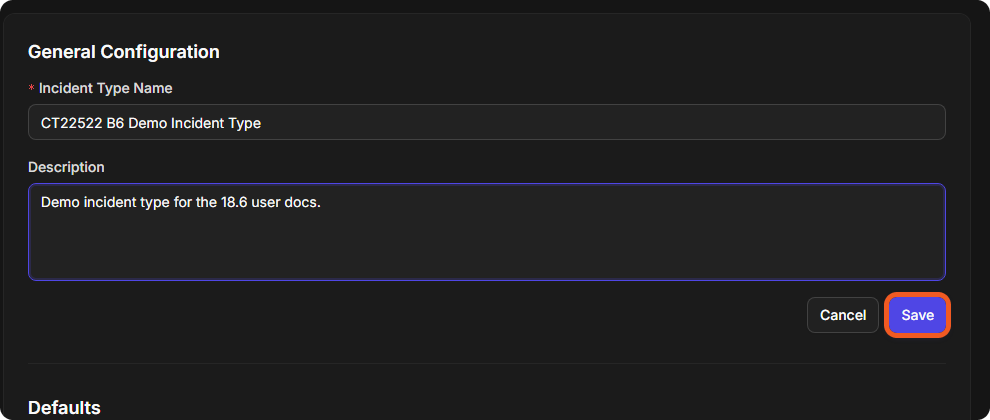
Select Cancel instead to discard the change.
Default Dispositions
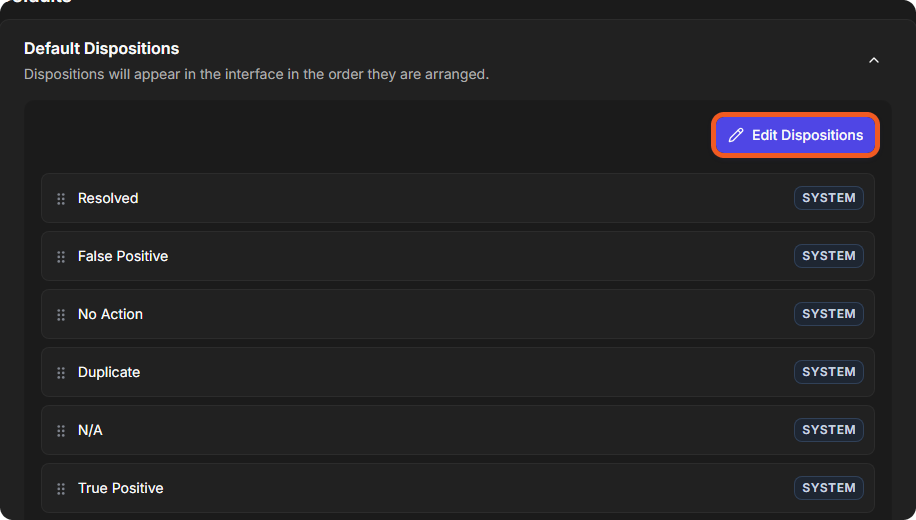
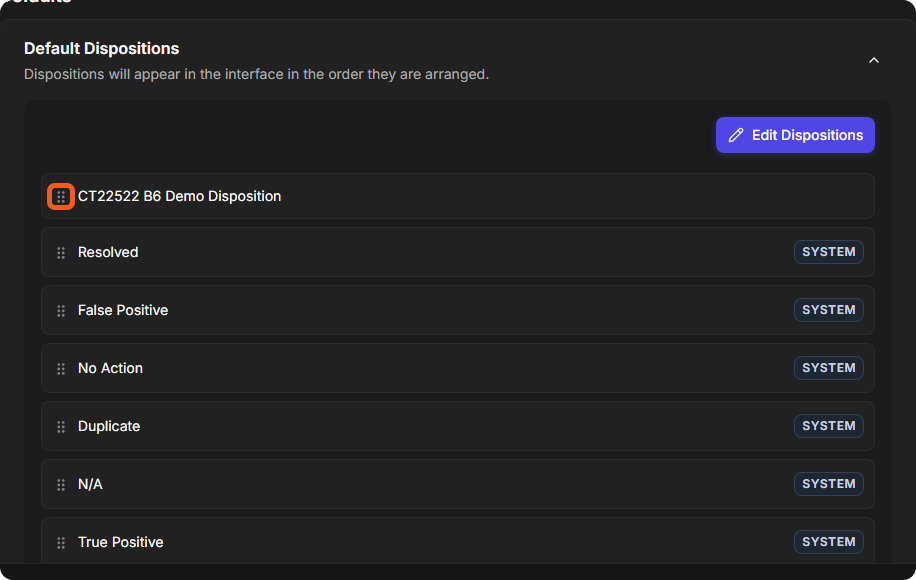
A disposition is the final outcome of an incident, such as True Positive or False Positive. The Default Dispositions panel lists the dispositions the incident type offers, in the order they are shown. A new incident type offers the six system dispositions, each marked SYSTEM:
-
Resolved
-
False Positive
-
No Action
-
Duplicate
-
N/A
-
True Positive
The Default Dispositions panel
Choosing the Dispositions
-
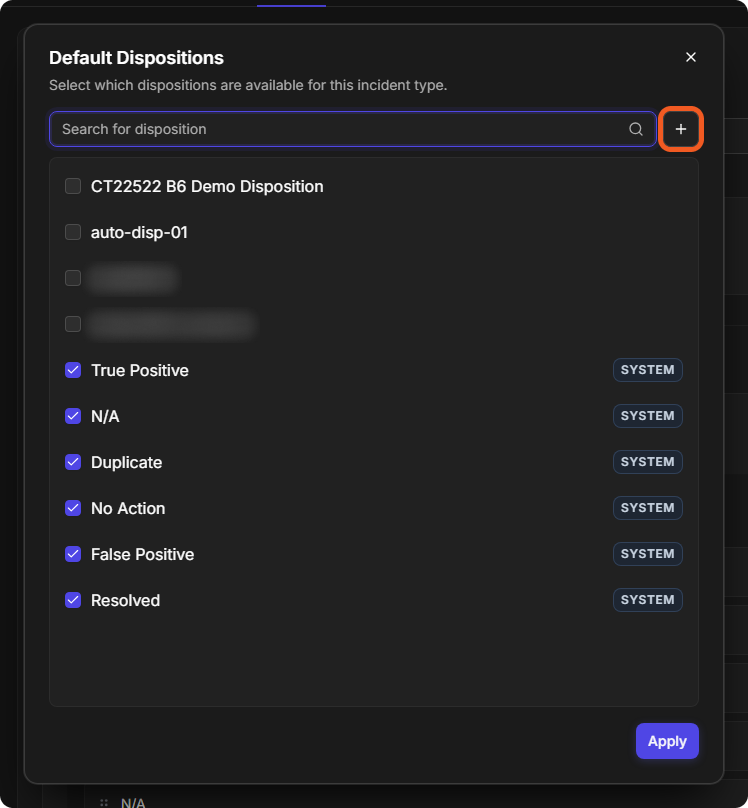
Select Edit Dispositions. The Default Dispositions window lists every disposition, and ticks the ones this incident type offers.
The Default Dispositions window
-
Tick the dispositions the incident type should offer, and clear the ones it should not. To find a disposition, type in Search for disposition.
-
Select Apply.
Choosing a disposition
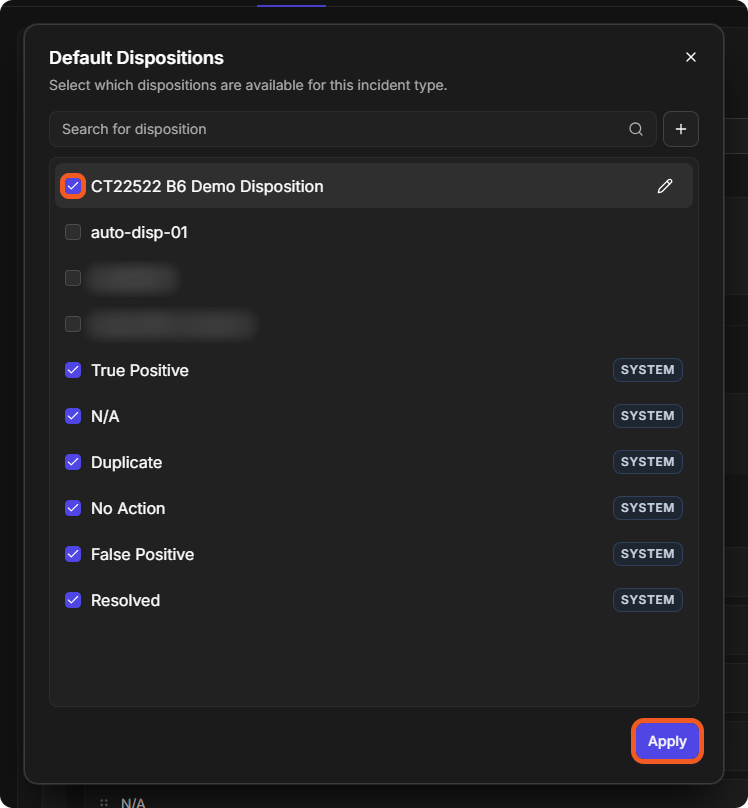
The Default Dispositions panel lists the dispositions you ticked.
Creating a Disposition
-
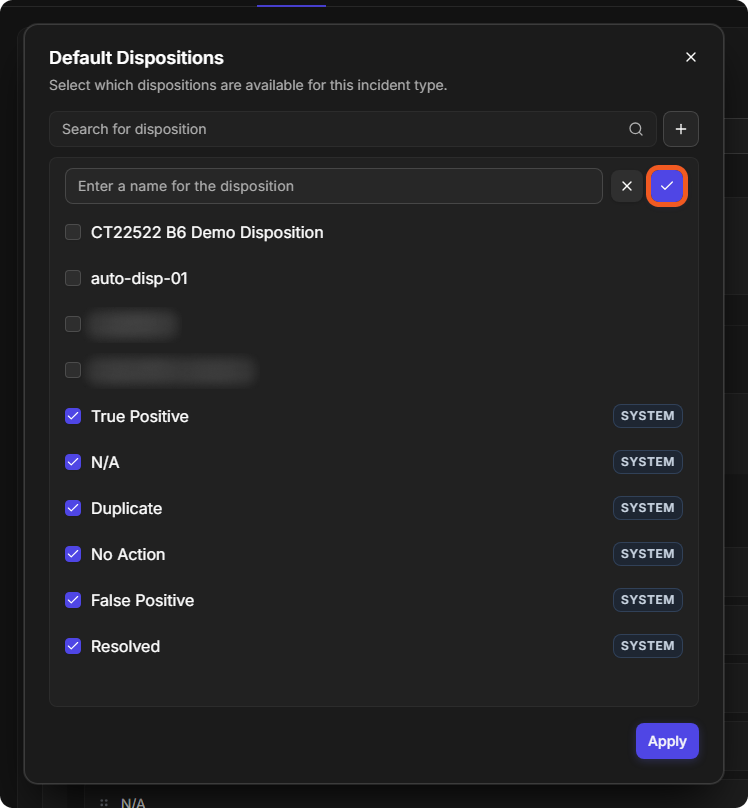
In the Default Dispositions window, select the + button beside the search box.
-
In Enter a name for the disposition, enter the name, then select the check mark button. Select the × button instead to cancel.
Naming a new disposition
-
Tick the new disposition, then select Apply.
A disposition you create is added to the list in the Default Dispositions window of every incident type, not only this one. It can be renamed with its pencil icon, but the window has no option to delete it. Check the list for an existing disposition before you create one.
Changing the Order
To change the order of the dispositions, drag a disposition by its handle (the dotted icon on its left) to a new place in the Default Dispositions panel. The new order is kept when you leave the tab.
Dragging a disposition
Default Playbook
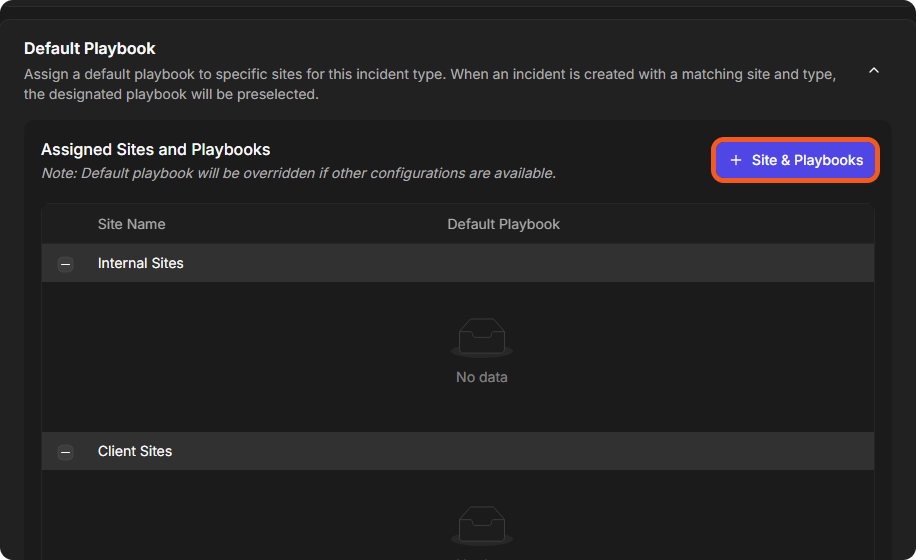
The Default Playbook panel assigns an investigation playbook to sites for this incident type. The panel describes it this way: "When an incident is created with a matching site and type, the designated playbook will be preselected." The table under Assigned Sites and Playbooks lists each site with its Default Playbook, under Internal Sites and Client Sites.
The Default Playbook panel
Assigning a Default Playbook
-
Select Site & Playbooks.
-
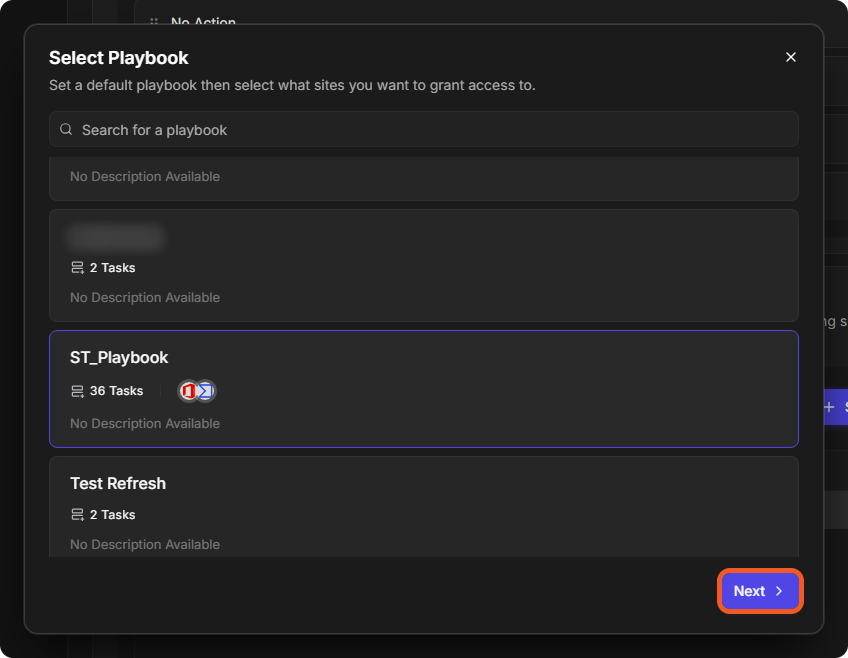
In the Select Playbook window, select the playbook, then select Next. To find a playbook, type in Search for a playbook.
Selecting the playbook
-
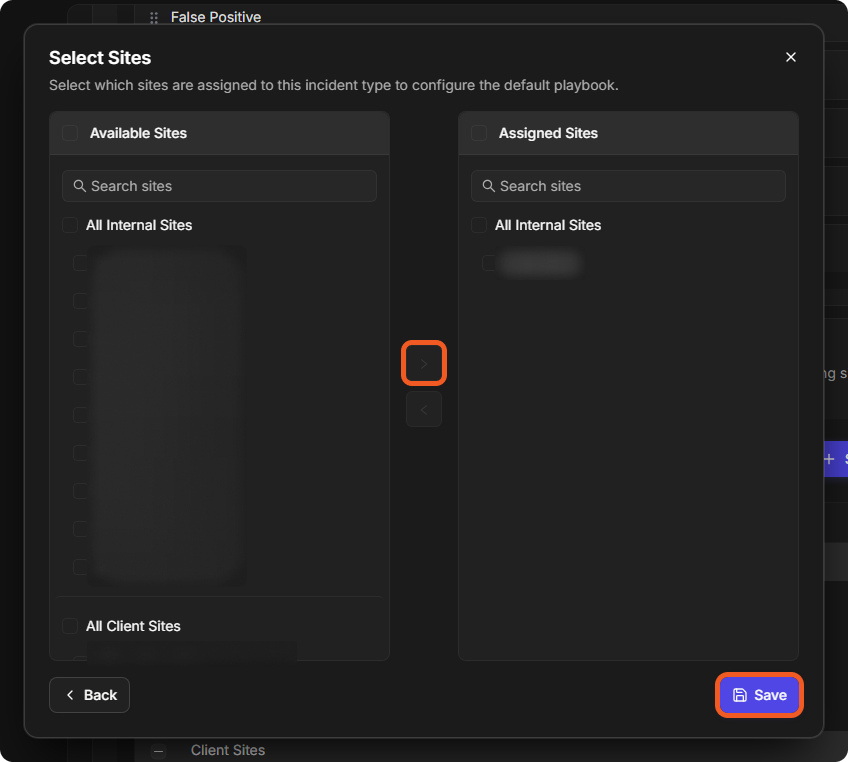
In the Select Sites window, tick the sites under Available Sites, then select the right arrow button to move them to Assigned Sites. Select Save.
Selecting the sites
The site and the playbook are listed in the Assigned Sites and Playbooks table.
An assigned default playbook
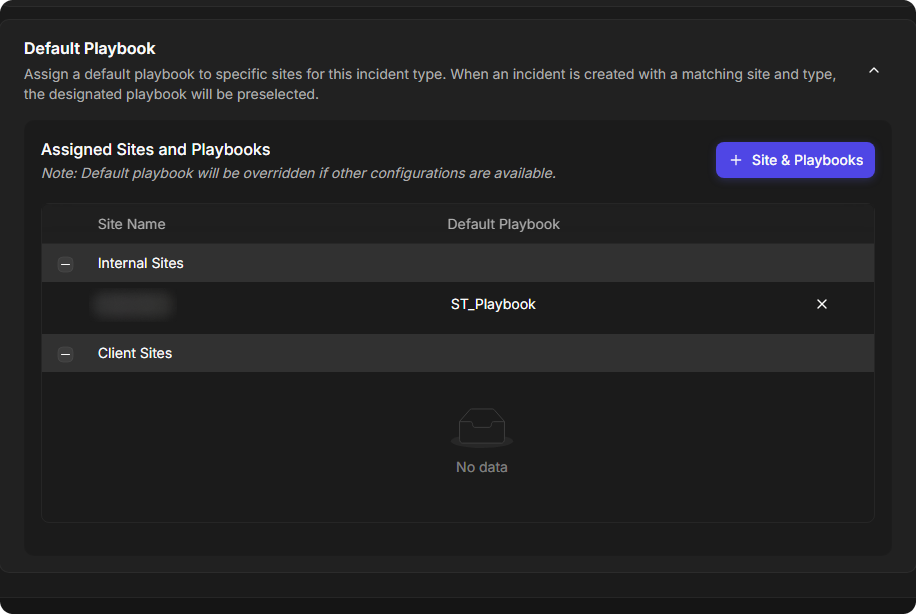
The panel notes: "Default playbook will be overridden if other configurations are available."
Removing a Default Playbook
-
Select the × button at the end of the row in the Assigned Sites and Playbooks table.
-
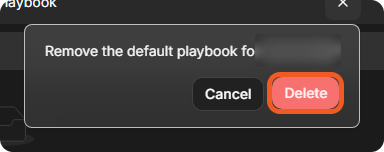
In the confirmation, select Delete.
The removal confirmation
The row is removed from the table.