
Last updated: October 20, 2026
Overview
Notifications tell you when something in D3 needs you: an incident assigned to you, a colleague mentioning you, an approval waiting on you, or a queue incident nobody has taken yet. They collect in the notification bell, and they can also appear as a pop-up card in the corner of the screen and as a desktop notification from your browser, so you find out without having to keep checking the bell.
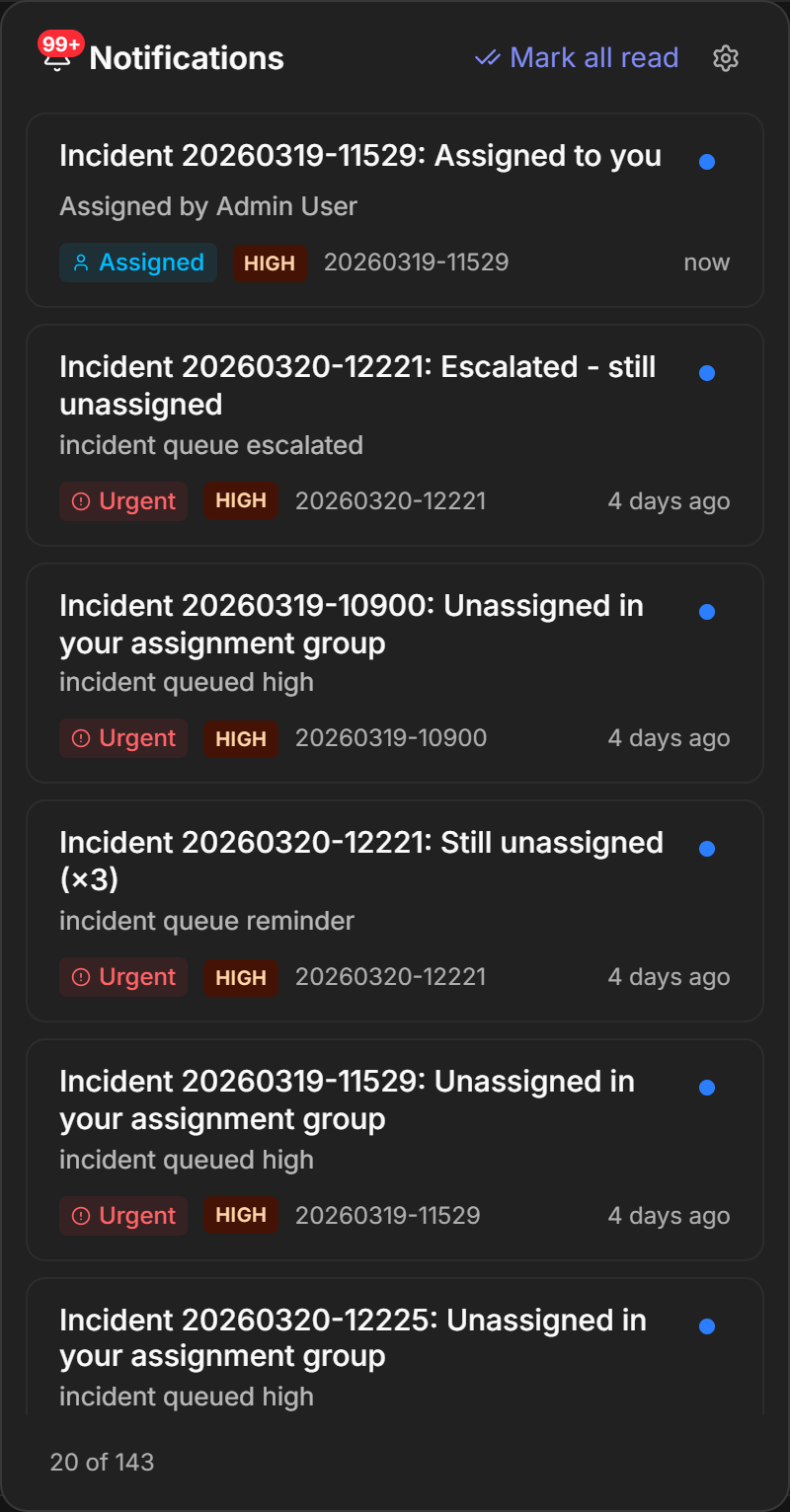
Every notification lands in the bell. Pop-ups and desktop notifications are optional, and each person decides for themselves how much D3 interrupts them.
In short
|
# |
Stage |
Where it happens |
|---|---|---|
|
1 |
Something needs you |
Automatic, no action by anyone |
|
2 |
It lands in the bell |
The bell icon at the top right of every page |
|
3 |
It pops up, if you have switched pop-ups on |
A card in the bottom-right corner |
|
4 |
You act on it |
The card's buttons, or select the entry in the bell |
|
5 |
You decide how loudly you are told |
Pop-up alerts, in the bell |
READER NOTE
Screenshots in this article were captured on an internal development site seeded with test data.
The Notification Bell
The notification bell is the list of everything D3 has told you, newest first. It sits at the top right of every page and is where every notification arrives, whether or not it also popped up.
The picture at the top of this article shows the bell open.
|
On the bell |
What it tells you |
|---|---|
|
The count on the bell icon |
How many notifications you have not read yet. Above 99 it reads 99+ |
|
An entry's title and line beneath |
What happened, and to which incident |
|
The coloured label |
What kind of notification it is, such as Assigned or Mention. Urgent ones read Urgent instead |
|
The severity badge and incident number |
Which incident it concerns, and how severe that incident is |
|
The blue dot |
The entry is unread |
|
(×3) after a title |
The same notification arrived three times and is shown once |
|
20 of 143 at the bottom |
How many entries are loaded. More load as you scroll |
Mark all read marks every entry read at once. To mark a single entry read without opening it, use the control on that entry.
READER NOTE
The bell updates while it is open. New notifications appear at the top without a refresh.
Opening a Notification
Selecting an entry takes you to what it is about, and marks it read.
-
Select the bell.
-
Select the entry.
RESULT
The incident the notification is about opens in its workspace, and the entry is marked read. A Moved in bulk entry is about a queue rather than one incident, so it opens the incident list on Unclaimed in my queues instead.
What You Are Notified About
These notifications are delivered today:
|
Notification |
When it arrives |
|---|---|
|
Incident <number> : Assigned to you |
An incident is assigned to you |
|
Incident <number> : You were mentioned |
Someone mentions you on an incident |
|
Incident <number> : Approval requested |
An approval on an incident is waiting for you |
|
Form link: expiring soon |
A form link is about to expire |
|
Queue alerts |
A High or Critical incident is sitting unclaimed in one of your assignment groups. These are covered in Queue Alerts |
Pop-up Notifications
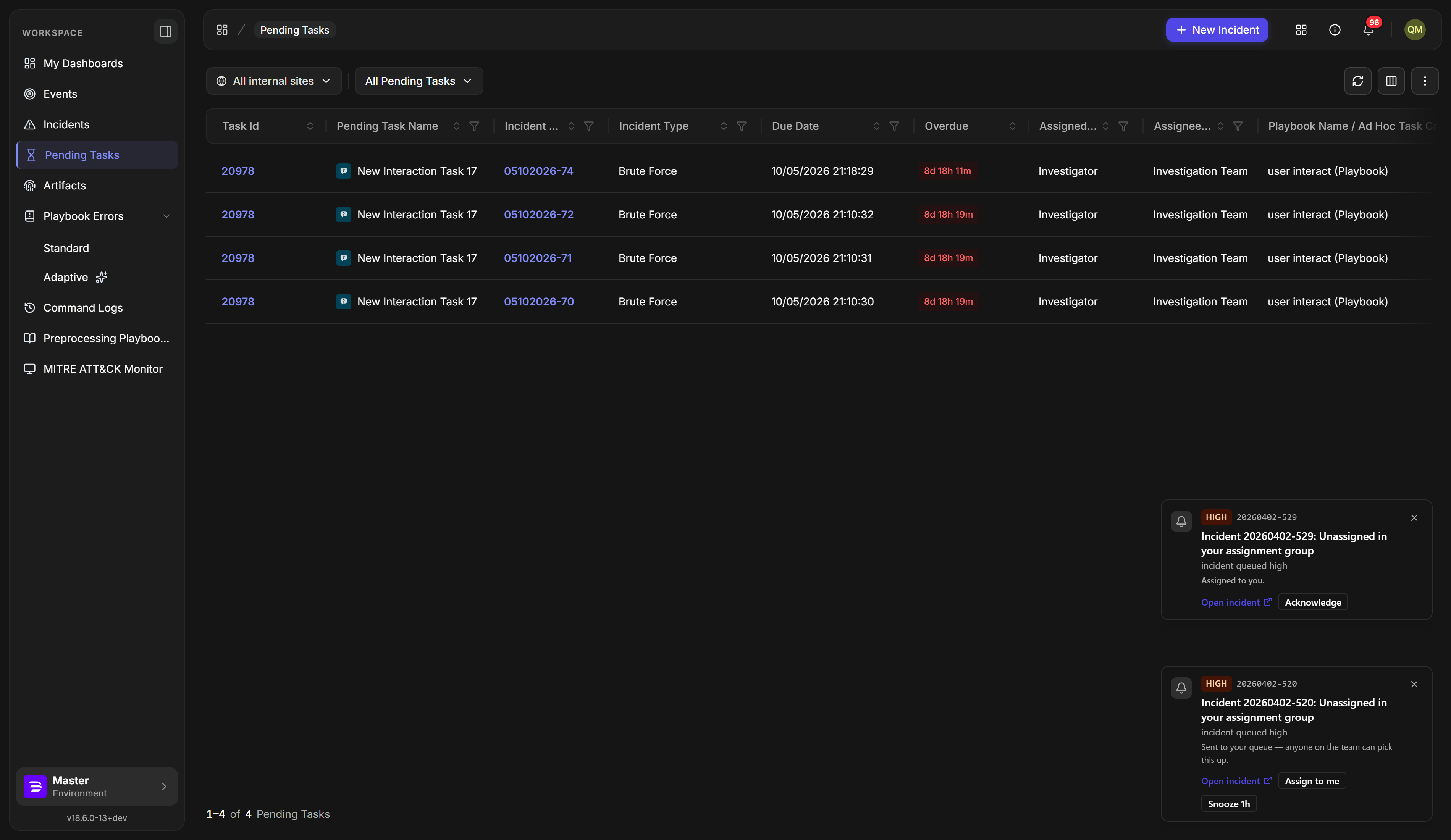
A pop-up is a card in the bottom-right corner that shows a notification the moment it arrives, so something important is in front of you rather than waiting in the bell. Any kind of notification can pop up; what decides it is how important the notification is and the threshold you set.
Pop-ups are off until you switch them on. See Pop-up Alert Settings below.
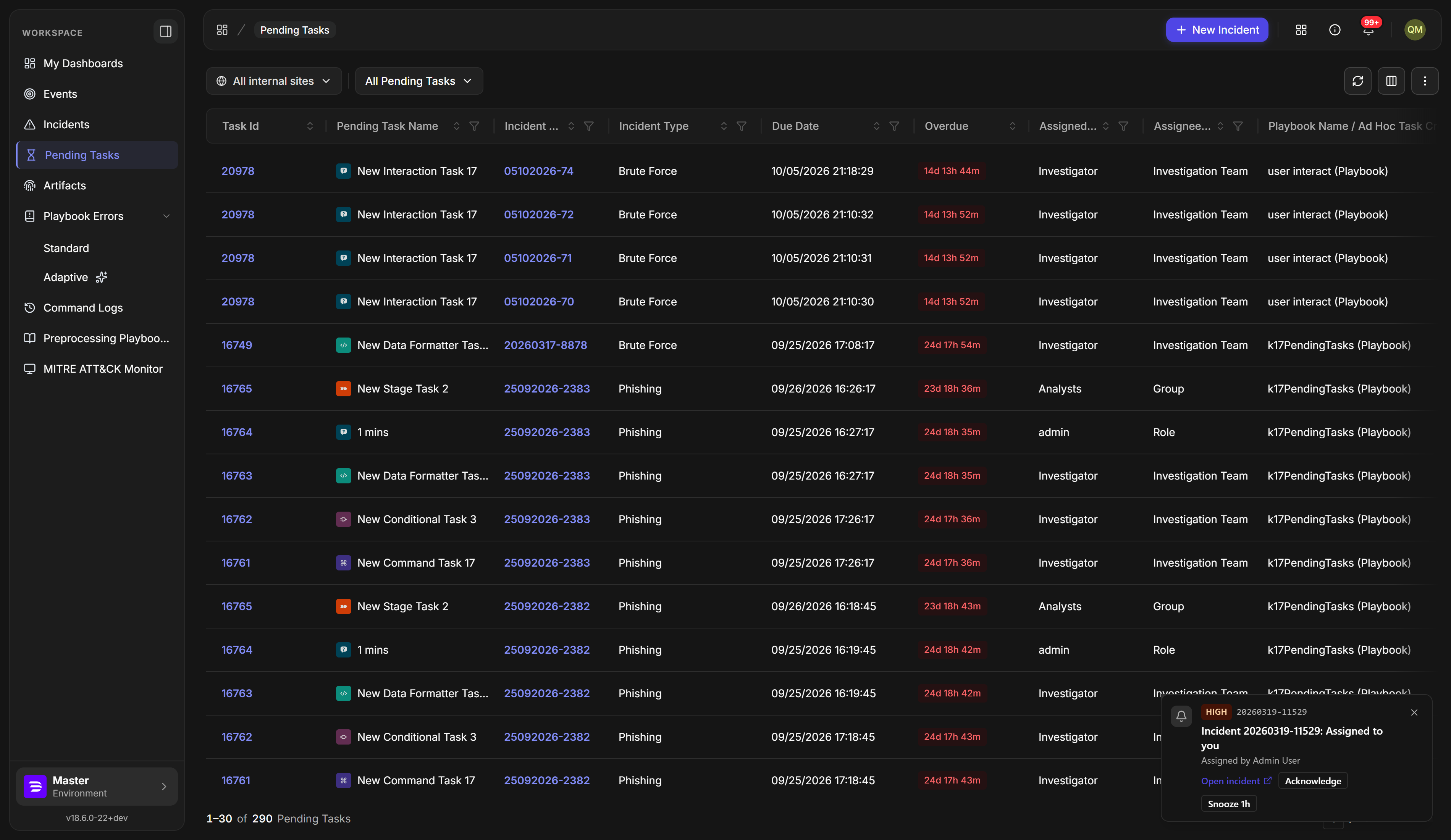
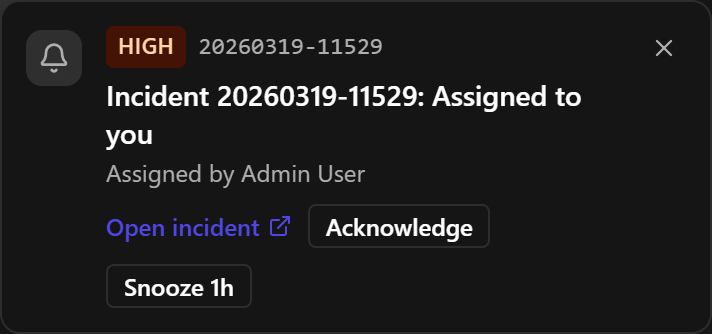
The buttons on a card depend on what the notification is about:
|
Button |
What it does |
Shown on |
|---|---|---|
|
Open incident |
Opens the incident's workspace |
Notifications about an incident |
|
Acknowledge |
Closes the card and marks the notification read |
Notifications that something was assigned to you |
|
Snooze 1h |
Holds back pop-ups about that incident for an hour. The notification stays in the bell, and the card comes back after the hour if you have not read it yet and the incident is still open and not taken by someone else |
Most cards |
|
Assign to me |
Takes the incident |
Queue alerts only, see Queue Alerts |
|
The close control (×) |
Closes this card only. It does not acknowledge or snooze anything |
Every card |
READER NOTE
Closing a card does not remove the notification. It is still in the bell, so nothing is lost by dismissing a card you are not ready to deal with.
When several notifications arrive together, only as many cards as your Most on screen at once setting allows are shown. Hovering over the stack fans the rest out.
Pop-up Alert Settings
Pop-up settings are yours alone. They decide how much D3 interrupts you, and nobody else's experience changes when you change them.
Turning On Pop-ups
-
Select the bell.
-
Select the settings icon in the bell's header. Its tooltip reads Pop-up alert settings.
-
Select Show pop-up alerts.
-
Choose how important a notification must be under Pop up for.
RESULT
Notifications at or above that importance now pop up as cards. Everything still arrives in the bell as before.
Until Show pop-up alerts is on, the other settings are visible but greyed out, so you can see what you are opting into before you do.
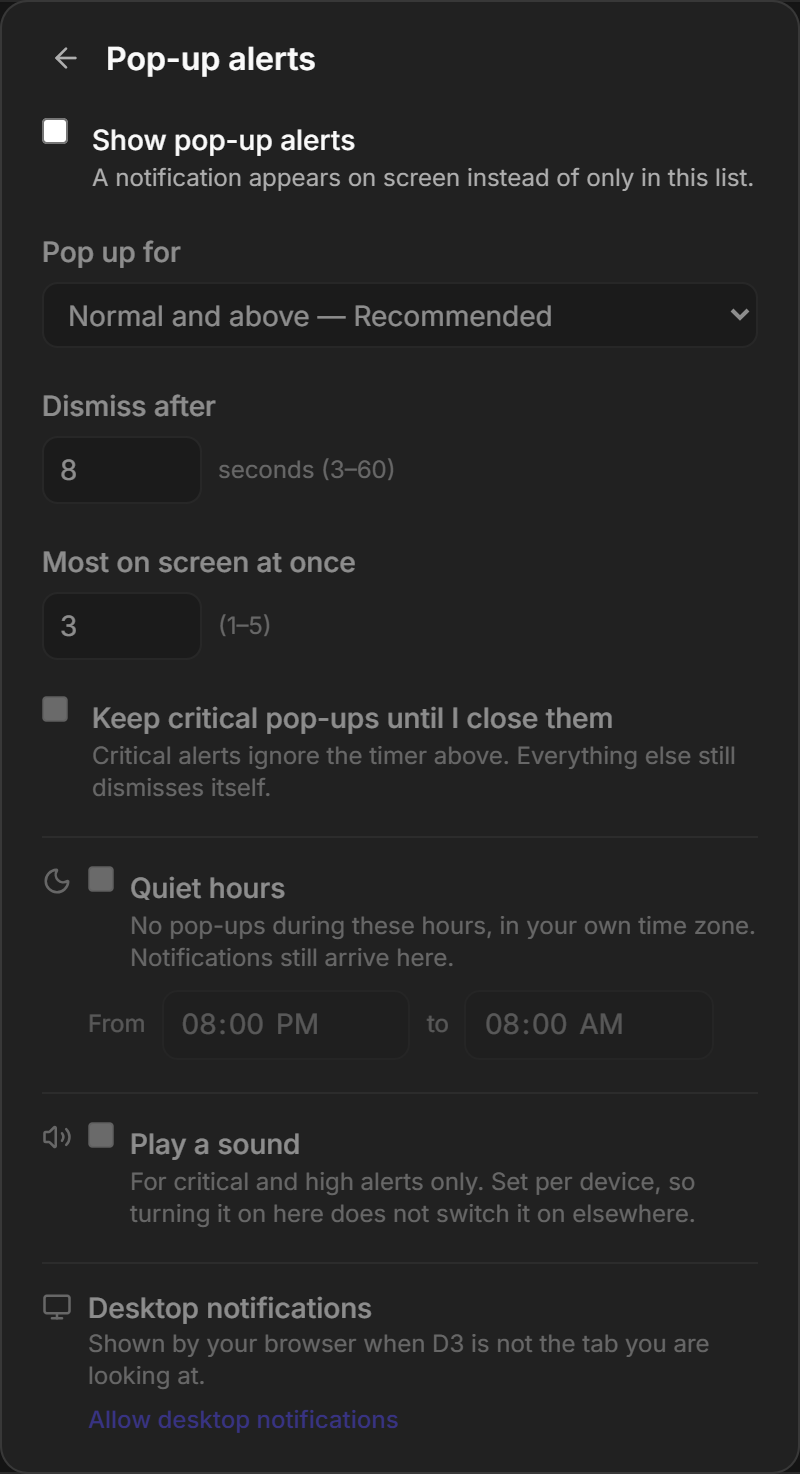
|
Setting |
What it does |
Default |
|---|---|---|
|
Show pop-up alerts |
Turns pop-ups on. Without it, notifications arrive in the bell only |
Off |
|
Pop up for |
How important a notification must be to interrupt you: Critical only — Fewest pop-ups, High and above, Normal and above — Recommended, Low and above, Everything — Most pop-ups |
Normal and above |
|
Dismiss after |
How long a card stays, 3 to 60 seconds |
8 seconds |
|
Most on screen at once |
How many cards are shown together, 1 to 5 |
3 |
|
Keep critical pop-ups until I close them |
Critical cards ignore the dismiss timer. Everything else still closes itself |
Off |
|
Quiet hours |
No pop-ups between the two times you set, in your own time zone |
Off, 08:00 PM to 08:00 AM |
|
Play a sound |
A chime for critical and high notifications only |
Off |
|
Desktop notifications |
Lets your browser show the notification when D3 is not the tab you are looking at |
Not allowed |
READER NOTE
Quiet hours silence the card, not the notification. Everything still arrives in the bell, so nothing is missed. It waits for you.
READER NOTE
Play a sound is set per device. Turning it on at your desk does not turn it on at home.
Allowing Desktop Notifications
A desktop notification is shown by your browser, outside the D3 tab, so you are told even while you work in another window. It appears only when D3 is open in a tab you are not looking at; while you are on the D3 tab you get the card instead, never both.
Desktop notifications are a browser permission, not a D3 setting, so D3 can only ask on your behalf.
-
Select Allow desktop notifications.
-
Accept the request your browser shows.
RESULT
The setting reports Allowed. Notifications now also appear outside the browser tab. Selecting one brings D3 to the front and opens the incident.
COMMON ERROR
If the setting reports Blocked., D3 cannot ask again, because browsers allow one prompt only. Turn notifications back on for this site in your browser's own site settings, then return here.
Limits and Constraints
|
Constraint |
Detail |
|---|---|
|
Pop-ups |
Off until each person switches them on |
|
Where pop-ups appear |
Only while D3 is open in your browser |
|
Desktop notifications |
A browser permission. Once blocked, it can only be restored in the browser |
|
Quiet hours |
Silence pop-ups only; the bell still receives everything |
|
Sound |
Set per device |
|
Surface |
New UI |
RELATED ARTICLES