
Last Updated: October 27, 2026
What D3 Morpheus Does
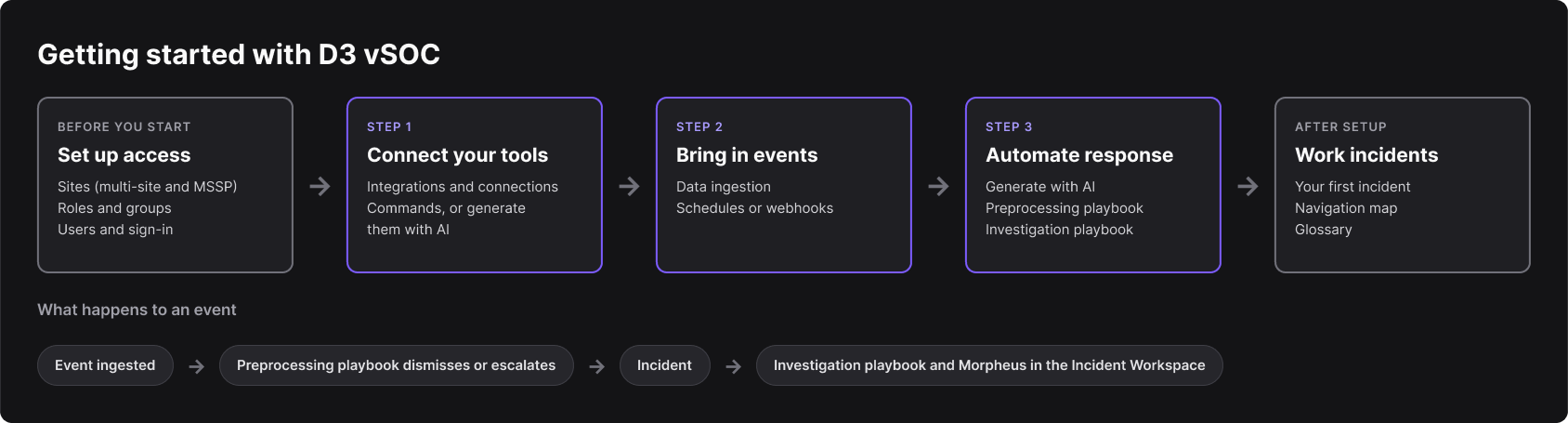
D3 Morpheus brings in security events from your tools, decides which ones need attention, and automates the response. Events are ingested from your integrations. A preprocessing playbook runs on each event and either dismisses it or escalates it to an incident. Investigation playbooks then run on the incident, and analysts work it in the Incident Workspace with Morpheus, D3's AI assistant.
Morpheus also helps you set up: with Generate with AI it drafts playbooks, utility commands and the commands of a custom integration from a description, for you to review before anything runs. The Morpheus AI section covers everything Morpheus does.
The Getting Started path
Pick Your Path
|
If you are |
Start with |
|
An administrator |
Set up the platform: Before You Start, then steps 1 to 3 below. |
|
An analyst |
Working Your First Incident, then the Investigation Dashboard, the Incident Workspace and Morpheus Adaptive Tasking. |
|
An automation engineer |
Generating playbooks with AI, then My First Playbook, My Second Playbook and Utility Commands. |
Before You Start
BROWSER SUPPORT
The D3 platform currently provides support for Google Chrome and Microsoft Edge.
-
Sites: for multi-site and MSSP setups, each business unit or client gets its own site, with isolated data, workflows and configurations.
-
Access controls: create roles and groups with the right permissions before you add users.
-
Users: add your team, one at a time or in bulk from a CSV file.
-
Sign-in: to let users sign in through your identity provider (SSO), see the Login Authentication Configuration Guide.
Step 1: Connect Your Tools
Configure an integration for each tool D3 Morpheus works with, and add a connection with the tool's credentials. Built-in integrations come with their commands. For a tool with no built-in integration, Morpheus can generate the commands of a custom integration from the product's API document and a description.
Step 2: Bring In Events
Configure data ingestion so events flow in, on a schedule or through a webhook. The AI Ingest assistant on the Data Ingestion page opens Morpheus to help you start. Which events are dismissed and which become incidents is decided by the preprocessing playbook you choose for the data source, which you build in the next step.
Step 3: Automate Response
Start with Generate with AI: describe what a playbook should do, and Morpheus drafts it for you to review. Nothing runs until you enable it. Then follow the two tutorials:
-
My First Playbook: a preprocessing playbook. It runs on every ingested event and dismisses it or escalates it to an incident. Choose it as the data source's preprocessing playbook.
-
My Second Playbook: an investigation playbook. It runs on the incidents your preprocessing playbook creates.
After Setup
-
Working Your First Incident: an analyst's walkthrough, from the Incidents list to closing an incident.
-
Legacy-to-New Navigation Map: where each Legacy UI screen is in the New UI.
-
D3 Glossary: the terms used across D3 Morpheus.