
Last updated: October 19, 2026
Overview
Widget visibility is a per-widget setting in the incident workspace builder that hides a widget on Low and Medium severity incidents when that widget has nothing to show. Analysts working lower-severity incidents then see only the panels that hold information, instead of scrolling past empty ones. For example, if your team runs Morpheus investigations only on High and Critical incidents, the Morpheus panels stay out of the way on everything else.
A Low severity incident with widget visibility switched on
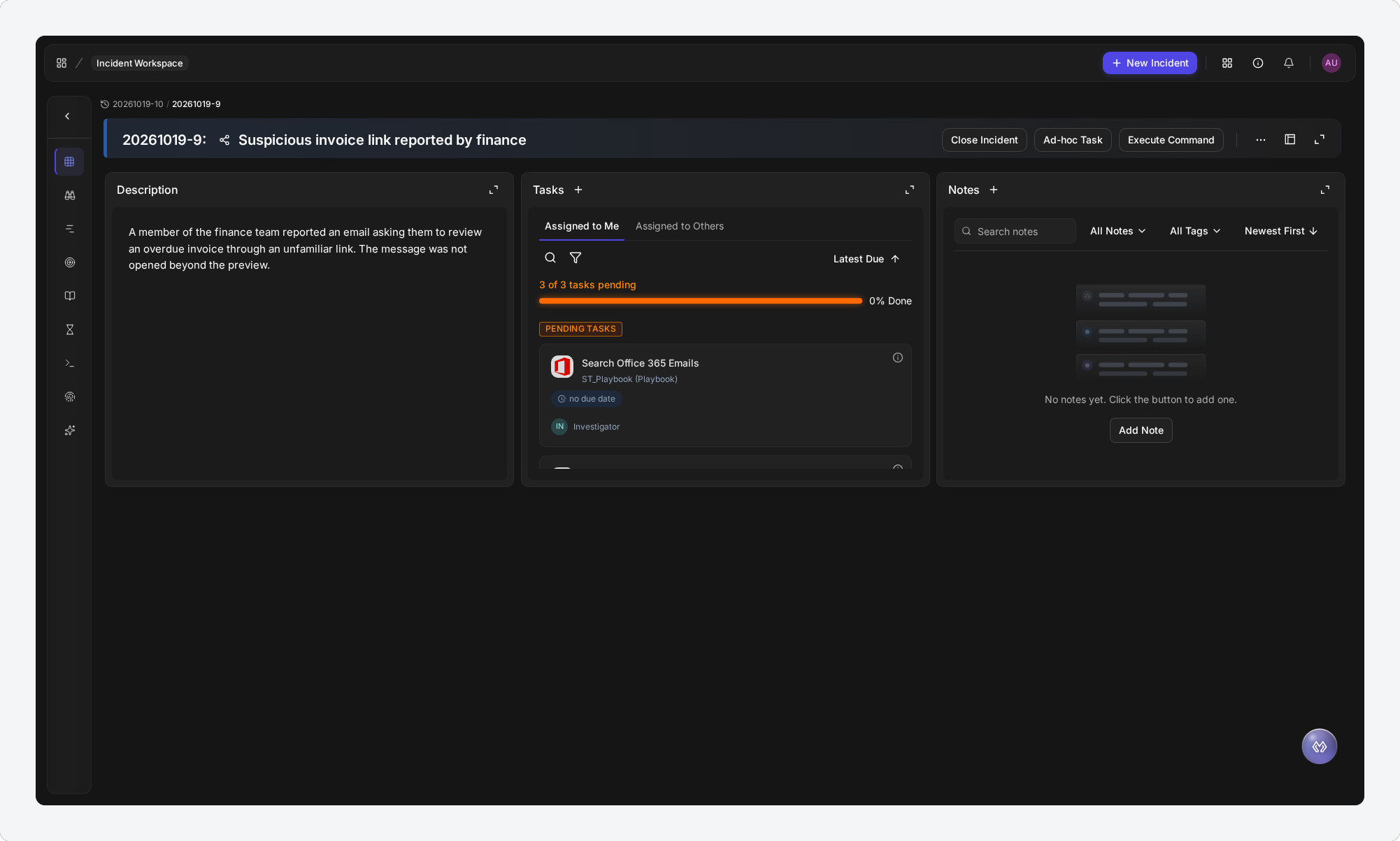
The setting is off for every widget until an administrator switches it on, so existing workspaces look exactly as they did before. It is available in the new UI.
In short
|
# |
Stage |
Where it happens |
|---|---|---|
|
1 |
Open the workspace for editing |
Configuration > Incident Type Manager > an incident type > Incident Workspace, then ⋮ > Edit on the workspace |
|
2 |
Open a widget's visibility settings |
The gear icon in the widget's header |
|
3 |
Switch on Hide this widget on low-severity incidents |
The visibility settings panel |
|
4 |
Save the workspace |
Save, at the top right of the builder |
|
5 |
Check the result |
A Low or Medium severity incident that uses the workspace |
When a Widget Is Hidden
Hiding is designed so that analysts never lose information: a widget is removed only when there is clearly nothing in it. A widget with the setting switched on is hidden only when all three of these are true:
|
Condition |
What it means |
|---|---|
|
The setting is on for that widget |
An administrator switched on Hide this widget on low-severity incidents for this widget in this workspace. |
|
The incident is Low or Medium severity |
High, Critical and Informational incidents always show every widget. The severities are fixed by the product and are not configurable. |
|
The widget has no data |
The widget's content has loaded and is empty. A widget that is still loading, or whose content could not be loaded, stays on screen. |
A few widgets are judged with extra care, so that work in progress is never hidden:
-
Tasks and Notes are judged for the whole incident, not for the person viewing it. Tasks is hidden only when nobody has any task on the incident, pending or completed, and Notes only when the incident has no notes of any kind. Hiding does not depend on who is viewing: everyone who opens the incident in the same workspace sees the same widgets.
-
Morpheus AI Graph and Morpheus AI Summary stay on screen while a Morpheus investigation is running on the incident, because their content may still arrive.
-
Morpheus AI Graph stays on screen when its graph has content. A finished investigation that produced no graph counts as empty, so the widget can be hidden.
READER NOTE
A widget with content is never hidden by this setting. If data reaches a hidden widget later—for example, when a playbook writes a conclusion—reload the page to see the widget.
Turning On Widget Visibility for a Widget
Turn the setting on for the widgets your analysts do not need to see when they are empty, such as Morpheus panels on incidents that Morpheus does not investigate.
You need access to Incident Type Manager to edit a workspace.
-
Go to Configuration > Incident Type Manager and select an incident type.
-
Select the Incident Workspace tab. The tab lists the workspaces assigned to that incident type.
-
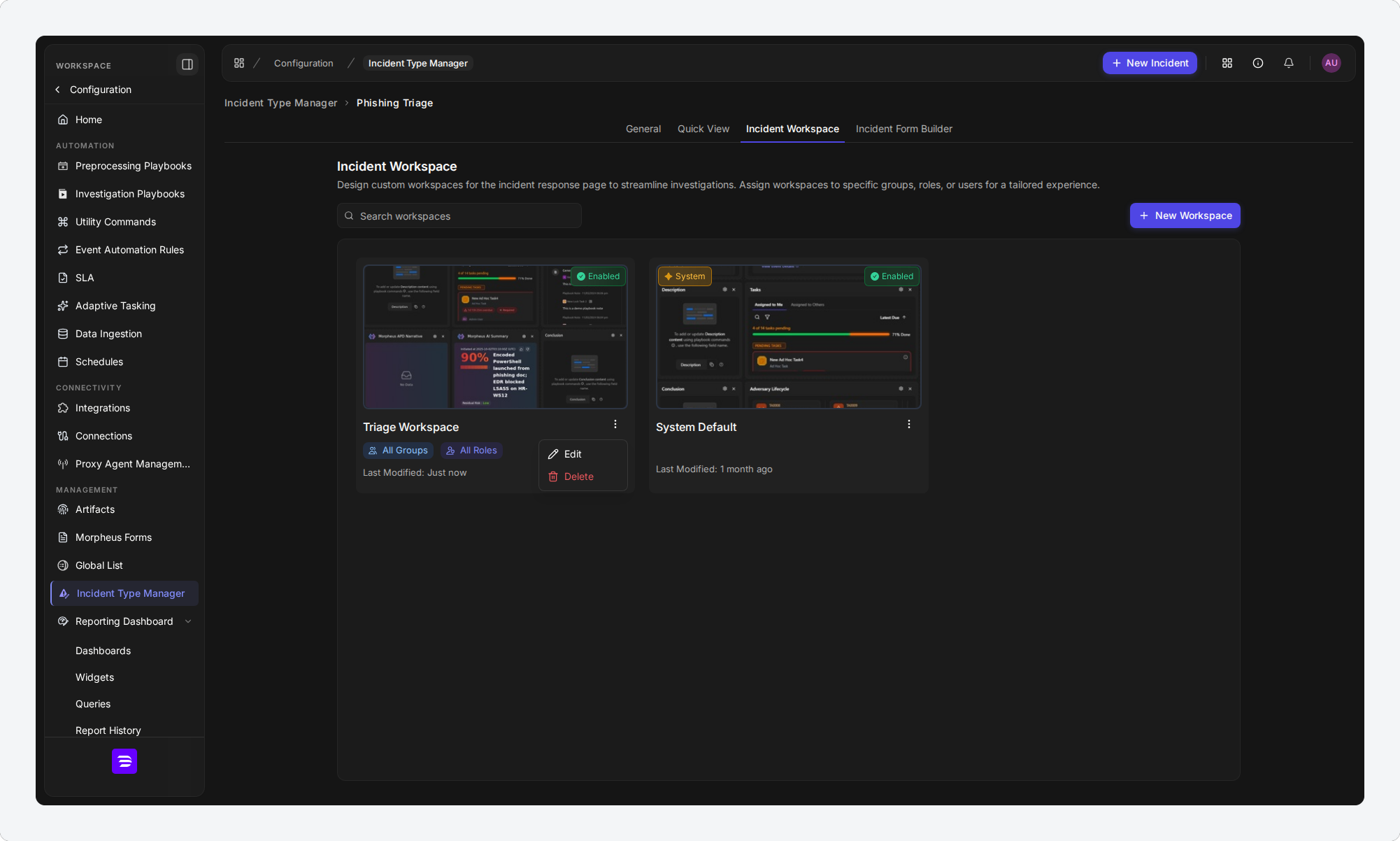
On the workspace you want to change, select ⋮ > Edit. The workspace opens in the builder, on the Build tab.
Opening a workspace for editing
-
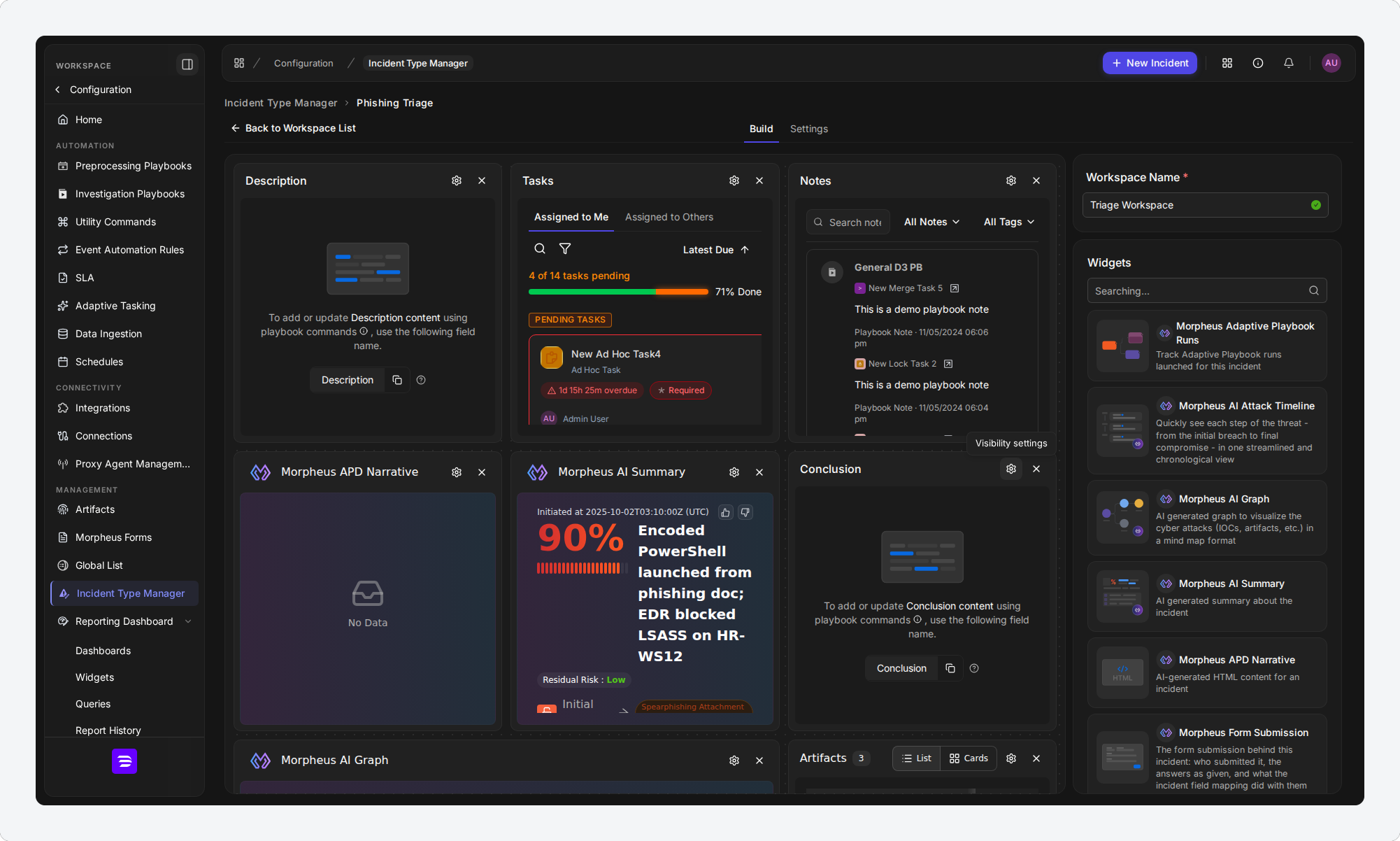
In the header of the widget you want to hide when it is empty, select the gear icon. Its tooltip reads Visibility settings.
The gear icon in a widget's header
-
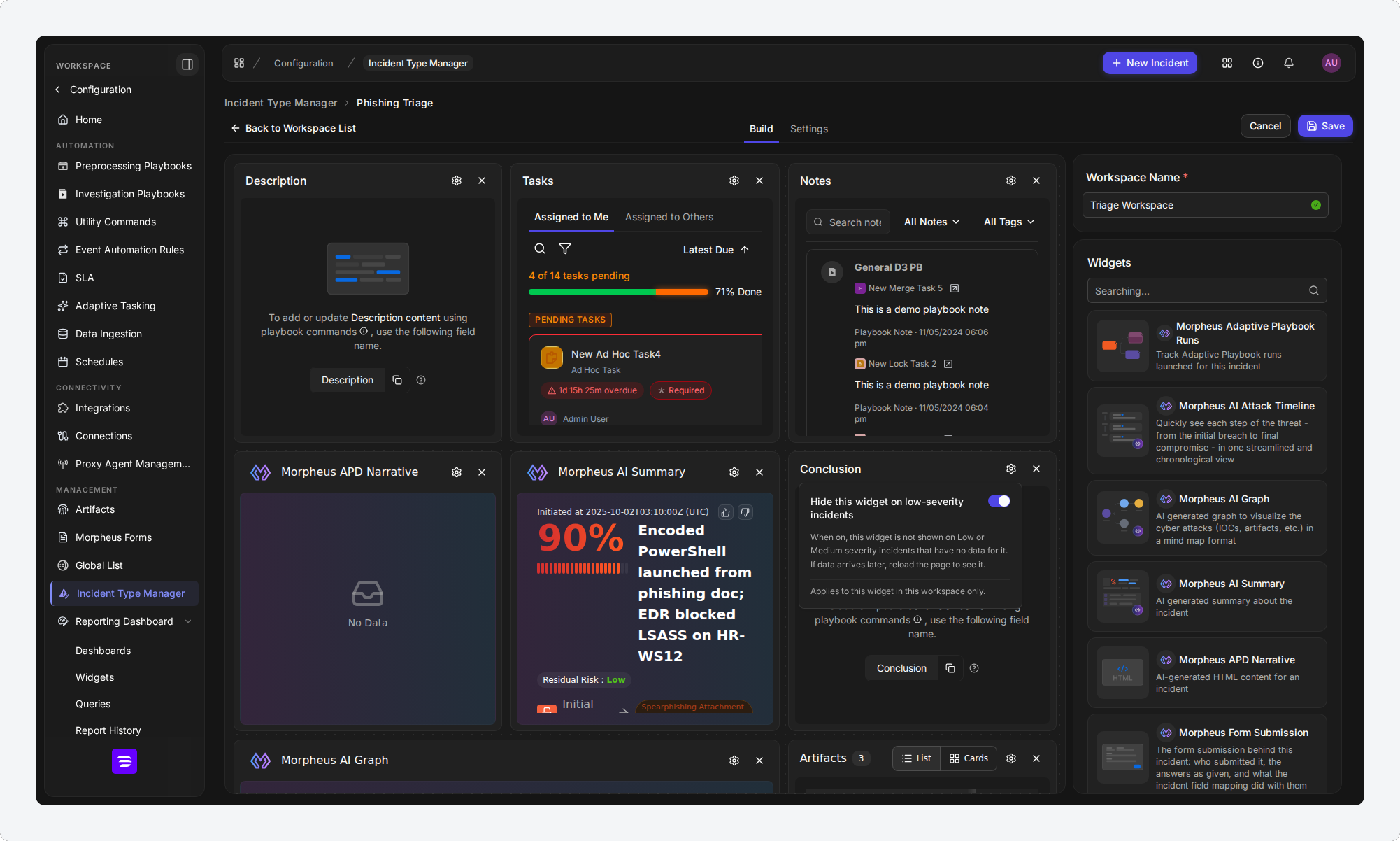
Switch on Hide this widget on low-severity incidents. The panel explains what the setting does and confirms that it applies to this widget in this workspace only.
The visibility settings for one widget
-
Repeat steps 4 and 5 for any other widgets you want to hide when they are empty.
-
Select Save.
RESULT
The workspace is saved with your settings. On Low and Medium severity incidents that use this workspace, the widgets you switched on are left out whenever they have nothing to show, and the remaining widgets move up to fill the space.
READER NOTE
The builder fills every widget with sample content, so it does not show which widgets will be hidden. To check your settings, open a Low or Medium severity incident that uses the workspace.
WARNING
The setting is saved only when you select Save. If you leave the builder without saving, the builder asks whether to discard your unsaved changes.
To stop hiding a widget, open the same panel, switch the setting off, and save the workspace.
Seeing the Result on an Incident
The effect shows on the incident itself, in the new UI's incident workspace. The two incidents below use the same workspace, in which six of the eight widgets have the setting switched on.
On the Low severity incident, the five widgets with no data are hidden. Description has the setting switched on too, but it has content, so it stays. Tasks and Notes have the setting off, so they always show.
The same workspace on a High severity incident
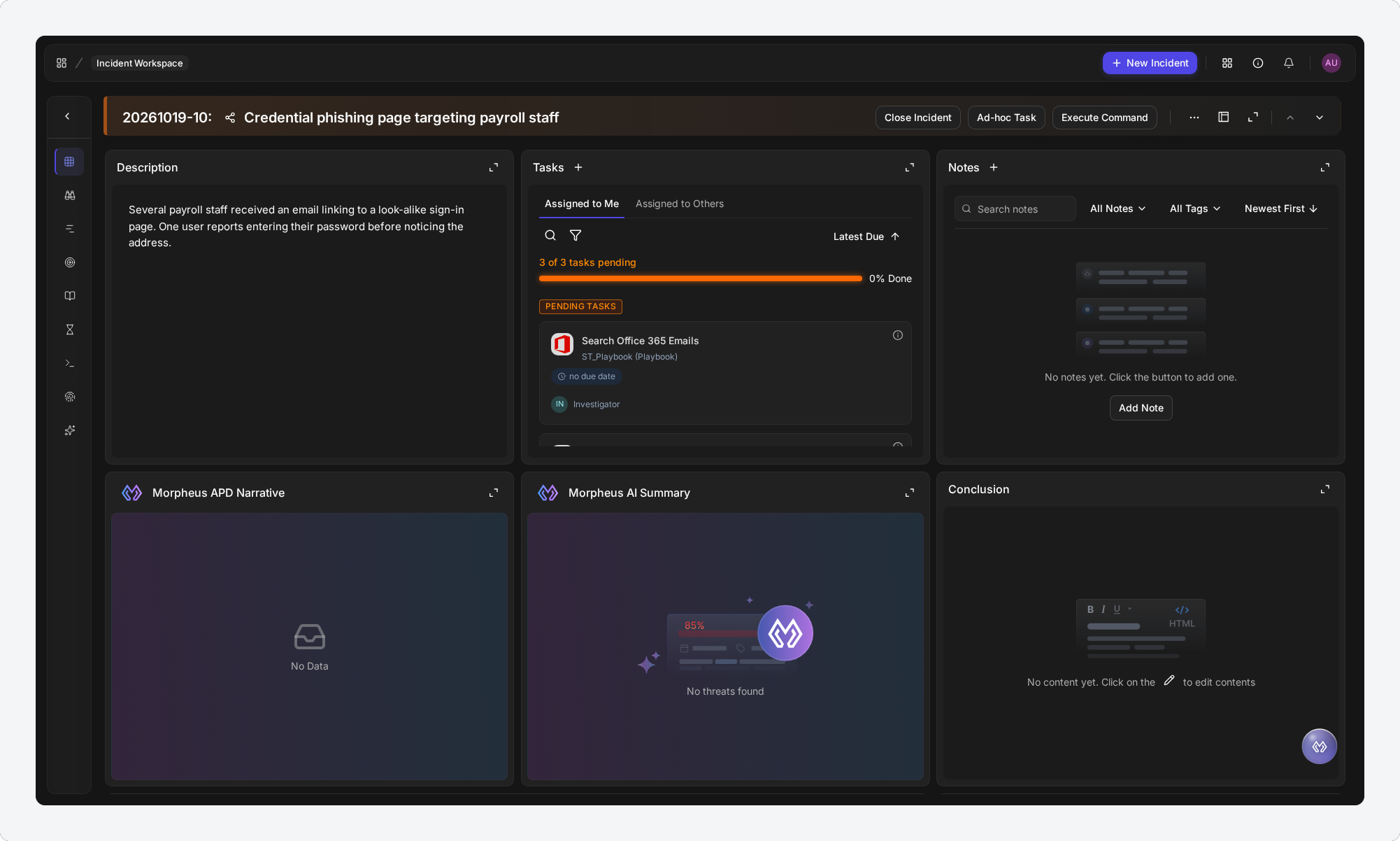
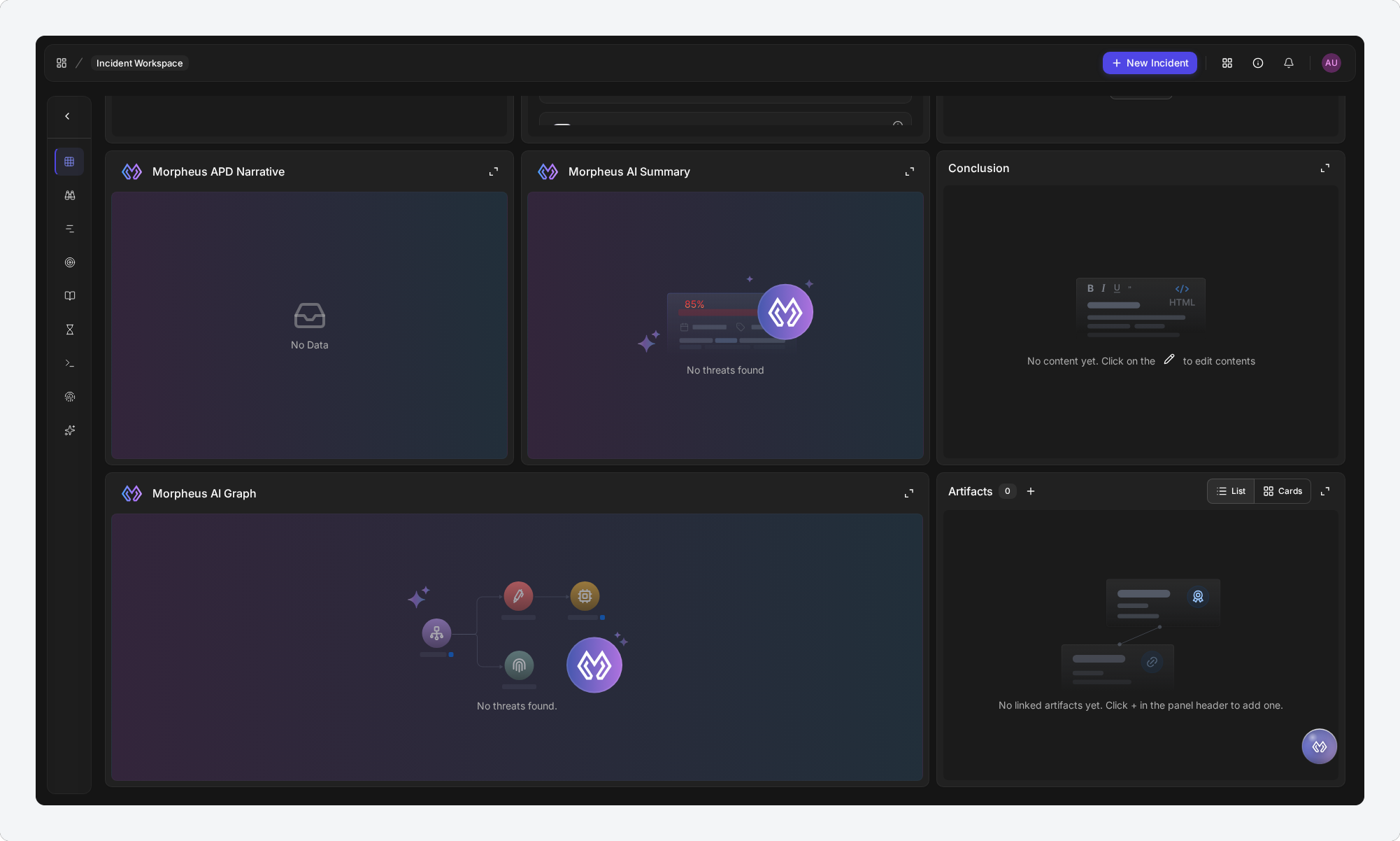
On a High severity incident, every widget shows, including the empty ones. Further down the page are the empty Morpheus AI Graph and Artifacts panels that the Low severity incident skips.
Further down the High severity incident
Choosing the Workspace on an Incident
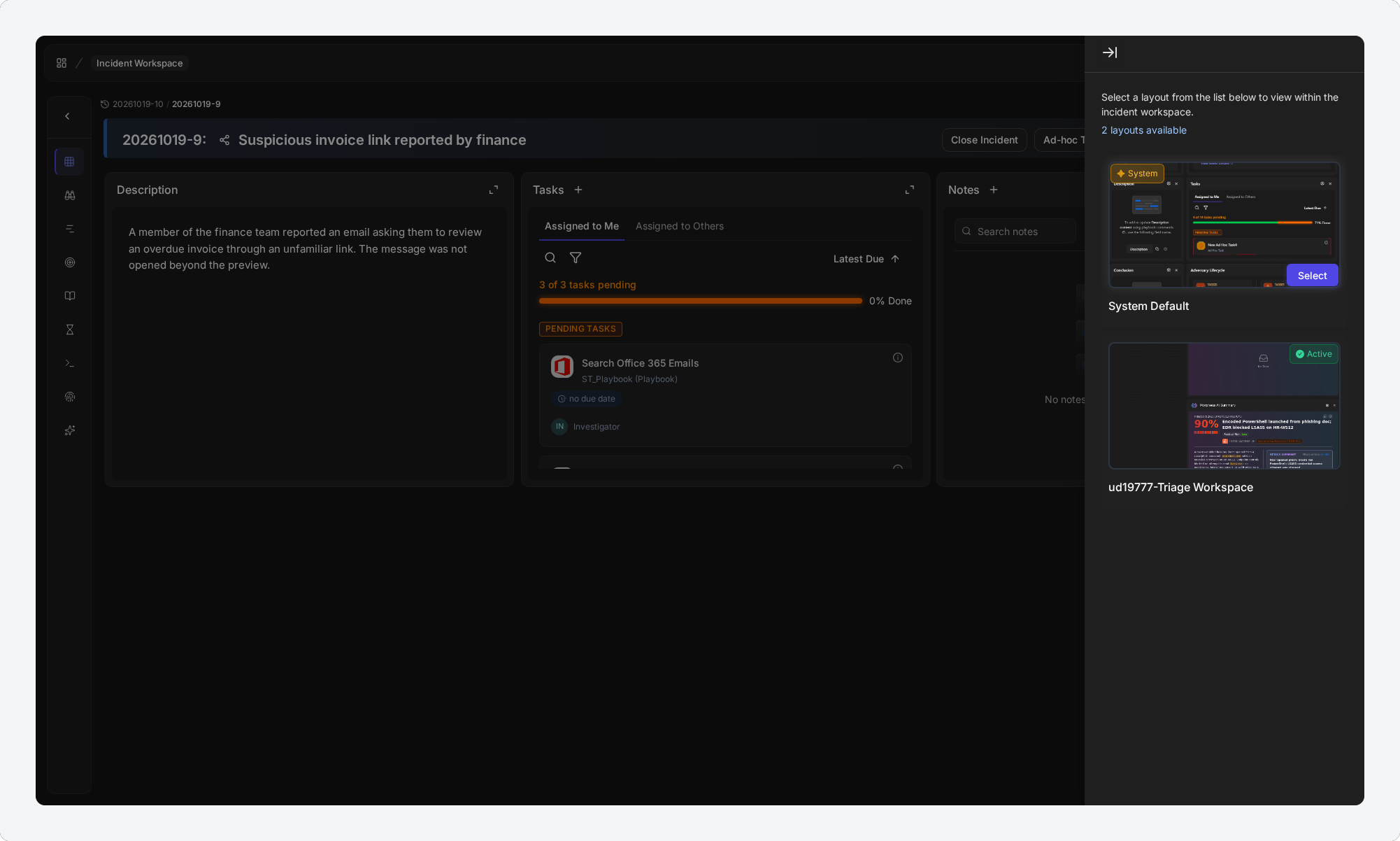
When more than one workspace is available to you for an incident type, you can switch between them on the incident page. Select the workspace icon to the right of ⋯ in the incident header. The panel that opens lists the workspaces you can use and marks the current one as Active. Point to another workspace and select Select.
Switching workspaces on an incident
How the Layout Adjusts
When widgets are hidden, the widgets below them in the same column move up, so no blank tile is left where a hidden widget would have been. Two side effects are expected:
-
Widgets that do not use the setting can appear in a different position than on a High severity incident.
-
A blank space can appear above a widget that spans more than one column, when the columns above it end at different heights.
Scope of the Setting
The setting belongs to one widget in one workspace. Switching it on for Conclusion in one workspace does not affect Conclusion in any other workspace, or other widgets in the same workspace.
Each workspace is assigned to incident types, roles and groups on the builder's Settings tab. So the setting applies to every incident of an assigned type that is opened in that workspace.
|
Setting |
Default |
Allowed values |
|---|---|---|
|
Hide this widget on low-severity incidents |
Off |
On or off, per widget, per workspace |
Widgets That Are Always Shown
The gear icon appears on almost every widget in the builder, but the setting has no effect on the widgets below, which always show.
|
Widget |
Why it is always shown |
|---|---|
|
Emails |
It already has its own on or off switch for your site, and it is where analysts compose email, so it is useful even when no conversation exists yet. |
|
Morpheus Form Submission |
Widget visibility does not apply to this widget. |
|
Morpheus AI Recommendations |
It shows placeholder suggestions when it has no data, so it is never treated as empty. It is not offered in the Widgets list, but an existing workspace may contain it. |
|
The incident's general information panel |
It identifies the incident—its number, title, severity, owner and status. It is not offered in the Widgets list and has no gear icon, but an existing workspace may contain it. |
READER NOTE
Where one of these widgets shows a gear icon, switching on Hide this widget on low-severity incidents saves without an error, but the widget still shows on every incident.
Widgets That Can Be Hidden
Every other widget in the builder's Widgets list can be hidden when it is empty:
-
Adversary Cycle
-
Conclusion
-
Custom Fields
-
Description
-
Events Summary
-
Files
-
Findings
-
HTML Widget
-
Incident Ad Hoc Form
-
Incident Form
-
Investigation Team
-
JSON Table
-
Linked Artifacts
-
Linked Incidents
-
Markdown Widget, where your site offers it
-
Morpheus Adaptive Playbook Runs
-
Morpheus AI Attack Timeline
-
Morpheus AI Graph
-
Morpheus AI Summary
-
Morpheus APD Narrative
-
Notes
-
Playbook Automation
-
Recommendations
-
Remediations & Mitigations
-
SLA
-
Summary
-
Tasks
Troubleshooting
If a widget you switched on still shows on an incident, check the following.
|
What you see |
Why |
What to do |
|---|---|---|
|
The widget shows on a High, Critical or Informational incident |
Hiding applies to Low and Medium severity only. |
Nothing; this is expected. |
|
The widget shows on a Low or Medium incident |
The widget has content, its content is still loading or could not be loaded, or (for Morpheus AI Graph and Morpheus AI Summary) a Morpheus investigation is running. |
Open the widget to check its content. Reload the page if loading did not finish. |
|
No widget is hidden on any incident |
The workspace was not saved after the setting was switched on, or the incident is open in a different workspace. |
Reopen the workspace with ⋮ > Edit and check the setting. On the incident, check which workspace is Active. |
|
A widget is still hidden after data was added |
Data added after the page loaded may not appear until the page is reloaded. |
Reload the page. |
|
The widget never hides |
It is one of the widgets that are always shown. |
See Widgets That Are Always Shown. |
|
Every widget shows in the classic view |
Widget visibility works in the new UI only. |
Open the incident in the new UI. |
FAQs
Does switching this on change existing workspaces? No. The setting is off for every widget until someone switches it on and saves the workspace.
Can I hide widgets on High or Critical incidents? No. Hiding applies to Low and Medium severity incidents only, and the severities cannot be changed.
Will an analyst ever miss information because of this setting? A widget is hidden only when its content has loaded and is empty. A widget whose content is loading or could not be loaded stays on screen, and so does any widget with content.
Do two analysts on the same incident see the same widgets? Yes, if they use the same workspace. Hiding does not depend on who is viewing, and Tasks and Notes are judged for the whole incident. Workspaces are assigned by role and group, and analysts can switch between the workspaces available to them, so two analysts in different workspaces can see different widgets.
Does it work in the classic view? No. Widget visibility is set and applied in the new UI only. The classic view always shows every widget.
READER NOTE
Screenshots in this article were captured on an internal development site. The incident type and workspace names in them are examples, and the content shown in the builder is sample data.