
Last Updated: October 22, 2026
Overview
D3 vSOC includes ready-made reporting widgets for two questions every SOC is asked: how fast threats are detected and resolved (SLA widgets), and how much time and money automation saves (ROI widgets). Add them to any reporting dashboard, or start from the system sample Dashboard Sample - SLA.
Reporting dashboards are under Configuration > Reporting Dashboard > Dashboards.
The sample SLA dashboard
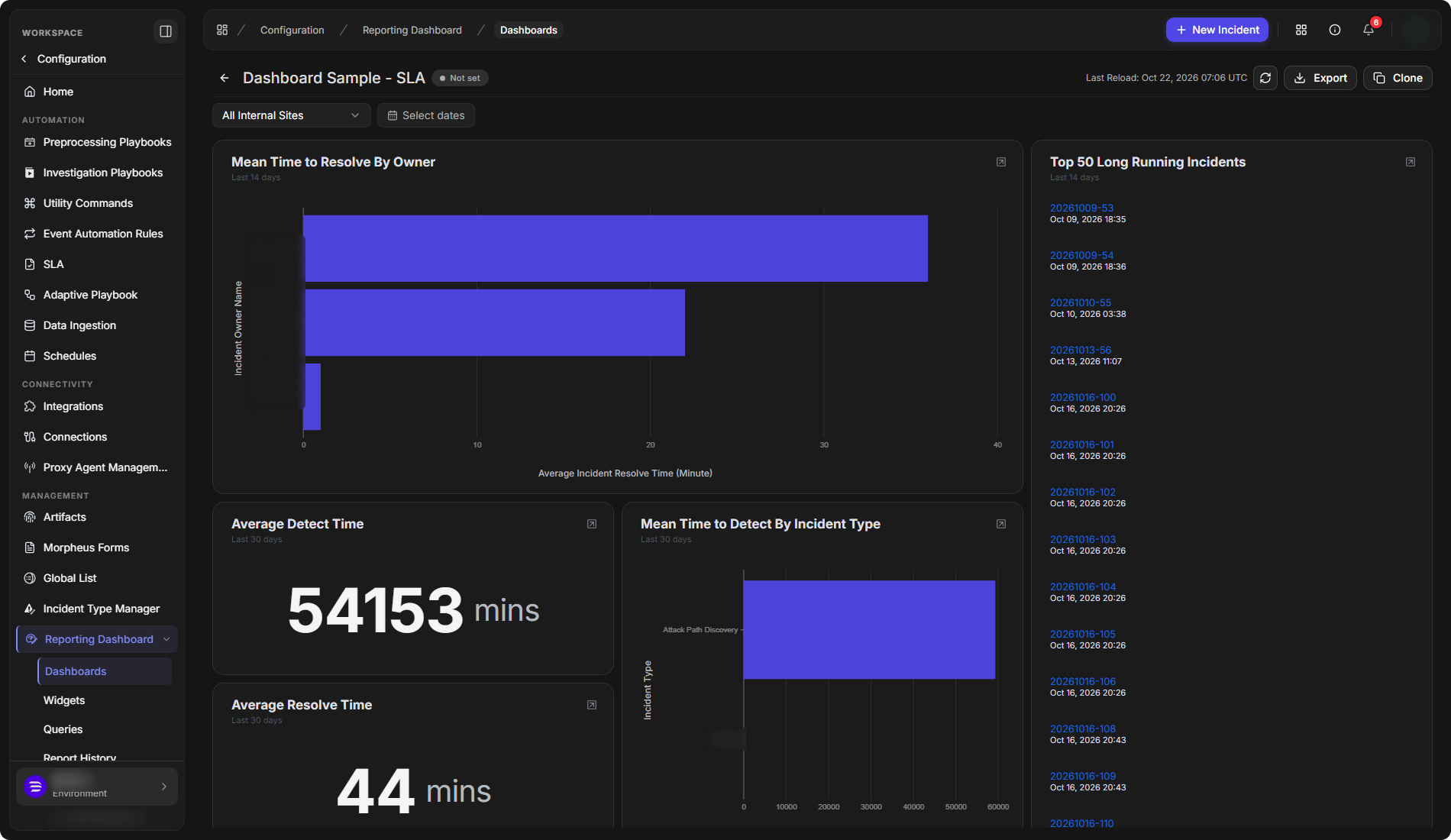
SLA Widgets
|
Widget |
Type |
What it shows |
Default period |
|---|---|---|---|
|
Average Detect Time |
Number |
The average time from an event happening to its detection. |
Last 30 days |
|
Average Resolve Time |
Number |
The average time from an incident being created to it being closed. |
Last 30 days |
|
Detect Time By Day |
Line chart |
Detection time, day by day. |
Last 14 days |
|
Event Detect Time By Severity |
Bar chart |
Detection time for each severity: Critical, High, Medium and Low. |
Last 14 days |
|
Mean Time to Detect By Incident Type |
Bar chart |
The average detection time for each incident type. |
Last 30 days |
|
Mean Time to Resolve By Incident Type |
Column chart |
The average resolution time for each incident type. |
Last 30 days |
|
Mean Time to Resolve By Owner |
Bar chart |
The average resolution time for each incident owner. |
Last 14 days |
|
Top 10 Average Detect Time By Incident Type |
Column chart |
The ten incident types that take longest to detect. |
Last 30 days |
The sample dashboard also shows Top 50 Long Running Incidents, the incidents open longest, and the widget panel lists Resolved Incidents Count By Day beside the SLA widgets.
Detection time is only as accurate as the event's own time. See Field Names below.
ROI Widgets
|
Widget |
What it shows |
|---|---|
|
Total Saved Hours |
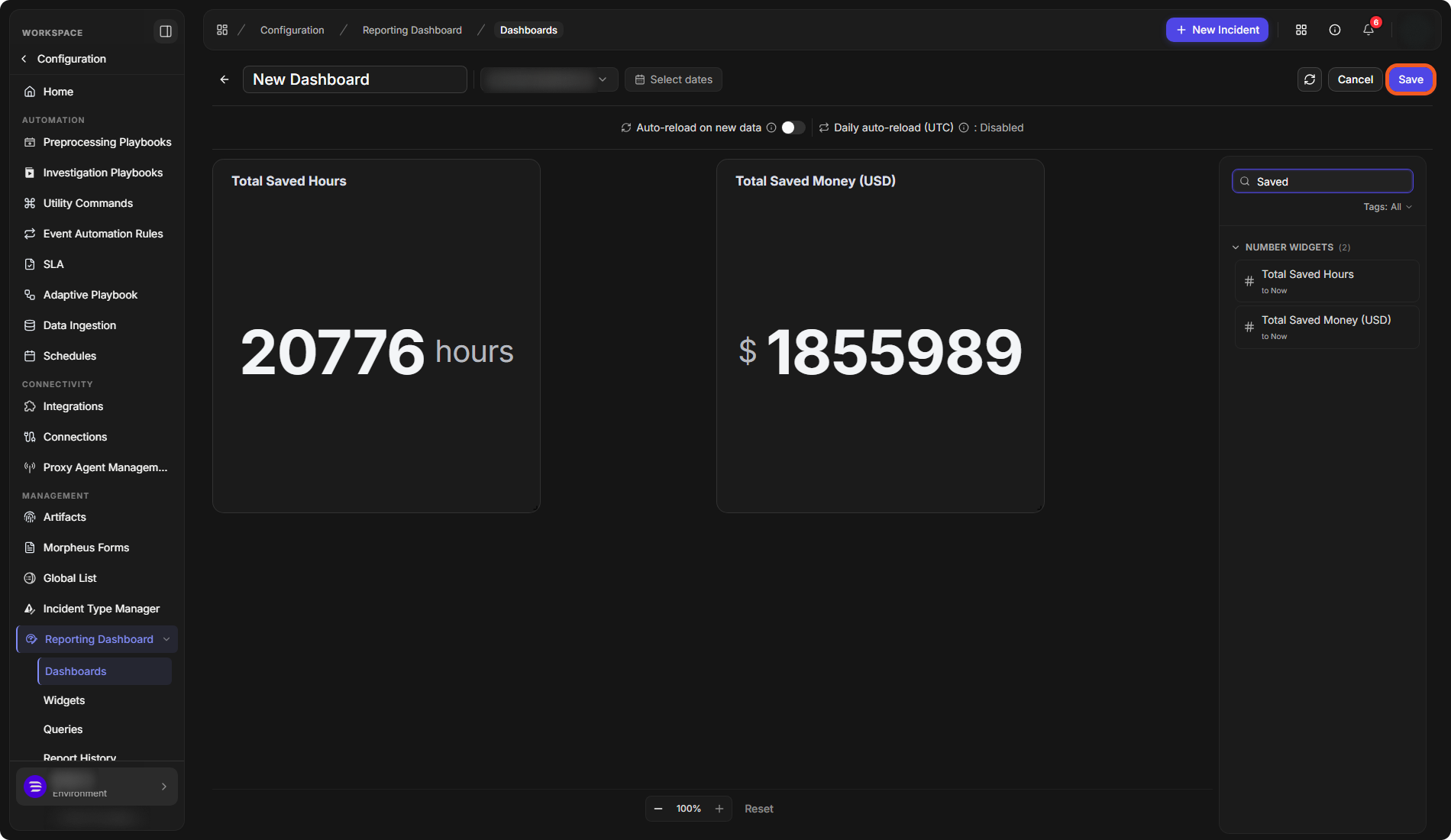
The analyst time automation has saved: every utility and integration command run, multiplied by the time each run saves, as set in the ROI configuration. |
|
Total Saved Money (USD) |
The same savings in dollars, using Cost saved per command run (dollars) from the ROI configuration. |
Both widgets show a running total of every command run up to now.
The time and cost saved per command run are set under Global Settings > Application Settings > Return on Investment (ROI) Configuration. The page lists Integration Commands and Utility Commands; Only show configured narrows the list to the commands that have values.
-
Set ROI Defaults sets the defaults for all commands: Time saved per command run (minutes) and Cost saved per command run (dollars), once under Integration Commands ROI Default and once under Utility Commands ROI Default.
-
Select an individual command to override these defaults for that command.
Adding the ROI Widgets
-
Go to Configuration > Reporting Dashboard > Dashboards and select New Dashboard.
-
Name the dashboard, and choose a site and dates at the top.
-
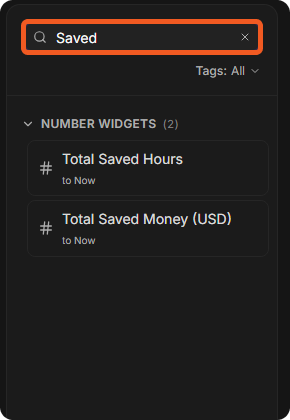
In the widget panel on the right, search for Saved. Both widgets are listed under NUMBER WIDGETS.
-
Drag Total Saved Hours and Total Saved Money (USD) onto the canvas.
-
Select Save.
Searching the widget panel
The ROI widgets on a dashboard
The SLA widgets are added the same way: search for Detect or Resolve.
Field Names
SLA widgets measure time between these fields. Each has a different name depending on where it is shown.
|
Field |
Meaning |
Where it appears |
|---|---|---|
|
EventUTCTime |
When the source system (for example Gmail or Splunk) created the event. |
Event Utc Time in a query's dataset; Start Time (UTC) in an event's details. |
|
IngestedUTCTime |
When D3 vSOC created the event record. |
IngestedUTCTime in a query's dataset; Intake Time (UTC) in an event's details. |
|
CreatedUTCTime |
When the incident was created. |
Date Created (UTC) in the incident list and the incident's overview. |
|
ClosedUTCTime |
When the incident was closed. |
Date Closed in the incident list and the incident's overview. |
If the source does not provide the event's own time, Start Time (UTC) is empty and detection time falls back to IngestedUTCTime. To fill it, map the original event's time field to the system field Start Time in the event field mapping.
The Events list does not show Time of Occurrence (UTC) by default. To add it, select the more icon (⋮) at the top right of the list, then Columns, tick Time of Occurrence (UTC) and select Apply.