
Last Updated: October 23, 2026
Overview
A widget draws the data of one saved query as a chart, a table, a number or a list. Widgets are the building blocks of dashboards. See RD Dashboards.
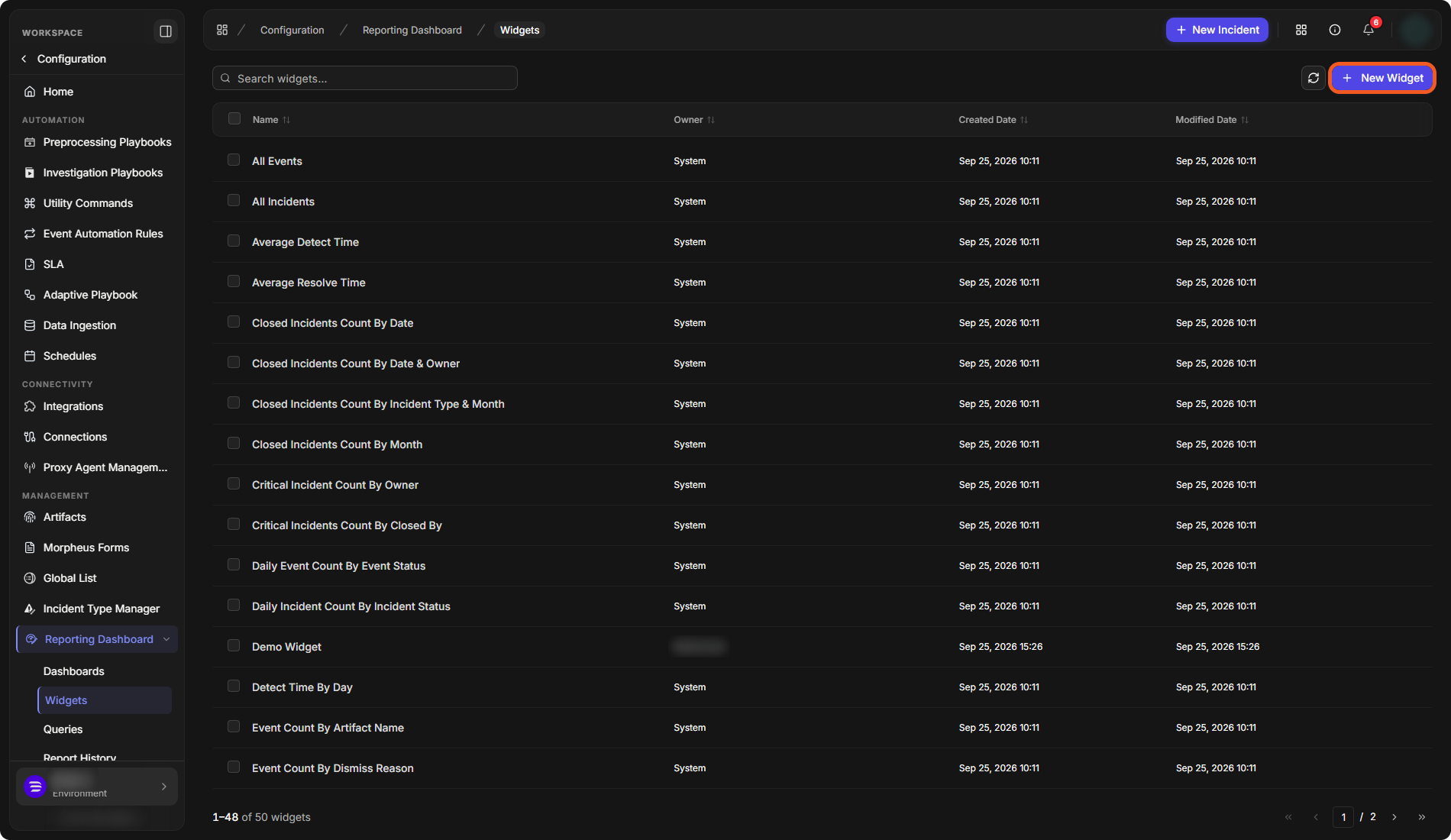
Widgets are under Configuration › Reporting Dashboard › Widgets. The list shows each widget's Name, Owner, Created Date and Modified Date, with a search box, a refresh button and New Widget.
The Widgets list
System Widgets
D3 provides ready-made widgets, owned by System. On the instance used for this article, they included:
|
System widgets |
|
|---|---|
|
All Events |
Mean Time to Resolve By Owner |
|
All Incidents |
Open Event Count By Investigator & Severity |
|
Average Detect Time |
Open Incident Count By Owner & Severity |
|
Average Resolve Time |
Resolved Incidents Count By Day |
|
Closed Incidents Count By Date |
Top 10 Average Detect Time By Incident Type |
|
Closed Incidents Count By Date & Owner |
Top 10 Event Count By High-risk Artifact Name |
|
Closed Incidents Count By Incident Type & Month |
Top 10 Event Count by Integration |
|
Closed Incidents Count By Month |
Top 10 Incident Count By High-risk Artifact Name |
|
Critical Incident Count By Owner |
Top 10 Tactics & Techniques in Incident |
|
Critical Incidents Count By Closed By |
Top 50 Long Running Incidents |
|
Daily Event Count By Event Status |
Total Dismissed Events Count By Day |
|
Daily Incident Count By Incident Status |
Total Event Count |
|
Detect Time By Day |
Total Event Count By Day |
|
Event Count By Artifact Name |
Total Event Count By Day & Event Integration |
|
Event Count By Dismiss Reason |
Total Event Count By Day & Event Type |
|
Event Count By Severity |
Total Event Count By Event Integration & Month |
|
Event Count By Status |
Total Event Count By Event Integration & Severity |
|
Event Count By Tactic & Technique |
Total Event Ingestion Count By Day |
|
Event Detect Time By Severity |
Total Incident Count |
|
Incident Count By Artifact Name |
Total Incident Count By Day |
|
Incident Count By Severity |
Total Incident Count By Day & Incident Type |
|
Mean Time to Detect By Incident Type |
Total Incident Count By Incident Type |
|
Mean Time to Resolve By Incident Type |
Total Incident Count By Incident Type & Month |
Creating a Widget
A widget takes its data from a saved query. To build or change queries, see Reporting Queries.
-
Go to Configuration › Reporting Dashboard › Widgets, then select New Widget.
-
Select the pencil icon next to New Widget and enter a name.
-
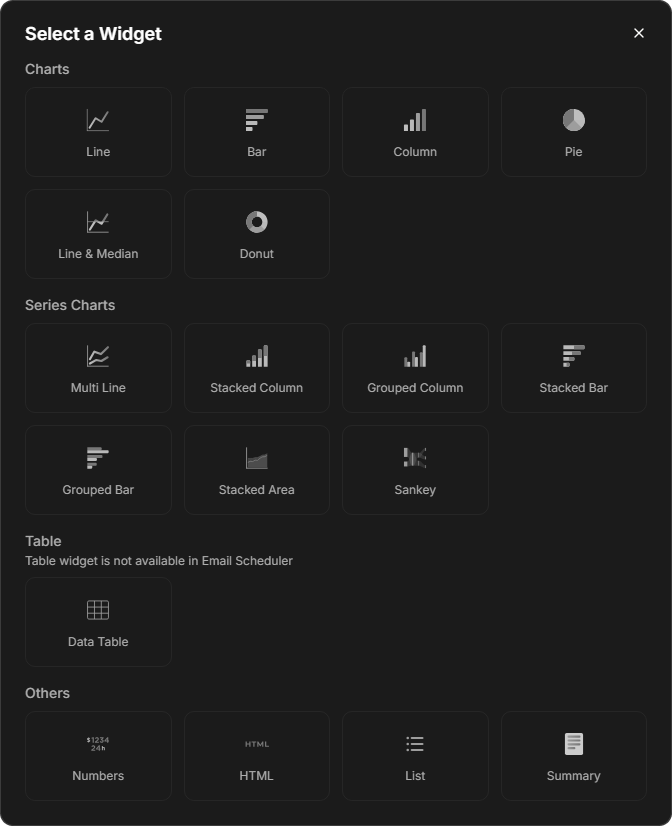
Under Widget type, select Select a chart type, then choose a type in the Select a Widget window (see Widget Types below).
-
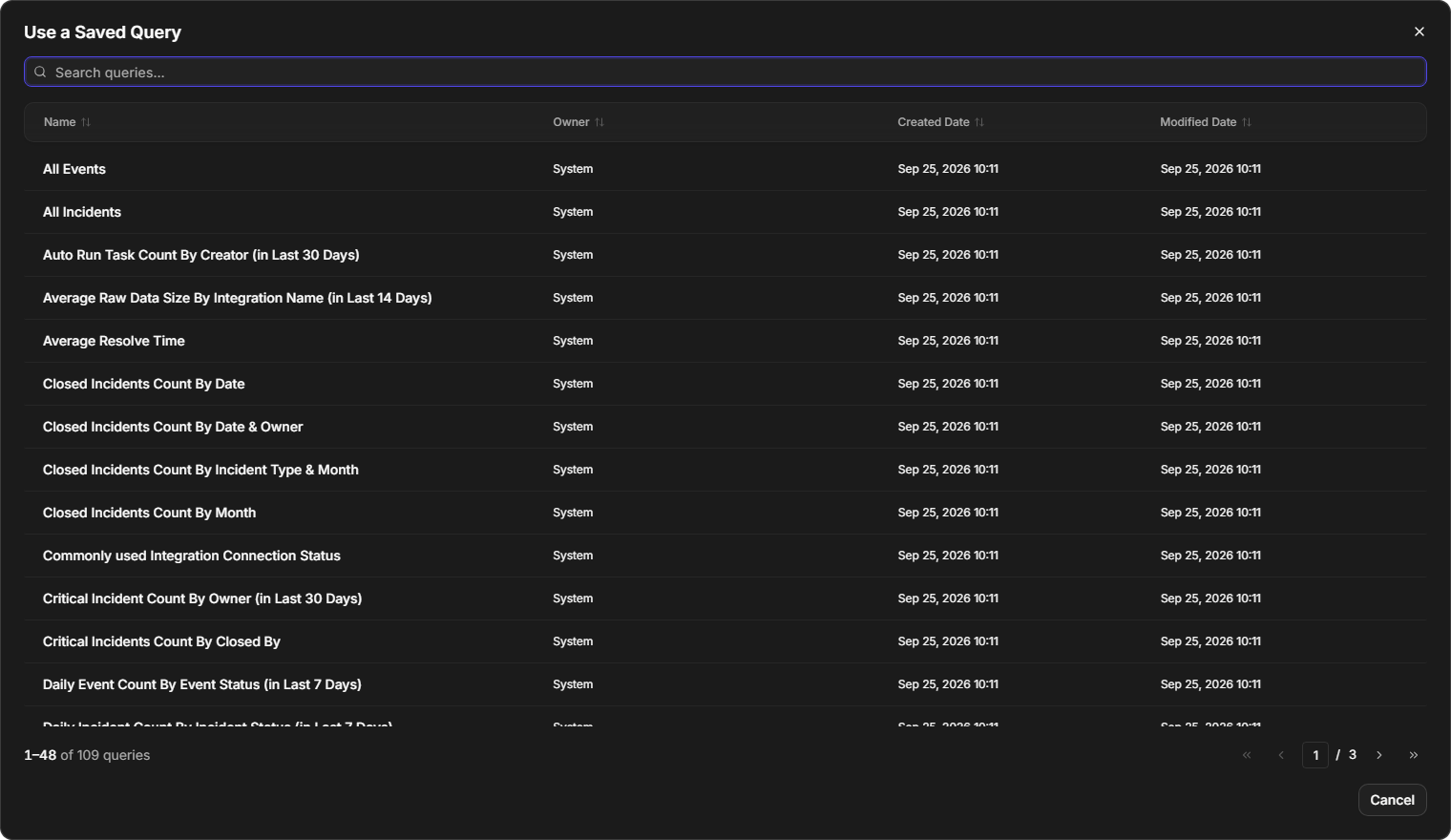
Under Query, select Select a query, then choose a query under Use a Saved Query. To build a new query, select Create New Query. To change the selected query, select Edit Query.
-
Complete the fields that the widget type asks for, such as Group By and Aggregation (see Widget Fields below).
-
Optionally, set the Widget Options on the right (see Widget Options below).
-
Select Save.
Choosing a widget type
Choosing a saved query
A widget being configured
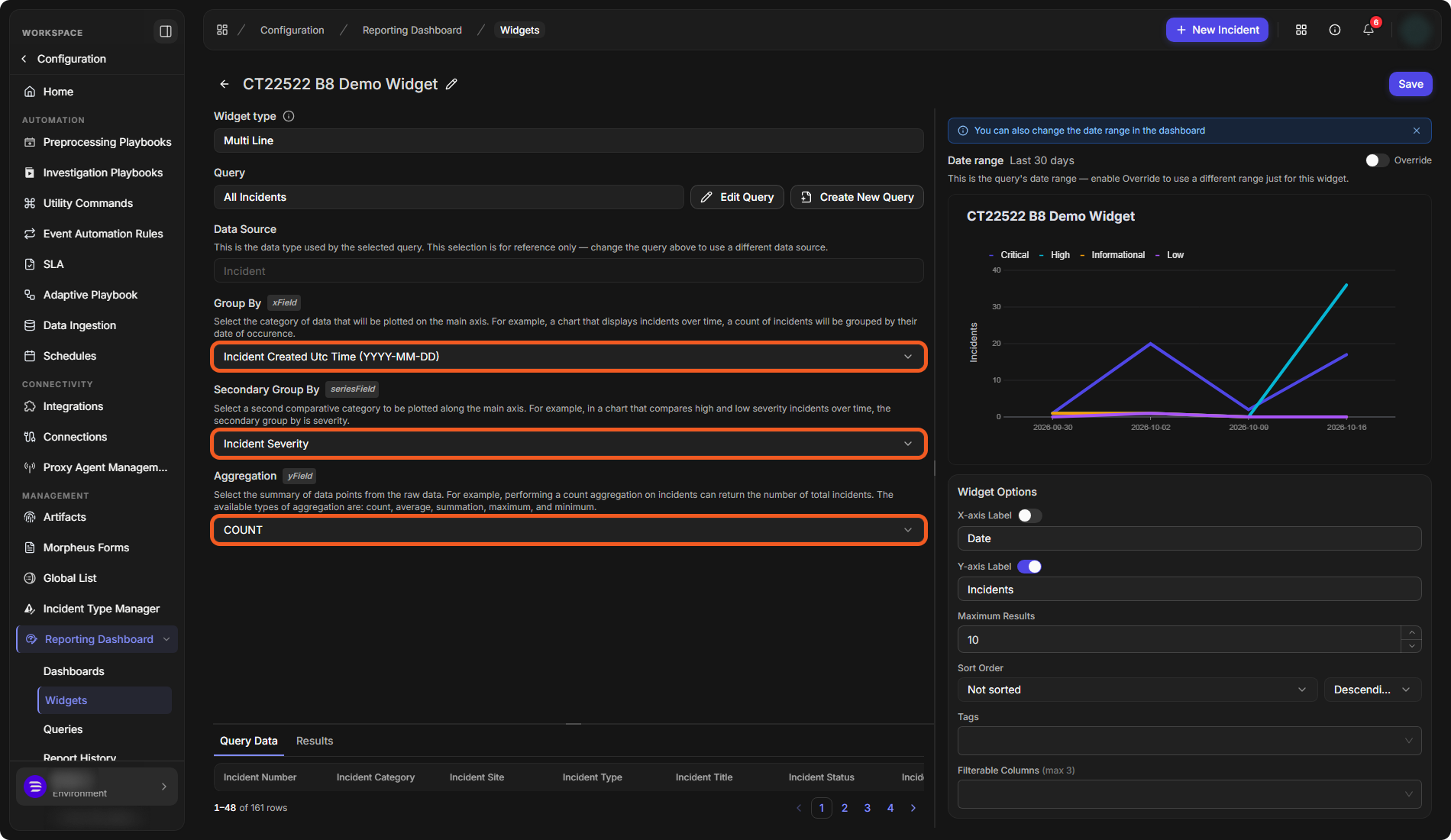
Data Source shows the data type of the selected query, for reference only. To use a different data source, select a different query. Below the fields, Query Data lists the query's records and Results lists the aggregated values that the widget draws.
On the right, a preview of the widget is drawn as you go. Date range shows the query's date range. Turn on Override to give this widget its own range. The range can also be changed on the dashboard.
The widget is saved and stays open, with Permissions and More actions (...) at the top right.
Widget Types
|
Group |
Widget types |
|---|---|
|
Charts |
Line, Bar, Column, Pie, Line & Median, Donut |
|
Series Charts |
Multi Line, Stacked Column, Grouped Column, Stacked Bar, Grouped Bar, Stacked Area, Sankey |
|
Table |
Data Table (not available in the Email Scheduler) |
|
Others |
Numbers, HTML, List, Summary |
Widget Fields
The fields depend on the widget type. Each field shows its own help text in the editor.
|
Field |
What it sets |
Widget types |
|---|---|---|
|
Group By |
The category of data plotted on the main axis. For example, in a chart of incidents over time, the count of incidents is grouped by date. |
Line, Bar, Column and the series charts |
|
Secondary Group By |
A second category plotted along the main axis. For example, in a chart that compares high and low severity incidents over time, the secondary group by is severity. |
Multi Line, Stacked Column, Grouped Column, Stacked Bar, Grouped Bar, Stacked Area, Sankey |
|
Aggregation |
The summary of the raw data points: count, average, summation, maximum or minimum. For example, a count aggregation on incidents returns the total number of incidents. |
Line, Bar, Column, the series charts, Numbers, HTML |
|
Colour Field |
The category shown as sections. For example, in a chart of incident types, the colour field is the incident type. |
Pie, Donut |
|
Angular Field |
The category to aggregate. For example, in a chart of incident types, the angular field is the proportion of each type. |
Pie, Donut |
|
HTML Template |
Custom HTML to render for each result. Use |
HTML |
|
Primary Field |
The field shown as the primary text of each list item. |
List |
|
Secondary Field |
The field shown as the secondary text of each list item. |
List |
A Data Table widget shows the query's records as a table. A Summary widget has no fields to set.
Widget Options
|
Option |
What it sets |
Widget types |
|---|---|---|
|
X-axis Label, Y-axis Label |
A switch and a text box for each axis label. |
Line & Median, Multi Line |
|
Maximum Results |
The largest number of aggregated results drawn (5 by default). |
Line & Median, Multi Line, Pie, List |
|
Sort Order |
Not sorted or a field to sort by, and a direction (Descending by default). A Data Table offers Default order and a direction. |
Line & Median, Multi Line, Pie, List, Data Table |
|
Tags |
Tags for organizing widgets. The dashboard editor's widget panel filters by tag. |
All |
|
Filterable Columns (max 3) |
Up to three columns. |
Line & Median, Multi Line, Pie, List, HTML |
|
Unit |
The unit shown with the number. |
Numbers |
Widget Permissions
On a saved widget you own, select Permissions. The window works like the dashboard permissions window: add sites on Add Site(s) or users on Add User(s), select Add, then set the access levels. See RD Dashboards.
Widget Example: Incident Volume by Severity
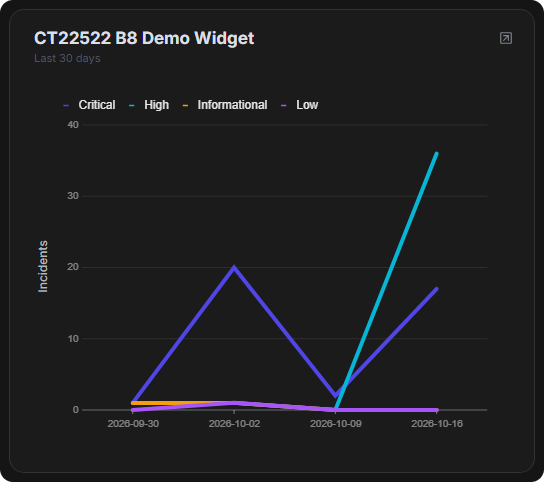
This widget shows the number of incidents created each day, split by severity.
-
Select New Widget and name the widget.
-
Under Widget type, choose Multi Line.
-
Under Query, choose All Incidents.
-
Set Group By to Incident Created Utc Time (YYYY-MM-DD) and Secondary Group By to Incident Severity. Leave Aggregation at COUNT.
-
Under Widget Options, turn on Y-axis Label and enter a label, and set Maximum Results.
-
Select Save.
The preview draws one line for each severity, with a legend at the top.
The example widget on a dashboard
Cloning a Widget
-
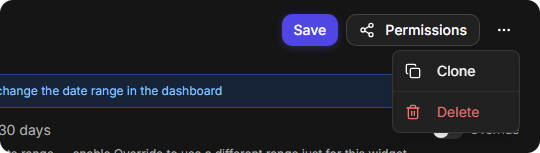
On a widget you own, select More actions (...) › Clone.
-
On a widget that you do not own, such as a system widget, select Clone at the top right.
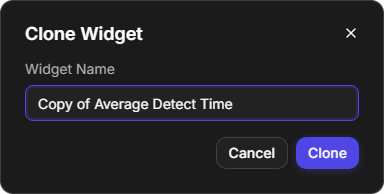
Enter the Widget Name of the copy in the Clone Widget window, then select Clone.
More actions on your own widget
Clone on a system widget

Clone Widget
Deleting a Widget
On a widget you own, select More actions (...) › Delete, then Delete in the confirmation. Deleting cannot be undone.