Last Updated: October 26, 2026
Overview
D3 ships with hundreds of commands, but not every action you need will be one of them. Custom commands are commands you build yourself: to call an API that no built-in command covers, or to process data in a way the built-in commands do not.
Types of Custom Command
There are two types, depending on where the command lives:
-
Integration commands belong to an integration and act on the external system it connects to, for example to query a third-party API. They are added on the integration's page, in its Commands section. See Integrations and Integration Custom Command.
-
Utility commands work on data inside D3, for example to reshape JSON or extract values. They are added on the Utility Commands page. See Utility Commands and Utility Custom Command.
Generating with AI
Morpheus, D3's AI assistant, can draft custom commands for you:
-
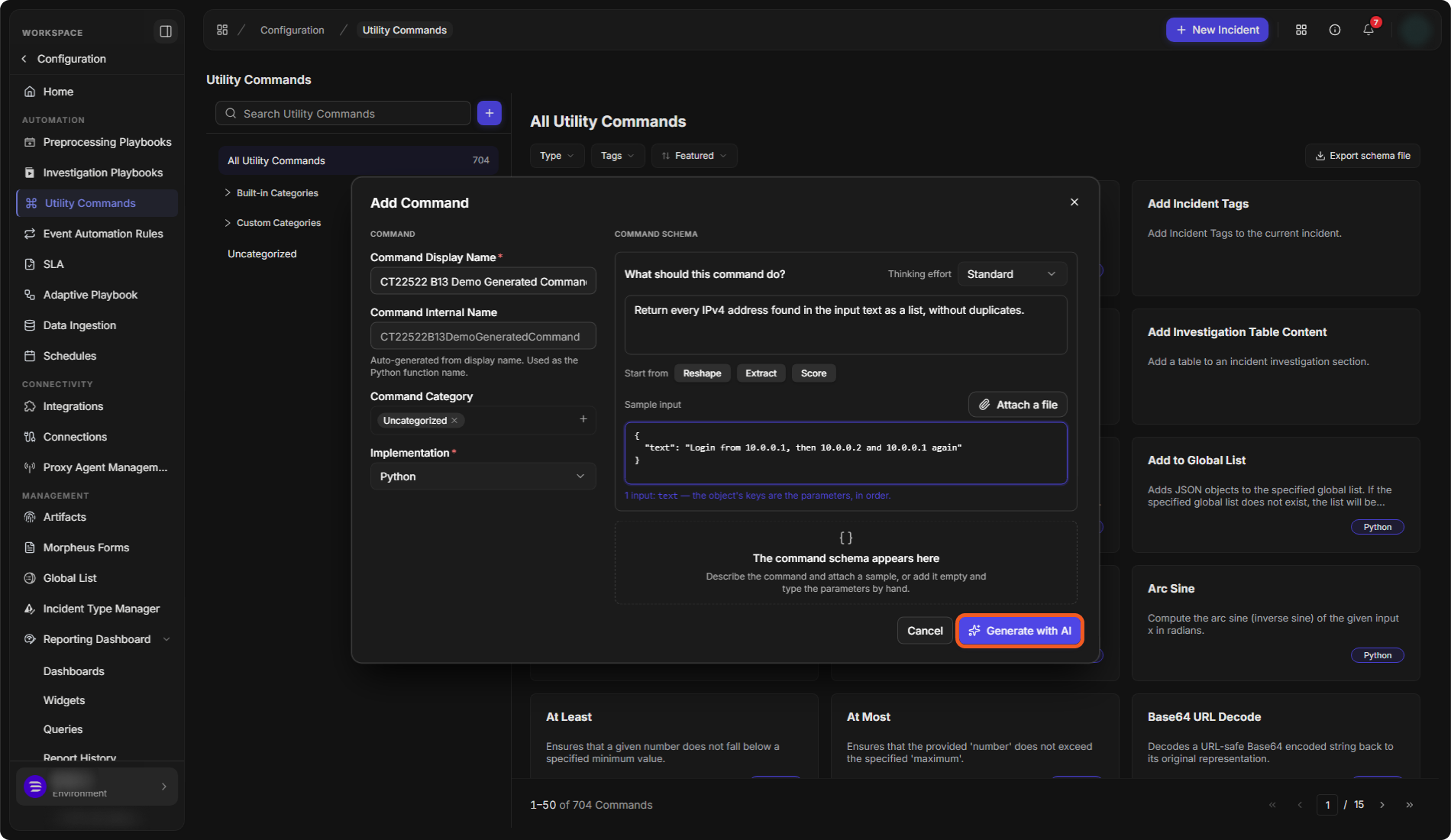
Utility commands: in the Add Command window, describe what the command should do under What should this command do?, add a Sample input and select Generate with AI. See Utility Commands.
Describing a utility command
-
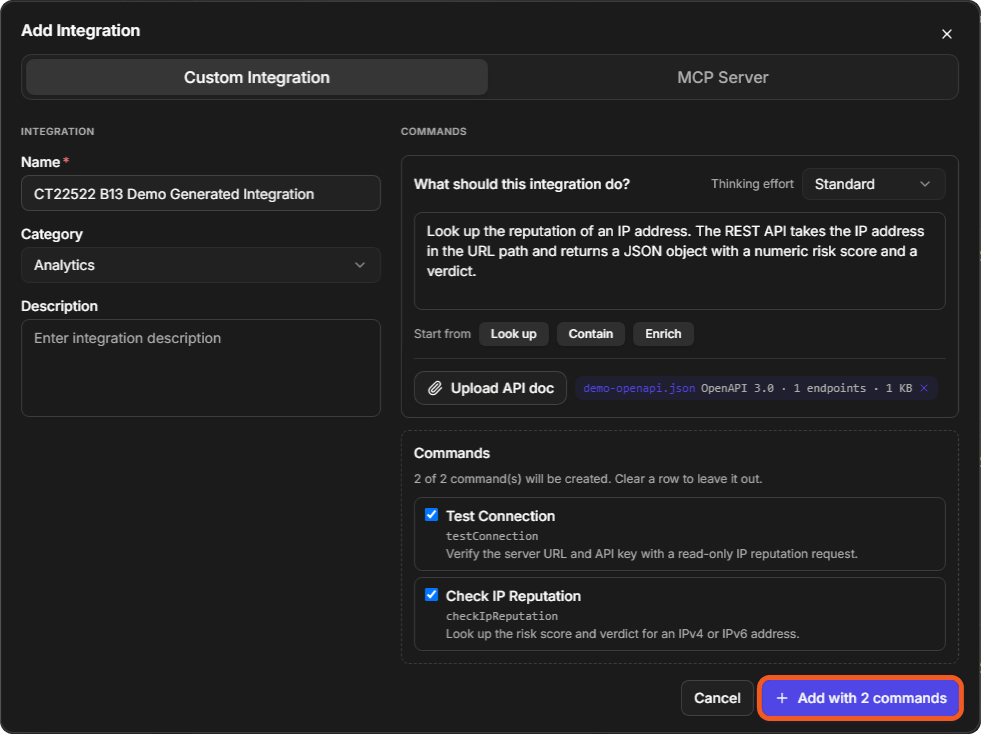
Integration commands: when you create a custom integration, describe what it should do under What should this integration do?, upload the product's API document and select Generate with AI. Morpheus drafts the integration's commands and connection parameters. See Integration Custom Command.
Generating a custom integration
A command you add to an existing integration with Add Command is built by hand.
REVIEW BEFORE USE
A generated utility command opens as a Draft: check it and test it before you select Submit. Generated integration commands are added as live commands, so test each one before you use it.
Implementations
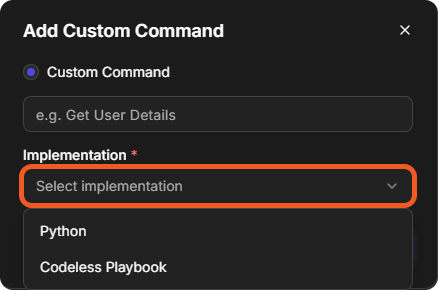
When you add a custom command, you choose how it is implemented. The choice cannot be changed later.
-
Python: you write the command as a Python function. The function's name is the command's internal name.
-
Codeless Playbook: the command is built as a codeless playbook instead of code.
Choosing an implementation
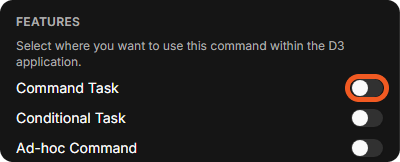
The FEATURES section of the command's Settings decides where the command can be used. To use the command as a task in a playbook, switch on Command Task. The other options are Conditional Task, Ad-hoc Command and Event Formatter.
Where a command can be used
Command Status
A custom command is either Draft or Live. The status shows in the command's header.
-
A new command starts as a Draft. You can change it freely: Save Draft keeps your changes, and Submit makes the draft the live version.
-
A Live command shows its version, for example Live Version-1. To change it, select Edit.
A draft command

A live command

Each submitted version is kept in the command's Version History (the clock button in the header).
Integration Command Status
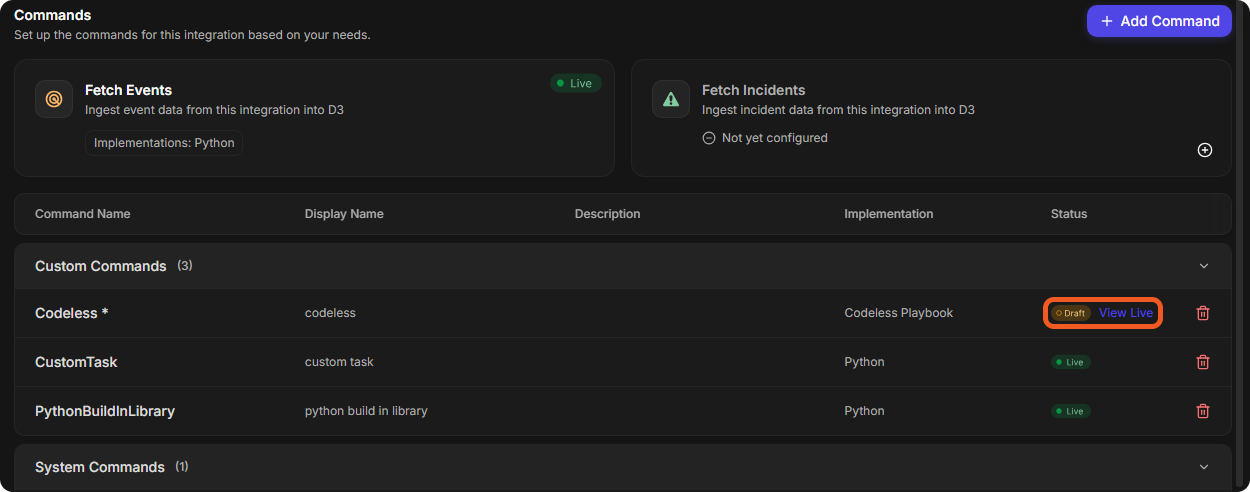
On an integration's page, the Status column of the Commands table shows each command's status. A command that has a draft and a live version shows Draft with a View Live link beside it.
Command statuses on an integration