
Last Updated: October 23, 2026
Overview
Custom commands with the Python implementation run a Python script. This article explains how a command's script is put together, how inputs reach it, how it returns its output with pb.returnOutputModel, and how to debug it with the command's Test tab. For creating the commands themselves, see Utility Custom Command and Integration Custom Command.
Command and Script
-
Each command runs the Python function whose name is the command's internal name. A new command's script ends with that function, empty (
pass), below a commented sample. -
The command's input parameters are passed to the function in order, in
args. The first input isargs[0], the secondargs[1], and so on. -
In an integration command, the connection's parameter values are read from
runtime["connector"]by parameter name, for exampleruntime["connector"].get("serverurl", ""). -
All the commands of one integration share one script, with one function per command.
-
The command's output is returned with
pb.returnOutputModel(...)(see below).
Testing a Script
Use the command's Test tab to run the script while you write it.
-
Write the function and select Save.
-
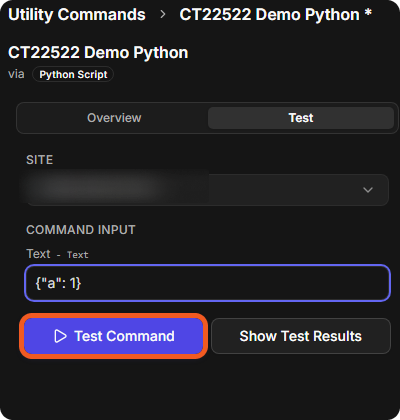
Open the Test tab. Choose the Site (for an integration command, the CONNECTION) and fill in the inputs under COMMAND INPUT.
-
Select Test Command.
The Test tab
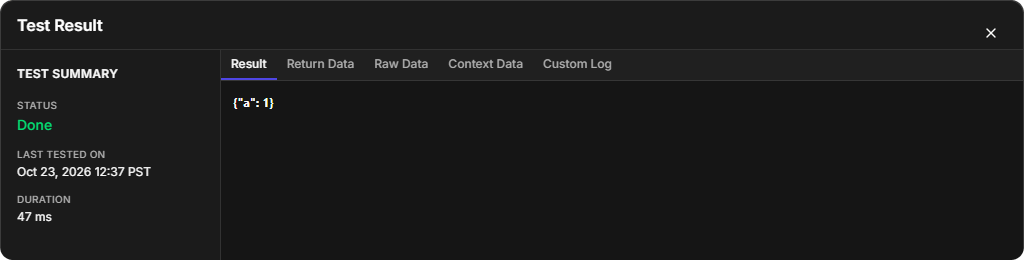
The Test Result window opens. TEST SUMMARY shows the STATUS, LAST TESTED ON and DURATION, and one tab for each part of the output the script returned.
Returning the Output: returnOutputModel
Return the command's output with:
pb.returnOutputModel(result, returnData, outputData, contextData, rawData, error)
Each argument fills one tab of the Test Result window:
|
Argument |
Test Result tab |
What it holds |
|---|---|---|
|
|
Result |
Data to show to the user. HTML is rendered: |
|
|
Return Data |
A simple value for the next tasks, usually the status, such as Successful or Failed. |
|
|
(none) |
Leave it empty ( |
|
|
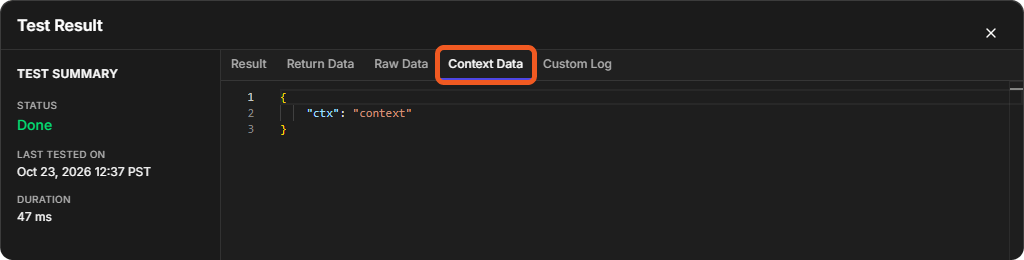
Context Data |
Data to share with other tasks. |
|
|
Raw Data |
The raw data, for example a JSON object. |
|
|
Error |
One error message. |
A tab appears only when its argument is not empty.
The Result tab
The Context Data tab
Logging with pb.log
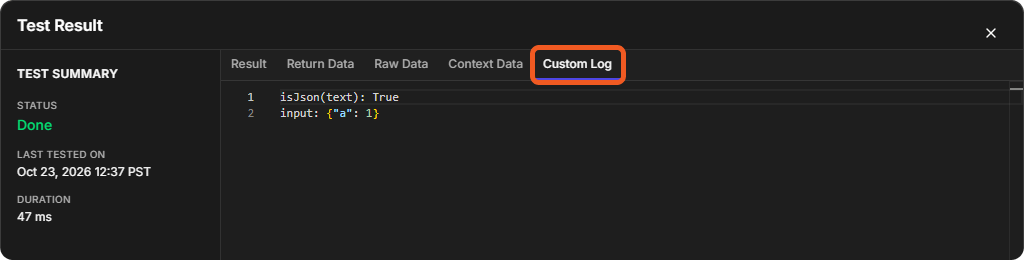
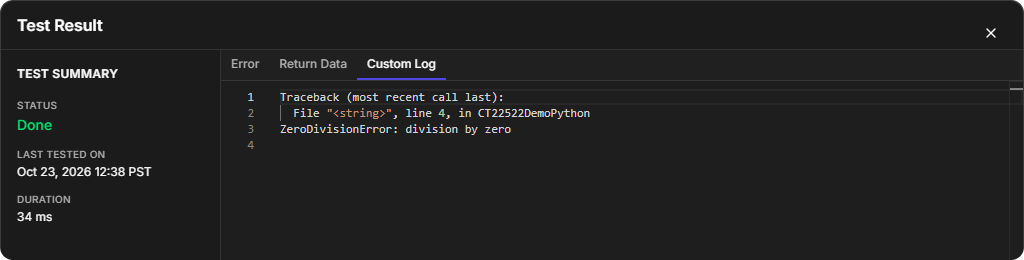
Write log lines with pb.log("message"). They appear on the Custom Log tab of the test result, one line each. Output written with print() does not appear there, so use pb.log.
The Custom Log tab
Helper Functions
The helper functions are called as pb.<name>:
-
pb.log(message): writes a line to the Custom Log (see above). -
pb.isJson(jsonString): returnsTruewhen the text is valid JSON, otherwiseFalse. In the example above,pb.isJson('{"a": 1}')logged True. -
pb.returnOutputModel(...): builds the command's output (see above).
Errors
-
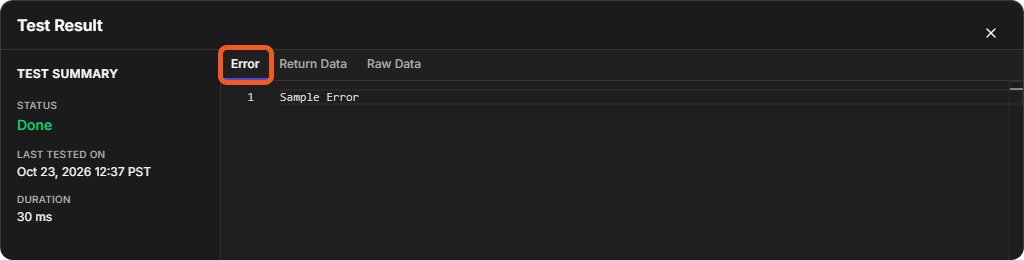
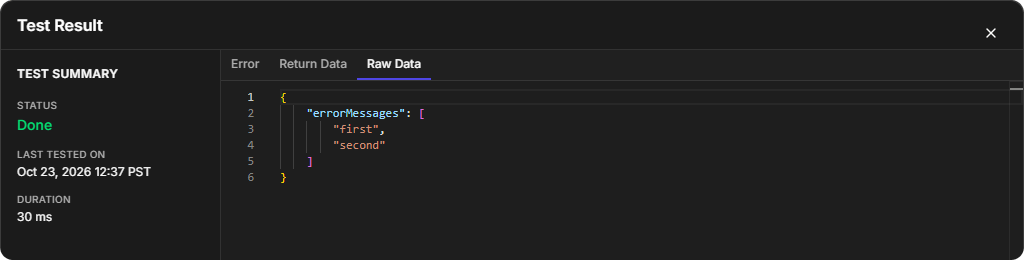
The error argument. Text passed as
errorshows on the Error tab. Pass one message. To keep several messages, put a general message inerrorand the details inrawData, for example as anerrorMessagesarray.
One message in error, the details in rawData
-
returnData is a value, not a result. A script that returns Failed as
returnDatawith an emptyerrorshows Failed on the Return Data tab and no Error tab. -
Uncaught exceptions. When the function raises an exception that it does not catch, the test result shows the exception on the Error tab (for example
ValueError: demo failure) and Failed on the Return Data tab. -
Stack traces. To see where an error happened, catch the exception and log
traceback.format_exc()withpb.log. The line number in the trace is the line in the command's script.
A logged stack trace
In every case above, the test's STATUS was Done: the status tells you that the test ran, and the tabs tell you what the script returned.