Last Updated: October 22, 2026
Overview
A connection links D3 to an account in a third-party application, so that D3 can ingest data from it and run its integration commands. The Connections page is the one place to see and manage every connection, for every integration and site, together with the webhook keys and MCP servers that belong to them.
The page is found under Configuration > Connections. It has three tabs:
-
Integration Connections: every integration connection you can see.
-
Webhook Keys: the keys external systems use to send data to D3 or run commands in D3.
-
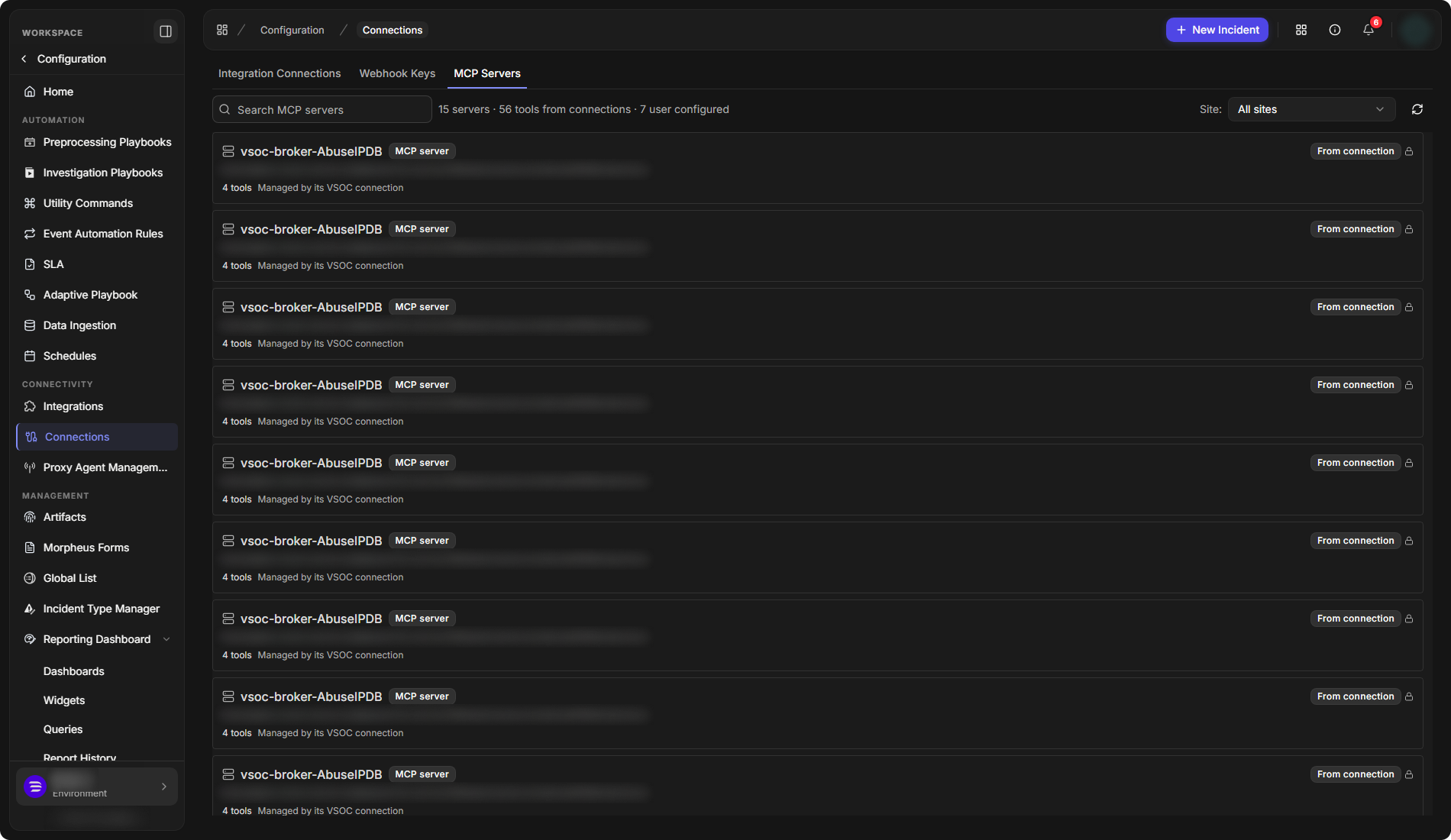
MCP Servers: the MCP servers available to AI agents.
Integration Connections
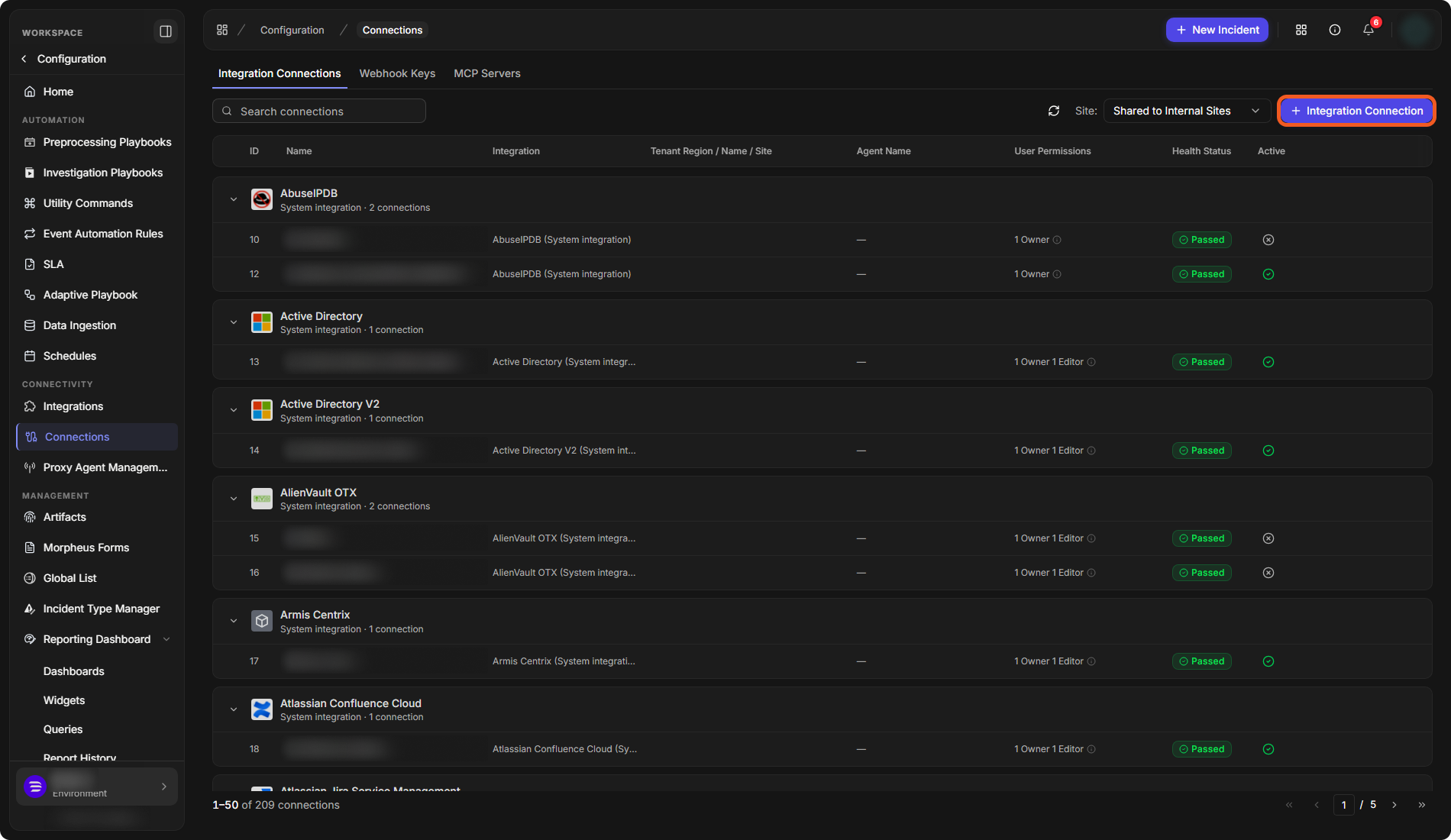
The Integration Connections tab lists connections grouped by integration. Each group shows whether it is a system or custom integration and how many connections it has. Each connection shows its ID, Name, Integration, Tenant Region / Name / Site, Agent Name, User Permissions (how many owners and editors it has), Health Status (for example Passed) and whether it is Active.
-
Search connections finds a connection by name.
-
Site shows the connections of one site, for example Shared to Internal Sites. In a multi-site deployment, use it to check which connections each client has.
-
The refresh button beside Site reloads the list.
The Integration Connections tab
Adding a Connection
-
Select Integration Connection.
-
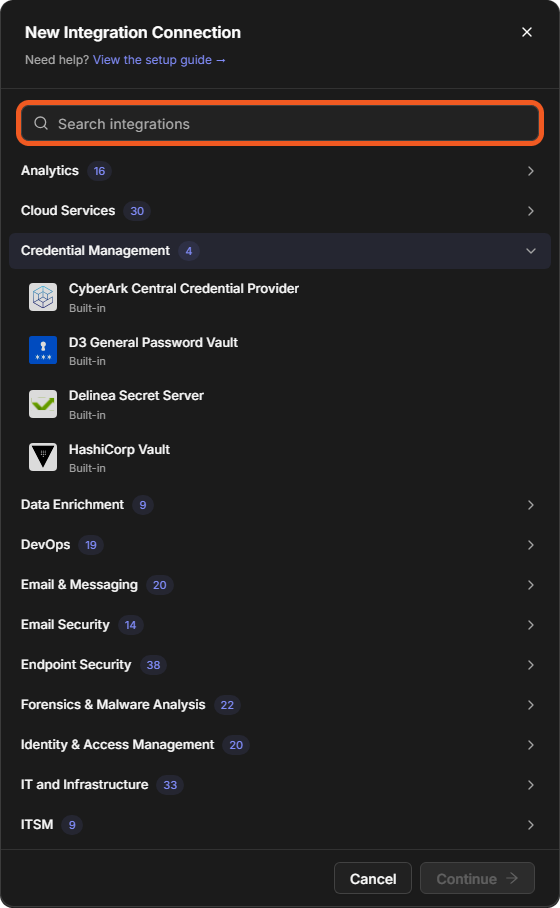
In the New Integration Connection window, find the integration: type in Search integrations, or expand its category.
-
Select the integration, then select Continue.
-
Fill in the General Settings and Account Credentials steps, as described in Integrations (Adding a Connection).
Choosing the integration
Managing a Connection
Hover over a connection to show its actions:
-
Edit opens the connection's settings. Change them and select Save changes, or Cancel.
-
Clone to Other Site(s) copies the connection to other sites.
-
Configure User Permissions opens the connection's user permissions.
-
Delete removes the connection.
A connection's actions

Password Vaults
An integration's credentials can be kept in an external password vault. The vault integrations are in the Credential Management category of the New Integration Connection window: CyberArk Central Credential Provider, D3 General Password Vault, Delinea Secret Server and HashiCorp Vault.
-
Add a connection to your vault, choosing one of these integrations.
-
Add or edit the connection of the integration that needs the credentials, and point it to the vault. Built-in integrations have an Enable Password Vault system connection parameter.
Webhook Keys
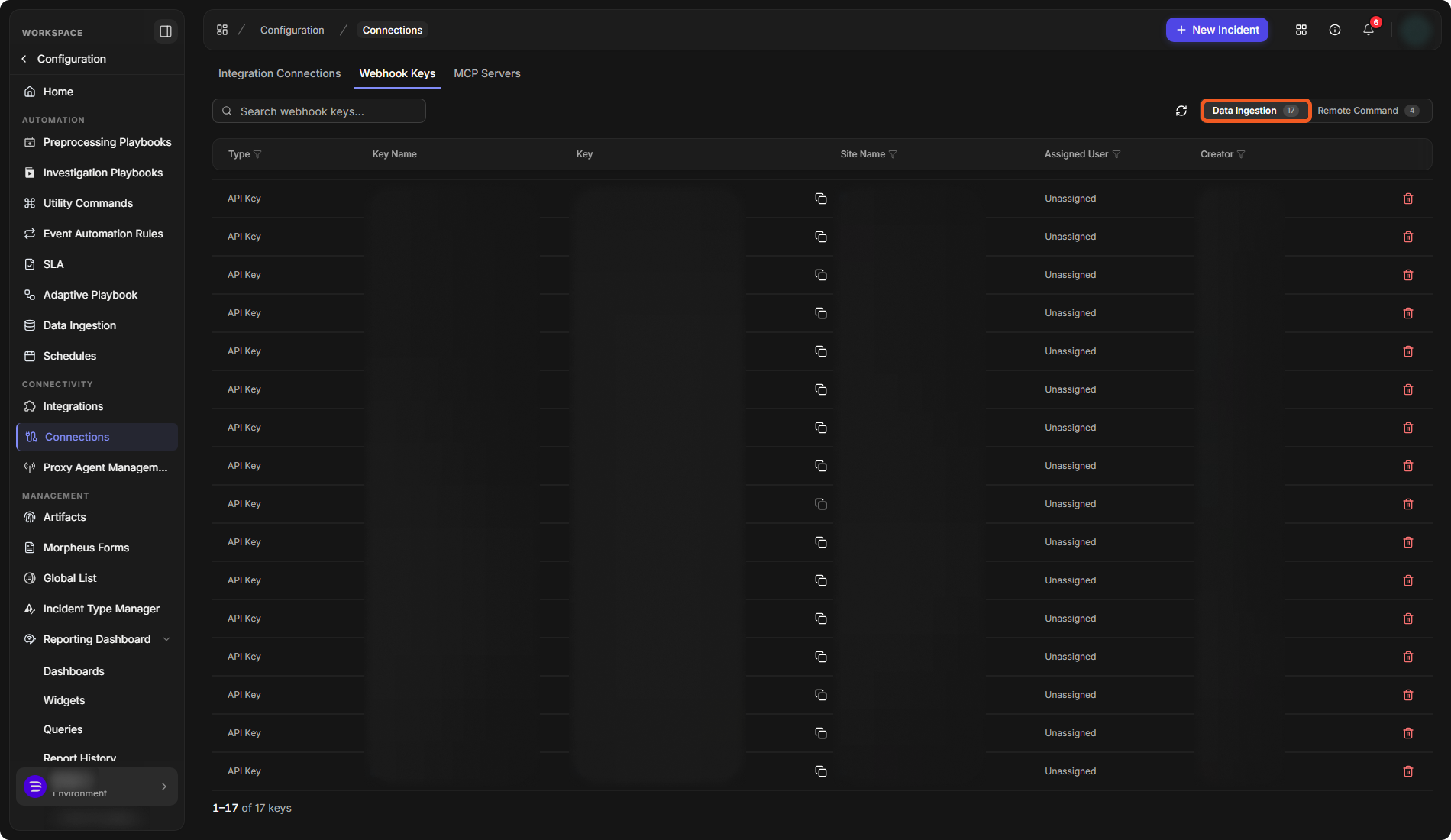
The Webhook Keys tab lists every webhook key you can see. A webhook key authenticates an external system that sends data to D3 or runs a D3 command remotely.
-
The keys are split into Data Ingestion and Remote Command, each with its number of keys.
-
Each key shows its Type, Key Name, Key, Site Name, Assigned User and Creator. Type, Site Name, Assigned User and Creator can be filtered.
-
Search webhook keys... finds a key, and the copy button beside a key copies it.
-
The delete button at the end of a row deletes the key.
The Webhook Keys tab
A webhook key gives access to D3. Copy it only into the system that needs it, and delete keys that are no longer used.
For how webhook keys are created and used, see the Webhook Configuration Guide.
MCP Servers
The MCP Servers tab lists the MCP servers available to AI agents, with a count of servers and tools at the top. Servers marked From connection are created from an integration connection and are Managed by its VSOC connection: change them through the connection, not here. Use Search MCP servers and Site to narrow the list.
The MCP Servers tab