
Last updated: November 10, 2026
Overview
API credentials and webhook keys are the two ways another system talks to D3 Morpheus without a person signing in. A personal API credential lets a script or tool you own call D3 as you—to read incidents, update them, or run a playbook—so automation you build never carries more than your own access. A webhook key lets a vendor post events or incidents into D3 through a Data Ingestion intake, so alerts from a security product arrive in your site without anyone copying them in.
Both are designed so that a key can be replaced without an outage and taken away the moment it is no longer trusted. A personal credential is revoked with one confirmation and expires on a date you choose. A webhook key can be rotated—a second key is added beside the first, so the vendor moves over before the old key is removed—and can be given an expiry date of its own.
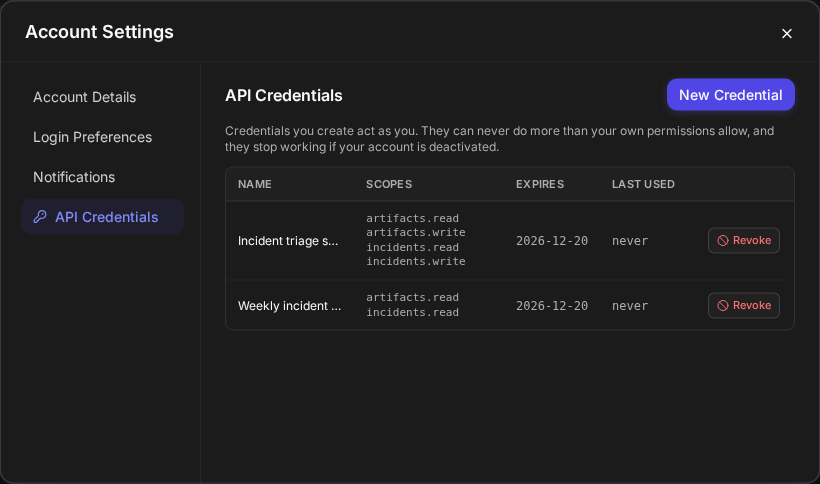
The API Credentials tab in Account Settings
In short
|
# |
Stage |
Where it happens |
|---|---|---|
|
1 |
Create a personal API credential, and copy its secret |
Your avatar > Account Settings > API Credentials > New Credential |
|
2 |
Use it from your script or tool |
D3's public API, version 2 (see The Public API) |
|
3 |
See and revoke everyone's personal credentials (administrators) |
Global Settings > Application Settings > OAuth Application Register > Personal |
|
4 |
Generate a webhook key for a vendor |
Configuration > Data Ingestion > a webhook data source > Webhook Key > a site |
|
5 |
Rotate it, give it an expiry date, or revoke it |
The same key list, on the key's row and under Expires |
|
6 |
Review the keys you can see, across sites |
Configuration > Connections > Access Keys |
Which of these you see depends on your role and on your site; see Who Can Do What.
Personal API Credentials
A personal API credential is a client ID and secret that a script, a scheduled job or another tool uses to call D3 Morpheus on your behalf. It acts as you: it reaches only the sites you choose from the sites you already belong to, it can do only what your own role allows, and it stops working if your account is deactivated. Use one when you want to automate part of your own work—pulling open incidents into a report, closing incidents from a ticketing tool, starting a playbook from a script—without sharing a password or asking for a shared service account.
Before You Start
The API Credentials tab appears in Account Settings only when both of these are true:
-
Personal API credentials are turned on for your D3 Morpheus deployment. They are off by default, and one setting covers every site in the deployment. To turn them on, contact D3 Support.
-
Your role grants the Personal API Credentials privilege. An administrator grants it to a role in Global Settings > Organization Management > Roles, under Security > Personal API Credentials ("Create API credentials that act as the user, within their own permissions"). No role has it until an administrator grants it.
If either is missing, the tab is not shown, and the rest of Account Settings works as before.
Creating a Credential
Create a credential when a script or tool needs to call D3 as you.
Creating a credential, in three moves
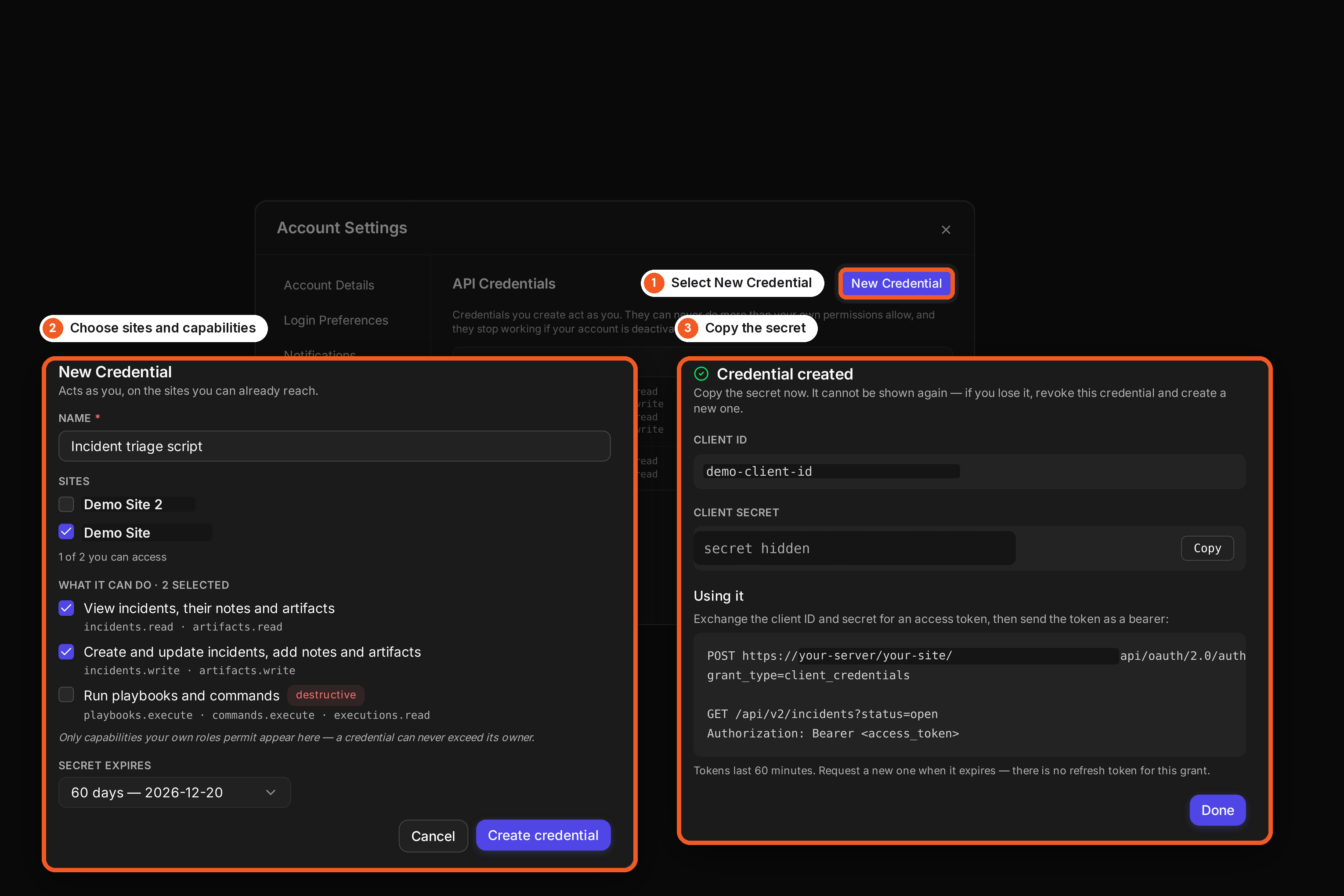
The same steps as a short animation: creating-a-credential.gif (MP4).

-
Select your avatar, then Account Settings.
-
Select API Credentials in the left rail, then New Credential.
The New Credential form
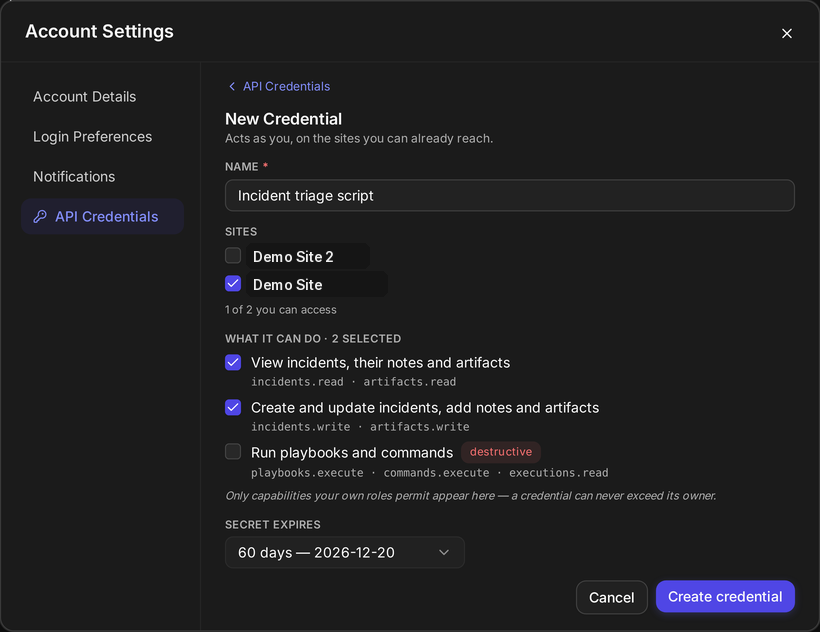
-
Enter a Name that says what will use the credential—for example,
Incident triage script. -
Under Sites, select each site the credential may reach. Only the sites you belong to are listed.
-
Under What it can do, select each capability the credential needs (see What a Credential Can Do).
-
Choose when the secret expires under Secret expires.
-
Select Create credential.
Create credential stays unavailable until the credential has a name, at least one site and at least one capability.
RESULT
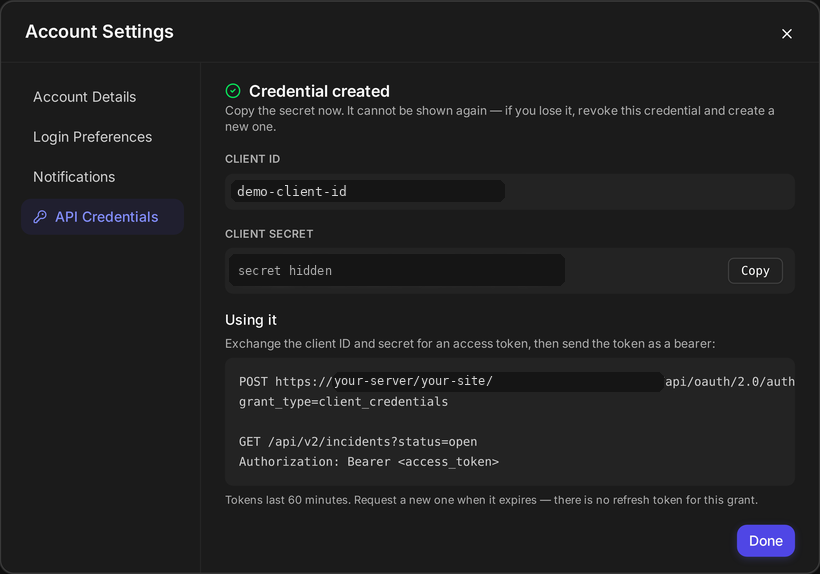
The tab shows Credential created with the credential's Client ID and Client secret, and a short Using it example of how a tool exchanges them for an access token.
The secret, shown once
WARNING
The secret is shown only on this screen. Select Copy and store it in your tool before you select Done: D3 keeps only a form of it that cannot be read back, so it cannot show it again. If you lose it, revoke the credential and create a new one.
The form's fields:
|
Field |
What to enter |
|---|---|
|
Name (Required) |
Up to 100 characters. Shown in your list and to administrators, so name it after what uses it. |
|
Sites (Required) |
One or more of the sites you belong to. The note under the list counts them—for example, 1 of 2 you can access. |
|
What it can do (Required) |
One or more capabilities. Each shows the access it grants underneath, such as |
|
Secret expires (Required) |
30, 60, 90, 180 or 365 days; each choice shows the date it lands on, such as 60 days — 2026-12-20. The default is 60 days, and no credential lasts longer than 365 days. |
What a Credential Can Do
A credential's capabilities are a short list of plain-language choices, each matching something you can already do in the product. The form offers only the capabilities your own role permits, so a credential can never do more than you can.
|
Capability |
What it lets the credential do |
Scopes shown |
|---|---|---|
|
View incidents, their notes and artifacts |
Read incidents, with their notes and artifacts |
|
|
Create and update incidents, add notes and artifacts |
Open incidents, change them, and add notes and artifacts |
|
|
View events |
Read events |
|
|
Run playbooks and commands (tagged destructive) |
Start playbooks on incidents and run utility commands |
|
The scopes are what the form shows under each capability, and what the Scopes column of your list shows for each credential.
Run playbooks and commands carries a destructive tag because a playbook or command run this way acts at once, with nobody watching, and can change incidents and the products your playbooks reach. Select it only for a tool you trust to run them.
Every call the credential makes is still checked as you: against the sites you chose, against your role's permissions, and against your account being active. If your role later loses a permission, or you are removed from a site, the credential loses that access on its next call—even for a site you chose when you created it.
READER NOTE
A personal credential works only with D3's public API, version 2. A call to an older API with it is refused with "A personal API credential can be used only with the v2 API (/api/v2)." A personal credential runs utility commands only; integration commands need an application registered by an administrator in OAuth Application Register.
Your Credential List
The API Credentials tab lists every credential you have not revoked, newest first, so you can see at a glance what can act as you and whether it is still in use.
|
Column |
What it shows |
|---|---|
|
Name |
The name you gave it |
|
Scopes |
The access its capabilities grant, such as |
|
Expires |
The date its secret stops working |
|
Last used |
The date and time it last requested an access token, or never |
Last used changes when your tool asks for a token, not on every call it makes with that token. A token lasts 60 minutes, so a tool that is in use can show a time up to an hour old.
If you have no credentials, the tab shows You have no API credentials yet.
READER NOTE
After its Expires date, a credential stops working but stays in the list until you revoke it. Credentials are never renewed: to keep access, create a new credential and move your tool to it before the old one expires.
Revoking a Credential
Revoke a credential when the tool that used it is retired, when its secret may have been exposed, or before its expiry when you are moving to a new one.
-
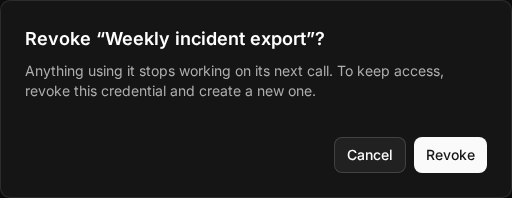
On the API Credentials tab, select Revoke on the credential's row.
Revoking a credential
-
Select Revoke to confirm.
RESULT
Credential revoked appears, and the credential leaves your list. Anything using it is refused on its next call.
WARNING
A revoked credential cannot be restored. A personal credential is never rotated; to keep access, revoke it and create a new one.
Personal Credentials Across the Deployment (Administrators)
Administrators can see every user's personal credentials, on every site, in one place, so none of them can act out of sight. Open Global Settings > Application Settings, select OAuth Application Register (under Security & Authentication), and select the Personal tab. The Applications tab lists registered applications as before.
Every user's personal credentials
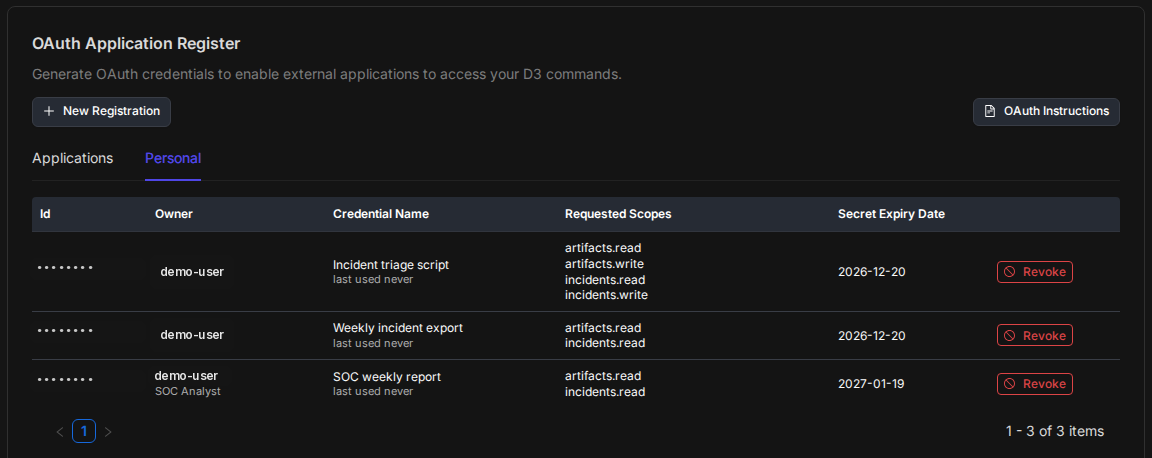
Each row shows the credential's Id, its Owner and the owner's role, the Credential Name with when it last requested an access token, its Requested Scopes, and its Secret Expiry Date. Revoke asks for confirmation ("Anything using it stops working on its next call.") and then removes the credential, exactly as if its owner had revoked it.
Only an owner can create a credential; administrators see and revoke. This tab works even when personal API credentials are turned off for the deployment, so an administrator can always clean up what exists. Turning them off stops every personal credential in the deployment from being used.
Webhook Keys on a Data Ingestion Intake
A webhook key is the secret a vendor sends with every event or incident it posts to a Data Ingestion webhook intake. Each key belongs to one site (or to a shared group of sites), so D3 knows where each posted alert belongs, and each vendor or sender can have its own key, so one can be replaced without touching the others.
Webhook keys are now named for what they do. The authentication card that was called API Key is Webhook Key ("Generate and manage the webhook keys a vendor uses to post events to D3."), and its key list is headed Webhook Keys. Keys you named yourself, such as "API Key-1", keep their names.
Opening an Intake's Keys
-
Open Configuration > Data Ingestion (under Automation).
-
Open a webhook data source: select View on its card, or start a new one with New > Webhook.
-
In the dialog (Edit Data Source, or New Webhook Data Source), check the Integration and the Site, then select the Webhook Key card.
READER NOTE
A webhook data source bound to an Attack Path Discovery (APD) policy can show APD Policy instead of View on its card. The key editor that APD Policy opens can rotate a key but does not show its expiry date.
A site's webhook keys
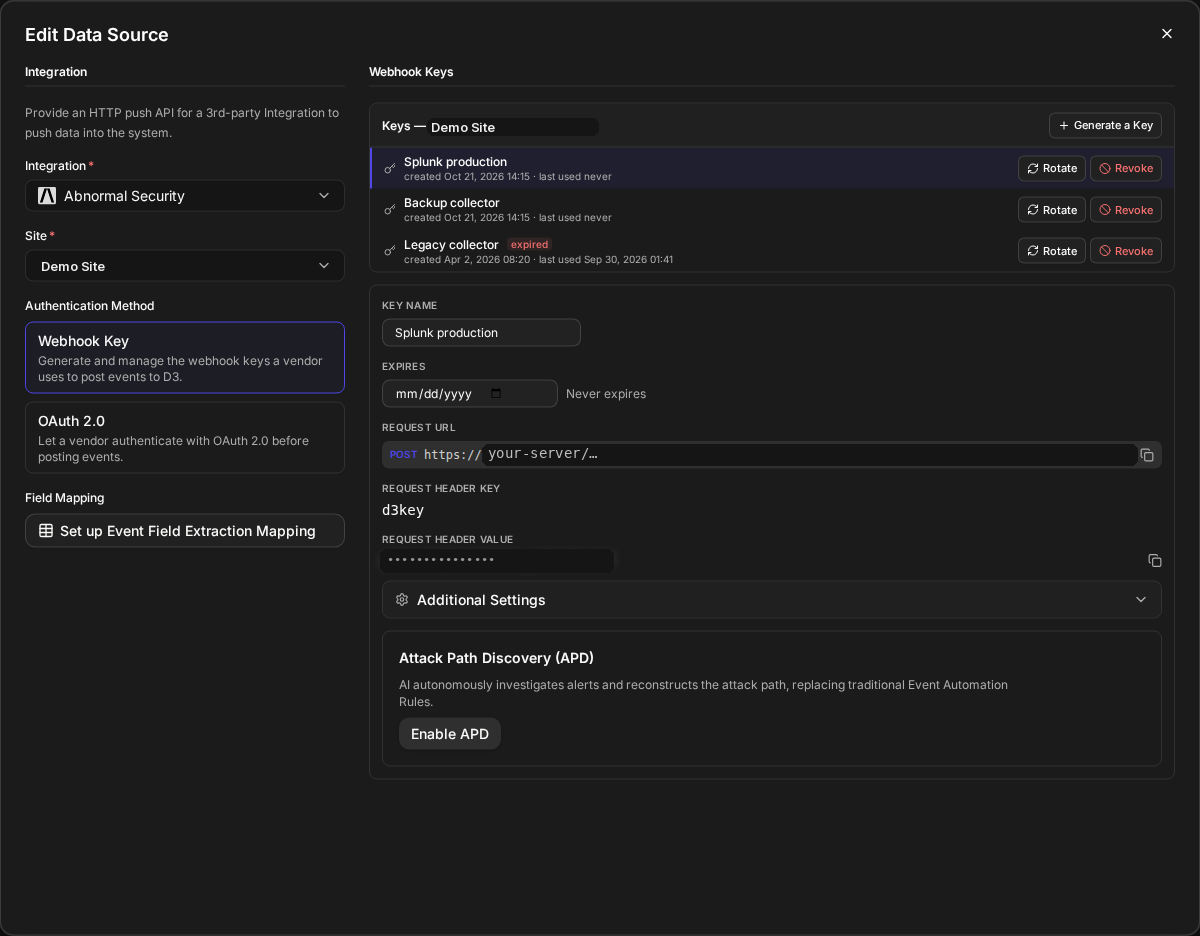
Each key in the site's key list (under a heading that reads Keys — followed by the site's name and ID) shows its name and a line such as created Oct 21, 2026 14:15 · last used never, so you can tell a key a vendor still uses from one nobody has used. Last used is updated when a post authenticates with the key, at most once a minute per key. Selecting a key shows what a vendor needs to post with it: the Request URL and the Request Header Value, each with a copy button, and the Request Header Key (d3key).
To add a key, select Generate a Key, enter a name, and select Generate. A name is up to 30 characters, must start with a letter, and may contain only letters, numbers, underscores and spaces.
READER NOTE
If a name breaks that rule—for example, it contains a hyphen—the key is not generated and the form stays open. Change the name and select Generate again.
Rotating a Key
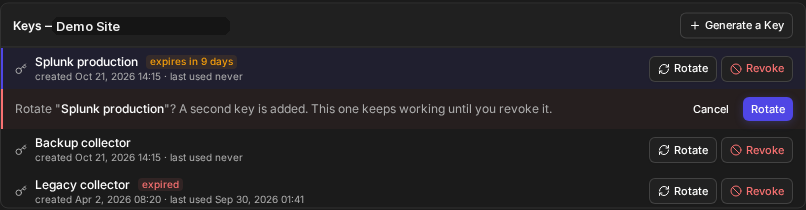
Rotating replaces a webhook key without an outage. D3 adds a second key beside the old one, with the same site and the same settings, so the vendor can switch to the new key while the old one keeps working; you revoke the old key once the vendor has moved.
-
On the key's row, select Rotate.
Confirming a rotation
-
Select Rotate to confirm.
-
Give the vendor the new key's Request Header Value.
-
When the vendor is posting with the new key, revoke the old one (see Revoking a Key).
RESULT
New key added. The old key keeps working until you revoke it. appears, and the list shows both keys. The new key is named after the old one with the time of the rotation (in UTC) added—for example, Splunk production rotated 20261021 2115—and you can rename it. The new key is selected for you, but the Key Name field still shows the old key's name until you select the new key again in the list; do that before renaming it.
After a rotation

The new key keeps everything the old one had: its site, its intake settings (preprocessing playbook, data formatter and Attack Path Discovery setting), its other options, and its expiry date. A rotation replaces the secret, not the rules around it.
READER NOTE
Until you revoke the old key, both keys keep their own copy of those settings. A change you make in AI Ingest after rotating—a new Attack Path Discovery setup, or an edited rule—applies to the new key only, and posts still arriving with the old key keep the settings it had when you rotated. Move the vendor to the new key and revoke the old one before you rework the intake.
READER NOTE
Rotating an expired key does not bring the old key back. The old key stays expired, and the new key starts with the same expiry date the old one had, so set a new date on the new key straight after rotating it.
Setting an Expiry Date
An expiry date makes a webhook key stop working on its own, so a key handed to a trial, a contractor or a short project does not outlive it. A key has no expiry until you give it one.
-
Select the key.
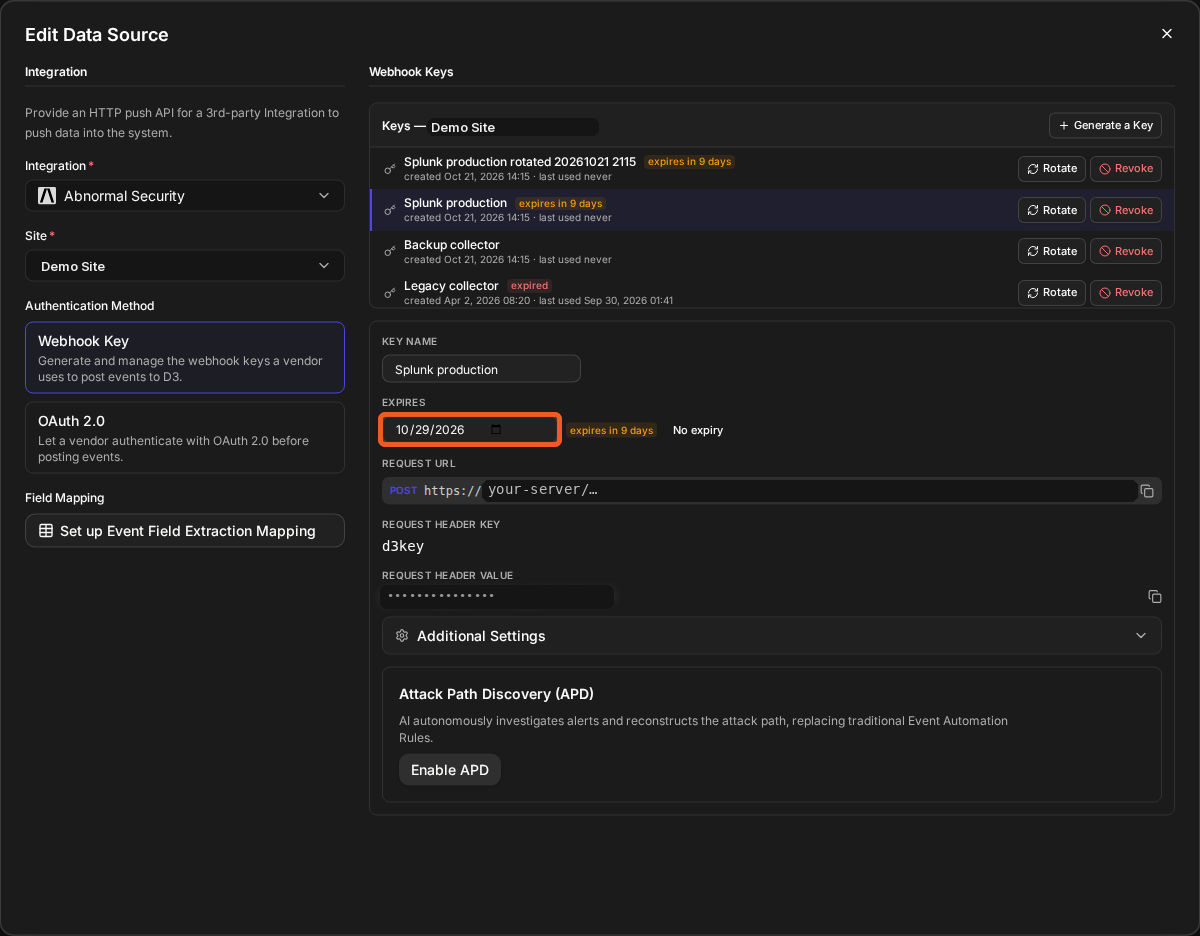
-
Under Expires, choose or type a date, then select outside the field or press Enter.
A key nearing its expiry date
RESULT
The date is saved. Within 14 days of the date, the key's row and the field show a chip such as expires in 9 days; after it, the chip reads expired.
The key works until the end of the chosen day in UTC, not local time. To remove an expiry, select No expiry; a key without one reads Never expires. Clearing the field does not remove the expiry—only No expiry does.
Expiry chips on the key list

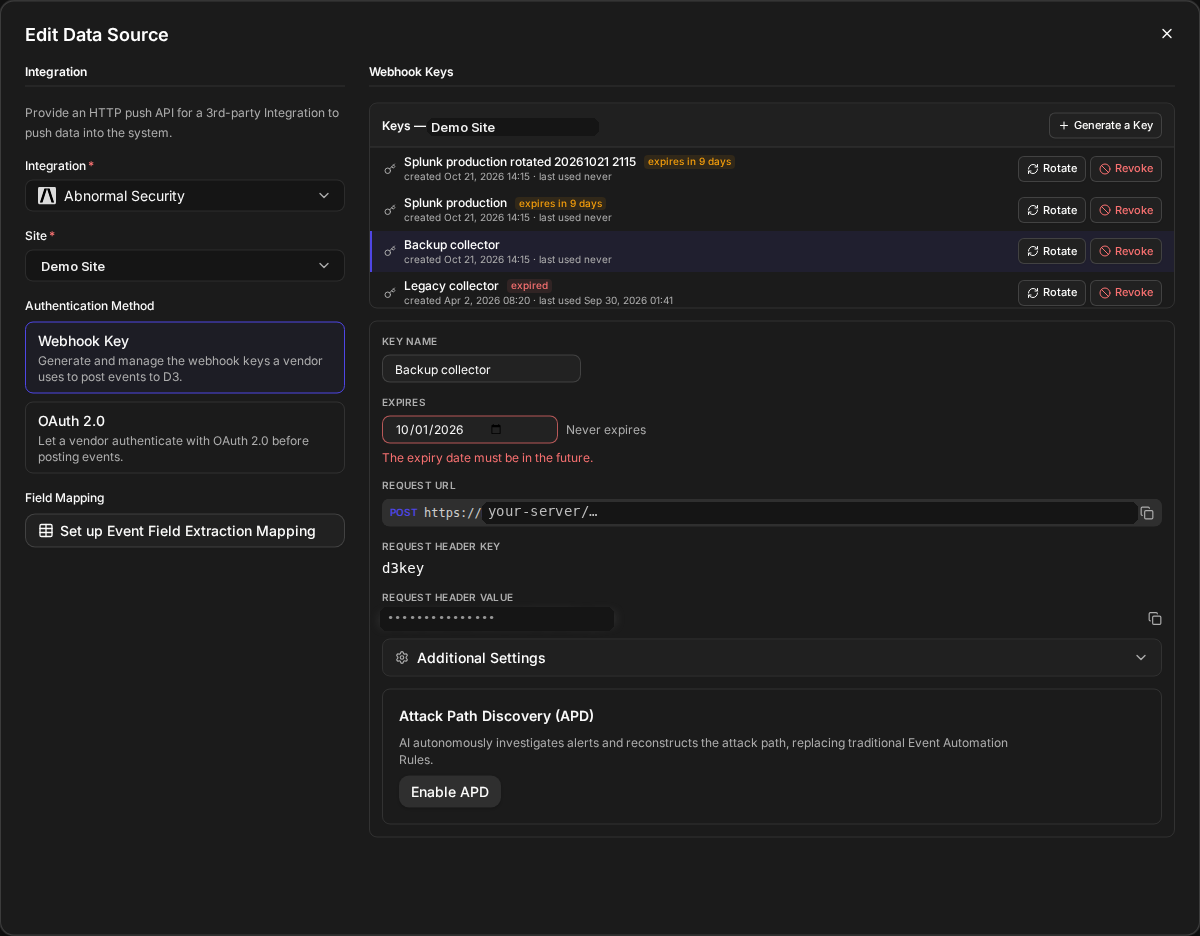
The date must be today or later. A past date shows The expiry date must be in the future., and a date that does not exist or is incomplete, such as 09/31, shows Enter a complete, valid date. Neither is saved.
A refused date
WARNING
A vendor posting with an expired key is refused with "The authentication key has expired." Its alerts do not arrive until it switches to a key that has not expired. Rotate the key, or set a later date, before the expiry passes.
Revoking a Key
Revoking removes a webhook key, so a vendor or sender you no longer trust can post nothing more with it.
-
On the key's row, select Revoke.
-
Read the confirmation, which names the key—for example, Revoke "Splunk production"? Anything posting with it stops working.—and select Revoke.
RESULT
Key revoked appears, and the key leaves the list. Other keys on the same site keep working.
WARNING
Revoking cannot be undone. Anything still posting with the key is refused from that moment.
Who Can Rotate a Key or Change Its Expiry
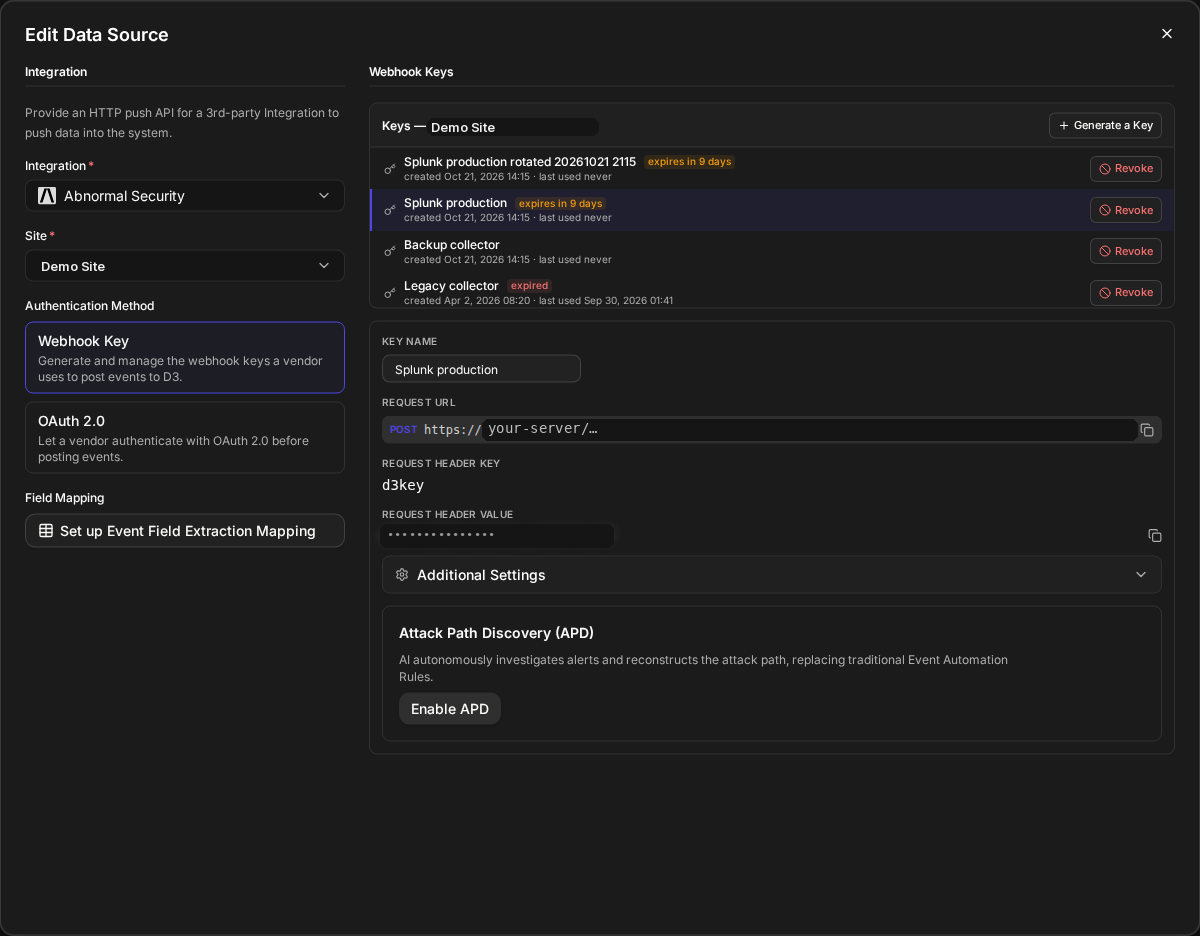
Rotating a key and changing its expiry are kept to the people responsible for it, so nobody can quietly replace or extend a key someone else gave a vendor. You see Rotate and the Expires field on a key only when you can reach the key's site and one of these is true:
|
You are |
Rotate and Expires |
|---|---|
|
A user whose role has the Administrator privilege |
Shown on every key listed |
|
The person who created the key |
Shown |
|
Anyone, on a key with no recorded creator (some older keys have none) |
Shown |
|
Anyone else |
Not shown: the key's row offers Revoke only |
READER NOTE
A JSON Web Token (JWT) key—offered only on sites with enhanced webhook authentication—shows Rotate and Revoke to the person who created it only, and follows the same rules otherwise.
Another user's keys
Webhook Keys on a Command's Settings
A fetch event or fetch incident command lists the same webhook keys on its Settings tab, so you can see which sites a vendor can post to from the command itself. That copy is read-only: it says Webhook keys are created, rotated and revoked in Data Ingestion., and Open Data Ingestion takes you there.
The Access Keys Page
The Access Keys page is one list of the keys you can see, so you can review who holds a key and where it is used without opening each intake or command. Open Configuration > Connections (under Connectivity) and select Access Keys. It has two lists, each with a count:
-
Webhook Keys: keys vendors use to post events or incidents to D3, with the Site each belongs to.
-
API Keys: keys that let an outside system run a D3 command, with the Command each has been added to (see Command Keys and OAuth). As the column's tooltip says, that is not the key's full reach: such a key can also run other commands that allow remote access.
The Access Keys page
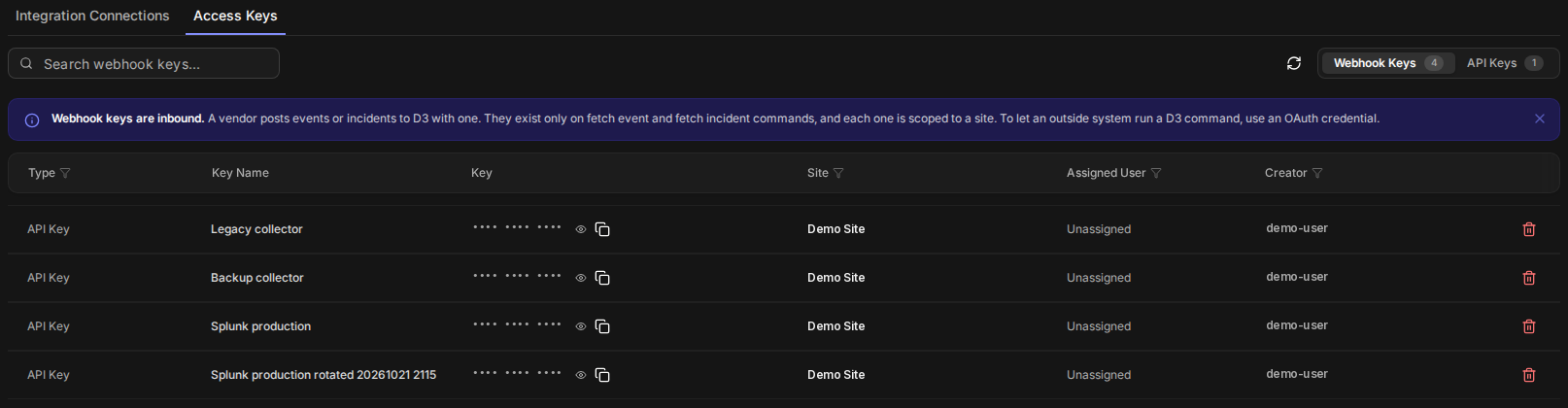
Key values are hidden by default: only their first four characters show, followed by dots. Select the eye to reveal a key, and the copy button to copy it. A key whose Type is Secret Key (a JSON Web Token key) reads Hidden instead, with no reveal or copy button, and its details read Hidden too. Selecting a row opens the key's details, including the commands it is attached to.
On the sites you reach, the lists show the keys you created, keys assigned to you, keys shared with everyone, keys whose Type is API Key and that are assigned to no one (on either list), and keys with no recorded creator. A key that someone else created, assigned to another user and did not share is not listed, even for an administrator. Secret Key keys are listed only when enhanced webhook authentication is turned on.
The note at the top of Webhook Keys explains which keys belong there: "Webhook keys are inbound. A vendor posts events or incidents to D3 with one. They exist only on fetch event and fetch incident commands, and each one is scoped to a site. To let an outside system run a D3 command, use an OAuth credential." Close it with its X; it stays closed in that browser.
A webhook key can also be deleted here. Select the Delete icon on its row, or open the key and select Delete in its details, then confirm. The dialog names the key, for example Delete webhook key? "Delete "Backup collector"? This cannot be undone." Webhook key deleted appears, and the key leaves the list. The Delete icon shows only to a user whose role has the Administrator privilege, to the person who created the key, and on a key with no recorded creator. The same rule applies to the keys on API Keys.
Command Keys and OAuth
OAuth credentials are the recommended way to let an outside system run a D3 command: they can be limited to what they need, tied to a named person or application, and revoked on their own. What you can still do with command keys (API keys and JWTs) depends on your deployment:
|
Deployment |
Command keys |
|---|---|
|
Upgraded from a release before 18.6 |
Can be created, changed and removed. A command's Key authentication switch turns key access off and back on. The note "OAuth is recommended. API keys still work, but an OAuth credential is the recommended way to let an external system run a command." appears in the command's key settings, in its key dialogs, and on the Access Keys page's API Keys list. |
|
New D3 deployment, set up from 18.6 on |
Retired: existing keys keep working and can be removed, but new ones cannot be created. A command's Allows command to be run from outside of D3 switch, once turned off, cannot be turned back on. |
The setting covers every site in a deployment. A new MSSP tenant is set up with its parent's setting; changing a parent later does not change its tenants. A customer cannot change the setting; it is changed by D3 Support on request, for each deployment or tenant.
On an Upgraded Deployment
A command's key settings show the note and the controls for managing keys. Open Configuration > Utility Commands, open the command, and select Settings.
A command's external access on an upgraded deployment
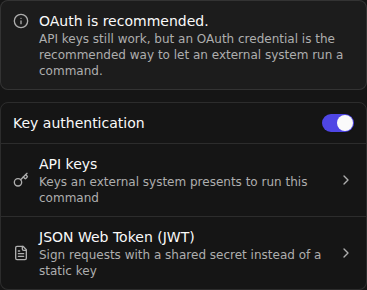
The Key authentication switch turns key access for the command off and back on, with no warning. The JSON Web Token (JWT) row appears only on sites with enhanced webhook authentication.
Adding a command key
-
Select API keys. If Key authentication is off, turn it on first: the rows cannot be selected while it is off.
-
Select + next to ALL KEYS.
-
In Generate API key, enter a name for the key and select Add.
The API Keys dialog on an upgraded deployment
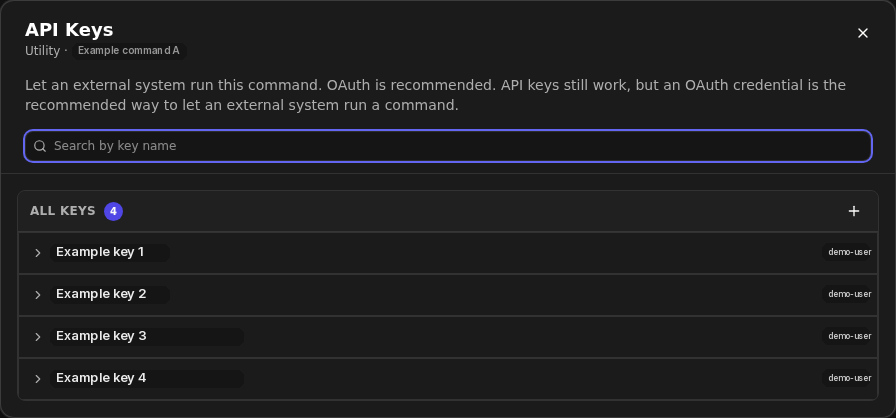
RESULT
API key created appears, and the key is listed under ALL KEYS.
Select a key to manage it:
-
Rename it by editing its name. Key name saved appears.
-
Regenerate it with Regenerate. D3 asks first (Regenerate Key, which names the key: "The current key will stop working immediately."), then shows the new value with "The new value is shown once. Copy it now." Copy it before you select Done. Key regenerated appears.
-
Remove it with Remove. D3 asks first (Remove key, which names the key: "Anything that calls this command with it stops working. This cannot be undone."). Key removed appears.
A JSON Web Token (JWT) is added and managed the same way from the JSON Web Token (JWT) row. Its add dialog also offers an optional user to assign it to and a Visible to All switch, and its messages read JWT created, JWT regenerated and JWT removed.
The API Keys list on an upgraded deployment
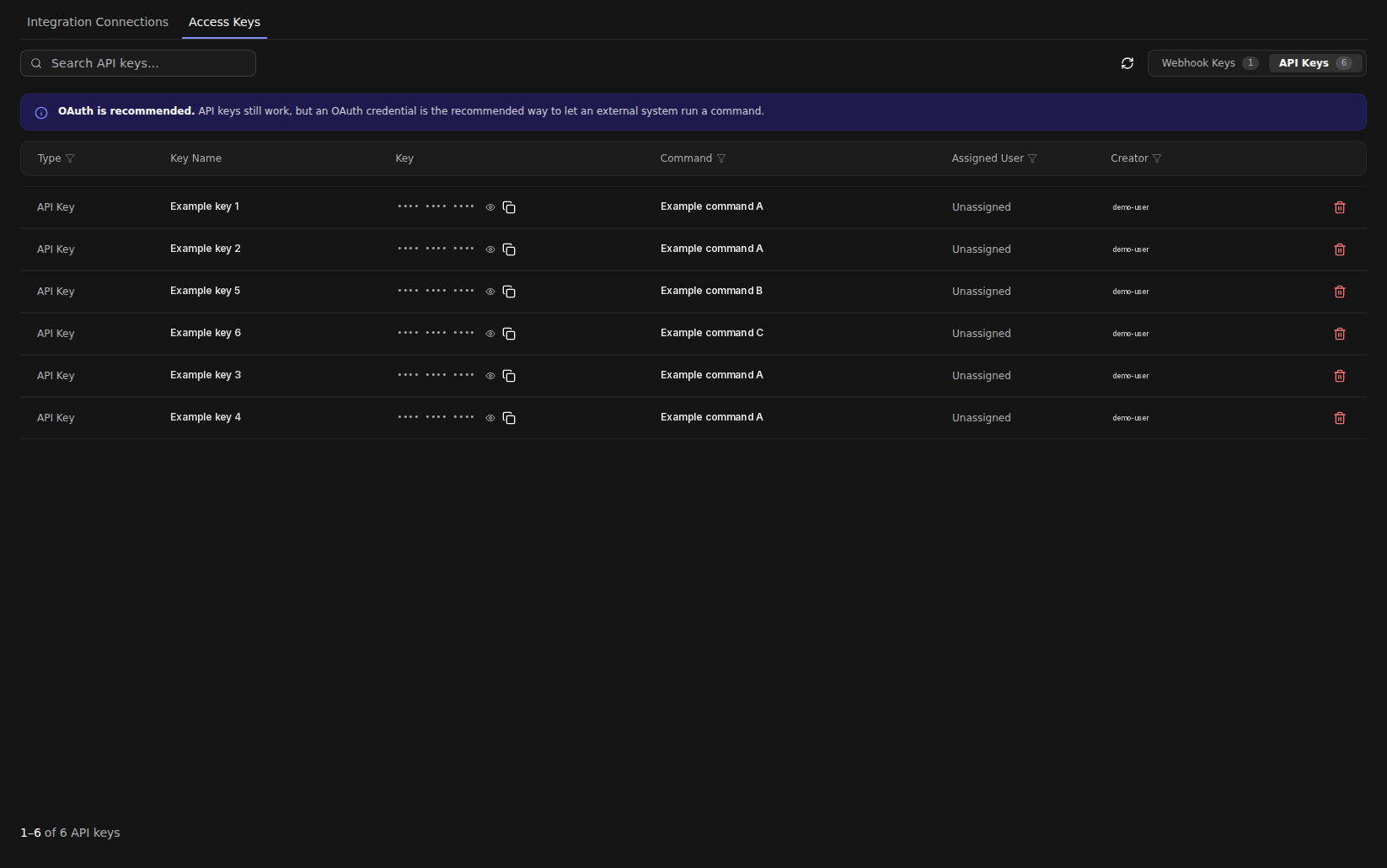
The API Keys list on a new deployment

On a new deployment, a command that is not a fetch command shows Use an OAuth credential instead on its Settings tab, under External Access, with how many keys are still in use and Review and remove existing keys, and the switch Allows command to be run from outside of D3 can be turned off but not back on.
A command's external access on a new deployment
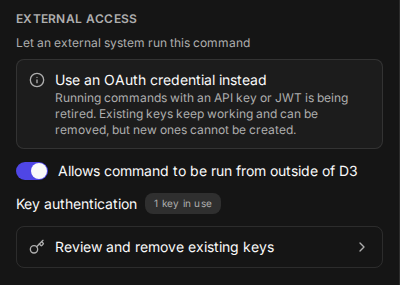
WARNING
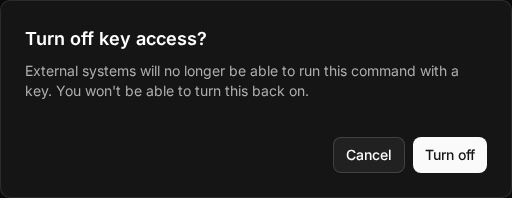
On a new deployment, turning off Allows command to be run from outside of D3 cannot be undone. D3 asks first (Turn off key access? "External systems will no longer be able to run this command with a key. You won't be able to turn this back on."), and every outside system still running the command with a key is refused from then on. Move those systems to an OAuth credential before you turn it off. On a deployment upgraded to 18.6, the Key authentication switch turns key access off and back on, with no warning.
Turning off key access on a new deployment
Fetch event and fetch incident commands are not affected: their switch still turns vendor intake on and off, both ways.
Removing a Command Key
Remove a command key once the outside system that used it has moved to an OAuth credential, so the key can no longer run the command.
-
Open Configuration > Connections, select Access Keys, then API Keys.
-
On the key's row, select the Delete icon (or open the key and select Delete in its details).
-
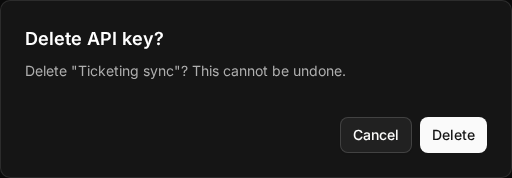
Read the confirmation, which names the key—for example, Delete API key? "Delete "Ticketing sync"? This cannot be undone."—and select Delete.
Deleting a command key
RESULT
API key deleted appears, and the key leaves the list. Anything still running the command with it is refused from then on.
WARNING
A deleted key cannot be restored. On a new deployment, a new command key cannot be created in its place.
If a key's row shows no Delete icon, ask an administrator. You can also remove a key from the command itself: on its Settings tab, under External Access, select Review and remove existing keys, then Remove on the key.
The Public API
D3 Morpheus's public API, version 2, is what personal API credentials—and applications registered in OAuth Application Register—call: incidents, their notes and artifacts, events, playbook runs and utility commands. The endpoints, the access each needs, and how a tool exchanges a client ID and secret for an access token are in the D3 API reference, published with each release.
Who Can Do What
|
Task |
Who |
|---|---|
|
Create, list and revoke your own personal credentials |
Anyone whose role has Personal API Credentials, once personal API credentials are turned on for the deployment |
|
See and revoke everyone's personal credentials |
Administrators, in OAuth Application Register > Personal |
|
Generate and revoke webhook keys |
Anyone whose role has Playbook Configuration (in the role editor, under Configuration Modules; it also grants Data Ingestion), on the key's site |
|
Rotate a webhook key, or change its expiry |
See Who Can Rotate a Key or Change Its Expiry |
|
Review keys on the Access Keys page |
Anyone whose role has Playbook Configuration, which also grants Connections |
Messages You May See
|
Message |
What it means |
|---|---|
|
The expiry date must be in the future. |
The date you entered for a webhook key is before today (UTC). Choose today or later. |
|
Enter a complete, valid date. |
The date is incomplete or does not exist. |
|
Key name already exists |
Another key on this site has that name. Choose another. |
|
The key does not exist. / The key to rotate does not exist. |
The key was revoked, or you cannot manage it (see Who Can Rotate a Key or Change Its Expiry). |
|
Personal API credentials are not enabled on this site. |
Personal credentials are turned off for the deployment (one setting covers every site), so the credential cannot be used or managed. |
|
Your role does not permit personal API credentials. |
Your role lacks the Personal API Credentials privilege. |
|
The authentication key has expired. |
Seen by a vendor posting with a webhook key past its expiry date. |
|
A personal API credential can be used only with the v2 API (/api/v2). |
The credential was used against an older API. |
|
Running this command with a key can no longer be turned on. Use an OAuth credential to run commands. |
On a new deployment, a command's key access was turned off, and it cannot be turned back on from the command. Whether a deployment allows command keys is changed by D3 Support on request. |
FAQs
Can I see a credential's secret again later? No. The secret is shown once, when the credential is created. If it is lost, revoke the credential and create a new one.
Can I extend a personal credential? No. Create a new credential, move your tool to it, then revoke the old one.
Does rotating a webhook key cut the vendor off? No. The old key keeps working until you revoke it, unless it has already expired.
What happens to a webhook key's settings when I rotate it? The new key keeps the old key's site, intake settings and expiry date.
Why can I not see Rotate on a key? You did not create it, it has a recorded creator, and your role is not an administrator—or you cannot reach the key's site. Ask the person who created it, or an administrator.