
Last Updated: October 23, 2026
Overview
Schedules run a command automatically, once at a set time or repeatedly: for example, a daily clean-up, report or health check of a connection. Scheduling saves routine manual work. Both integration commands and utility commands can be scheduled.
Schedules are found under Configuration > Schedules. A utility command can also be scheduled straight from its own page; see Scheduling a Utility Command from Its Page below. Schedules that bring in events and incidents (Fetch Event and Fetch Incident) are set up in Data Ingestion.
The Schedules Page
The left side lists the schedules as cards. Each card shows the kind of command (Integration Command, Utility Command or System Command), the schedule's name and integration, its status, the command and connection, the start time and how it repeats.
-
Search Schedules finds a schedule by name.
-
Sort By groups the list, and Filter narrows it.
-
New Schedule adds a schedule.
-
Select a card to see its runs in the All Runs log. Filter the runs with FROM and TO.
-
Select a run to see its details on the right: Input Data (the command and parameters, and the run's start time, end time and duration) and Output Data. Copy copies the data.
The Schedules page
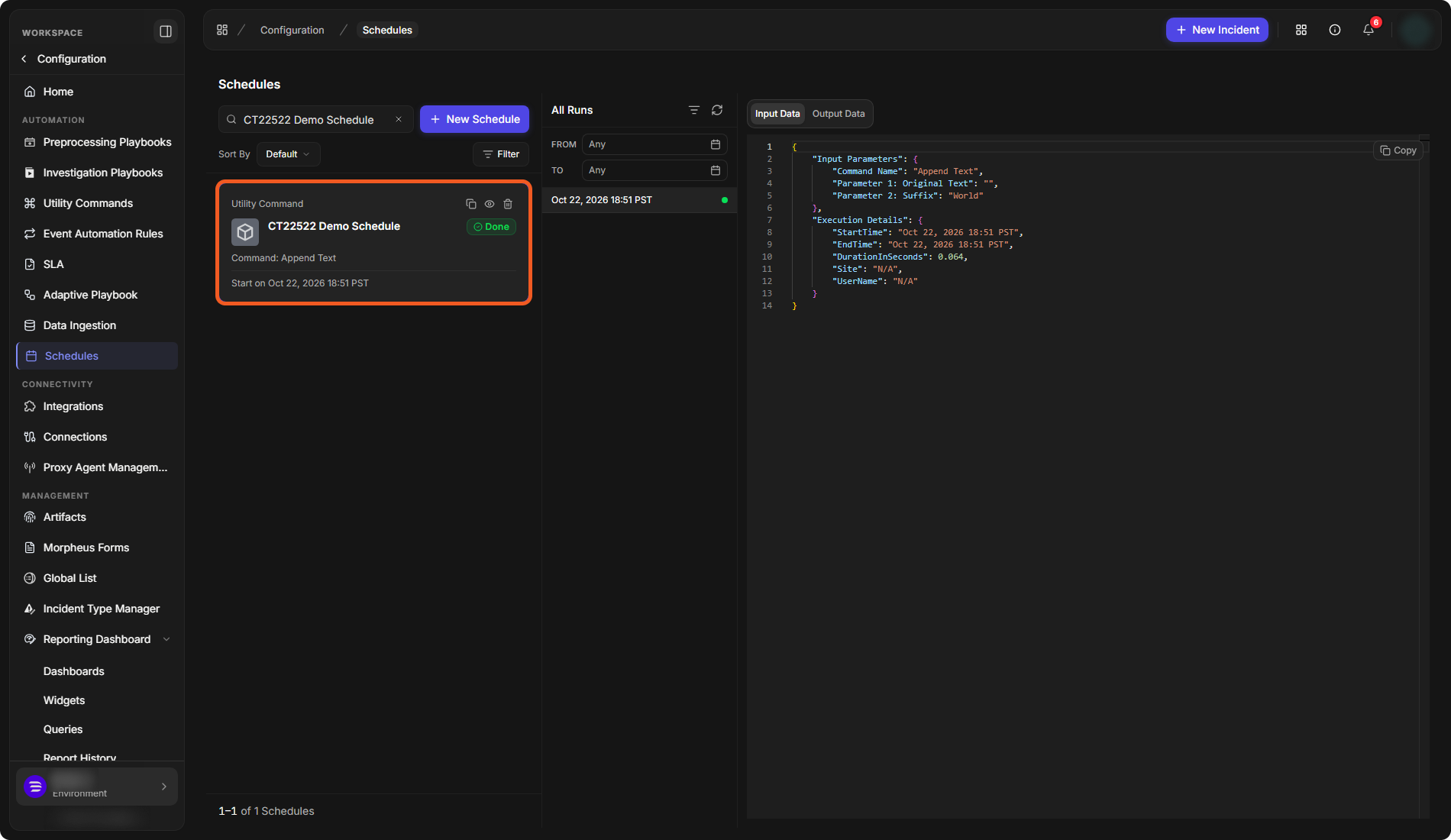
Schedule Status
|
Status |
Meaning |
|---|---|
|
Scheduled |
The schedule is set up and will run. |
|
Done |
The schedule has finished its runs. |
|
Stopped |
The schedule was stopped. |
Schedule Actions
The buttons at the top right of a card are Stop (on a schedule that is still to run), Clone, View and Delete.
Adding a Schedule
-
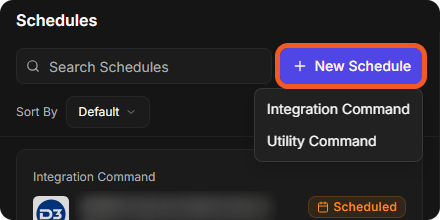
Select New Schedule and choose Integration Command or Utility Command.
-
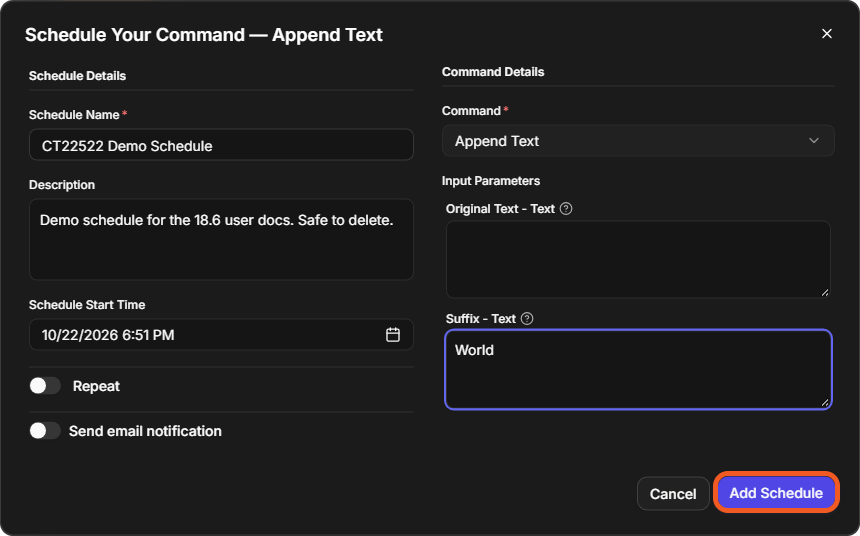
In the Schedule Your Command window, enter a Schedule Name and, optionally, a Description.
-
For an integration command, choose the Integration.
-
Set the Schedule Start Time.
-
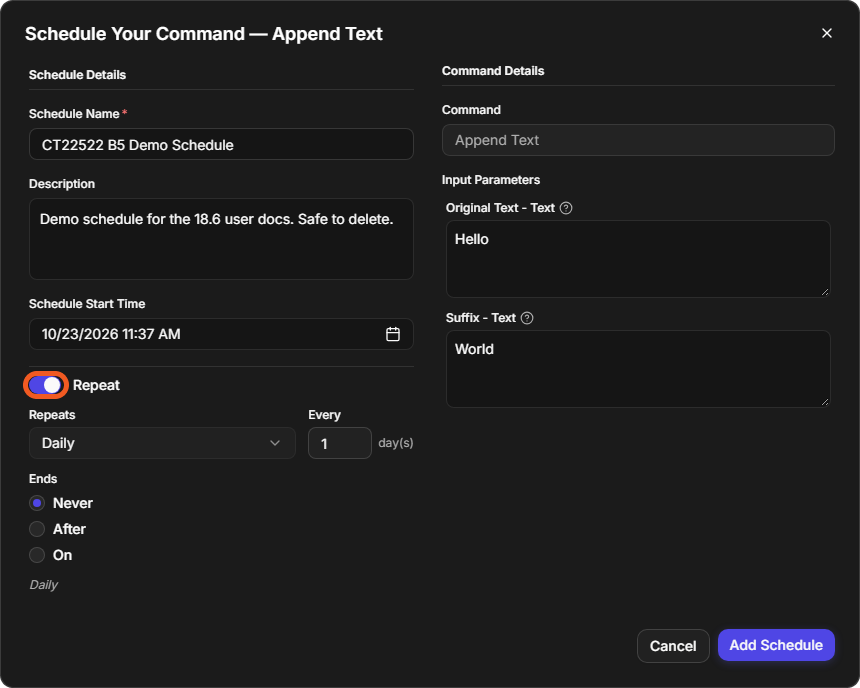
To run the command more than once, switch on Repeat, then set how often (Repeats, for example Daily, and Every *n* days) and when it Ends: Never, After a number of runs, or On a date.
-
Optionally, switch on Send email notification.
-
Under Command Details, choose the Command and fill in its Input Parameters.
-
Select Add Schedule.
The New Schedule menu
The Schedule Your Command window
The repeat settings
The schedule appears in the list. When its start time comes, it runs, and each run appears in its All Runs log.
Scheduling a Utility Command from Its Page
-
Go to Configuration > Utility Commands and open the command.
-
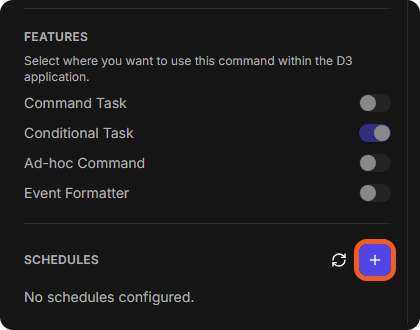
On the Overview > Settings tab, scroll down to SCHEDULES.
-
Select the + button beside SCHEDULES.
The SCHEDULES section of a command
-
In the Schedule Your Command window, enter a Schedule Name and, optionally, a Description.
-
Set the Schedule Start Time, and, to run the command more than once, switch on Repeat.
-
Under Command Details, the Command is already filled in. Fill in its Input Parameters.
-
Select Add Schedule.
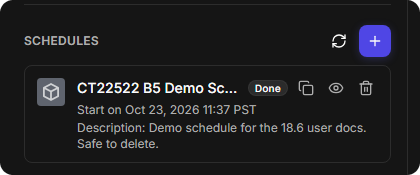
The schedule is added. When its start time comes, the command runs. After the run, select the refresh button beside SCHEDULES to see the schedule in the list, with its status (for example Done), start time and description. Its runs are listed on the Schedules page.
The command's schedule
Cloning a Schedule
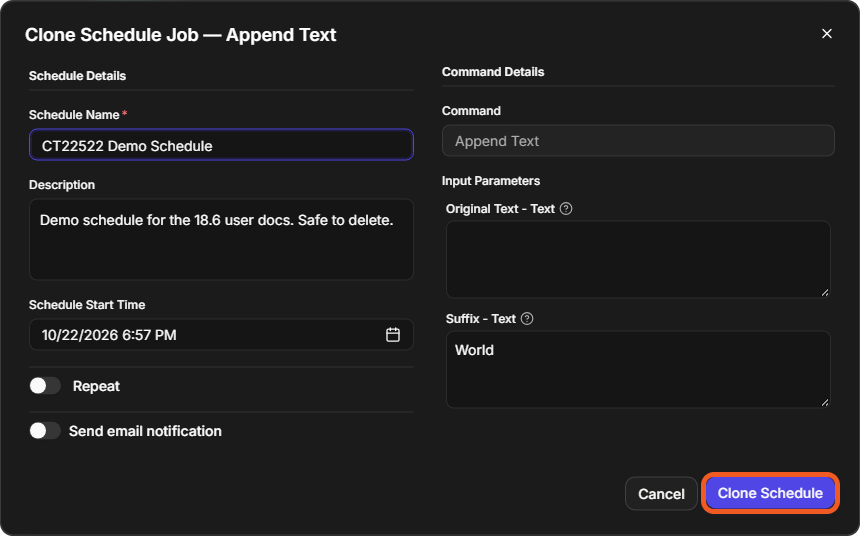
To create a schedule like an existing one, select Clone on its card. The Clone Schedule Job window opens with the schedule's name, description and input parameters filled in; the command cannot be changed. Change what you need, then select Clone Schedule.
The Clone Schedule Job window
To delete a schedule, select Delete on its card and confirm with Delete.