
Last Updated: October 26, 2026
Overview
A codeless playbook utility command can serve as a data formatter for incoming event or incident data: you build the formatting logic from playbook tasks instead of code. This article shows how to create such a command, make it available as a data formatter, build the formatting with a Data Formatter task and a Passdown task, and test it. For utility commands in general, see Utility Custom Command.
Generating with AI
Morpheus, D3's AI assistant, can build the codeless playbook command for you from a description and a sample of the data to format.
-
Go to Configuration > Utility Commands and select the + button beside Search Utility Commands.
-
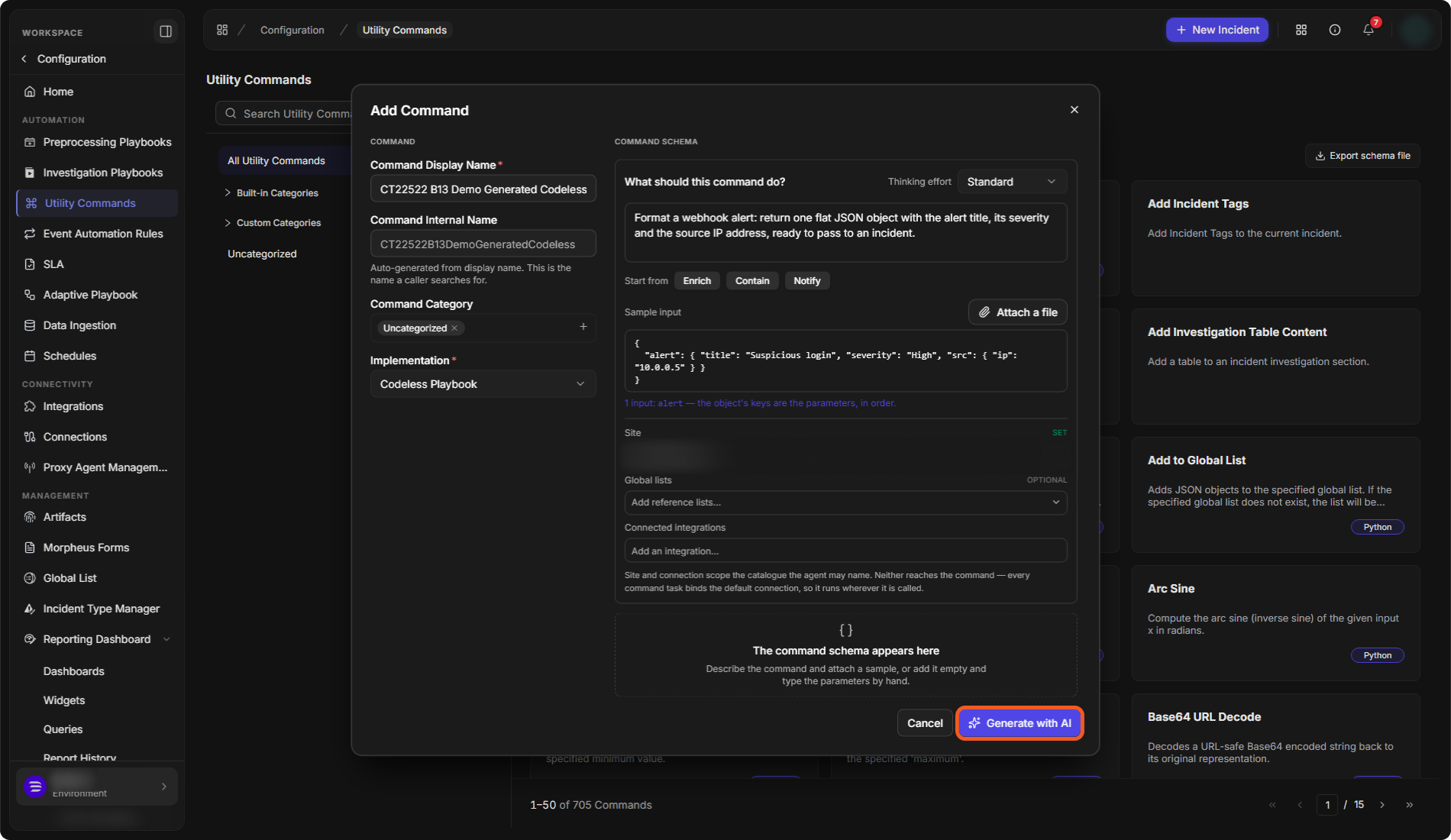
Enter a Command Display Name. The Command Internal Name is generated from it. Choose a Command Category, or leave it Uncategorized.
-
Set Implementation to Codeless Playbook.
-
Under What should this command do?, say what the command should compute and what a later task should be able to use from its result. Start from offers Enrich, Contain and Notify.
-
Under Sample input, paste one example input, or select Attach a file. Its top-level keys become the command's parameters.
-
Choose the Site (required), and optionally Global lists and Connected integrations. They set what Morpheus may use when it drafts the playbook; they do not limit where the command runs.
-
Select Generate with AI. Morpheus shows its progress; this takes a few minutes, and Stop generating stops it.
Describing a codeless playbook command
-
Check the command schema Morpheus proposes: the brief, the description, the INPUTS, the OUTPUTS and any Assumptions. Then select Add as command.
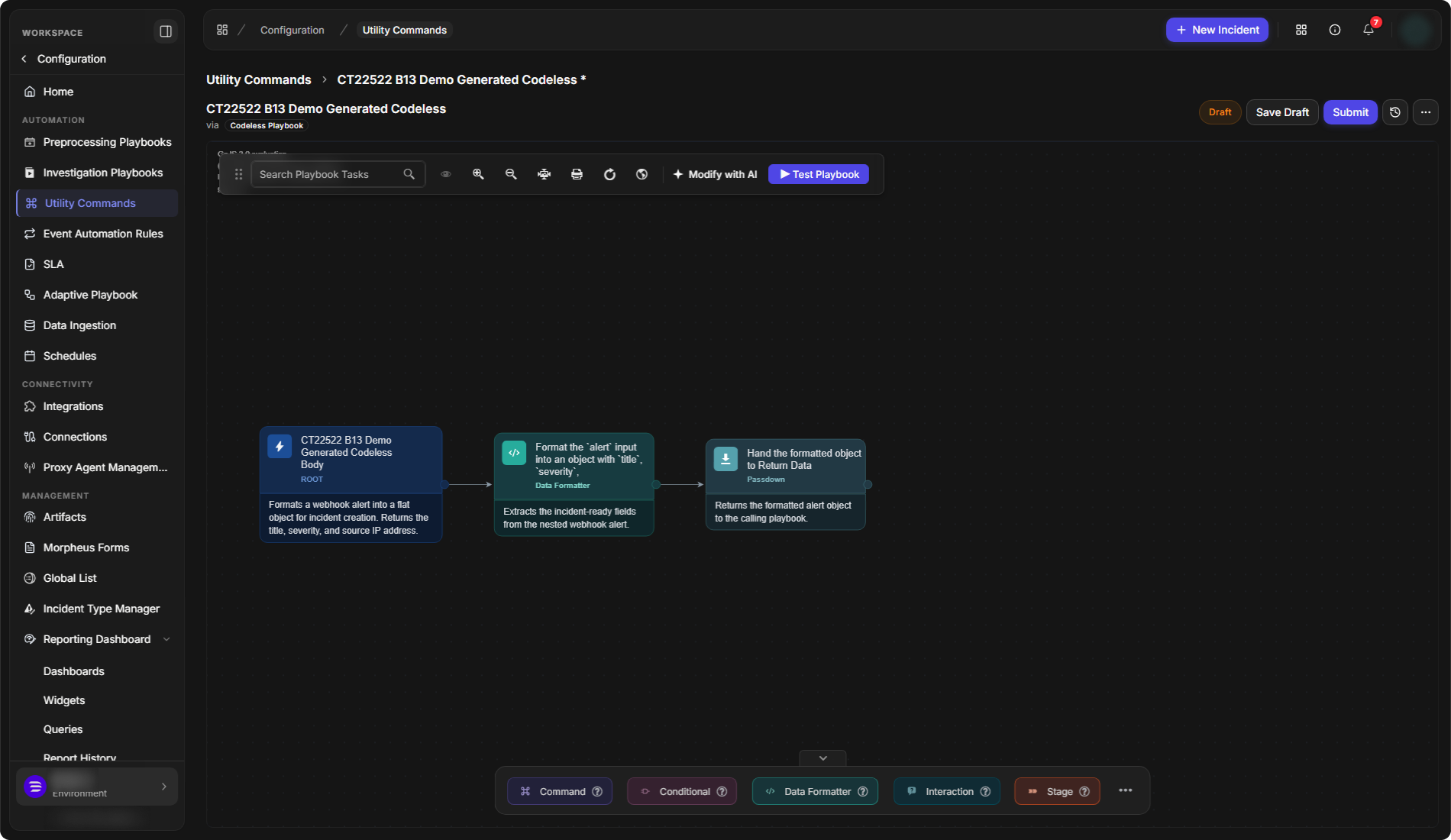
The command opens as a Draft in the playbook editor, with the tasks Morpheus generated on the canvas.
In this example, Morpheus built a Data Formatter task that formats the input and a Passdown task that hands the result to the return data.
The generated codeless playbook
To use the command as a data formatter, continue with Making the Command Available as a Data Formatter below.
REVIEW BEFORE USE
Check the generated tasks and test the playbook before you select Submit. See Testing the Playbook.
Creating the Codeless Playbook Command
To create the command manually, follow these steps.
-
Go to Configuration > Utility Commands.
-
Select the + button beside Search Utility Commands.
-
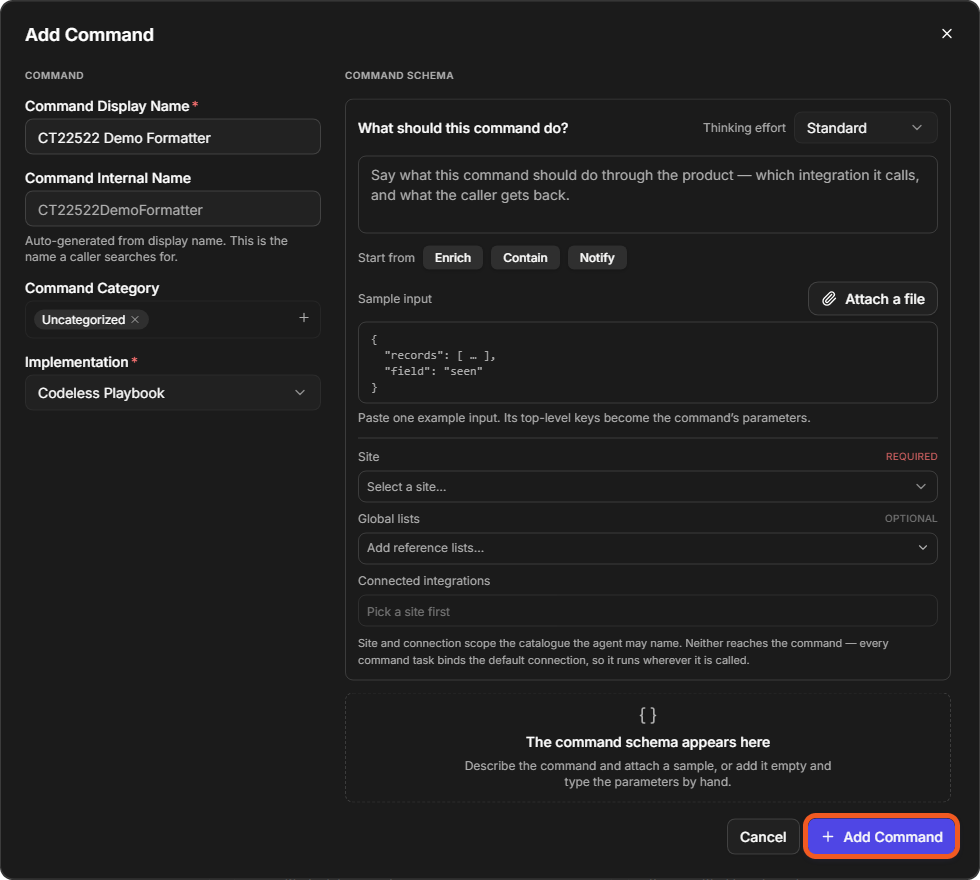
Enter a Command Display Name. The Command Internal Name is generated from it.
-
Set Implementation to Codeless Playbook.
-
Select Add Command.
Adding a codeless playbook command
The command opens as a Draft in the playbook editor, with one task on the canvas: the ROOT task named after the command.
Making the Command Available as a Data Formatter
-
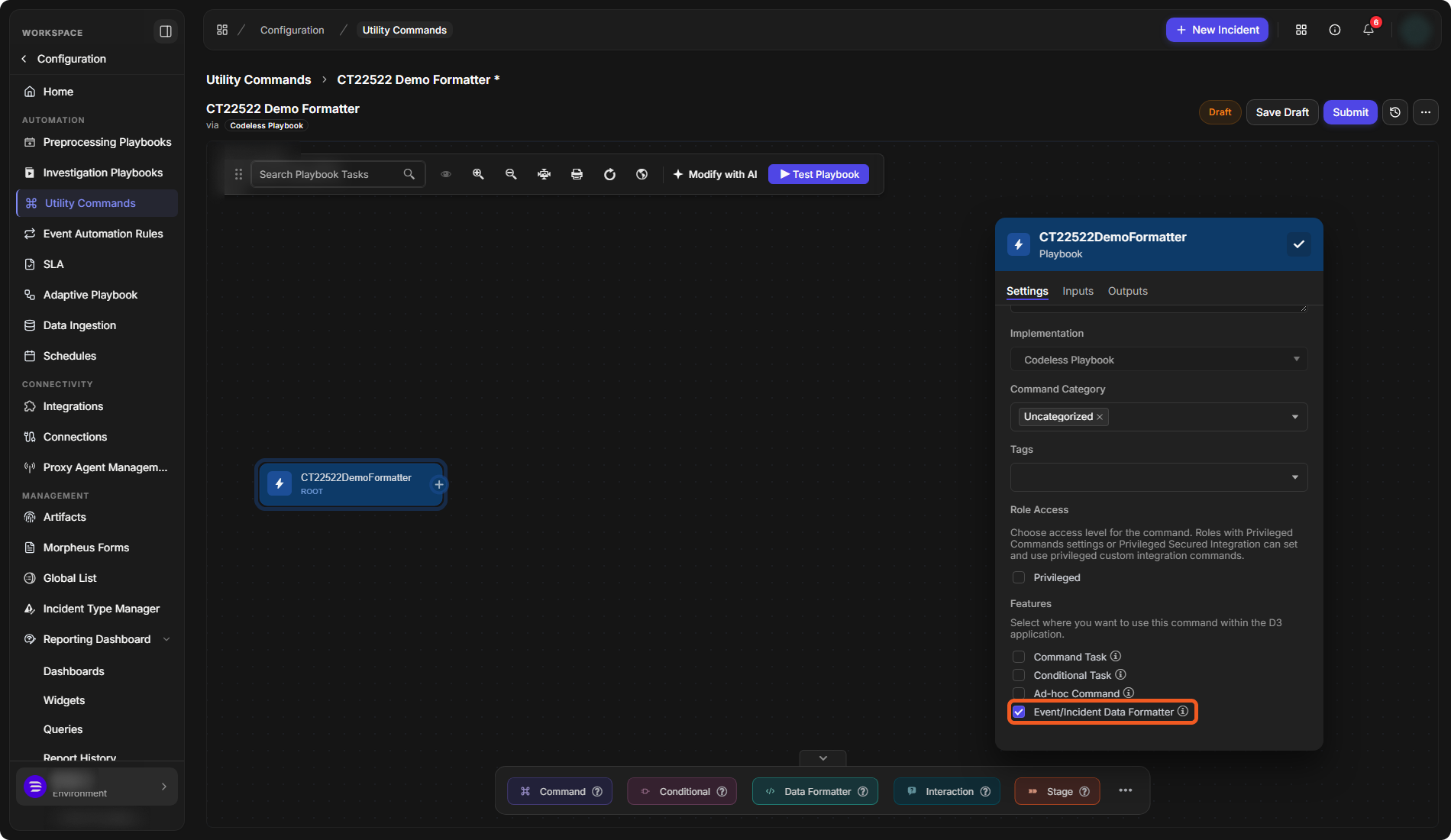
Select the ROOT task. Its settings open on the right, with the Settings, Inputs and Outputs tabs.
-
On Settings, under Features, select Event/Incident Data Formatter.
The Event/Incident Data Formatter feature
Formatting the Data
-
Drag the Data Formatter task from the bar at the bottom of the canvas onto the ROOT task. The new task is linked after the ROOT task and its settings open.
-
Enter a Task Name, for example Format Data.
-
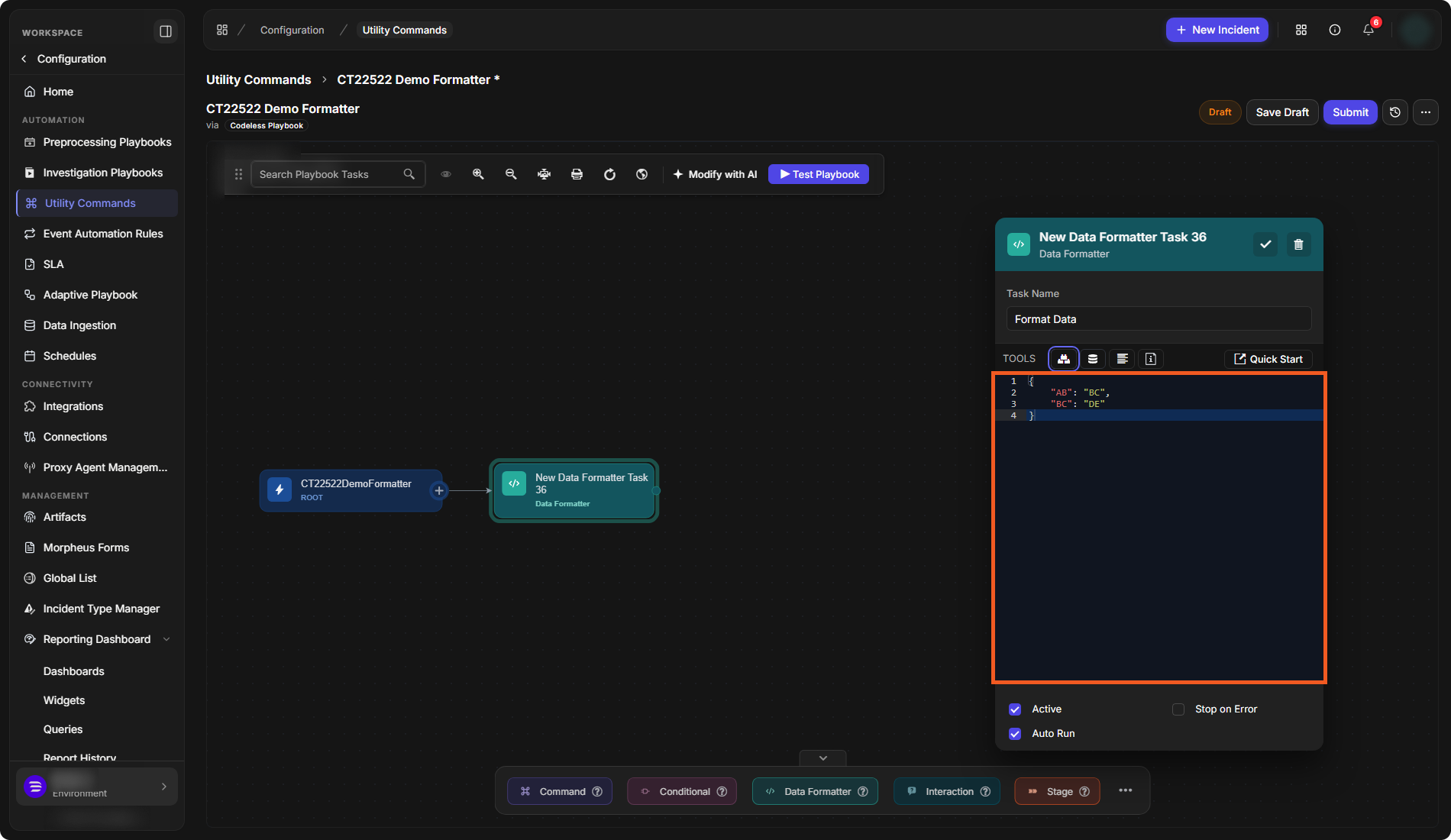
Write the formatting logic in the editor. In this example the task returns a fixed JSON object,
{"AB": "BC", "BC": "DE"}. -
Select Auto Run so that the task runs on its own when the playbook runs.
-
Select the check mark button at the top of the task's settings to apply them.
A Data Formatter task
Passing the Formatted Data Down
A Passdown task passes data to the integration command running in the current playbook; its settings advise using return data for a Fetch Event command.
-
Select the More button (⋯) at the end of the task bar, then drag Passdown onto the Format Data task.
-
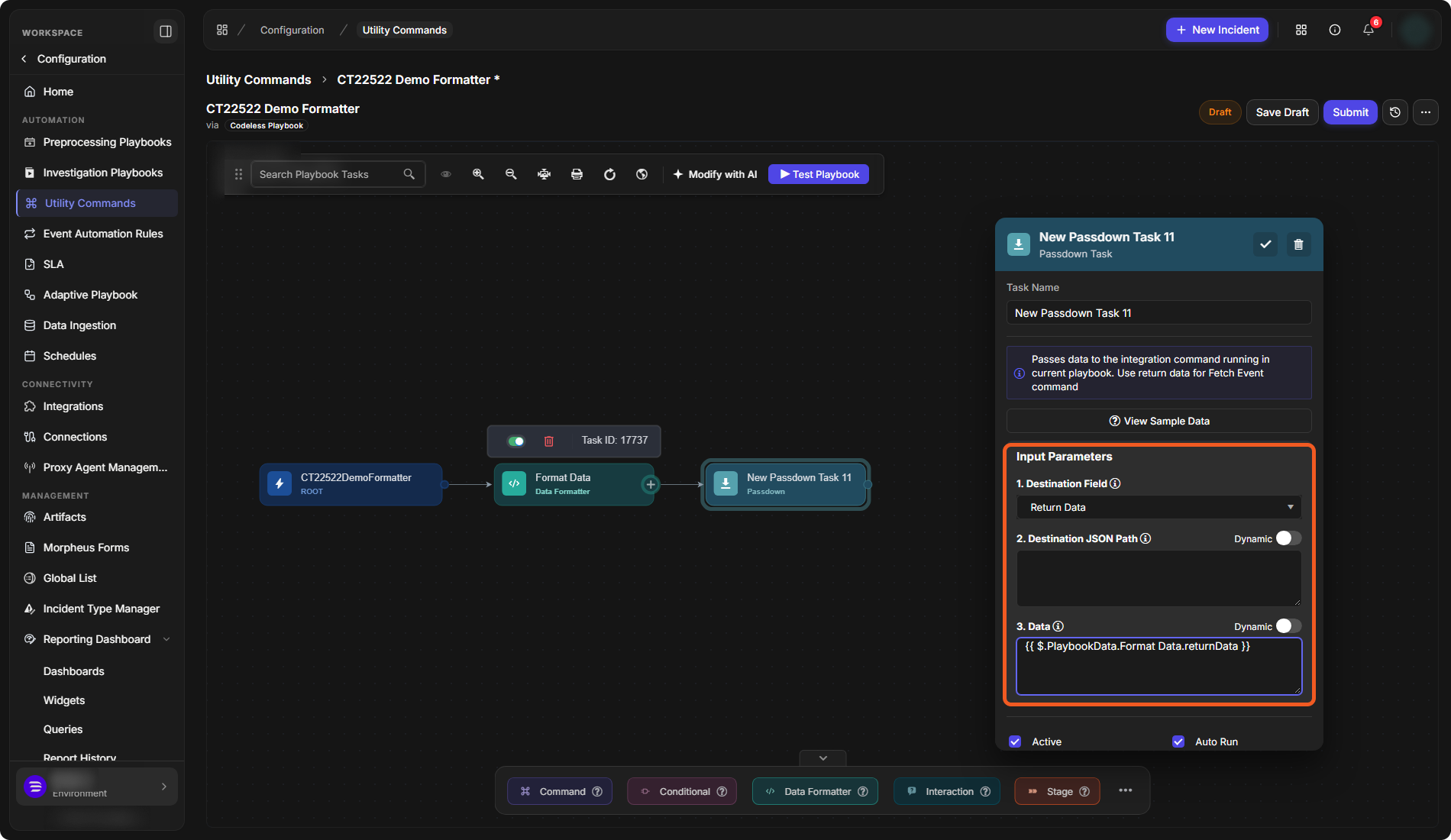
Under Input Parameters, fill in:
-
Destination Field: where the data goes. The options are Dynamically select value and, under STATIC, Return Data, Key Fields, Context Data, Raw Data, Result, Error and Command Input. Choose Return Data.
-
Destination JSON Path (optional).
-
Data: the data to pass down. Switch on Dynamic to pick a value instead of typing it.
-
-
Select Auto Run, then the check mark button.
A Passdown task
Testing the Playbook
-
Select Test Playbook in the toolbar above the canvas.
-
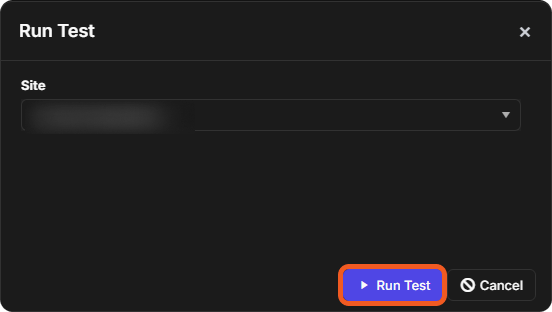
In the Run Test window, choose the Site and select Run Test.
The Run Test window
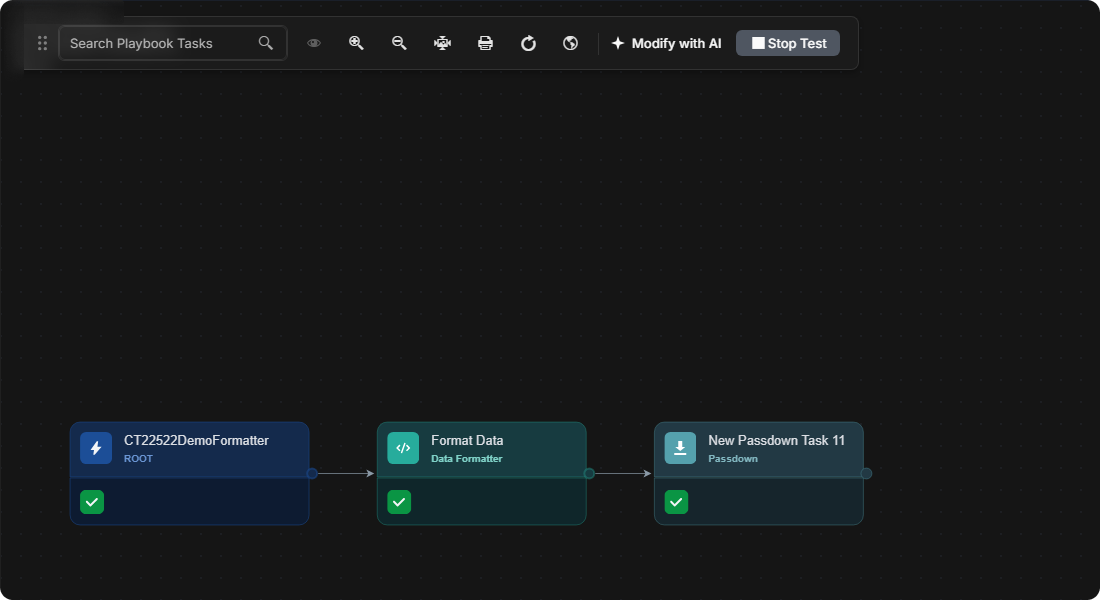
Each task shows its status on the canvas; a green check mark means it completed. Stop Test ends the test.
A completed test run
When the playbook is ready, select Submit in the command's header to make it live. See Utility Commands.