
Last Updated: October 22, 2026
Overview
Organization Management is where administrators manage who can use D3 and what they can do: Users, User Groups, Roles and Sites. Each user has a role, which decides the modules and actions they can use, and belongs to groups and sites.
Organization Management is under Global Settings in the sidebar: select Global Settings, then Organization Management, then Users, User Groups, Roles or Sites.
Global Settings in the sidebar
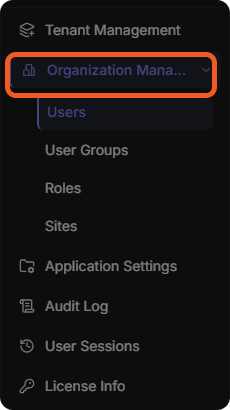
Each of the four pages lists its records in a table with a search box. Select a record to open its details in a panel on the right, change them and select Save, or Cancel.
Users
The Users list shows each user's ID, Username, Full Name, Email, Role and whether the user is Active. Search by username, full name or email.
Adding a User
-
Select Add User.
-
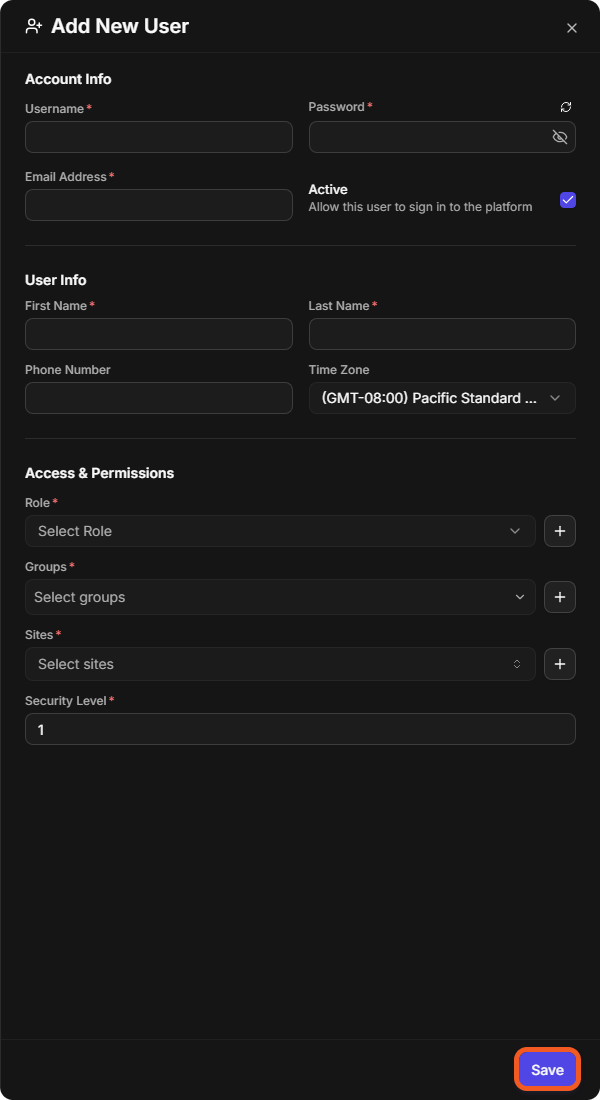
Under Account Info, enter the Username, a Password and the Email Address. Keep Active selected to allow the user to sign in.
-
Under User Info, enter the First Name and Last Name, and optionally a Phone Number. Check the Time Zone.
-
Under Access & Permissions, choose the Role, the Groups and the Sites, and set the Security Level. The + button beside each list adds a new role, group or site.
-
Select Save.
The Add New User panel
Managing a User
Select a user to open their panel. From there:
-
Change their details, role, groups or sites, and select Save.
-
Select Change Password beside Password to set a new password.
-
Clear Active to stop the user from signing in.
-
Select the delete (bin) button at the bottom left to delete the user.
Import User is at the top of the list, beside Add User.
User Groups
The User Groups list shows each group's ID, Name, Description, number of Users, whether it is an Assignment Group, whether it is Active, and whether it is a Default group.
Adding a Group
-
Select Add User Group.
-
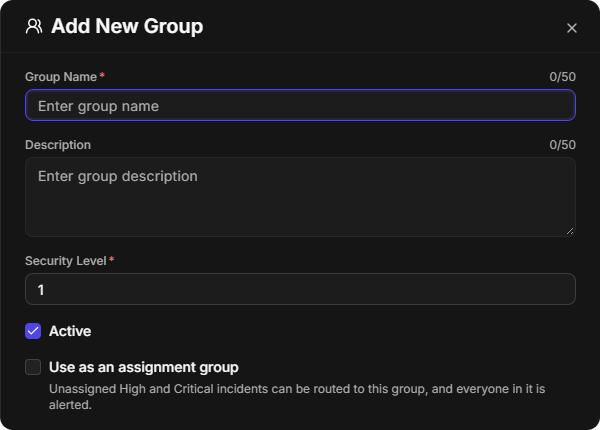
Enter the Group Name and, optionally, a Description.
-
Set the Security Level.
-
Keep Active selected.
-
Optionally, select Use as an assignment group: unassigned High and Critical incidents can then be routed to the group, and everyone in it is alerted.
-
Select Save.
The Add New Group panel
A group's panel has three tabs: Details, Users and Sites. On Details, Add as a Default Group makes the group one of the defaults for all new users. For assignment groups, see Assignment Groups.
Roles
The Roles list shows each role's ID, Name, Description and number of Users. Default Role at the top shows the default role, if one is set.
Adding a Role
-
Select Add Role.
-
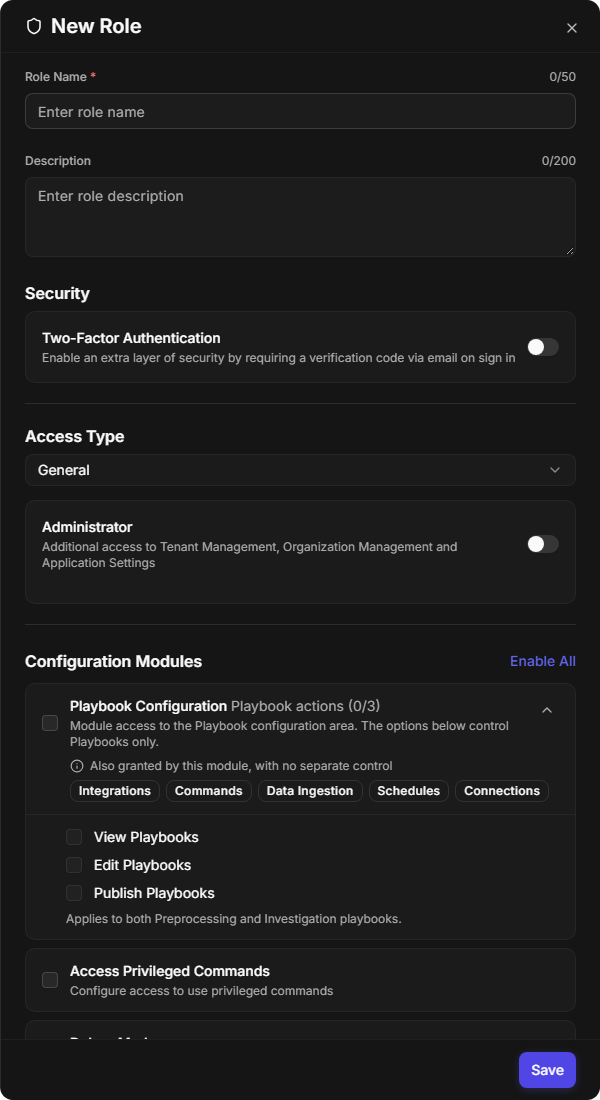
Enter the Role Name and, optionally, a Description.
-
Under Security, switch on Two-Factor Authentication to require a verification code by email at sign-in.
-
Under Access Type, choose the access type. Switch on Administrator to give additional access to Tenant Management, Organization Management and Application Settings.
-
Under Configuration Modules and Operational Modules, select the modules and actions the role can use. Enable All selects every option in a section. For example, Playbook Configuration has View Playbooks, Edit Playbooks and Publish Playbooks, which apply to both preprocessing and investigation playbooks, and also gives access to Integrations, Commands, Data Ingestion, Schedules and Connections.
-
Select Save.
The New Role panel
A role's panel has two tabs: Details and Users.
Sites
The Sites list shows each site's ID, Name, Description, Logo, Site Type, number of Users, whether it is Active, its Office Hours and whether it is the Default site. At the top of the list:
-
Recipient shows the recipient site.
-
Custom Site Fields manages extra fields for sites.
-
Add Site adds a site.
Adding a Site
-
Select Add Site.
-
Under General, enter the Site Name and choose the Site Type (for example Internal). Optionally, enter a Description.
-
Keep Active selected. Optionally, select Add as Default Site and Allow Morpheus AI Chat.
-
Optionally, upload a Logo (PNG or JPG, up to 3 MB; 450×150 px recommended) and choose Show logo in Incident Report Cover, Show logo in Incident Report Header and White-label report (hide D3 branding).
-
Under Regional, set the Time Zone and Language.
-
Select Save.
The New Site panel
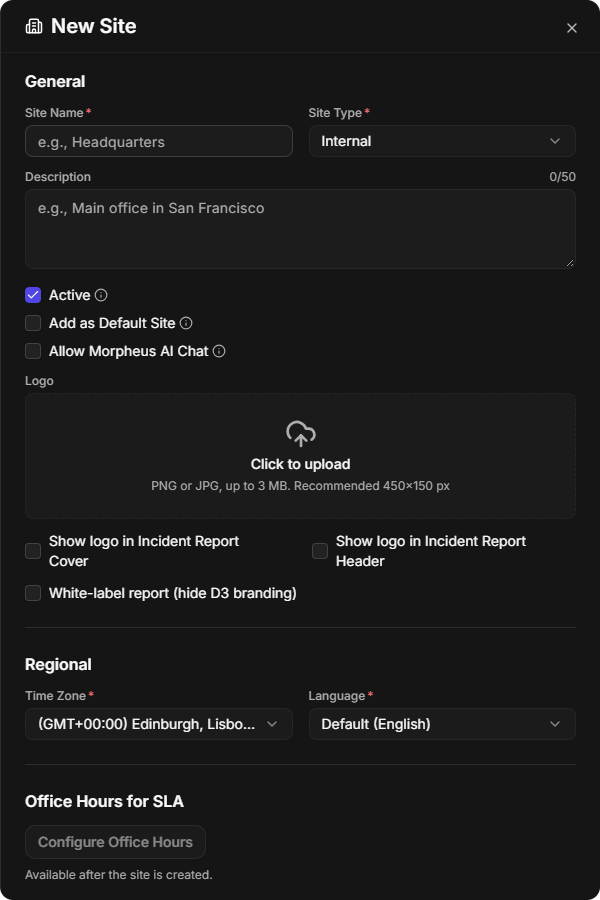
Office Hours for SLA can be configured once the site exists: open the site and select Configure. The site's panel lists the office hours for each severity. A site's panel has three tabs: Details, Users and Groups.