
Last Updated: October 28, 2026
Overview
Light and dark themes let each person choose how the new UI looks: a light background for bright offices and daytime work, or the dark background for low-light SOC rooms and long shifts.
The theme is chosen in the profile menu, in the top-right corner of any new UI page. It is a personal setting: changing it affects only your own view, and everyone else keeps the theme they chose.
Choosing a Theme
-
Select your avatar in the top-right corner of any new UI page to open the profile menu.
-
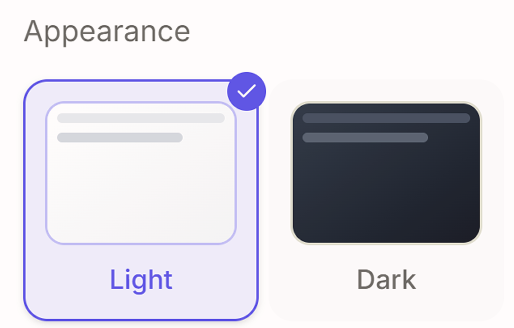
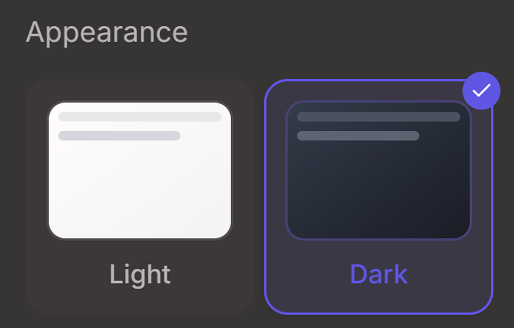
Under Appearance, select Light or Dark. Each card shows a small preview of the theme, and a check marks the one in use.
The Appearance selector in the light theme
The Appearance selector in the dark theme
Your choice is saved to your account and applied again the next time you sign in. Dark is the default.
Availability
The Appearance selector requires the EnableThemeSettings application setting, which applies to the whole D3 instance and is disabled by default. Where it is turned off, Appearance does not appear in the profile menu and the new UI is shown in the dark theme for everyone. No role or permission is needed beyond that.
EnableThemeSettings is an instance-wide application setting, not a per-site one, and it is not exposed in the Configuration module. Ask D3 Support to turn it on or off for your instance.
Troubleshooting
-
Appearance is missing from the profile menu: light and dark themes are turned off for your D3 instance. See Availability.