
Last updated: October 19, 2026
Last updated: October 19, 2026
Overview
Self-service account recovery lets you get back into D3 on your own when you have forgotten your password or your account has locked after too many failed sign-in attempts. You request a link from the sign-in screen, choose a new password from the email it sends, and your account is unlocked in the same step, so you do not have to find an administrator or wait for the lockout to expire. It works from the sign-in screen of both the new UI and the classic view.
The locked sign-in screen
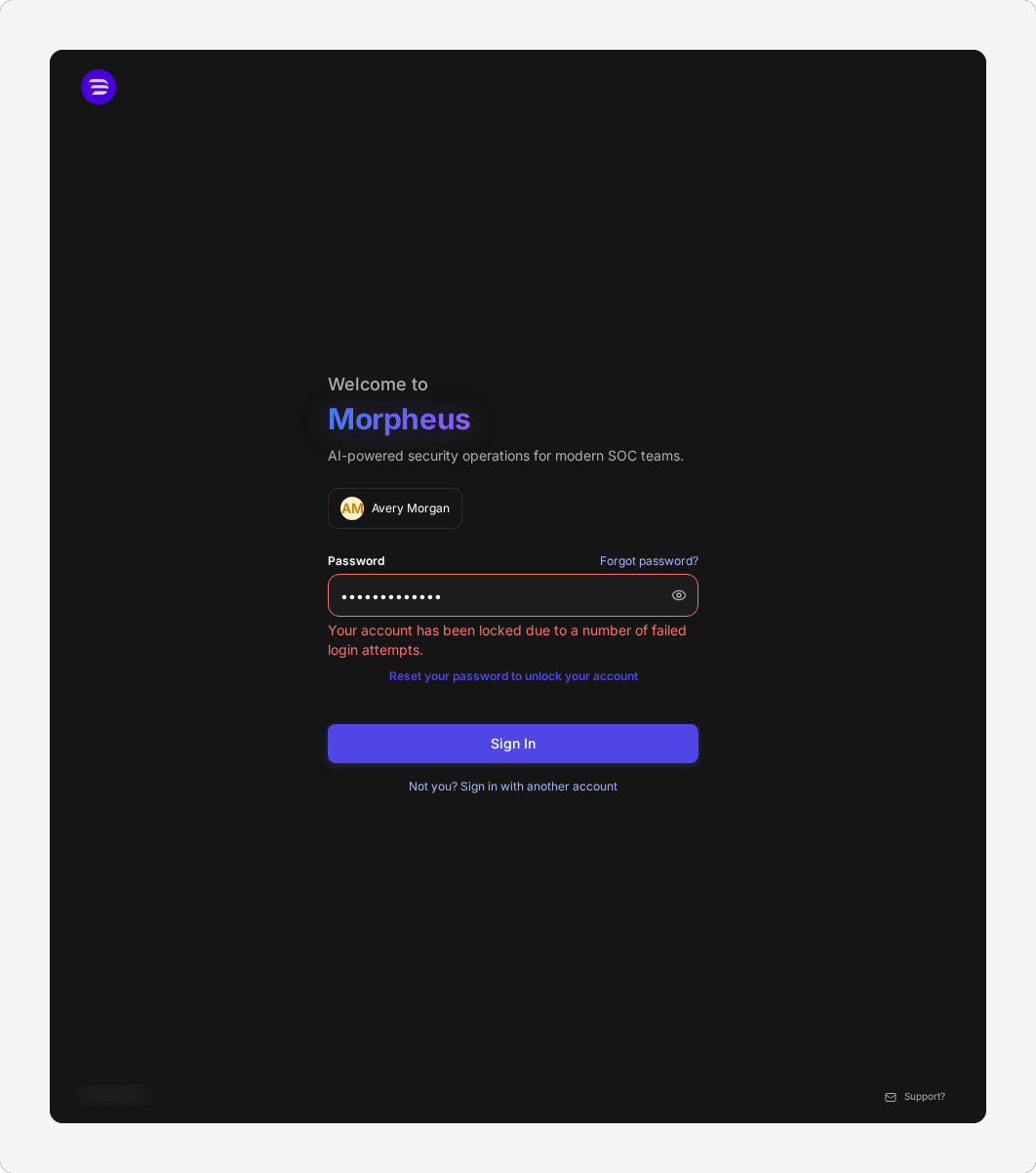
Recovery is on by default. It is available to anyone who signs in with a D3 username and password and has an email address on their user profile.
In short
|
# |
Stage |
Where it happens |
|---|---|---|
|
1 |
Ask for a reset link |
Forgot password?, or Reset your password to unlock your account on the sign-in screen |
|
2 |
Open the link |
The Reset Your Password email sent to the address on your profile |
|
3 |
Choose a new password |
The Reset Password page the link opens |
|
4 |
Sign in again |
The sign-in screen, with your new password |
Who Can Use It
Self-service recovery is for accounts that sign in with a password stored in D3.
|
Your account |
What happens |
|---|---|
|
Signs in with a D3 username and password, and has an email address on its profile |
You receive a reset link and can recover the account yourself. |
|
Signs in through your organization's single sign-on or directory |
No reset email is sent. Your password is managed by your organization's identity provider, so reset it there. |
|
Has no email address on its profile |
No reset email is sent. Ask an administrator to add your email address under Users, or to reset your password for you. |
Whichever row applies, you see the same confirmation when you ask for a link. The confirmation never reveals whether a username exists or has an email address, so nobody can use a reset request to find out who has an account.
Signing In and Finding Recovery
The recovery link sits on the password step of the sign-in screen, so you can reach it without signing in. The new UI's sign-in has two steps: enter your Username and select Continue, then enter your Password.
Forgot password? above the Password field starts a reset at any time—for example, when you know you have forgotten your password and do not want to use up your sign-in attempts.
The password step of the sign-in screen
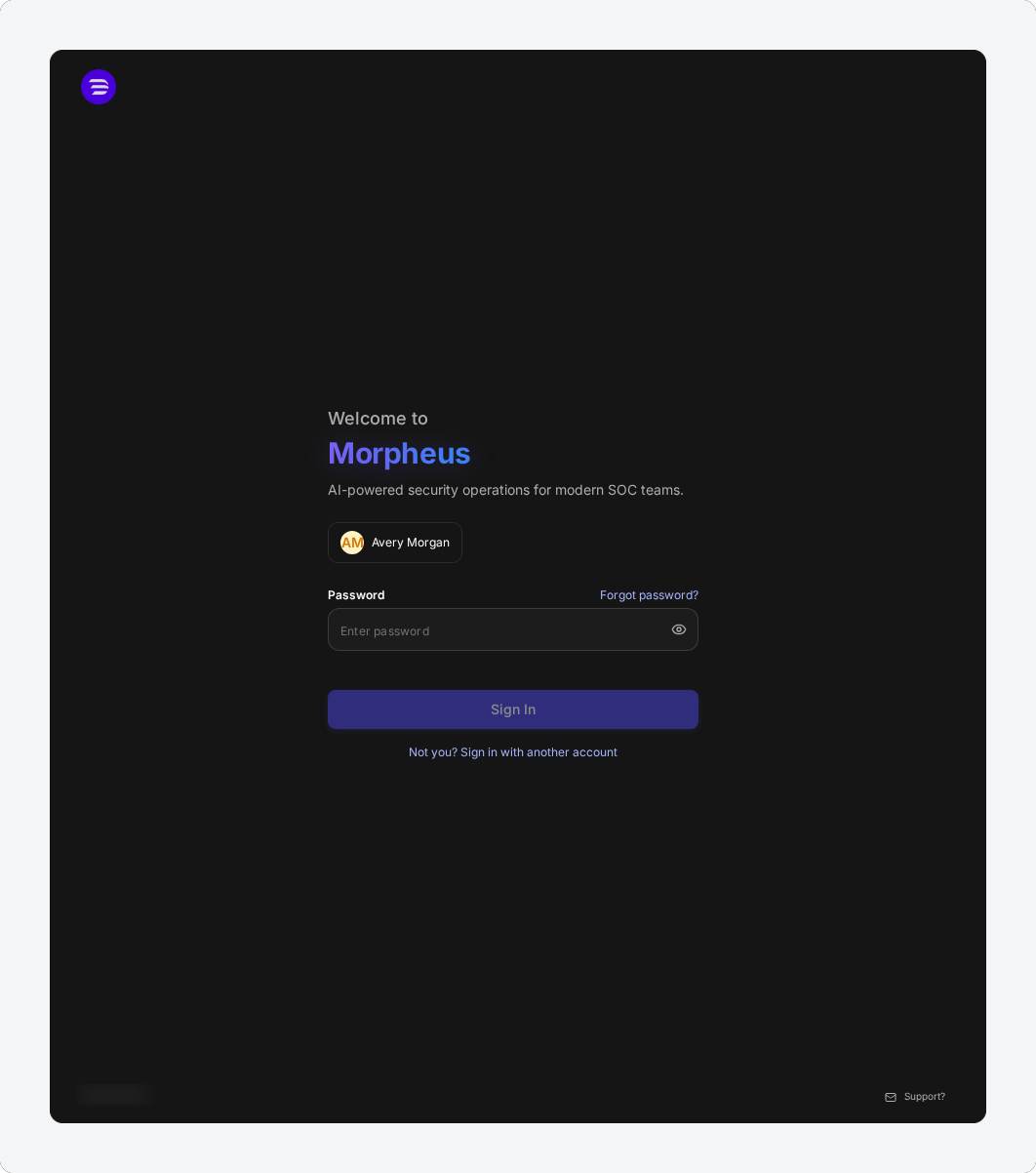
If you enter the wrong password too many times, your account locks and the sign-in screen tells you so. Your administrator sets how many attempts are allowed and how long a lockout lasts. A reset unlocks the account straight away, whatever time is left.
Recovering a Locked Account
Use this procedure when the sign-in screen says your account is locked, or when you have forgotten your password.
-
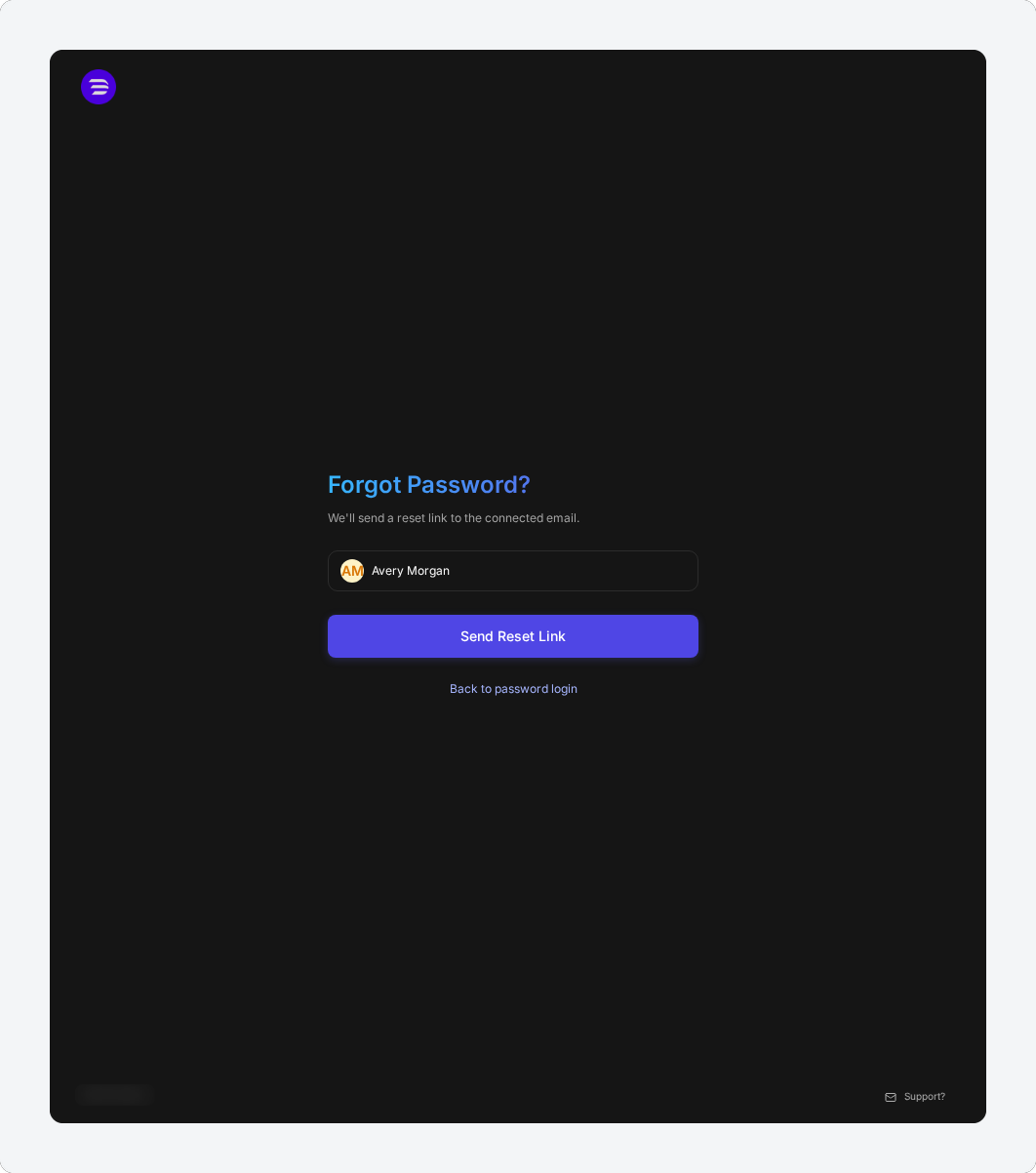
On the sign-in screen, select Reset your password to unlock your account below the lockout message. If your account is not locked, select Forgot password? instead.
The Forgot Password? step opens with your account already filled in.
The Forgot Password? step
-
Select Send Reset Link.
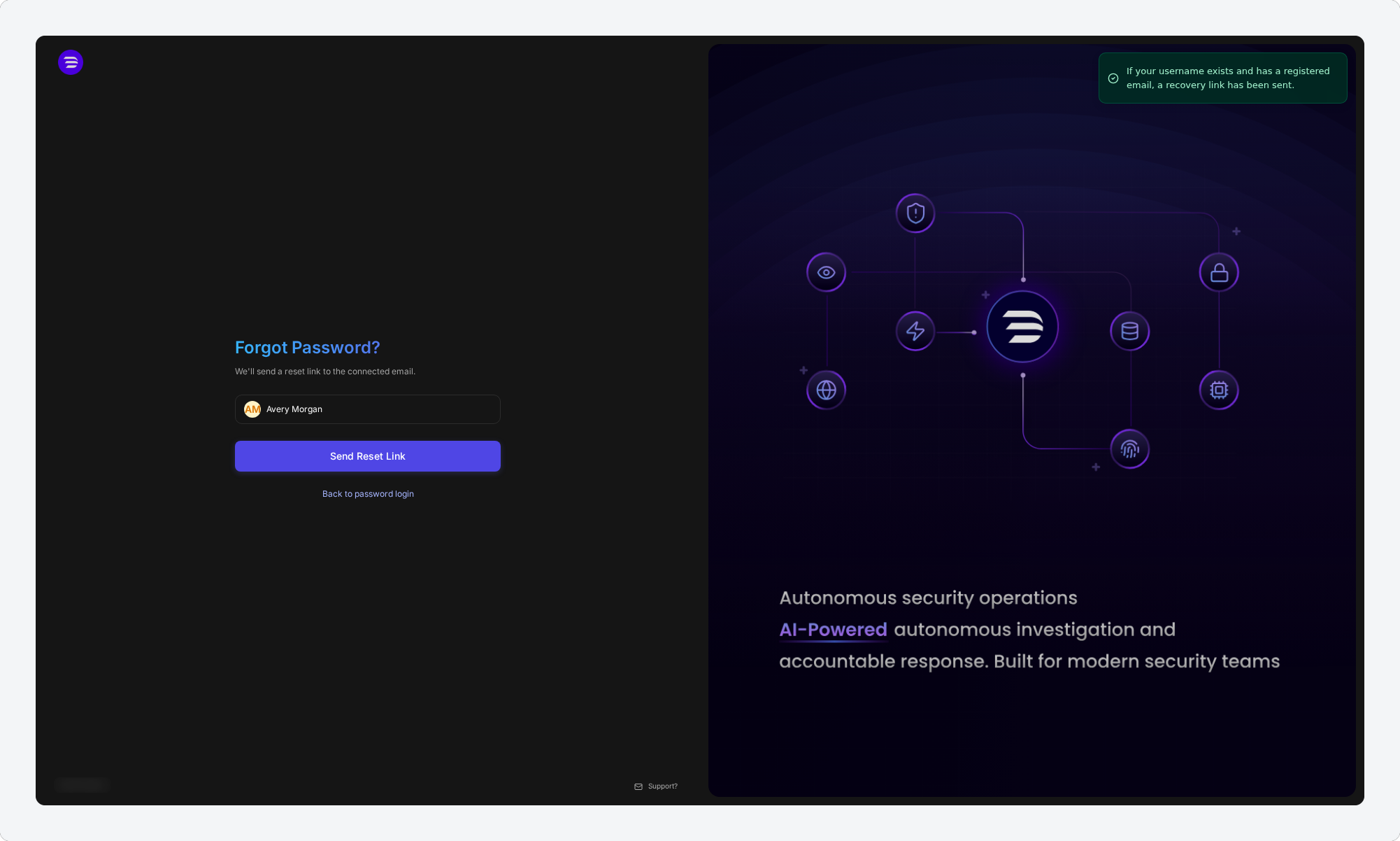
A confirmation appears at the top right of the screen: "If your username exists and has a registered email, a recovery link has been sent."
The confirmation after you request a link
READER NOTE
Select Send Reset Link once. The screen stays on Forgot Password? after you send, and each request counts toward the limit described in Limits and Link Lifetime. If no email arrives after a few minutes, check your spam folder before asking again.
-
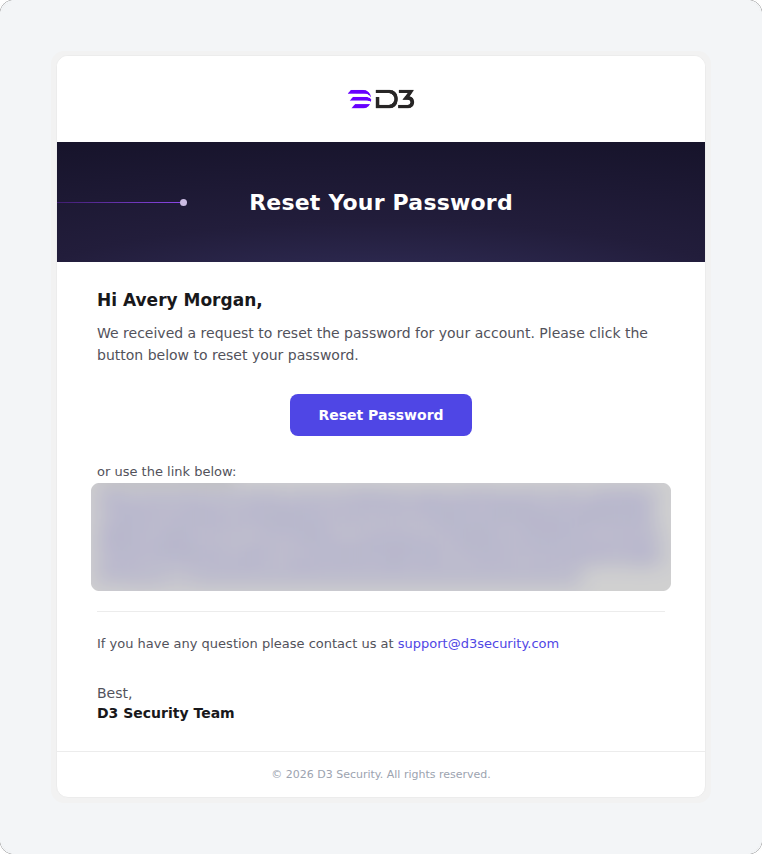
Open the Reset Your Password email and select Reset Password, or copy the link below the button into your browser.
The reset email
READER NOTE
Open the link in a browser where you are not signed in to D3, such as a private or incognito window. If the browser already has a signed-in D3 session, the Reset Password page keeps loading and does not appear.
-
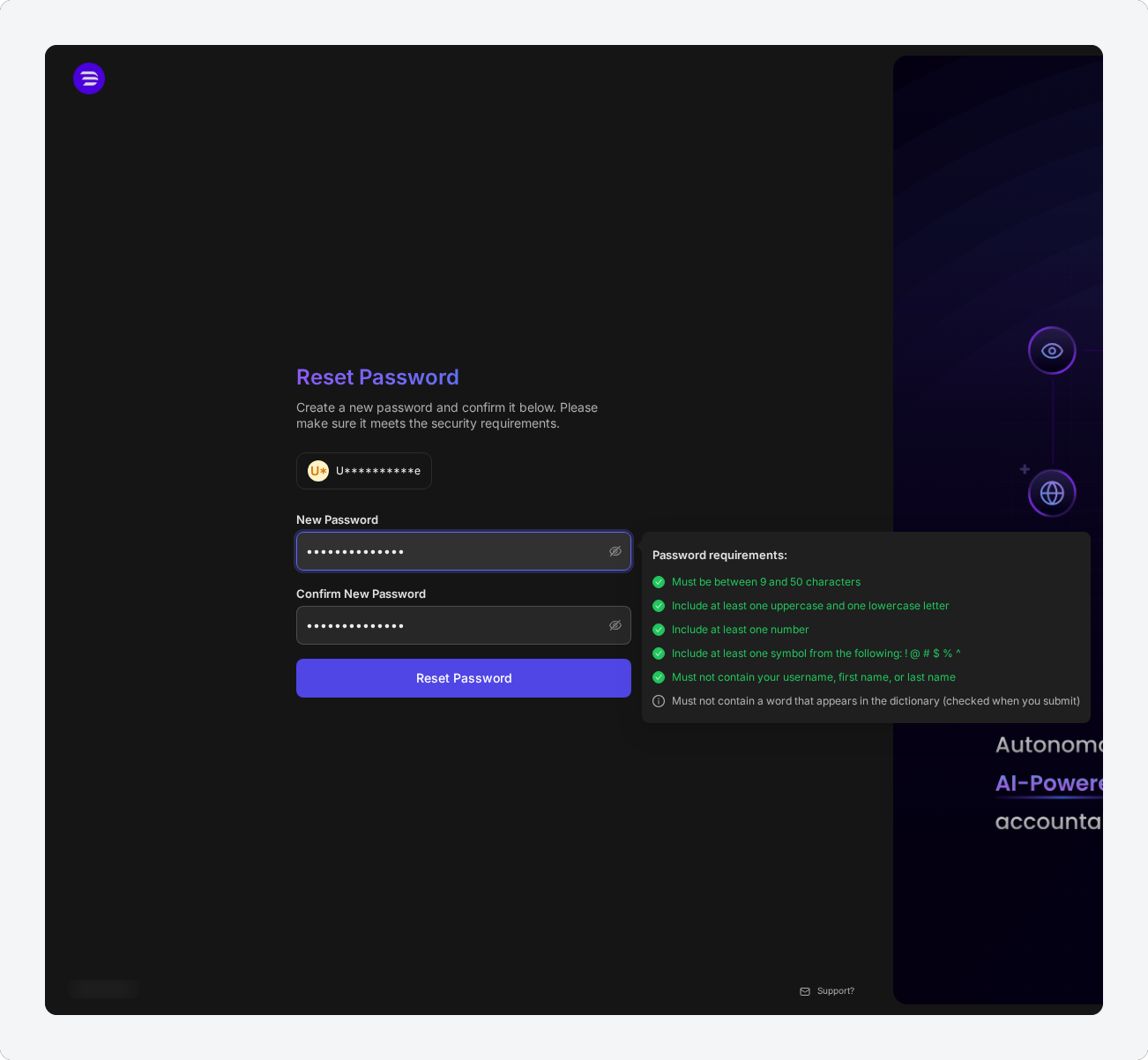
On the Reset Password page, enter your new password in New Password and again in Confirm New Password.
The Password requirements panel lists your site's password rules and checks each one as you type. If your site also checks passwords against a dictionary, that rule is checked when you submit.
The Reset Password page
-
Select Reset Password.
RESULT
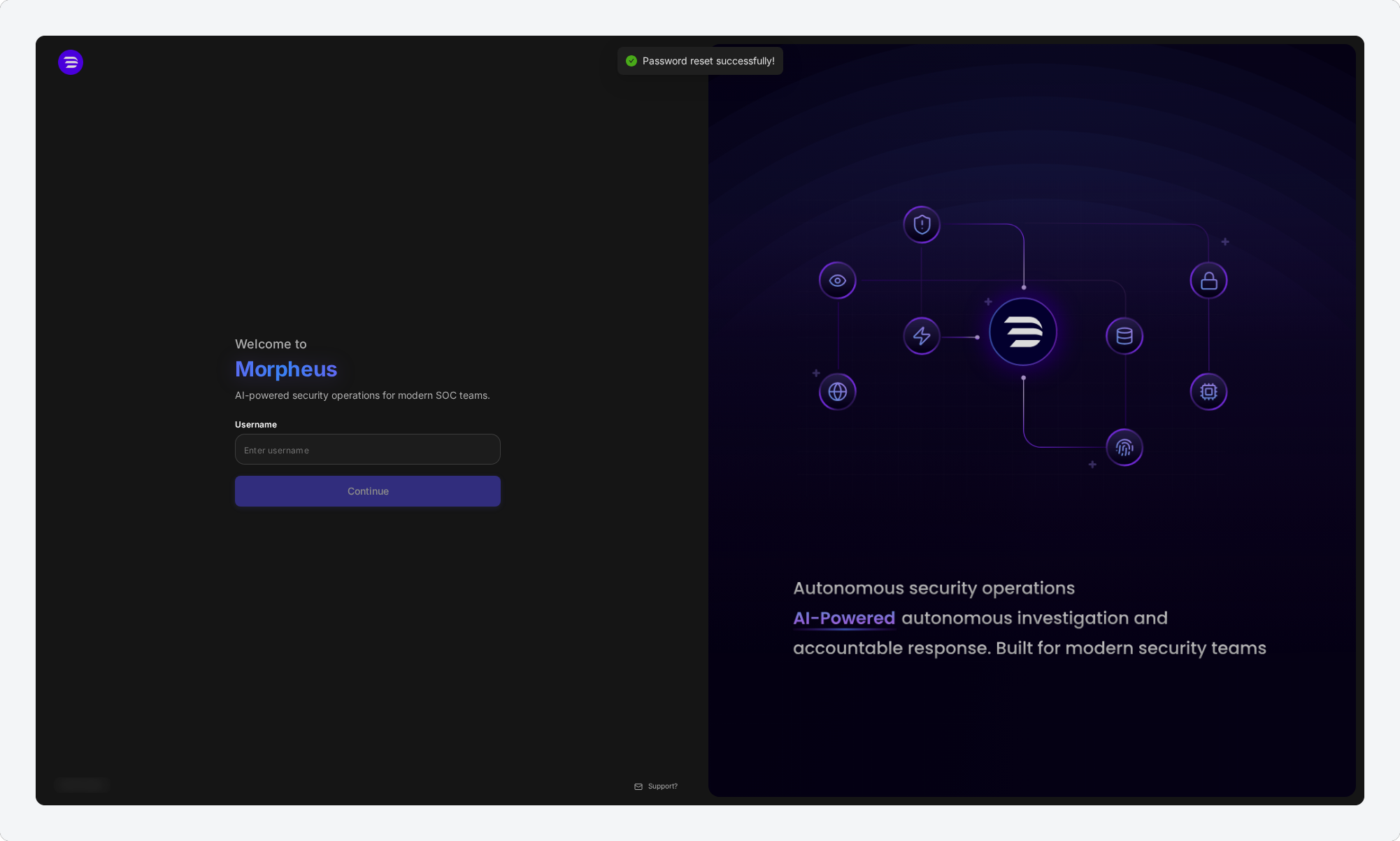
"Password reset successfully!" appears and you are returned to the sign-in screen. Your account is unlocked, and you can sign in with your new password straight away.
Back on the sign-in screen after a reset
After the Reset
Recovery changes your password and clears the lockout, but it does not sign you in. You sign in as usual, with your username and your new password, so every sign-in check still applies. If your account uses two-step verification, you are still asked for your verification code after a reset.
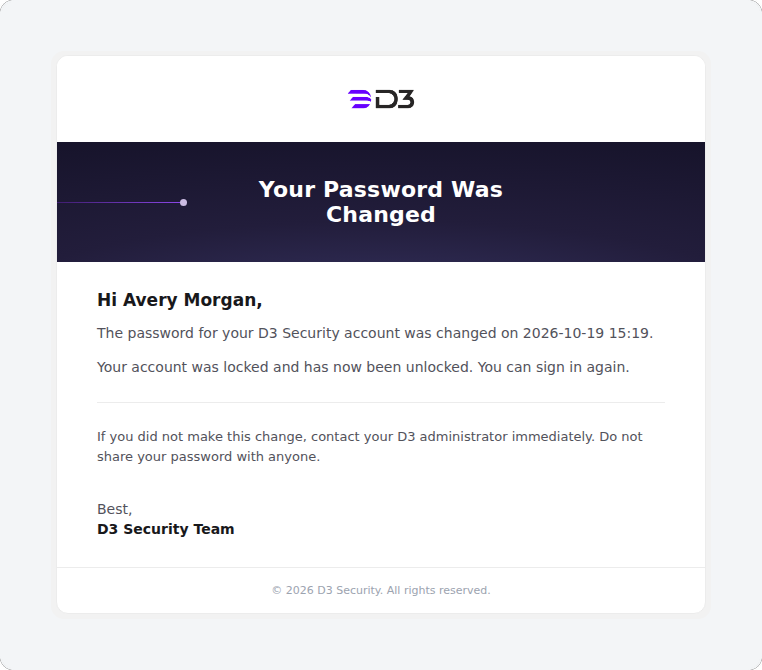
D3 also emails you to confirm the change. If your account was locked, the email says so: "Your account was locked and has now been unlocked. You can sign in again." It also tells you to contact your D3 administrator straight away if you did not make the change, so a reset you did not ask for never goes unnoticed.
The password-changed email
Limits and Link Lifetime
These limits keep recovery safe to leave switched on. Nobody can flood your inbox with reset emails or use an old link to take over your account.
-
Three requests per hour. By default, each account can ask for three reset links in an hour. Further requests show the same confirmation but send no email. Wait an hour and ask again.
-
Links expire. A reset link works for 24 hours by default. Your administrator may have set a different period. An expired link shows "Invalid token or token has expired!" with the number of hours it was valid for. Ask for a new link.
-
Each link works once. Once you have used a link to set a new password, it cannot be used again.
READER NOTE
If your site keeps a password history, you cannot reuse a recent password. The page shows "The password exists in the history, please set a different one." Choose another password. Your link stays valid until it expires.
In the Classic View
The classic view offers the same recovery from its own sign-in screen. When your account locks, the screen shows "Your account has been locked due to a number of failed login attempts." with Reset your password to unlock your account below it. When your account is not locked, the password step shows Forget Password?.
The locked classic sign-in screen
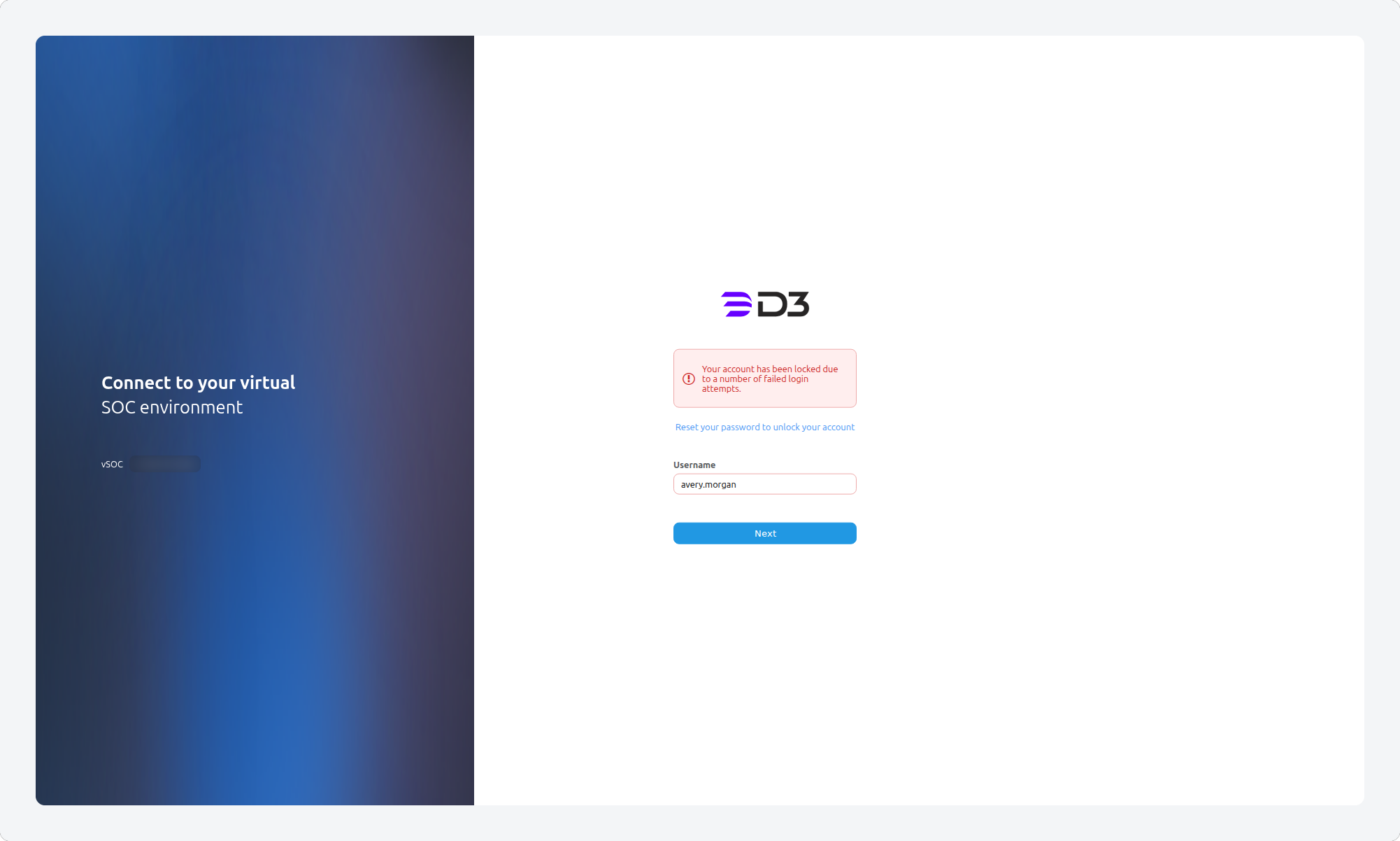
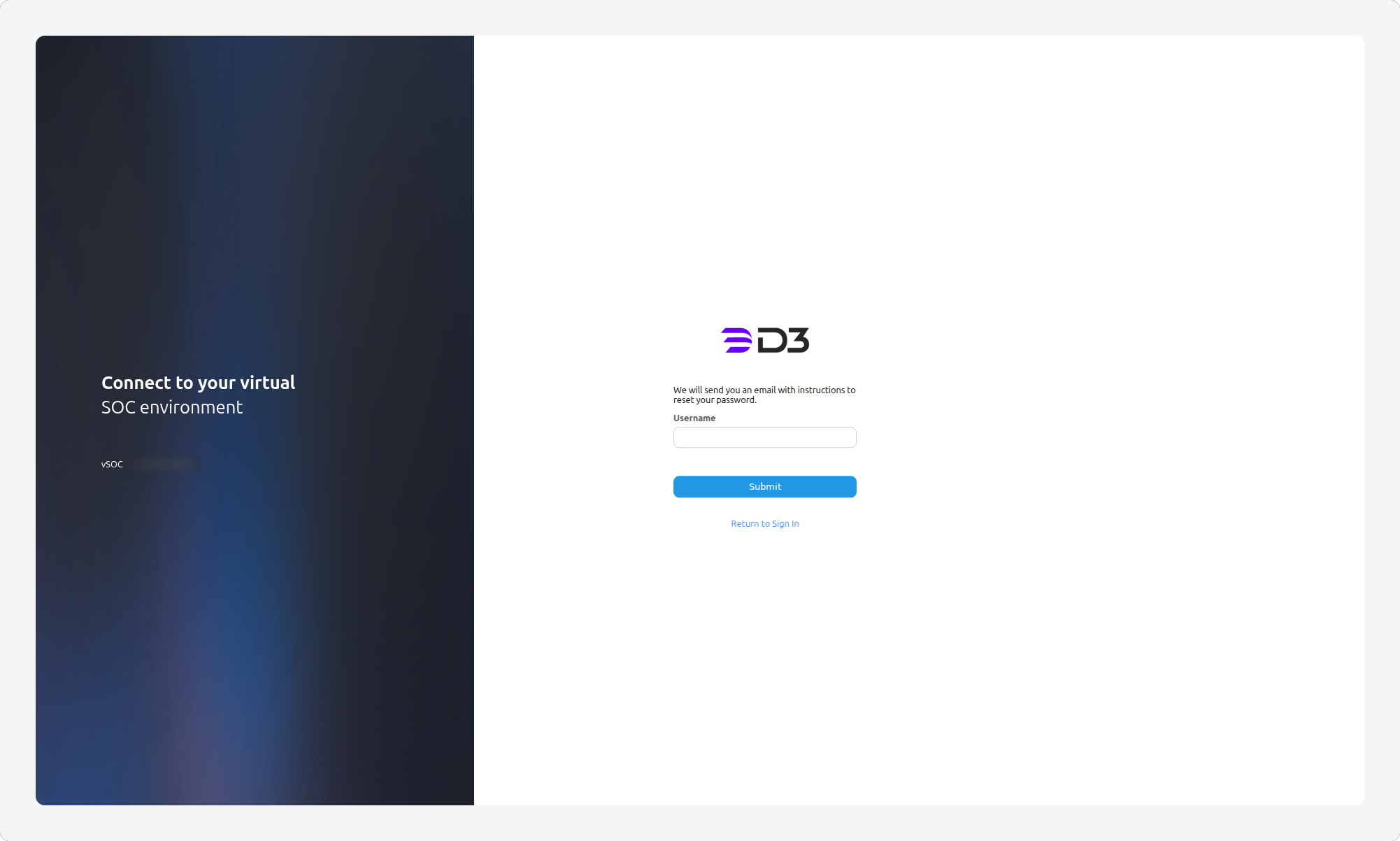
Either link opens the Forgot Password page. Enter your Username and select Submit. A page titled Email sent confirms the request and asks you to speak with your administrator if no email arrives within two hours.
The classic Forgot Password page
A link requested from the classic view opens a classic reset page. Enter your password in New password and Confirm new password, check it against the Password must: list, and select Submit. "Your password has been updated." confirms the change, with a link back to the sign-in screen. The same limits, emails and unlock apply as in the new UI.
Turning Recovery On or Off
Self-service recovery is controlled by one setting for your whole D3 instance. Administrators who can open Application Settings can change it.
-
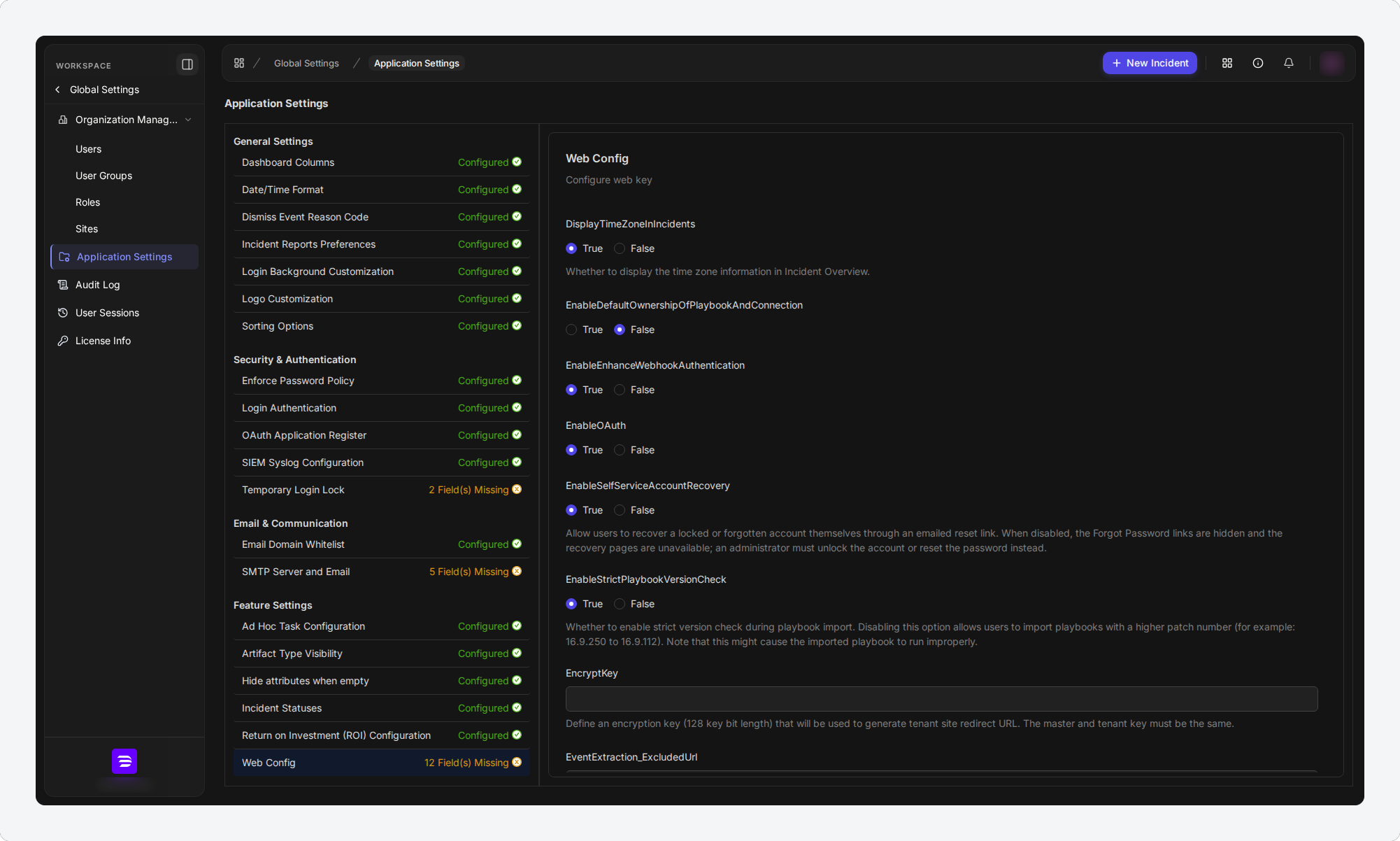
Go to Global Settings > Application Settings.
-
Under Feature Settings, select Web Config.
-
Find EnableSelfServiceAccountRecovery. True (the default) turns recovery on; False turns it off.
The recovery setting
WARNING
Turning the setting off also removes ordinary password reset. The Forgot password?, Forget Password? and Reset your password to unlock your account links disappear from both sign-in screens. A locked-out user sees the lockout message with no link (the classic view adds "Please contact the system administrator."). Reset links already sent stop working. From then on, an administrator must unlock accounts and reset passwords.
READER NOTE
Reset emails are sent through your site's mail server. Make sure Email & Communication > SMTP Server and Email in Application Settings is set up. Otherwise users see the confirmation but never receive a link.
How many failed sign-ins lock an account, and for how long, is set separately under Security & Authentication > Temporary Login Lock in the same list.
Troubleshooting
|
What you see |
What to do |
|---|---|
|
No reset email arrives |
Check your spam folder. Make sure your profile has an email address and that you sign in with a D3 password, not single sign-on. If you have asked three times in the last hour (the default limit), wait an hour. |
|
The Reset Password page keeps loading |
You are signed in to D3 in that browser. Open the link in a private window, or sign out first. |
|
"Invalid token or token has expired!" |
The link has expired or was already used. Ask for a new one. |
|
"The password exists in the history, please set a different one." |
Choose a password you have not used before. |
|
No Forgot password? link on the password step |
Self-service recovery is turned off for your instance, or your account signs in through single sign-on. Contact your administrator. |
|
Still locked after resetting |
Make sure you are signing in with the new password. If the lockout message still appears, contact your administrator. |
READER NOTE
Screenshots in this article were captured on an internal development site with demo accounts. The usernames shown in them are test data.