
Last Updated: October 22, 2026
Overview
Application Settings holds the platform-wide settings of D3: dashboard columns, date and time formats, logos, password and login rules, email, and other features.
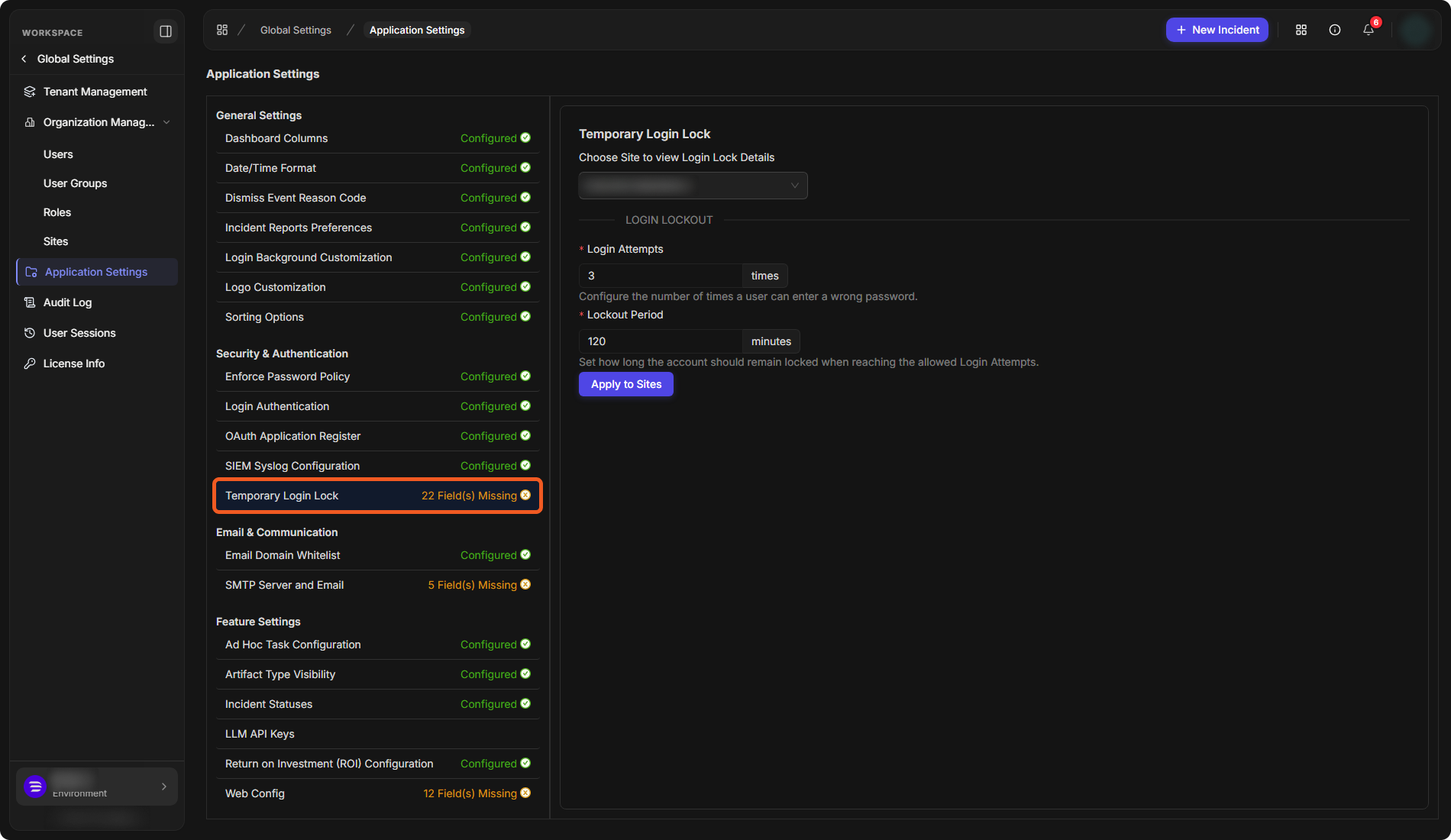
Application Settings is under Global Settings in the sidebar: select Global Settings, then Application Settings.
The page lists the configuration items on the left, in four groups: General Settings, Security & Authentication, Email & Communication and Feature Settings, followed by Mitre Att&ck. Each item shows its status: Configured, or the number of fields still missing, for example 5 Field(s) Missing. Select an item to open it on the right.
The Application Settings page
|
Group |
Items |
|---|---|
|
General Settings |
Dashboard Columns, Date/Time Format, Dismiss Event Reason Code, Incident Reports Preferences, Login Background Customization, Logo Customization, Sorting Options |
|
Security & Authentication |
Enforce Password Policy, Login Authentication, OAuth Application Register, SIEM Syslog Configuration, Temporary Login Lock |
|
Email & Communication |
Email Domain Whitelist, SMTP Server and Email |
|
Feature Settings |
Ad Hoc Task Configuration, Artifact Type Visibility, Incident Statuses, LLM API Keys, Return on Investment (ROI) Configuration, Web Config |
|
Mitre Att&ck |
Update Mitre Tactics and Techniques |
The sections below describe the most used items.
General Settings
Dashboard Columns
Dashboard Columns sets the default columns of the investigation dashboard. It has three tabs: Event Dashboard, Incident Dashboard and Tenant's Incident Dashboard. Each lists the columns with their Type (Built-in or Custom), Display Order and Show in Default View. Select Custom Column to add a column of your own.
Dashboard Columns
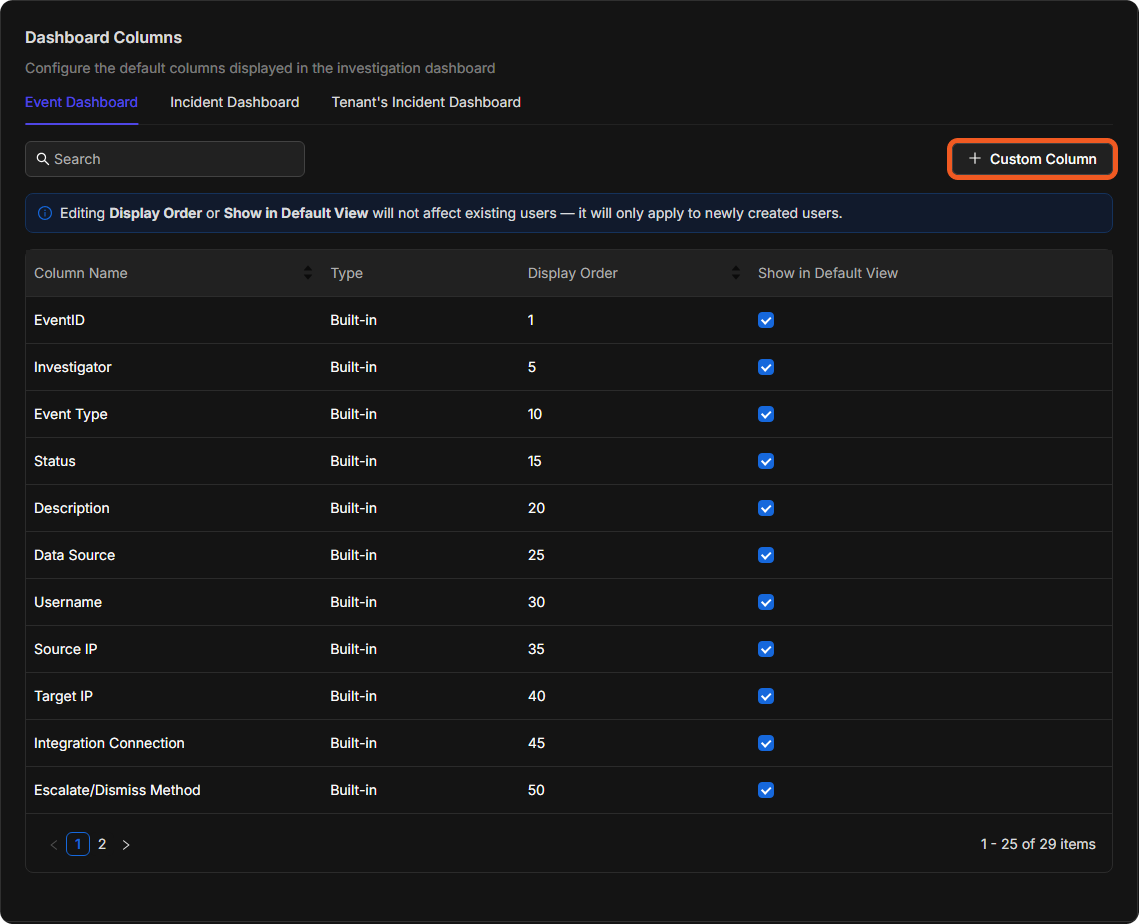
Editing Display Order or Show in Default View does not affect existing users. It applies only to users created afterwards.
Date/Time Format
Choose the Date Format (MM/DD/YYYY, MMM DD, YYYY, DD/MM/YYYY, YYYY-MM-DD or DD.MM.YYYY) and the Time Format (HH:MM 12 or HH:MM 24), then select Save.
Dismiss Event Reason Code
The reason codes analysts can choose when dismissing an event. The list shows each code's Display Name, Order and Type (System or Custom). Only letters, numbers and spaces are allowed, up to 100 characters. Custom codes can be edited or archived.
Logo Customization
Sets the logo shown in the navigation bar, in incident reports (Cover Page and Header) and in the send-email template, and the Customize Company URL. Logos can be PNG or JPG, up to 3 MB.
Sorting Options
Chooses how people are sorted: By First Name, then by Last Name or By Last Name, then by First Name.
Security & Authentication
Enforce Password Policy
-
Password History: the number of new passwords a user must use before reusing an old one.
-
Maximum Password Length and Minimum Password Length.
Temporary Login Lock
Choose the site in Choose Site to view Login Lock Details, then set:
-
Login Attempts: how many times a user can enter a wrong password.
-
Lockout Period: how many minutes the account stays locked after that.
Select Apply to Sites to apply the settings to sites.
Email & Communication
Email Domain Whitelist
The email domains allowed for new users. Select Add Domain to add one. A user's email address must use a permitted domain.
SMTP Server and Email
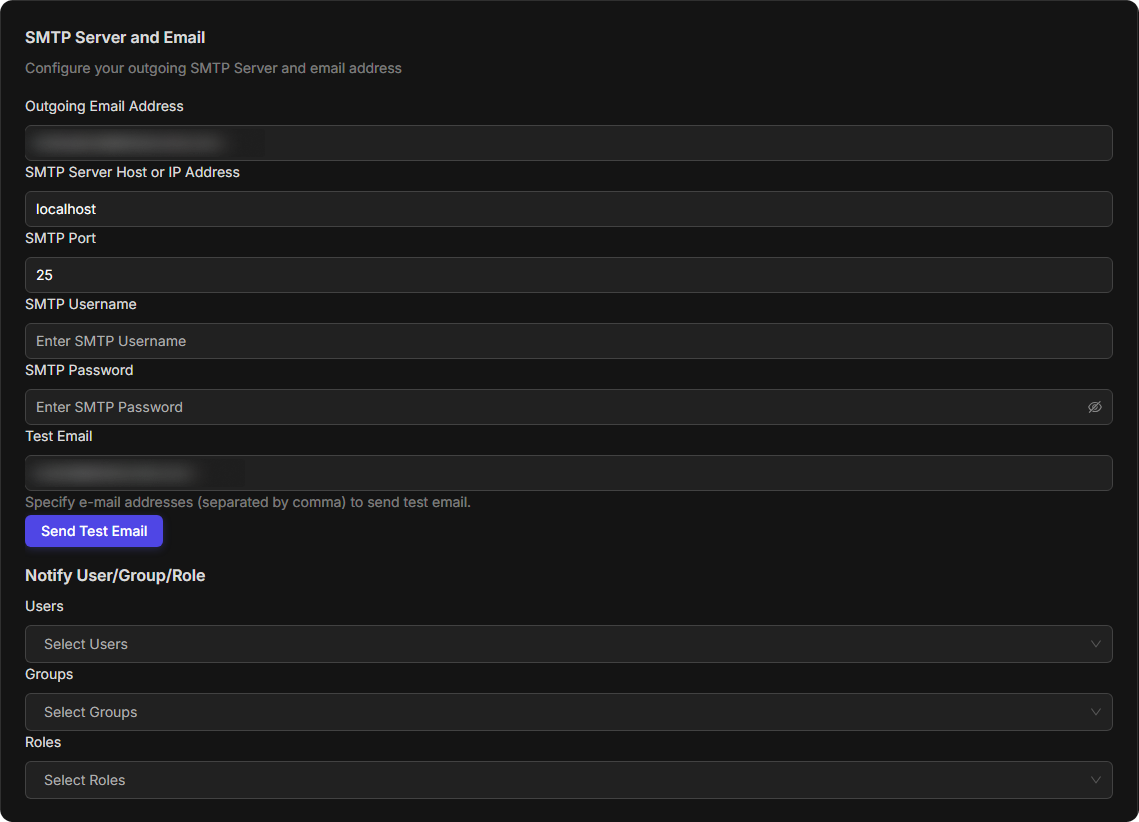
The outgoing mail server D3 uses:
-
Outgoing Email Address, SMTP Server Host or IP Address, SMTP Port, SMTP Username and SMTP Password.
-
Test Email: enter one or more addresses, separated by commas, and select Send Test Email.
-
Notify User/Group/Role: the Users, Groups and Roles to notify.
SMTP Server and Email
Feature Settings
Ad Hoc Task Configuration
Config Ad Hoc Task Type lists the task types used to label ad hoc tasks. Select Add TaskType to add one.
Incident Statuses
Add, edit or remove custom incident statuses, up to 30. The list shows the System statuses (Open, In Progress, On Hold, Closed) and custom ones. New Status adds a status, View Archived shows archived ones, and Status Workflow is on its own tab.
Web Config
A list of system keys, each with a description, for example AttachmentLimit (the maximum number of attachments in an incident) or AutoRefreshIntervalTime (how often the investigation and reporting dashboards refresh, minimum 15 seconds).
Mitre Att&ck
Update Mitre Tactics and Techniques is at the end of the list.