
Last updated: November 10, 2026
Overview
Incident changes in the Audit Log are the entries D3 Morpheus writes every time an incident's Owner or Status changes: who made the change, when, the value before and after, and whether a person, a playbook, or the system made it. They give you one place to answer "who worked this incident, and how long did it sit in each state", and one export to build per-analyst reports from, without asking anyone to keep a manual record.
The Audit Log filtered to incident changes
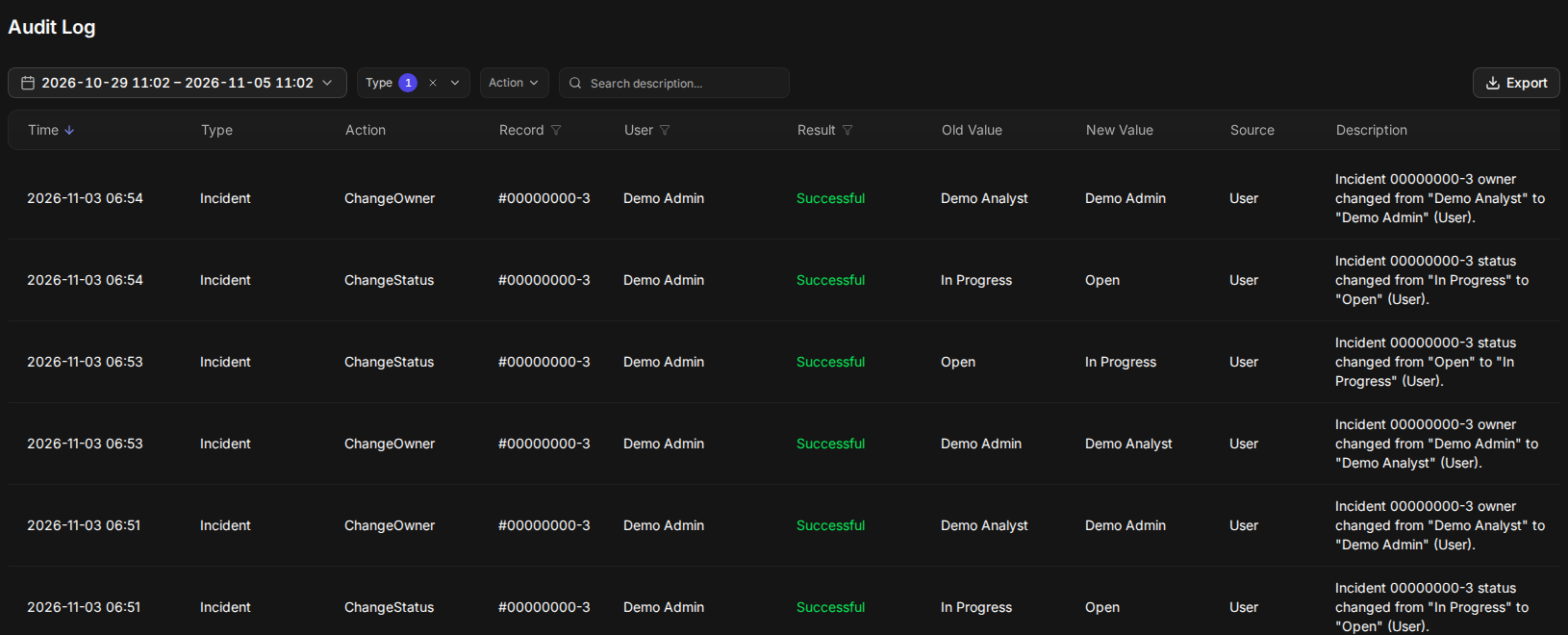
The entries appear under Global Settings > Audit Log, in the new UI, next to the sign-ins and other events the Audit Log already records. Each one has Type Incident and Action ChangeOwner or ChangeStatus. The list and its Excel export carry three columns for them: Old Value, New Value and Source.
READER NOTE
The Audit Log page is part of the new UI only. Changes made in the classic UI are still recorded, and you read them in the new UI.
In short
|
# |
Stage |
Where it happens |
|---|---|---|
|
1 |
An incident's owner or status changes |
The incident, the incident list, a playbook, an API call, or an automatic rule |
|
2 |
Show only incident changes |
Global Settings > Audit Log > Type and Action filters |
|
3 |
Follow one incident |
The Record column filter |
|
4 |
Read one entry in full |
Select the row to open its detail panel |
|
5 |
Take the entries into a report |
Export |
What Gets Recorded
An entry is written for every change of an incident's owner and every change of its status, whichever way the change was made. Recording both, with their source, is what lets you tell an analyst's own work apart from what a playbook or a rule did on their behalf.
|
Action |
When it is written |
Old Value / New Value |
|---|---|---|
|
ChangeOwner |
The incident's owner changes to another user, or from or to nobody |
The owner's display name before and after |
|
ChangeStatus |
The incident's status changes, including custom statuses |
The status name before and after |
The Source column says what made the change:
|
Source |
What it covers |
User column |
|---|---|---|
|
User |
An analyst changing the incident in either UI, a batch action on several incidents in the incident list, or a call through the REST API |
The person who made the change |
|
Playbook |
A playbook task or a utility command, including one run on its own from an incident |
System User when the playbook task ran automatically, even in a playbook a person started; the analyst's name when a person ran that task or the utility command by hand |
|
System |
Event ingestion creating or updating the incident, auto-assign, routing rules and auto-close rules |
System User |
A batch action on several incidents writes one entry per incident, so each incident's history stays complete when it was changed together with others.
READER NOTE
A change appears in the Audit Log a few moments after you make it. If you have just changed an incident, refresh the list.
Where the Entries Come From
The owner and status of an incident are the two fields at the top of the incident workspace. Any change to them—made there, from the incident list, by a playbook, or by a rule—produces an entry.
The Status and Owner fields of an incident

Nothing has to be switched on. Every change made after your site is upgraded to this release is recorded.
Finding Incident Changes
Use the filters at the top of the Audit Log to see only incident changes, and the Record filter to follow a single incident through its life.
-
Go to Global Settings > Audit Log.
2. Set the date range. The list opens on the last 7 days; the range picker also offers Last 30 days and Last 90 days.
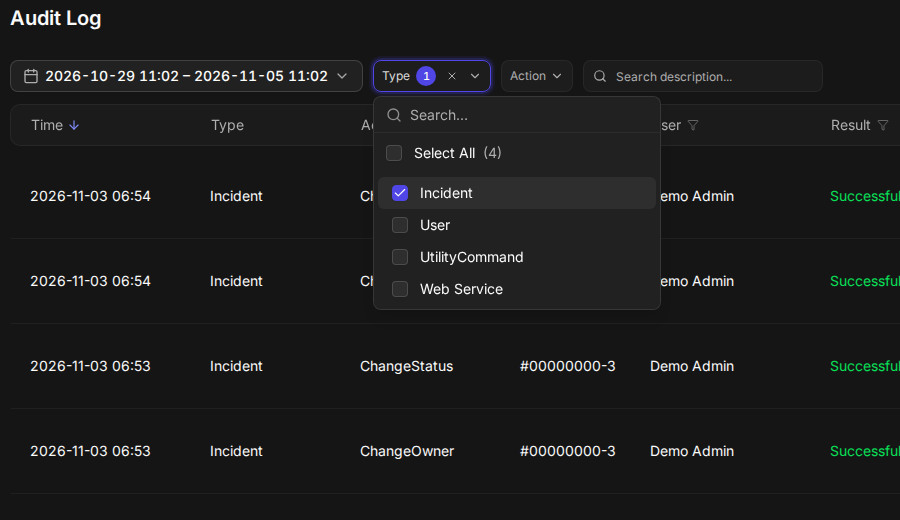
3. Select Type, then select Incident.
The Type filter
-
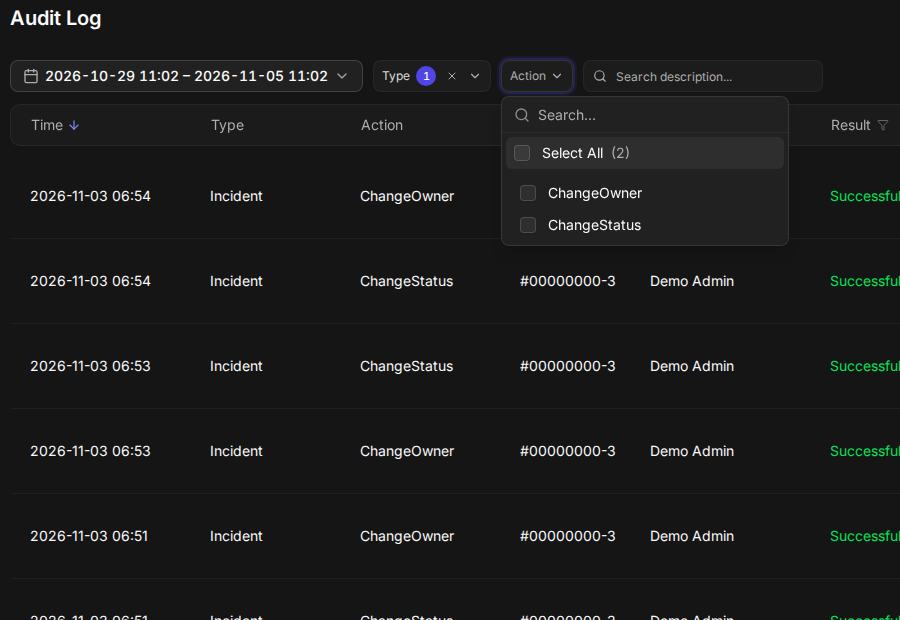
(Optional) Select Action, then select ChangeOwner or ChangeStatus to see only one kind of change.
The Action filter
-
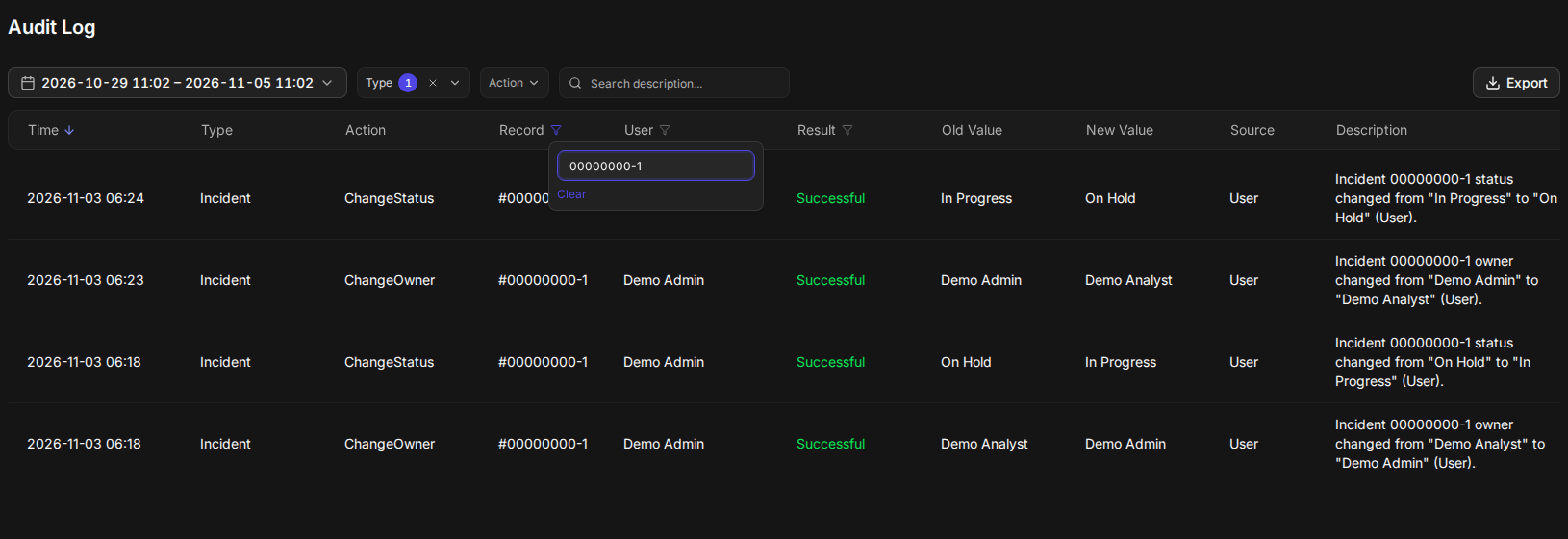
(Optional) To follow one incident, select the filter icon in the Record column header, enter the incident number, and press Enter.
The Record filter
RESULT
The list shows only the owner and status changes you asked for, newest first. Select Time to reverse the order and read an incident's history from the start.
The Record filter matches the start of the incident number, so a partial number such as a date prefix finds every incident that starts with it. Use Clear in the same box to remove it. The User filter in the column header narrows the list to changes made by particular people, and Search description finds text in the Description column.
Reading an Entry
Each row is one change. The columns answer who, what, when, and from where; the detail panel adds the context you need to put the change in its place.
|
Column |
What it shows for an incident change |
|---|---|
|
Time |
When the change happened, in your own time zone |
|
Type |
Incident |
|
Action |
ChangeOwner or ChangeStatus |
|
Record |
The incident number |
|
User |
Who made the change; System User for changes made by the platform or by an automatic playbook task |
|
Result |
Successful |
|
Old Value |
The owner or status before the change |
|
New Value |
The owner or status after the change |
|
Source |
User, Playbook or System |
|
Description |
One sentence summing up the change, for example: Incident 00000000-1 status changed from "In Progress" to "On Hold" (User). |
Old Value, New Value and Source are filled only for incident changes. Other entries, such as sign-ins, show a dash.
READER NOTE
The Time column and the export show each change in the time zone set in your user profile, so two people in different time zones read different clock times for the same change. The detail panel shows the same moment in UTC.
The Detail Panel
Select a row to open its detail panel. It shows the full record of the change: the incident's number and title, its site, who made the change, the source, the exact time in UTC, and the old and new value.
The detail panel of a status change
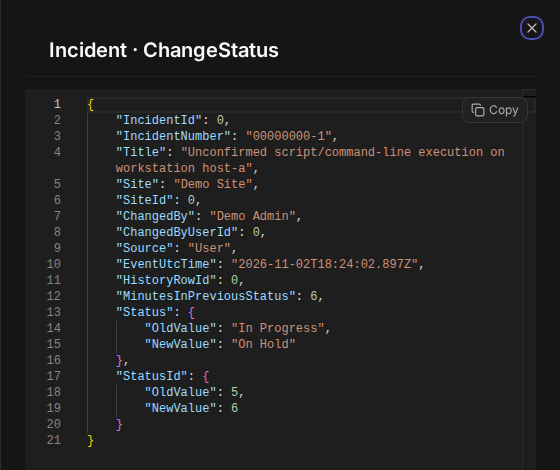
A status change also carries MinutesInPreviousStatus: how many minutes the incident spent in the status it just left. It is the figure to read when you want to know how long an incident waited in a state before someone moved it on.
Exporting the Entries for Reporting
The export turns the filtered list into an Excel file you can pivot, chart, or load into your own reporting. It is how you build per-analyst measures such as how many incidents each person took ownership of, or how many they closed.
-
Filter the Audit Log to the entries you want, as in Finding Incident Changes. The export follows every filter and the date range.
2. Select Export.
One incident's changes, ready to export
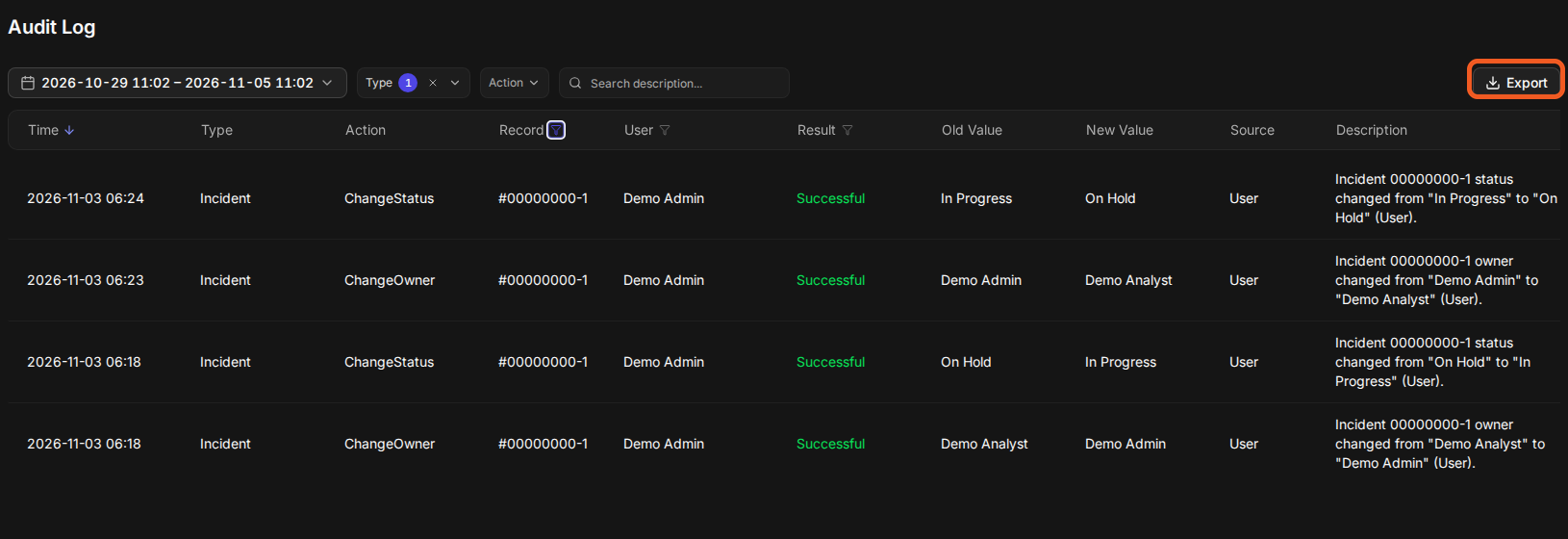
RESULT
Your browser downloads audit-log.xlsx. It has the same columns as the list—Time, Type, Action, Record, User, Result, Old Value, New Value, Source and Description—with one row per entry.
The export holds up to the row limit set for Excel exports on your instance, 1,000 rows unless an administrator has changed it. If the filter matches more entries than that, D3 Morpheus tells you how many it exported out of how many matched; narrow the date range and export the rest separately.
Some ways to use the file:
-
Incidents taken per analyst: keep Action = ChangeOwner and count rows per New Value.
-
Incidents closed per analyst: keep Action = ChangeStatus with New Value = Closed, and count rows per User.
-
Manual work only: keep Source = User, so playbook and system changes do not inflate anyone's numbers.
READER NOTE
The export names owners by display name only. Two analysts with the same display name are counted together, so give each analyst a distinct name if you report per person. The minutes spent in the previous status, the incident title and the site are in the detail panel only, not in the export.
What Is Not Recorded
Knowing what the Audit Log leaves out keeps you from reading a gap as an analyst who did nothing.
-
Changes made before the upgrade. Owner and status changes made before your site was upgraded to this release are not added afterward. The history starts on upgrade day.
-
A few classic paths. Closing incidents by closing a case file in the classic view, and linking or unlinking incidents through the version 1 REST API when that changes the incident's status, do not write an entry.
-
Investigation Team changes. Adding or removing investigators is not recorded as an owner change.
-
Site-only changes. Moving an incident to another site without changing its owner does not write an entry.
-
Other instances. On an MSSP setup, each instance records the changes made on it. A master instance does not collect its tenants' entries.
READER NOTE
There is no public API for reading the Audit Log, and these entries are not forwarded to a SIEM. Use the export to take them elsewhere.
Permissions
Only users whose role includes the Administrator role token see Audit Log under Global Settings and can open it. Export needs no other permission: anyone who can open the Audit Log can export it.
FAQs
I changed an incident, but the entry is not there.
An entry is written a few moments after the change. Refresh the list; if the entry still does not appear, check that the date range includes now, and that the change was not one of those listed in What Is Not Recorded.
Why does the User column say System User?
No person made that change. Either the platform made it—event ingestion, auto-assign, a routing rule or an auto-close rule, with Source System—or a playbook task ran automatically, with Source Playbook.
Why are there no entries for last month?
Entries start when your site was upgraded to this release. Changes made before then are not added.