
Last updated: October 15, 2026
Overview
An assignment group is a user group that incidents can be filed into instead of being handed to one person. An incident in an assignment group stays visible to everyone in that group until somebody claims it, so a team works one shared backlog instead of routing every incident to a named owner and hoping that person is at their desk.
Any regular user group can become an assignment group by ticking one box, so a team that already exists as a group becomes a queue without rebuilding its membership.
In short
|
# |
Stage |
Where it happens |
|---|---|---|
|
1 |
Make a group an assignment group |
Global Settings > Organization Management > User Groups |
|
2 |
File an incident into it |
The incident's Assignment Group field |
|
3 |
See what is waiting |
The My Queue and Unclaimed in my queues views on the incident list |
|
4 |
Take an incident |
Assign To Me & View on the incident list |
|
5 |
Watch the backlog |
The queue widgets on a dashboard |
READER NOTE
When a High or Critical incident sits unclaimed in an assignment group, its members are alerted. That is covered in Queue Alerts. This article covers setting a queue up and working from it.
READER NOTE
Screenshots in this article were captured on an internal development site seeded with test data.
Making a Group an Assignment Group
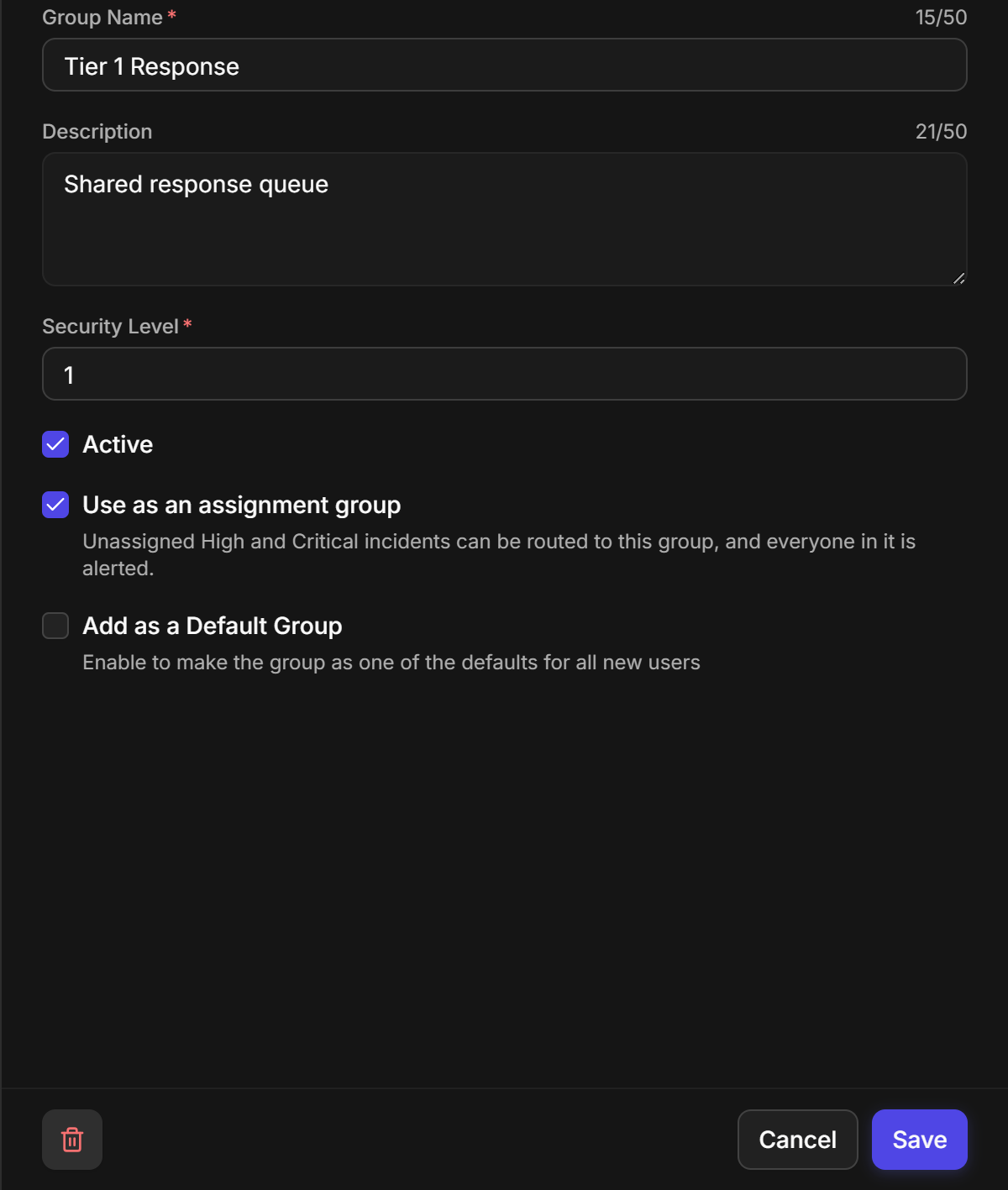
Turning a group into an assignment group lets incidents be filed to the whole team at once, so the first person free picks the work up.
-
Go to Global Settings > Organization Management > User Groups.
-
Open an existing group, or add a new one.
-
Select Use as an assignment group.
-
Select Save.
RESULT
The group can now be chosen in any incident's Assignment Group field, and everyone in it is alerted when an unclaimed High or Critical incident arrives.
READER NOTE
Use as an assignment group is offered only on regular user groups. If a group does not show it, that group is a type that cannot pass site access to its members, and an incident filed into it could reach nobody.
The form explains the setting in place: Unassigned High and Critical incidents can be routed to this group, and everyone in it is alerted.
COMMON ERROR
Add as a Default Group sits just below and is unrelated. It adds the group to every new user by default. It does not make the group the default queue for incidents.
Checking Who a Queue Can Reach
A queue only works if its members can open the incidents filed into it. Once the group is saved, reopening it shows a line reading Incidents from these sites can reach this group: followed by the sites its members can access.
That line is the practical test of a queue: an incident from a site that nobody in the group can reach is still filed successfully, but it alerts nobody. Check it after you add or remove members.
READER NOTE
A group with no active members warns This group has no active members, so incidents routed to it will not reach anyone. Check a new queue once after saving it, before routing work to it.
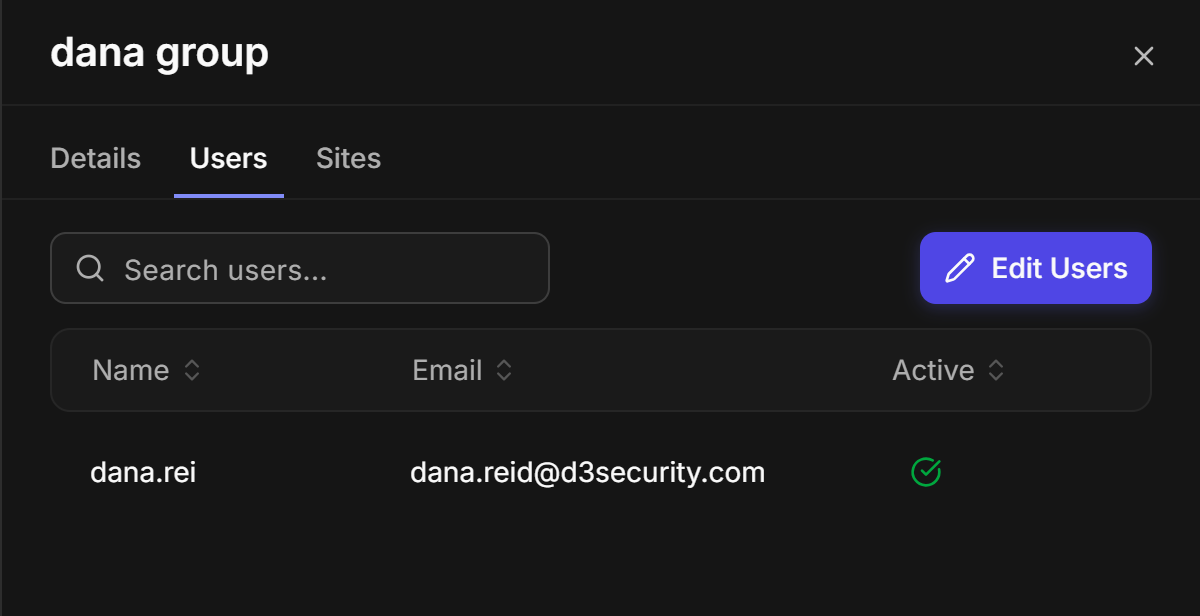
Membership is managed on the group's Users tab, the same way as for any other group.
Retiring an Assignment Group
A queue can be stopped from taking work: by unticking Use as an assignment group, by deactivating the group, or by deleting it. All three are refused while incidents are still waiting in the queue, because those incidents would stop reaching anyone the moment it happened.
WARNING
While the queue holds open incidents, unticking Use as an assignment group opens a dialog titled Move the open incidents out of <queue> first. It states how many open incidents are in the way, and its only option is Keep it an assignment group. Deactivating or deleting the group is refused for the same reason. Move those incidents to another queue first.
When the queue is empty, all three are offered with an ordinary confirmation.
Filing an Incident into an Assignment Group
Filing an incident into a queue hands it to a team rather than a person. You can do it in three places, and all three do the same thing:
|
Where |
Use it for |
|---|---|
|
The incident workspace header |
The incident you are already reading |
|
The incident list's quick view |
A row in the list, without leaving the list |
|
Bulk Edit Fields |
Several incidents at once |
In each place the field is called Assignment Group. It shows a dash when the incident is in no queue.
READER NOTE
If your site has no assignment groups, or none that can take this incident, the Assignment Group field is not shown at all. It reappears as soon as a queue is available.
ALERT
Moving an incident from one assignment group to another clears its owner. The confirmation says so: "The owner was cleared, so the incident is now unassigned." A bulk edit lists every incident whose owner was cleared. Filing an incident into its first queue keeps its owner, and so does taking an incident out of a queue. Only a move between queues clears it.
Two cautions can follow a successful move. In both cases the move has already happened:
|
What you see |
What it means |
|---|---|
|
No member of <queue> can open this incident, so nobody in the queue will be alerted. |
The incident is in the queue, but nobody in the queue has access to it. Nobody will be told. |
|
Some members of <queue> can't see this incident's site. |
Part of the queue can work the incident and part cannot. |
Every move is recorded on the incident's activity feed: the group it moved from and to and, where it applies, that the owner was cleared.
Filing Incidents Automatically
Incidents can also be filed into a queue without anyone choosing it by hand, so routine work lands with the right team as soon as it arrives:
|
Route |
What it does |
|---|---|
|
A playbook |
Moves an incident into a queue as one of its steps |
|
Incident field mapping |
Files incoming incidents into a queue based on a field in the source data |
|
The Create Incident command |
Takes an Assignment Group input, by name or id, and files the new incident there |
An administrator sets these up. If the named queue is not an active assignment group, the incident is still created, without a queue.
READER NOTE
An escalation rule cannot file an incident into an assignment group.
Working From a Queue
Two views on the incident list answer the two questions a queue member has: what is waiting for anyone, and what is in my team's hands at all.
|
View |
What it lists |
|---|---|
|
Unclaimed in my queues |
Open incidents in your assignment groups that nobody has taken |
|
My Queue |
Every open incident in your assignment groups, claimed or not |

Each view shows its count in the bar, so you can see your team's backlog without opening it.
READER NOTE
Queue incidents are visible only to people whose record access covers group records. Someone restricted to their own records sees nothing in these views, and is refused if they open a queue incident from a link. That is the access rule working as intended.
Claiming an Incident
Claiming takes an incident out of the shared pile and makes it yours. It also stops the alerts for it.
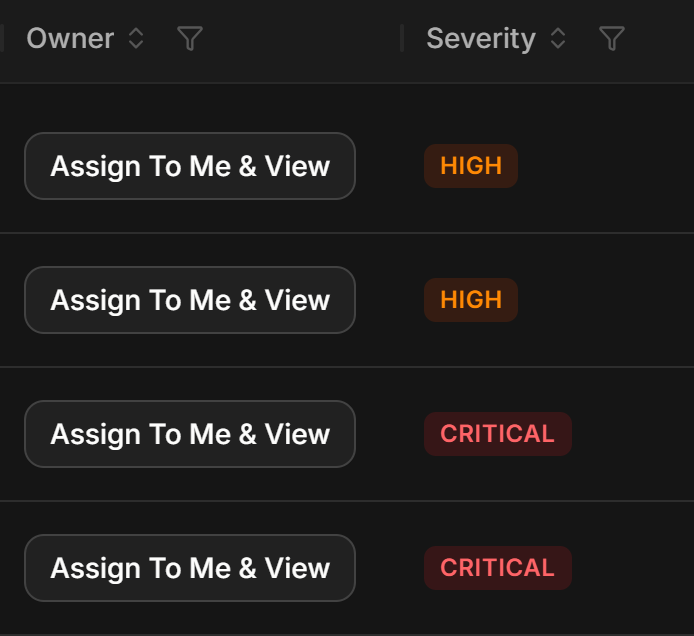
The Assign To Me & View control sits in the row's Owner column. If your list does not show that column, add it through the column settings first.
-
Open the Unclaimed in my queues view.
-
Select Assign To Me & View on the row you want.
RESULT
You own the incident, its workspace opens, the claim is recorded on the activity feed, and the queue alerts for it stop.
COMMON ERROR
A message reading not authorized means the incident moved out of your reach between the list loading and your click, usually because someone else claimed it or moved it to another queue. Nothing was changed. Refresh the view.
Watching a Queue on a Dashboard
Two built-in dashboard widgets report the same two questions across every queue you belong to:
|
Widget |
What it shows |
|---|---|
|
Unclaimed Incidents per Queue |
Open, unclaimed incidents in each of your queues |
|
Queue Backlog |
Open, claimed and unclaimed counts per queue, with a severity breakdown |
Selecting a queue name on either widget opens the incident list on Unclaimed in my queues.
Limits and Constraints
|
Constraint |
Detail |
|---|---|
|
Which groups qualify |
Regular user groups only |
|
Who can see queue work |
People whose record access covers group records |
|
Owner on transfer |
A move between queues clears the owner; the first move into a queue does not |
|
Retiring a queue |
Blocked while the queue holds open incidents |
|
Escalation rules |
Cannot file an incident into a queue |
|
Surface |
New UI |
RELATED ARTICLES
-
Incidents
-
Dashboards and Widgets