Last Updated: October 22, 2026
Overview
Event automation rules handle repetitive events for you. A dismissal rule dismisses events that match its conditions. An escalation rule escalates matching events into an incident, of the incident type and with the playbook you choose. Rules reduce the manual review of routine events so that analysts can focus on investigation.
Event automation rules are found under Configuration > Event Automation Rules.
The Event Automation Rules Page
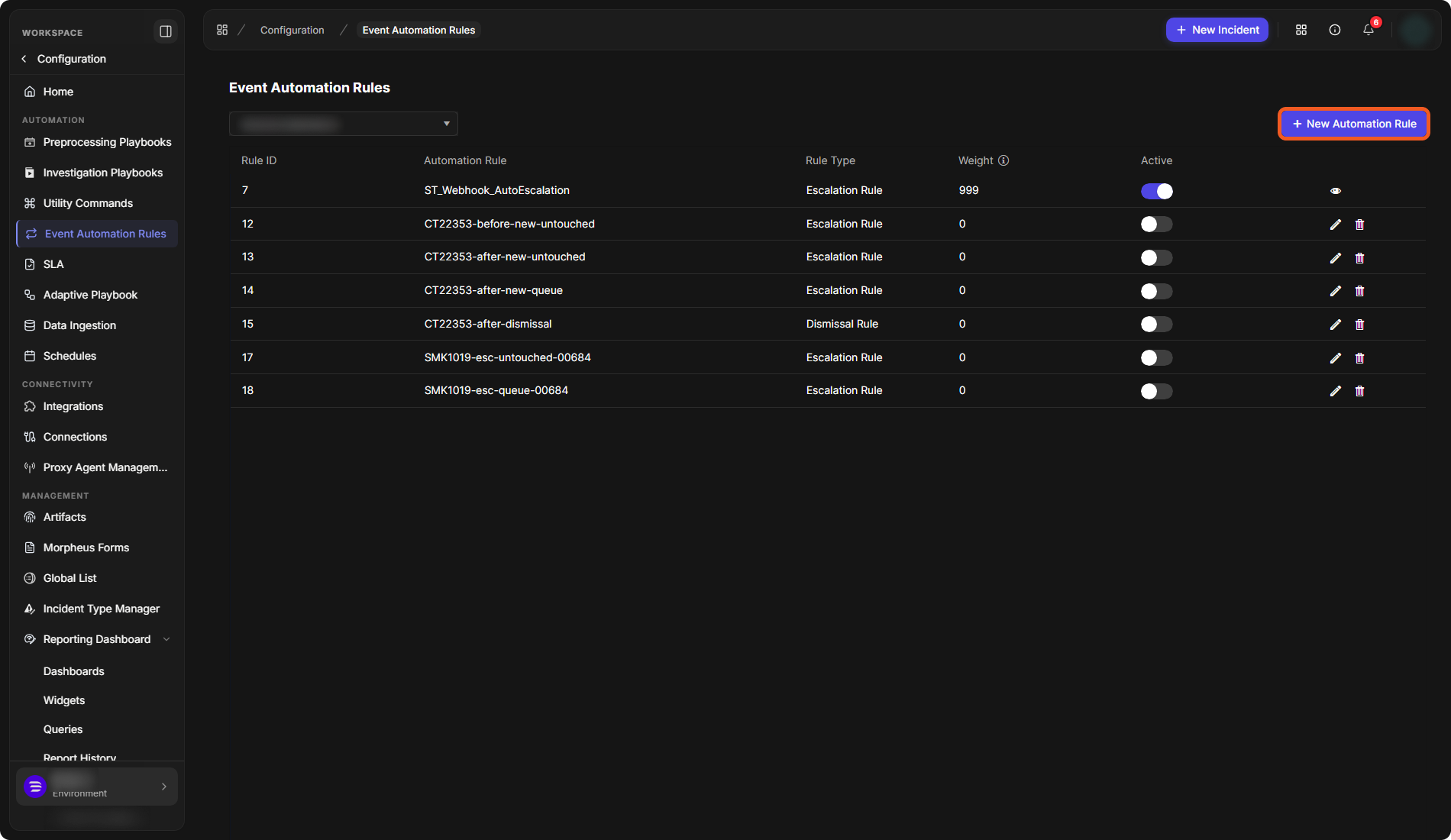
The page lists the rules of the site chosen in the site selector at the top. Each rule shows its Rule ID, Automation Rule name, Rule Type (Escalation Rule or Dismissal Rule), Weight and whether it is Active.
-
Switch Active on or off to turn a rule on or off.
-
An inactive rule has Edit (pencil) and Delete (bin) buttons. An active rule shows only a View (eye) button.
-
Weight has a help icon that explains the value.
The Event Automation Rules page
Adding a Rule
-
Choose the site in the site selector.
-
Select New Automation Rule.
-
In the Add Automation Rule window, enter a Rule Name.
-
Check the Site. Keep Shared by default on to share the rule.
-
Choose the Rule Type: Dismissal or Escalation, and continue below.
-
Select Save.
Adding a Dismissal Rule
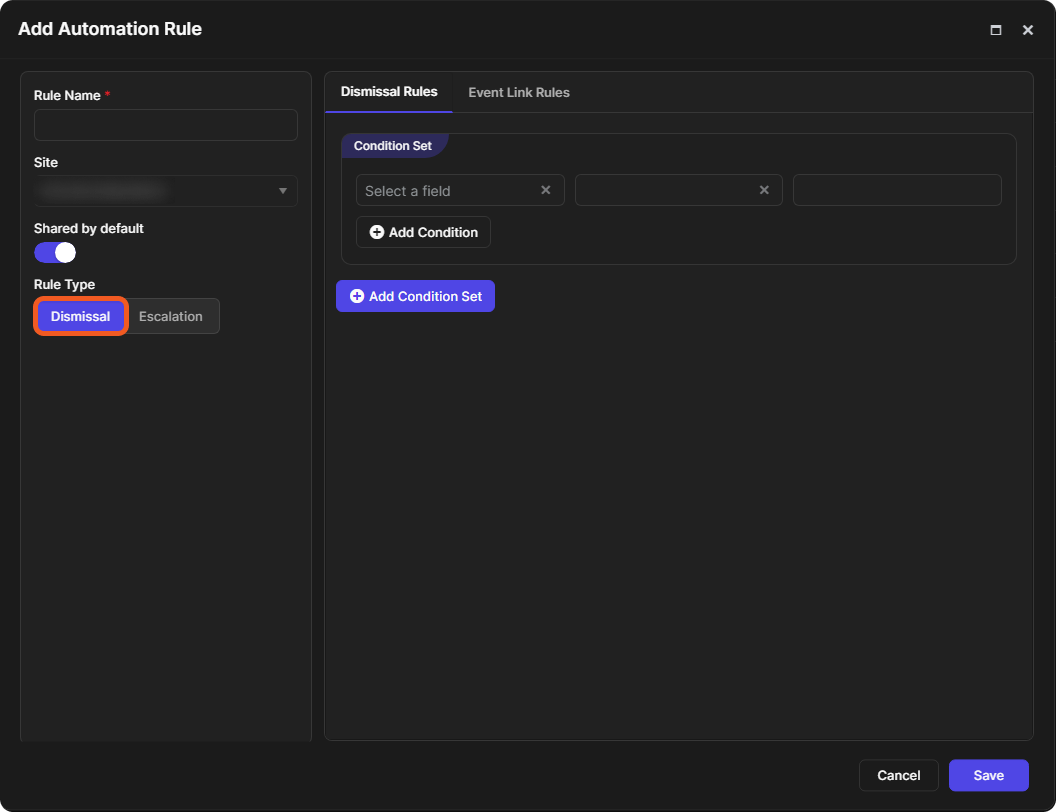
With Dismissal selected, the window has two tabs:
-
Dismissal Rules: the conditions an event must meet to be dismissed.
-
Event Link Rules: conditions to link other events.
Each tab holds a Condition Set. Choose a field, an operator and a value (Select a field), and select Add Condition to add another condition to the set. Select Add Condition Set to add another set.
A new dismissal rule
Adding an Escalation Rule
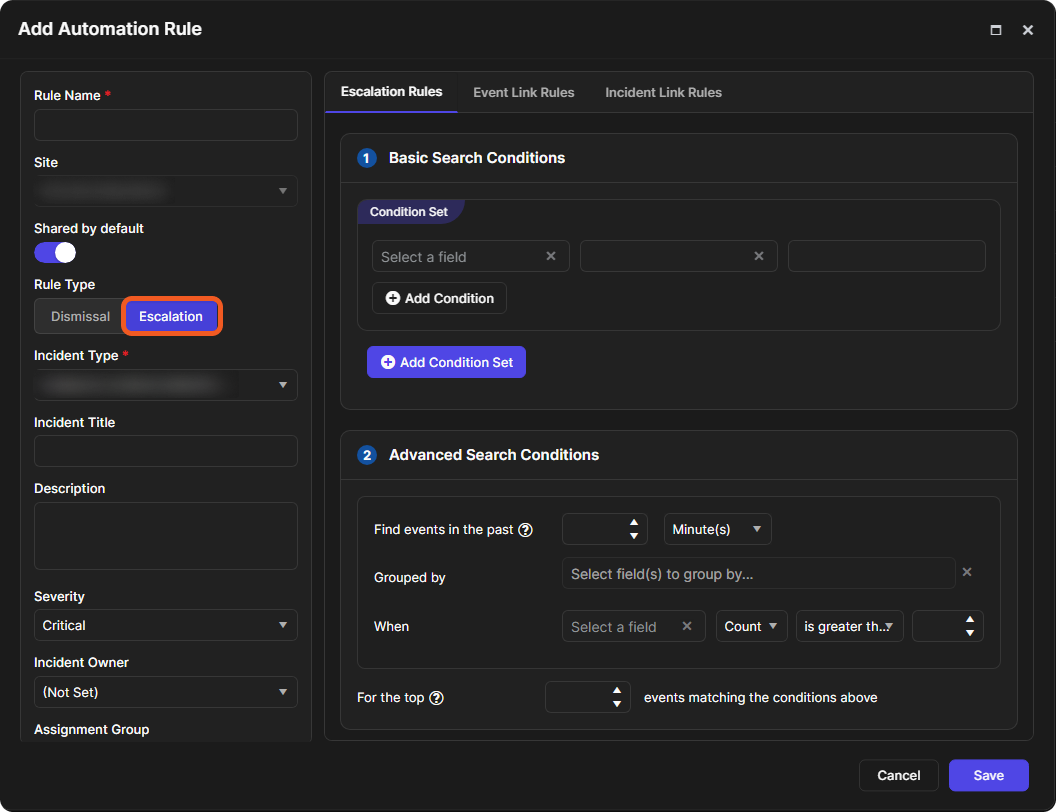
With Escalation selected, the left side also asks for the incident to create:
-
Incident Type (required)
-
Incident Title and Description
-
Severity, for example Critical
-
Incident Owner and Assignment Group
-
Playbook (required)
The right side has three tabs: Escalation Rules, Event Link Rules and Incident Link Rules. The Escalation Rules tab has three steps:
-
Basic Search Conditions: one or more condition sets, as for a dismissal rule.
-
Advanced Search Conditions:
-
Find events in the past: how far back to look, for example in Minute(s).
-
Grouped by: the fields to group the events by.
-
When: a field, a measure such as Count, a comparison such as is greater than, and a value.
-
For the top *n* events matching the conditions above.
-
-
Add Classification Rules: Escalate the filtered Events into Incidents categorized ... by matching fields, and Incident Suppression.
A new escalation rule
Event Link Rules and Incident Link Rules
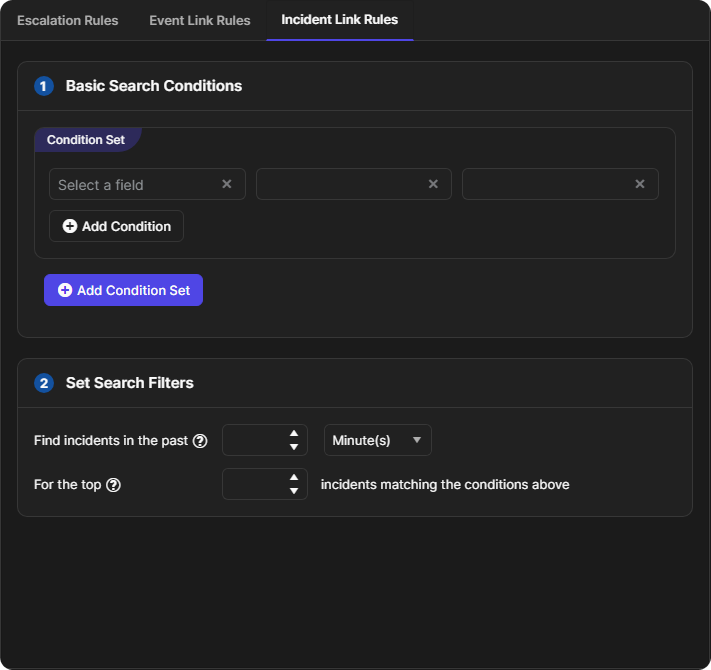
The Event Link Rules and Incident Link Rules tabs link other events, or existing incidents, to the escalation. Each has Basic Search Conditions and Set Search Filters: Find events in the past (or Find incidents in the past) and For the top *n* matching events (or incidents).
The Incident Link Rules tab