
Last Updated: October 26, 2026
D3 playbooks (preprocessing playbooks and investigation playbooks) are built to be reused across multiple instances, automating security operations through three key components:
-
Triggers: The branches of the root playbook node that initiate a playbook workflow when a certain condition is met.
-
Tasks: The playbook nodes that perform actions, either by requiring user input, such as responding to prompts or manually starting tasks, or through automated processes configured in advance.
-
Control Flow: The logic that determines the conditions and sequence for task execution, controlling how tasks progress, branch, coalesce, or repeat.
Generating with AI
Morpheus, D3's AI assistant, can draft a preprocessing or investigation playbook for you from a description, or infer one from an event or incident. The result is a draft for you to review and test.
-
Go to Configuration > Investigation Playbooks or Preprocessing Playbooks.
-
Select + Playbook, then Generate with AI. The Generate with AI button on the Generate a playbook with Morpheus AI banner opens the same window.
The + Playbook menu

-
Choose Infer from context or Describe it myself and, if you describe it, type what the playbook should do when it fires.
-
Under WHAT I'LL USE, choose the Site and the Trigger data (an incident or an event from that site), and optionally the Thinking effort, Global lists and Connected integrations.
-
Select Generate playbook.
Generating an investigation playbook
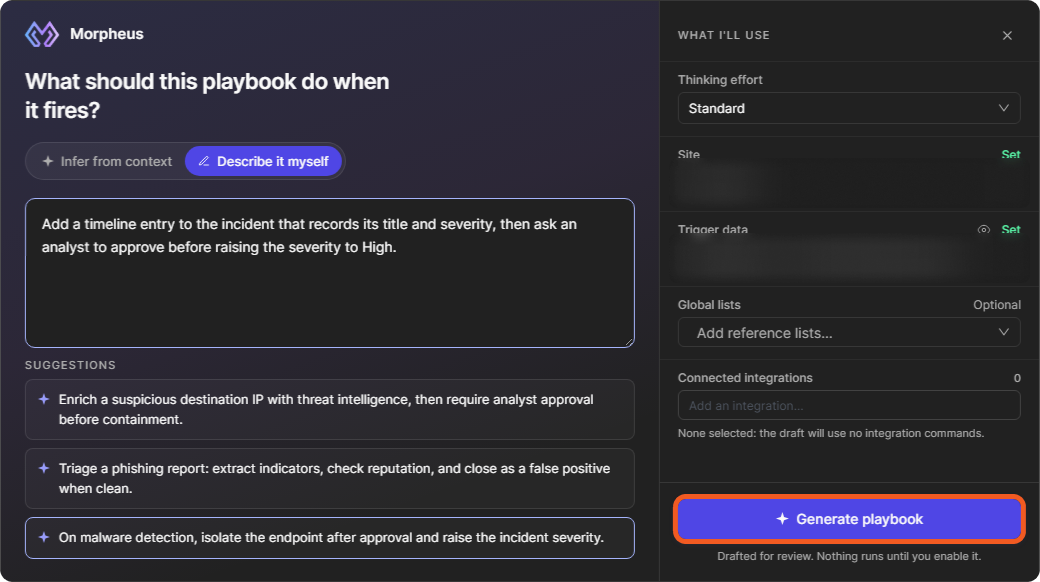
The playbook opens in the editor as a Draft. Nothing runs until you enable it: review and test every task before you select Go Live. For each playbook type, see Investigation Playbooks and Preprocessing Playbooks.
To build a playbook manually, start from + Playbook > Blank playbook; see Investigation Playbooks and Preprocessing Playbooks.
Preprocessing Playbooks
The preprocessing playbook is used to automate preparatory tasks—deduplication, enrichment, filtration, and correlation—useful before deeper investigation begins.

Read more about Preprocessing Playbooks here →
Investigation Playbooks
The investigation playbook is the primary playbook type used for automating the analysis and response of incidents.

Read more about Investigation Playbooks here →
Understanding the Playbook Interface
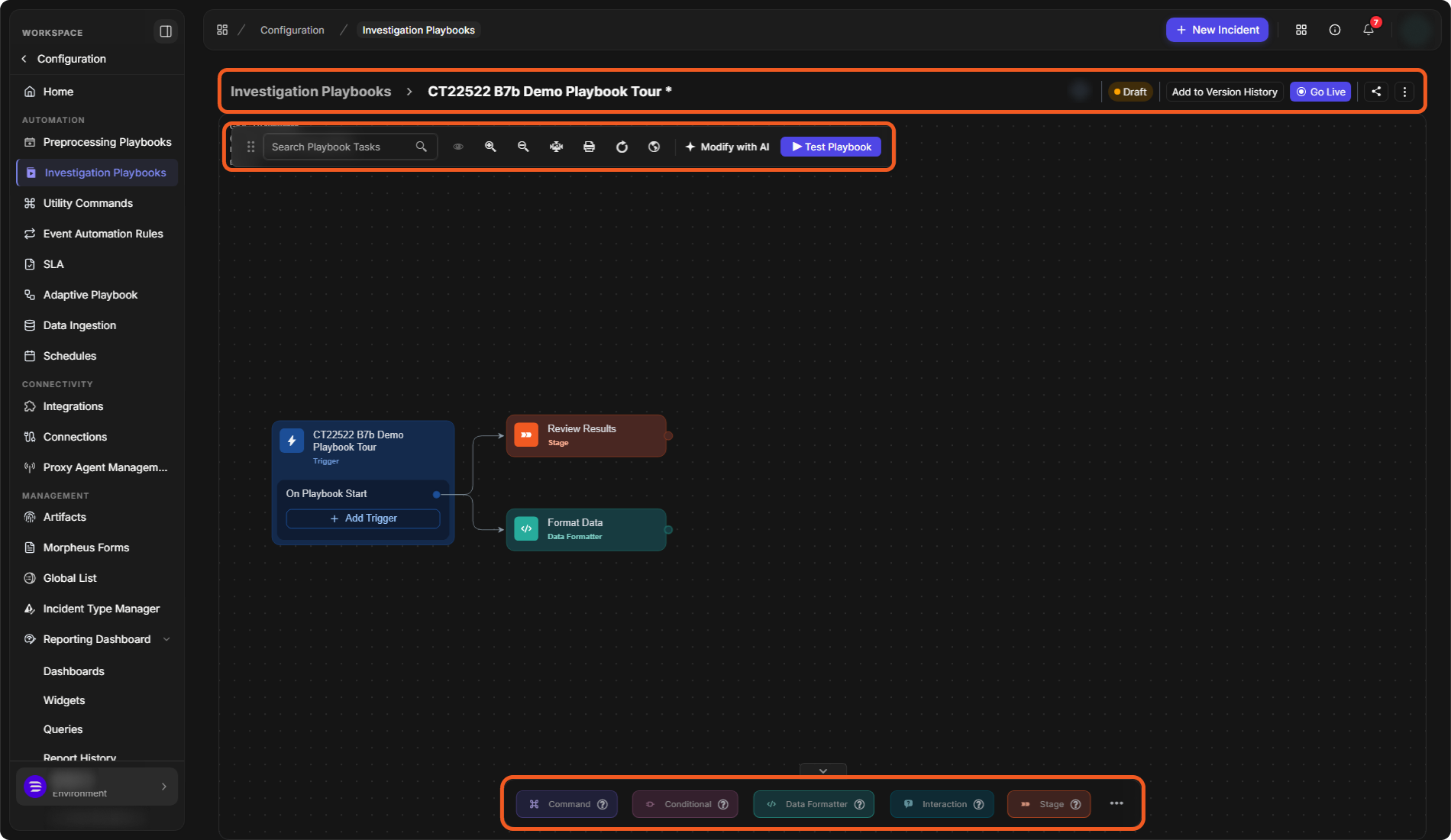
The interface for playbooks includes an action bar, the editor with its toolbar, and the task menu.
Playbook Action Bar
Breadcrumbs

Breadcrumbs indicate the user's location within the platform and allow navigation to previous pages or modules by clicking the corresponding breadcrumb.
Concurrent Users

All users currently viewing or editing this playbook are displayed here by their initials.
Playbook Controls

This section displays the playbook's current status ( 

-
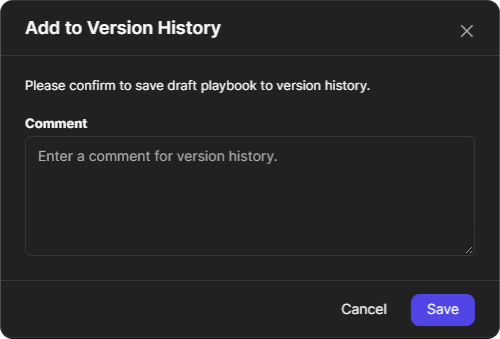
Add to Version History: Saves the current draft to the playbook's version history, with an optional comment, without making it live.
-
Go Live: Submits the draft and renders it live.
-
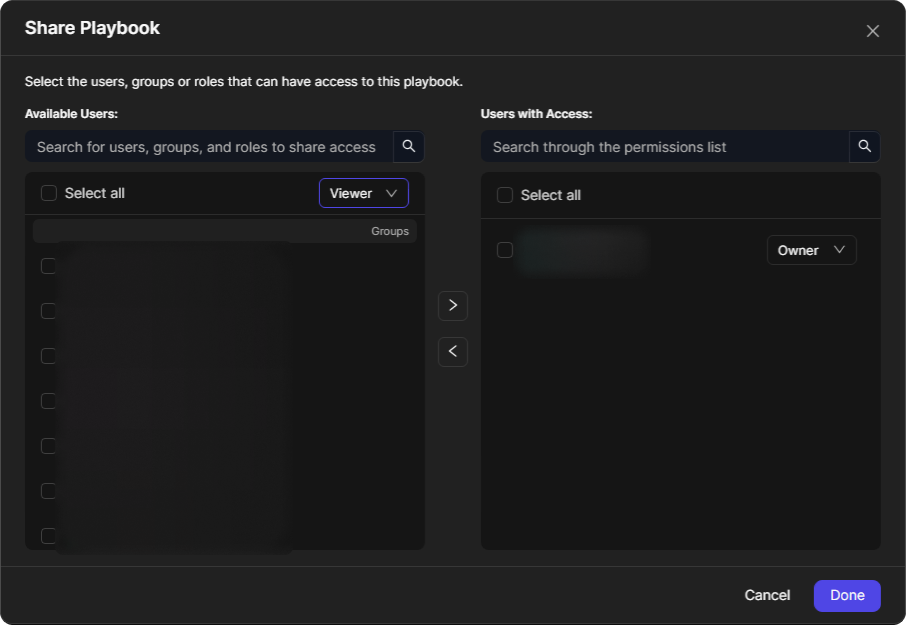
The share icon: Configures user permissions in the Share Playbook window. Select users, groups or roles, choose Viewer, Editor or Owner, and move them to Users with Access.
-
-
Viewer: Can test run the playbook; view the task configurations; view, clone, and export draft submissions; view command references; and access the playbook execution log
-
Editor: Includes all Viewer permissions, with additional capabilities to manage trigger visibility, configure tasks, save drafts, submit drafts, restore submissions, and delete the playbook.
-
Owner: Includes all Editor permissions, with additional capabilities to configure user permissions.
-
When the playbook is

-
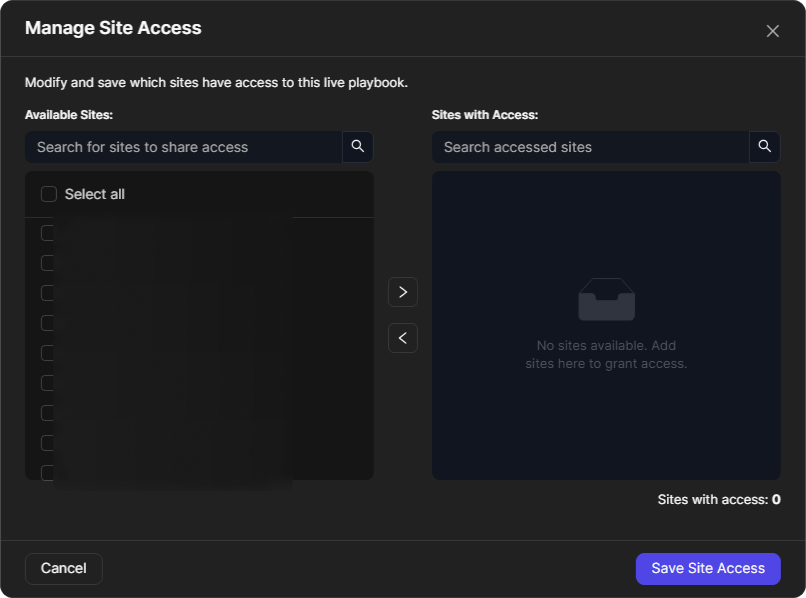
Manage Site Access: Modifies which sites have access to the live playbook. Move sites from Available Sites to Sites with Access, then select Save Site Access.
READER NOTE *
After an investigation playbook goes live, it must be given site access with Manage Site Access. Only users with access to the sites that were explicitly given access will then be able to use it in automation.
-
The arrow next to Manage Site Access > Remove All Site Access: Removes the live playbook from all selected sites.

Administrative Actions
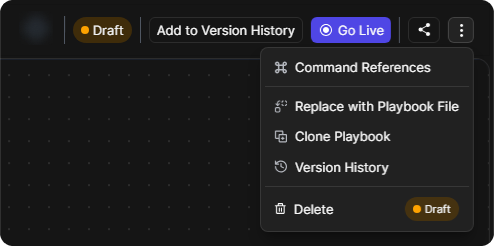
Clicking on the vertical ellipsis button presents the following actions:
-
Command References: Lists all integration commands and custom utility commands used in this D3 playbook (or utility command).
-
Replace with Playbook File: Prompts the user to upload an XML file of another playbook, replacing all tasks beyond the root node.
-
Clone Playbook: Duplicates the current playbook under a new name, useful for testing variations
-
Version History: Performs version history actions on all submissions:
-
Viewing submissions
-
Cloning submissions
-
Restoring submissions (overwrites the current draft)
-
Exporting submissions
-
-
Delete: Deletes the playbook from the system
A live playbook's menu shows Command References, Clone Playbook and Version History.
Playbook Editor
The editor visually represents all tasks in the playbook and their relationships, providing an overview of the workflow structure and includes a secondary action bar:

|
Feature |
Description |
|
Search |
Highlights matching playbook nodes and displays the total count, helping users locate relevant tasks. 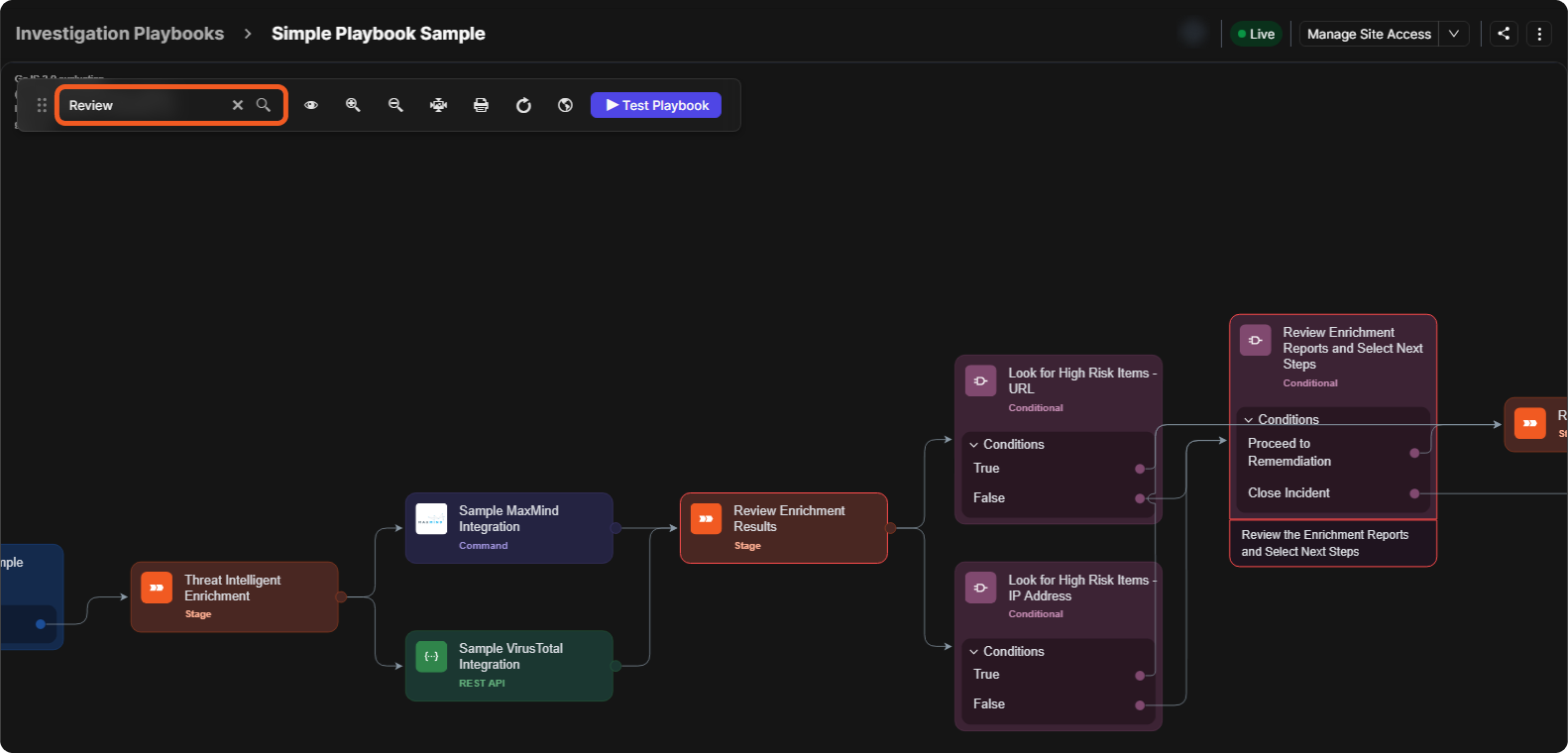
|
|
Show/Hide Overview |
Toggles the visibility of the playbook overview. 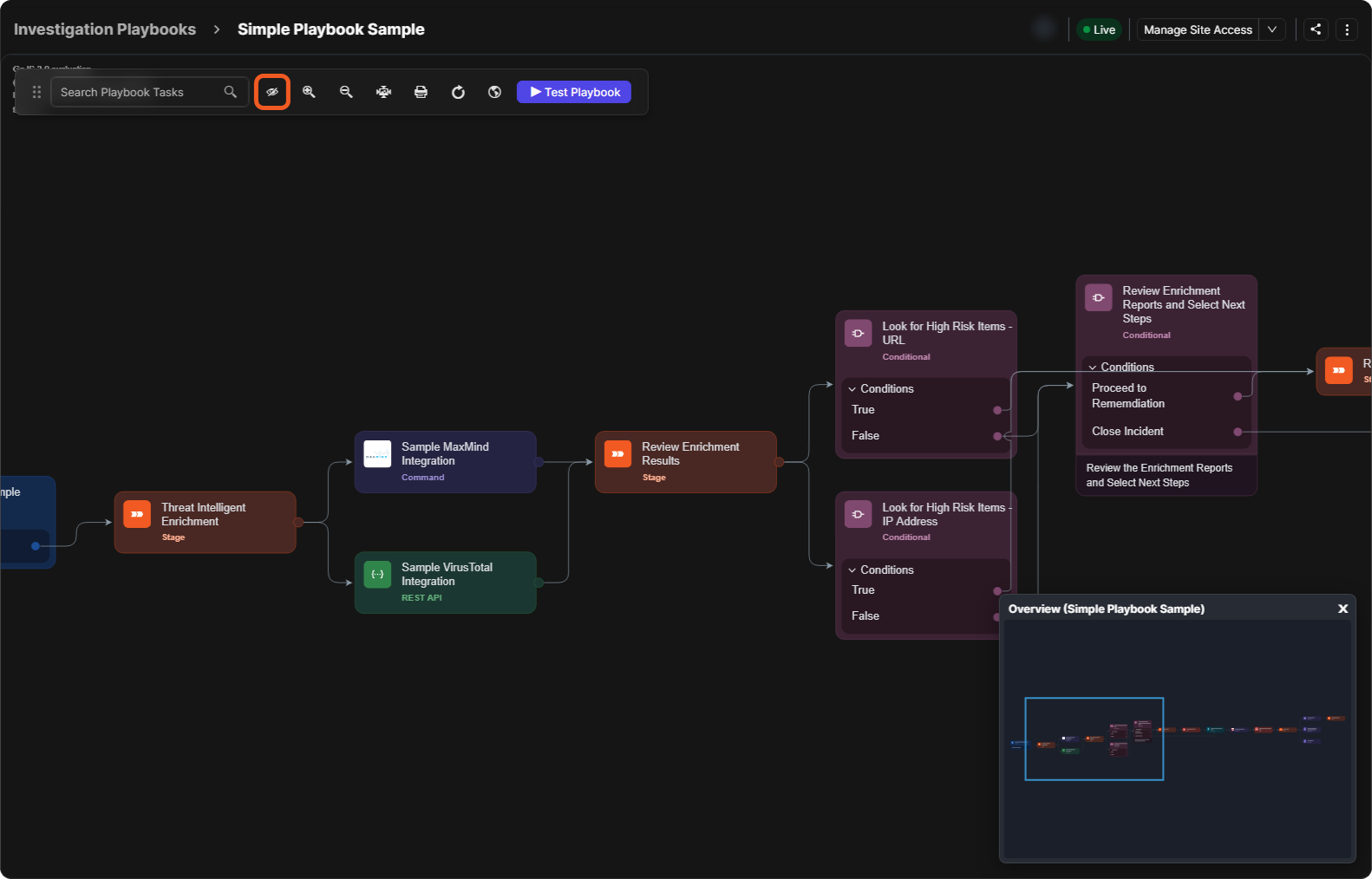
|
|
Zoom In/Zoom Out |
Allows zooming in and out of the playbook editor. |
|
Zoom to Fit |
Adjusts the view to display the entire playbook within the frame. |
|
Export |
Downloads a snapshot of the playbook as a PNG file. |
|
Refresh |
Helps verify whether |
|
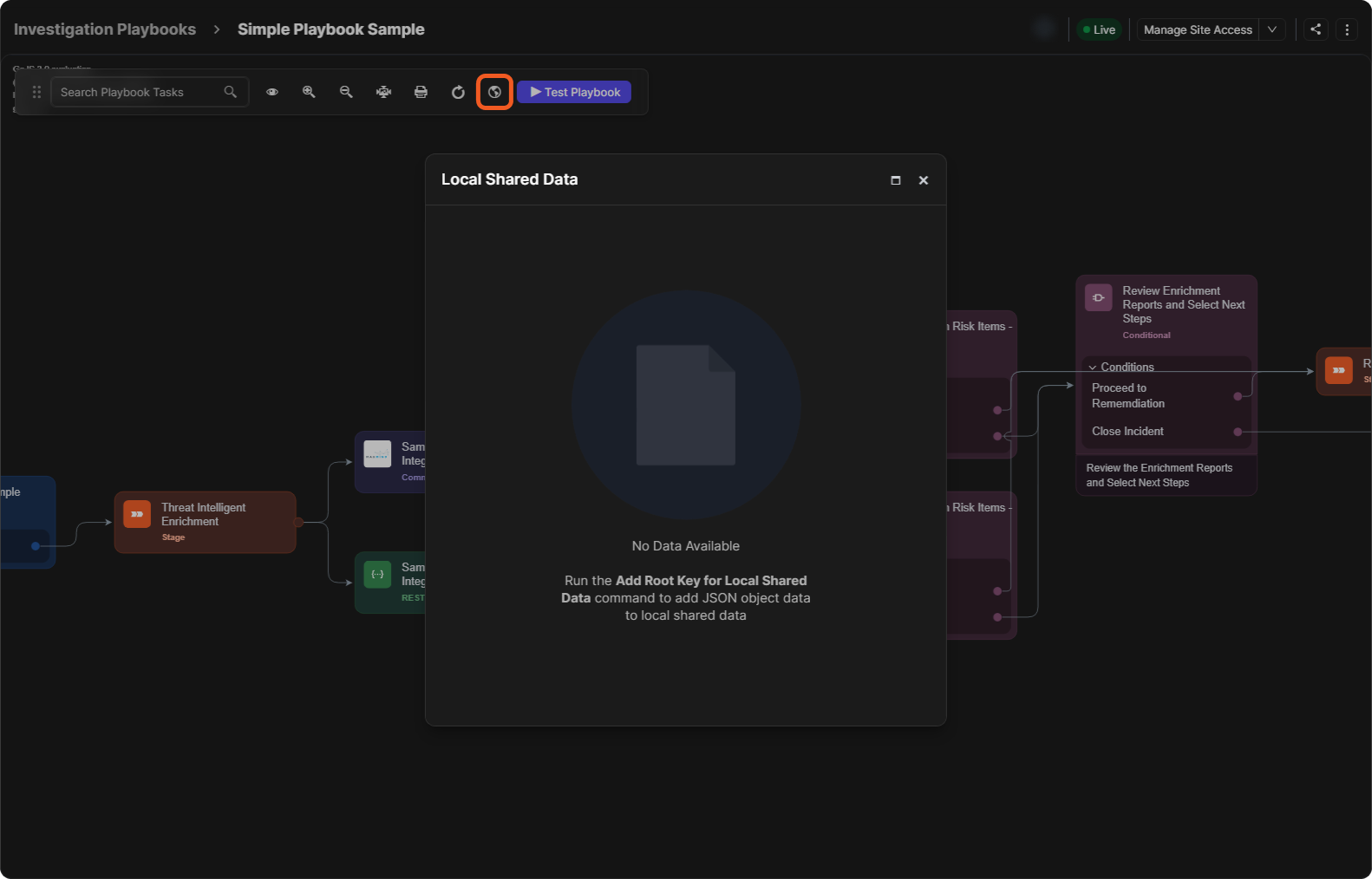
Show Local Shared Data |
JSON data specific to a single playbook, shared among all tasks within that playbook. READER NOTE Run the Add Root Key for Local Shared Data command to add a JSON object.
|
|
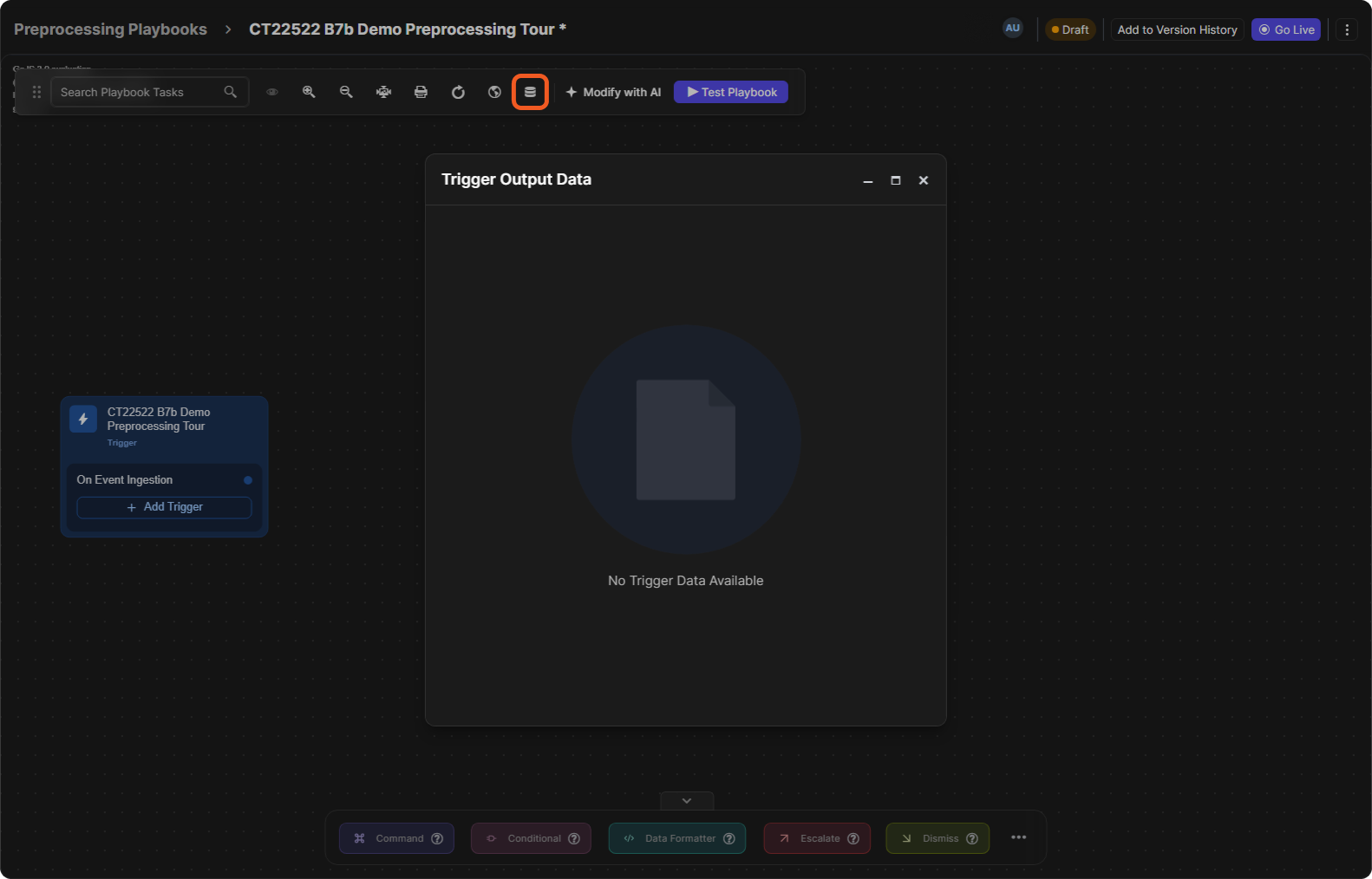
Trigger Output Data (preprocessing playbooks) |
The JSON data—initially generated behind the scenes during field mapping and refined in the On Event Ingestion preprocessing workflow—that contain all necessary information to create a D3 event and determine whether to escalate or dismiss it.
|
|
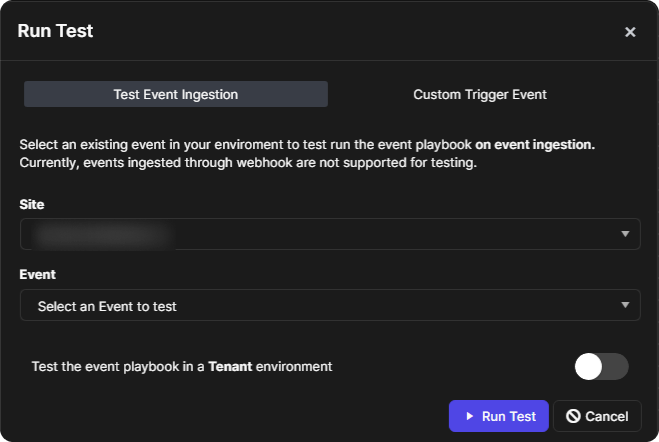
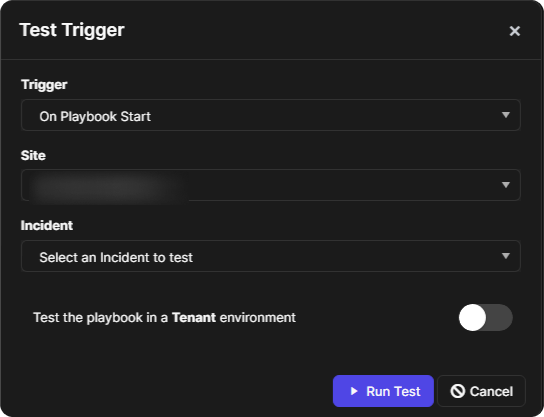
Test Playbook |
Opens a window to test run the playbook. Preprocessing Playbook (Run Test)
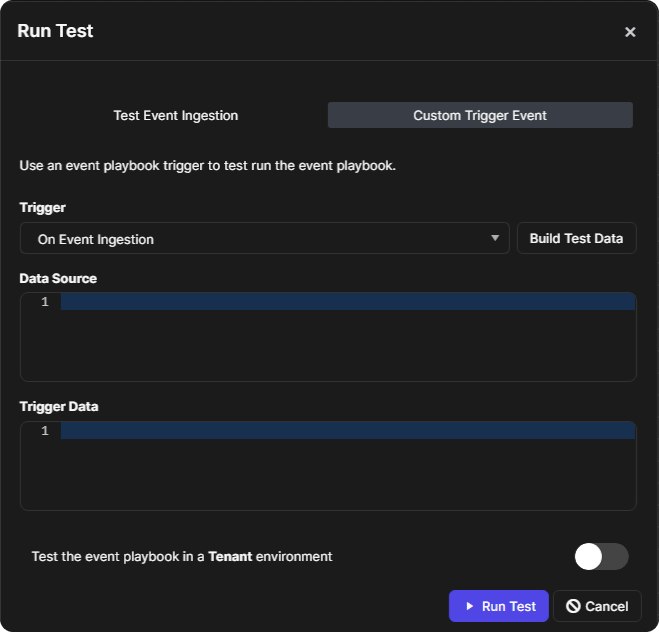
Investigation Playbook
|
|
Stop Test |
Terminates a playbook test run, clearing all execution progress and statuses. |
|
Modify with AI (draft playbooks) |
Opens Morpheus to suggest changes to the draft, or to apply changes you describe; you approve each one. See Generating with AI. |



%201-20250117-211634.png?cb=9f0fd5f5a4813703cd62cec667f2fb9f)
-20250117-211753.png?cb=b5ce387f6a8ea333a9008342f6fc5a4a)




Playbook Task Menu
The task menu allows users to add tasks to the playbook editor.
Preprocessing Playbook Task Menu

Investigation Playbook Task Menu

READER NOTE
For a comprehensive list of playbook tasks and usage examples, refer to Playbook Tasks.