Last Updated: October 23, 2026
Overview
Test Playbook runs the playbook you are editing, so you can check each task's result before the playbook goes live. After a test, you can run a single task again, with the same or different input, without running the whole playbook.
Testing a Playbook
-
Open the playbook and select Test Playbook in the toolbar above the canvas.
-
Fill in the test window and select Run Test.
What the test window asks for depends on the kind of playbook:
-
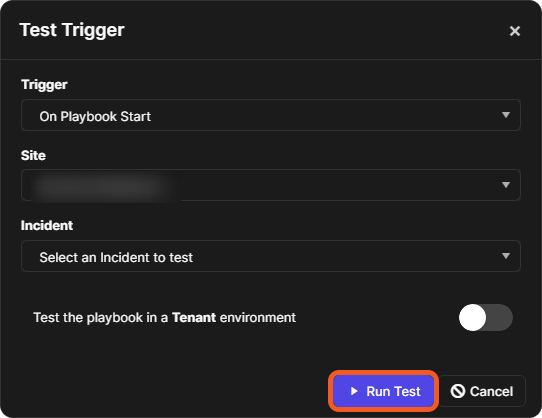
An investigation playbook opens Test Trigger: the Trigger to test, the Site, the Incident to test it on, and a switch to Test the playbook in a Tenant environment.
-
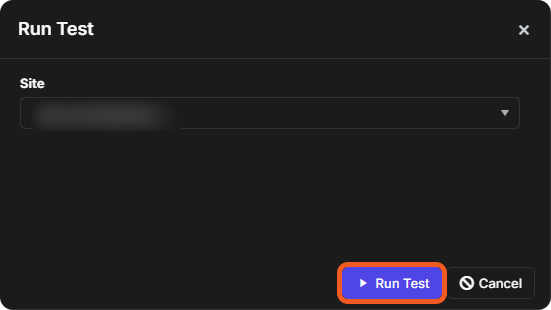
A codeless utility command opens Run Test, which asks only for the Site.
The Test Trigger window of an investigation playbook
The Run Test window of a codeless command
A test of an investigation playbook runs against the incident you select. Choose an incident made for testing.
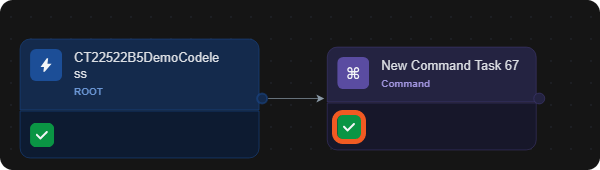
The playbook runs. Test Playbook changes to Stop Test while the test is open, and each task that ran shows a status icon on its node, for example a green check mark for a task that is done.
Tasks after a test
Checking a Task's Result
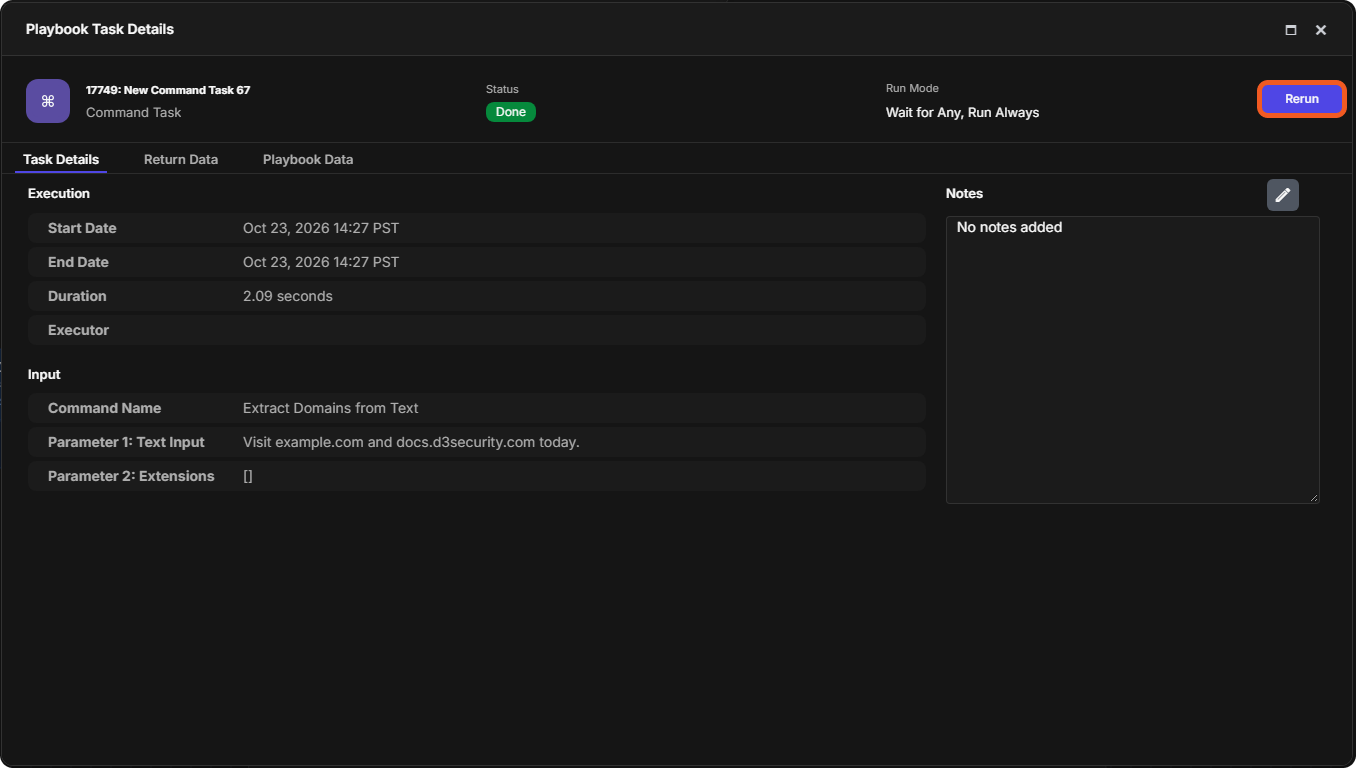
Select a task's status icon to open Playbook Task Details. It shows the task's Status and Run Mode, and the tabs Task Details, Return Data and Playbook Data. See Playbook Tasks.
Playbook Task Details
Re-running a Task
-
In Playbook Task Details, select Rerun.
-
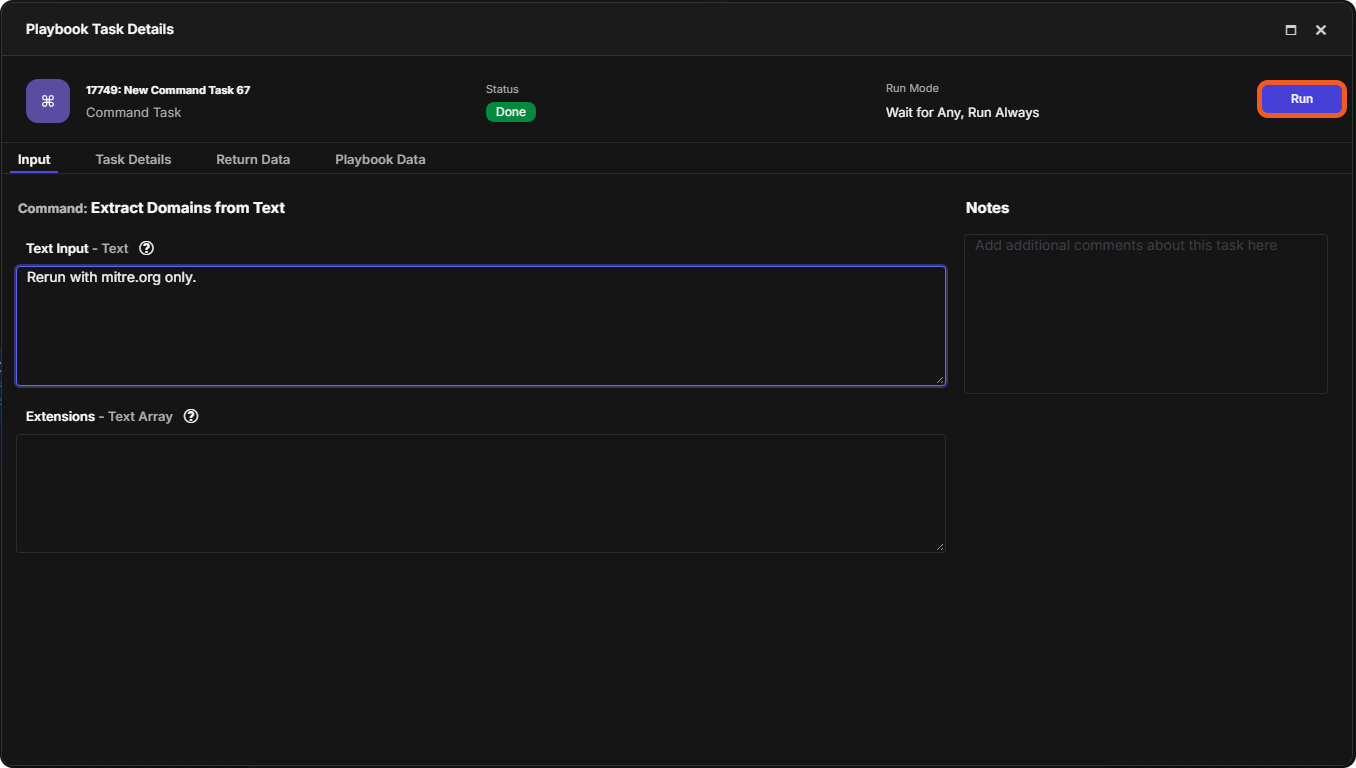
The Input tab opens with the task's input parameters. Change them if needed.
-
Select Run.
Re-running a task with new input
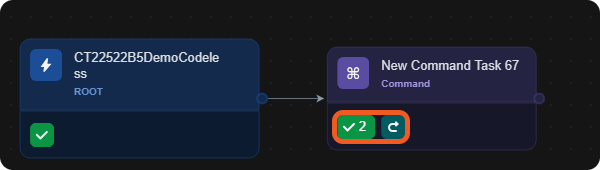
The task runs again. Its node shows how many times it has run, for example 2 beside the check mark, and a re-run icon.
A task that ran twice