
Last Updated: October 22, 2026
Overview
A global list is a named collection of JSON entries that playbooks can read and update. It keeps reference data your automation shares in one place: blocked sender domains, approved IP ranges, holiday calendars, VIP mailboxes. A playbook checks against the list instead of hard-coding the values, so updating the list updates every playbook that uses it.
Global lists are found under Configuration > Global List.
The Global List page
In short
|
# |
Stage |
Where it happens |
|---|---|---|
|
1 |
Create the list |
+ Global List |
|
2 |
Add its entries |
The list's Data tab > Add Data or Batch Upload Data |
|
3 |
Share it with sites |
The list's Permission tab |
|
4 |
Use it in a playbook |
A command's dynamic input > the Global List data source |
|
5 |
Review who changed it |
The list's Audit Log tab |
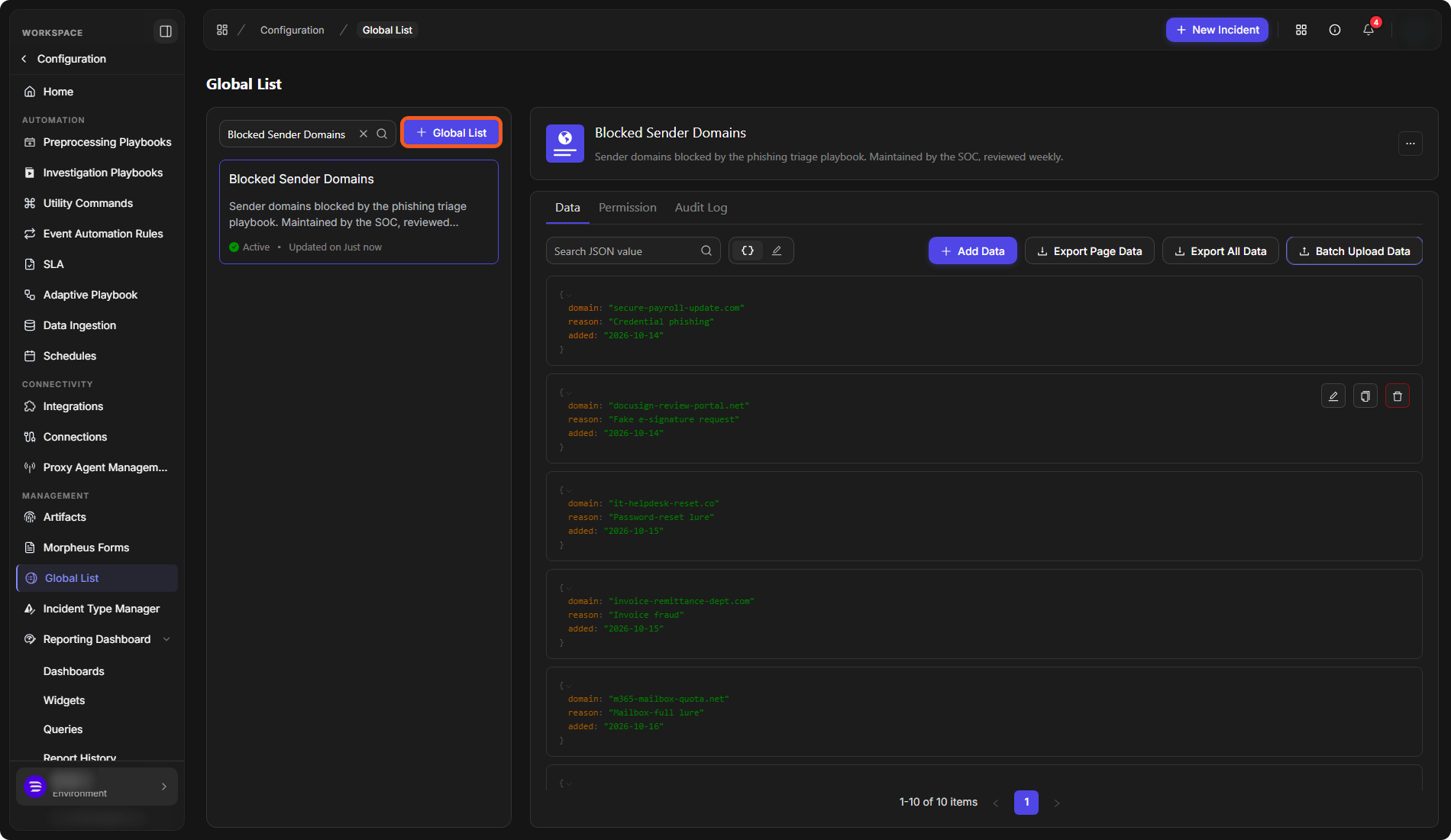
The Global List Page
The Global List page is where every global list is created, filled and shared. It has two parts:
-
The list panel on the left shows every global list you can see, with its description, whether it is Active, and when it was last updated. Use Search Global List to find one by name, and + Global List to create one.
-
The detail pane on the right shows the selected list: its name and description, a More menu (⋯), and three tabs: Data, Permission and Audit Log.
Creating a Global List
Create a list to give your playbooks one shared, editable source for a set of values.
-
Select + Global List.
-
Enter a Global List Name.
-
Enter a Description (optional). Say what the list holds, who maintains it and how often, so the next person knows whether to trust it.
-
Select Submit.
The Add Global List window
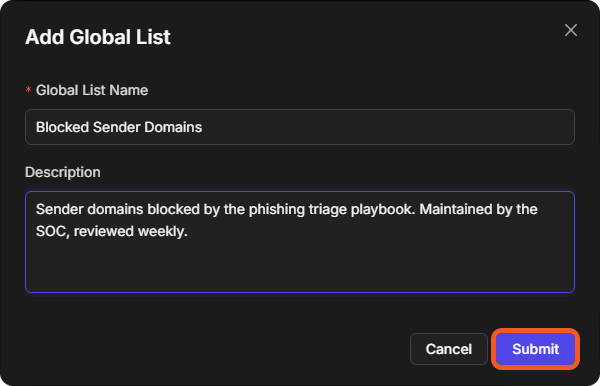
The new list appears in the list panel as Active, with no entries yet. It is not shared with any site until you add one on the Permission tab.
Adding Entries
A list's entries live on its Data tab, where each entry is one JSON object. Add a few by hand, or load many at once from a file.
Adding Entries by Hand
-
On the Data tab, select Add Data.
-
In the Insert Data window, enter a JSON array of one or more objects. The window opens with an example array to replace.
-
Select Save.
The Insert Data window
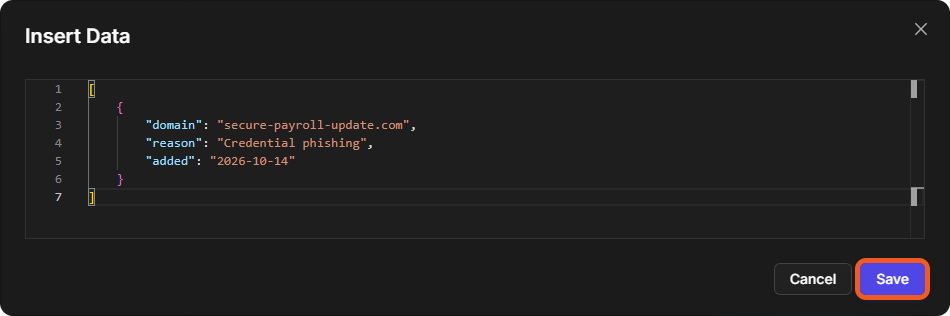
The new entries appear on the Data tab, and the count under the entries goes up.
Uploading Entries from a File
Batch Upload Data loads a whole JSON file at once: the quickest way to fill a new list, or to bring an existing one up to date from a file you maintain elsewhere.
-
On the Data tab, select Batch Upload Data.
-
Drag a JSON file onto the upload area, or click it to choose one. Only a single
.jsonfile containing a JSON array is accepted. Once it is read, the window shows how many entries it holds and confirms Valid JSON array. -
Choose how the file is applied:
-
Append to list (the default) adds the file's entries to the ones already in the list.
-
Sync entire list to file makes the list match the file. Entries are compared and only the differences are applied.
-
-
Select Upload.
Sync entire list to file removes any entry that is not in the file. Use it only when the file is the complete list. To keep a copy of the current entries first, select Export All Data, which is also available from the upload window.
The Batch Upload Data window
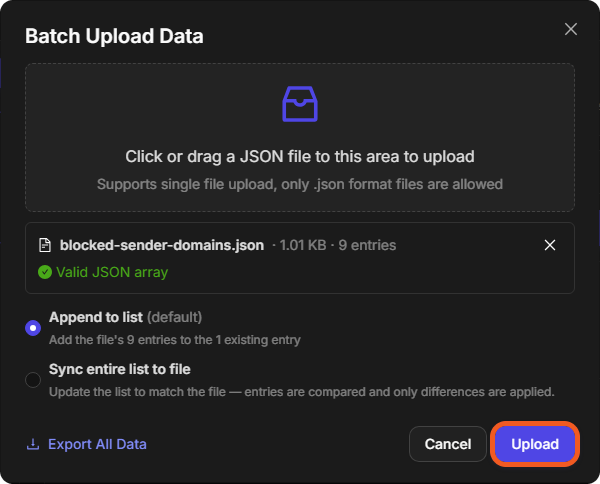
The uploaded entries appear on the Data tab. In the example, appending 9 entries to a list of 1 gives 1-10 of 10 items.
Finding and Working with Entries
-
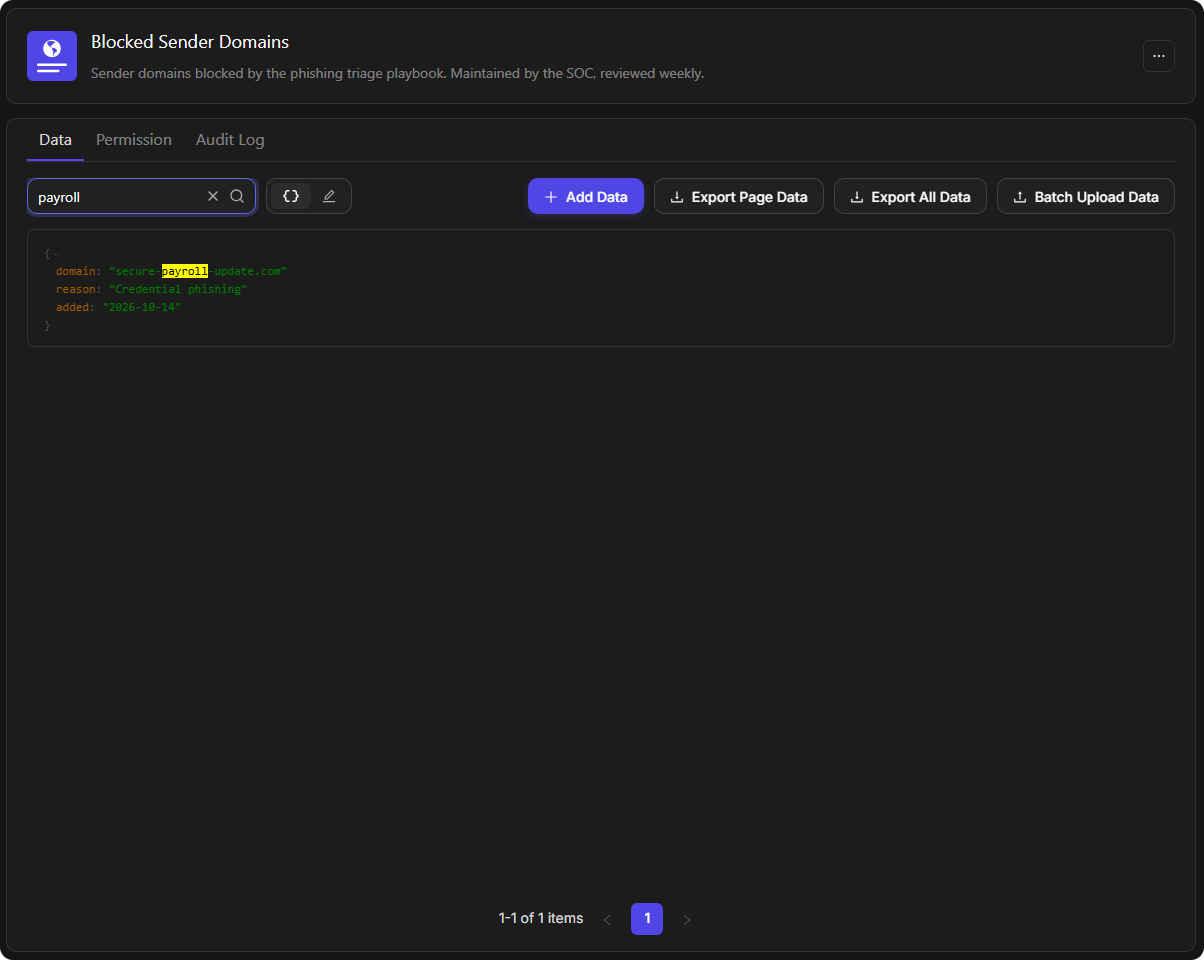
Search JSON value narrows the Data tab to the entries containing the text you enter, and highlights each match.
-
The two buttons beside the search box switch between Tree view (the default), which shows the entries one at a time, and Text view, which shows the whole list as JSON. See Editing the Whole List as JSON below.
-
Hovering over an entry in Tree view shows three buttons:
-
Edit opens the Edit Data window with that entry's JSON. Change it and select Save.
-
Duplicate adds a copy of the entry to the list straight away.
-
Delete removes the entry.
-
-
Export Page Data downloads the entries on the current page. Export All Data downloads the whole list.
Searching a list's entries
Editing the Whole List as JSON
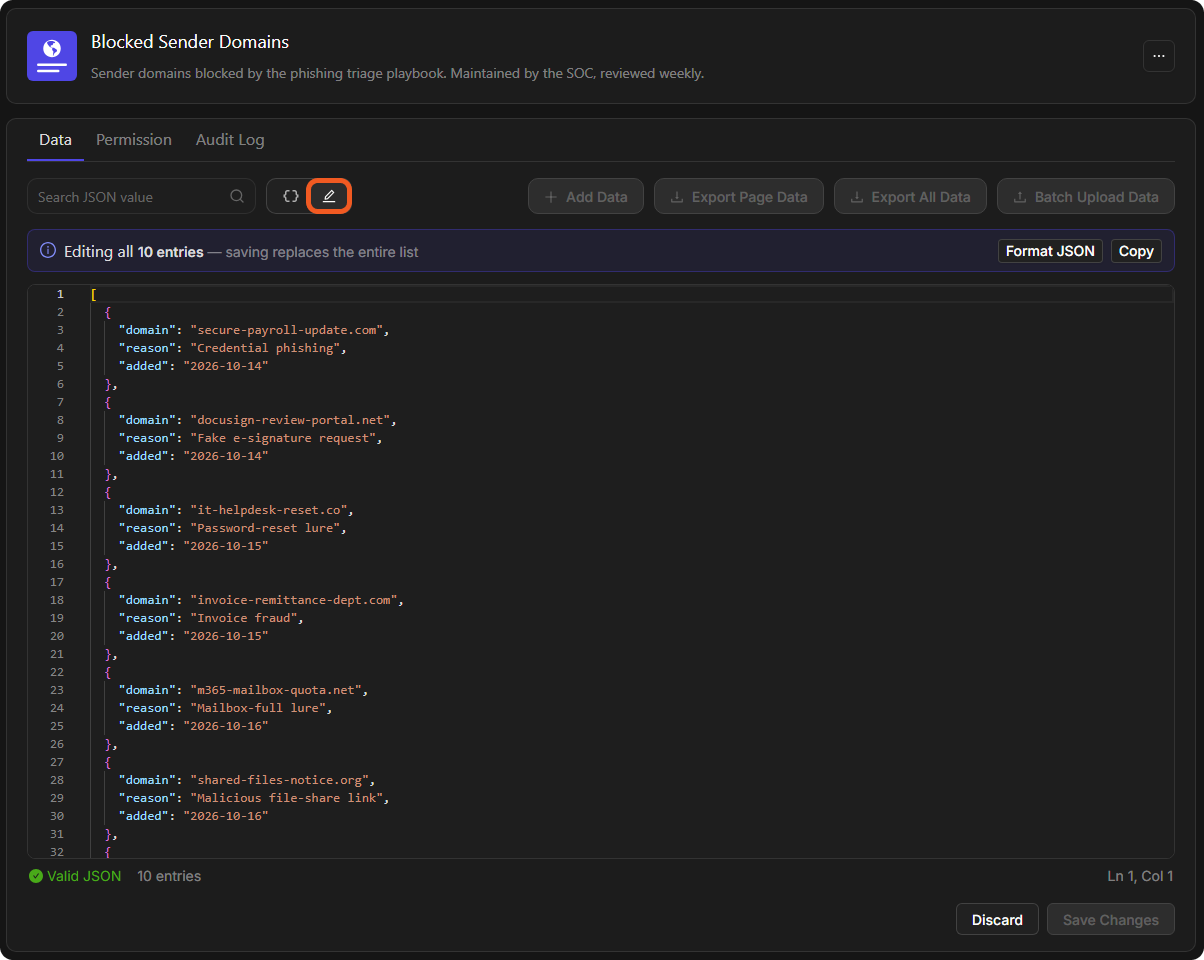
Text view shows every entry of the list as one JSON array in a code editor. Use it to make many changes at once: rename a field in every entry, paste in a block of entries, or tidy the list.
-
On the Data tab, select Text view, the second of the two buttons beside Search JSON value. The banner above the editor says how many entries you are editing.
-
Edit the JSON. Format JSON tidies the indentation, and Copy copies the whole list.
-
Check the status line under the editor. It shows Valid JSON and the entry count when the text can be saved.
-
Select Save Changes, or Discard to throw your changes away.
Text view
Save Changes replaces the entire list with what is in the editor. An entry deleted from the text is deleted from the list. To keep a copy first, select Export All Data or Copy.
Select Tree view, the first of the two buttons, to go back to browsing the entries one at a time.
Sharing a Global List with Sites
Sharing decides which sites' playbooks and users can use a list. A new list is shared with no site, so share it before a playbook on a site relies on it.
-
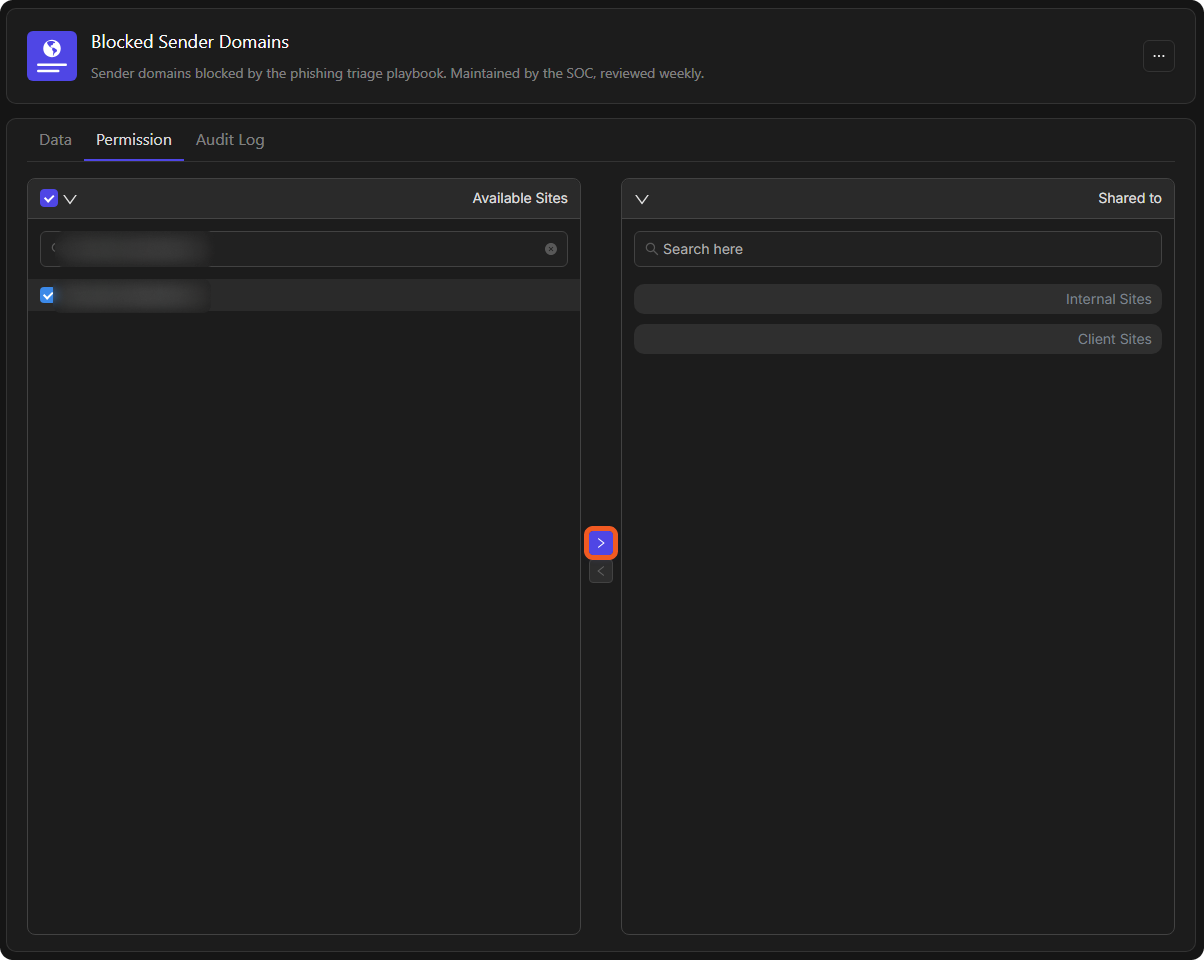
Open the list's Permission tab. Sites the list is not shared with are under Available Sites, grouped into Internal Sites and Client Sites. Sites it is shared with are under Shared to.
-
Under Available Sites, select the checkbox for each site to share with. Use Search here to find a site by name.
-
Select the right arrow (>) between the two columns.
Choosing a site to share with
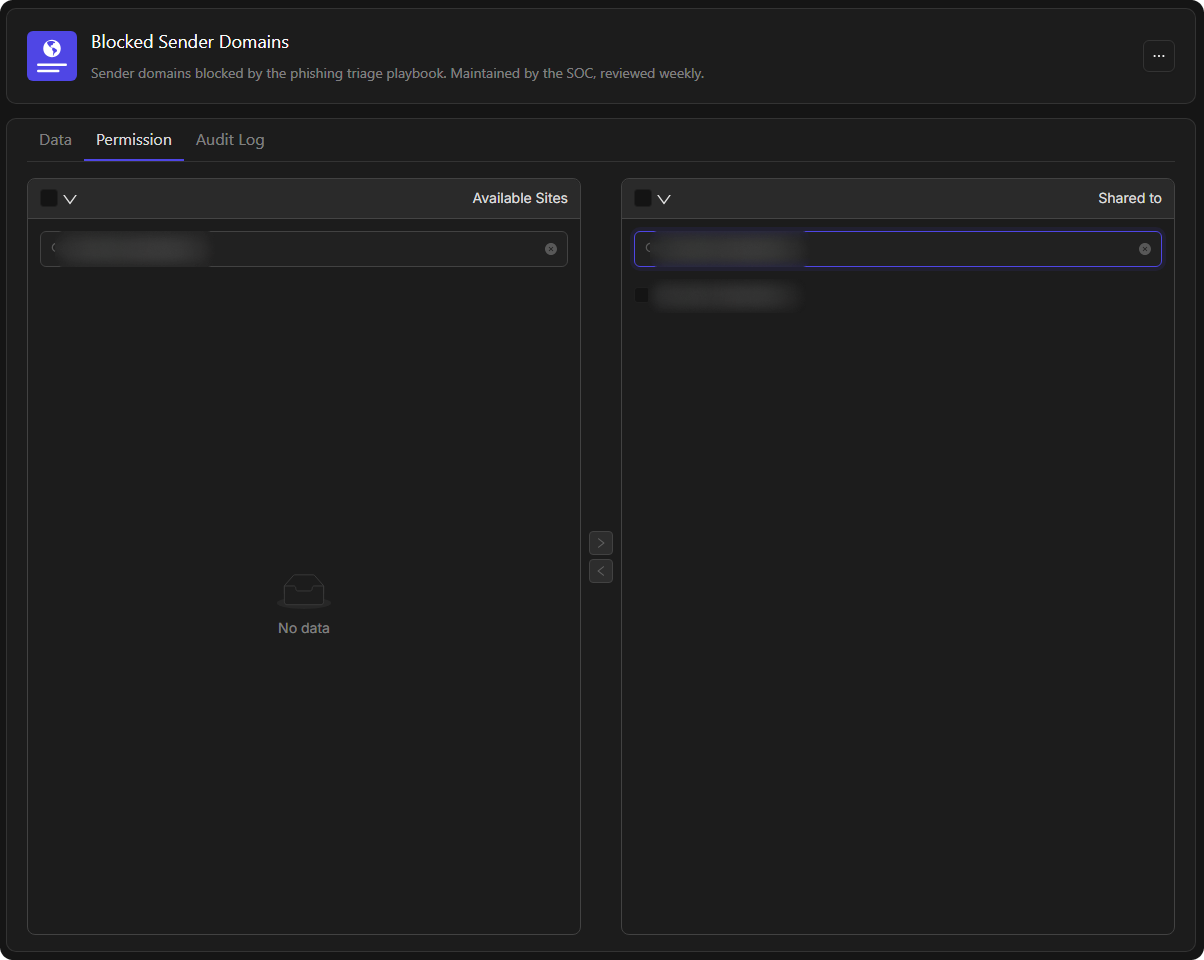
The sites move to Shared to, and the change is recorded on the Audit Log tab.
To stop sharing with a site, select it under Shared to and select the left arrow (<).
The Permission tab
Reviewing Changes
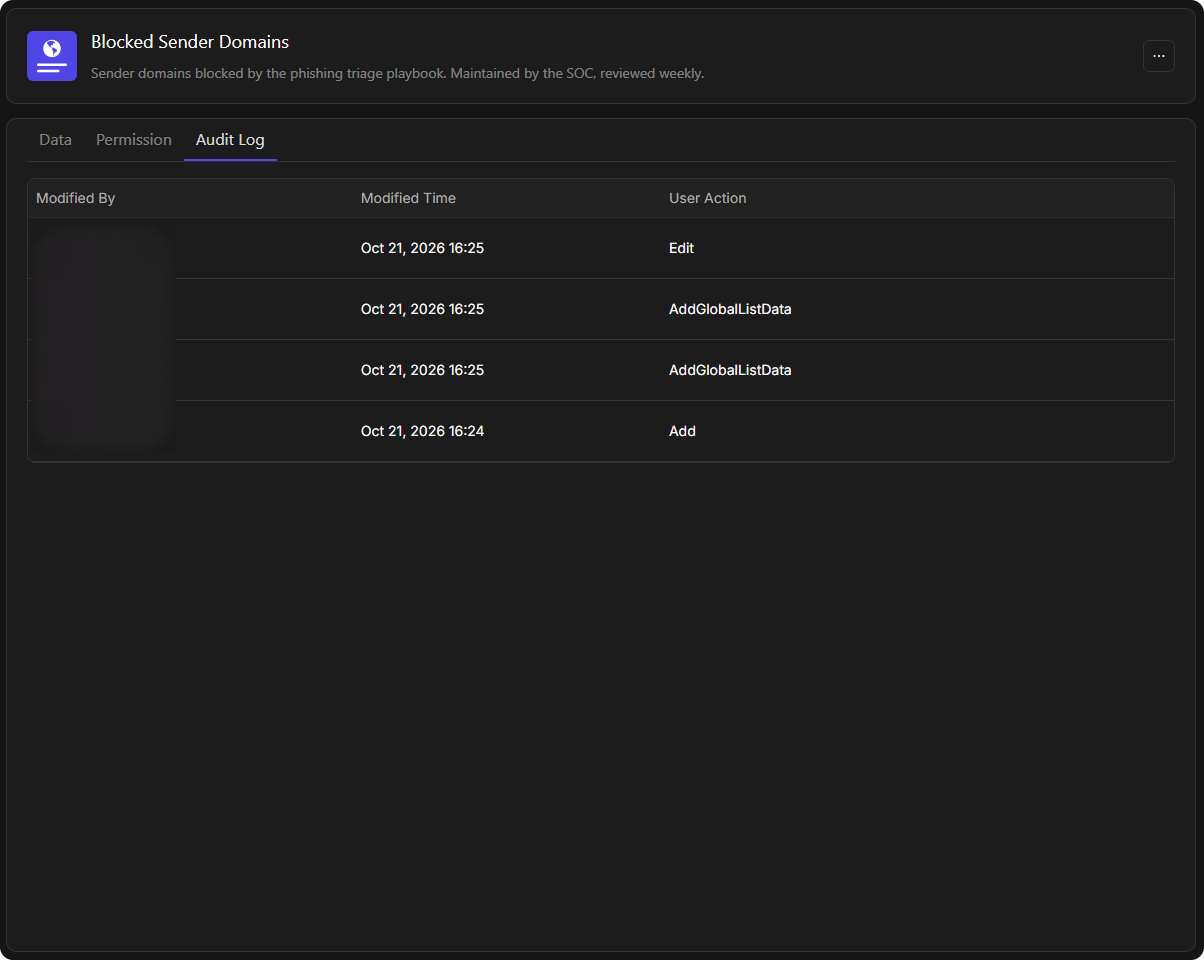
The Audit Log tab records every change to the list, so when a playbook starts behaving differently you can see who changed the list, when, and exactly which entries changed.
Each row shows Modified By, Modified Time and the User Action, for example Add when the list was created, AddGlobalListData when entries were added, and Edit when its settings changed.
The Audit Log tab
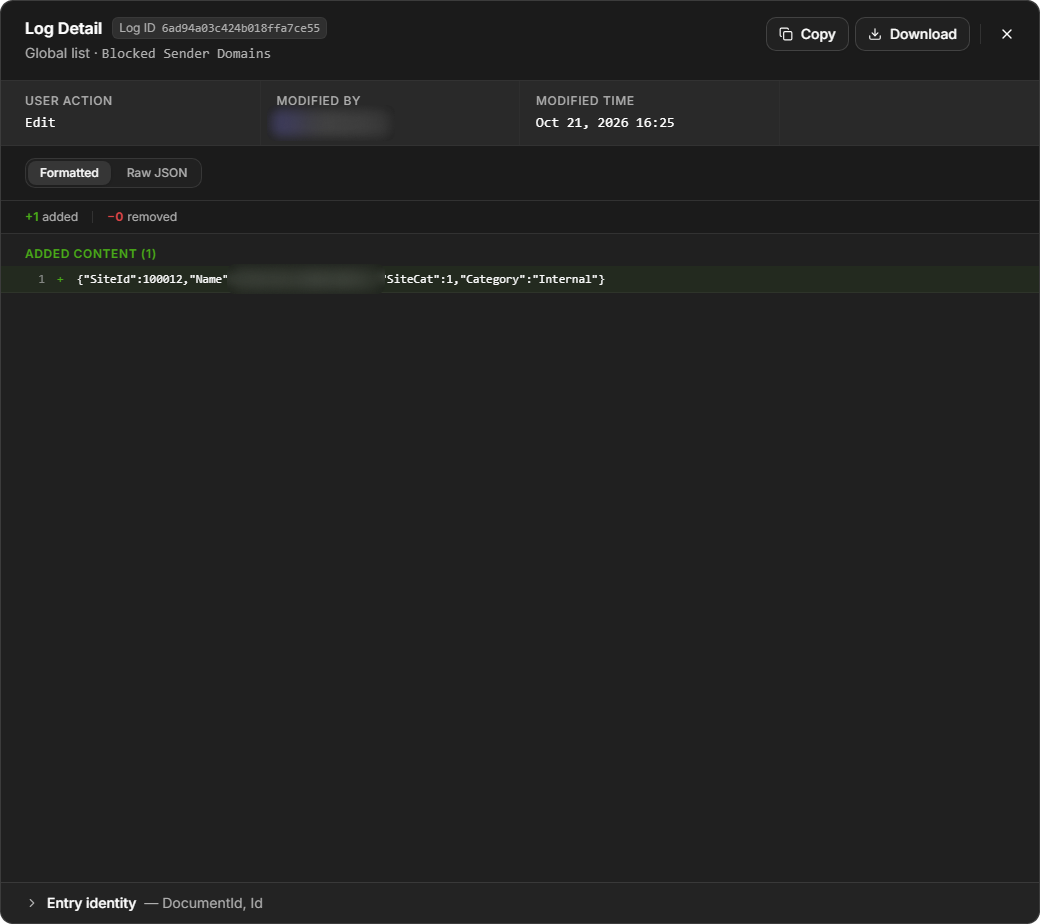
Select View detail on a row to open the Log Detail window. It shows the entries the change added and removed (for example +9 added, -0 removed), as Formatted text or Raw JSON. Use Copy or Download to keep a record of the change.
The Log Detail window
Managing a Global List
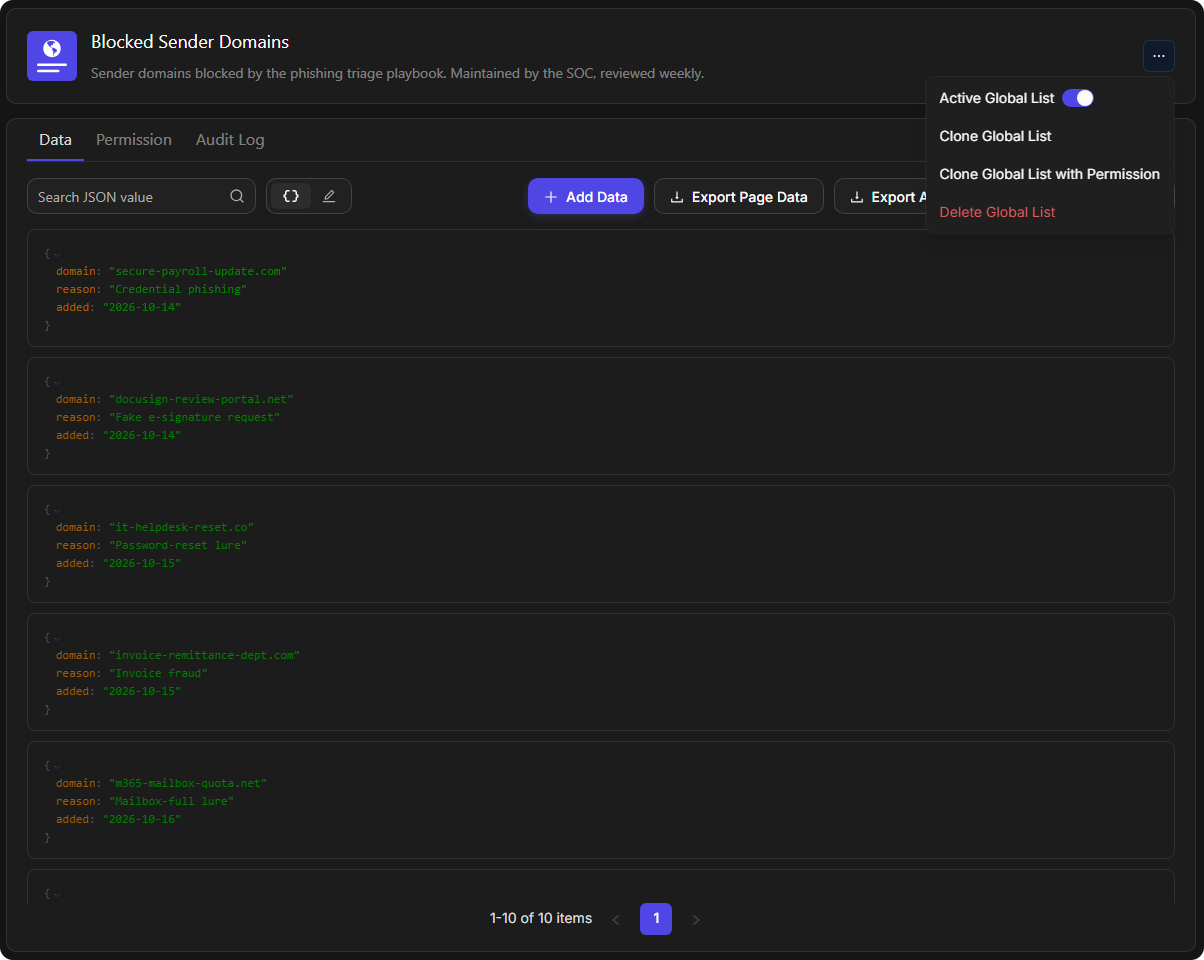
The More menu (⋯) beside the list's name holds the actions that affect the list as a whole.
|
Action |
What it does |
|---|---|
|
Active Global List |
Switches the list off, straight away. The list then shows as Inactive in the list panel, it is no longer offered as a data source in playbooks, and the menu item reads Inactive Global List. Select it again to switch the list back on. |
|
Clone Global List |
Creates a copy named after the list with _Copy added, for example Blocked Sender Domains_Copy. The copy has all the entries but is shared with no sites. |
|
Clone Global List with Permission |
Creates the same _Copy, also shared with the same sites as the original. |
|
Delete Global List |
Deletes the list, after you confirm. |
The More menu
A global list may be used by other features, such as playbooks or data ingestion. Deleting it can make those features fail. Before you delete a list, check that nothing still uses it.
Using a Global List in a Playbook
A playbook command can take a global list as its input wherever the command accepts dynamic input. The example uses the Send Email system utility command.
-
Go to Configuration > Investigation Playbooks and open a playbook.
-
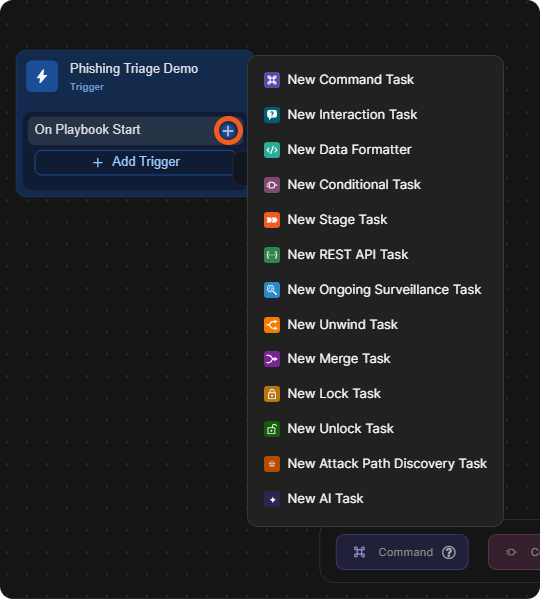
Hover over the trigger's row, for example On Playbook Start, and select +, then New Command Task. You can also select Command in the task bar at the bottom of the editor.
Adding a command task
-
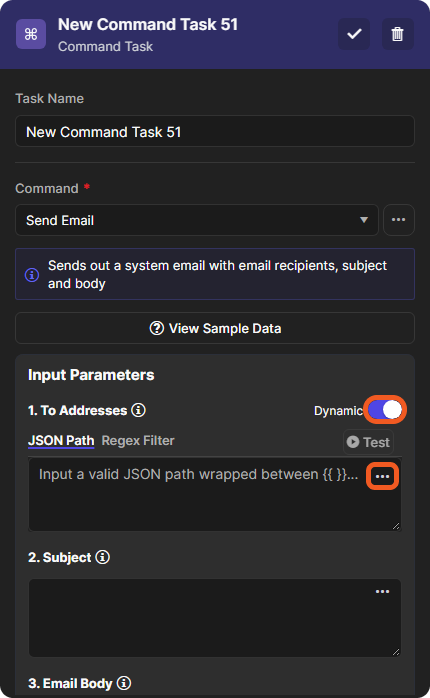
In the task's Command list, search for and select a command that takes dynamic input, such as Send Email.
-
Under Input Parameters, turn on Dynamic for the input, such as To Addresses, if the input has the switch.
-
Select the ⋯ button in the input box. The Add Custom Input window opens.
Send Email with Dynamic on
-
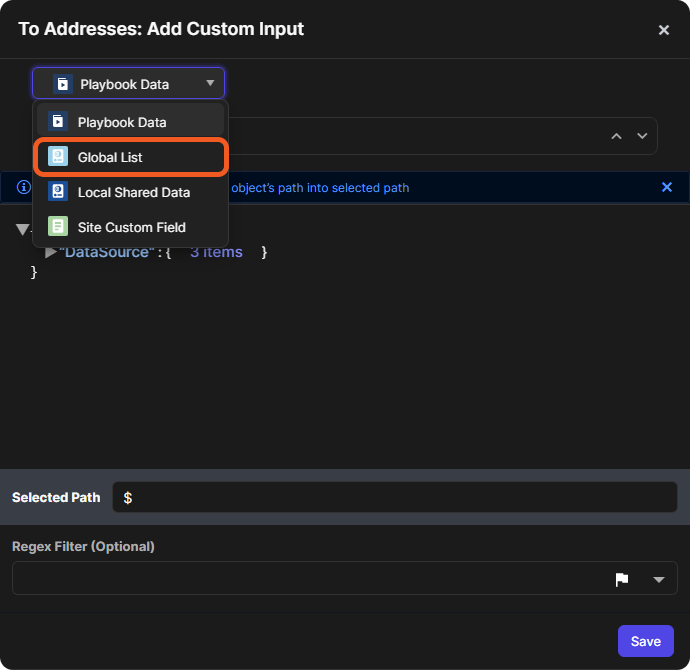
In the data source list at the top left, select Global List. The other sources are Playbook Data, Local Shared Data and Site Custom Field.
Choosing the data source
-
The window shows every active global list as JSON. Select the list, or the entry inside it, to use. Its path appears in Selected Path.
-
Select Save.
The Global List source
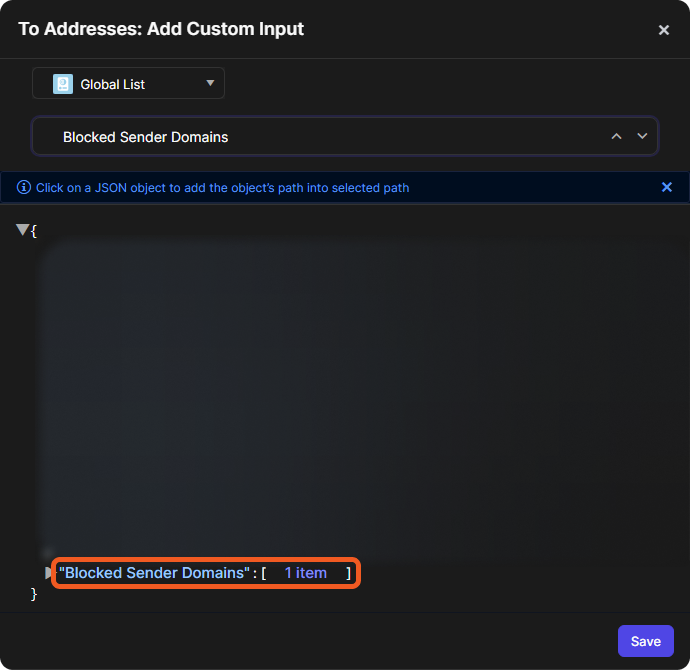
Only active global lists are offered here. A list switched off with Active Global List no longer appears in the Add Custom Input window.
The command uses the selected entries from the global list as its input.
Playbooks can also change a list as they run: utility commands add entries to a global list, check it for a value, and clear it. Refer to Add to Global List.