
Last Updated: October 28, 2026
Overview
Playbook promotion is the move of a playbook from one environment to another — staging to production, a lab to a client site — carried out by a playbook instead of a person. Four utility commands do the job an engineer would otherwise do by hand: find the playbook, pick the version, produce the file, and land it on the other side.
|
Command |
What it is for |
|---|---|
|
List Playbook |
Read a whole playbook list, when a task does not know the playbook names in advance |
|
Find Playbook |
Look one playbook up by name and see every saved version of it |
|
Export Playbook |
Produce the playbook as readable YAML or JSON |
|
Import Playbook |
Land that file on another system |
Because they are ordinary utility commands, the move can run on a schedule, as one step in a larger playbook, or from a ticket. The file they produce is readable text, so it can sit in source control and be reviewed as a diff.
D3 Morpheus already lets a person export a playbook from its Version History panel and import one through the Import Playbook dialog. These commands do not replace that; they give the same move to automation. They cover both playbook lists, Investigation Playbooks and Preprocessing Playbooks.
Finding the Commands
The four commands ship with the product and need no setup.
-
In the left navigation, under AUTOMATION, select Utility Commands.
-
In Search Utility Commands, type the command's name.
-
Select the command to open its detail page.
Searching Utility Commands

The detail page opens on the Overview tab, beside the Test, Settings, Inputs and Outputs tabs. Overview shows the command's COMMAND NAME and COMMAND DESCRIPTION, its IMPLEMENTATION (System), its COMMAND CATEGORY (Playbook & Automation Framework), and, under FEATURES, where it can be used — including Command Task, so it can be dropped straight into a playbook.
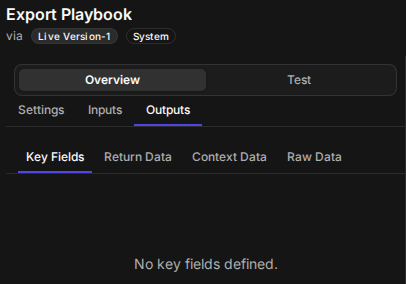
For all four commands, the Outputs tab carries the sub-tabs Key Fields, Return Data, Context Data and Raw Data, and Key Fields reads No key fields defined. Read each command's answer from the task's own result.
Outputs
List Playbook
List Playbook reads a whole playbook list, so a task can work through every playbook in it without being handed the names first. It returns one row per playbook, ordered by name, carrying the playbook's name and both of its ids — the id of its live row and of its draft, either one empty where the playbook is not in that state. So the answer says which playbooks are published and which have an edit waiting. The name shown is the live row's, and the draft's only where nothing has been published. Every id is one Find Playbook and Export Playbook take.
|
Input |
Type |
What it does |
Sample value |
|---|---|---|---|
|
Type |
Text |
Which list to read: Investigation or Preprocessing. Investigation where nothing is given |
|
An empty list is not an error. It returns an empty answer rather than failing, so a task downstream can branch on it.
Find Playbook
Find Playbook finds the playbook a name resolves to and lists every saved version of it, newest first, so a task can pick an exact version or check the playbook's state before exporting it. Live and Draft each name the playbook by the id every other product route takes, and either is empty where the playbook is not in that state. Each version row carries the version id that Export Playbook takes, the playbook it belongs to, the version name and the version comment — the same rows the Version History panel shows.
|
Input |
Type |
What it does |
Sample value |
|---|---|---|---|
|
Name (required) |
Text |
The playbook's name. It is matched against the list Type names — the live playbook where one is published, and the draft where nothing has been. A saved version carrying the same name is not it |
|
|
Type |
Text |
Which list the playbook lives in: Investigation or Preprocessing. Investigation where nothing is given |
|
The two kinds of id answer different questions. A version id names one saved version and exports that stored snapshot; a playbook id names the live playbook or the draft and exports it as it stands now. Neither can stand in for the other.
A name nothing answers to returns an empty answer rather than an error, so a Conditional Task downstream can branch instead of the task failing.
Export Playbook
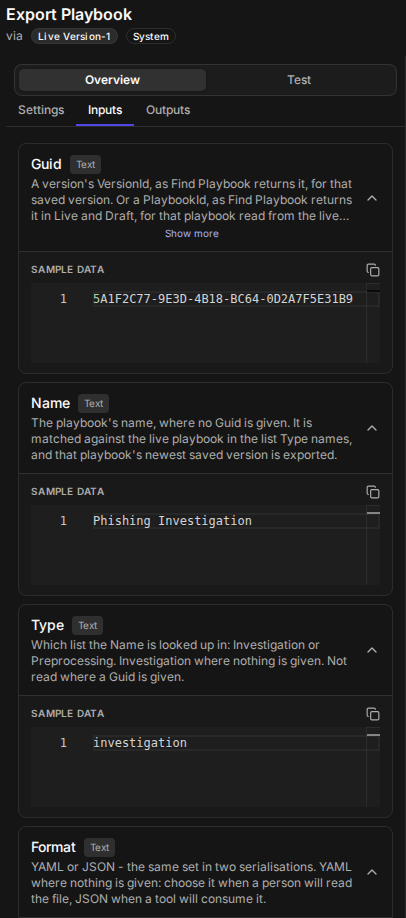
Export Playbook exports one saved version of a playbook as a readable d3-playbook-set in YAML or JSON — the playbook, the body playbooks of the codeless commands it calls, and those commands' definitions, in one file. It takes a version id for one saved version, a playbook id for the playbook itself — a draft included — or a Name and Type, which export the newest saved version.
|
Input |
Type |
What it does |
Sample value |
|---|---|---|---|
|
Guid |
Text |
A version id, as Find Playbook returns it, for that saved version. Or a playbook id, as Find Playbook returns it in Live and Draft, for that playbook as it stands — the only way to export a draft. Where this is given, Name and Type are not read |
|
|
Name |
Text |
The playbook's name, where no Guid is given. It is matched against the live playbook in the list Type names, and that playbook's newest saved version is exported |
|
|
Type |
Text |
Which list the Name is looked up in: Investigation or Preprocessing. Investigation where nothing is given. Not read where a Guid is given |
|
|
Format |
Text |
YAML or JSON — the same set in two serialisations. YAML where nothing is given: choose it when a person will read the file, JSON when a tool will consume it |
|
Export Playbook inputs
Encrypted XML is not offered here. It is one of the Export Format options in the Export Playbook dialog that Version History opens, and a task asking for it would receive a block of encoded text it cannot read.
What Travels in the File
The file is the same readable file that dialog writes when Export Format is YAML or JSON, described there as: *YAML and JSON carry the same playbook as a readable d3-playbook-set - with the body of each codeless command it calls, and the definition of each custom command and integration it needs. A command that ships with the product travels as a reference.*
So a playbook travels with its family, however deeply the codeless commands nest, and a command that ships with the product is not copied — the receiving environment already has its own.
Import Playbook
Import Playbook imports a d3-playbook-set — YAML or JSON, told apart by content — as a playbook on this system, and returns its id, its guid and the name it landed under, so a playbook can arrive from another environment without anyone opening the Import Playbook dialog. The playbook lands as a draft; the custom commands and codeless command bodies the file carries land live and immediately usable.
|
Input |
Type |
What it does |
Sample value |
|---|---|---|---|
|
Content (required) |
Text |
The file's whole text — a |
begins |
|
Replace Existing Draft |
Text |
A playbook imported here lands as a draft, so the one you are updating usually has one — the previous import left it. Yes replaces it, which is what updating through this command a second time takes. No refuses the import while a draft is open and names the draft in the answer, so nobody's unpublished work is discarded unasked. No is also what this is when left out or left empty, and any other value is refused rather than read as Yes |
|
The commands a file brings are live the moment the import finishes, before anyone publishes the playbook. Review what arrived alongside the draft.
The Control Model
Four rules hold for every promotion, whether it runs as a task or through the dialog.
-
Nothing goes live on import. A playbook always arrives as a draft, and the live playbook does not change until someone publishes it.
-
A refusal writes nothing. Nothing in the receiving environment changes, and the task reports why, so a following step can react.
-
Unpublished work is not discarded by default. Where a draft is already open, the import stops unless Replace Existing Draft was set to Yes.
-
Custom commands are ready on arrival, so the draft playbook has everything it calls.
Availability
The four commands are part of the standard utility command catalogue and need no setup. Teams that promote playbooks by hand can keep doing so, and the dialog and the commands can be mixed. Nothing changes for existing playbooks until a team builds a promotion playbook.
RELATED ARTICLES
-
Exporting and Importing a Playbook as YAML or JSON