
Last Updated: October 23, 2026
Overview
Multi-tenancy connects one master instance of D3 to one or more tenant instances. The master instance registers the tenants, shows their status and sites, and shares content with them. This article covers what the master instance shows: Tenant Management (the Tenants and Shared Content tabs), the instance details in the site switcher, and the utility commands for tenant management.
Tenant Management is under Global Settings > Tenant Management.
Tenants
The Tenants tab lists the connected tenant instances, grouped by region (for example Region: EMEA). Each row shows the tenant's ID, Name, URL, IP Address, Connection, Connection Status and Initialization Status. Search filters the list.
Tenant Details
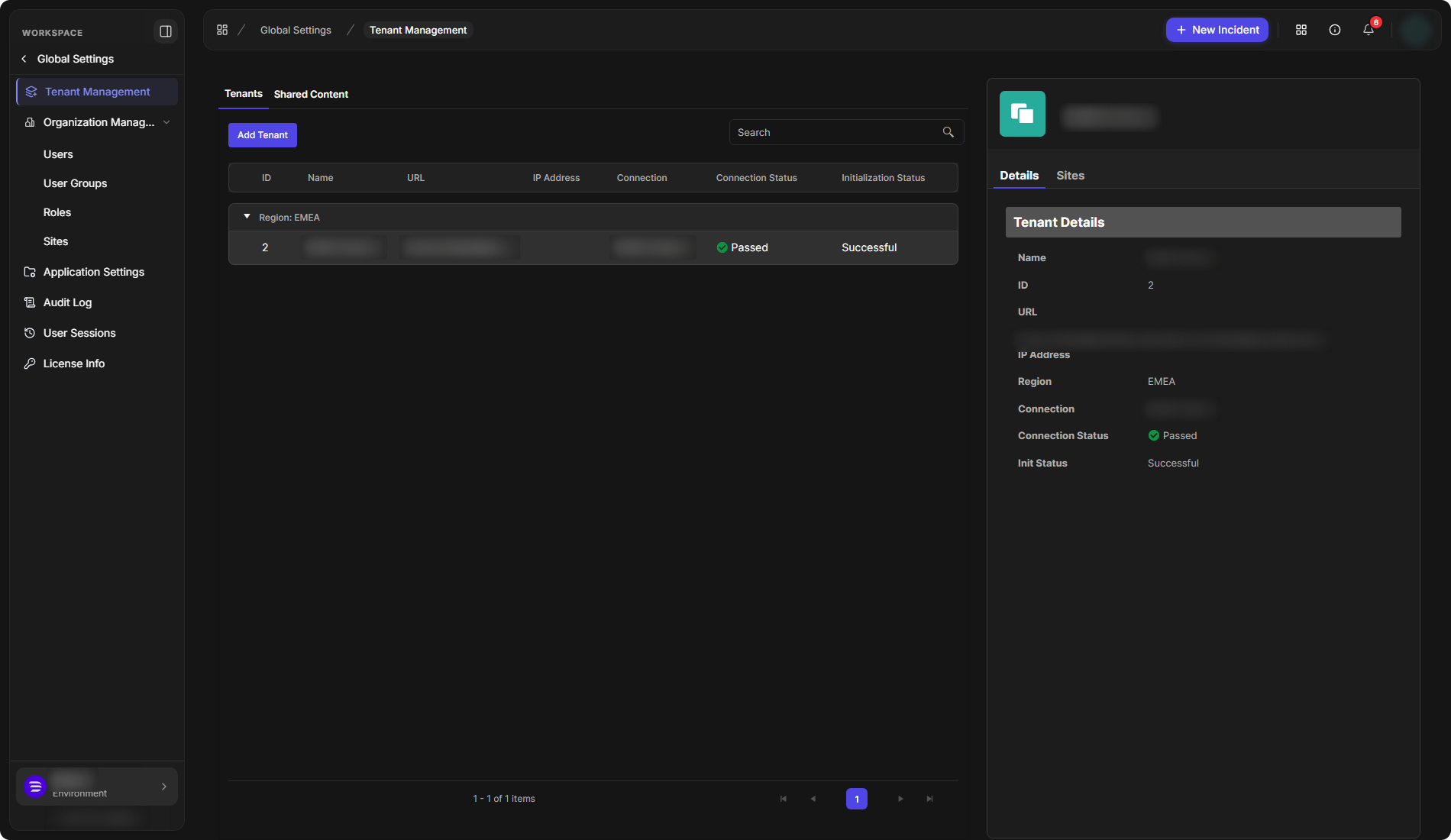
Select a tenant to open its panel on the right. The Details tab shows Tenant Details: Name, ID, URL, IP Address, Region, Connection, Connection Status and Init Status.
A tenant's details
Tenant Sites
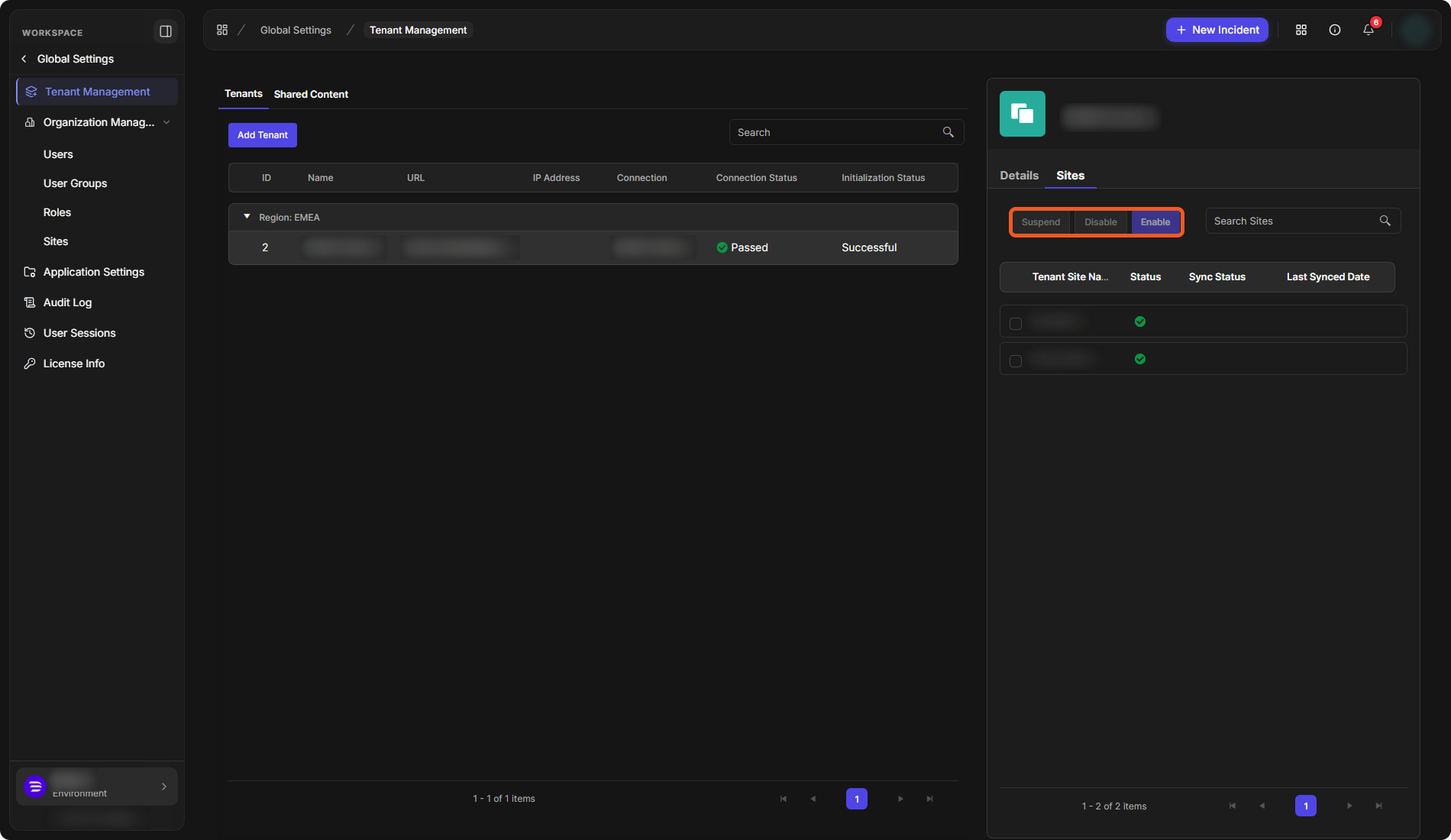
The Sites tab of the panel lists the tenant's sites with their Tenant Site Name, Status, Sync Status and Last Synced Date, each with a check box. Search Sites finds a site, and the Suspend, Disable and Enable buttons sit above the list.
A tenant's sites
Adding a Tenant
-
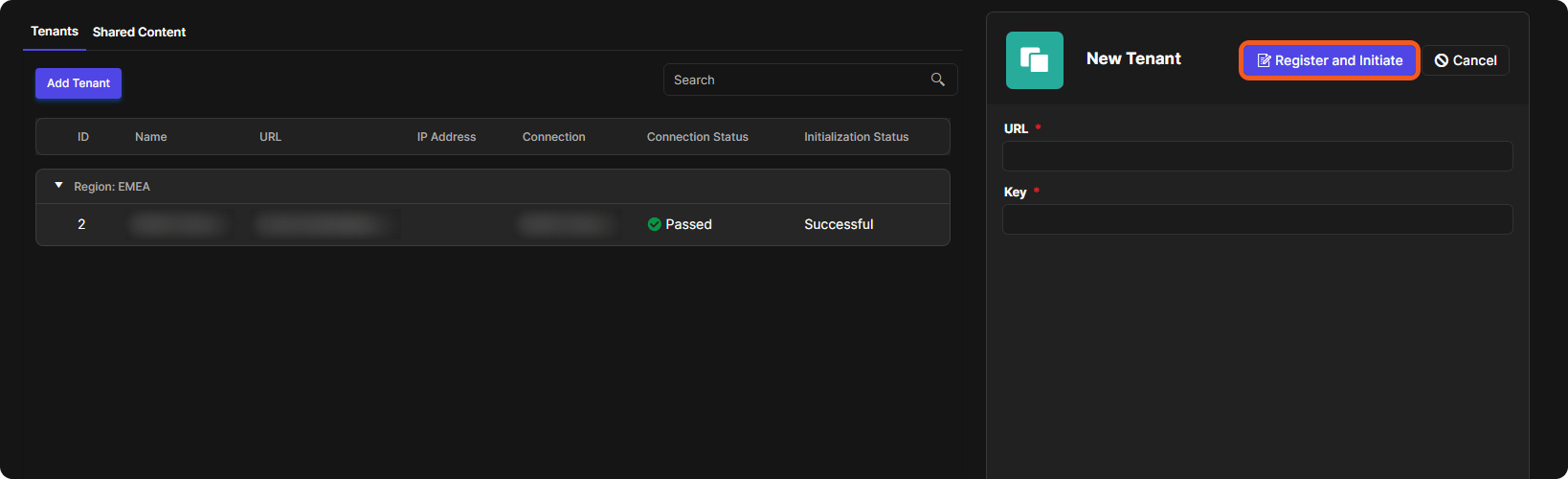
On the Tenants tab, select Add Tenant.
-
In the New Tenant panel, enter the tenant instance's URL and the Key from the tenant instance. Both are required.
-
Select Register and Initiate, or Cancel.
The New Tenant panel
Shared Content
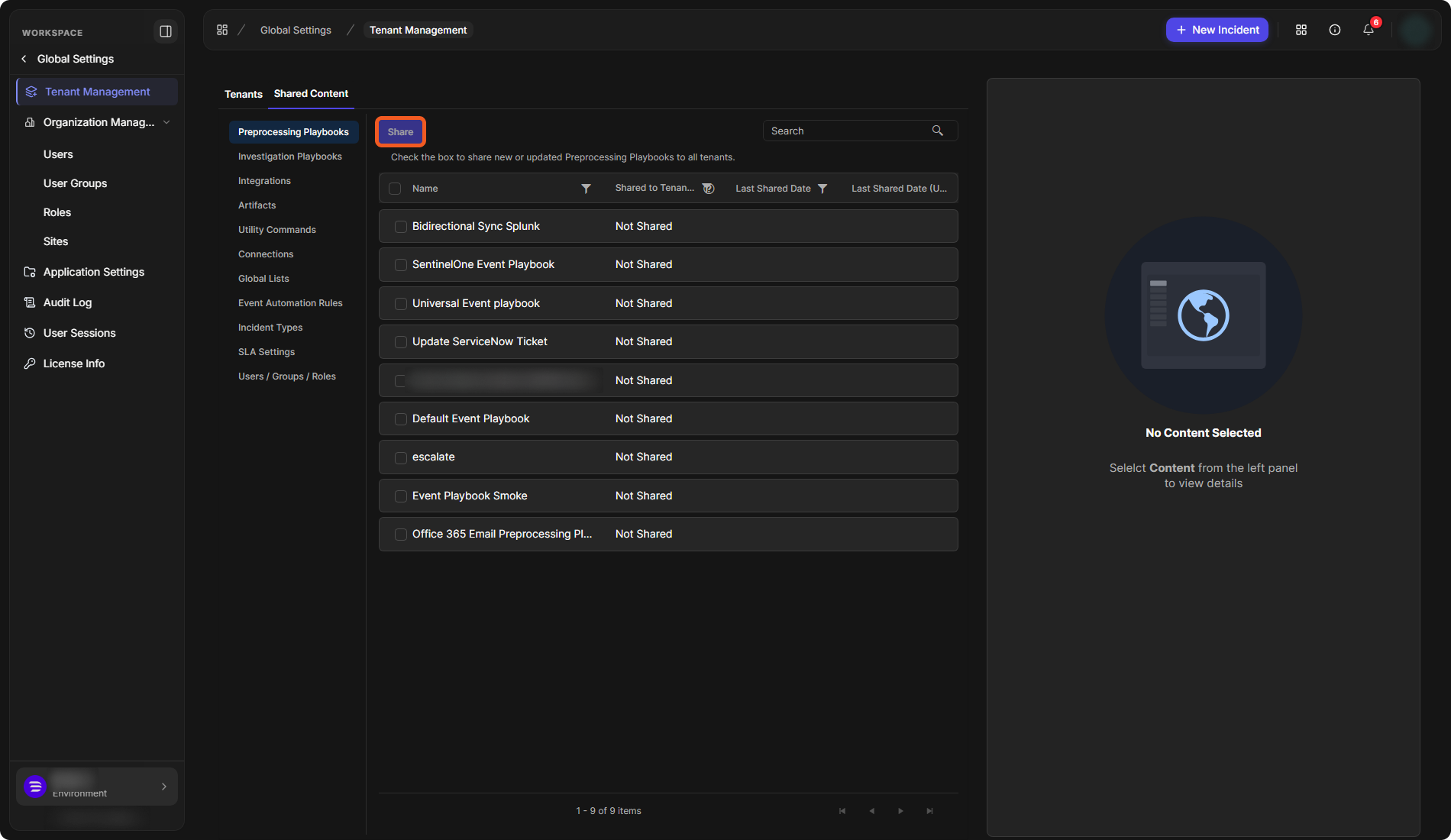
The Shared Content tab shares content from the master instance with all tenants. The content types are listed on the left: Preprocessing Playbooks, Investigation Playbooks, Integrations, Artifacts, Utility Commands, Connections, Global Lists, Event Automation Rules, Incident Types, SLA Settings and Users / Groups / Roles.
For the selected type, the list shows each item's Name, its Shared to Tenants status (for example Not Shared) and its Last Shared Date. As the tab says: "Check the box to share new or updated *content type* to all tenants", then select Share. The panel on the right asks you to select content from the left panel to view its details.
The Shared Content tab
Instance Details
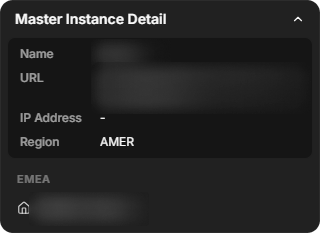
Select the site switcher at the bottom left to see Master Instance Detail: the instance's Name, URL, IP Address and Region. Below it, the tenant instances are listed by region.
Master Instance Detail
Multi-Tenancy Utility Commands
These built-in utility commands support tenant management. The descriptions are the ones shown in Utility Commands.
|
Command |
Description |
|---|---|
|
Create User |
This Utility command allows you to create users |
|
Delete User |
This Utility command allows you to Delete Users |
|
InActive User |
This Utility command allows you to InActive a user |
|
Create Tenant Site |
Create a tenant site. |
|
Create Site |
Create site. |
|
Create Or Update Connection By Clone |
Create a clone of the connection and overwrite values that are passed in the parameter. Update the existing connection if connection of that Name, Region, TenantName, TenantSite already exist on that site. |
|
Sync Connection |
Sync connection to tenant instance. |
|
Sync Event Automation Rule |
Sync event automation rule to tenant instance. |
|
Create Tenant Data Ingestion Schedule |
Sync schedule to tenant instance. |
|
Update Tenant Site Status |
Update the status of a tenant site for a specified region and tenant, with three options: Suspend, Disable and Enable. |
For utility commands in general, see Utility Commands.