
Last Updated: October 23, 2026
Initial Setup
-
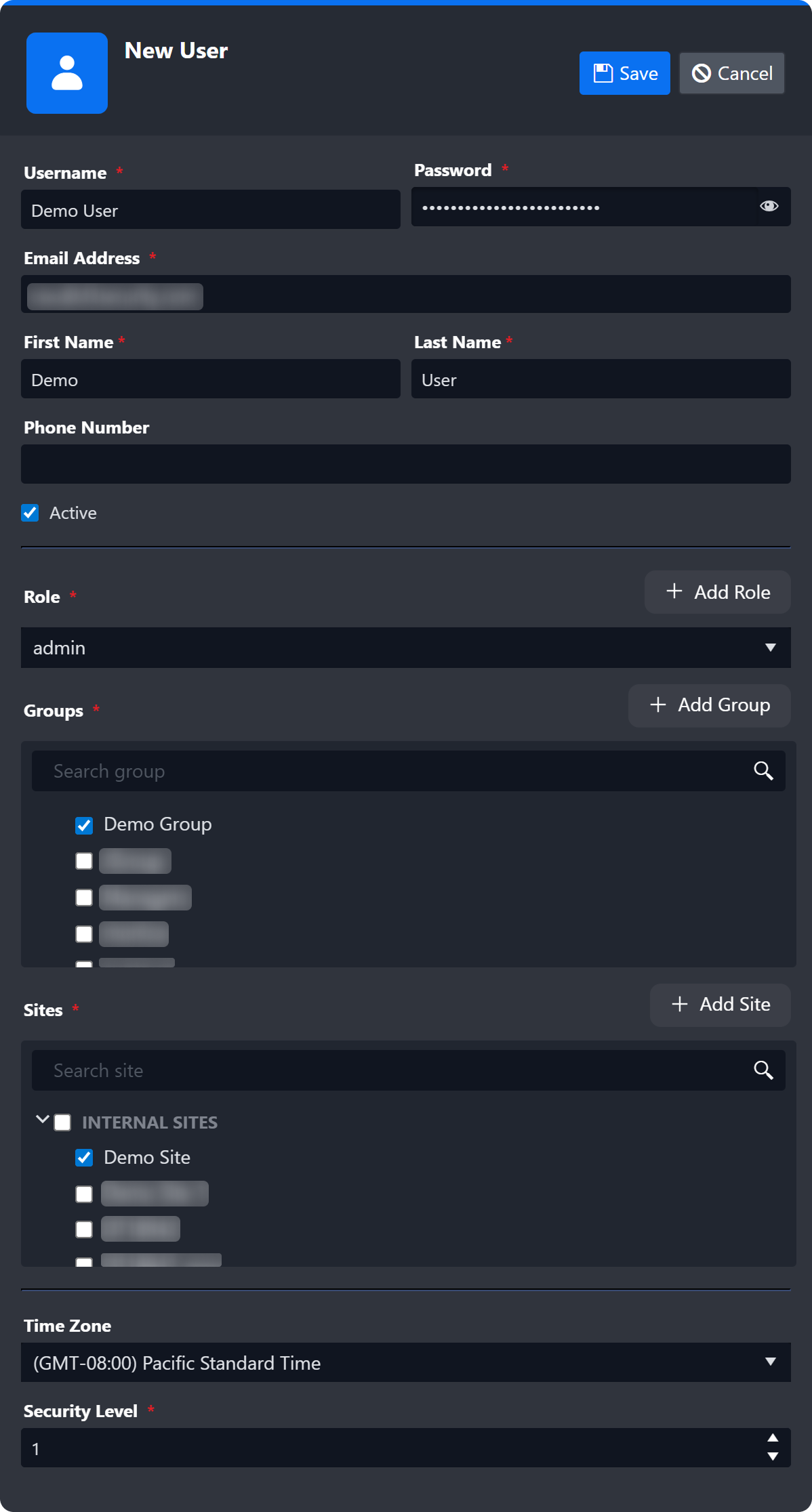
Create users in the master D3 instance, assigning them to the appropriate role, groups, and sites.
READER NOTE *
Sites created in the master D3 instance's Organization Management module cannot be shared with tenant D3 instances. The next two steps outline the process for creating assignable sites in the tenant D3 instance.
-
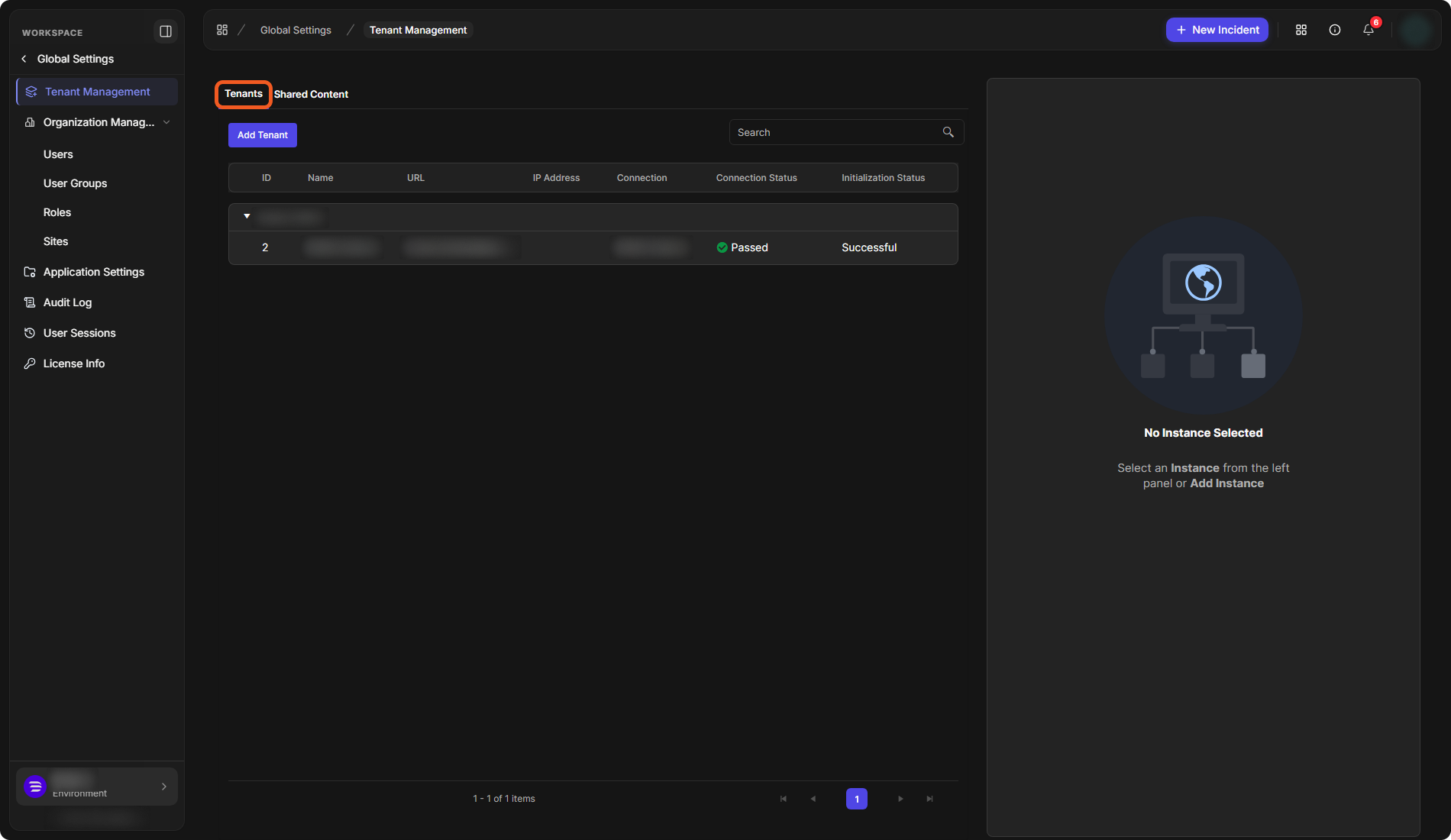
Record the tenant name and region from Global Settings > Tenant Management > Tenants (the list is grouped by region) for use in the next step.
-
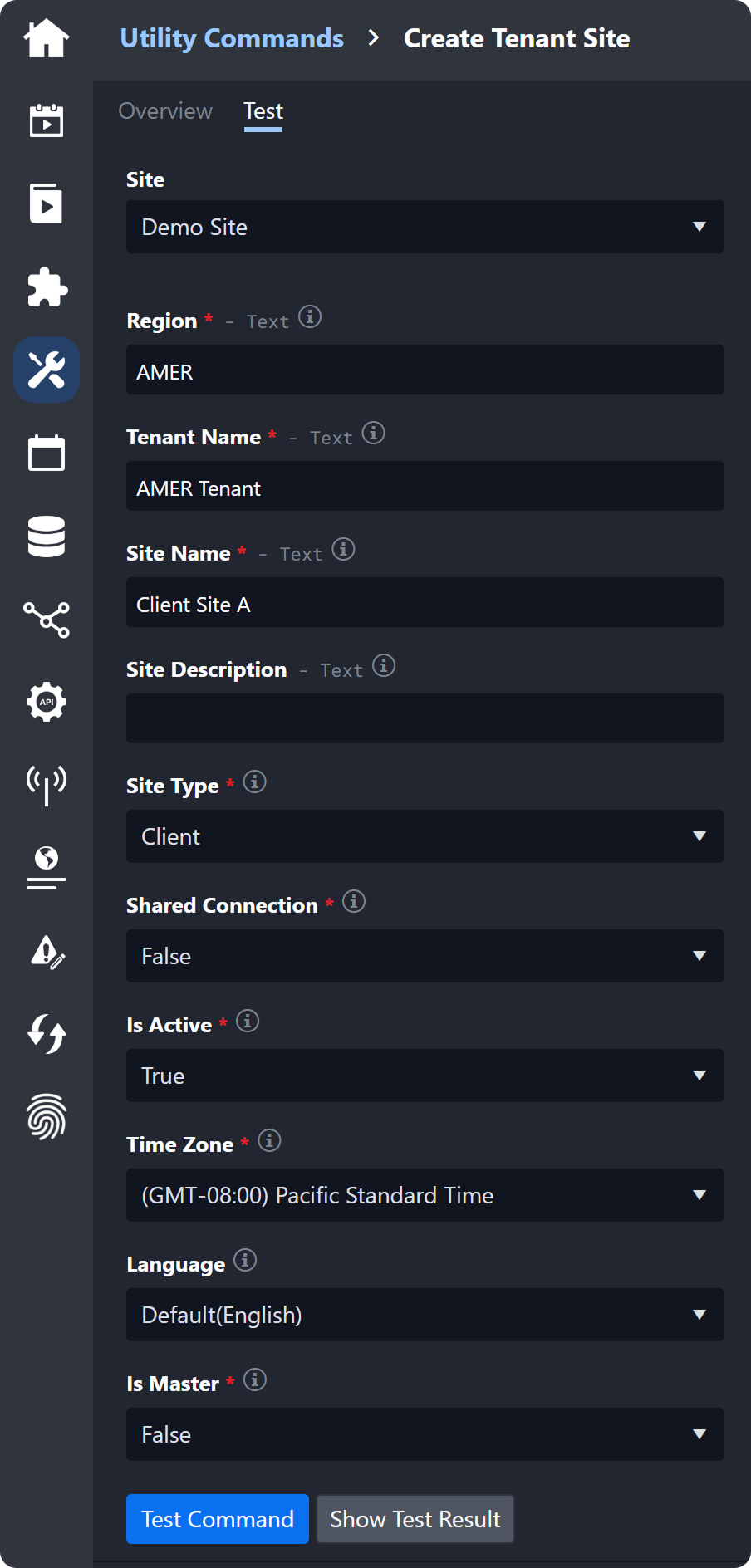
Create tenant sites via the Create Tenant Site utility command using the recorded tenant name and region together with the other required parameters.
-
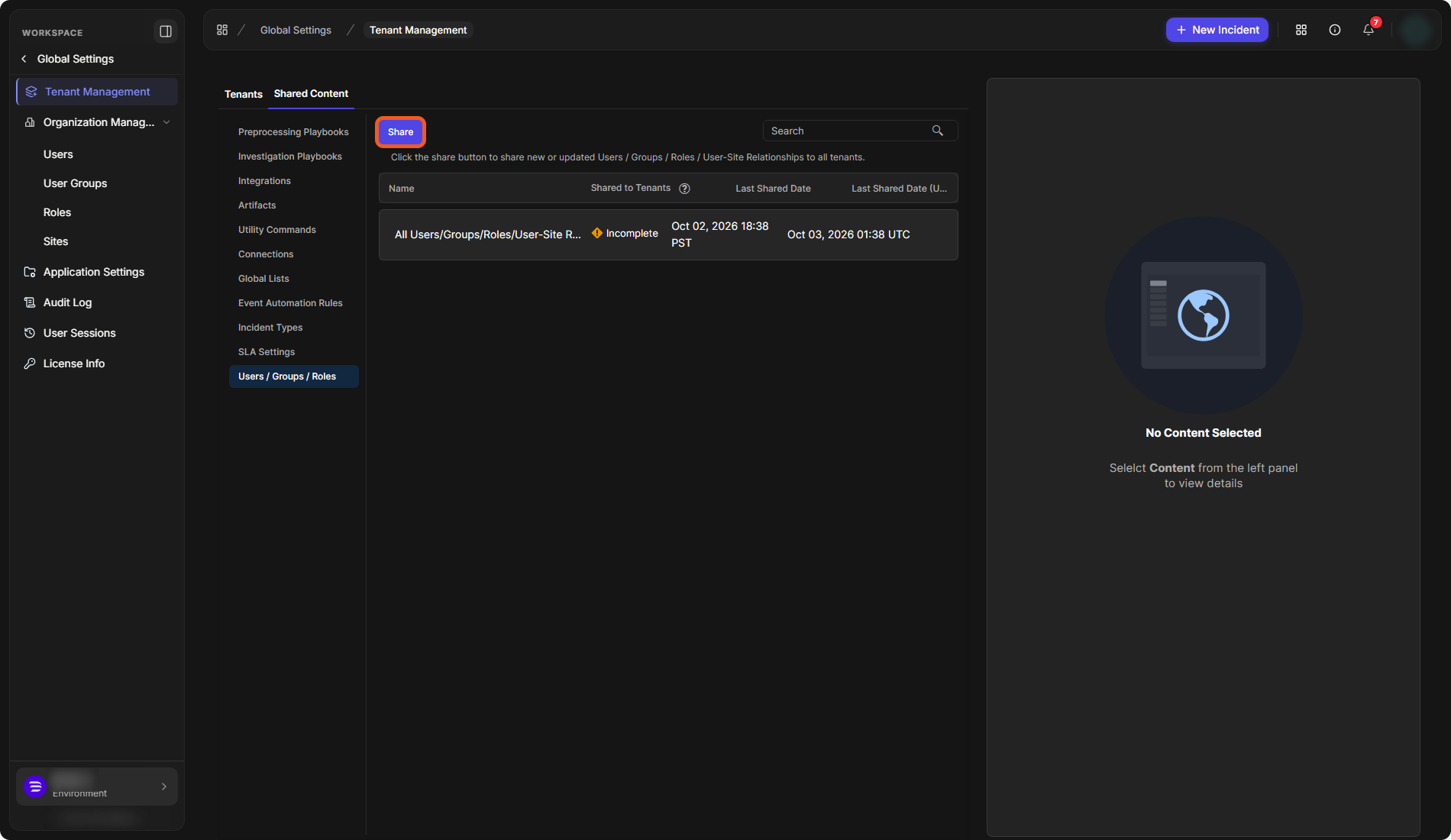
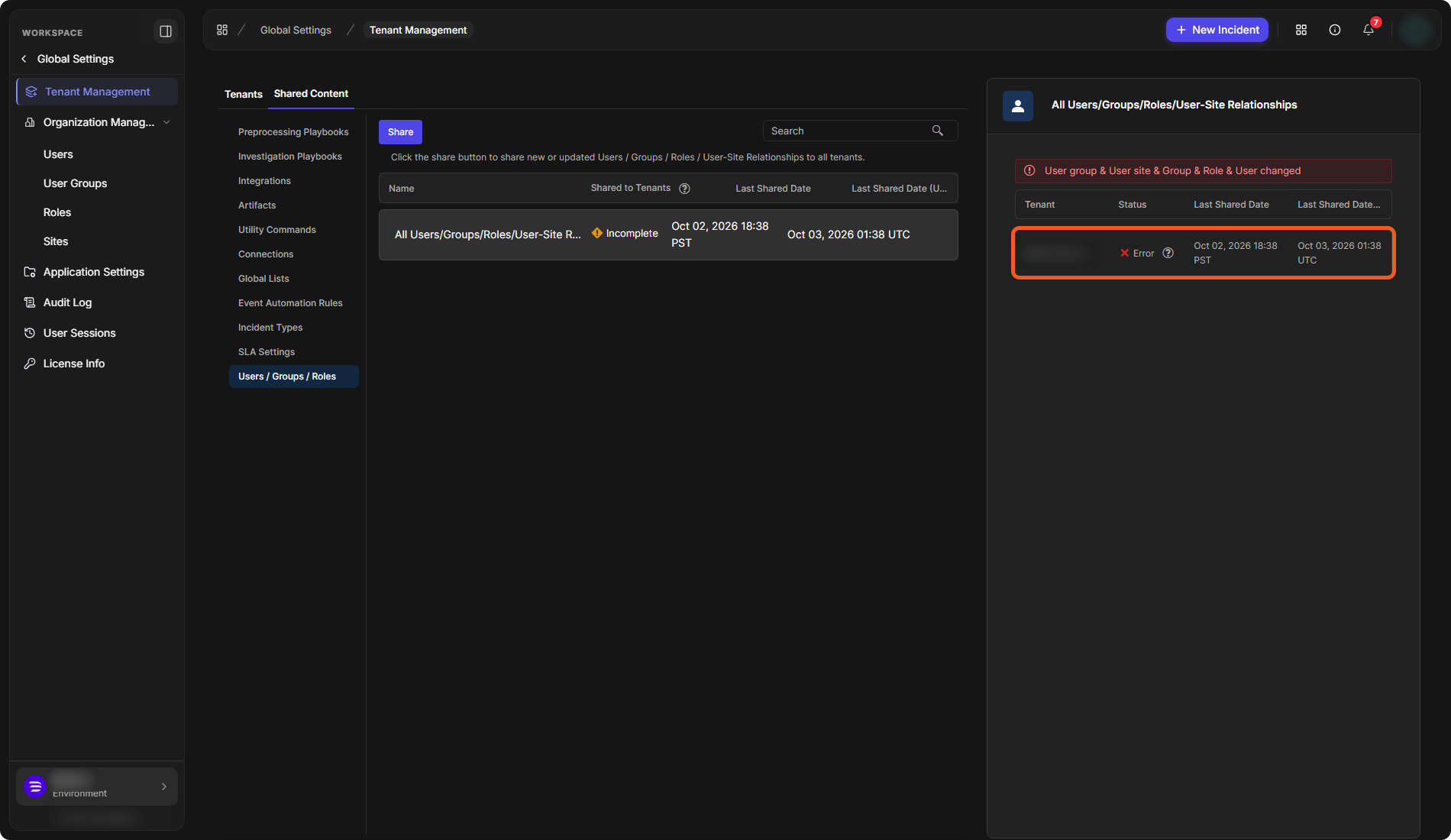
Share the users with the tenants: in Global Settings > Tenant Management, open the Shared Content tab, select Users / Groups / Roles, then select Share. As the page says, this shares new or updated Users / Groups / Roles / User-Site Relationships to all tenants.
-
Wait and verify that the sharing succeeded. Select the All Users/Groups/Roles/User-Site Relationships row: its Shared to Tenants status and Last Shared Date are in the list, and the panel on the right lists each Tenant with its Status.
-
Verify that the users can sign into the tenant D3 instance and have access to the sites created in step 3.
.png?cb=807a47bc88d44130e6ded1bf04e215b3)
Subsequent Configuration Updates
When a user's configuration, including last name, password, or tenant-site access, has been updated, administrators in the master instance must synchronize the changes with the tenant sites.
To do so, select Share again on Shared Content > Users / Groups / Roles, then check the status per tenant as in the last steps above. In 18.6, sharing always covers all users, groups, roles and user-site relationships for all tenants; there is no per-user or per-site selection.