
Last updated: November 10, 2026
Overview
In a multi-tenant D3 Morpheus deployment, a master instance can share its SLA rules with its tenants, so a rule is built and maintained once and every tenant measures its incidents against it. An administrator builds the rule on the master, with its time goals and its SLA playbook, and shares it. Each tenant then runs the same rule as a read-only copy, so the rule no longer has to be recreated, renamed to match, and kept in step by hand on every tenant.
Sharing also lets the master see SLA results across tenants. An SLA column on the master's Tenants page is worked out on each tenant from that tenant's copy of the rule, so the master's list of tenant incidents shows how each one is doing against its SLA. The same columns can be pushed to each tenant's own incident list.
SLA results from a tenant, on the master's Tenants page

In short
|
# |
Stage |
Where it happens |
|---|---|---|
|
1 |
Build the SLA rule and its playbook, and set it live |
Master: Configuration > SLA |
|
2 |
Share the rule with the tenants |
Master: Global Settings > Tenant Management > Shared Content > SLA Settings > Share |
|
3 |
Check the result of the share |
The same list, under Shared to Tenants and Last Shared Date |
|
4 |
See the shared rule on a tenant (read-only) |
Tenant: Configuration > SLA, tagged Master |
|
5 |
Add the rule's SLA columns for tenant incidents, and push them to the tenants |
Master: Global Settings > Application Settings > Dashboard Columns > Tenant's Incident Dashboard |
|
6 |
Read SLA results across tenants |
Master: Tenants |
|
7 |
Update the rule and share it again, or delete it |
Master: Configuration > SLA |
Before You Start
-
The SLA module is turned on for the master and its tenants. To turn it on, contact D3 Support.
-
The master and its tenants run the same D3 Morpheus version. They are upgraded together.
-
You are an administrator on the master with access to Tenant Management. Sharing is done only from the master.
-
Sites on the tenants have the same names as on the master. A rule's time goals can be limited to sites, and each site is matched on the tenant by its name (see How a Tenant's Copy Is Made).
Sharing an SLA Rule
Sharing a rule puts the same rule, with its SLA playbook, on every tenant of the master, so each tenant measures its incidents the way the master defined. Share a rule when it is live on the master and the tenants should run it.
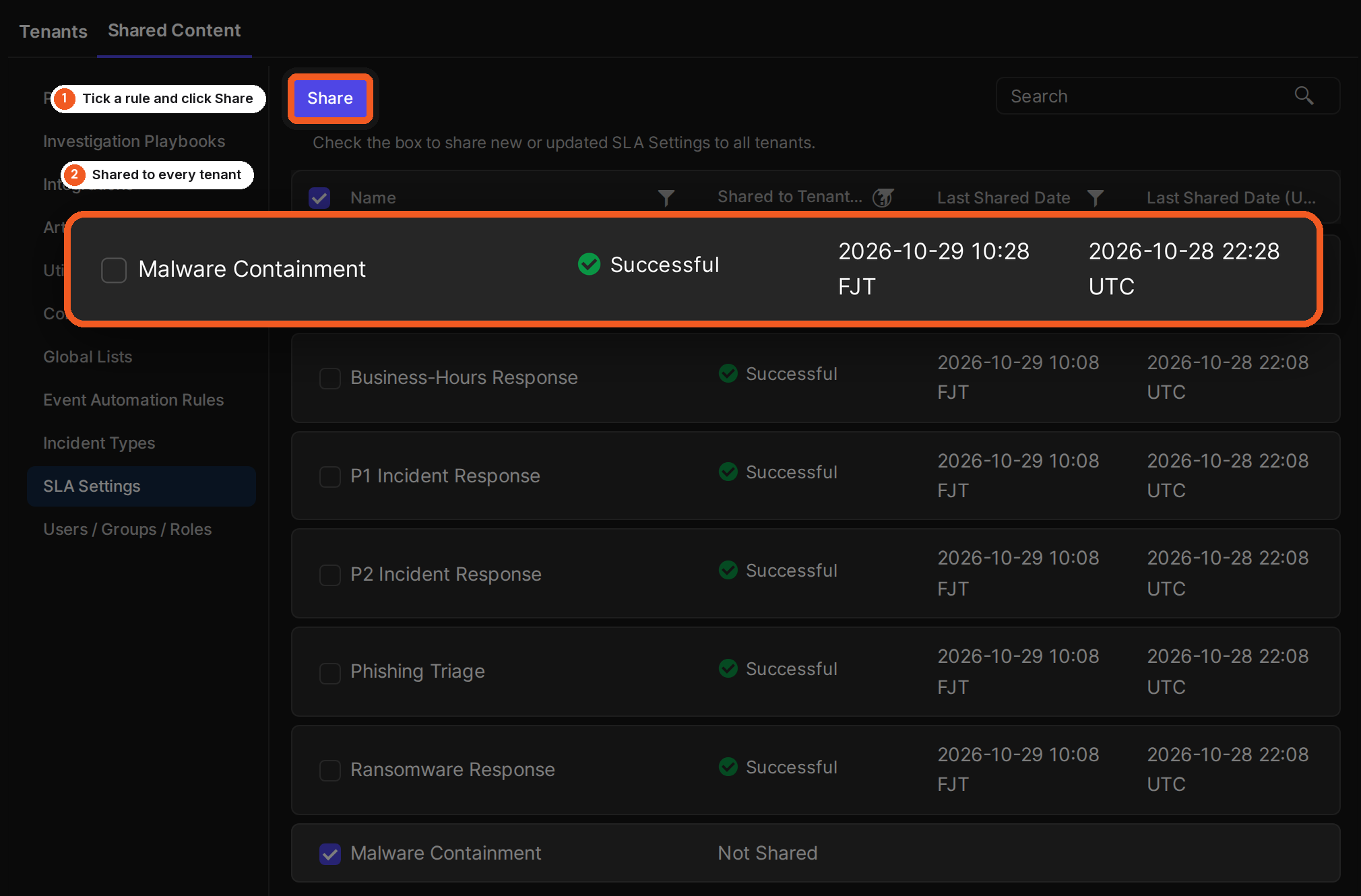
Sharing a rule, in two moves
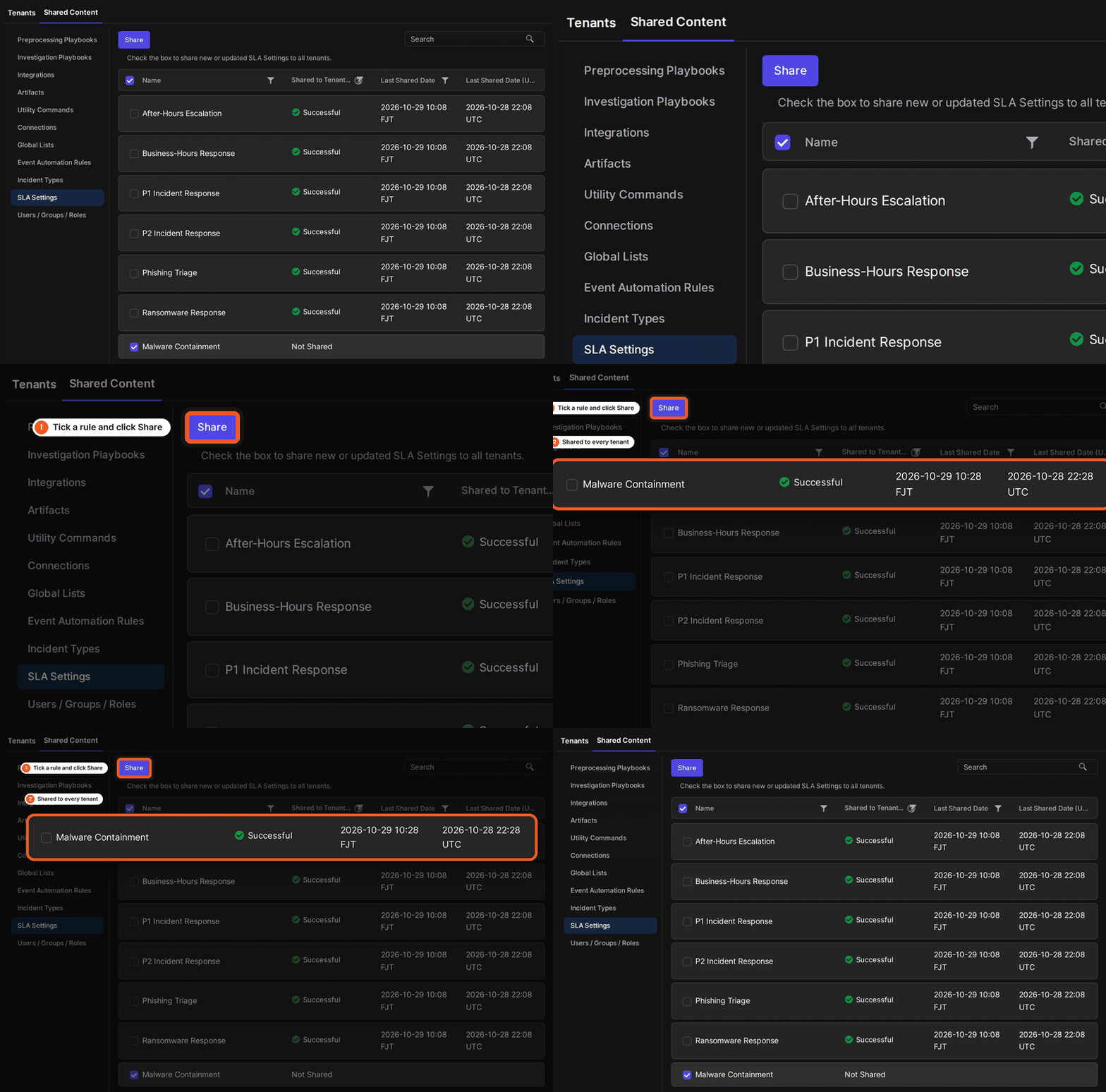
The same steps as a short animation:
-
On the master, navigate to Global Settings > Tenant Management.
-
Select the Shared Content tab, then SLA Settings.
-
Tick the checkbox of each SLA rule to share.
-
Select Share.
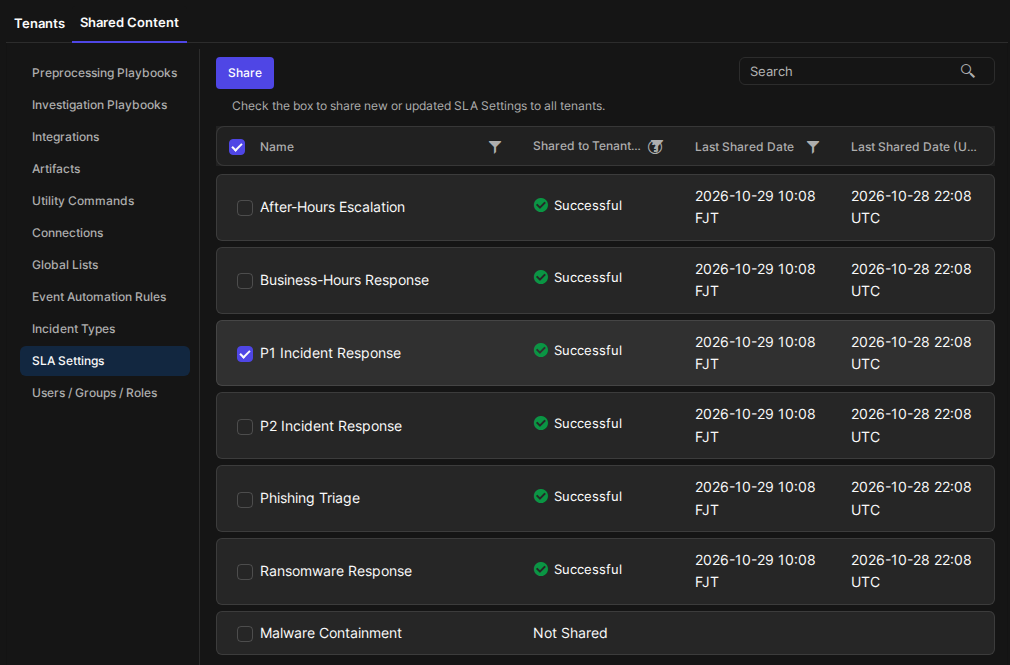
SLA Settings under Shared Content
RESULT
The rule's Shared to Tenants state changes to Sharing... and, once every tenant has answered, to Successful or Incomplete, with the time in Last Shared Date.
A rule is shared to every tenant of the master, together with its SLA playbook. Only the live version of a rule is shared; a draft stays on the master until it goes live.
The states in Shared to Tenants:
|
State |
What it means |
|---|---|
|
Not Shared |
The rule has never been shared. |
|
Sharing... |
The share has been sent and at least one tenant has not answered yet. |
|
Successful |
Every tenant holds the current version of the rule. |
|
Incomplete |
At least one tenant could not finish the copy, for example because the rule's playbook or one of the fields its timing uses is missing there. Fix the cause and share the rule again. |
The Tenant Management page looks and works the same in the new UI and the classic view.
How a Tenant's Copy Is Made
-
Name. The copy keeps the master's rule name. If the tenant already has a rule of its own with that name, the copy is saved as
<name> (Master)(then(Master 2), and so on). The tenant's own rule is not changed. -
Playbook. The rule's SLA playbook is shared with it, with its Breach, Before, and After triggers.
-
Sites. Each site a time goal is limited to is matched on the tenant by name. A site the tenant does not have is left out of the copy; the rest of the rule is still shared.
-
Owner. The rule's owner is matched on the tenant by login name.
-
Live at once. The copy goes live on the tenant as soon as it arrives, and the tenant's open incidents are checked against it.
A Shared Rule on a Tenant
A shared rule on a tenant is the master's rule, measuring that tenant's incidents, and it stays exactly as the master defined it. It appears in Configuration > SLA with a Master tag.
Shared rules on a tenant, tagged Master
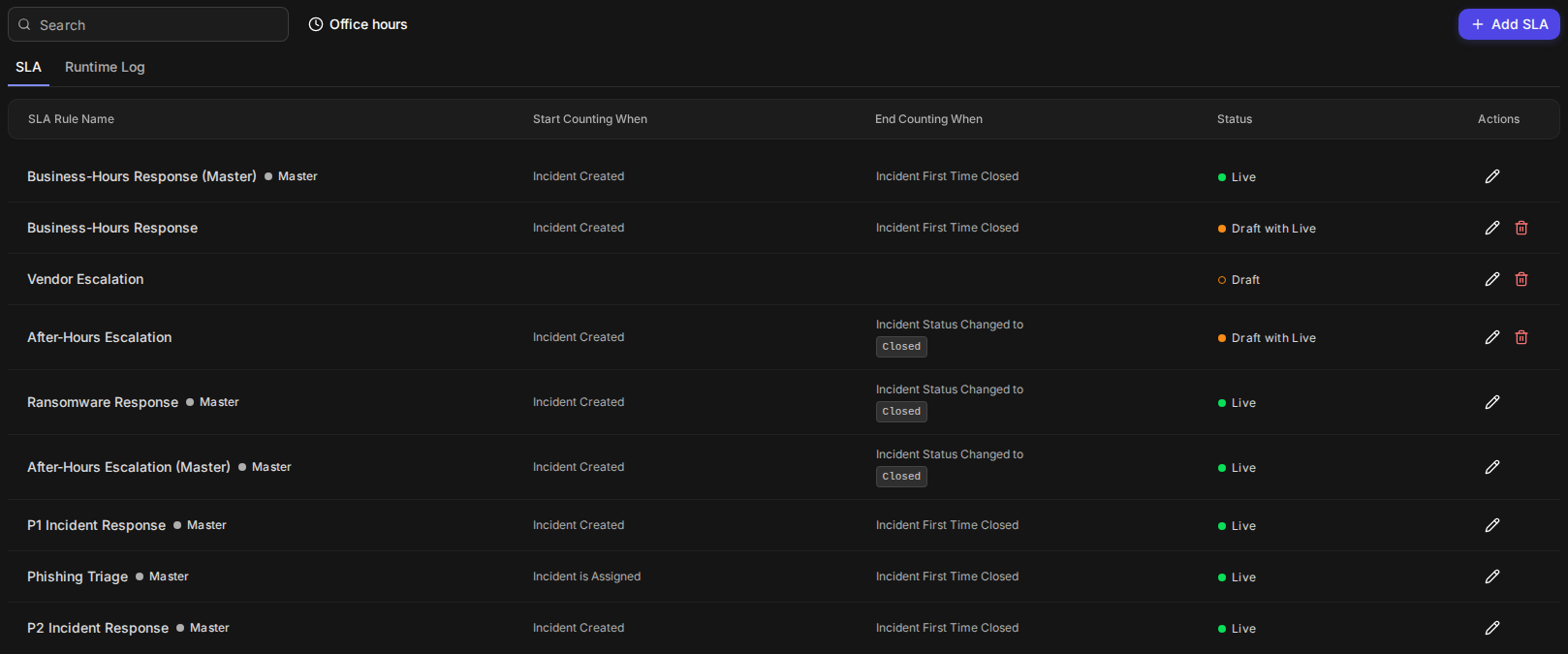
On the tenant, the copy can be opened and read, and its SLA results show on incidents as for any other rule, but it cannot be edited, set live, cloned, or deleted. Change it on the master and share it again.
Rules the tenant creates itself are not affected by sharing and stay fully editable.
SLA Columns for Tenant Incidents
SLA columns for tenant incidents let the master see, on one page, how every tenant's incidents are doing against a shared rule. The master's Tenants page lists incidents from every tenant, and its columns are set on the Tenant's Incident Dashboard tab of Dashboard Columns. An SLA column there is worked out on each tenant from that tenant's copy of the rule, so the value is the rule as that tenant runs it, as in the image at the top of this article.
A tenant that does not hold the rule shows no value in that column. If a tenant has its own column of the same name, the tenant's own column answers for that tenant.
Adding an SLA Column and Pushing It to the Tenants
Adding an SLA column shows the rule's results for tenant incidents on the master, and pushing it gives each tenant the same column on its own incident list.
-
On the master, in the new UI, navigate to Global Settings > Application Settings > Dashboard Columns.
-
Select the Tenant's Incident Dashboard tab.
-
Select Custom Column, choose a shared SLA rule and the SLA value to show, choose Show in Default View, and select Add.
-
Select Save.
-
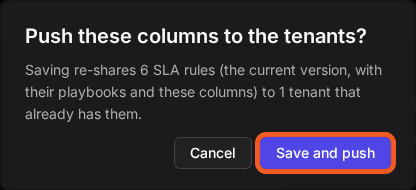
In Push these columns to the tenants?, read how many rules and tenants the save reaches, then select Save and push.
The push confirmation
RESULT
The column appears on the master's Tenants page. Each tenant that holds the rule receives the current version of the rule again, with its playbook and the column, and the column is added to that tenant's own incident list.
On the tenant, a pushed column follows the master: it is updated when the master pushes again and removed when the master removes it or deletes the rule. Whether it is shown by default is the tenant's choice once it exists. A column the tenant added itself is never replaced or removed by a push.
WARNING
A column reaches a tenant only through a rule that has been shared with it. If you add a column for a rule that has not been shared yet, the save still succeeds on the master, and a message names the rule: Not sent to any tenant: the columns of "<rule>". This rule is not shared yet; share it in Tenant Management > Shared Content > SLA Settings and the columns go with it. Share the rule, and the column goes with it.
READER NOTE
Pushing happens only from the new UI. Saving Dashboard Columns in the classic view changes the master's columns only; the tenants receive them the next time the rule is shared or pushed.
Updating or Deleting a Shared Rule
Every change to a shared rule is made once, on the master. An update reaches the tenants with the next share; a deletion reaches them at once.
-
To update a rule, change it on the master, set the new version live, and share it again. Each tenant replaces its copy with the new version; it does not get a second copy. A version older than the one a tenant already holds is ignored, so shares that arrive out of order never roll a tenant back.
-
To delete a rule, delete it on the master. The deletion is sent to every tenant at once and removes the copy, and its pushed columns, from each tenant that holds it. The rule also leaves the SLA Settings list on the master. A tenant that could not be reached receives the deletion again with each later share until it confirms it. A rule created again on the master afterwards is a new rule, not the deleted one restored.
Deleting a shared rule on the master deletes each tenant's copy at once, so the tenant starts no new SLAs from it. SLAs already running on the tenant under that rule run to their end.
Who Can Do What
|
Action |
Master administrator |
Tenant |
|---|---|---|
|
Share, update, or delete a shared rule |
Yes |
No |
|
Open and read a shared rule |
Yes |
Yes |
|
Edit, set live, clone, or delete a shared rule's copy |
Not applicable |
No |
|
Configure SLA columns for tenant incidents and push them |
Yes (new UI) |
No |
|
Choose whether a pushed column shows by default |
No |
Yes |
|
Create and edit the tenant's own SLA rules |
Not applicable |
Yes, as before |
FAQs
Can I share a rule with only some tenants?
No. A master shares an SLA rule with all of its tenants.
Why is my rule Incomplete?
At least one tenant is missing something the rule needs, usually its playbook or a field its timing uses. Fix it and share the rule again; the next share or column push repairs the copy.
A tenant already had a rule with the same name. What happens to it?
Nothing. The shared copy is saved as <name> (Master) next to it.
Why does an SLA column on the master's Tenants page show nothing for one tenant?
That tenant does not hold the rule, or the rule's time goals do not cover that incident. Share the rule, then check its state under Shared to Tenants.
Can a tenant change a shared rule to suit itself?
No. It can create its own rule instead; its own rules are never affected by sharing.
I saved Dashboard Columns and nothing was asked. Did the columns reach the tenants?
Only a save in the new UI that changes the SLA columns on Tenant's Incident Dashboard asks to push. If the column's rule was never shared, a message says so after the save.