
Last Updated: October 23, 2026
Overview
Event-incident correlation checks events against criteria that matter to your organization and links the events that match to a D3 vSOC incident. Instead of one incident per alert, related events are investigated together. For example:
-
Phishing: emails with the same sender or subject line.
-
Denial of service: events with the same source or target IP address.
-
Malware: events with the same host name or file hash, or a hash with a given reputation.
Events can be correlated by hand, from an event, or automatically, by a preprocessing playbook as events are ingested. Automation is where most of the value is: the analyst sees one incident with its related events already attached.
Escalating an Event
-
Go to WORKSPACE > Events.
-
In the view list at the top left, select a view that shows open events, such as All Open.
-
Select an event's ID to open it.
The event opens with Dismiss and Escalate at the top right, and four tabs: Overview, Artifact Behaviour, Event/Incident Correlation and Event Log.
An open event
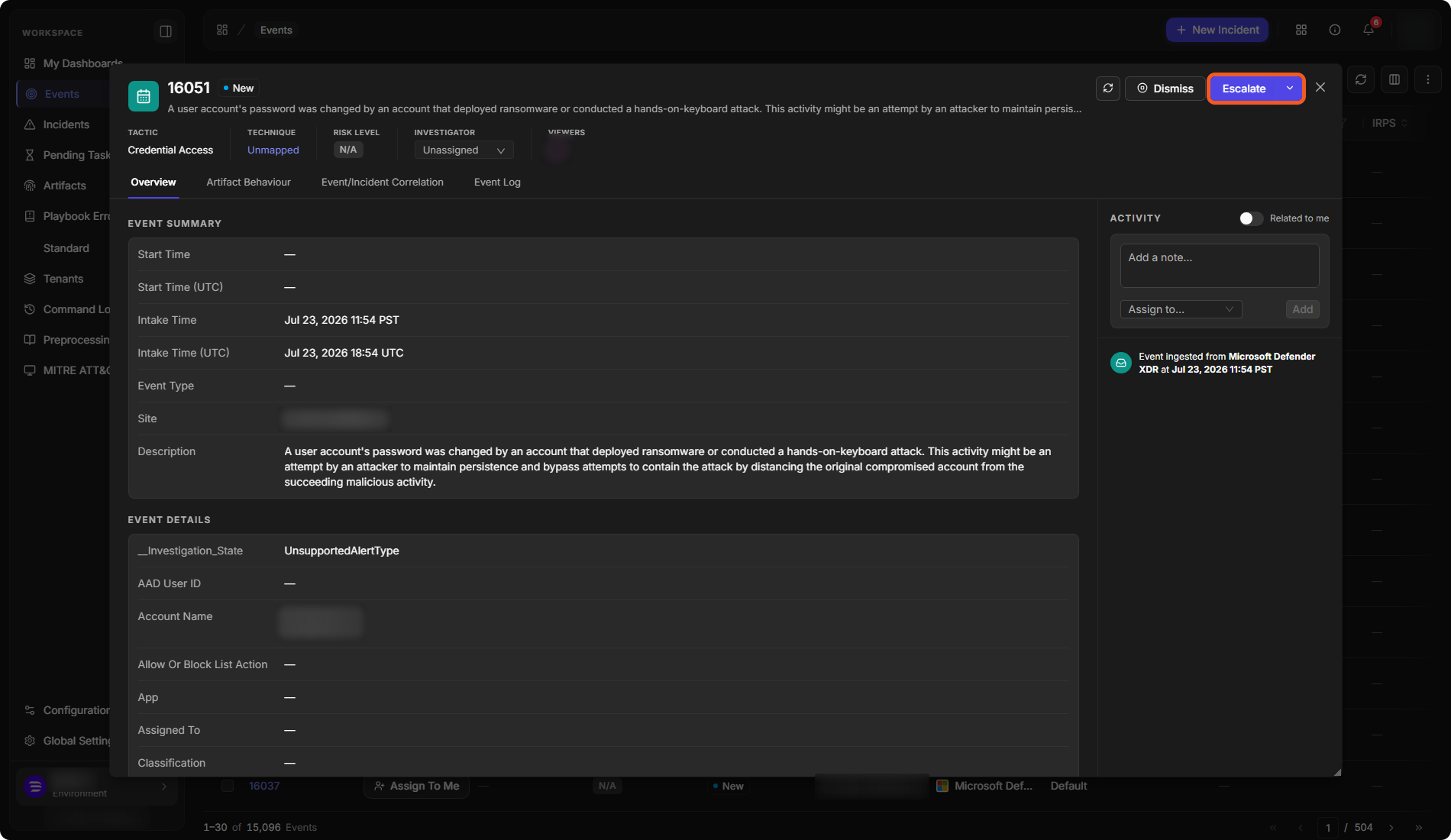
Select Escalate to open the Escalate Event(s) to Incident window. A line at the top says how many events will be escalated, for example 1 event will be escalated to a new incident. The window asks for:
-
Incident Type and Title, which are required;
-
Description, Escalation Reason, Severity, Playbook, Incident Owner, Timezone and Due Date;
-
under Show Additional Settings, the Site and a File.
Fill in the fields and select Escalate, or select Cancel to leave the event as it is.
Related events you have selected on the Event/Incident Correlation tab are counted in the window. With one related event selected, it reads 2 events will be escalated to a new incident.
Finding Related Events
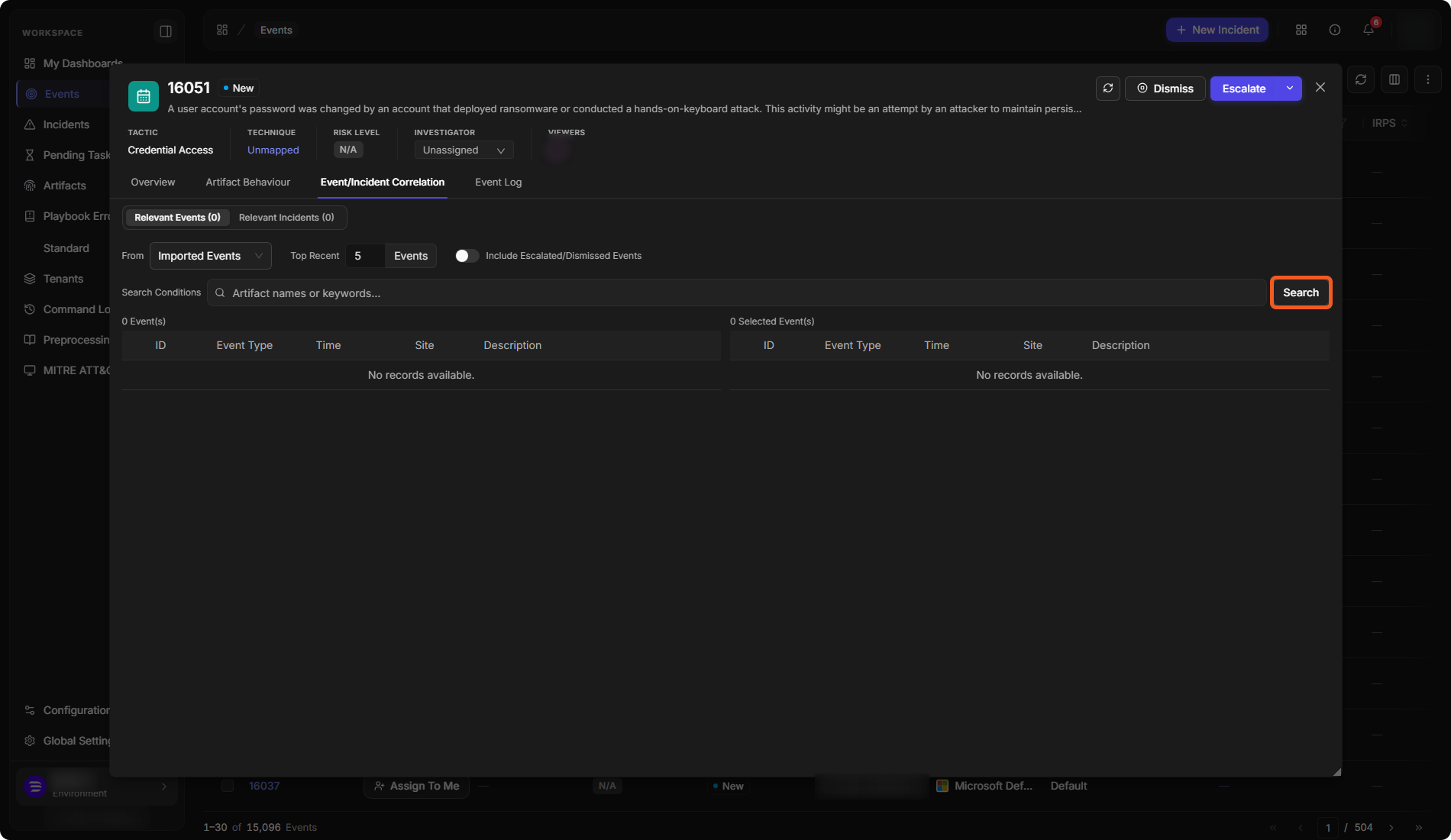
The Event/Incident Correlation tab finds events and incidents that share artifacts with this event. It has two tabs: Relevant Events and Relevant Incidents. The number on each shows how many were found.
On Relevant Events:
-
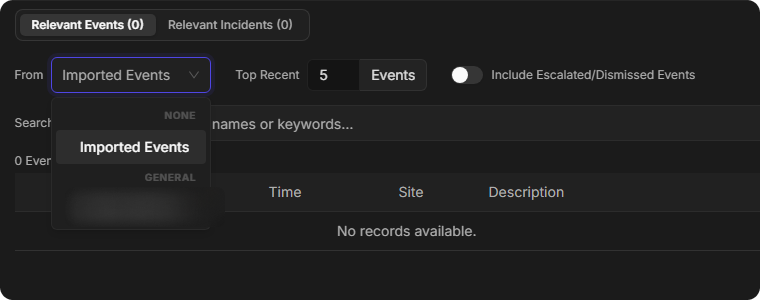
In From, choose where to search: Imported Events, under NONE, or one of the event sources listed below it, grouped by category, for example GENERAL.
-
In Top Recent, set how many of the most recent matches to list, for example 5.
-
Turn on Include Escalated/Dismissed Events to include events that are already closed.
-
In Search Conditions, enter artifact names or keywords, then select Search.
-
Select + beside each event that belongs with this one. It is added to the Selected Event(s) list on the right. The + in the header row adds all the events found.
Relevant Events
The From list
When you then select Escalate, the selected events are escalated into the same incident.
Adding an Event to an Incident
An event can also join an incident that already exists.
-
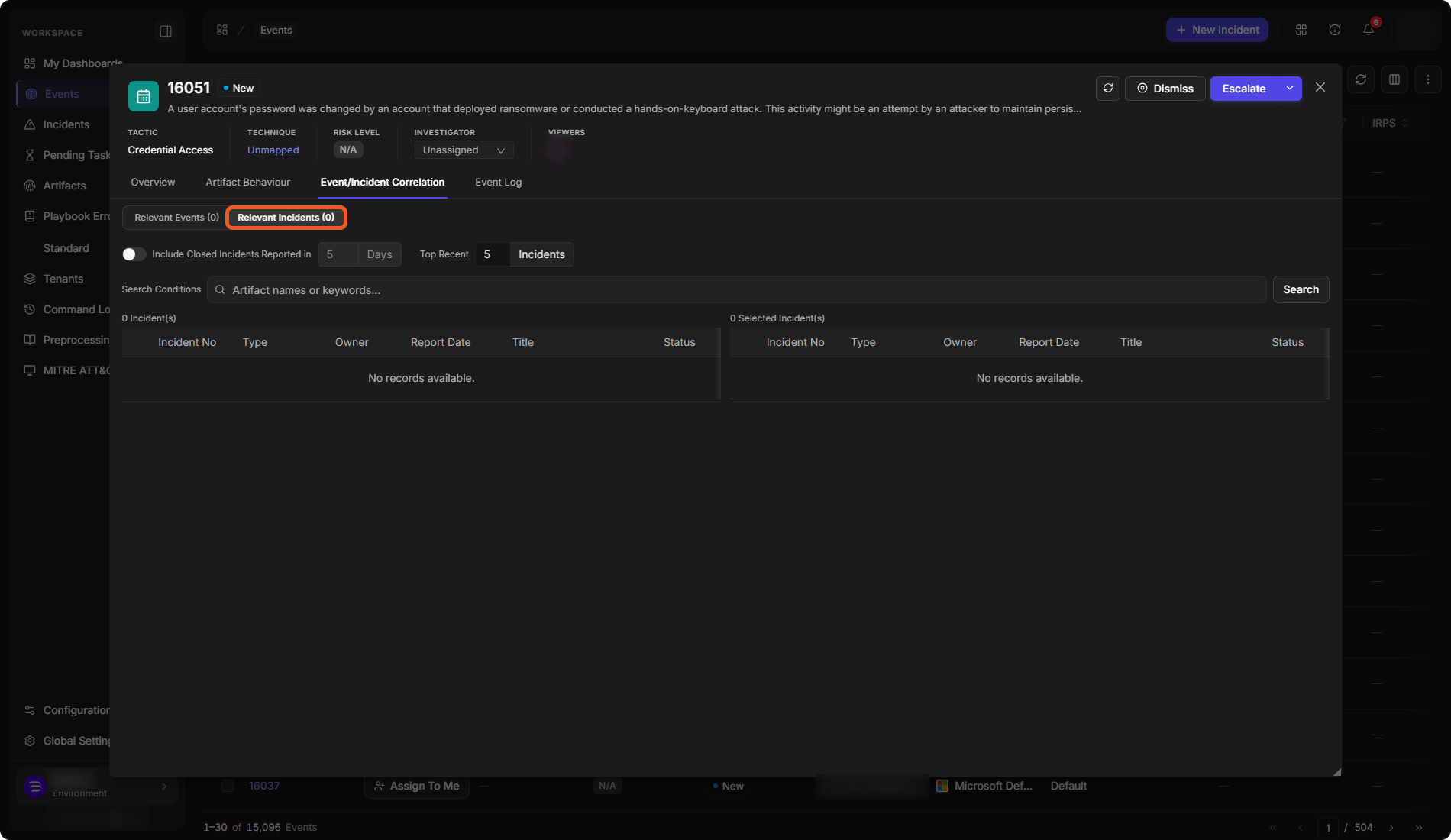
On Relevant Incidents, set Top Recent, and turn on Include Closed Incidents Reported in to include incidents closed in the last number of days you enter.
-
Enter artifact names or keywords in Search Conditions, then select Search.
-
Select the incidents the event belongs to.
-
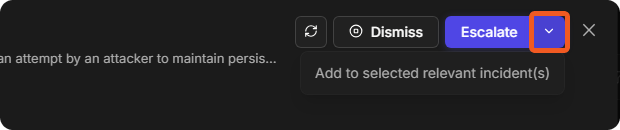
Select the arrow beside Escalate, then select Add to selected relevant incident(s).
Relevant Incidents
The Escalate menu
Seeing an Incident's Events
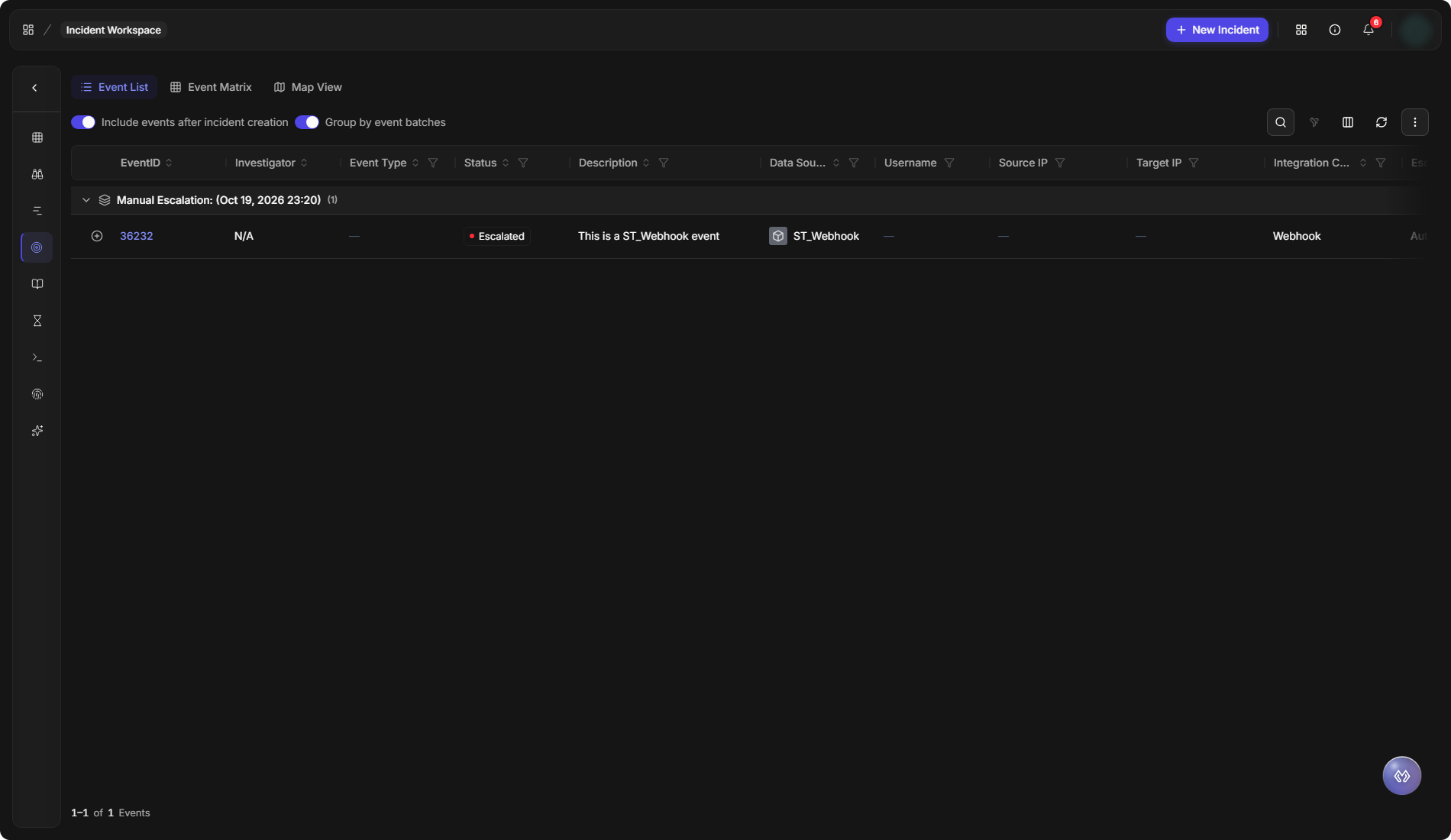
Every event linked to an incident is listed in the incident's Events view, grouped by how and when it was escalated, for example Manual Escalation. See Incident Workspace.
An incident's events
Automating Correlation
Automated correlation is done by a preprocessing playbook that runs on every ingested event and decides whether to escalate it, and to which incident, or to dismiss it.
FAQ
How many events can belong to one incident? Any number. Several events can be escalated into the same incident, and events can be added to an existing one.