
Last Updated: October 23, 2026
Overview
Incident Type Manager is where you create, configure and delete incident types. Each incident type has its own default dispositions and default playbooks, quick view layouts, incident workspace layouts and incident form.
To open it, go to Configuration > Incident Type Manager.
Understanding the Role of Incident Types
Incident types sort incidents into categories, such as Phishing or Malware, so that each kind of incident can be triaged and investigated in a consistent way. Because dispositions, the quick view panel, the workspace layout and the incident form are all set per incident type, each investigation shows the information and tools that suit it.
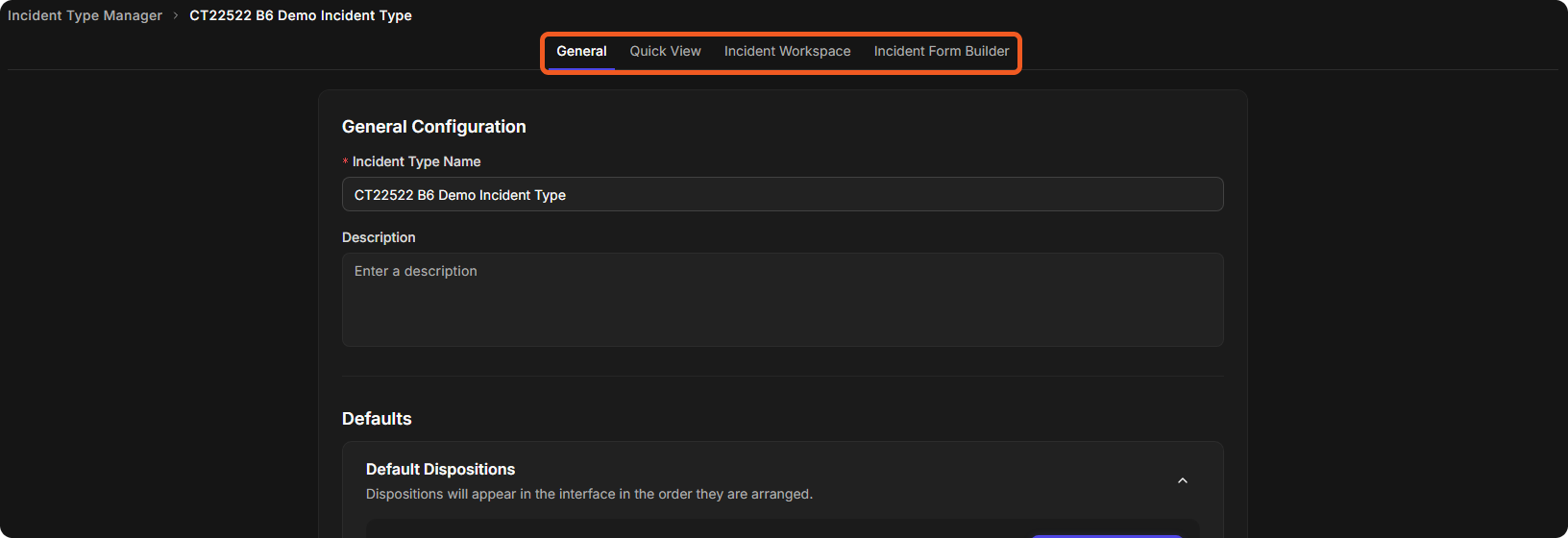
When you select an incident type, its settings open on four tabs:
-
General: the incident type's name and description, its default dispositions, and the default playbook for each site. See Configuring an Incident Type: General Configuration.
-
Quick View: the layouts of the incident side panel on the Incidents dashboard. See Incident Quick View Layouts.
-
Incident Workspace: the layouts of the incident workspace, built by dragging widgets onto a canvas. See Configuring an Incident Type: Incident Workspace.
-
Incident Form Builder: the form that investigators fill out during an investigation. See Configuring an Incident Type: Incident Form Builder.
The tabs of an incident type
Adding an Incident Type
-
Select New Incident Type, at the top right of Incident Type Manager.
-
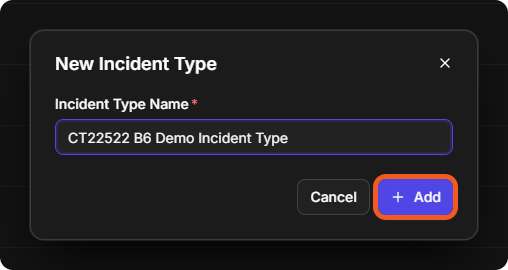
In the New Incident Type window, enter the Incident Type Name, then select Add.
The New Incident Type window
The incident type opens on its General tab, and it is added to the list.
Then configure the incident type on its General, Quick View, Incident Workspace and Incident Form Builder tabs.
Incident Type Manager Interface
The list shows every incident type, with these columns:
-
Incident Type Name: the name of the incident type. Select it to open the incident type.
-
Active Layouts: the number of incident workspace layouts the incident type has, counting the System Default layout.
-
Created On: how long ago the incident type was created.
-
Actions: the delete icon, which deletes the incident type.
The incident type list
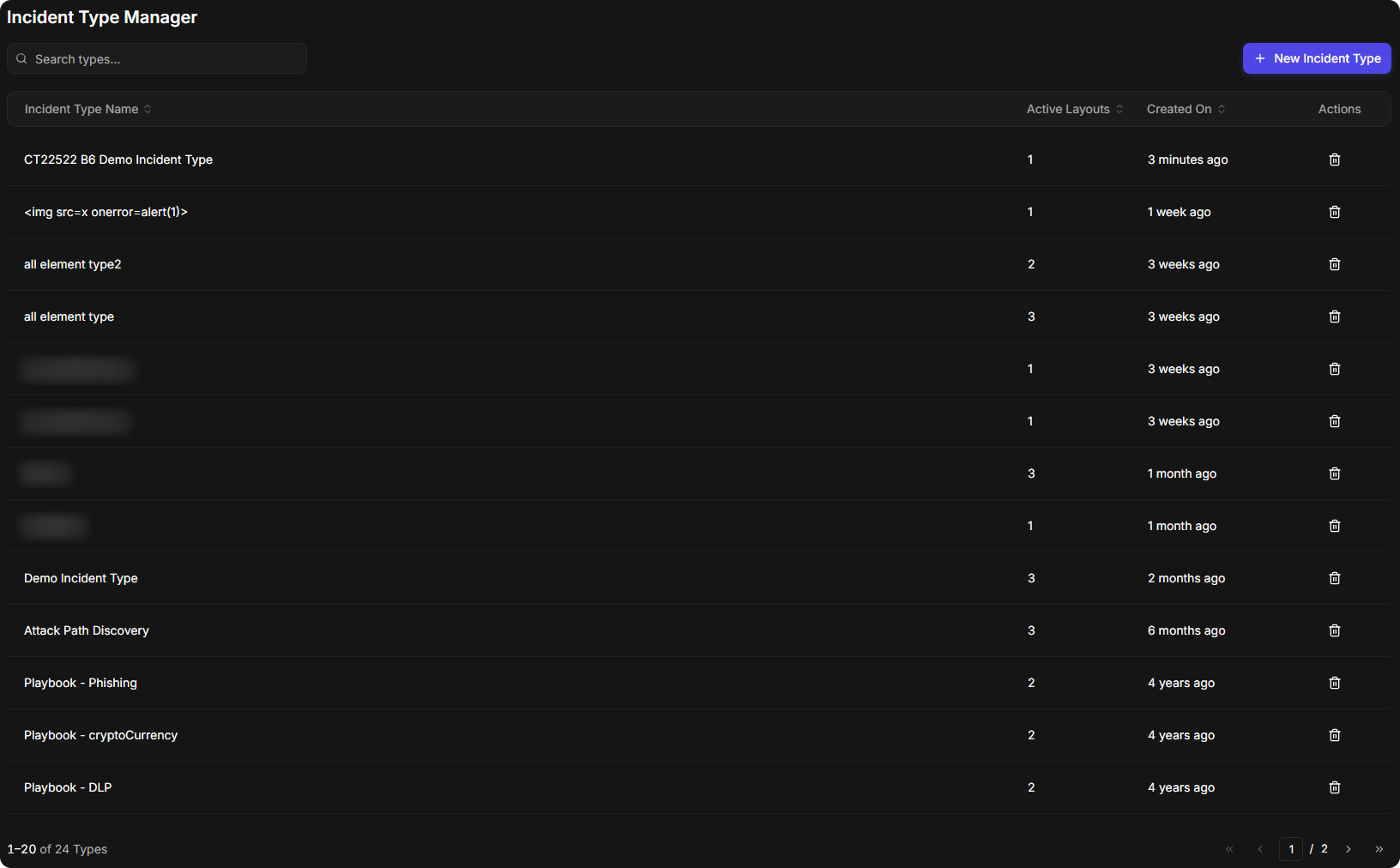
To sort the list, select a column header that shows the sort arrows: Incident Type Name, Active Layouts or Created On. Select it again to reverse the order. The list shows 20 incident types per page, with page controls at the bottom right.
To find an incident type, enter all or part of its name in Search types..., at the top left.
Searching the list

Deleting an Incident Type
-
In the Actions column of the incident type, select the delete icon.
The delete icon

-
In the Delete Incident Type window, select Delete.
The Delete Incident Type window
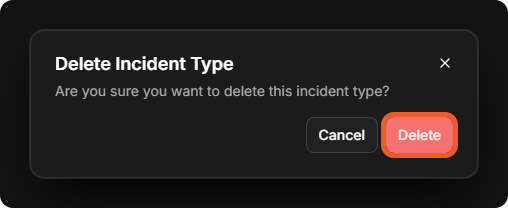
Delete only an incident type that is no longer needed. Select Cancel to keep the incident type.