
Last Updated: October 22, 2026
Overview
An integration connects D3's playbooks to an external system, such as a SIEM, an EDR or a threat-intelligence service, so that D3 can exchange data with it and run commands on it. Each integration defines how to connect to the system (its connection parameters), the accounts it connects with (its connections) and what it can do (its commands).
Integrations are found under Configuration > Integrations.
Integration Types
Each integration shows its type on its page:
-
Built-in integrations are supplied by D3 for commonly used tools. Their connection parameters and system commands are predefined.
-
Custom integrations are ones you create yourself, for a tool that has no built-in integration.
An integration can also have an MCP version, marked with an MCP badge. The MCP only filter on the Integrations page lists only those.
The Integration Hub
The Integrations page lists every integration by category.
-
Search integrations and commands finds integrations, and commands, by name. Press Enter to search. The results are split into Integrations and Commands.
-
Only connected integrations limits the list to integrations that have a connection.
-
The categories on the left, such as SIEM & XDR or Threat Intelligence, show how many integrations each holds. Expand one to see its integrations.
-
Type, Category, Latest first and MCP only filter and sort the cards on the right. Configured Integrations shows the integrations that are already set up.
The Integrations page
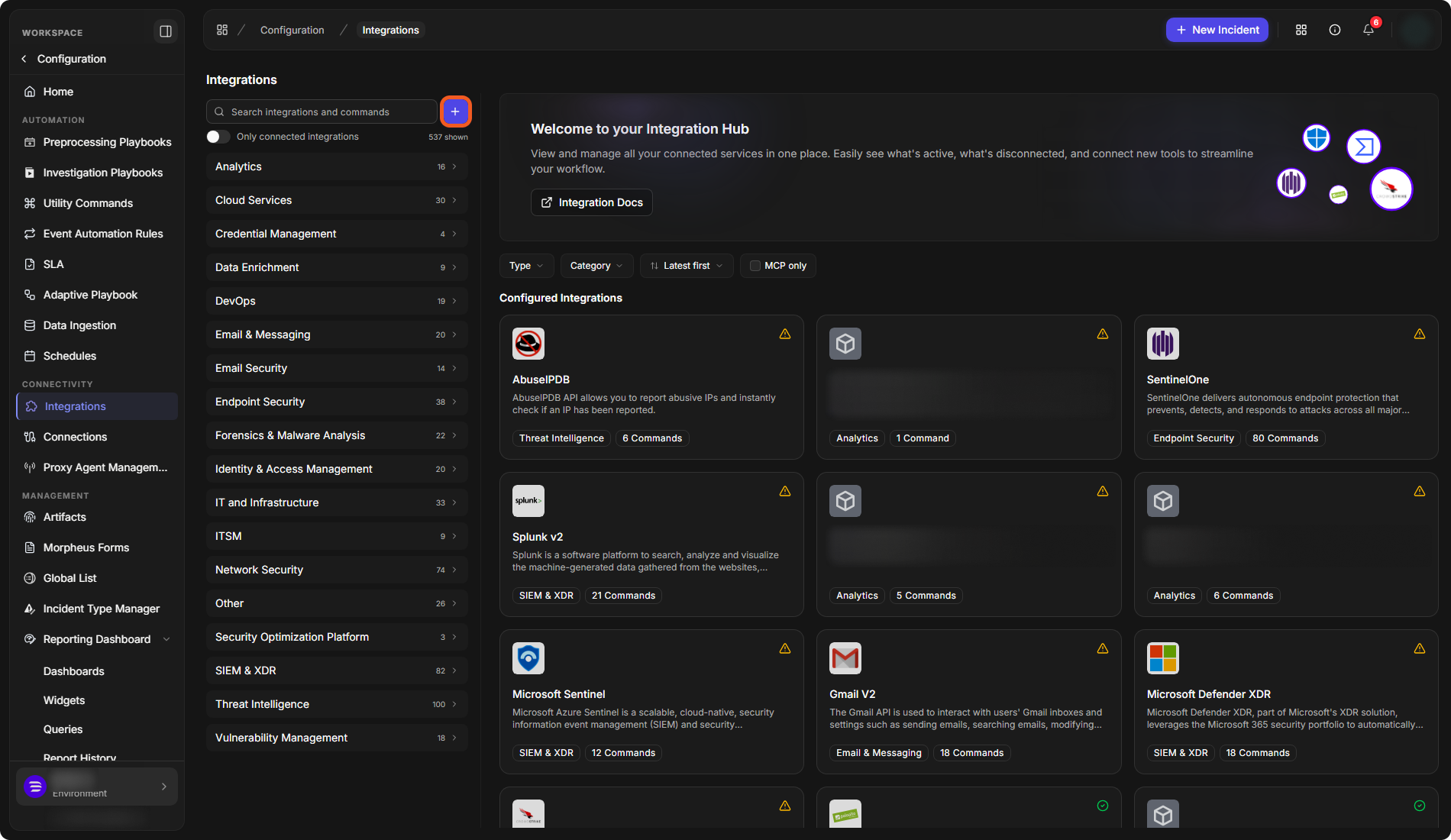
Adding a Custom Integration
-
Select the + button beside Search integrations and commands.
-
On the Custom Integration tab, enter a Name, choose a Category and enter a Description (optional).
-
Optionally, describe under What should this integration do? what you need the tool to do, and select Upload API doc to attach the tool's API document. Start from offers starting points such as Look up, Contain and Enrich. The proposed commands appear under Commands. You can also leave this empty and add the commands by hand later.
-
Select Add Integration.
The Add Integration window
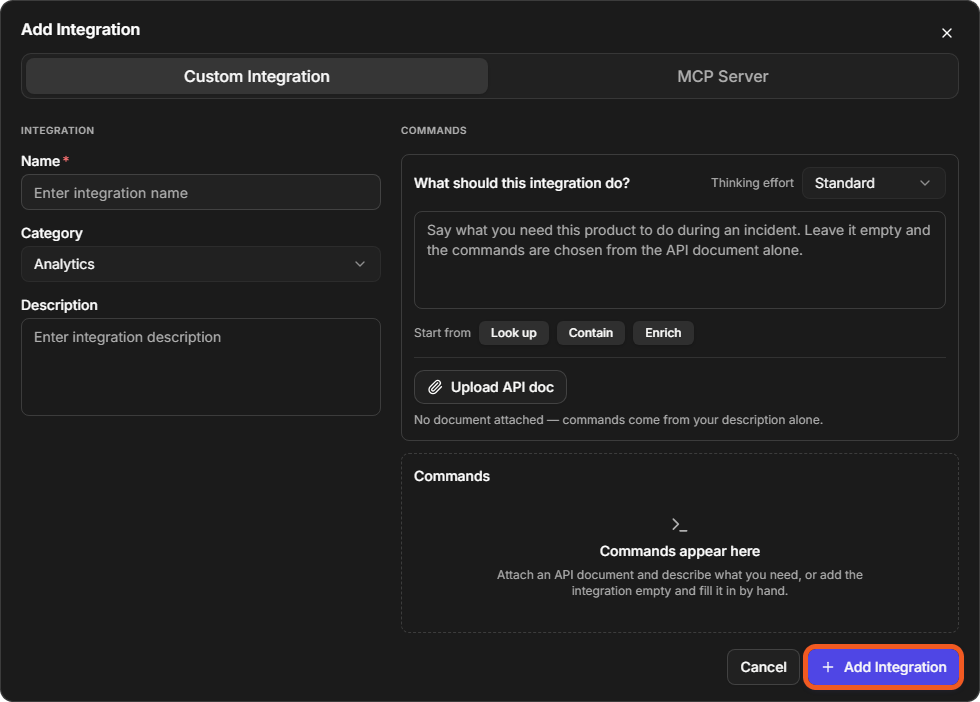
The MCP Server tab of the same window adds an MCP server instead of a custom integration.
The Integration Page
Select an integration to open its page. The top of the page summarizes it: COMMANDS, CONNECTIONS, CONNECTION STATUS (the results of the connections' checks) and TYPE. The page then has three sections: Connections, Connection Parameters and Commands.
An integration's page
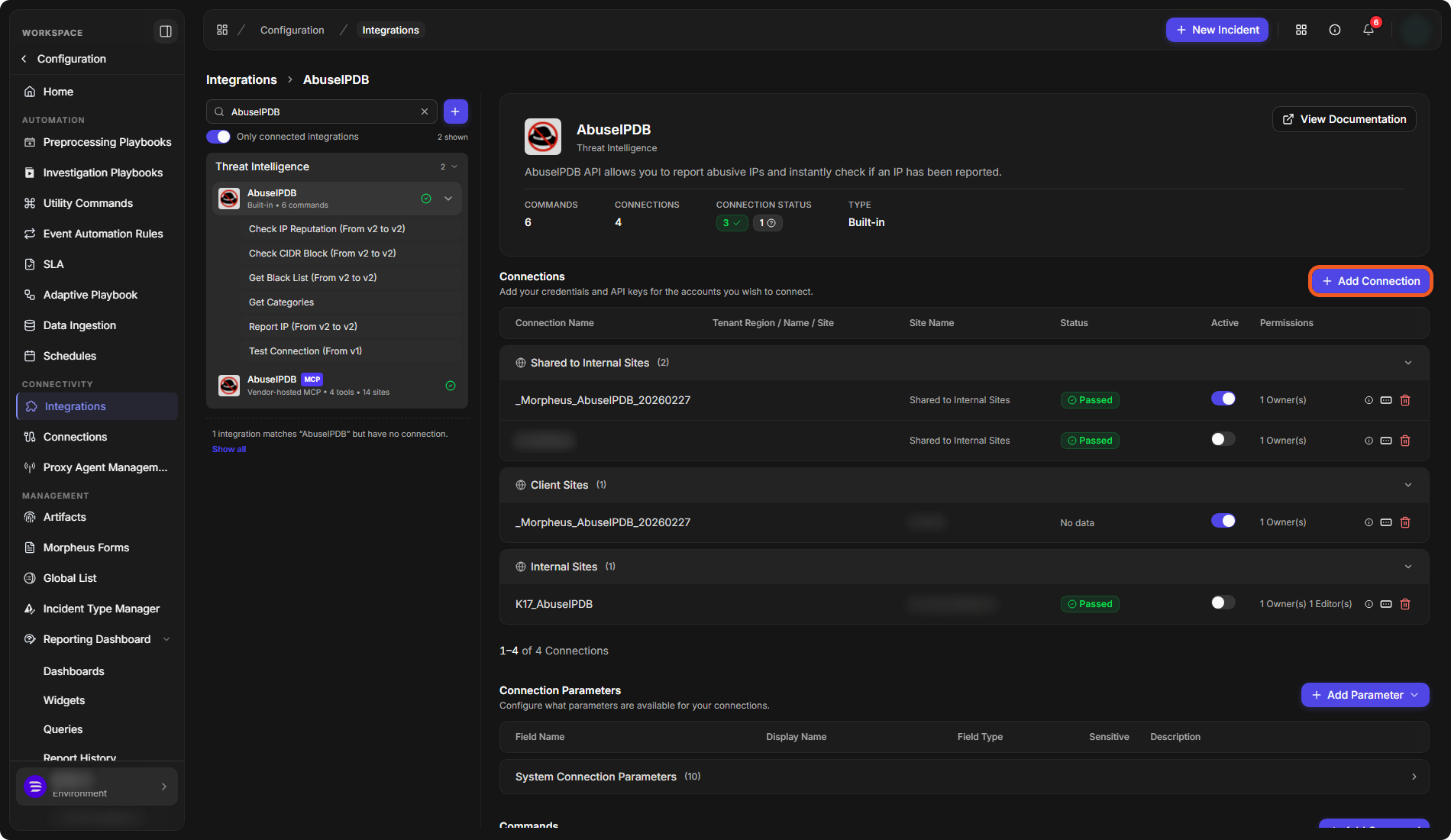
Connections
A connection holds the credentials D3 uses to reach one account of the external system. An integration can have several connections, for example one per site.
The Connections table groups the connections by where they are shared: Shared to Internal Sites, Client Sites and Internal Sites. Each row shows the Connection Name, the Site Name, the Status of its last check (for example Passed), whether it is Active, and its Permissions (how many owners and editors it has).
Adding a Connection
-
On the integration's page, select Add Connection.
-
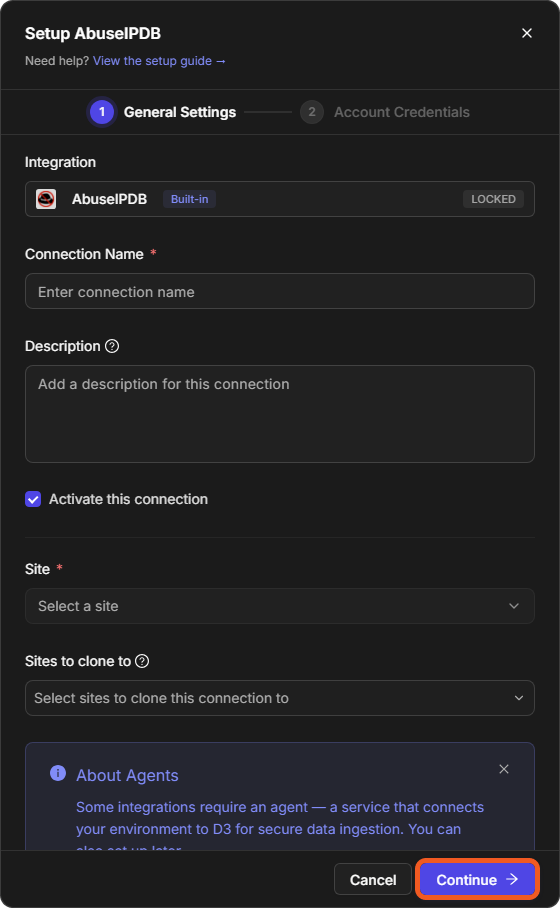
On the General Settings step:
-
Enter a Connection Name and, optionally, a Description.
-
Keep Activate this connection selected so that the connection can be used.
-
Choose the Site that can use the connection. Sites to clone to creates copies of the connection for other sites.
-
Agent Name: choose a proxy agent if the integration needs one to reach your environment. You can also set one up later.
-
Tenant Sites: switch on to share the connection with another tenant's site.
-
Connection Permissions shows who has access to the connection. Select Configure to change it.
-
Some integrations offer extra options here, for example Used for system IP reputation check for AbuseIPDB. Expose to AI agents (MCP) makes the connection available to AI agents.
-
-
Select Continue and fill in the Account Credentials step.
The first step of adding a connection
All connections, for every integration, are also listed on the Connections page.
Connection Parameters
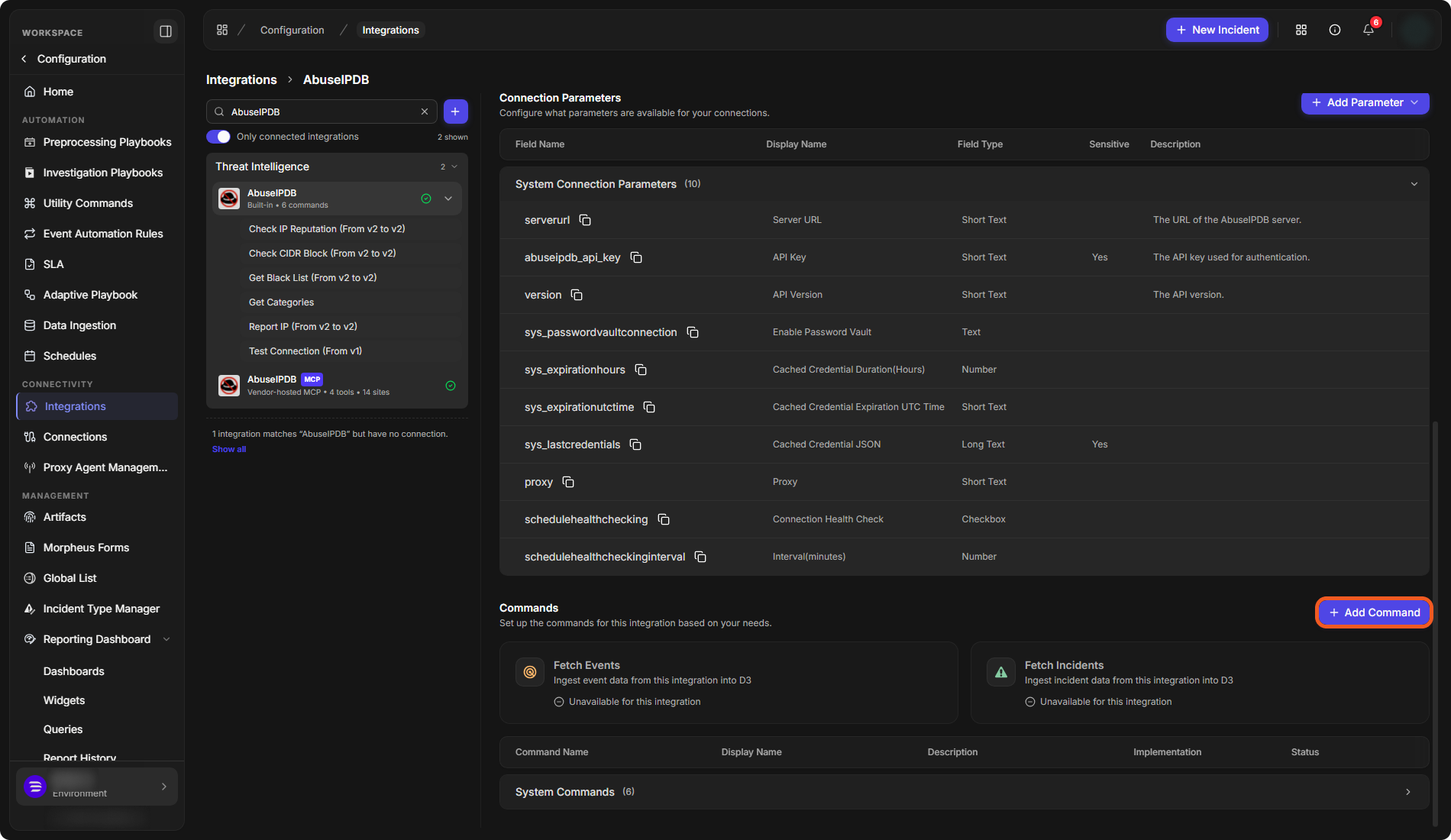
Connection parameters are the fields a connection asks for, such as a server URL or an API key. Built-in integrations come with their parameters already defined, listed under System Connection Parameters with each parameter's Field Name, Display Name, Field Type, whether it is Sensitive, and a Description. For a custom integration, you define them yourself.
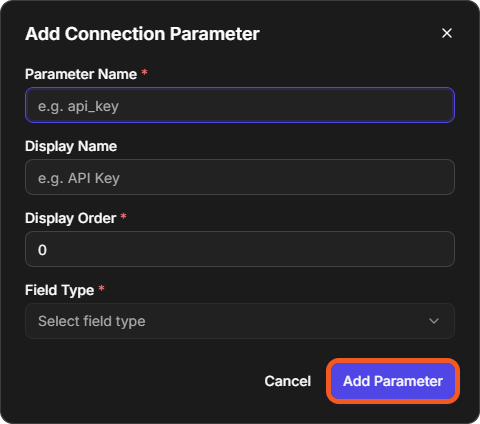
To add a parameter, select Add Parameter and choose:
-
Add Custom Connection Parameter, for a single parameter of your own; or
-
a predefined set: Add REST API Connection Parameter Set, Add MS SQL Connection Parameter Set, Add Oracle Connection Parameter Set, Add My SQL Connection Parameter Set or Add ODBC Connection Parameter Set.
For a custom parameter, enter the Parameter Name (the system name), a Display Name (the label users see), the Display Order and the Field Type, then select Add Parameter.
The Add Connection Parameter window
Commands
Commands are the actions an integration can perform. The Commands section of the integration's page lists them with each command's Command Name, Display Name, Description, Implementation and Status. A built-in integration's commands are listed under System Commands.
Two cards at the top of the section show whether the integration can bring data into D3:
-
Fetch Events ingests event data from the integration.
-
Fetch Incidents ingests incident data from the integration.
A card reads Unavailable for this integration when the integration has no such command. When it has one, the card shows its implementation, and selecting the card opens the command.
Connection parameters and commands
Adding a Custom Command
-
Select Add Command.
-
In the Add Custom Command window, enter the command's name.
-
Choose its Implementation: Python or Codeless Playbook.
-
Select Add Command.
For a step-by-step example, see Integration Custom Command.
The Command Page
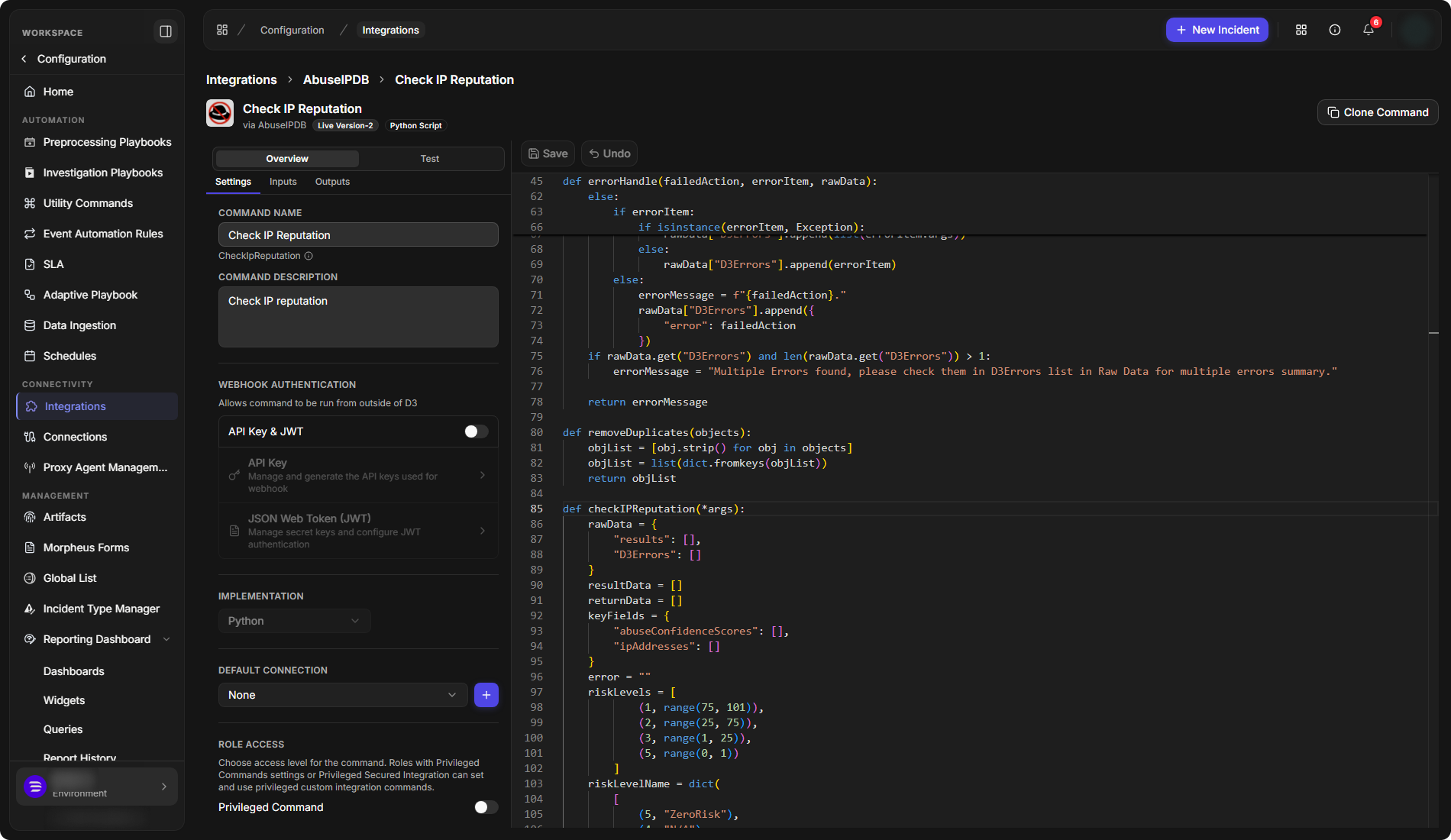
Select a command to open it. The header shows the command's version (for example Live Version-2) and its implementation, and Clone Command makes a copy of it. A Python command shows its code on the right, with Save and Undo.
The Overview tab has three sub-tabs:
-
Settings:
-
COMMAND NAME and COMMAND DESCRIPTION.
-
WEBHOOK AUTHENTICATION: switch on API Key & JWT to allow the command to be run from outside D3, then manage the API Key or JSON Web Token (JWT). See the Webhook Configuration Guide.
-
IMPLEMENTATION, which cannot be changed.
-
DEFAULT CONNECTION, with a + button to add a connection.
-
ROLE ACCESS: Privileged Command limits who can set and use the command to roles with privileged-command settings.
-
FEATURES: where the command can be used: Command Task, Ad-hoc Command and Allow Command to be Run on Agent.
-
SCHEDULES: the schedules that run this command. See Schedules.
-
-
Inputs: the parameters the command takes.
-
Outputs: what the command returns.
Beside Overview is the Test tab.
A command's page
Event and Incident Intake Commands
The command behind Fetch Events or Fetch Incidents brings data into D3. On its page, the WEBHOOK AUTHENTICATION area also has Events Deduplication. How fetched fields become event and incident fields is covered in Field Mappings, and setting up the intake in Data Ingestion.