
Last updated: September 23, 2026
Overview
Command Logs is an audit view of ad-hoc runs—playbook test runs, utility command tests, and commands executed remotely through the D3 command API—collected into one list. Playbook test runs used to be discarded when the test closed, and none of these runs could be reviewed in one place. Command Logs keeps them together, so you can see who ran what, on which site, when, and with what result.
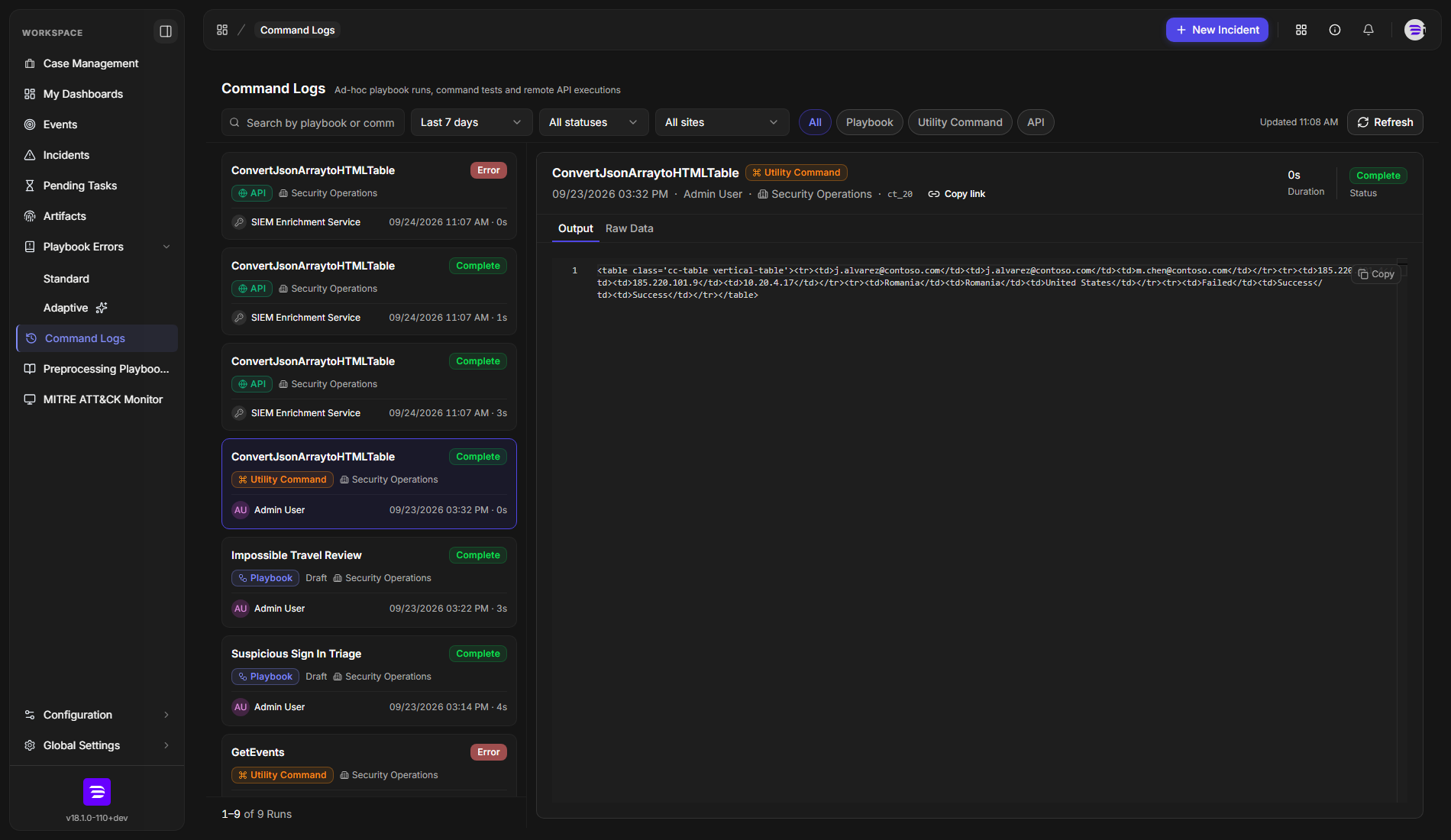
Command Logs is found in the left navigation, under Command Logs. The page is read-only: it records runs but never starts, changes, or deletes one.
In short
|
# |
Stage |
Where it happens |
|---|---|---|
|
1 |
A run happens |
Test Playbook in the playbook editor, Test Command on a utility or integration command, or an external call to the command API |
|
2 |
Find the run |
Command Logs, run list and filter toolbar |
|
3 |
Read the run |
The right pane: header, then the tabs for the run's source |
|
4 |
Share the run |
Copy link in the run header |
Access and Scope
Access to Command Logs is governed by role permissions.
|
Permission |
What it permits |
|---|---|
|
Preprocessing Playbook Viewer |
Shows Command Logs in the navigation and opens the page. Without it, the navigation item is hidden and the page shows a no-permission message. |
|
Playbook |
Additionally shows the Requests tab on utility command tests, which holds the HTTP requests and responses the command captured. |
READER NOTE
You see runs only for the sites you can access, whatever the Site filter is set to. Two administrators with different site access can see different lists on the same page.
Run Sources
A run source is where a run came from. Each run card and run header carries a colored chip naming its source.
|
Source |
What it records |
Where the run starts |
|---|---|---|
|
Playbook |
A test run of a playbook, with its diagram, tasks, and output |
Test Playbook in the playbook editor |
|
Utility Command |
A test of a utility command or an integration command, with its output |
Test Command on the command's Test view |
|
API |
A command executed remotely through the D3 command API—utility and integration commands alike—with its input and output |
An external system calling the command API with an API key or an OAuth application |
READER NOTE
Integration command tests are listed under the Utility Command source too. To find one, search by the command's name.
The Run List
The run list is the left pane: one card per run, newest first, 30 runs per page. Nothing is selected when the page opens; the right pane asks you to select a run.
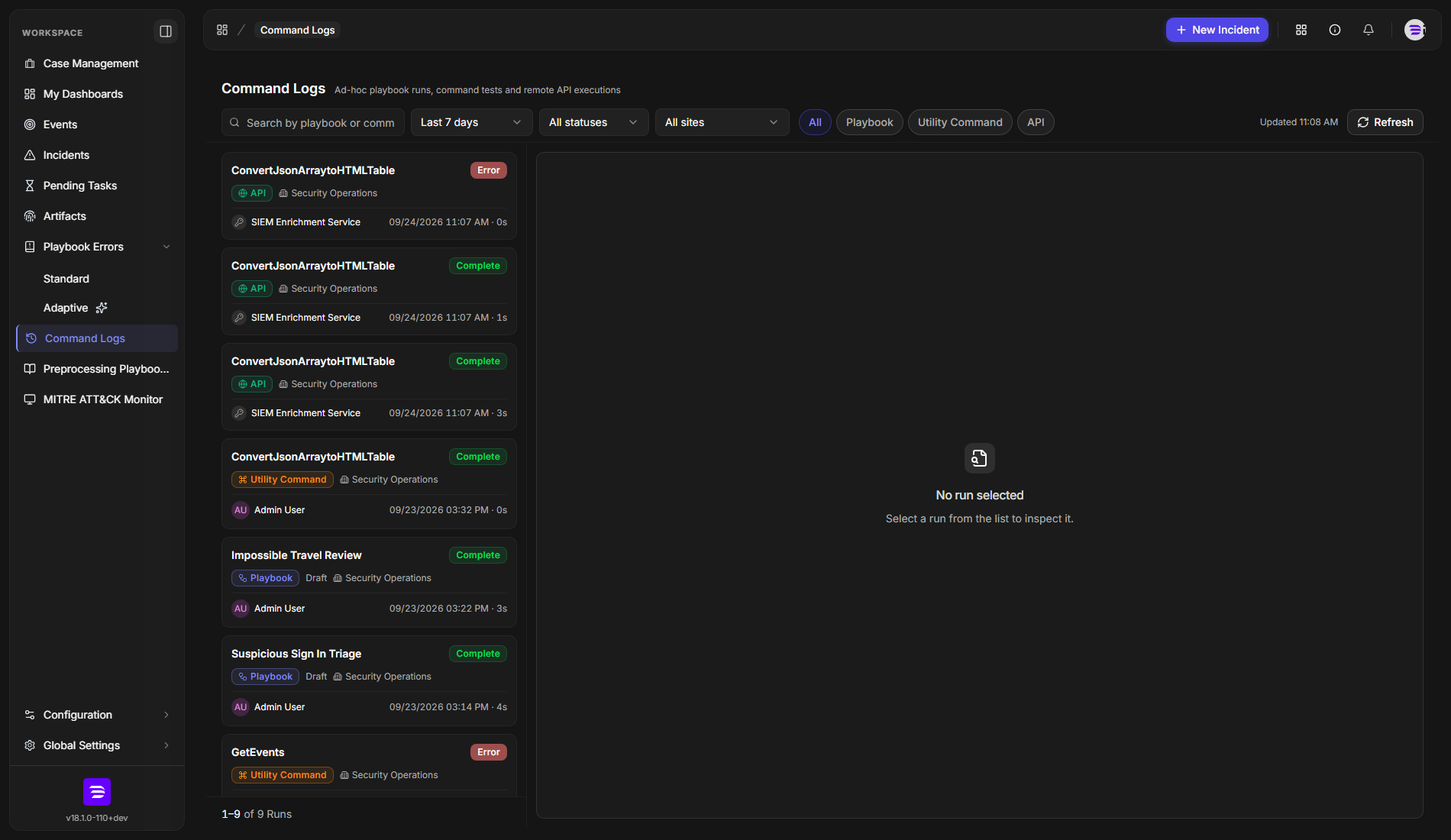
Each card shows:
-
Name: the playbook or command that ran.
-
Status: a colored badge—see the table below.
-
Source: the run source chip. Playbook runs also show the playbook version that ran, or Draft when the playbook had no saved version.
-
Site: the site the run belongs to.
-
Caller: the user who ran it. A run made with an API key shows a key icon, and a run made by an OAuth application shows a globe icon, in place of a user avatar.
-
Start time and duration.
|
Status |
Meaning |
|---|---|
|
Complete |
The run finished without errors. |
|
Error |
The run, or at least one of its tasks, failed. |
|
Stopped |
The test was closed while at least one task was still waiting. |
|
Running |
At least one task is waiting—to be run manually, for a reply, or for its agent—and the test has not been closed. |
READER NOTE
A utility command appears under its system name as recorded when it ran—for example, ConvertJsonArraytoHTMLTable rather than Convert JSON Array to HTML Table. Search by that name.
Filtering Runs
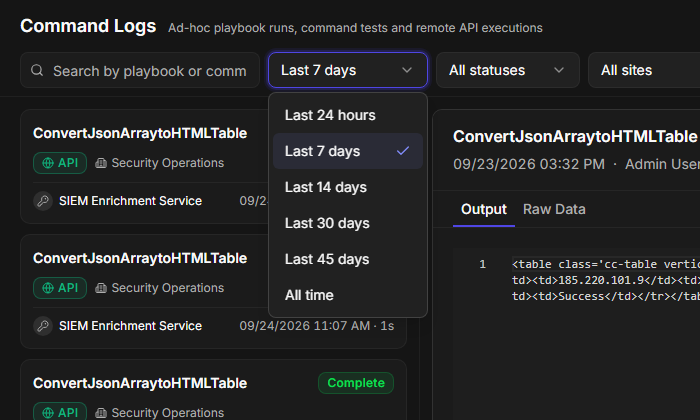
The toolbar above the list narrows the runs shown. Every filter applies to the list immediately.

|
Control |
What it does |
|---|---|
|
Search |
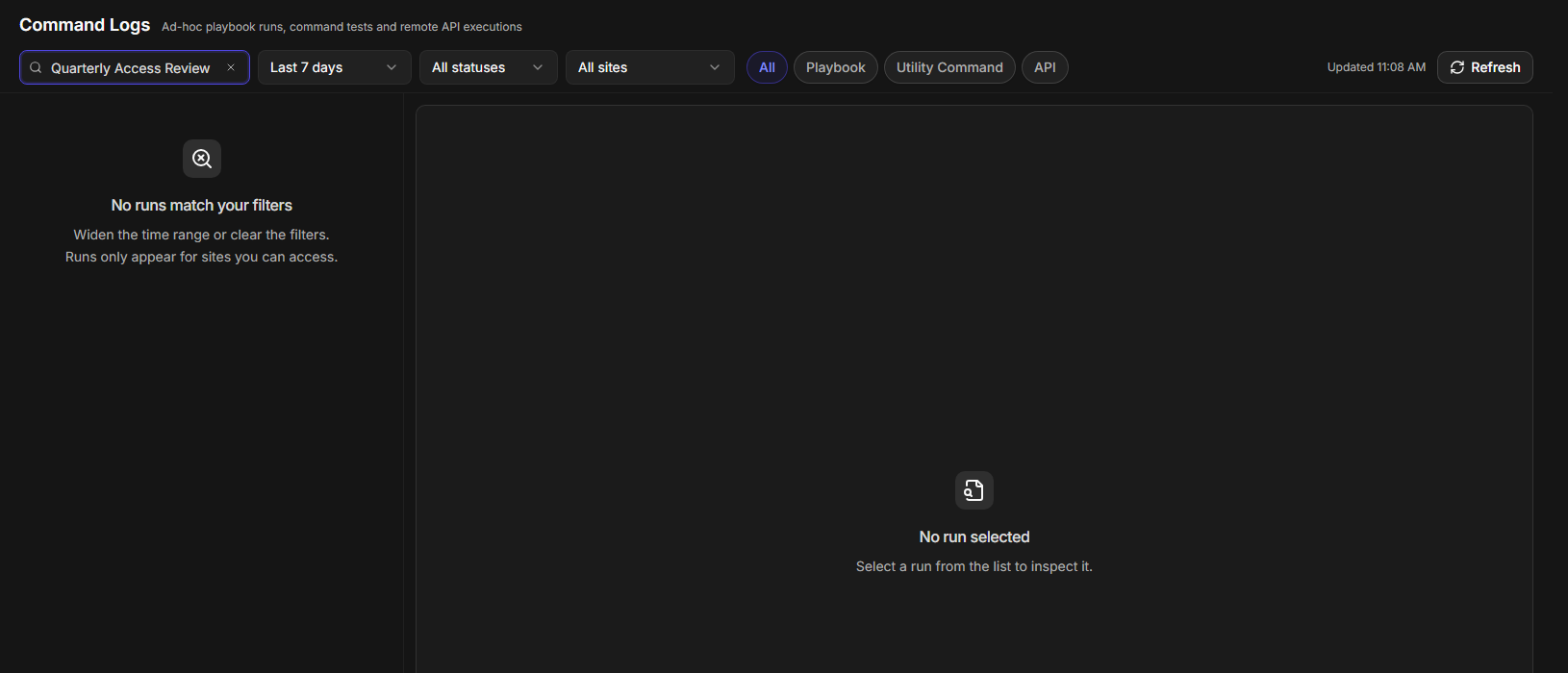
Matches runs by playbook or command name. |
|
Time range |
Last 24 hours, Last 7 days (the default), Last 14 days, Last 30 days, Last 45 days, or All time. |
|
Status |
All statuses, or one of Complete, Error, Stopped, Running. |
|
Site |
All sites, or one of the sites you can access. |
|
Source |
All, Playbook, Utility Command, or API. |
|
Refresh |
Reloads the list. The time of the last load appears beside it as Updated followed by the time. |
WARNING
Playbook test runs are removed after 45 days by default; your deployment's scheduled maintenance sets the exact window. To keep something from one for longer, open it and copy what you need before then—each output viewer has a Copy button. API runs have no retention setting in the product: they are kept until your deployment's scheduled database maintenance removes them, so ask your D3 administrator or D3 support how long yours are kept. Utility command tests are never removed, so All time can show command tests older than any other run in the list.
If a filter change hides the run that is open in the right pane, the selection is cleared.
When nothing matches, the list reads No runs match your filters.
Inspecting a Run
Open a run to see its full record.
-
Select a run card in the list.
-
Select a tab in the right pane to view that part of the run.
RESULT
The right pane shows the run's header and its detail tabs, and the page address points at the run, so reloading the page reopens the same run.
The run header names the run and its source, then lists the start time, caller, site, playbook version (playbook runs only), and the run's ID. Three figures sit on the right: Duration, Tasks (runs that have tasks only), and Status. The tabs below the header depend on the run's source.
Playbook Runs
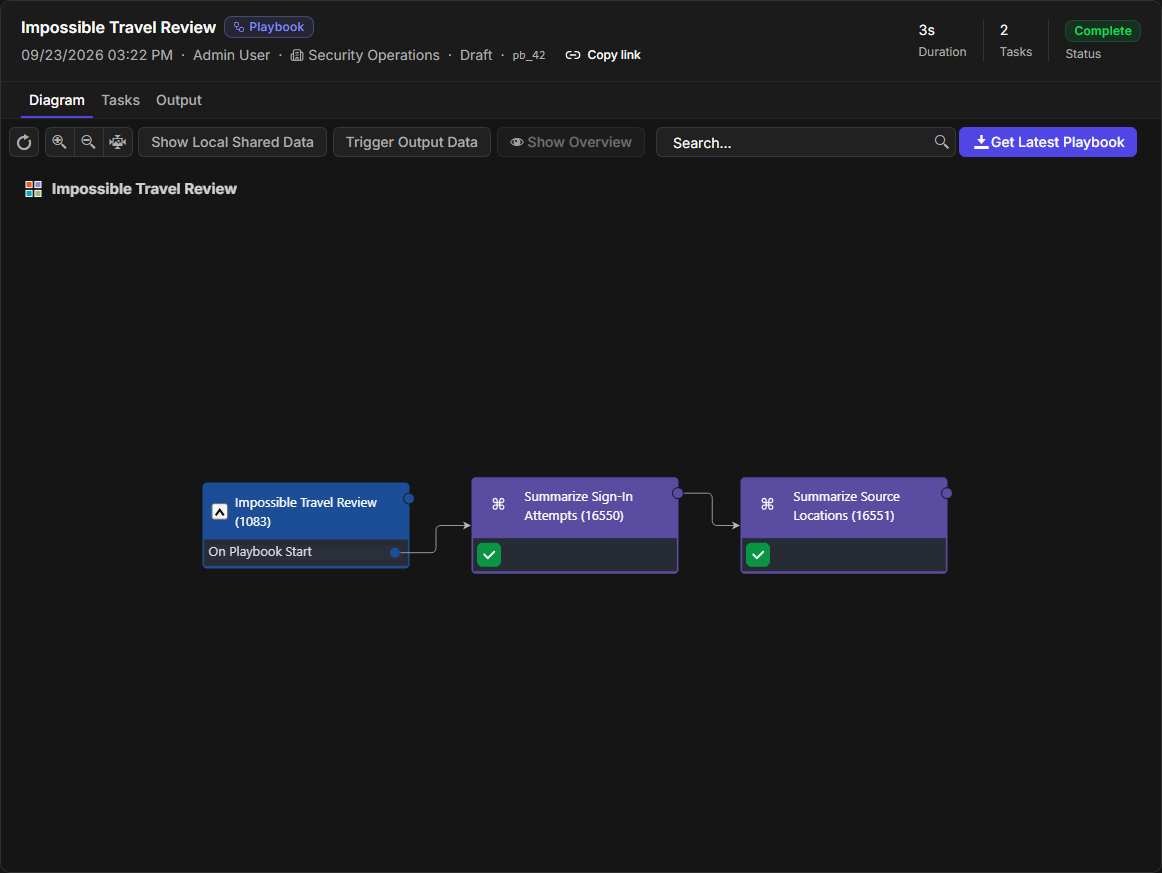
A playbook run opens on its Diagram: the playbook as it ran, with each task marked by its result.
|
Tab |
Contents |
|---|---|
|
Diagram |
A read-only diagram of the run. Selecting a task opens that task's detail. |
|
Tasks |
Every task in the run, with its Status, Ended time, and Duration. The All, Pending, and Done buttons filter the table and show a count each. Selecting a row opens the task's detail. |
|
Output |
The run's output data. |
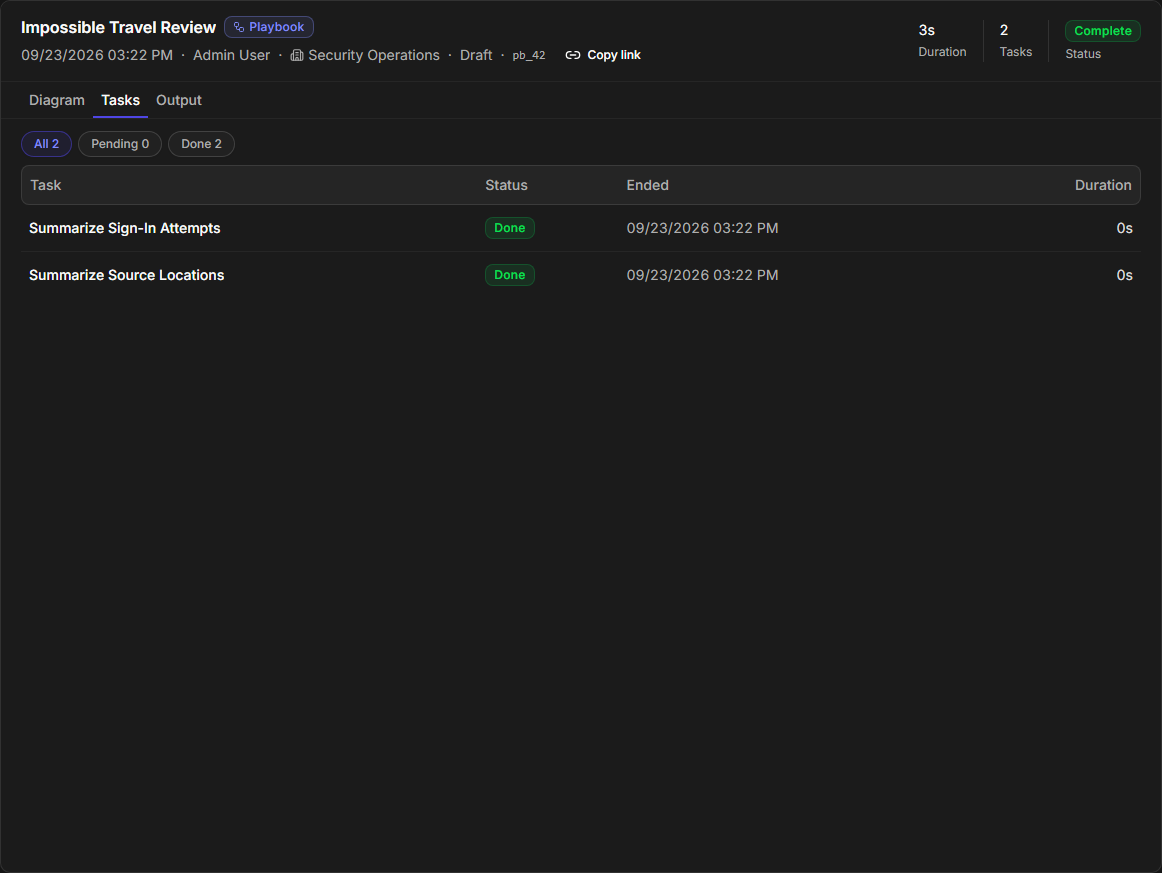
A task's status is Done, Pending (waiting to be run manually, for a reply, or for its agent), or Error.
Utility Command Tests
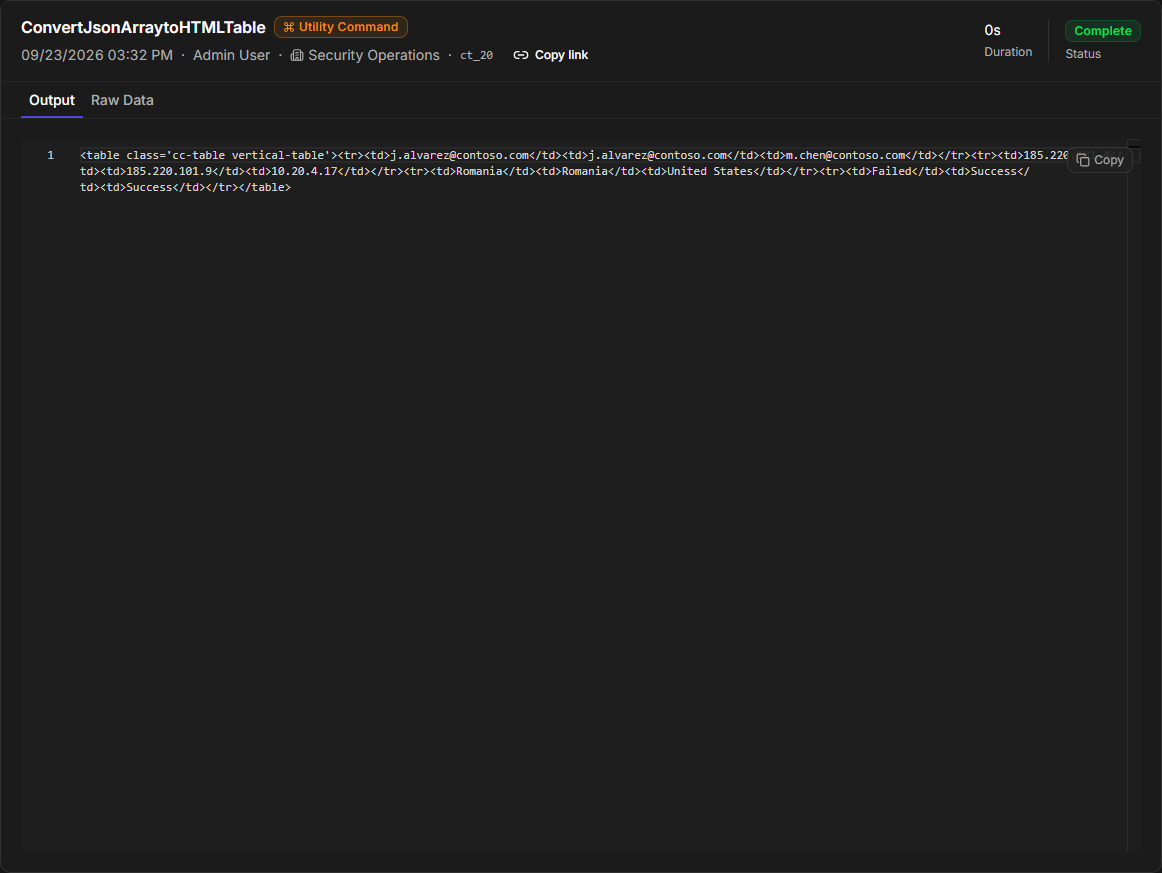
A utility command test opens on its Output.
|
Tab |
Contents |
|---|---|
|
Diagram |
Only for a command whose Implementation is Codeless Playbook. Testing such a command runs its playbook, so the run also shows a Tasks count. |
|
Output |
The command's result. |
|
Raw Data |
The command's raw return data. |
|
Error Log |
Only when the test failed. |
|
Custom Log |
Only when the command wrote one. |
|
Requests |
Only when the command made HTTP calls, and only if you have the Playbook permission. The tab name shows the number of captured requests. |
READER NOTE
Credential-bearing request and response headers—authorization, tokens, cookies—are masked in the Requests tab. Header names and all other headers are shown as captured. The requests themselves are stored in full, which is why the tab needs the Playbook permission.
Remote API Executions
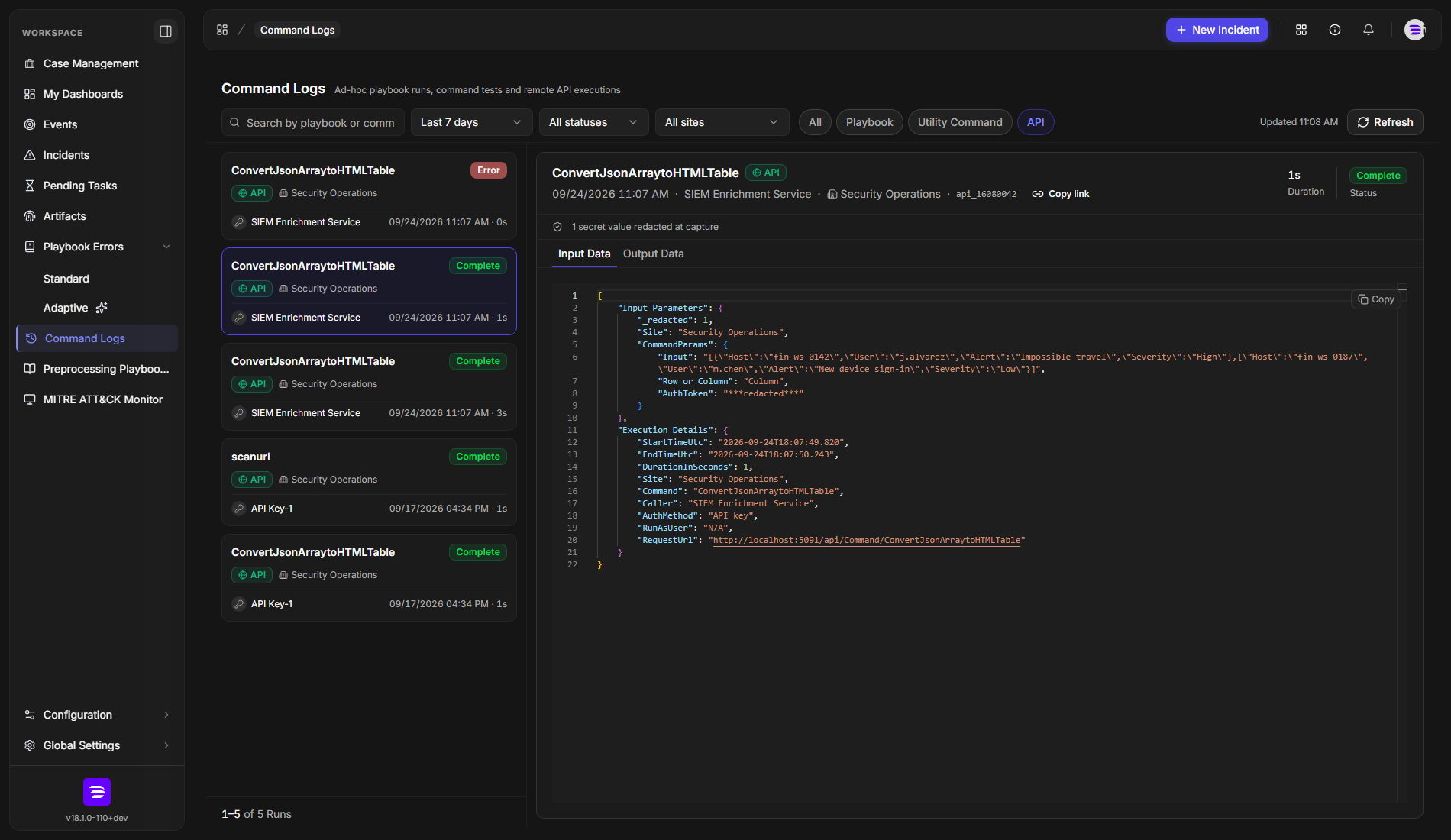
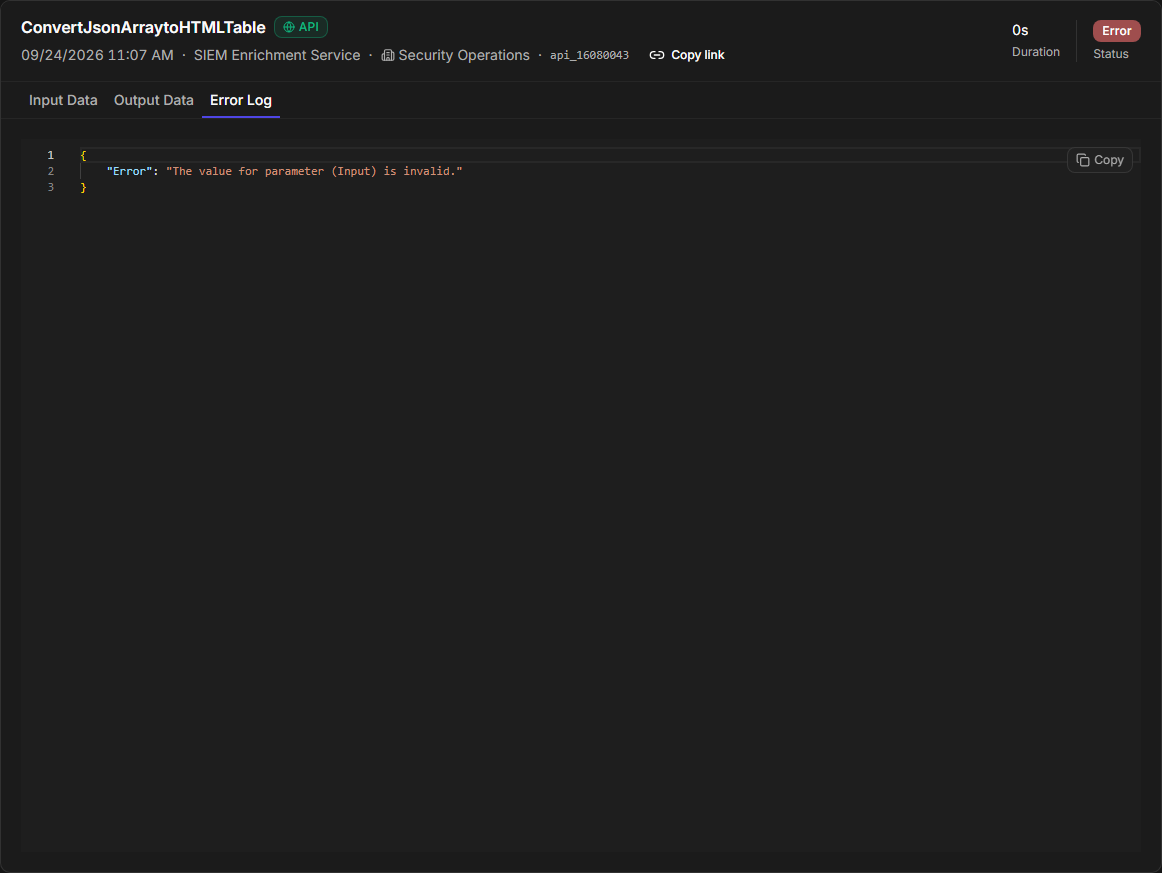
An API run records a command that an external system executed through the D3 command API. The run's caller is the API key or OAuth application that made the call.
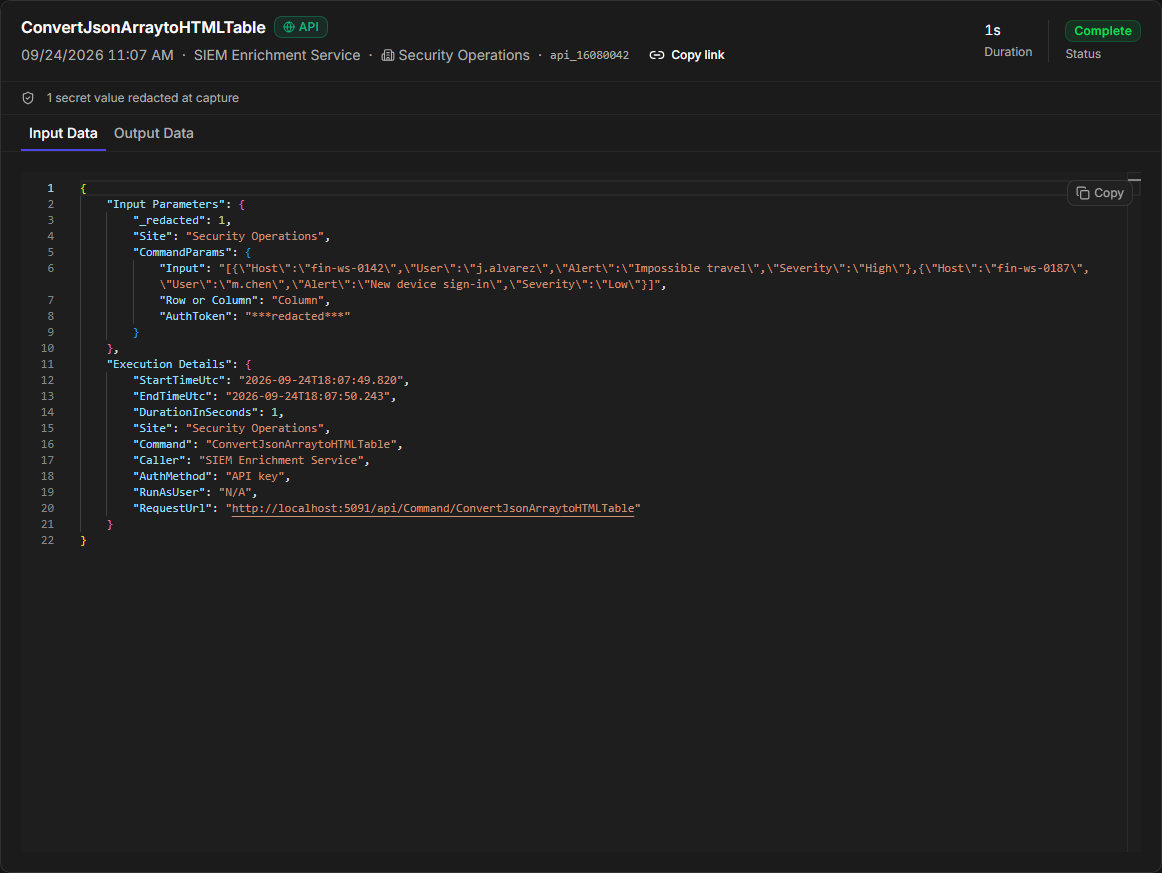
|
Tab |
Contents |
|---|---|
|
Input Data |
The parameters the caller sent, with the execution details: site, command, caller, authentication method, the user the command ran as, and the request URL. |
|
Output Data |
The command's result. |
|
Error Log |
Only when the execution failed. |
|
Custom Log |
Only when the command wrote one. |
READER NOTE
Secrets are removed before an API run is recorded: sensitive parameters such as passwords and tokens are stored as redacted, and the API key itself is never stored. When a run's record was redacted or cut short, a note above the tabs says how many values were redacted, or that the input or output exceeded the size limit and was not stored.
Sharing a Run
Every run has its own link.
READER NOTE
The person you share with needs the Preprocessing Playbook Viewer permission and access to the run's site. Without the permission they see the no-permission message; without site access they see Run not found.
-
Open the run.
-
Select Copy link in the run header.
RESULT
The link is copied and Run link copied confirms it. Opening the link goes straight to that run.
Example: Investigating a Failed Playbook Test
This example finds out why a playbook test failed during the last day, and who ran it.
-
Open Command Logs.
-
Set the time range to Last 24 hours.
-
Set the status to Error.
-
Select the Playbook source chip.
-
Select the run to open it.
-
On the Diagram tab, find the task marked as failed, and select it to open its detail.
-
Select the Tasks tab to see when each task ended and how long it took.
-
Select Copy link to share the run with whoever owns the playbook.
RESULT
You have the caller, the site, the failing task and its detail, and a link that opens the same run for the playbook owner.
Troubleshooting
|
What you see |
What it means |
What to do |
|---|---|---|
|
Command Logs is missing from the navigation |
Your role lacks Preprocessing Playbook Viewer. |
Ask an administrator to add the permission to your role. |
|
No runs match your filters |
No run fits the current filters, or the runs belong to sites you cannot access. |
Widen the time range, clear the filters, or check your site access. |
|
Run not found in the right pane |
The run is on a site you cannot access, or it has been removed by the retention schedule. |
Check your site access. Playbook test runs older than the retention window (45 days by default) are no longer available. |
|
A run stays Running |
A task is waiting to be run manually or for a reply, and the test is still open. |
Run or answer the task in the playbook editor, or close the test; a closed run with a waiting task shows Stopped. Either way, the record already holds every task that has finished. |
|
No Requests tab on a utility command test |
The command made no HTTP calls, or your role lacks the Playbook permission. |
Ask for the Playbook permission if you need captured requests. |
|
Could not copy the link |
The browser blocked clipboard access. |
Allow clipboard access for the site, or copy the page address, which already points at the run. |
FAQ
Can I delete a run?
No. Command Logs is read-only. Playbook test runs are removed automatically, after 45 days by default.
Why can a colleague see runs that I cannot?
You see runs only for the sites you can access. Your colleague may have access to more sites.
Do runs from before the upgrade appear?
Only utility command tests. Tests recorded before the upgrade appear under All time. API executions are recorded from the upgrade onward. Playbook test runs closed before the upgrade were removed at the time and do not appear; a test still open at the upgrade can appear until it is 45 days old.
Can I export runs?
Not from Command Logs. Each output viewer has a Copy button for its contents.
Can I start or rerun a test from Command Logs?
No. Start tests from the playbook editor or from the command's Test view; the run then appears in Command Logs.
RELATED ARTICLES
-
Investigation Playbooks
-
Preprocessing Playbooks
-
Utility Commands
-
Roles and Permissions