
Last Updated: October 22, 2026
Overview
Data ingestion brings alerts from your security tools into D3, as events (for preprocessing) or as incidents (for response). The Data Ingestion page lists every data source, grouped by integration, with the schedules and webhooks that feed it, and the log of each schedule's runs.
The page is found under Configuration > Data Ingestion. It has two tabs:
-
Event Intake: data sources that create events.
-
Incident Intake: data sources that create incidents.
Both tabs work the same way.
Intake Methods
A data source brings data in by one of two methods:
-
Schedule: D3 runs the integration's fetch command (for example Fetch Event) at a set interval to pull data in.
-
Webhook: the external tool pushes data to D3 through an HTTP API.
The Data Ingestion Page
-
Search Data Sources finds a data source by integration name.
-
New adds a data source. See Adding a Data Source below.
-
Sort By groups the list by Default (by integration) or Sites. The filter button beside it filters the list by intake type.
-
Expand an integration to see its schedule and webhook cards. The + button on an integration's row adds an ingestion method to it.
-
Select a schedule card to see its runs in the All Runs log. Filter the runs with FROM and TO, and select a run to see its details on the right.
The Data Ingestion page
The Schedule Card
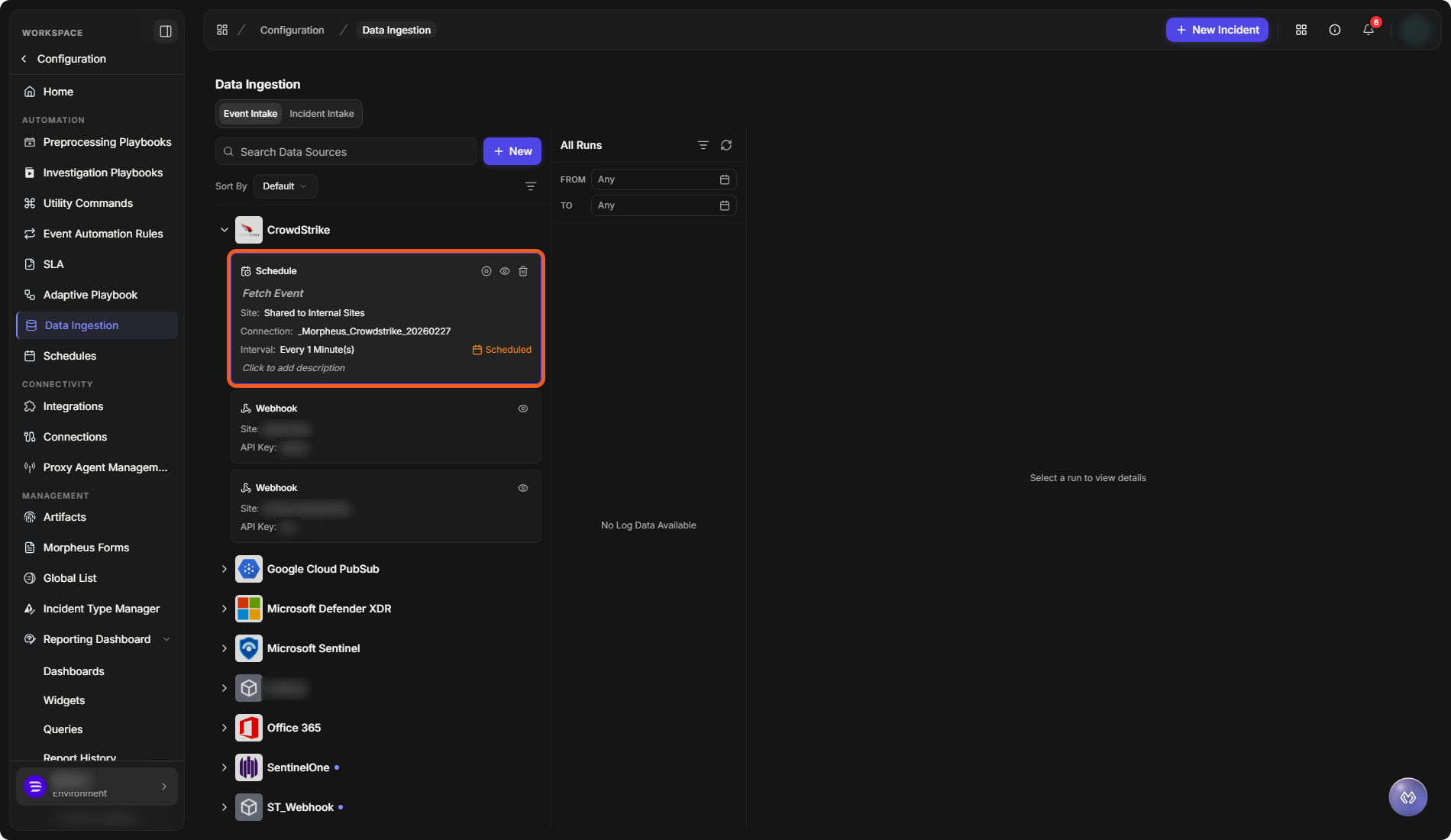
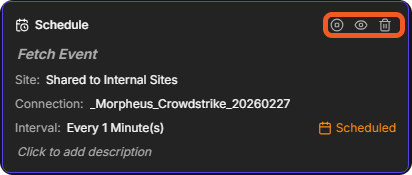
A schedule card shows the fetch command, the Site, the Connection, the Interval and the schedule's status, for example Scheduled. Select Click to add description to describe the schedule. The buttons at the top right of the card are Stop, View and Delete.
A schedule card
A webhook card shows the Site and the API Key the webhook uses, and a View button.
Adding a Data Source
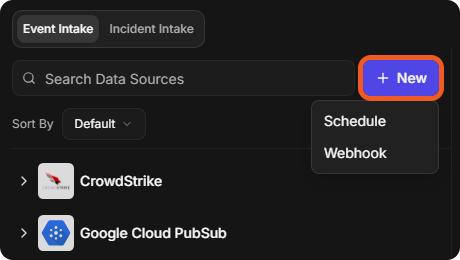
Open the tab for the kind of data you want, Event Intake or Incident Intake, then select New and choose Schedule or Webhook.
The New menu
Adding a Schedule
-
Select New > Schedule.
-
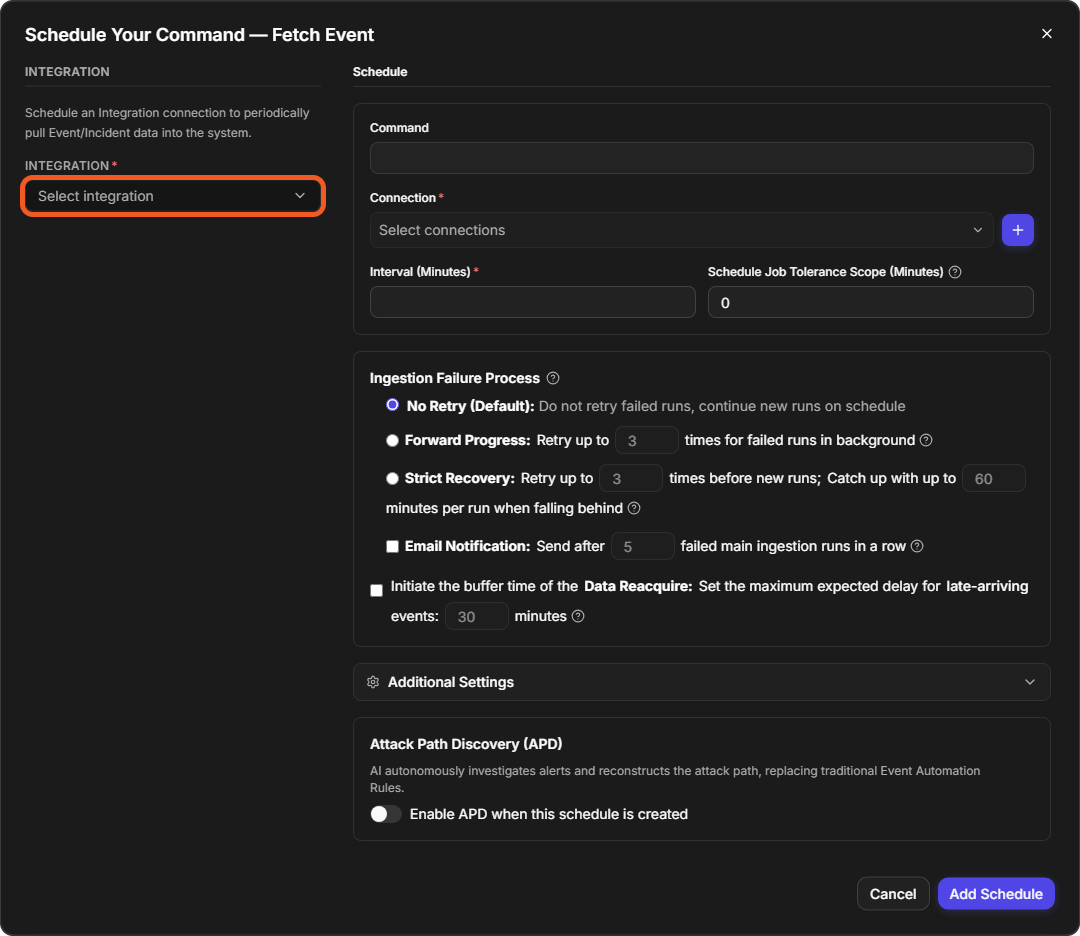
In the Schedule Your Command window, choose the INTEGRATION.
-
Choose the Connection to fetch with, or add one with the + button.
-
Enter the Interval (Minutes): how often the schedule runs.
-
Optionally, set the Schedule Job Tolerance Scope (Minutes).
-
Choose the Ingestion Failure Process:
-
No Retry (Default): do not retry failed runs; continue new runs on schedule.
-
Forward Progress: retry failed runs in the background, up to the number of times you set.
-
Strict Recovery: retry failed runs before new runs, up to the number of times you set, and catch up by up to the number of minutes you set per run when the schedule falls behind.
-
Email Notification: send an email after the number of failed runs in a row you set.
-
Data Reacquire: set the maximum expected delay, in minutes, for late-arriving events.
-
-
Optionally, expand Additional Settings:
-
DATA FORMATTER and PREPROCESSING PLAYBOOK, both (Not Set) by default.
-
Run MITRE TTP Search: map new events to MITRE tactics and techniques automatically.
-
Run Event Automation Rules: apply event automation rules to dismiss or escalate events.
-
-
Optionally, switch on Enable APD when this schedule is created under Attack Path Discovery (APD). APD has AI investigate the alerts and reconstruct the attack path, in place of event automation rules.
-
Fill in the fetch command's inputs under Command Details. They depend on the integration.
-
Select Add Schedule.
The Schedule Your Command window
Adding a Webhook
-
Select New > Webhook.
-
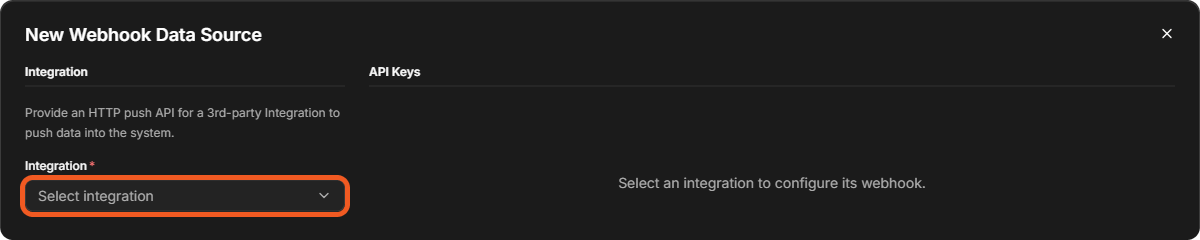
In the New Webhook Data Source window, choose the Integration.
-
Set up the webhook's API Keys on the right.
The New Webhook Data Source window
For webhook authentication and request formats, see the Webhook Configuration Guide. For how ingested fields map to event and incident fields, see Field Mappings.