
Last updated: October 19, 2026
Overview
Multi-site data ingestion schedules let you set up event ingestion for many client sites in one pass: select several connections in the schedule dialog, and D3 creates one schedule per connection—each named after its site, each with its own Attack Path Discovery (APD) setting—instead of you filling in the same form once per site.
Because a connection already belongs to exactly one site, choosing ten connections means ten sites are covered. There is no separate bulk tool to learn: select one connection and the dialog works the way it always has; select two or more and it switches to multi-site mode.
Multi-site scheduling is found under Configuration > Automation > Data Ingestion, in the new UI, on the Event Intake tab.
In short
|
# |
Stage |
Where it happens |
|---|---|---|
|
1 |
Pick the integration and its connections |
Schedule Your Command dialog, Integration and Connection |
|
2 |
Name the schedules and set the shared settings |
The same dialog, Schedule name pattern and the cards below it |
|
3 |
Choose the APD default for the whole batch |
The dialog's Attack Path Discovery (APD) card |
|
4 |
Check each site's schedule before anything is created |
Review Schedule Jobs |
|
5 |
Create the schedules |
Create N schedules, then Create in the confirmation |
|
6 |
Read the per-site result, and retry any failures |
Schedule Jobs Created |
|
7 |
Find the new schedules |
The Data Ingestion tree, under the integration |
Before You Start
A multi-site batch builds on connections you already have, so set those up first.
-
One connection per site. Each site you want to ingest from needs its own connection for the integration. If a single connection is shared to many sites today, clone it to each site first—see Connections.
-
Editor access to each connection. Connections you can only view are listed but cannot be selected, because a schedule cannot be saved on them.
-
APD permission, if you want APD. Turning on APD for new schedules requires the Edit APD Disposition Rules permission. Without it, the schedules are still created, without APD, and the APD card says so.
READER NOTE
APD applies to event ingestion. When the command is Fetch Incident, the APD card does not appear and the schedules are created without APD.
Choosing Connections
The Connection field is where a batch starts: every connection you select becomes one schedule for that connection's site.
The list shows only the connections of the integration selected in the Integration column, grouped by site category and searchable. Each entry reads as the connection name followed by its site in parentheses—for example, FortiSIEM - Contoso (Contoso Health). Select All at the top of the list picks every connection shown, which is the quickest way to schedule a whole group. Selecting a different integration clears the selection.
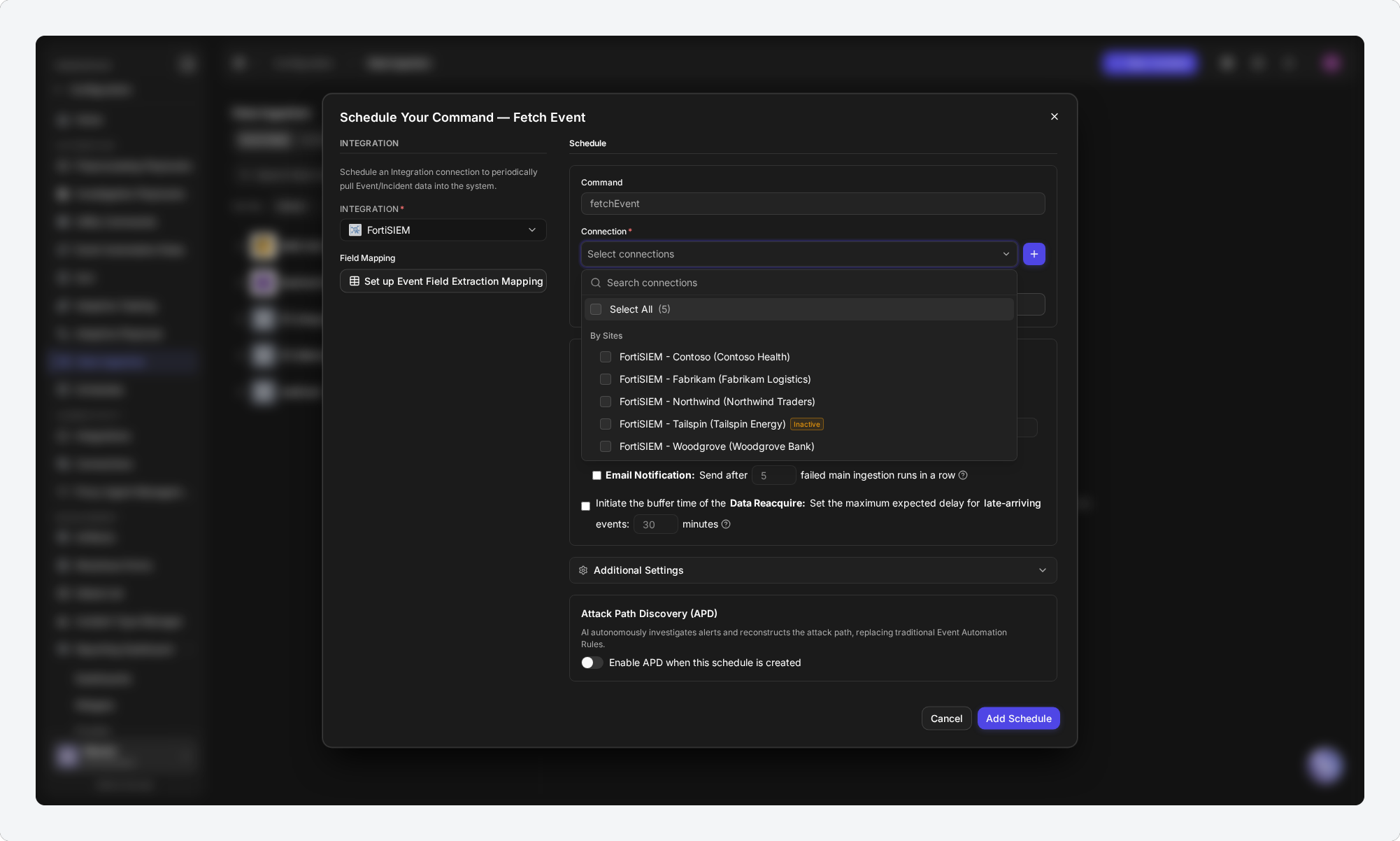
Some entries behave differently, so a batch never creates something you did not mean to:
|
Entry |
What happens |
|---|---|
|
Already scheduled |
Greyed out and cannot be selected. A new schedule on that connection would replace the one already running. |
|
View-only access |
Greyed out and cannot be selected. You need Editor access to save a schedule on it. |
|
Inactive |
Selectable, and marked Inactive. It is shown on the review step as skipped and is not created, so a stray inactive connection never blocks the rest of the batch. |
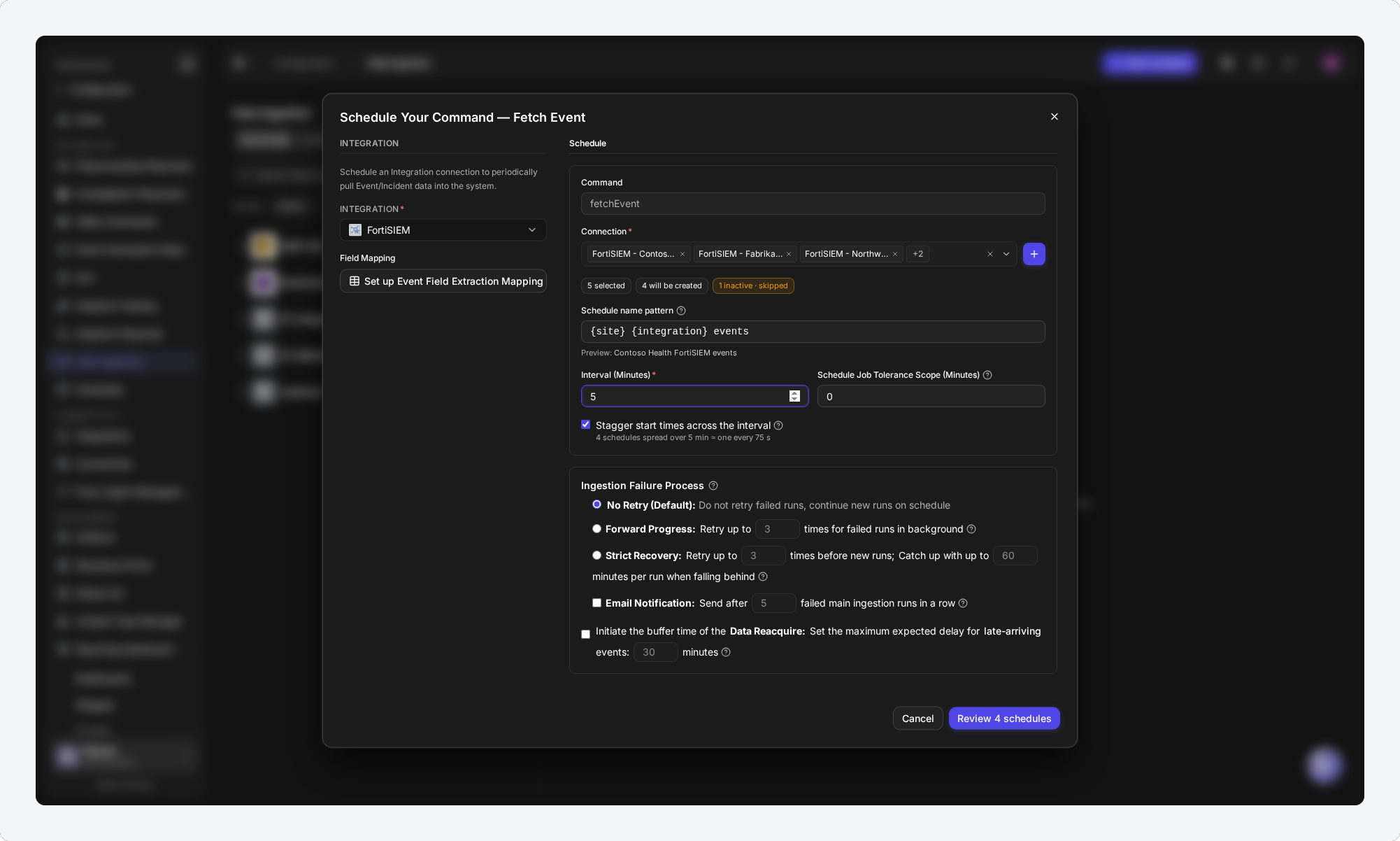
As soon as two or more connections are selected, three counts appear under the field—for example 5 selected, 4 will be created, and 1 inactive · skipped—so you know how many schedules you are about to make before you go any further.
Naming the Schedules
A schedule name pattern names every schedule in the batch after its own site, so forty new schedules do not all arrive in the Data Ingestion tree as forty rows called "Fetch Event".
The field appears only when two or more connections are selected. Type plain text and any of these placeholders, which are filled in for each site:
|
Placeholder |
Filled in with |
|---|---|
|
|
The integration's name, such as FortiSIEM |
|
|
The connection's site, such as Contoso Health |
|
|
The command being scheduled, such as Fetch Event |
|
|
The connection's own name, without the site |
The default pattern is {integration} — {site}. Preview under the field shows the name the first selected connection will get, so you can see the result as you type—for example, the pattern {site} {integration} events previews as Contoso Health FortiSIEM events.
READER NOTE
Text in braces that is not one of the four placeholders—a typo such as {sites}—is kept as typed. Preview highlights it, so a mistyped placeholder is caught before anything is created.
Names are limited to 50 characters; a longer result is shortened to fit. Any single name can still be changed on the review step.
Spreading Start Times
Stagger start times across the interval spaces the batch's start times evenly across one polling interval, so schedules created together do not all query the data source at the same moment and run into the vendor's API limits.
The line under the checkbox shows what the current choice does—for example, 4 schedules spread over 5 min ≈ one every 75 s, or All 4 schedules will start at the same time when it is cleared. Each schedule keeps the same interval afterwards; only the first start is spread.
Shared Settings
Everything else in the dialog—Interval (Minutes), Ingestion Failure Process, Additional Settings, and Command Details—is filled in once and applied to every schedule in the batch. Required Command Details fields, such as a search condition, must be filled in before you can review the batch.
READER NOTE
Moving between one selected connection and several resets Command Details to the command's defaults. With one connection, the dialog fills them from that connection's saved values; with several, there is no single connection to copy from, so set them for the whole batch after you finish selecting.
When any selected connection is shared to client sites, the site-mapping fields appear as they do for a single connection, and apply to those connections only.
Setting the APD Default
The Attack Path Discovery (APD) card sets one APD choice for the whole batch, so you do not have to enable APD and set up its rules on each schedule afterwards. It is a default: on the review step you can turn APD off for any single site—for example, to start a newly onboarded client in observation while the others run your standard policy.
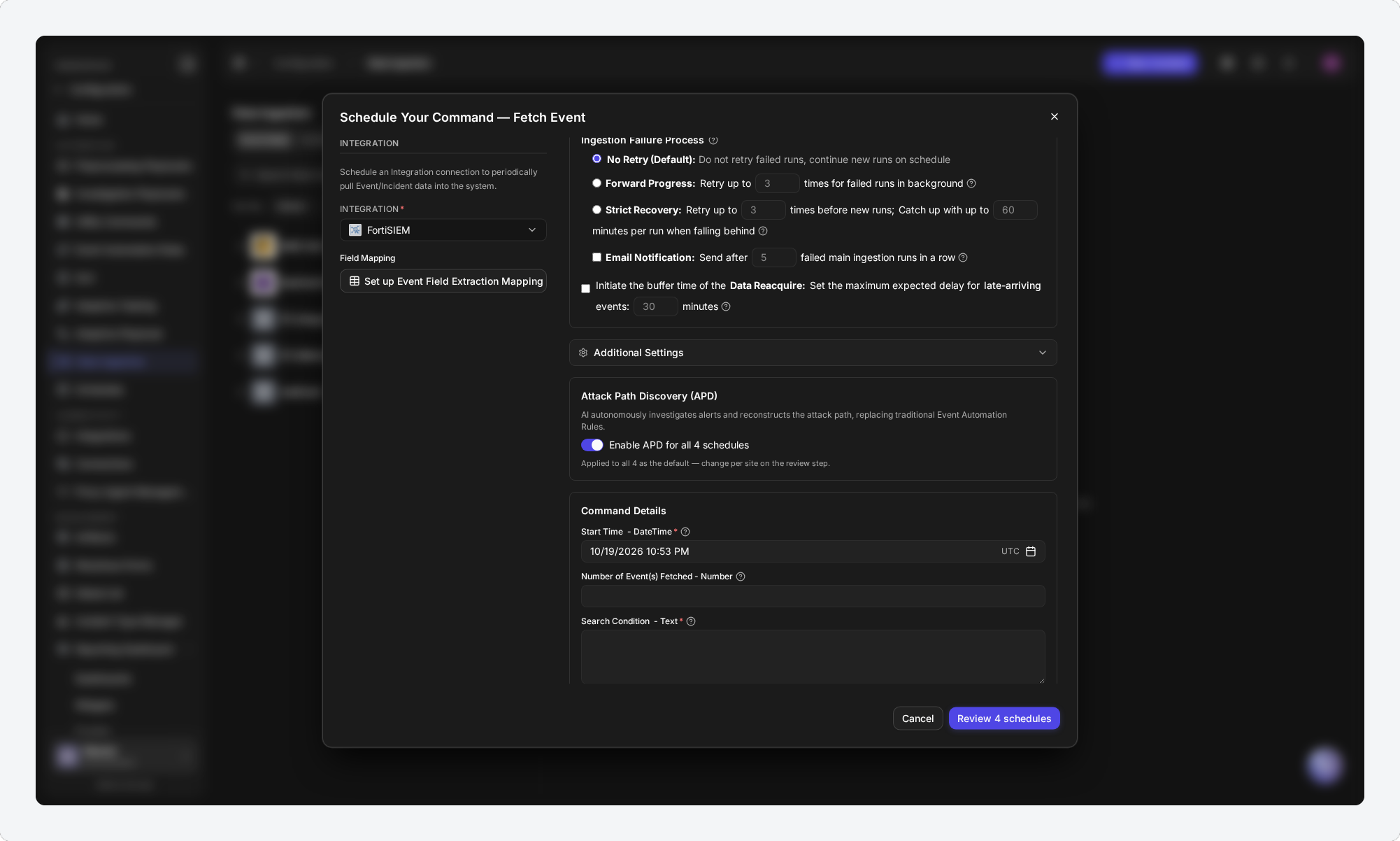
Switch on Enable APD for all N schedules, where N is the number that will be created. When there is nothing else to choose, every new schedule starts with an empty rule set. When there is a choice, pick where the new schedules' rules come from:
|
Option |
What each new schedule gets |
|---|---|
|
Start with an empty rule set |
APD turned on with no rules. APD does not investigate alerts until you publish a Disposition Rule for each schedule. |
|
Copy rules from |
A copy of another schedule's published Disposition Rules, so APD starts investigating straight away. Only schedules of the same integration that have published rules can be used. |
|
Use an SOP (from 18.6) |
Its own APD policy that follows the SOP you pick, so APD starts investigating straight away. SOPs not enabled for APD are listed but cannot be picked. |
Copy rules from appears only when a schedule of the same integration is available to copy from, and Use an SOP only when there is an SOP to pick. Leaving the switch off creates every schedule without APD; you can still turn it on for any of them later.
READER NOTE
Without the Edit APD Disposition Rules permission, the switch is locked and the card reads You don't have permission to enable AI disposition; the schedules will be created without it.
Creating Schedules for Multiple Sites
This procedure creates one schedule for each selected site, with an APD default and one site left in observation.
-
Navigate to Configuration > Automation > Data Ingestion, and stay on the Event Intake tab.
-
Select New, then Schedule.
-
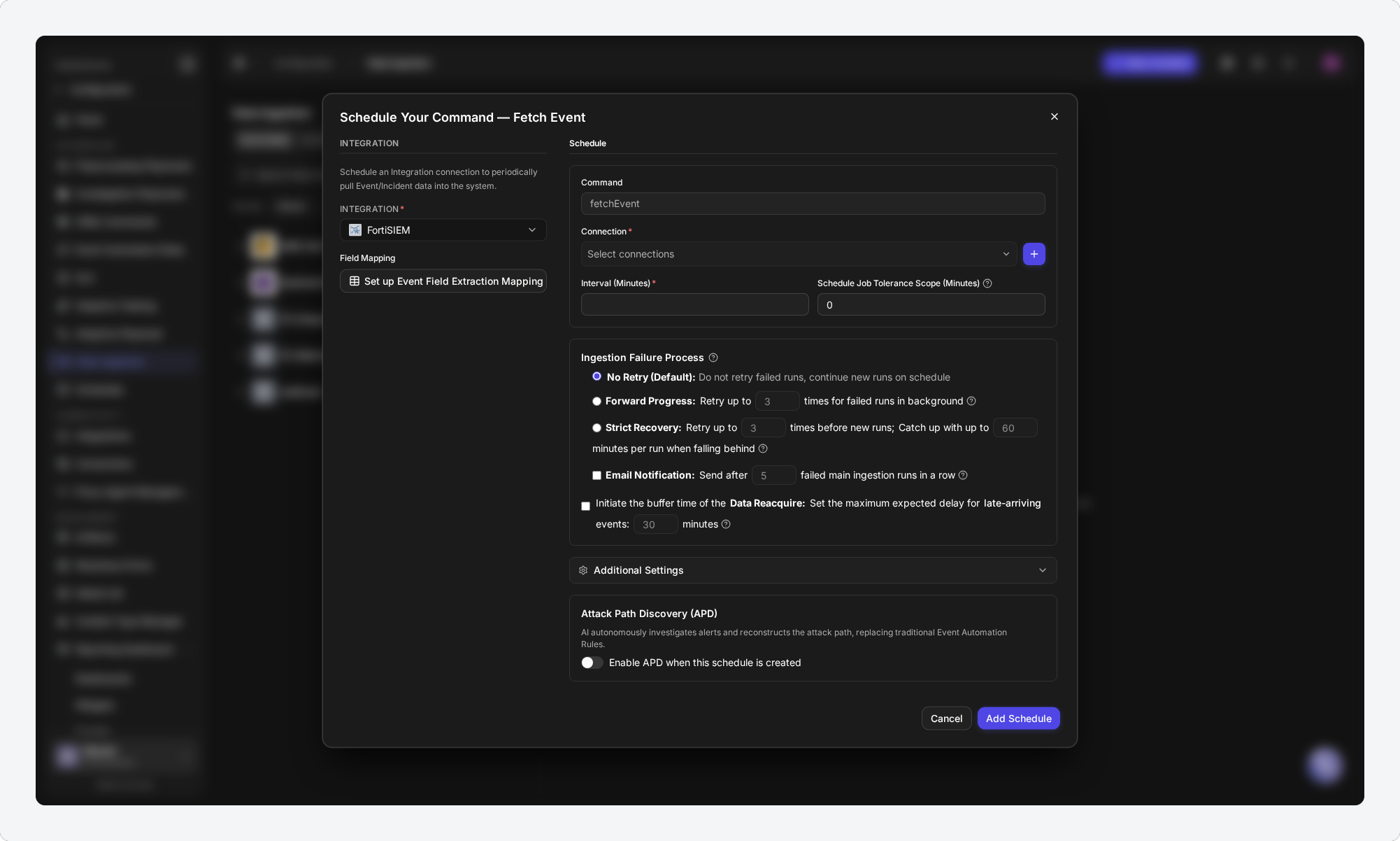
Under Integration, select the integration—for example, FortiSIEM. Command fills in with the integration's fetch command.
-
In Connection, select the connections for the sites you want to schedule.
-
(Optional) Change Schedule name pattern, and check Preview.
-
Enter Interval (Minutes).
-
(Optional) Select Stagger start times across the interval.
-
Fill in any other shared settings, including the required Command Details fields.
-
(Optional) Under Attack Path Discovery (APD), switch on Enable APD for all N schedules, and choose where the rules come from.
-
Select Review N schedules.
RESULT
Review Schedule Jobs opens with one row per selected connection. Nothing has been created yet.
Reviewing the Batch
Review Schedule Jobs is a last look at every schedule before it exists: one row per site, with the name it will get, the connection it uses, its APD setting, and whether it will be created.
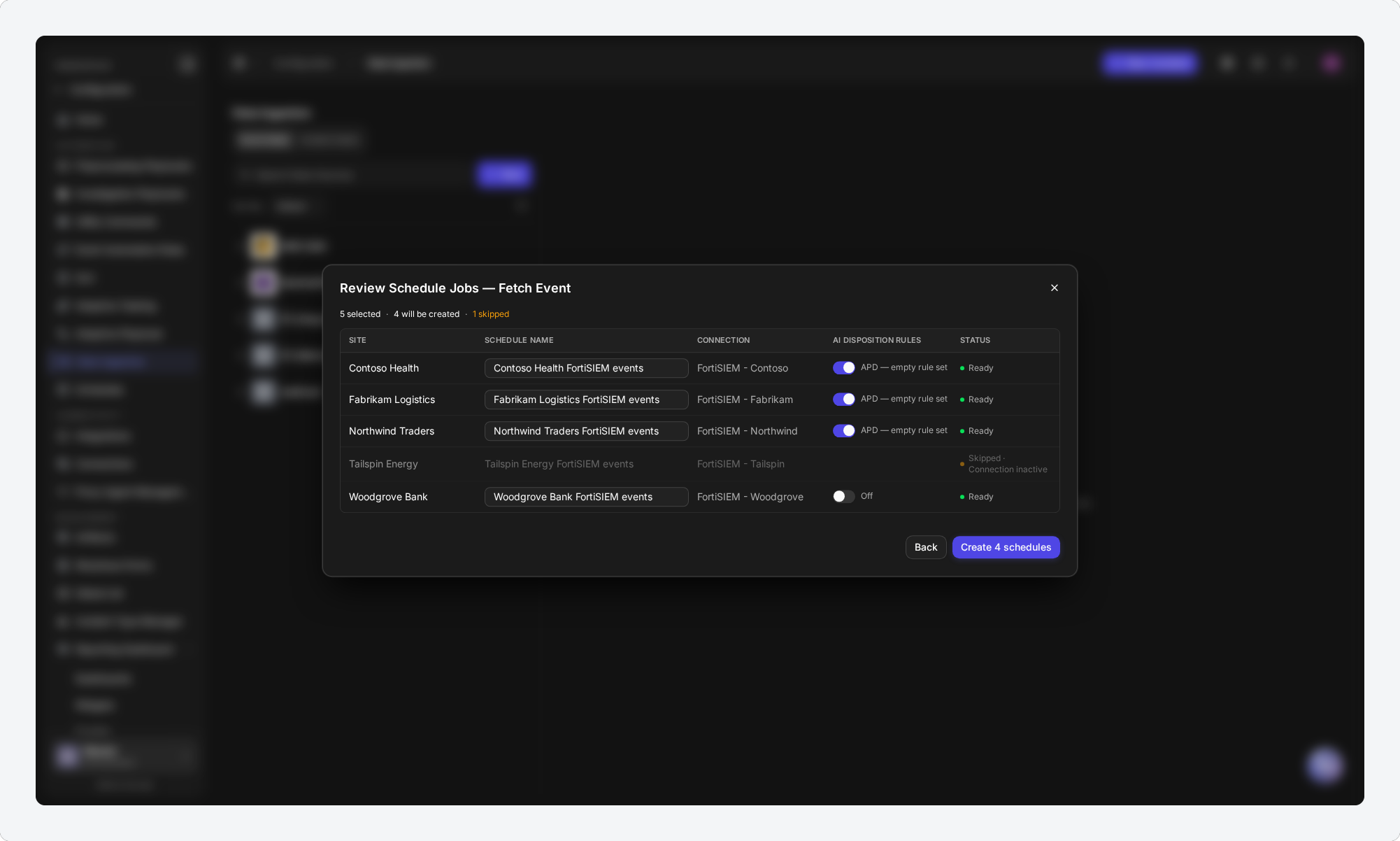
|
Column |
What it shows |
|---|---|
|
Site |
The site the schedule is for. |
|
Schedule name |
The name from the pattern. Edit it here to change one site's name. |
|
Connection |
The connection the schedule uses. |
|
AI disposition rules |
Shown when APD is on for the batch. The switch reads the batch default—for example APD — empty rule set—or Off. Switch it off to create that site's schedule without APD. |
|
Status |
Ready, or Skipped with the reason—for example Skipped · Connection inactive. Skipped rows are not created. |
The counts at the top restate how many rows are selected, will be created, and are skipped. Select Back to change anything on the form; your name edits and APD switches are kept when you return.
-
Edit any Schedule name that should differ from the pattern.
-
(Optional) Switch off AI disposition rules for any site that should start without APD.
-
Select Create N schedules.
-
Read the confirmation, then select Create.
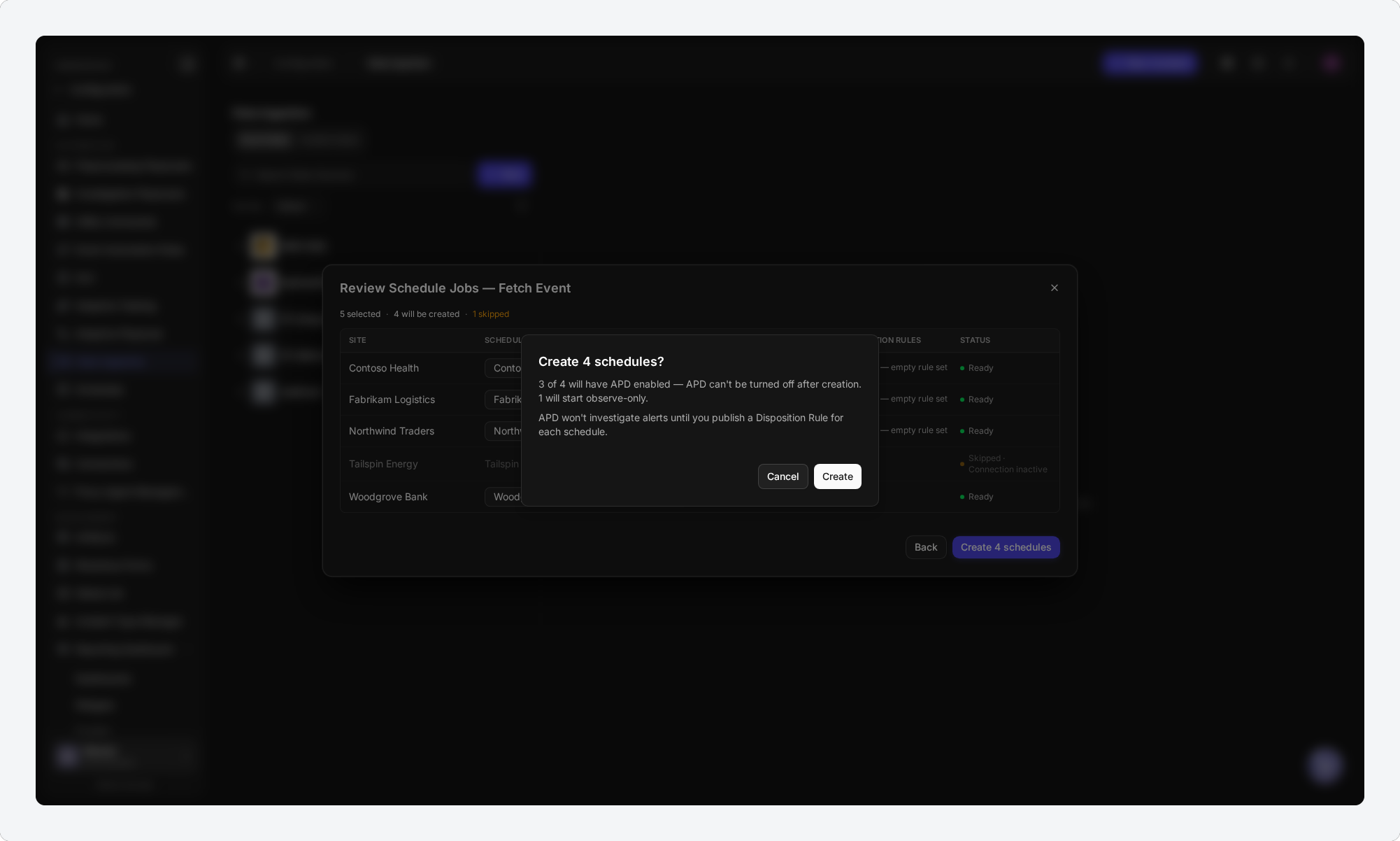
WARNING
APD cannot be turned off for a schedule once it is created with APD. The confirmation states how many schedules will have APD and how many will start observe-only, so check that count before you select Create.
The confirmation appears only when at least one schedule will have APD. Its last line says when APD starts working: after you publish a Disposition Rule for each schedule (empty rule set), or straight away (copied rules or an SOP).
RESULT
The schedules are created one after another, and the button shows the progress—for example Creating 2/5…. The dialog cannot be closed while this runs; when it finishes, Schedule Jobs Created opens.
Reading the Result
Schedule Jobs Created reports what happened to each site, so you know which schedules exist without opening the tree.
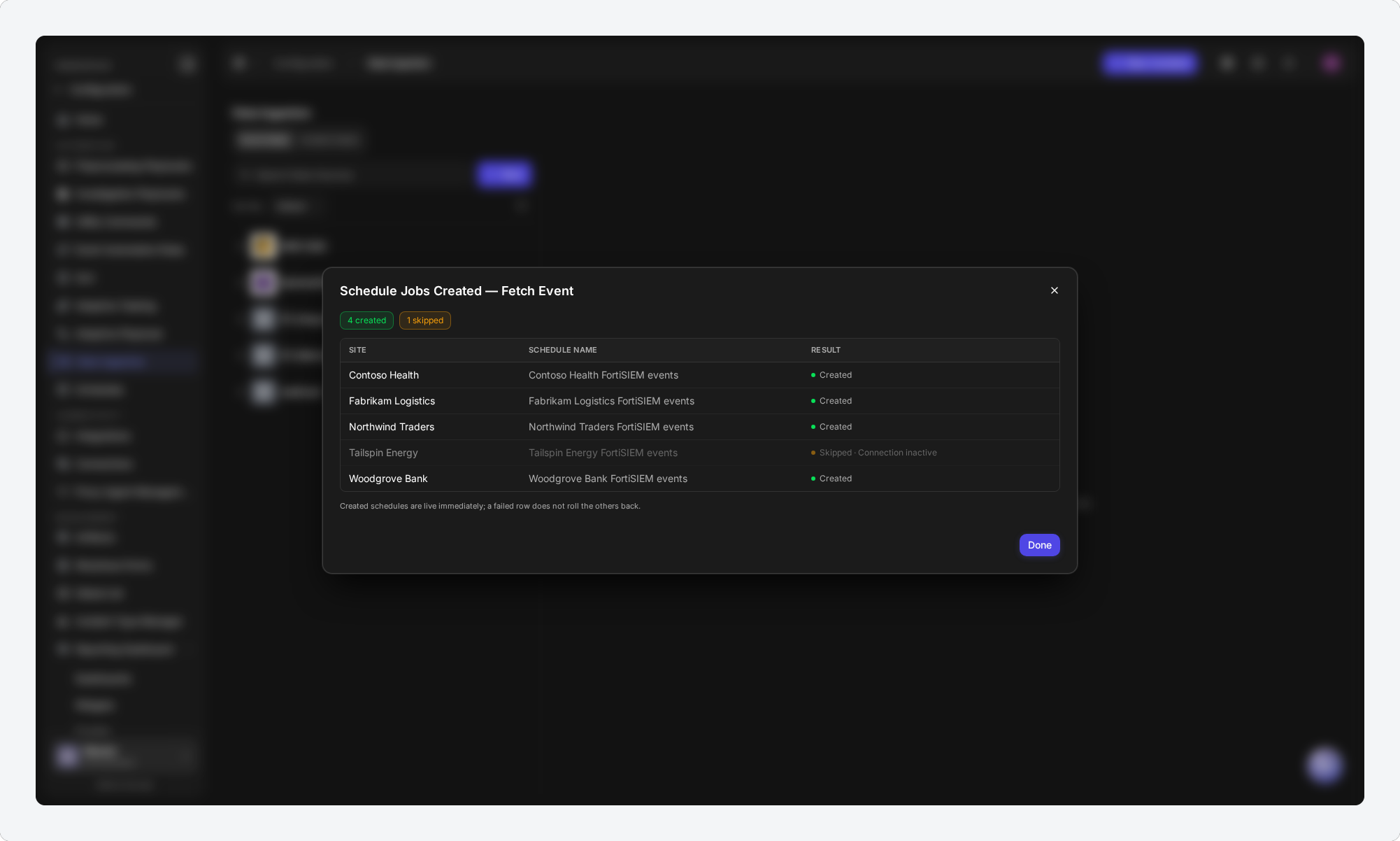
Each row's Result is one of:
|
Result |
What it means |
|---|---|
|
Created |
The schedule exists and is running. |
|
Failed |
The schedule was not created. The row shows the reason returned by the server. |
|
Skipped |
The row was skipped on the review step and not created. |
Created schedules are live immediately, and a failed row does not undo the others. When part of the work behind a created schedule did not complete, the row says so after Created:
|
Note after Created |
What it means |
|---|---|
|
name not applied |
The schedule was created, but its name from the batch was not saved. Rename it from the Data Ingestion tree. |
|
APD not enabled |
The schedule was created without APD. Turn APD on from the schedule. |
|
AI rules not copied (needs Edit APD Disposition Rules permission) |
APD rules were not copied because you do not have the permission. |
|
AI rules not copied (source has no published rules) |
The schedule you copied from had no published rules to copy. |
|
APD policy not created: followed by a reason (from 18.6) |
The SOP-based APD policy could not be created for this site, for the reason shown. |
When any row failed, Retry N failed runs just those rows again. Rows that were created are not touched.
Select Done to close the dialog. The new schedules appear under the integration in the Data Ingestion tree, each with its site, connection and interval. Schedules created with APD carry the AI sparkle icon.
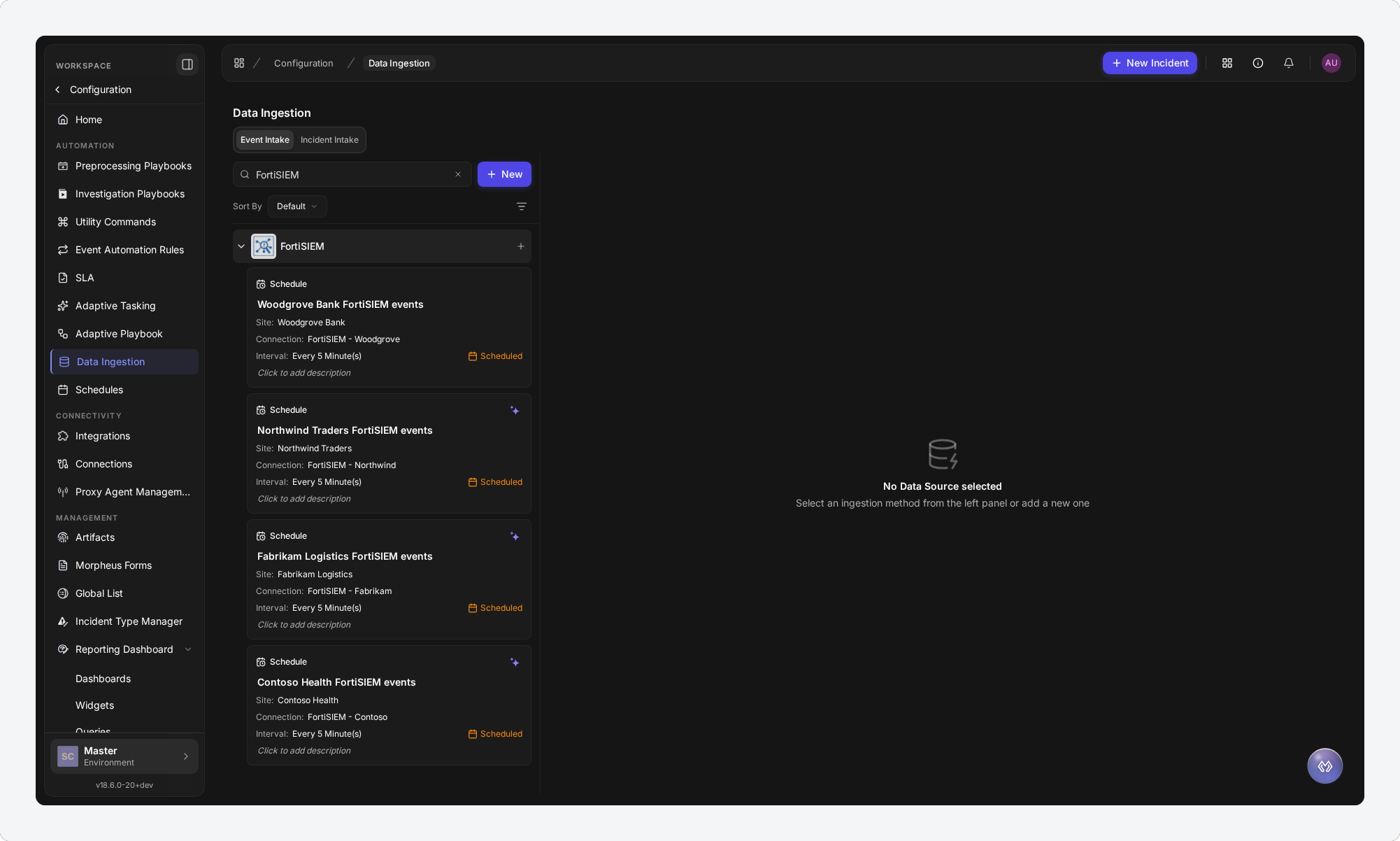
Creating a Schedule for One Connection
With a single connection selected, the dialog keeps its familiar form: there is no name pattern, no review step, and Add Schedule saves the schedule directly.
One thing is new: you can turn on APD while you create the schedule, rather than only after saving it. Switch on Enable APD when this schedule is created in the APD card, then select Add Schedule. A Create schedule with APD? confirmation states that APD can't be turned off after the schedule is created, and whether APD starts straight away or waits for you to publish a Disposition Rule.
Messages You May See
|
Message |
What to do |
|---|---|
|
Interval must be at least 1 minute |
Enter an interval of 1 or more. |
|
Field is required—for example, Search Condition is required |
Fill in the named Command Details field. |
|
Pick the schedule to copy AI disposition rules from |
You chose Copy rules from; select the schedule, or choose another option. |
|
Pick the SOP the APD policies should follow (from 18.6) |
You chose Use an SOP; select the SOP. |
|
The selected schedule has no published AI rules to copy |
Pick a schedule that has published Disposition Rules, or start with an empty rule set. |
|
Still checking the selected schedule's AI rules — try again in a moment |
D3 is still confirming the schedule you chose to copy from. Wait a moment, then select Review again. |
|
Failed · shared to all sites, but no recipient site was found (result row) |
The connection is shared to all sites, but no site can receive its data. Check the connection's sharing, then Retry N failed. |
RELATED ARTICLES
-
Data Ingestion
-
Connections
-
Attack Path Discovery