
Last Updated: October 26, 2026
A webhook data formatter is a custom utility command that reshapes the data a data source receives before D3 processes it, for example when an external tool sends data in a structure that the event field mapping does not expect. It is different from the Data Formatter task in the playbook editor.
You can write the formatter in Python or build it as a Codeless Playbook. This article shows the Python way. For the codeless way, see Codeless Playbooks for Webhook Data Formatting.
Using the Webhook Data Formatter
Step 1: Create a Custom Utility Command
Tip: you can also generate this command with AI. See Generating with AI.
-
Go to Configuration > Utility Commands, select +, enter a Command Display Name, keep Implementation set to Python, and select Add Command. See Utility Custom Command.
-
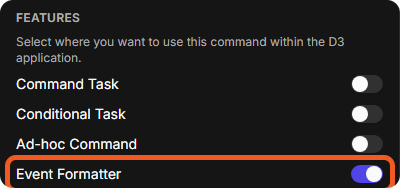
On the command's Settings tab, under FEATURES, switch on Event Formatter.
-
On the Inputs tab, select New Input Parameter and add a parameter that receives the raw data, for example a Text parameter named
rawDataInput. Paste a sample of the incoming data in Sample Data, then select Add.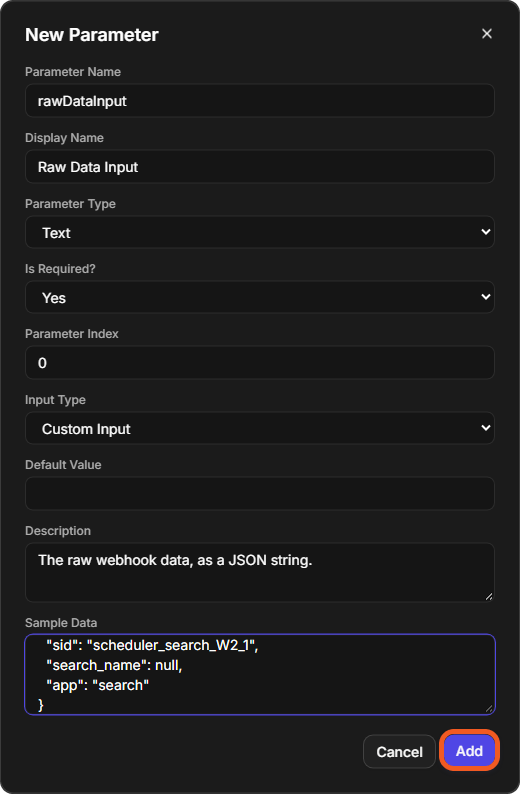
READER NOTE
Event Formatter must be switched on for the command to be offered as a data formatter.
Step 2: Define the Data Transformation Logic
Python
-
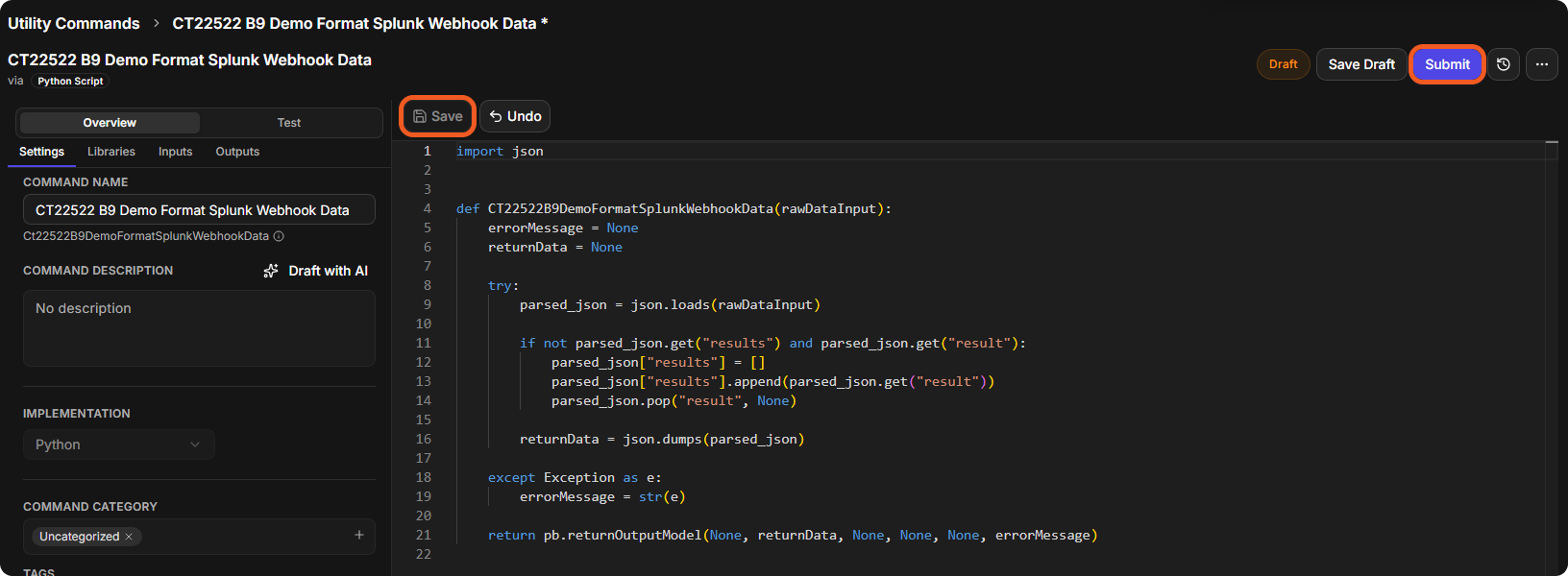
Write the logic in the code editor, in the function named after the command's internal name, then select Save.
-
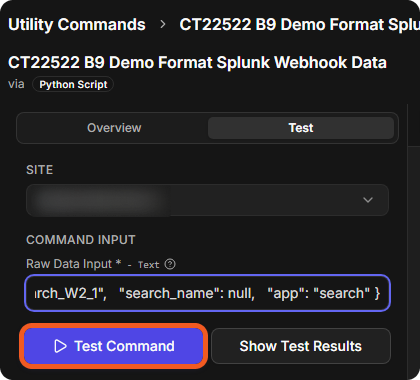
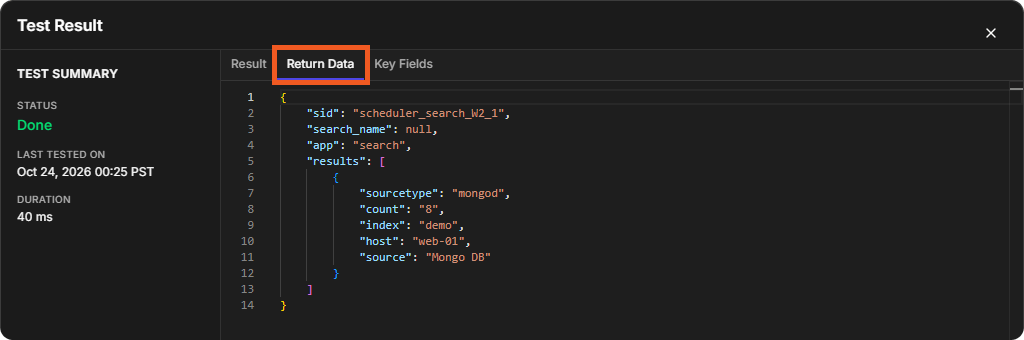
Select Test, fill in the input parameter with sample data, and select Test Command. In the Test Result window, the Return Data tab shows the reshaped data.
-
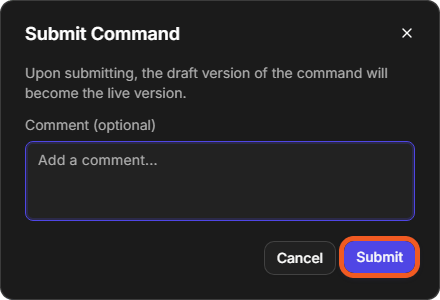
Select Submit. In the Submit Command window ("Upon submitting, the draft version of the command will become the live version."), select Submit.
READER NOTE
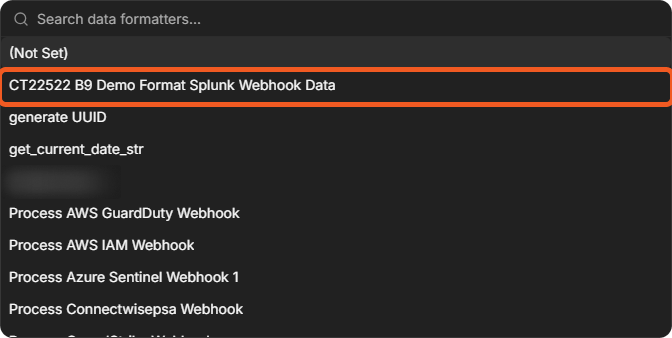
Submit the command so that its live version is used. In this example, the submitted command was then listed under DATA FORMATTER.
Codeless Playbook
To build the logic as a codeless playbook, see Codeless Playbooks for Webhook Data Formatting.
Step 3: Select the Data Formatter for a Data Source
Choose the formatter in the data source's Additional Settings under DATA FORMATTER. For a schedule, go to Configuration > Data Ingestion, select New > Schedule, expand Additional Settings, and choose the command under DATA FORMATTER. For a webhook data source, the same setting is in the Additional Settings of the webhook key. See Data Ingestion and Webhook Configuration Guide.
Sample Use Case
In this example, data from a Splunk integration arrives through a webhook. The event field mapping expects the events under the key results (main JSON path $.results), but the pushed data has the key result:
{
  "result": {
    "sourcetype": "mongod",
    "count": "8",
    "index": "demo",
    "host": "web-01",
    "source": "Mongo DB"
  },
  "sid": "scheduler_search_W2_1",
  "search_name": null,
  "app": "search"
}
A Python formatter can rename the key before the data reaches the event pipeline. Following steps 1 and 2 above, create a Python utility command with this logic (the function takes the command's internal name):
import json


def FormatSplunkWebhookData(rawDataInput):
    errorMessage = None
    returnData = None

    try:
        parsed_json = json.loads(rawDataInput)

        if not parsed_json.get("results") and parsed_json.get("result"):
            parsed_json["results"] = []
            parsed_json["results"].append(parsed_json.get("result"))
            parsed_json.pop("result", None)

        returnData = json.dumps(parsed_json)

    except Exception as e:
        errorMessage = str(e)

    return pb.returnOutputModel(None, returnData, None, None, None, errorMessage)
If result is present and results is not, the function moves the result object into a new results list and removes result. It returns the data as a JSON string with pb.returnOutputModel(), or the error message if the data cannot be read.
Testing the command with the data above returns:
{
  "sid": "scheduler_search_W2_1",
  "search_name": null,
  "app": "search",
  "results": [
    {
      "sourcetype": "mongod",
      "count": "8",
      "index": "demo",
      "host": "web-01",
      "source": "Mongo DB"
    }
  ]
}
The data now has a results key, which matches the event field mapping. Then select the command as the data formatter of the Splunk data source (step 3).