
Last Updated: October 23, 2026
Overview
This procedure turns off single sign-on (SSO) for your D3 accounts when your identity provider becomes unavailable, so that users can sign in with a D3 password instead.
Procedure
Preliminary Step
-
Provide D3 with a list of your organization's authorized users who are permitted to request the disabling of SSO. These users must also have a role with the Administrator access type.
SSO Break Glass Procedure
-
Contact D3 to request a change in login method from SSO to General Authentication for an account, providing the username of an authorized user.
-
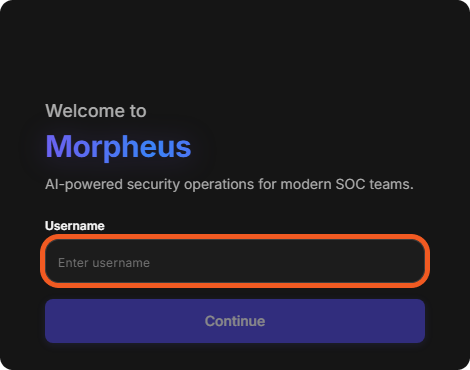
After D3 tells you that the login method has been changed, enter that username on the D3 sign-in page and select Continue.
-
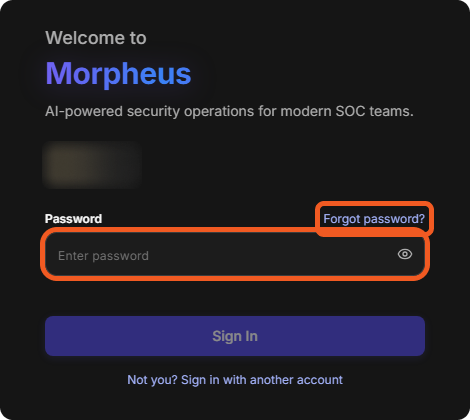
Enter your D3 password (not your SSO password) and select Sign In, then go to step 8. If you do not know the password, select Forgot password?.
-
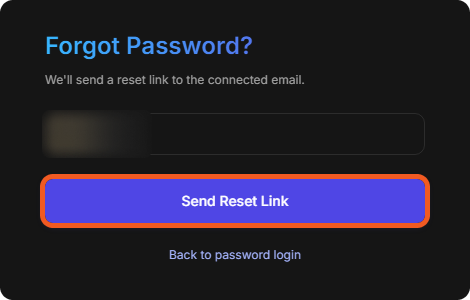
On the Forgot Password? page, check that the account shown is yours, then select Send Reset Link. The reset link is sent to the email address of the account.
-
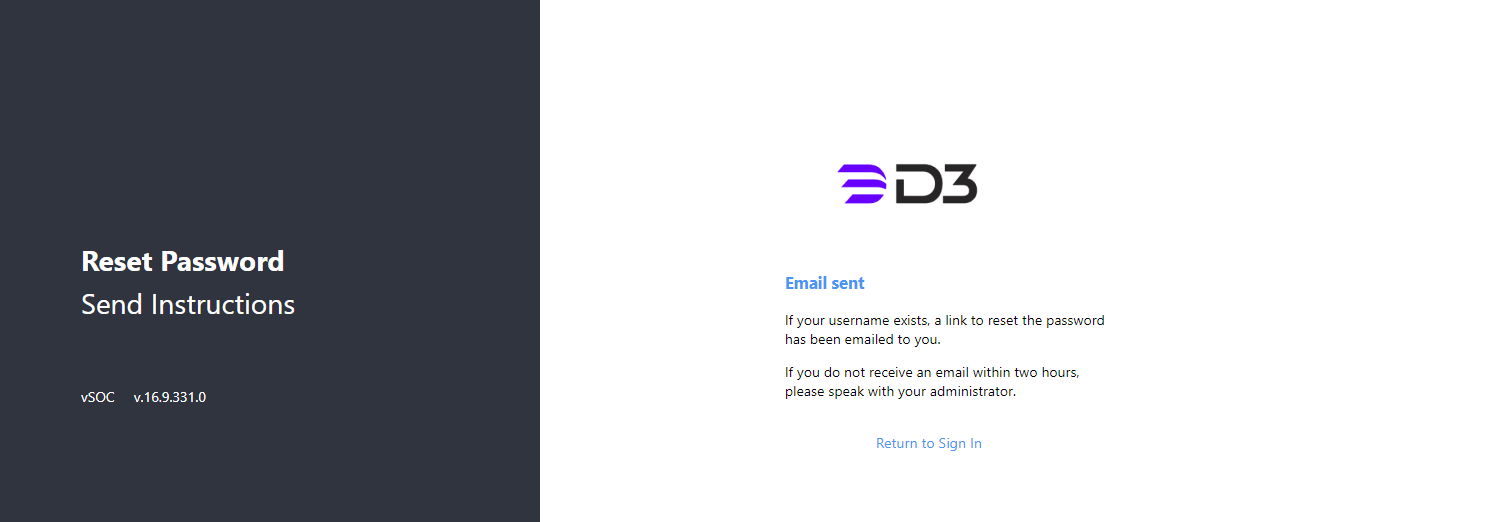
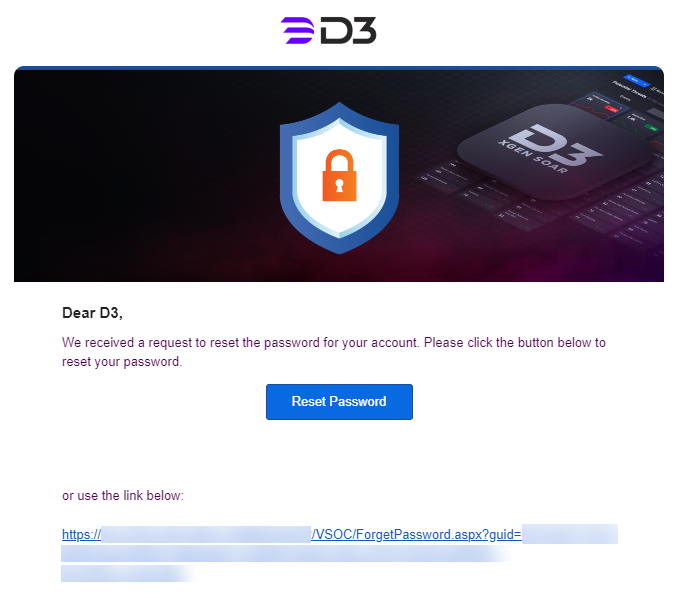
Check the email of the account for the reset instructions, and select Reset Password or the link in the email to open the password reset page.
-
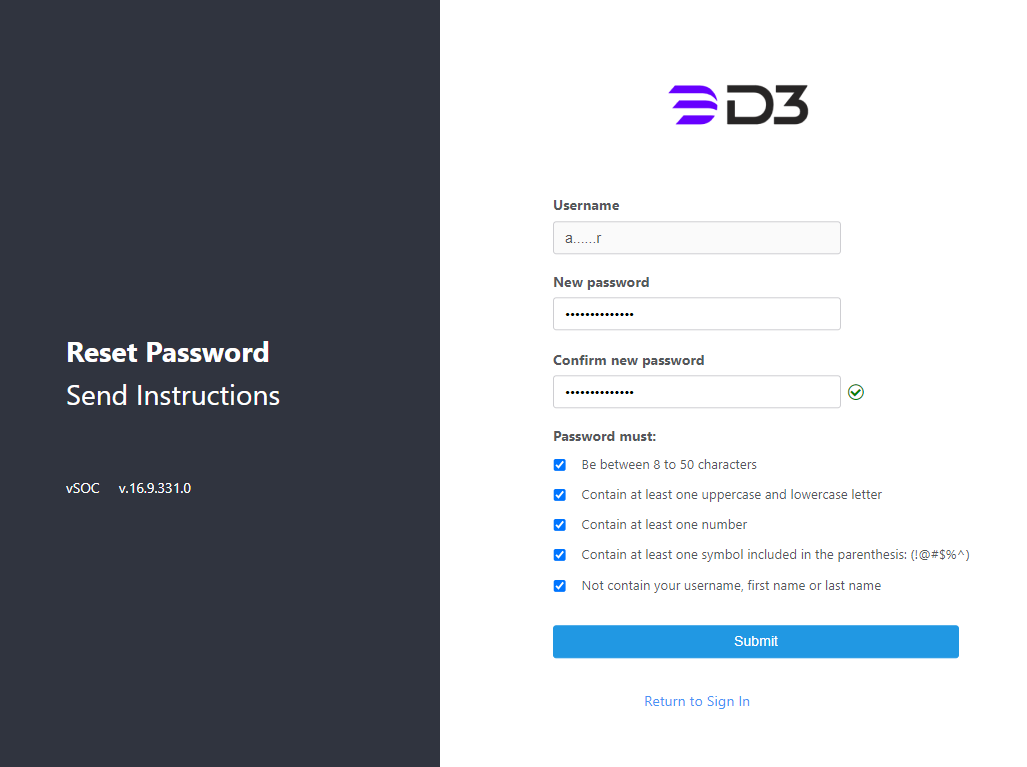
Enter a new password that meets all the requirements on the password reset page, then select Submit. You are returned to the sign-in page.
-
Sign in with the username and the password you just set.
-
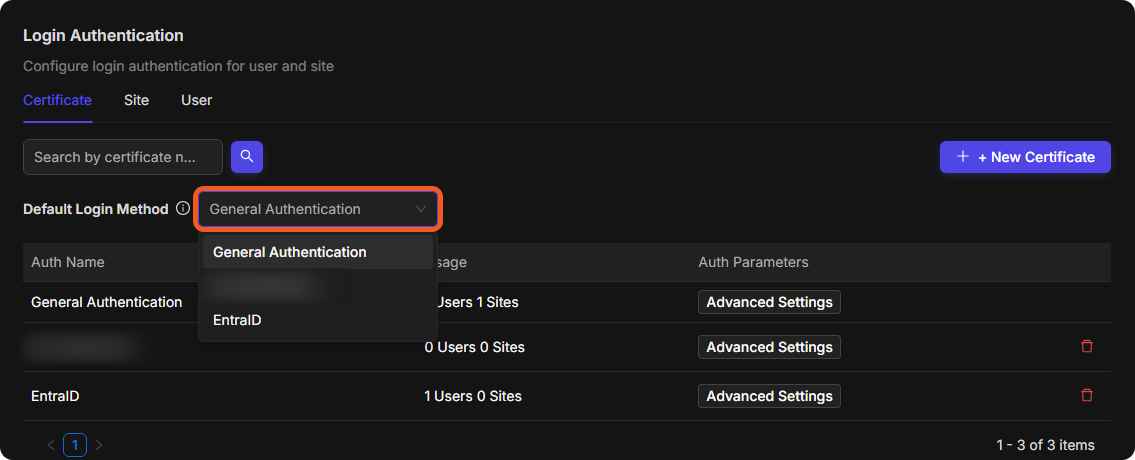
Go to Global Settings > Application Settings, and select Login Authentication (under Security & Authentication).
-
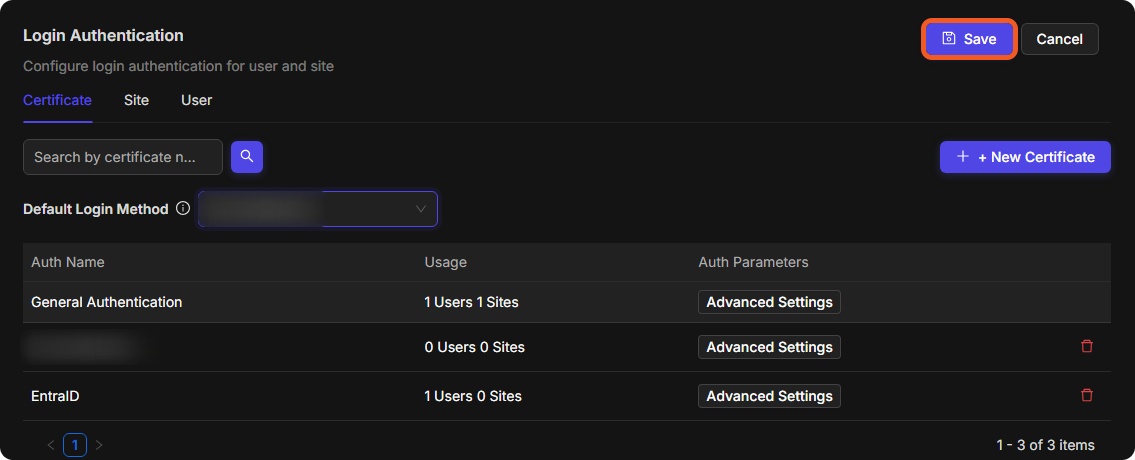
If no specific sites or users have their own login method, set Default Login Method, on the Certificate tab, to General Authentication, then select Save at the top of the panel. All users then sign in with General Authentication.
-
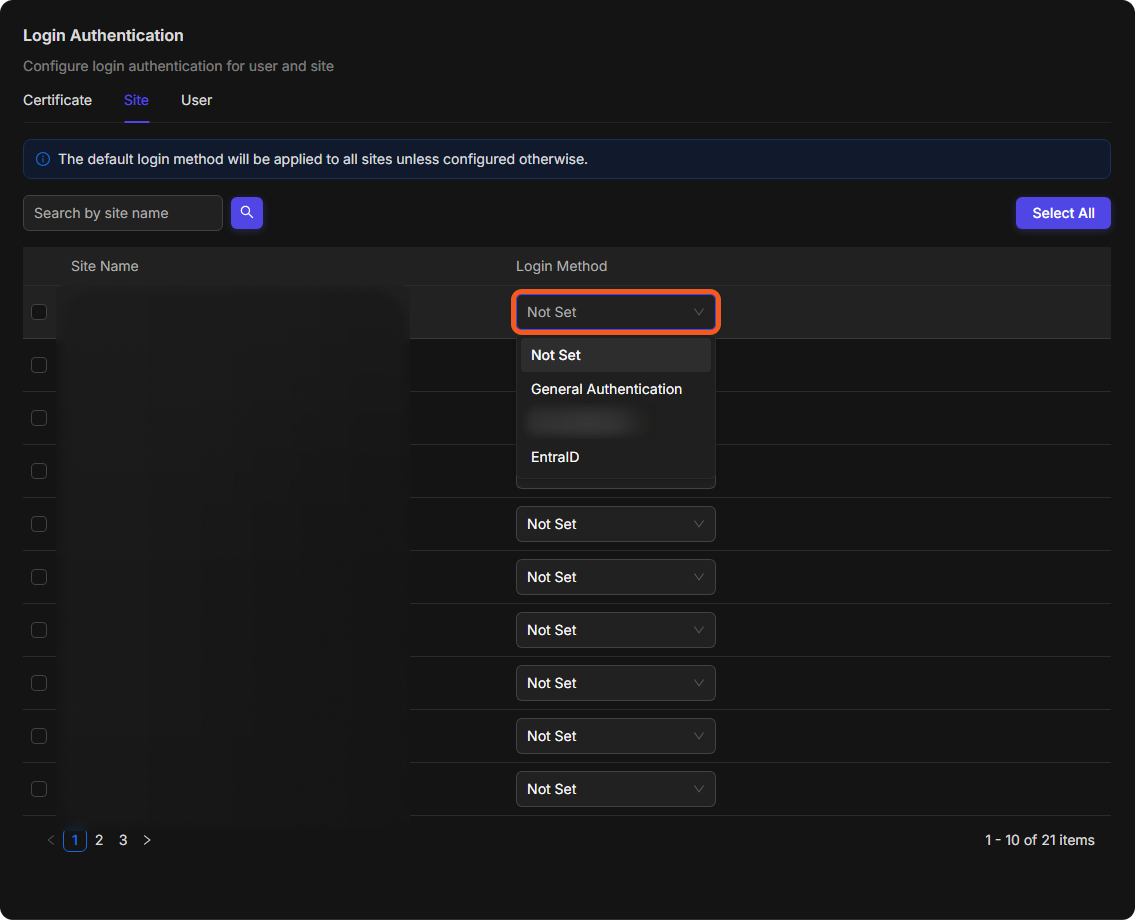
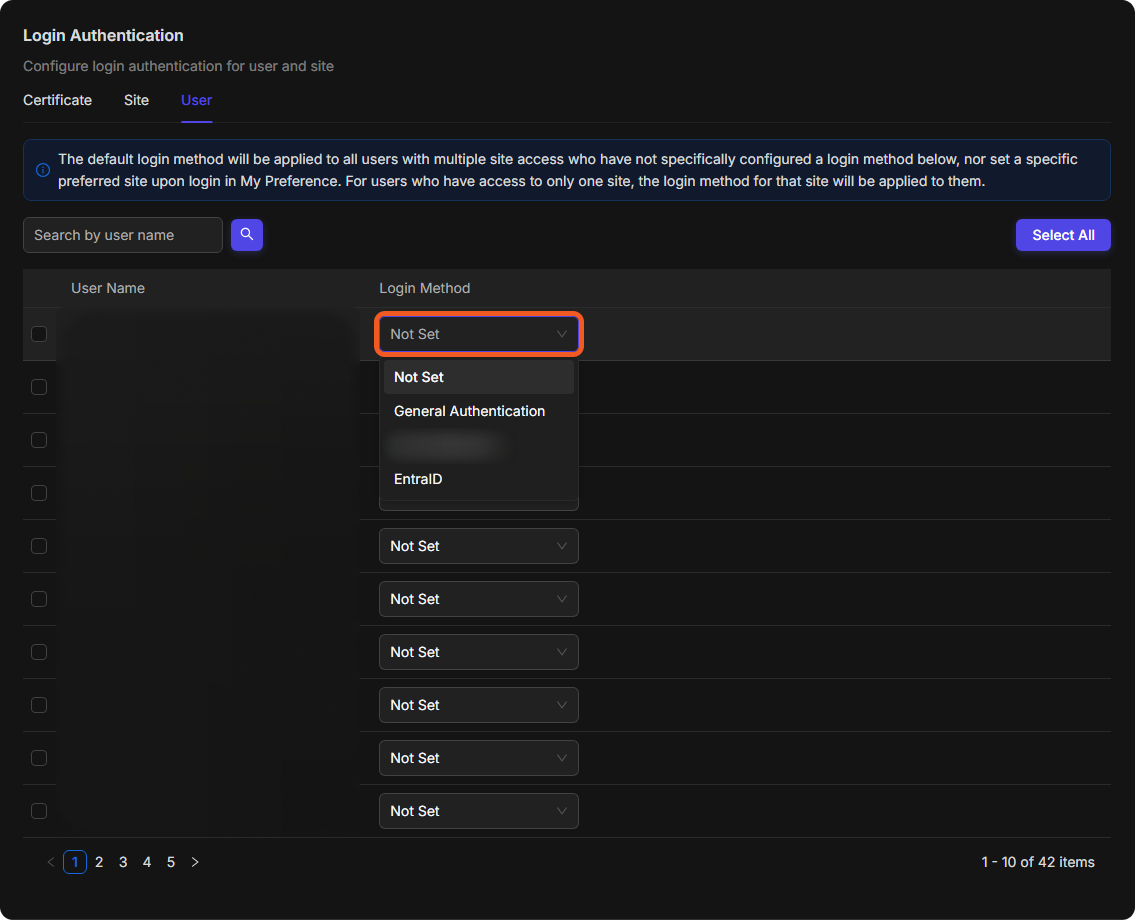
If specific sites or users use an SSO login method, switch each of them to General Authentication: on the Site tab, choose the site's Login Method, and on the User tab, choose the user's Login Method. Then select Save.
After the changes are saved, users can sign in with General Authentication. A user who does not know their D3 password must reset it.
READER NOTE
The Forgot password? link is shown only while the Web Config key EnableSelfServiceAccountRecovery is True (Global Settings > Application Settings > Web Config). When it is False, an administrator must unlock the account or reset the password instead.