
Last Updated: October 23, 2026
Users can set up various login methods, including general authentication (username and password on the D3 vSOC login page), and identity provider (IdP) methods like Active Directory (AD) and SAML.
For managed security service providers (MSSPs), each site represents a customer. To maintain data isolation and meet distinct security requirements, different Single Sign-On (SSO) login methods can be configured per site.
In enterprises, each site usually represents a business department or service line. Login methods are typically configured by user rather than by site.
How Login Method is Determined
When a user attempts to login, the D3 system follows a particular sequence to determine the appropriate login method. The below diagram illustrates this sequence.
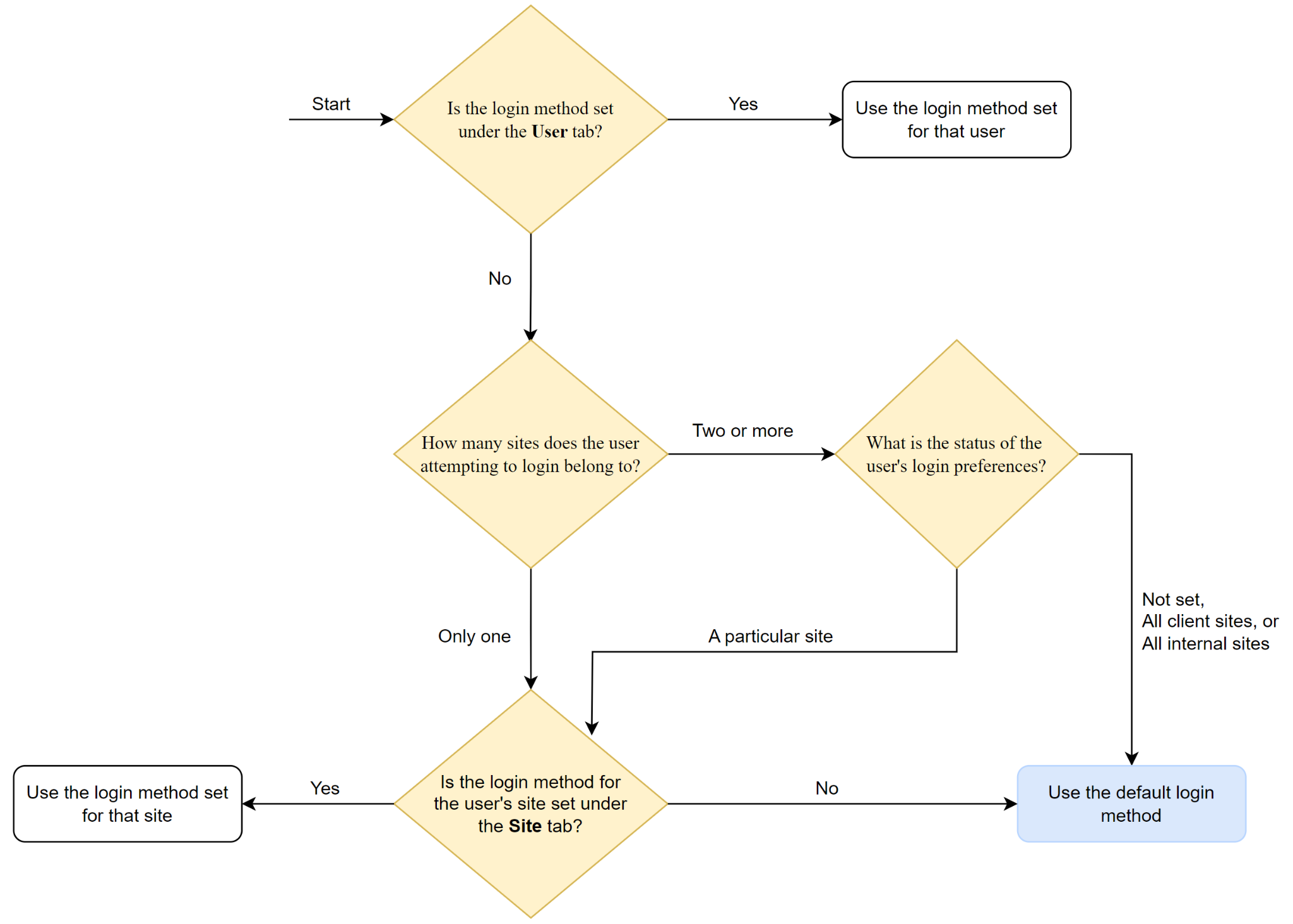
Login Method Resolution Flow Breakdown
First, the system checks whether the login method is set under the "User" tab.
-
If it is, the system uses the login method set for that user.
-
If the login method is not set under the "User" tab, the system checks how many sites the user attempting to log in belongs to.
If the user belongs to only one site, the system checks whether the login method for the user's site is set under the "Site" tab.
-
If it is, the system uses the login method set for that site.
-
If the login method is not set under the "Site" tab, the system uses the default login method.
If the user belongs to two or more sites, the system checks the status of the user's login preferences. Follow the below steps to select your preferred site.
-
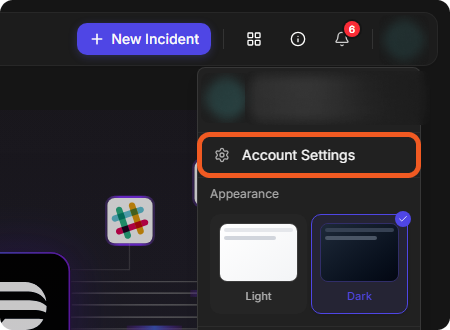
Select your profile avatar at the top right, then Account Settings.
-
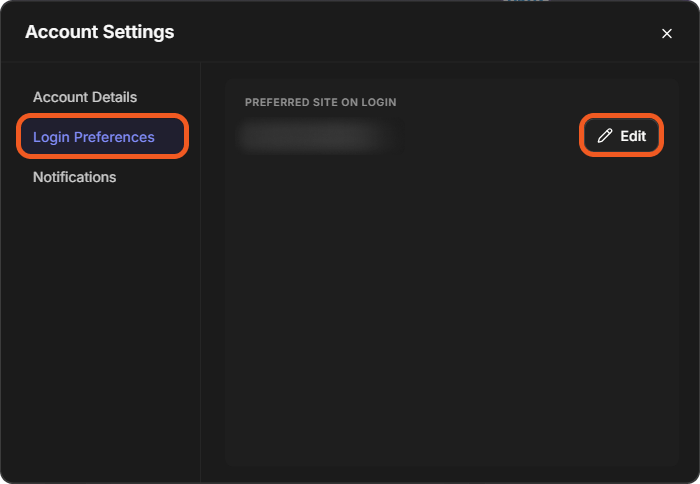
Select Login Preferences, then Edit beside Preferred Site on Login.
-
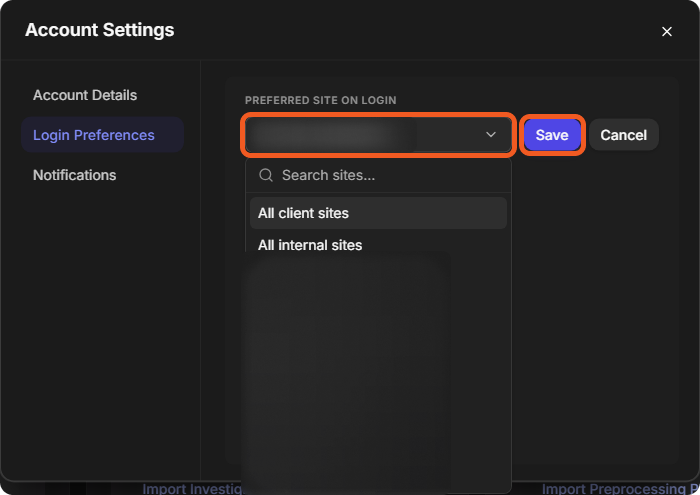
Open the site list and choose your preferred site. The list starts with All client sites and All internal sites.
-
Click on the Save button beside the site list.
-
If the preferences are set for a particular site, the system checks whether the login method for the user's site is set under the "Site" tab.
-
If the preferences are not set, or are set for "All client sites" or "All internal sites," the system uses the default login method.
Login Authentication - Certificate Tab
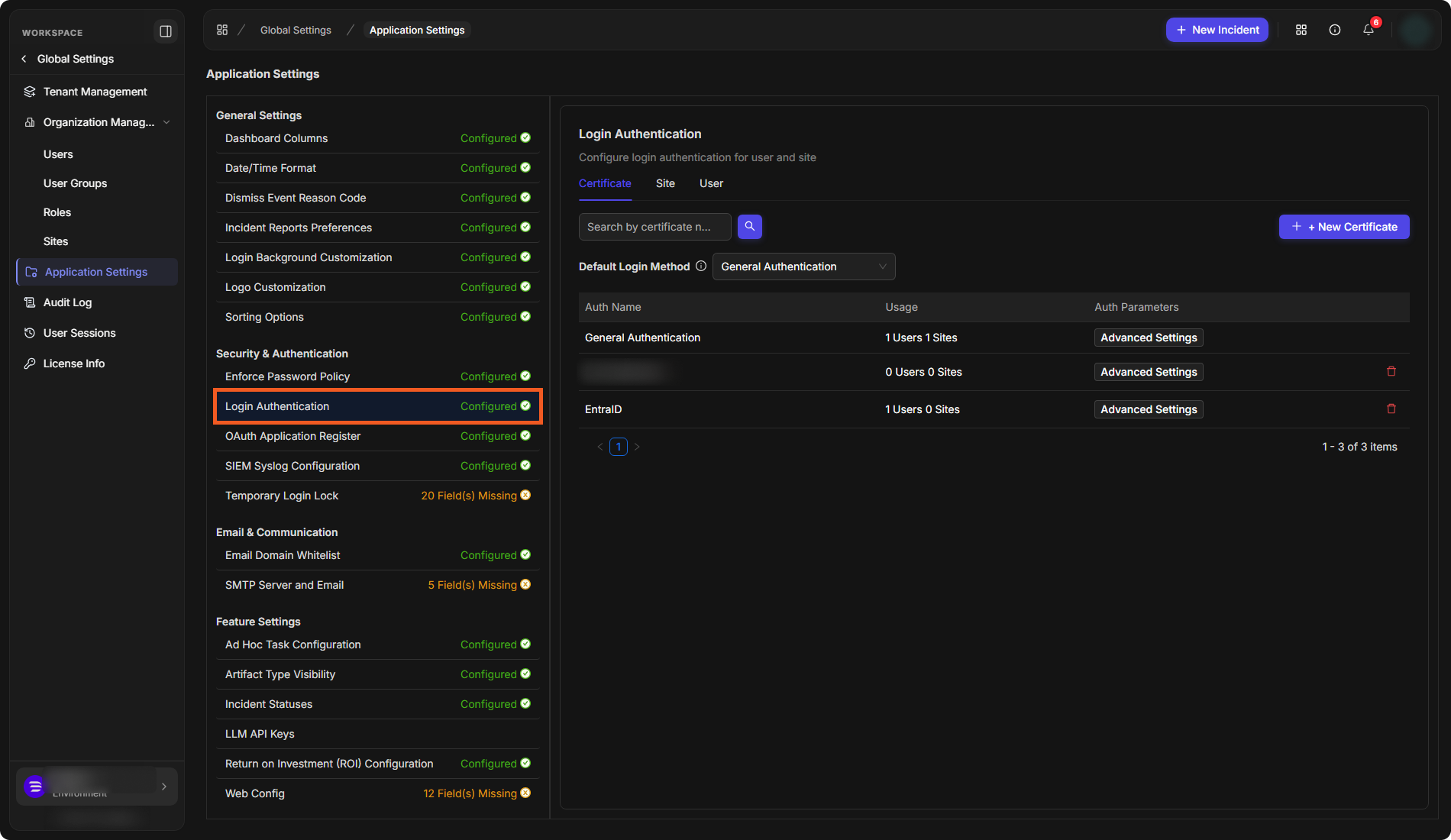
Navigating to the Login Authentication UI
-
Select Global Settings, then Application Settings.
-
Under Security & Authentication, select Login Authentication. It opens on the Certificate tab.
Adding a New Login Method
-
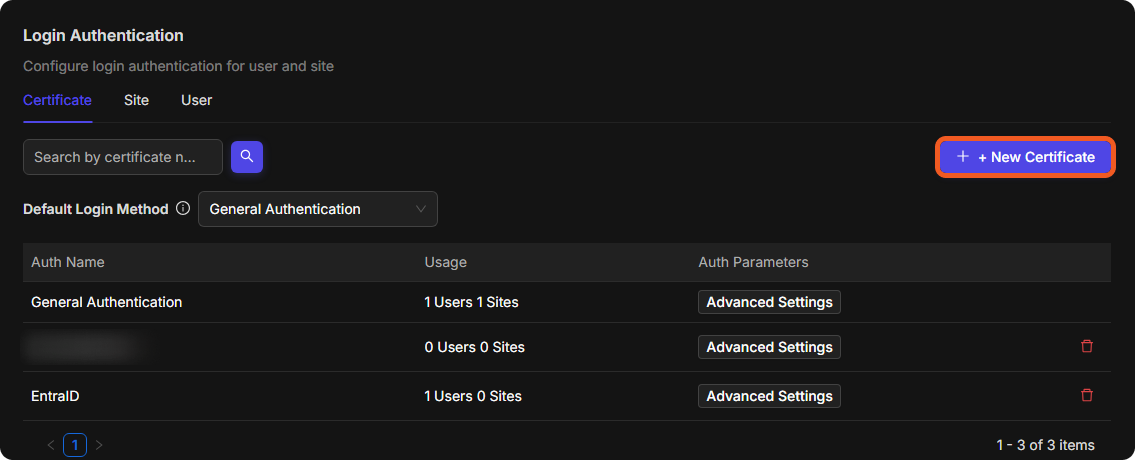
Select + New Certificate. The New Auth dialog opens.
-
Enter a unique name for the login method in Auth Name.
READER NOTE*
D3 recommends the following naming convention:
<Authentication protocol>-<Identity provider>-<D3 Subdomain>
-
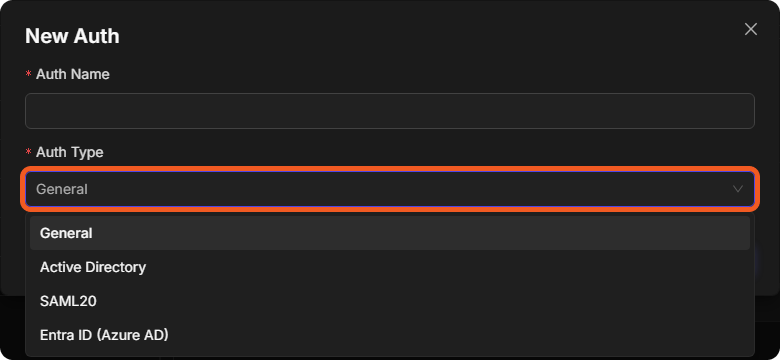
Choose the login method type in Auth Type: General, Active Directory, SAML20 or Entra ID (Azure AD).
-
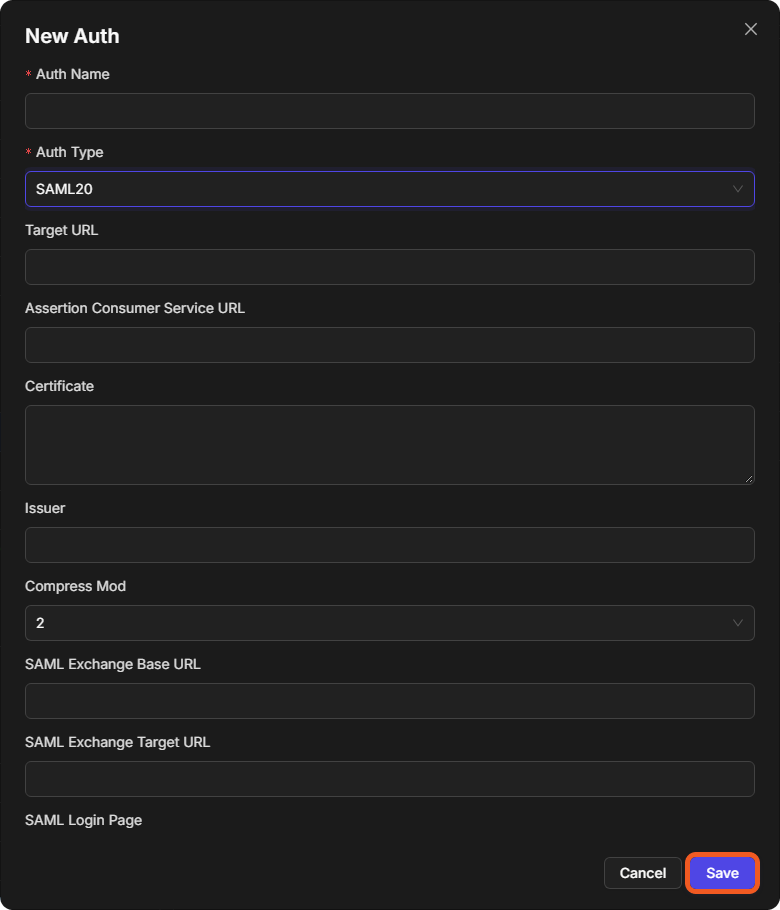
Configure the parameters of that type. For SAML20 these are Target URL, Assertion Consumer Service URL, Certificate, Issuer, Compress Mod, SAML Exchange Base URL, SAML Exchange Target URL, SAML Login Page and SAML Logout URL. For Entra ID (Azure AD) they are User Access URL, Reply URL, Certificate, Claim Name and Role Attribute Mapping.
-
Ensure the following information is available for the setup:
-
Target URL: This is an embedded link obtained from an IdP like Microsoft Entra ID, Okta, or Google. It is used by the Assertion Consumer Service URL to redirect users to the IdP's login page for authenticating into D3 vSOC.
Different IdPs have different names for this URL. For example, Microsoft Entra ID calls it "User access URL", whereas Okta calls it "Single Sign-On URL". -
Assertion Consumer Service URL: This is the D3 vSOC login page link. It is generated by D3 and sent to D3 customers. It uses the Target URL to redirect users to the IdP's login page for authenticating into D3 vSOC. It conforms to the following format:
https://<subdomain>.<domain/server IP>/<application path>/VSOC/D3SOC/D3SAML eg. https://demo.d3securityonline.net/MainAppV2/VSOC/D3SOC/D3SAML eg. https://10.0.0.2/demopath/VSOC/D3SOC/D3SAML -
Certificate: The base64-encoded certificate provided by the selected SSO platform, enabling the D3 vSOC application to communicate with the SSO IdP.
-
READER NOTE*
Different IdPs have different names for the certificate. For example, Microsoft Entra ID calls it "Certificate (Base64)", whereas Okta calls it "X.509 Certificate".
-
Ensure that an IdP user is created and assigned the IdP's SSO application.
READER NOTE*
Different IdPs have different names for their SSO application. For example, Microsoft Entra ID calls it an "Enterprise application", whereas Okta calls it "SAML Integration".
-
Select Save at the bottom of the New Auth dialog. This adds the login method to the list but does not store it yet.
-
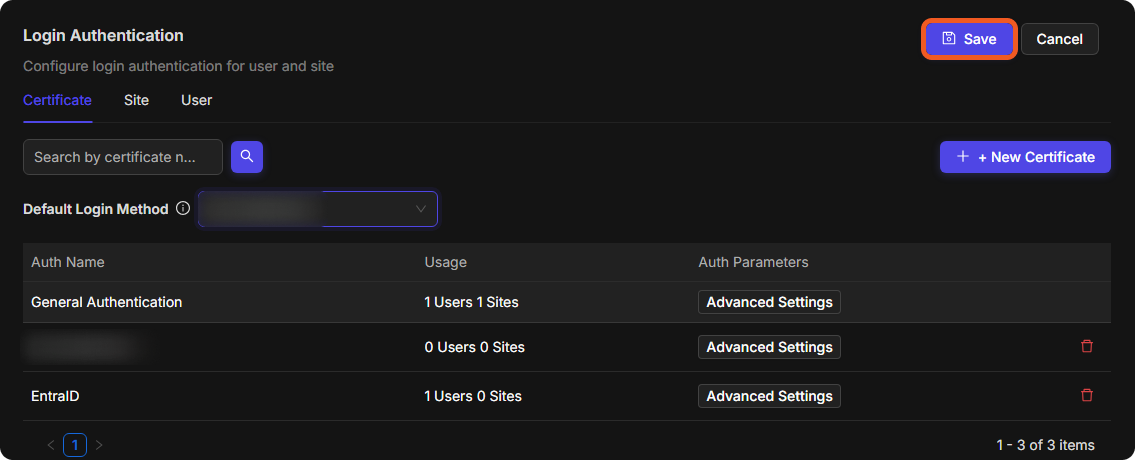
Select Save at the top of the Login Authentication panel to store the change.
Managing Existing Login Methods
The table within the Certificate tab displays all of your configured login methods, with columns for Auth Name, Usage, and Auth Parameters.
|
Usage |
Shows the number of users and sites currently using each login method. |
|
Auth Parameters |
Select Advanced Settings to open the Edit Auth dialog and change that login method. Login methods other than General Authentication also have a delete button at the end of the row. |
Default Login Method
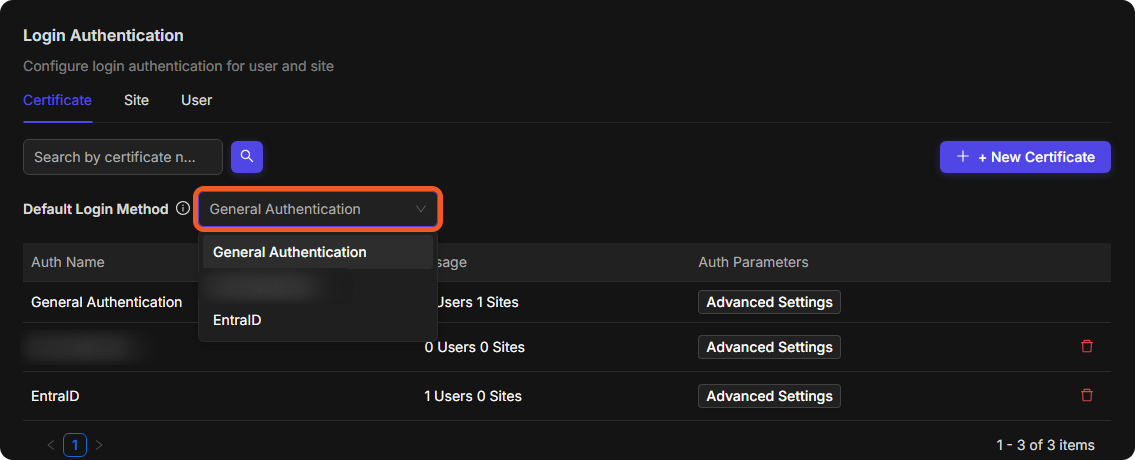
Use the Default Login Method list to select the default login method, then select Save at the top of the panel. The default login method will be automatically applied upon meeting certain criteria (refer to the How Login Method is Determined section). The Default Login Method is initially set to General Authentication, which does not involve any IdPs and requires the user to enter their D3 vSOC username and password on the D3 vSOC login page.
Login Authentication - Site Tab
Assigning Login Methods to Sites
Individual Assignment
-
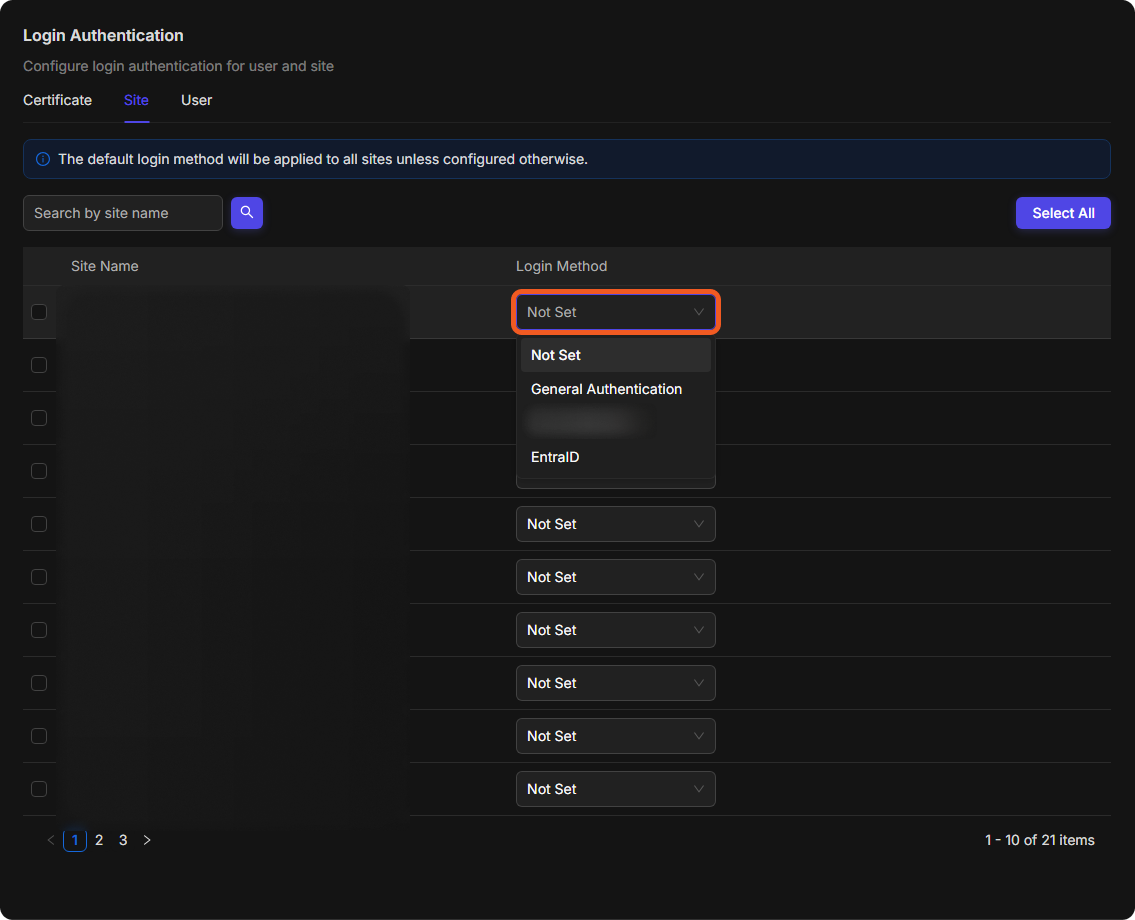
Select the login method in the Login Method list of the site.
-
Click on the Save button at the top of the panel.
Bulk Assignment
You have the option to select multiple sites individually, or to select them all at once. If no Login Method is selected, the default login method will be applied to all sites.
Individual Site Selection
-
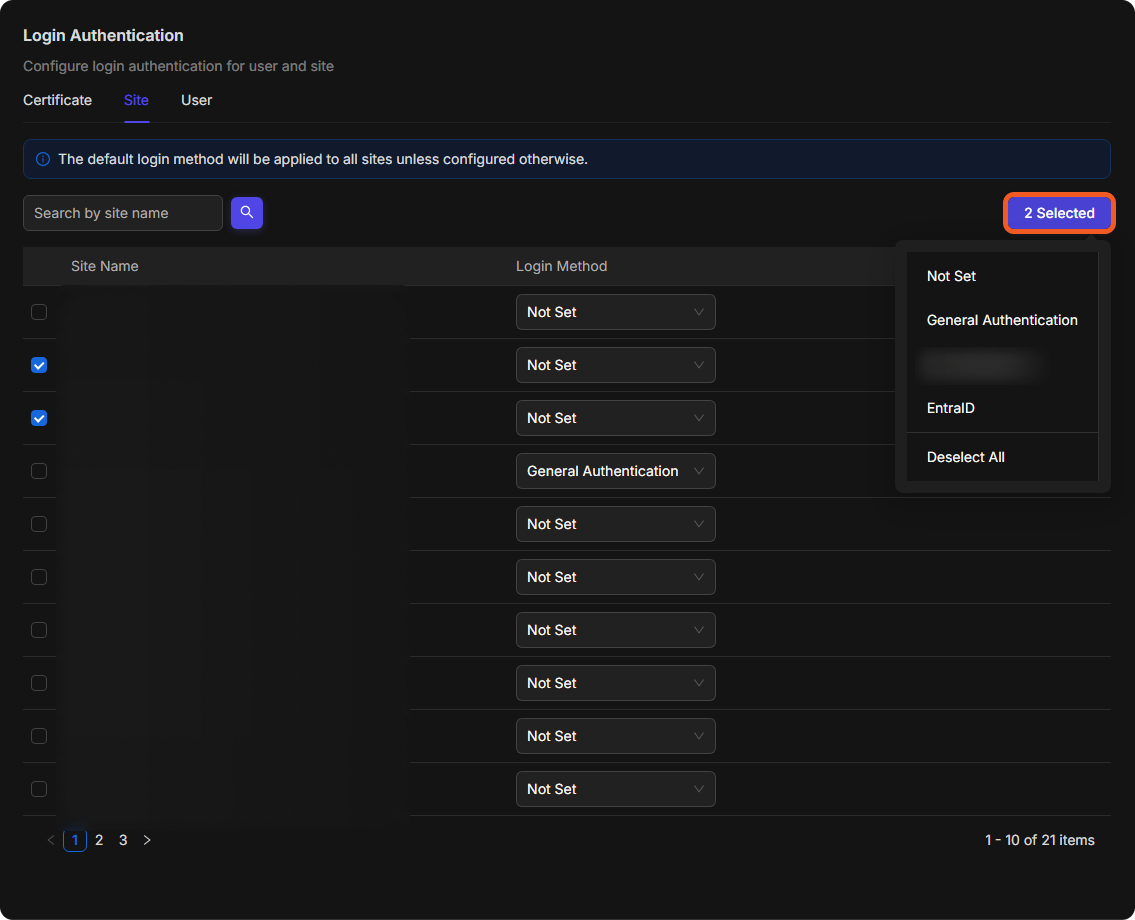
Use the checkboxes to select the sites.
-
Click on the X Selected button (it replaces Select All once a row is ticked) to open the list of login methods.
-
Choose the login method for all the selected sites.
-
Click on the Save button at the top of the panel.
Universal Site Selection
-
Click on the Select All button.
-
Click on the X Selected button (it replaces Select All once a row is ticked) to open the list of login methods.
-
Choose the login method for all the selected sites.
-
Click on the Save button at the top of the panel.
Login Authentication - User Tab
Assigning Login Methods to Users
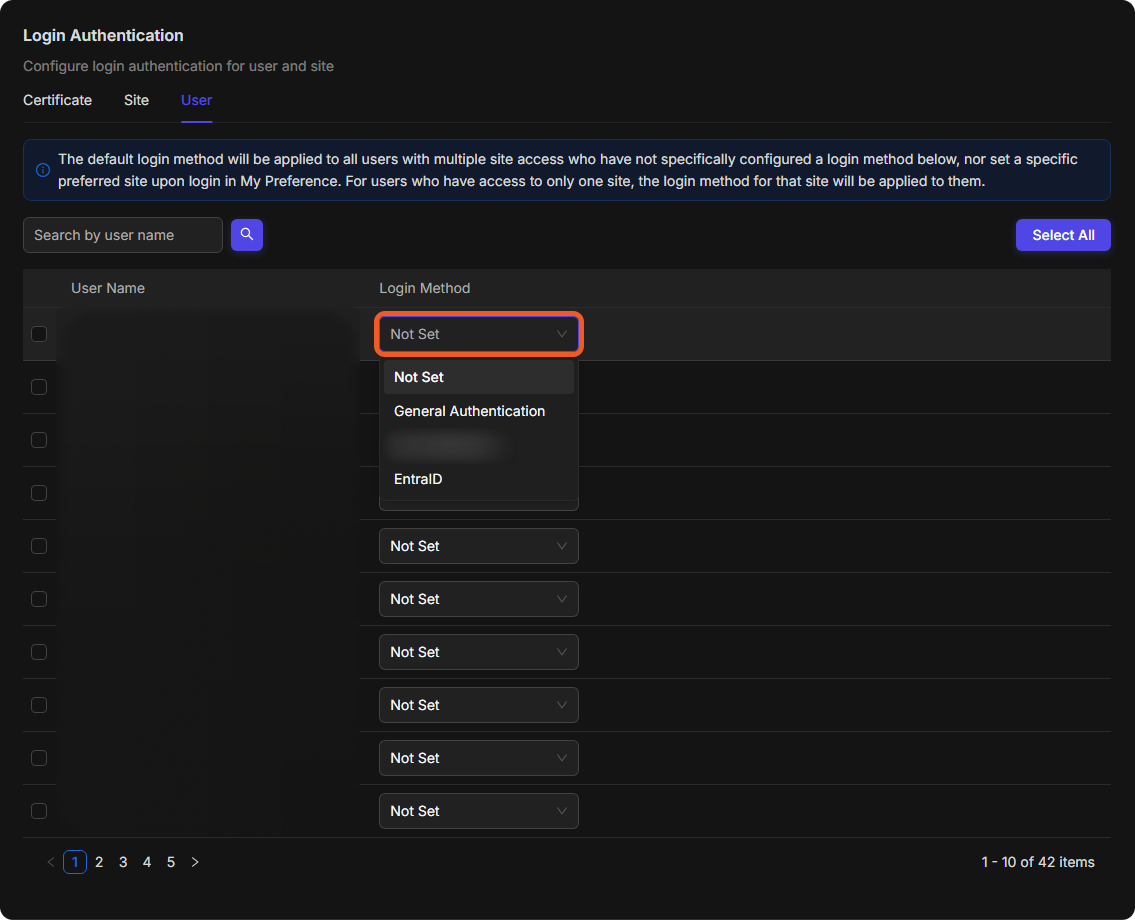
Individual Assignment
-
Select the desired login method from the dropdown menu under the Login Method column.
READER NOTE*
After selecting the user's login method, use the redirect link provided by the identity provider (for example, "App Embed Link" for Okta or "User Access URL" for Entra ID). The link automatically redirects to the logged-in vSOC.
-
Click on the Save button at the top of the panel.
Bulk Assignment
You have the option to select multiple users individually, or to select them all at once. If no Login Method is selected, the default login method will be applied to all users.
Individual User Selection
-
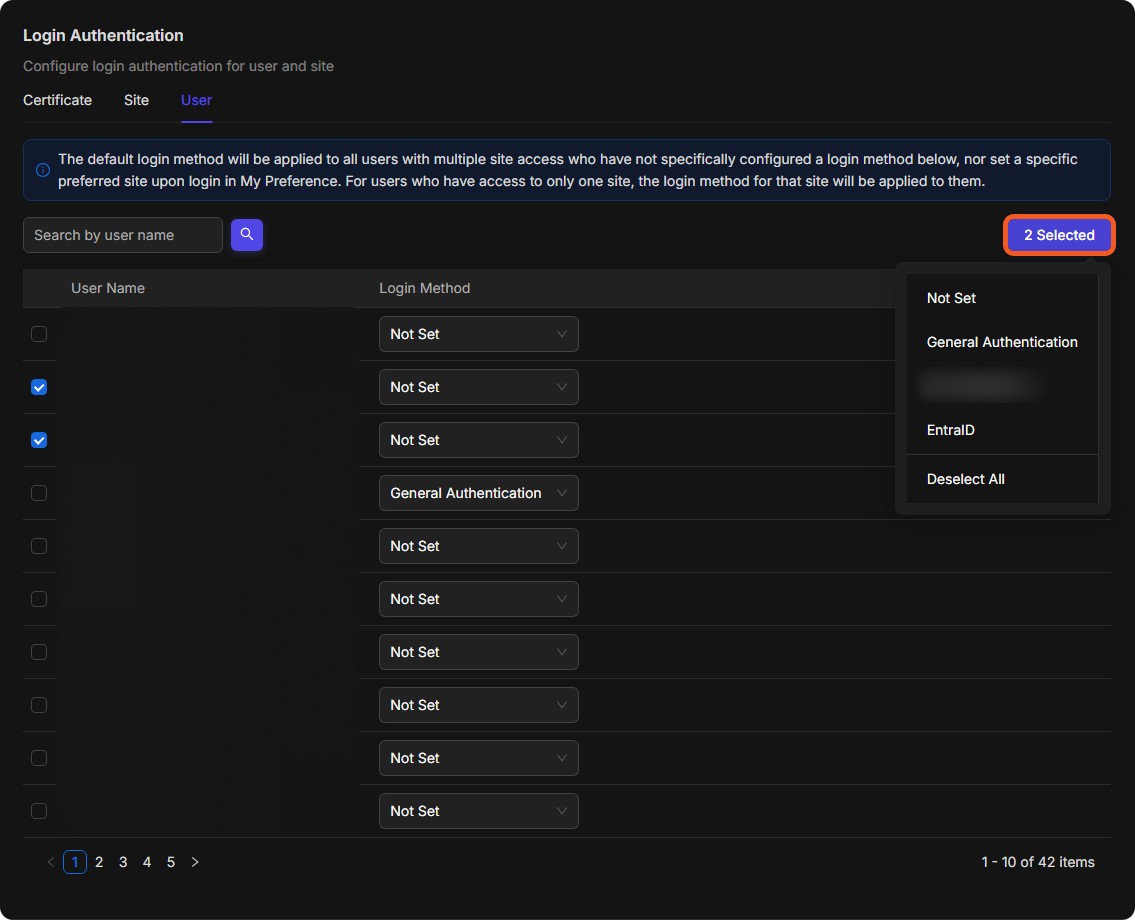
Use the checkboxes to select the users.
-
Click on the X Selected button (it replaces Select All once a row is ticked) to open the list of login methods.
-
Choose the login method for all the selected users.
-
Click on the Save button at the top of the panel.
Universal User Selection
-
Click on the Select All button.
-
Click on the X Selected button (it replaces Select All once a row is ticked) to open the list of login methods.
-
Choose the login method for all the selected users.
-
Click on the Save button at the top of the panel.