
Last Updated: October 27, 2026
Overview
An SLA rule measures how long your team takes to act on an incident. The clock starts when the rule's start condition is met and stops when its finish condition is met. The time in between is compared to a time goal, chosen from the rule's SLA profiles for the incident's site. Before or after the goal is missed, the rule can run its own actions, such as sending an email.
The same editor measures response and resolution. The difference is only which conditions start and stop the clock. See Response and Resolution Targets below.
|
Part of the rule |
What it decides |
|---|---|
|
Time Measurement Conditions |
When the clock starts and when it stops, and optionally when it pauses |
|
SLA Profiles |
Which sites the rule's time goals apply to |
|
Time Goals |
How long the team has, depending on the incident's details, and when to trigger actions |
|
Actions |
What happens as the SLA approaches or passes its goal |
Two other pages cover the rest of SLA timing: SLA Rule Pause Conditions for stopping the clock while an incident waits, and Office Hours for SLA for counting only a site's working hours.
Opening the SLA Page
-
In the sidebar, open Configuration.
-
Under AUTOMATION, select SLA.
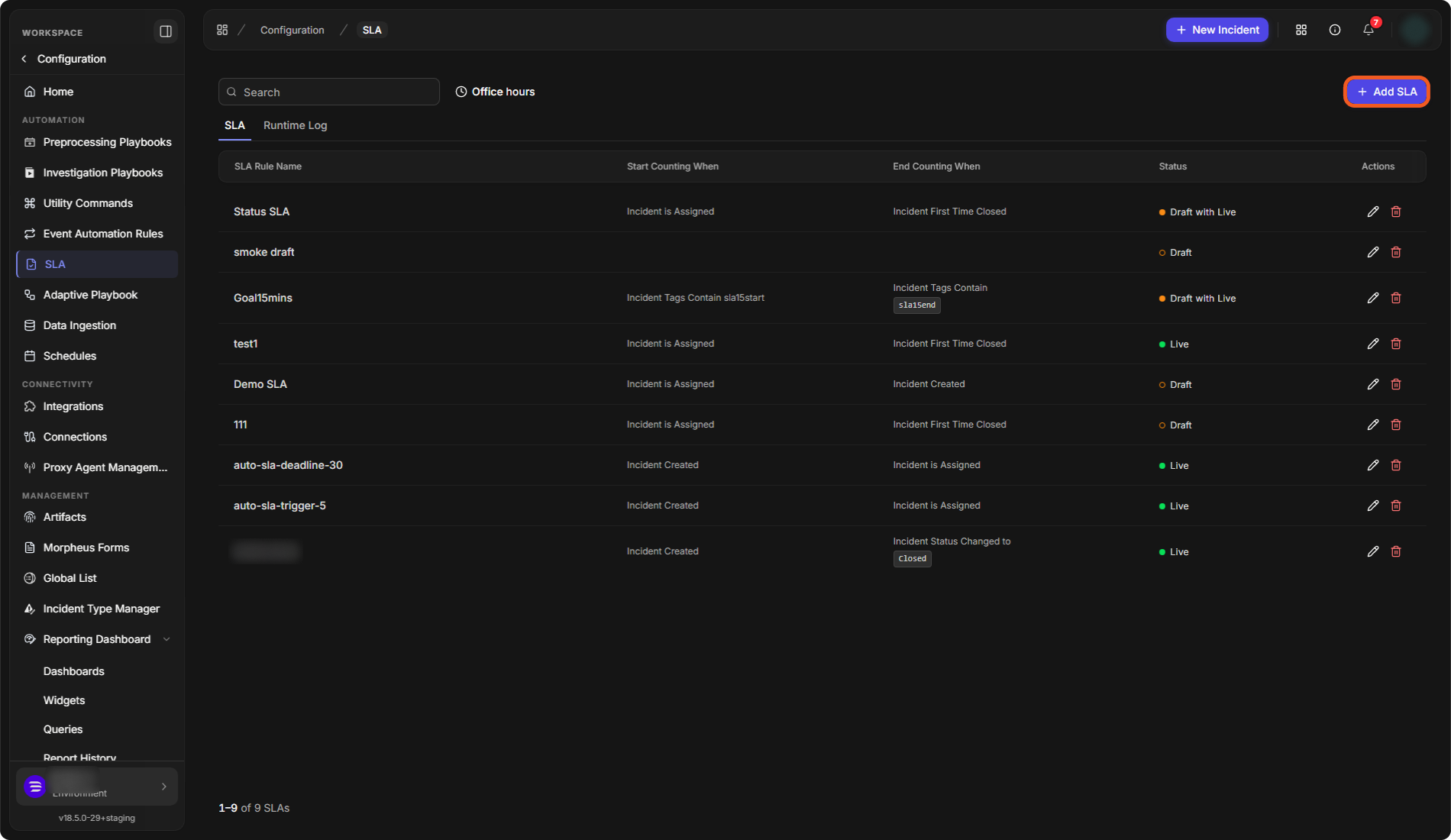
The SLA tab lists every rule with its SLA Rule Name, Start Counting When, End Counting When and Status, and the edit and delete buttons under Actions. A rule's status is Draft, Live, or Draft with Live (a live rule with unpublished changes). The Runtime Log tab lists every SLA run on your incidents, and Office hours explains how a site's office hours affect SLA timers.
The SLA page
Creating an SLA Rule
-
On the SLA page, select Add SLA.
-
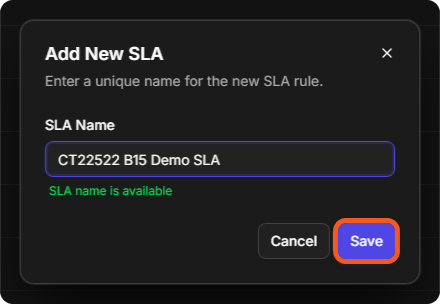
In Add New SLA, enter an SLA Name. The window confirms "SLA name is available" when no other rule uses it.
-
Select Save.
Naming a new SLA rule
Result: The rule opens in the editor as a Draft. Your changes are saved as you go, and Saved appears next to SLA Rules.
Select Include this SLA rule in reporting module if the rule should count in SLA reporting. For the SLA charts on reporting dashboards, see SLA and ROI Widgets.
Response and Resolution Targets
Under Time Measurement Conditions ("How incident response time is measured for this SLA"), choose when the clock starts and stops:
-
Under Start counting time when, select the field list and choose a condition. The list has a search box, and the condition is required.
-
Under Finish counting time when, choose the condition that stops the clock. This list becomes available once a start condition is set.
Choosing when the clock starts
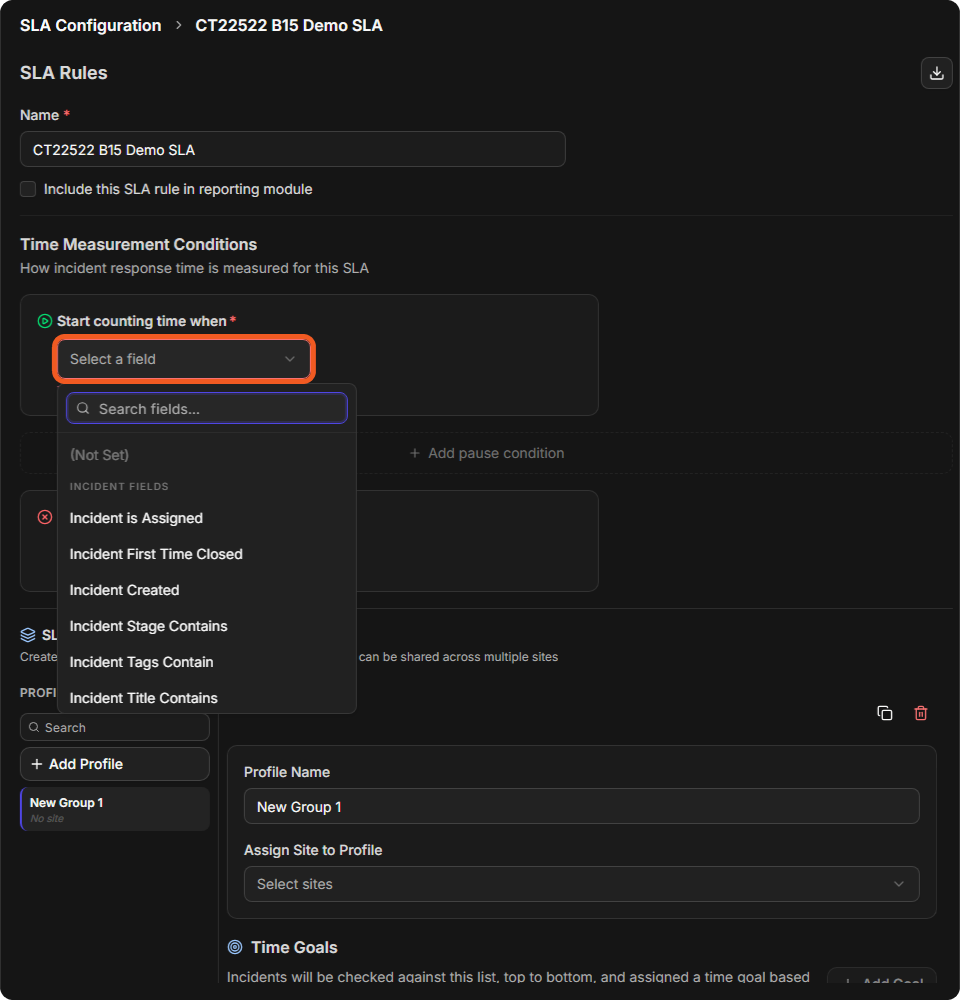
The conditions are Incident is Assigned, Incident First Time Closed, Incident Created, Incident Stage Contains, Incident Tags Contain, Incident Title Contains, Incident Status Changed to, Incident Owner Username Is, Incident Owner Username Is Not, Incident Owner's Groups Is, Incident Owner's Role Is, Incident Assignment Group Is and Incident Assignment Group Is Not. Some take a value, such as a tag for Incident Tags Contain or a status for Incident Status Changed to.
Which pair you choose decides what the SLA measures:
|
To measure |
Start counting time when |
Finish counting time when |
|---|---|---|
|
Time to respond: how long an incident waits for an owner |
Incident Created |
Incident is Assigned |
|
Time to resolve, from creation |
Incident Created |
Incident First Time Closed |
|
Time to resolve once someone owns the incident |
Incident is Assigned |
Incident First Time Closed |
A response-time rule
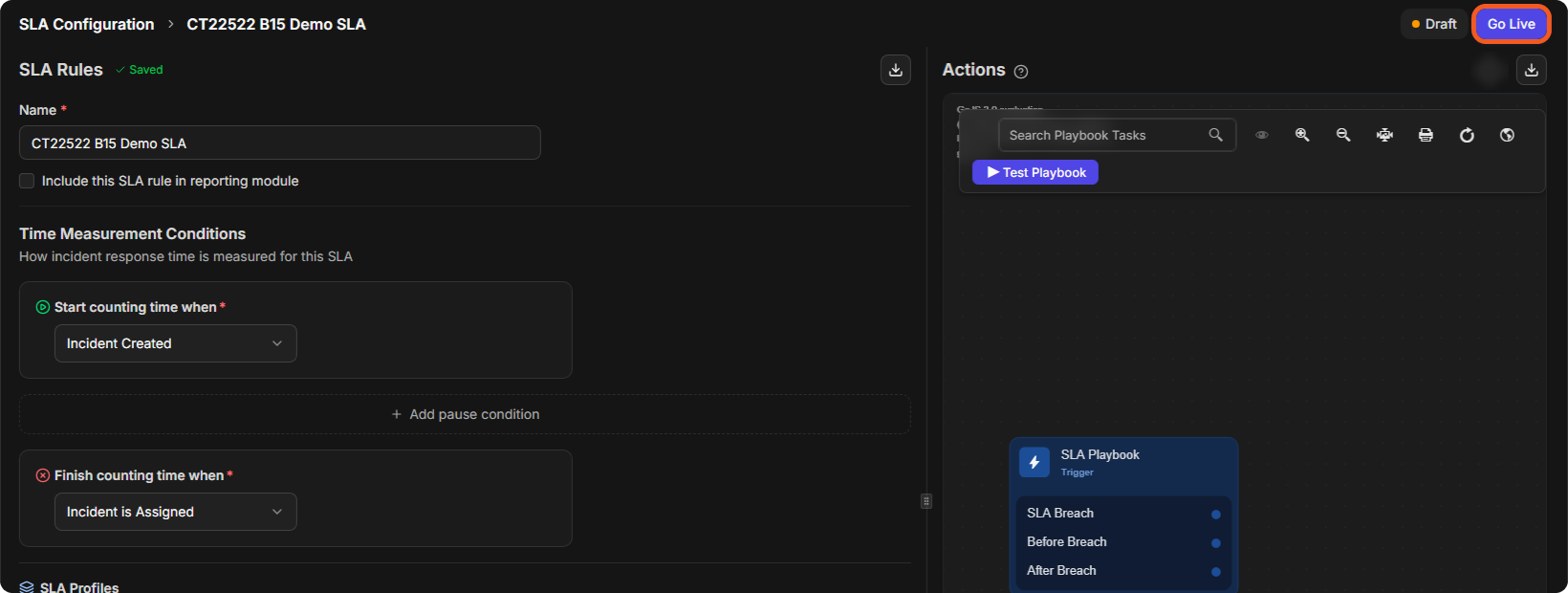
To measure both response and resolution, create one rule for each. + Add pause condition, between the two conditions, stops the clock while the incident waits. See SLA Rule Pause Conditions.
SLA Profiles and Time Goals
SLA profiles let one rule hold different time goals for different sites ("Create profiles with different time goals and conditions that can be shared across multiple sites"). A new rule starts with one profile, New Group 1.
-
Under PROFILES, select a profile, or select Add Profile to add one.
-
Enter a Profile Name, then choose the sites under Assign Site to Profile.
-
Under Time Goals, select Add Goal.
-
Enter a Goal Name and a Time Target in Minutes.
-
Optionally, under Conditions, select Field or Group to limit the goal to some incidents. The list at the left of the rows (AND) sets how they combine.
A profile with a time goal
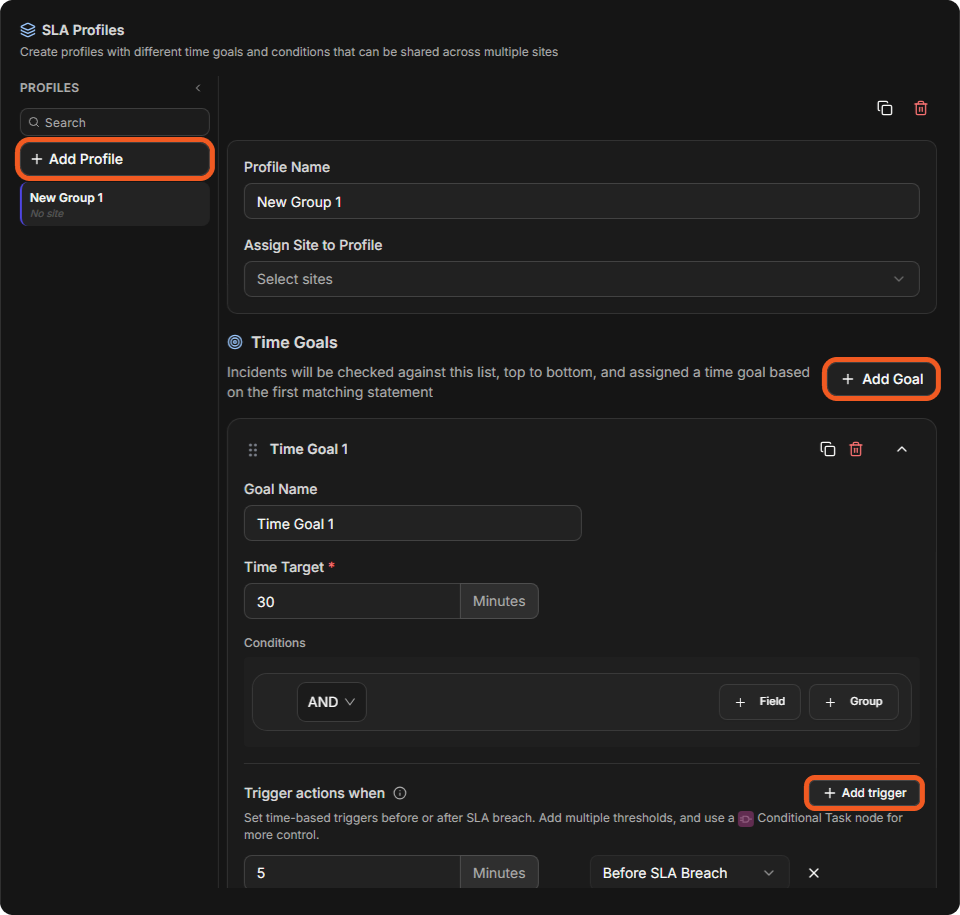
Incidents are checked against the time goals from top to bottom and get the first goal that matches. Put the most specific goals at the top. Each goal has a drag handle beside its name for changing the order, and the buttons at the top right of a goal copy it, delete it, or collapse it.
The copy and delete buttons above Profile Name copy or delete the profile.
Alerts Before and After a Breach
A time goal can trigger actions at set times around its deadline ("Set time-based triggers before or after SLA breach. Add multiple thresholds, and use a Conditional Task node for more control.").
-
In the time goal, under Trigger actions when, select Add trigger.
-
Enter the number of Minutes, and choose when it applies, such as Before SLA Breach.
-
Select Add trigger again for more thresholds. To remove one, select × beside it.
The Actions panel on the right holds what runs ("Set subsequent actions when SLA is approaching or has been breached"). It is a playbook that starts from the SLA Playbook trigger, which has the outputs SLA Breach, Before Breach and After Breach. Add tasks from the bar at the bottom: Send Email, Command, Conditional and Data Formatter, and check the playbook with Test Playbook.
The SLA Playbook
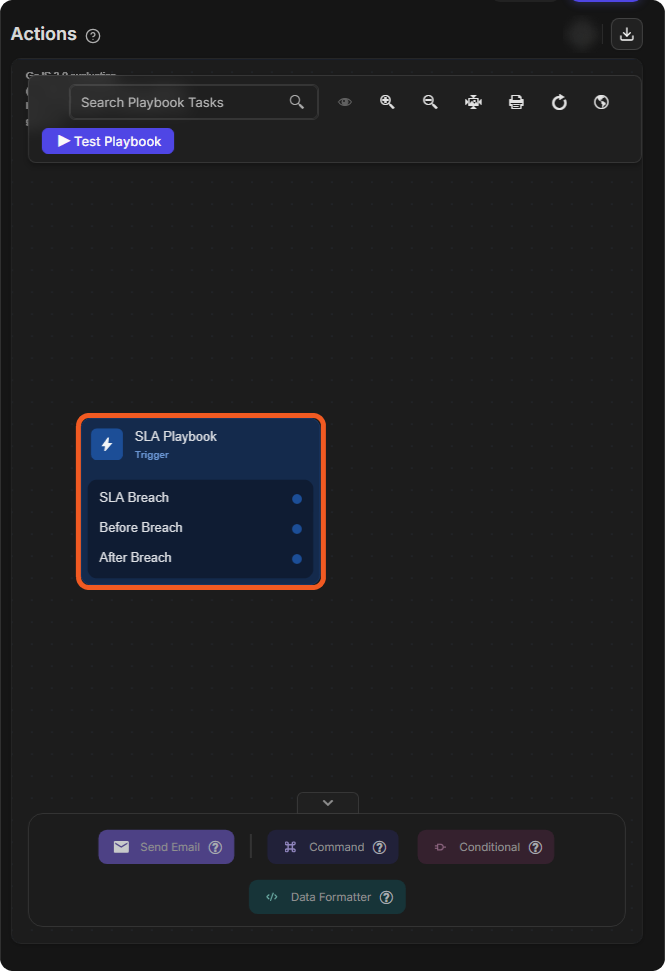
For building playbooks and their tasks, see Playbooks, Command Tasks, Conditional Tasks and Data Formatter Tasks.
Publishing and Changing a Rule
A draft rule does not measure anything. Select Go Live at the top right of the editor to publish it. For the confirmation and what changes on incidents, see SLA Rule Pause Conditions.
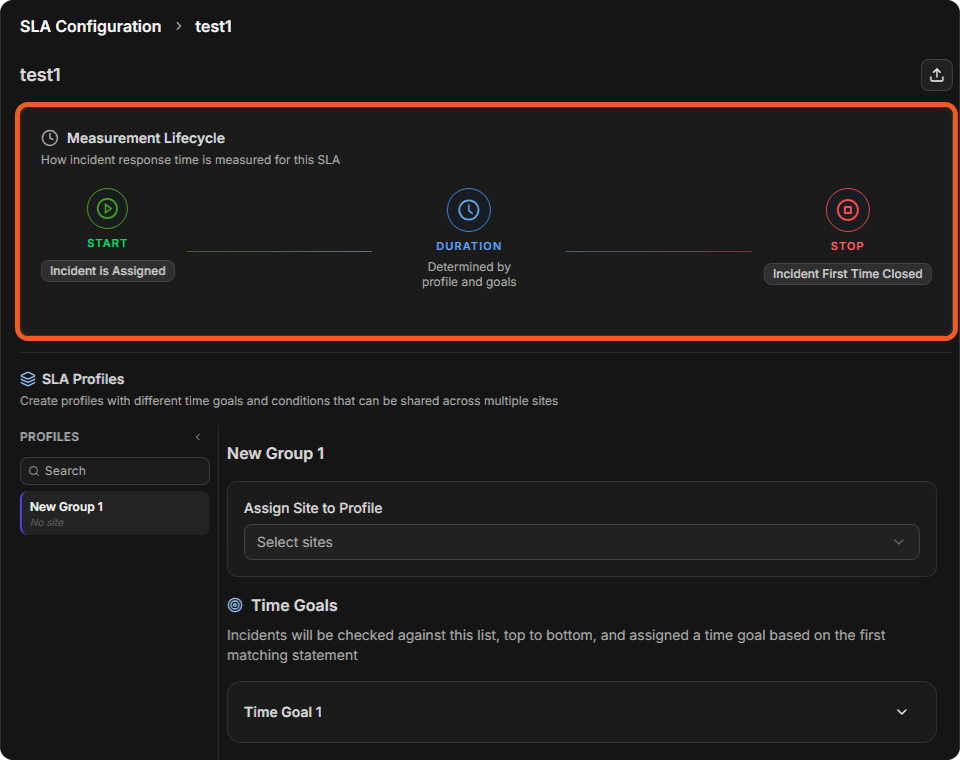
A live rule opens read-only, with Live and Edit at the top right. Its Measurement Lifecycle panel sums up the rule: START, DURATION ("Determined by profile and goals") and STOP. To change it, select Edit. Changes stay in a draft until you select Go Live; meanwhile the SLA page shows the rule as Draft with Live.
A live rule
How Breaches Show
Once a rule is live, its runs show in three places:
-
Runtime Log tab on the SLA page: one row for each run, with its SLA Status (such as Ongoing, Succeeded or Breached), Planned End, Goal (min) and Elapsed. A breached run links its alert playbook under Playbook Runtimes, such as View Breach Alert. See SLA Rule Pause Conditions for every column and status.
-
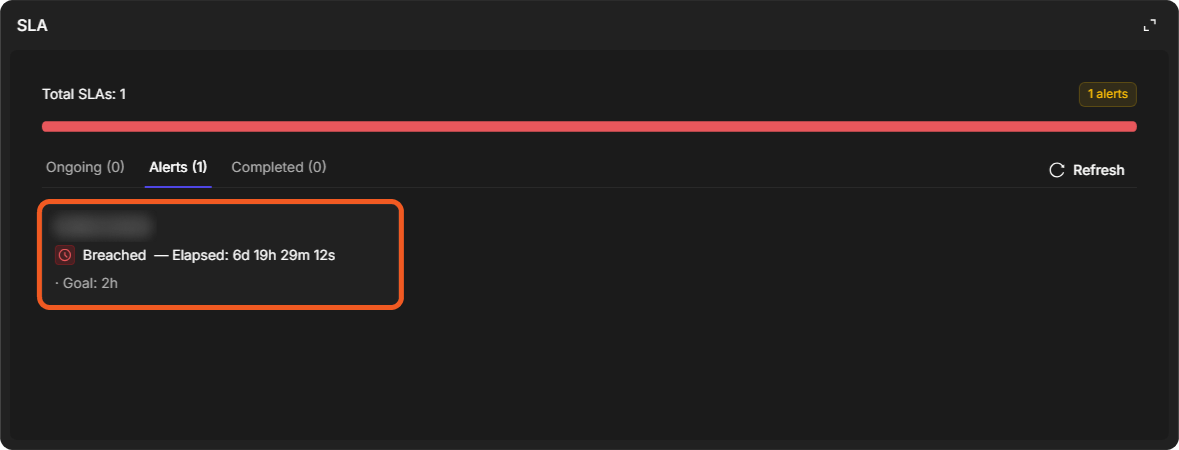
SLA widget on the incident: a breached run moves to the Alerts tab with the time elapsed and its goal, and the alerts count shows at the top right. See Email and SLA Widgets.
-
SLA Breached Count column in the incident list. See Investigation Dashboard.
A breached SLA on an incident
Deleting a Rule
-
On the SLA page, select the delete button in the rule's row.
-
In Delete SLA, select Yes.
Deleting an SLA rule
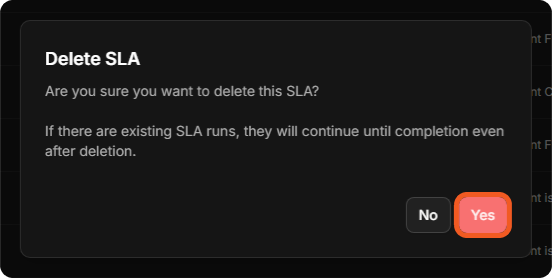
Deleting a rule does not stop what it is already measuring: "If there are existing SLA runs, they will continue until completion even after deletion."