Last Updated: October 26, 2026
Overview
When no built-in integration covers a tool, you can build your own custom integration and give it custom commands written in Python. This article walks through the whole setup on one example: creating the integration, defining its connection parameters, adding a connection, writing and testing a command, cloning it, and setting up a Fetch Event command. For the parts of the Integrations page, see Integrations. For the command types in general, see Custom Command Overview.
Creating a Custom Integration
You can generate the integration's commands with AI, or add them by hand as in the rest of this article.
Generating with AI
When you create a custom integration, Morpheus, D3's AI assistant, can draft its commands from the product's API document and a description. Commands you add later with Add Command are built by hand.
-
Go to Configuration > Integrations and select the + button beside Search integrations and commands.
-
On the Custom Integration tab, enter a Name, choose a Category and, optionally, enter a Description.
-
Under What should this integration do?, say what you need the product to do during an incident. Start from offers Look up, Contain and Enrich. If you leave the description empty, the commands are chosen from the API document alone.
-
Select Upload API doc and choose the product's API document, for example an OpenAPI file (.yaml, .yml, .json, .txt, .md, .raml, .graphql, .gql, .xml, .wsdl, .html, .htm or .har). The window shows the document's format and how many endpoints it has.
-
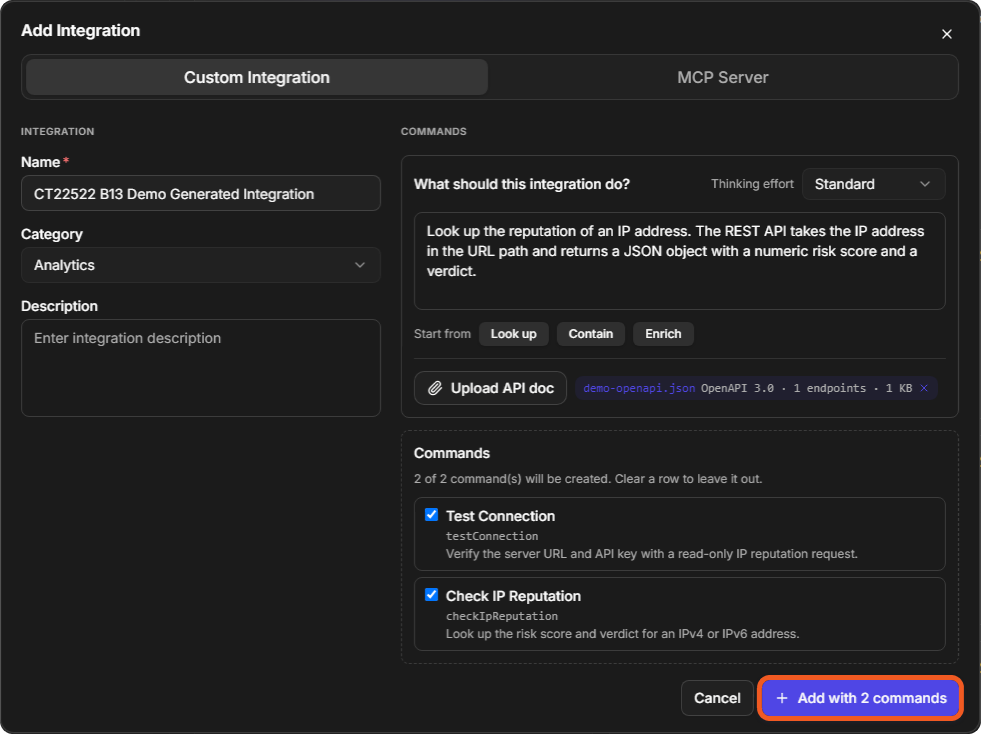
Select Generate with AI. Morpheus lists the commands it will create, each with its name, internal name and description. Clear a row to leave a command out.
-
Select the Add with button, for example Add with 2 commands.
Generating a custom integration
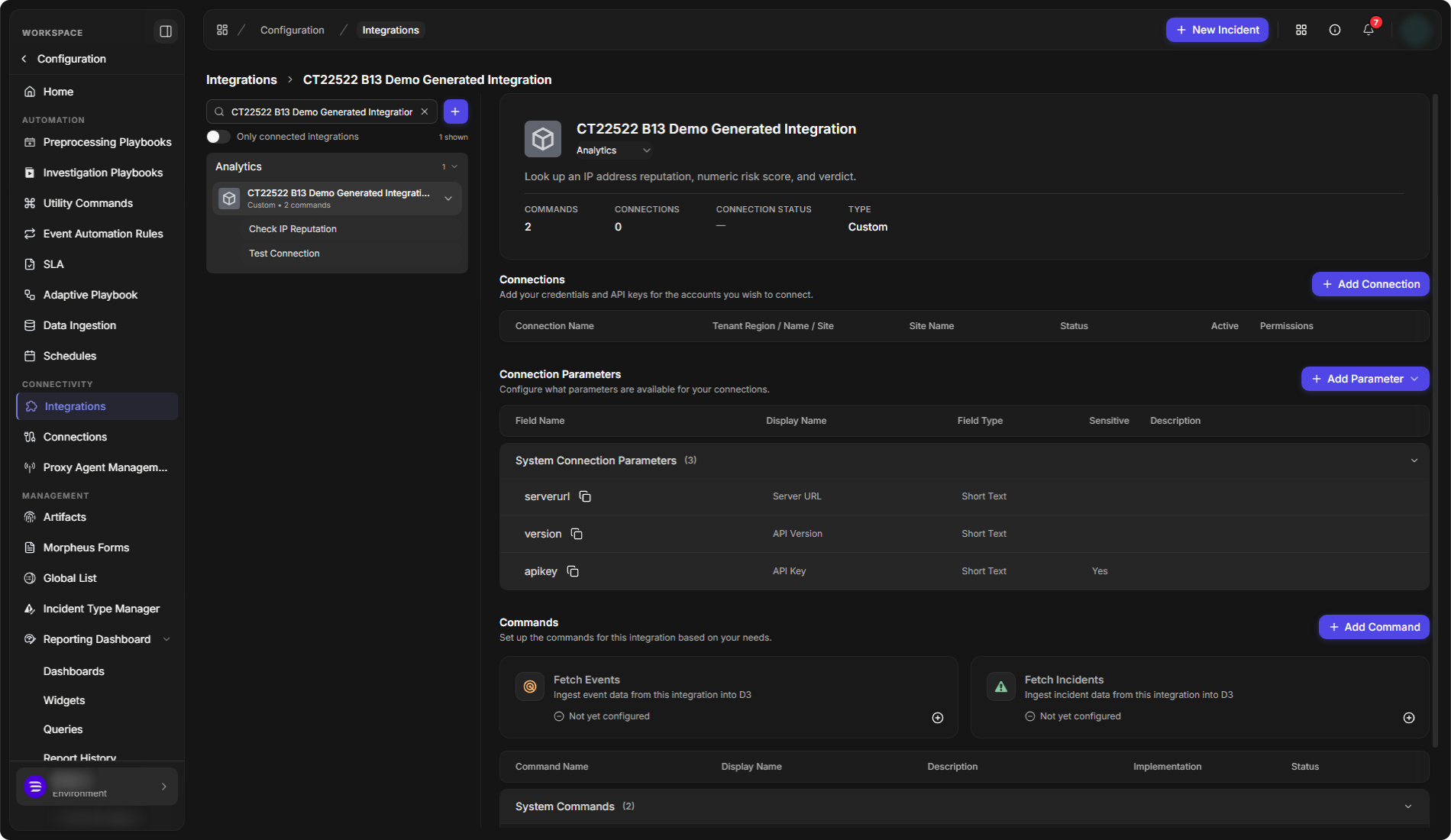
The integration opens with the generated commands and the connection parameters they need. The commands are already live. In this example, Morpheus added the serverurl, version and apikey parameters and two Python commands, Test Connection and Check IP Reputation.
The generated integration
If Morpheus cannot tell which API to use, for example when there is no API document and the description names no product, it creates no commands and explains why.
REVIEW BEFORE USE
The generated commands are added as live commands (Live Version-1), so playbooks can use them straight away. Read each one, then add a connection and test it before you use it. See Adding a Connection and Testing the Command.
Building It Manually
To create the integration and add its commands yourself:
-
Go to Configuration > Integrations.
-
Select the + button beside Search integrations and commands.
-
On the Custom Integration tab, enter a Name, choose a Category and, optionally, enter a Description.
-
Leave What should this integration do? empty to add the commands by hand, as in this article.
-
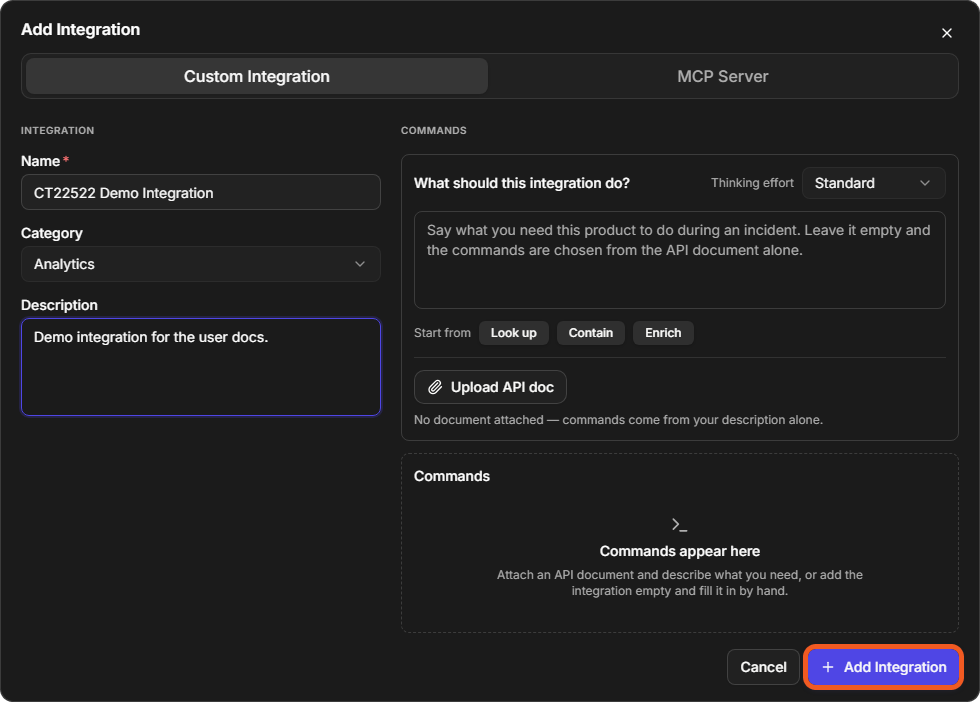
Select Add Integration.
The Add Integration window
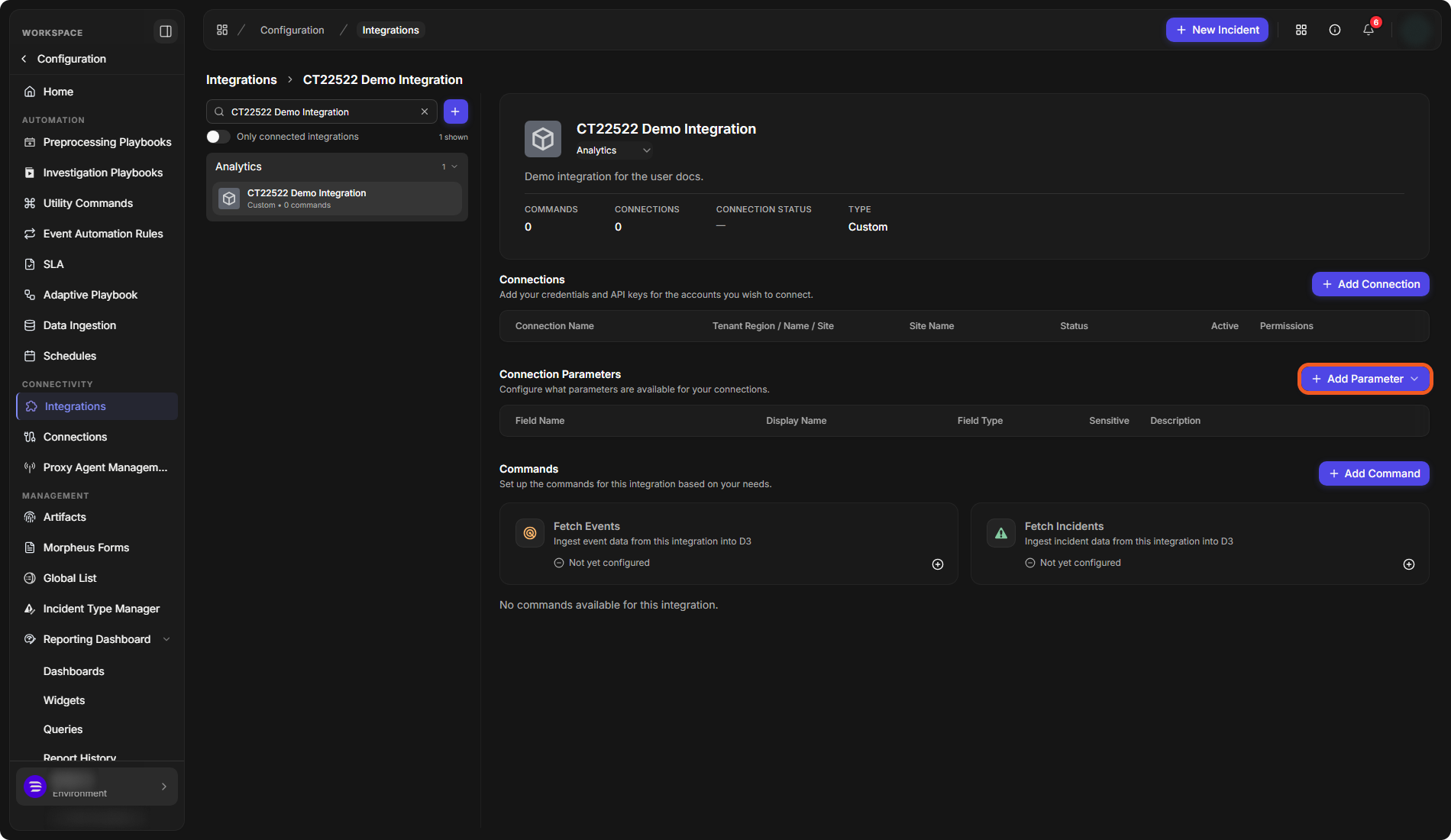
The integration opens. Its TYPE is Custom, and it has no commands and no connections yet.
A new custom integration
Defining the Connection Parameters
Connection parameters are the fields each connection of the integration asks for, such as a server URL or an API key.
-
In Connection Parameters, select Add Parameter.
-
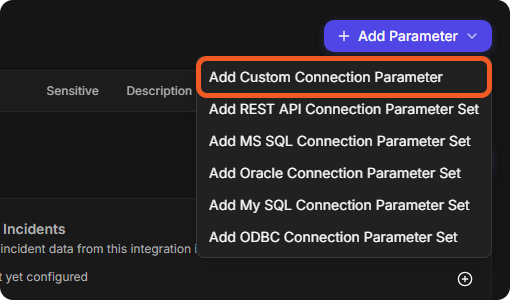
Choose Add Custom Connection Parameter. The other options add a ready-made set of parameters: Add REST API Connection Parameter Set, Add MS SQL Connection Parameter Set, Add Oracle Connection Parameter Set, Add My SQL Connection Parameter Set and Add ODBC Connection Parameter Set.
The Add Parameter menu
-
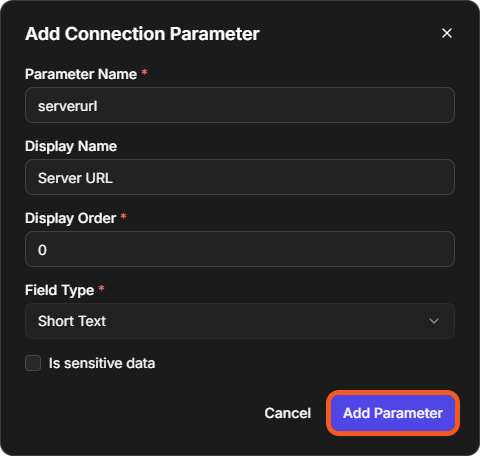
In the Add Connection Parameter window, enter the Parameter Name (the name your code uses), a Display Name (the label on the connection form) and the Display Order, and choose a Field Type: Short Text, Long Text, Checkbox, Dropdown, Date Time or Number.
-
Select Add Parameter.
Adding a custom connection parameter
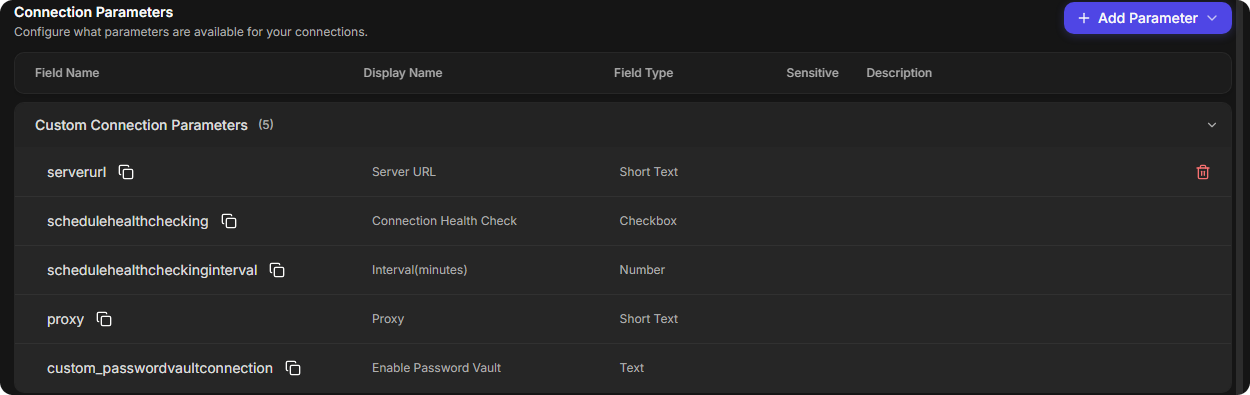
The parameter is listed under Custom Connection Parameters. Four more parameters are added for you with the first one: schedulehealthchecking (Connection Health Check), schedulehealthcheckinginterval (Interval(minutes)), proxy (Proxy) and custom_passwordvaultconnection (Enable Password Vault).
The integration's connection parameters
In a command's code, a connection's parameter values are read from runtime["connector"], by parameter name, for example runtime["connector"].get("serverurl", "").
Creating the Custom Command
-
In Commands, select Add Command.
-
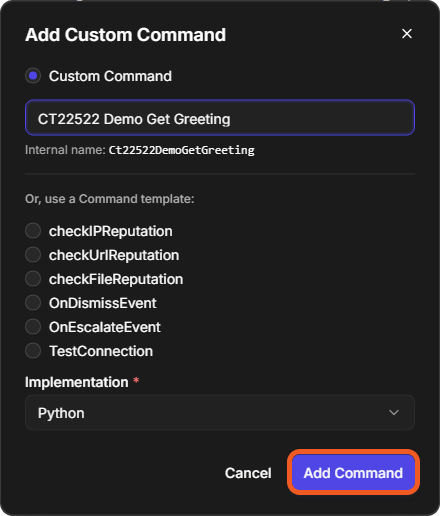
In the Add Custom Command window, keep Custom Command selected and enter the command's name.
-
Set Implementation to Python. (The other option is Codeless Playbook.)
-
Select Add Command.
The Add Custom Command window
The command opens as a Draft. Its internal name, shown under COMMAND NAME, is the display name without spaces (here Ct22522DemoGetGreeting). The code editor on the right holds a commented sample and an empty function with the same name as the internal name.
A new integration command
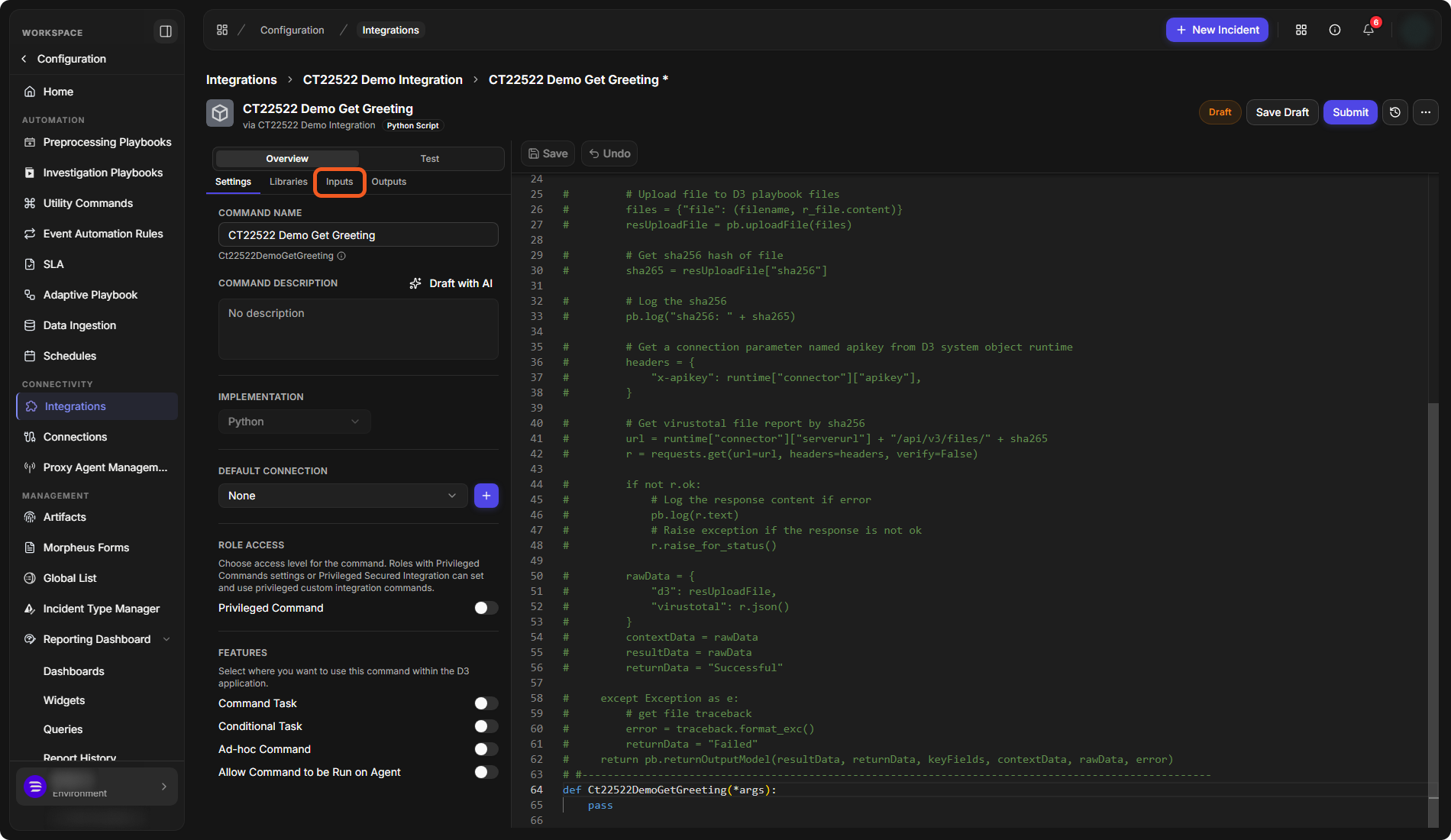
The Settings sub-tab also sets where the command can be used, under FEATURES: Command Task, Conditional Task, Ad-hoc Command and Allow Command to be Run on Agent. A new command has none of them switched on.
Adding an Input Parameter
-
Open the Inputs sub-tab and select New Input Parameter.
-
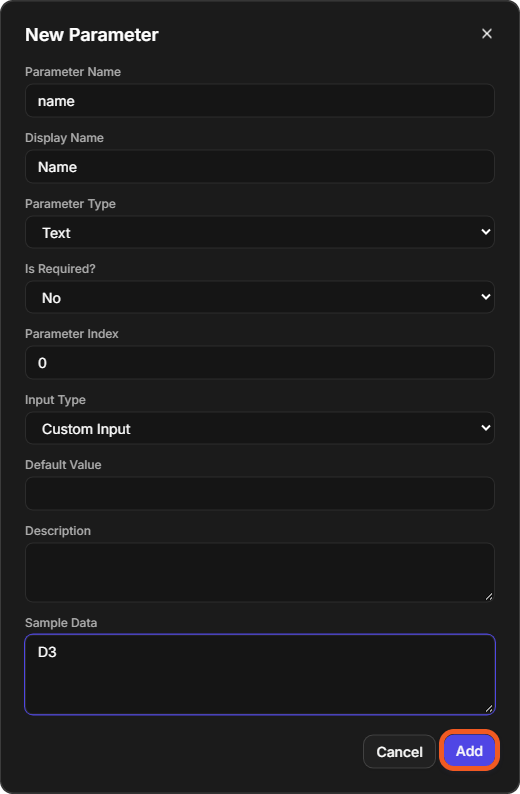
In the New Parameter window, fill in the fields:
-
Parameter Name and Display Name.
-
Parameter Type: Boolean, DateTime, File, JSON Object, Number, Text, Boolean Array, DateTime Array, File Array, JSON Array, JSON Array of Arrays, Number Array, Text Array or Unknown.
-
Is Required?: No or Yes.
-
Parameter Index: the parameter's position, starting from 0.
-
Input Type: Custom Input, Text Template, HTML Template, Drop Down Option or Multi Select Option.
-
Default Value, Description and Sample Data (optional).
-
-
Select Add.
The New Parameter window
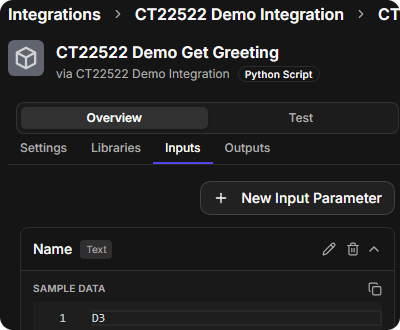
The parameter is listed on the Inputs sub-tab with its type and sample data.
The command's inputs
Outputs
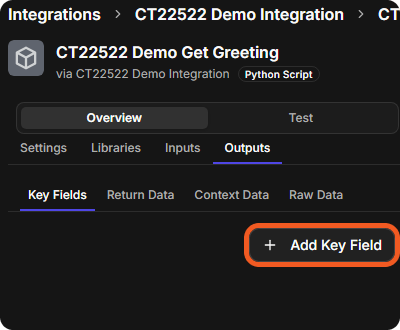
The Outputs sub-tab describes what the command returns, in four groups: Key Fields, Return Data, Context Data and Raw Data. Add Key Field opens a window that asks for the key field's Name, Type, JSON Path and Sample Data. The other groups each have an Edit button (for example Edit Return Data).
The Outputs sub-tab
Writing the Python Function
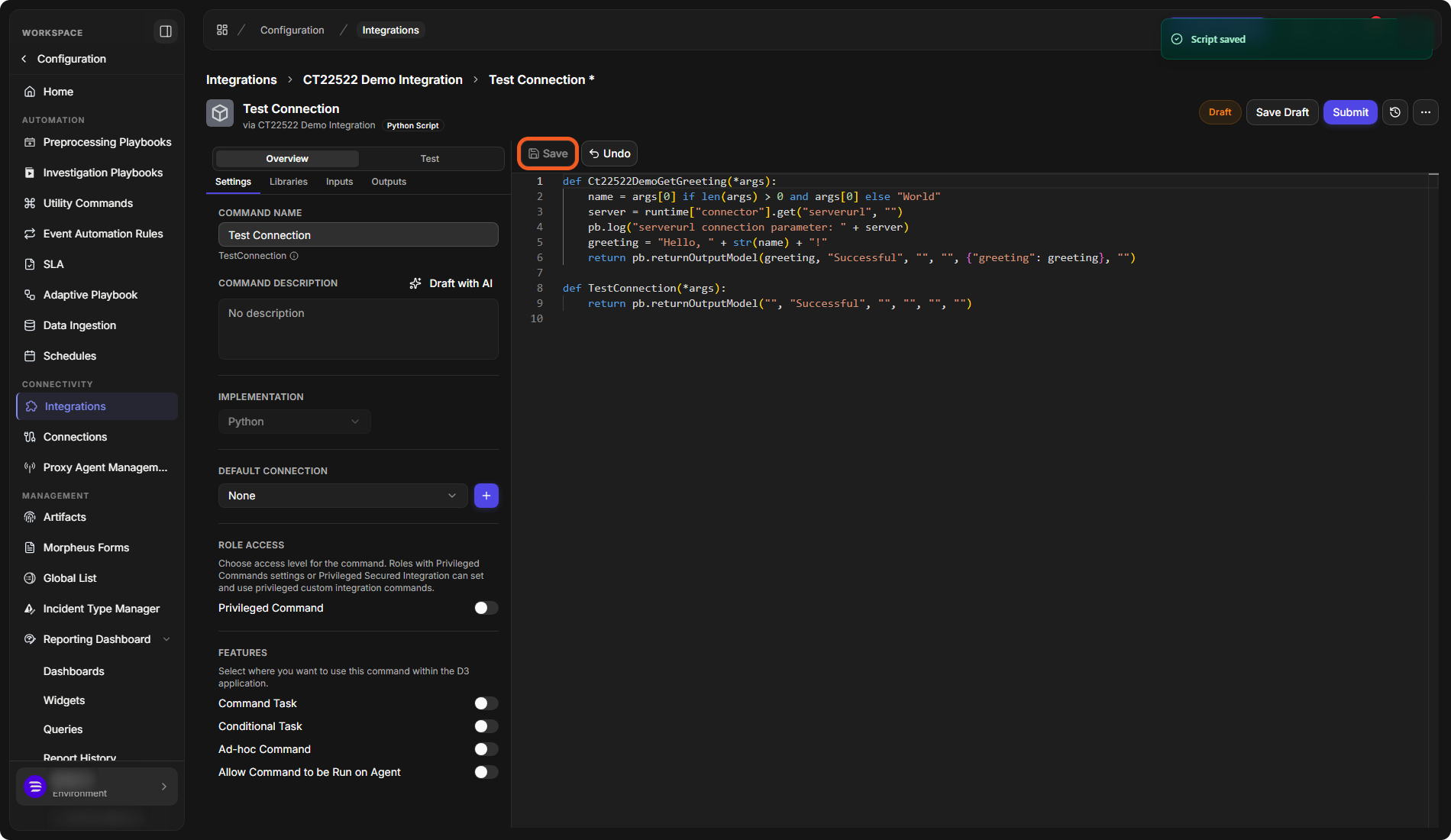
Write the command's code in the function named after its internal name, then select Save. The command's input values reach the function in order, in args. Return the result with pb.returnOutputModel(...). For the helper functions, see Python Script.
All the commands of one integration share one script. The editor of every command shows the same code, with one function per command, so a change saved on one command's page is saved for all of them.
One script for all the integration's commands
Command Templates
The Add Custom Command window also offers command templates: checkIPReputation, checkUrlReputation, checkFileReputation, OnDismissEvent, OnEscalateEvent and TestConnection. Choosing one creates a command with that name and a commented sample for it.
Choosing a command template
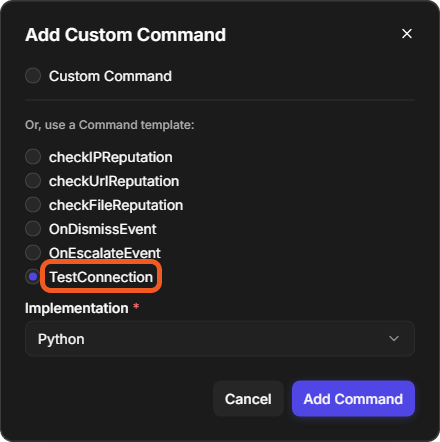
TestConnection is the command a connection runs when you select Test Connection (see the next section). In this example it simply returns Successful.
Adding a Connection
-
On the integration's page, select Add Connection.
-
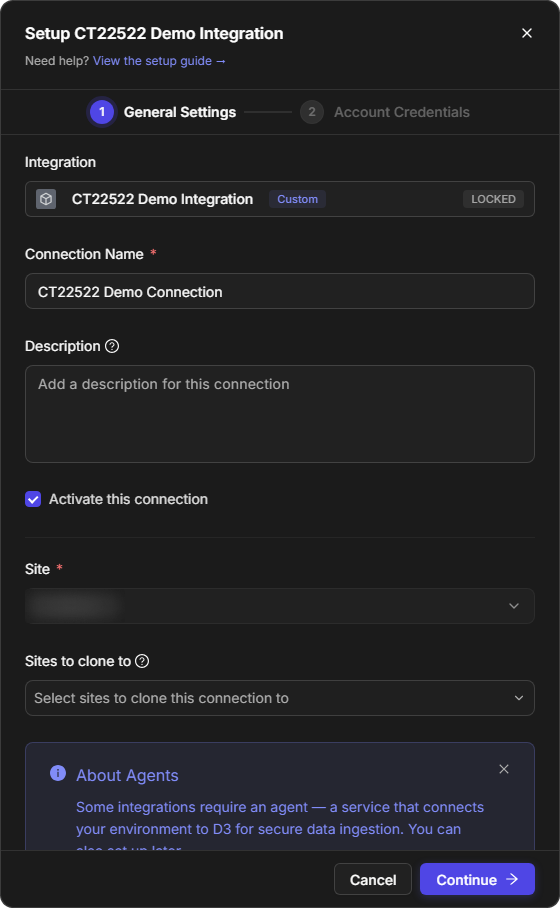
On the General Settings step, enter a Connection Name, choose the Site that can use the connection, and select Continue.
The General Settings step
-
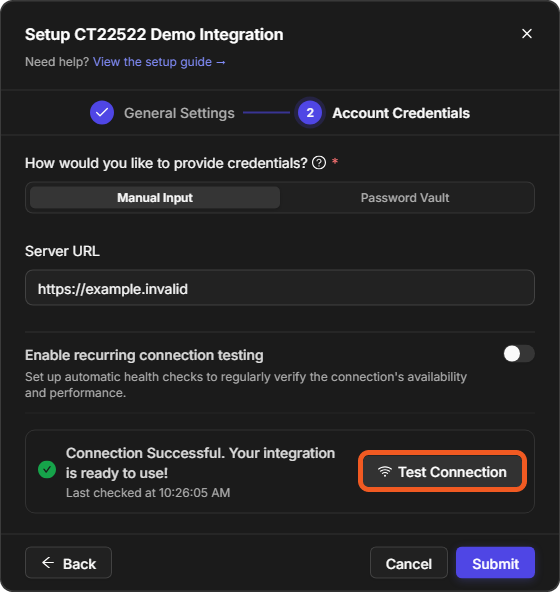
On the Account Credentials step, keep Manual Input and fill in the integration's connection parameters (here Server URL).
-
Select Test Connection to run the integration's TestConnection command.
-
Select Submit.
The Account Credentials step
The connection is listed in the integration's Connections section.
The new connection

Testing the Command
-
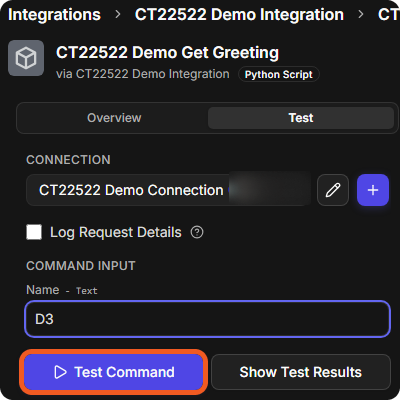
Open the command and select the Test tab.
-
Under CONNECTION, choose the connection to test with.
-
Under COMMAND INPUT, fill in the command's inputs (here Name). Select Log Request Details if you want the request details logged.
-
Select Test Command.
The Test tab
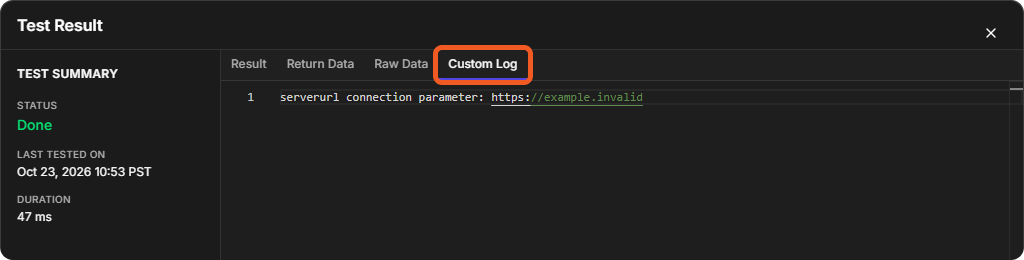
The Test Result window opens. TEST SUMMARY shows the STATUS, LAST TESTED ON and DURATION. The tabs show what the function returned: Result, Return Data, Raw Data, and Custom Log for the messages written with pb.log.
The test result
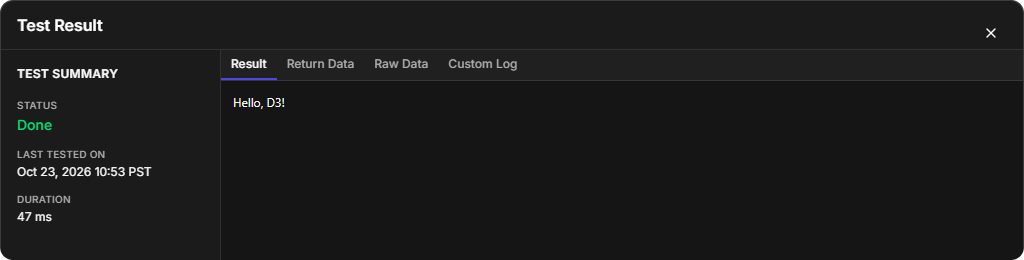
In this example, the input D3 reached the function as args[0], so Result shows Hello, D3!, Return Data shows Successful, and Custom Log shows the connection's serverurl value read from runtime["connector"].
The Custom Log tab
Submitting a Command
A new or edited command is a Draft. To make it the version that playbooks run:
-
Select Submit in the command's header.
-
In the Submit Command window, optionally enter a Comment, then select Submit.
The command becomes Live (for example Live Version-1), and Edit replaces Save Draft and Submit. A live command also shows WEBHOOK AUTHENTICATION on its Settings sub-tab.
Cloning a Command
-
Open the command.
-
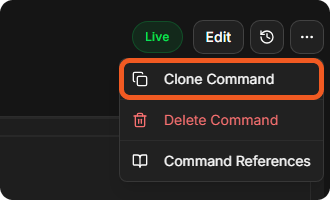
Select the More button (⋯) in the header, then Clone Command.
Clone Command in the More menu
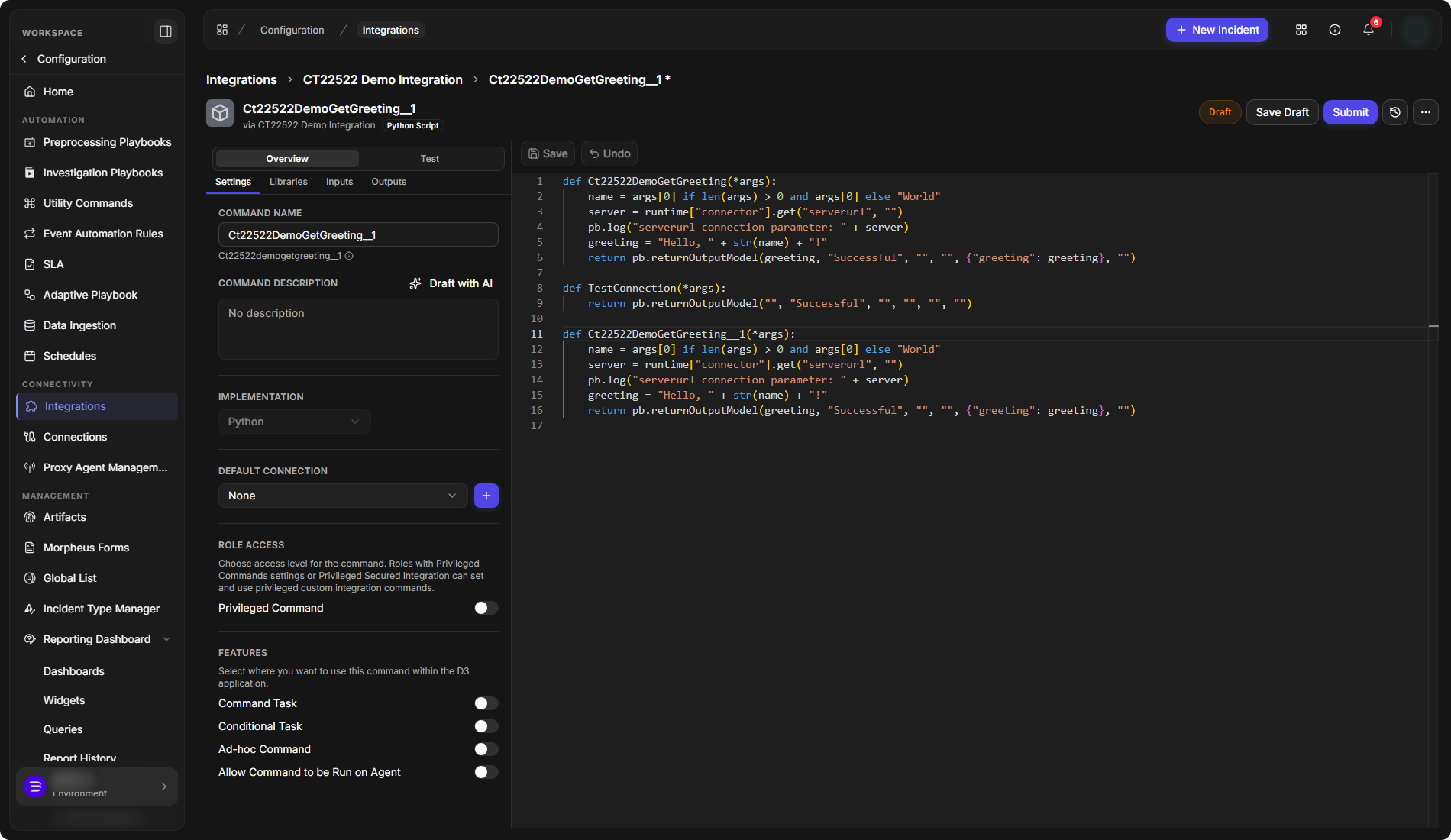
The clone opens as a new Draft, named after the original's internal name with __1 added (here Ct22522DemoGetGreeting__1). A copy of the original function, renamed to match, is added to the integration's script.
A cloned command
Setting Up a Fetch Event Command
A Fetch Event command brings event data from the integration into D3.
-
On the integration's page, select the + button on the Fetch Events card.
-
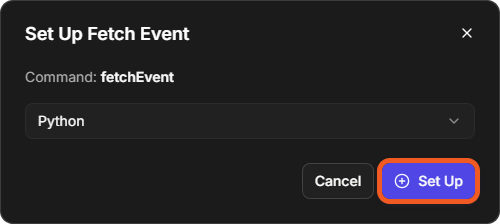
In the Set Up Fetch Event window (Command: fetchEvent), choose the implementation mode: Python or Codeless Playbook.
-
Select Set Up.
The Set Up Fetch Event window
The Fetch Events card shows Implementations: Python and a Draft badge.
The Fetch Events card

Select the card to open the Fetch Event command. It comes with four inputs: Start Time, End Time, Top Recent Event Number and Search Condition. Its FEATURES add Escalate Search, and its settings end with EVENT FIELD MAPPING.
The Fetch Event command
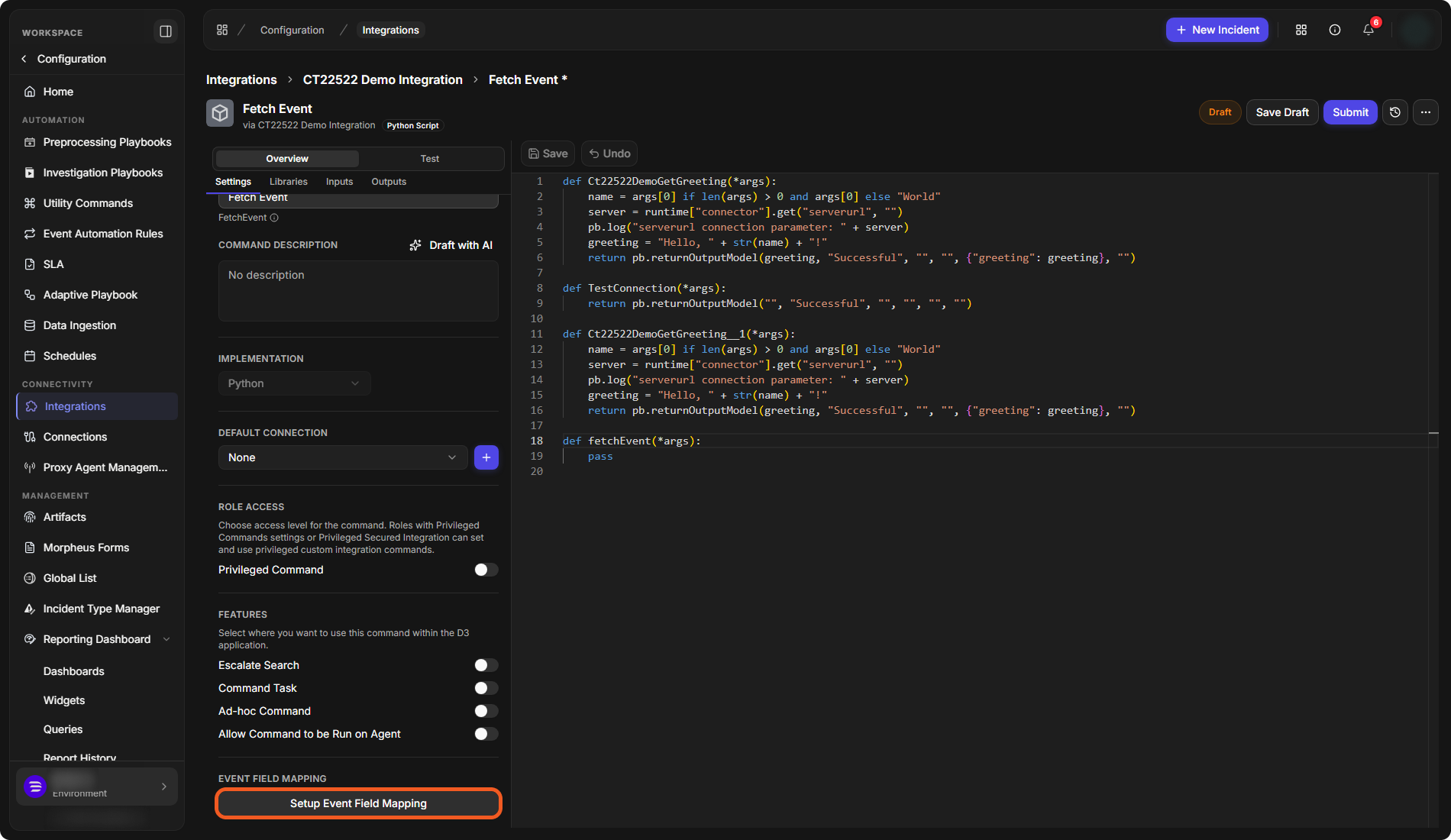
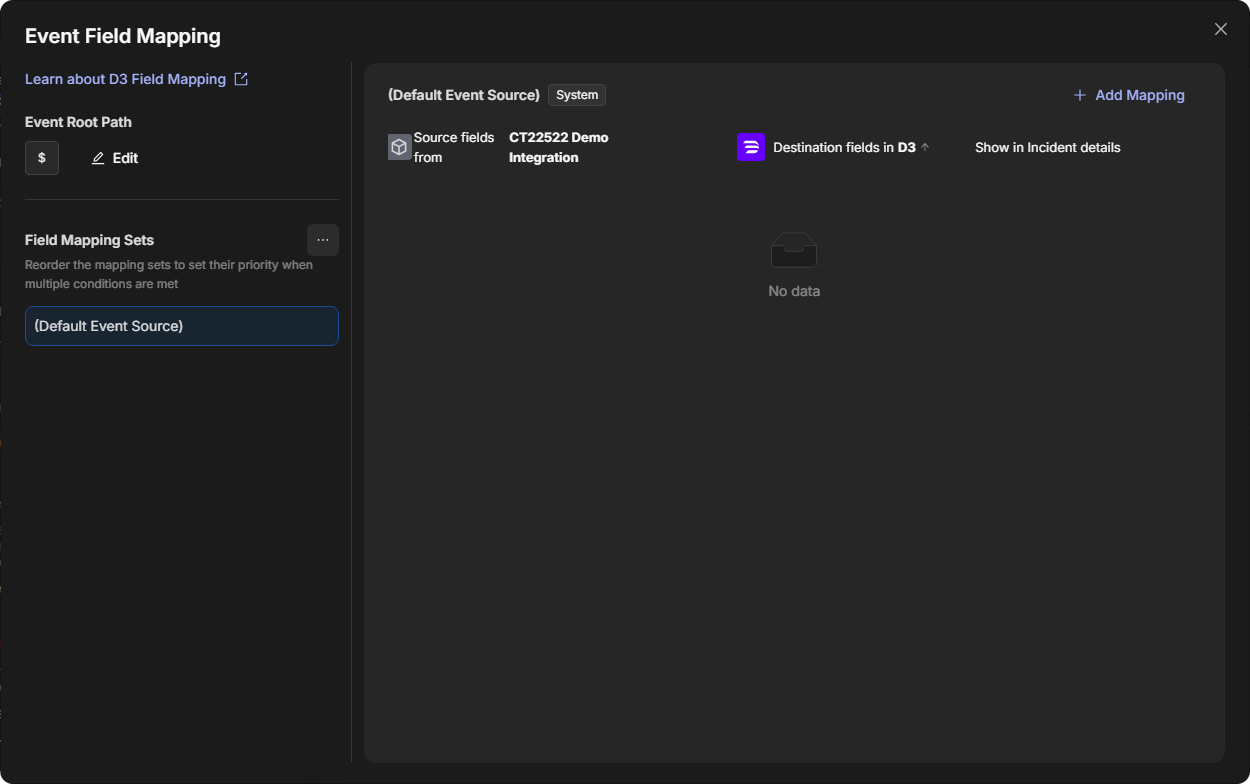
Select Setup Event Field Mapping to map the fetched fields to D3 event fields. The window has the Event Root Path, the Field Mapping Sets (starting with (Default Event Source)), and Add Mapping for each mapping from Source fields to Destination fields in D3. See Event and Incident Intake Field Mapping.
The Event Field Mapping window
Deleting a Custom Integration
An integration can be deleted only when it has no commands and no connections left.
-
Delete each command: open it, select More (⋯) > Delete Command, then Delete. A live command that also has a draft is deleted in two steps: the first deletes the draft, the second the live version.
-
Delete each connection: in the integration's Connections section, select the delete button at the end of the connection's row, then Yes.
-
Select the delete button at the top right of the integration's summary, then Delete.
The Delete Integration window
If commands or connections are left, the integration is not deleted and a message says so.
Deleting an integration that still has commands