
Last Updated: October 26, 2026
Overview
A utility custom command is a utility command you build yourself, for data processing that no built-in utility command covers. You can implement it in Python or as a Codeless Playbook. This article shows how to create each kind and how to clone an existing command, and then builds a small Python command step by step. For the parts of a command's page, testing and submitting, see Utility Commands. For the difference between the command types and statuses, see Custom Command Overview.
Creating a Utility Custom Command
You can generate the command with AI, or build it yourself.
Generating with AI
Morpheus, D3's AI assistant, can write the command for you, in Python or as a codeless playbook, from a description and a sample input.
-
Go to Configuration > Utility Commands and select the + button beside Search Utility Commands.
-
Enter a Command Display Name. The Command Internal Name is generated from it. Choose a Command Category, or leave it Uncategorized.
-
Keep Implementation set to Python.
-
Under What should this command do?, say what the command should compute and what a later task should be able to use from its result. Start from (Reshape, Extract or Score) fills in an example description to start from.
-
Under Sample input, paste one example input, or select Attach a file. Its top-level keys become the command's parameters.
-
Select Generate with AI. Morpheus shows its progress; this takes a few minutes, and Stop generating stops it.
-
Check the command schema Morpheus proposes: the brief, the description, the INPUTS, the OUTPUTS and any Assumptions. Then select Add as command.
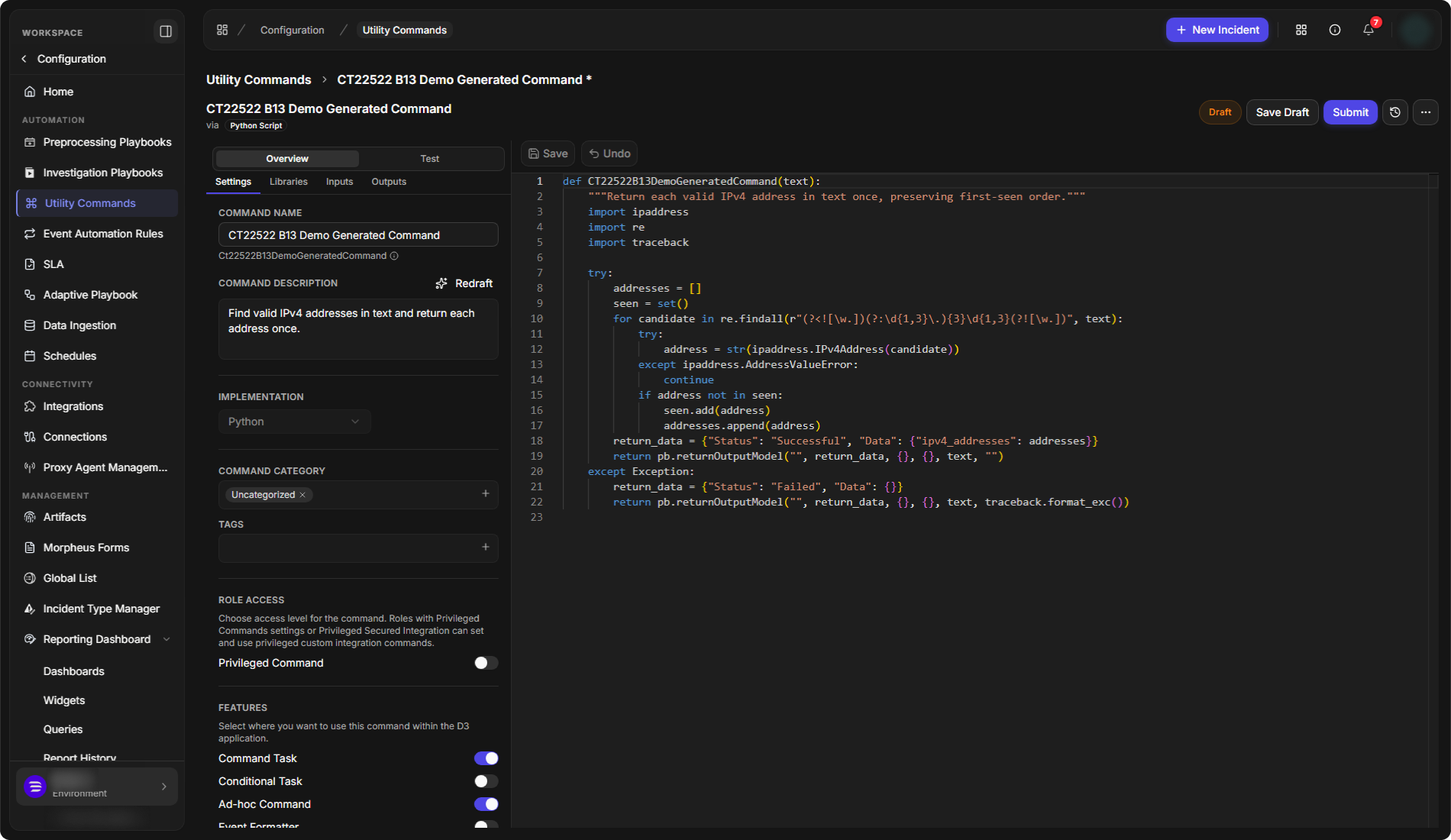
The command opens as a Draft, with the generated Python code in the editor.
The generated command
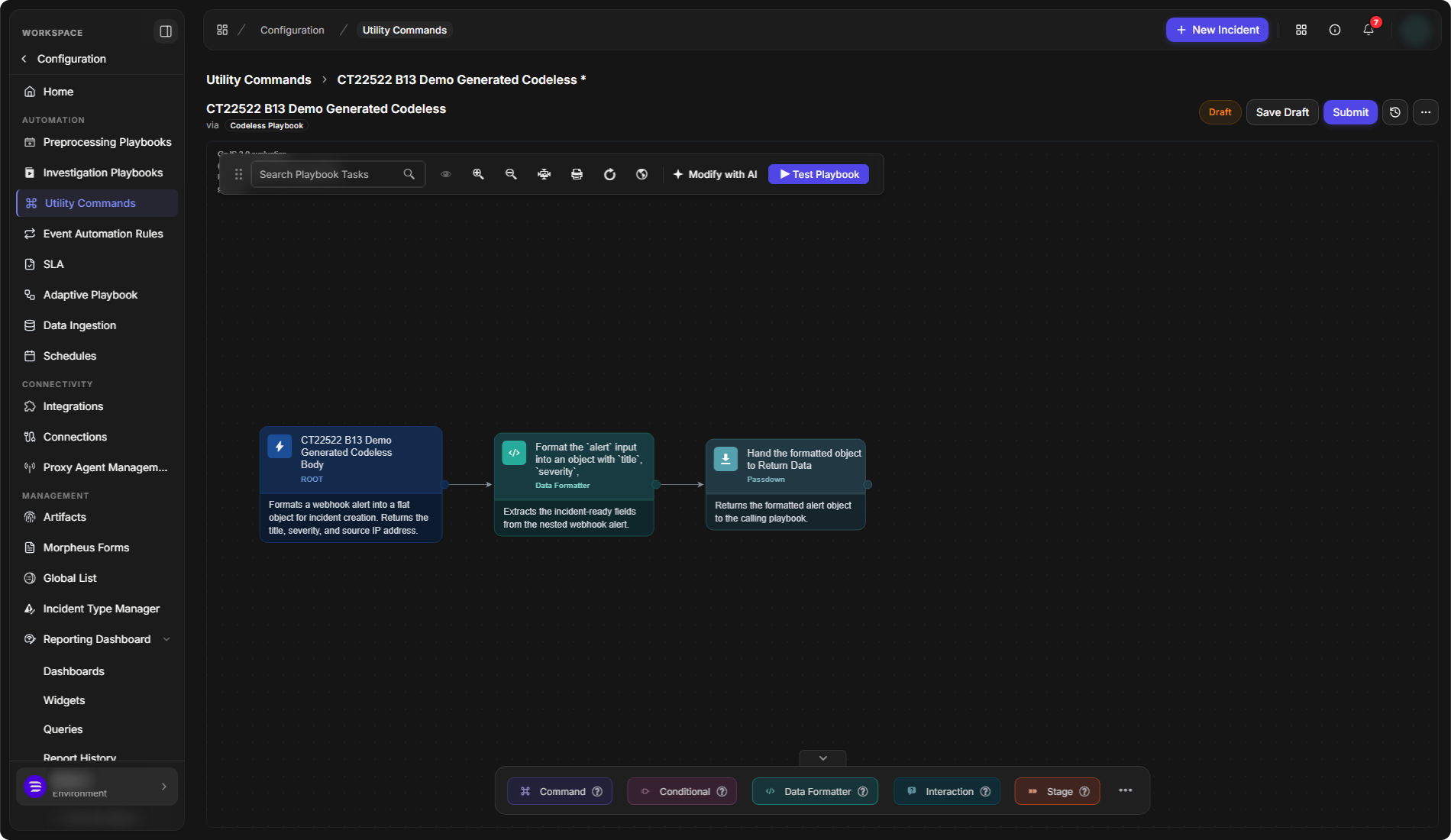
For a Codeless Playbook command, set Implementation to Codeless Playbook before you describe it. Start from then offers Enrich, Contain and Notify, and the window also asks for the Site (required), Global lists and Connected integrations. The command opens in the playbook editor with the generated tasks.
The generated codeless playbook
REVIEW BEFORE USE
Read the generated code or tasks and test the command before you select Submit. For testing, see Testing a Command.
Building It Manually
To build the command yourself instead:
-
Go to Configuration > Utility Commands.
-
Select the + button beside Search Utility Commands.
-
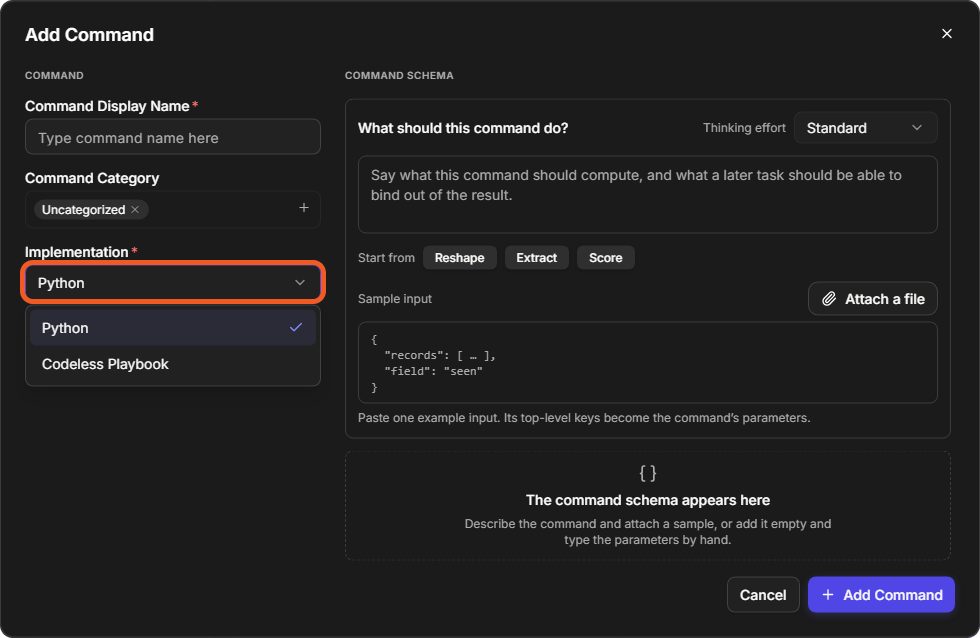
In the Add Command window, open the Implementation list. It offers two options: Python and Codeless Playbook.
The implementation options
The implementation cannot be changed after the command is created.
Python
-
Enter a Command Display Name. The Command Internal Name is generated from it and becomes the name of the command's Python function.
-
Choose a Command Category, or leave it Uncategorized.
-
Keep Implementation set to Python.
-
Select Add Command.
The Add Command window for a Python command
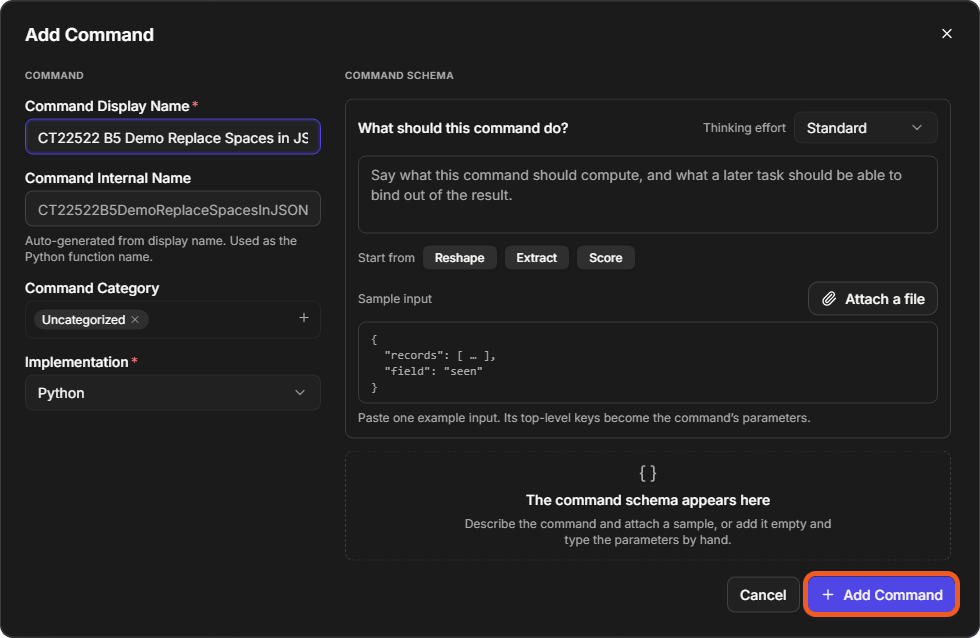
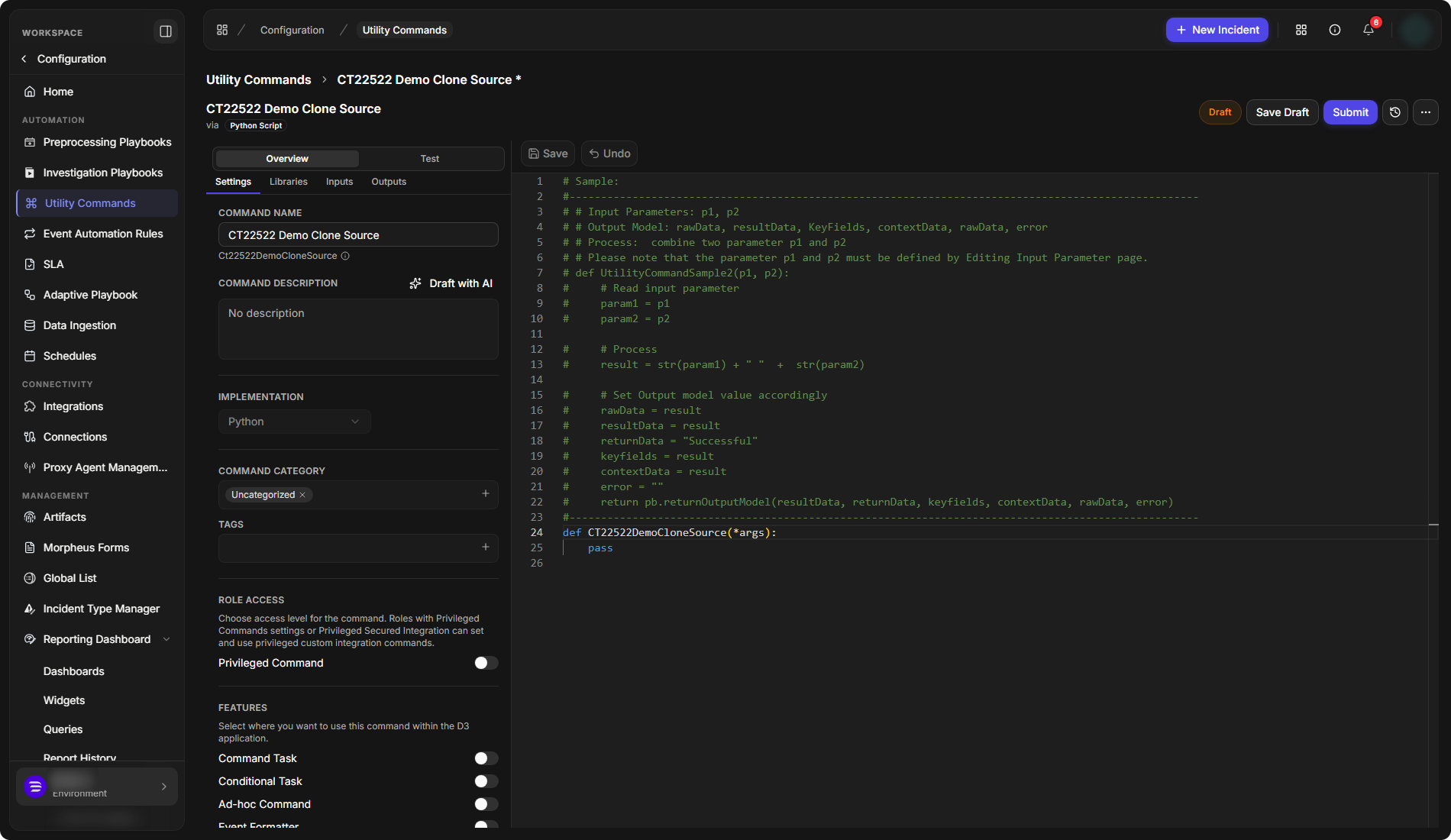
The command opens as a Draft. The code editor holds a commented sample function and an empty function named after the command's internal name, ready for your code.
A new Python command
Codeless Playbook
-
Enter a Command Display Name and choose a Command Category.
-
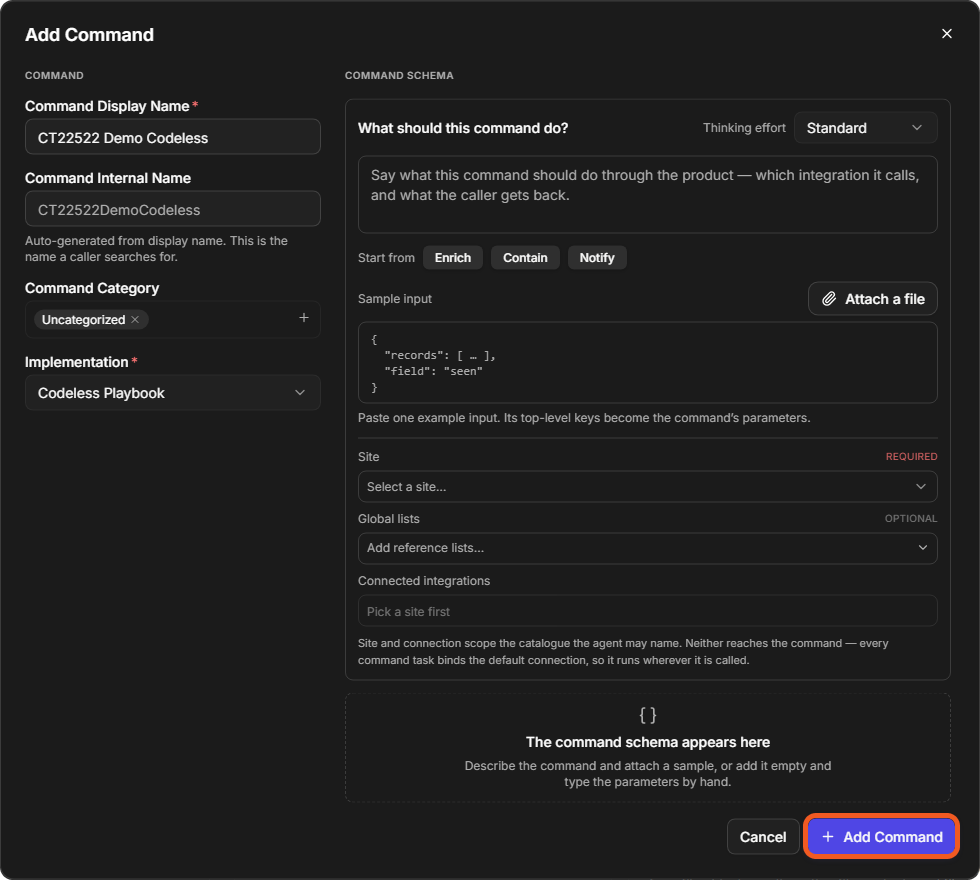
Set Implementation to Codeless Playbook. The window then also asks for a Site (required), and optionally Global lists and Connected integrations. These set what the AI assistant may use when it drafts the command from your description; they do not limit where the command runs.
-
Select Add Command.
Adding a codeless playbook command
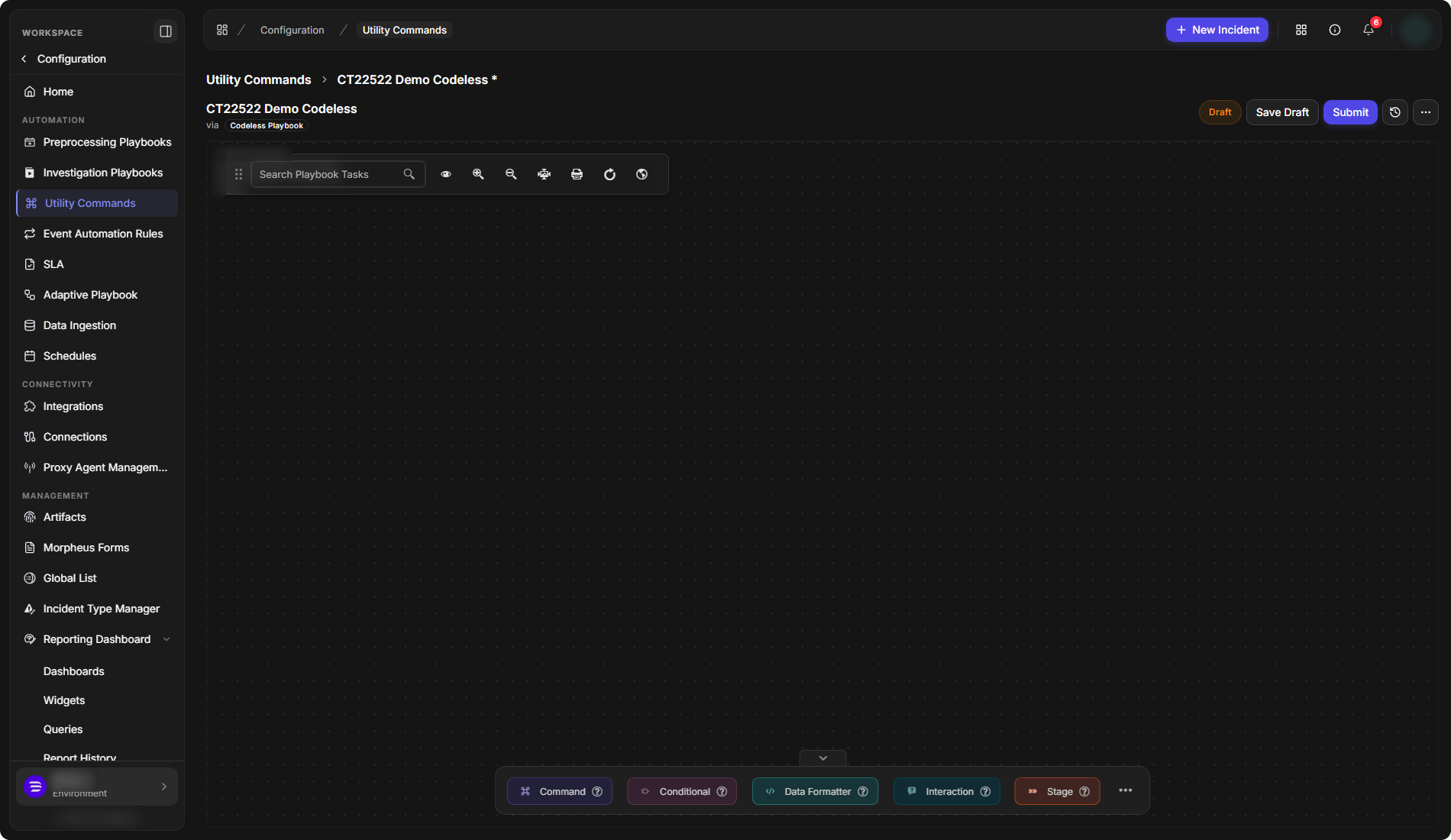
The command opens as a Draft in the playbook editor. Build it from tasks with the buttons at the bottom of the canvas: Command, Conditional, Data Formatter, Interaction and Stage. Search Playbook Tasks at the top finds a task on the canvas.
The codeless playbook editor
Cloning a Utility Custom Command
Clone a command to start a new one from a copy of it.
-
Open the command to clone.
-
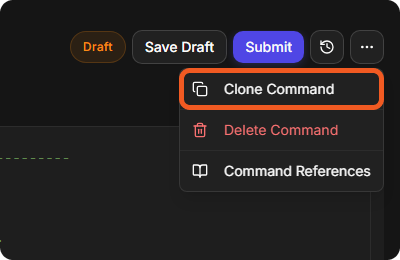
Select the More button (⋯) in the header.
-
Select Clone Command.
Clone Command in the More menu
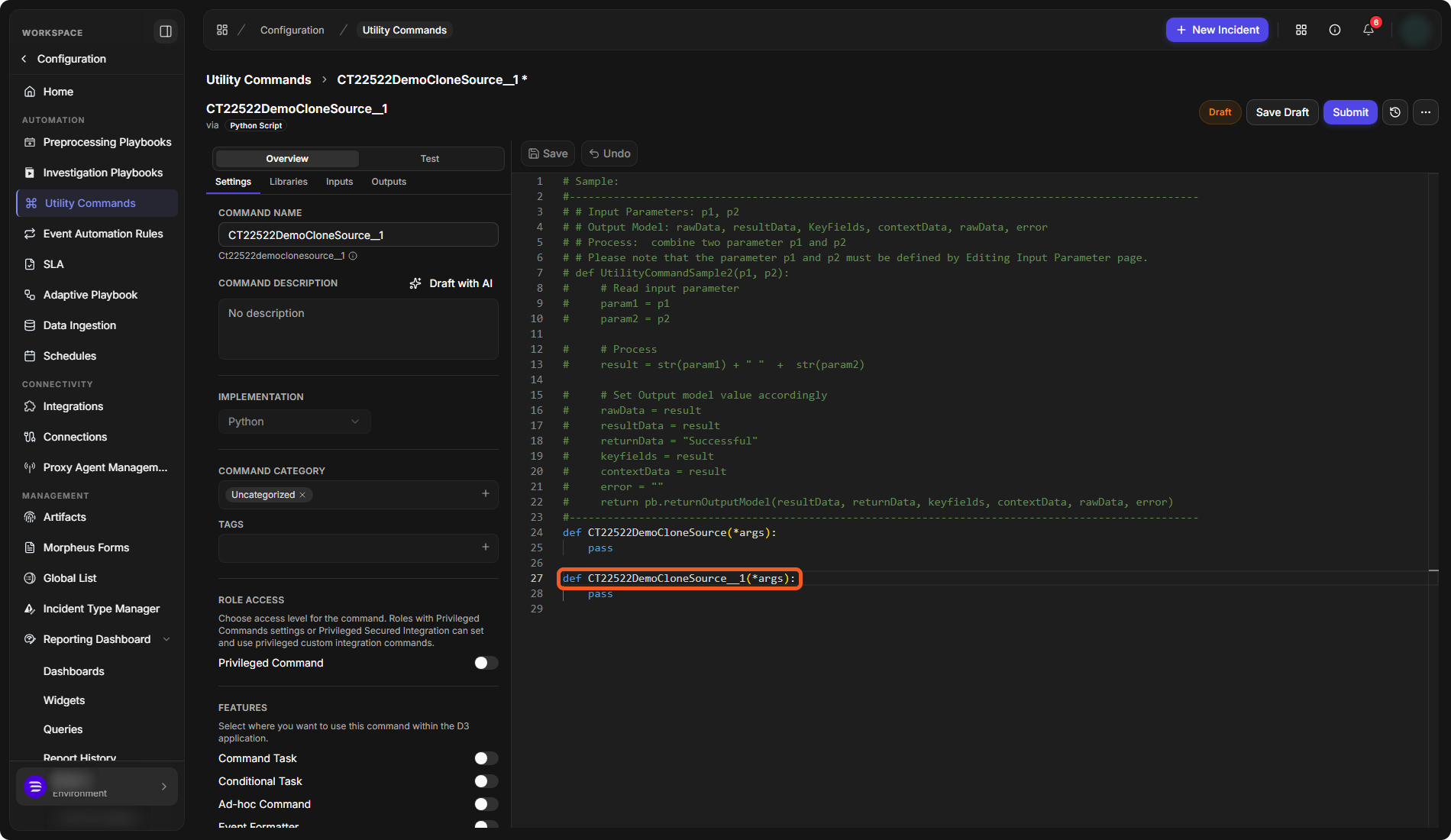
The clone opens as a new Draft. Its name is the original's internal name with __1 added, for example CT22522DemoCloneSource__1. For a Python command, the clone's code contains a new function with the clone's name.
A cloned command
Step by Step: Building a Python Command
This example builds a small Python command. The command takes a JSON array of objects and replaces the spaces in each object's top-level keys with underscores, so that "Host Name" becomes "Host_Name". Along the way it shows how to write the code, add an input parameter and test the command.
The screenshots use a command named CT22522 B5 Demo Replace Spaces in JSON Keys. Use any name you like, for example Replace Spaces in JSON Keys.
Step 1: Add the Command
Create a Python command as described in Python above, with your chosen Command Display Name.
The command opens as a Draft. The code editor on the right holds a commented sample and an empty function named after the internal name.
Step 2: Write the Code
-
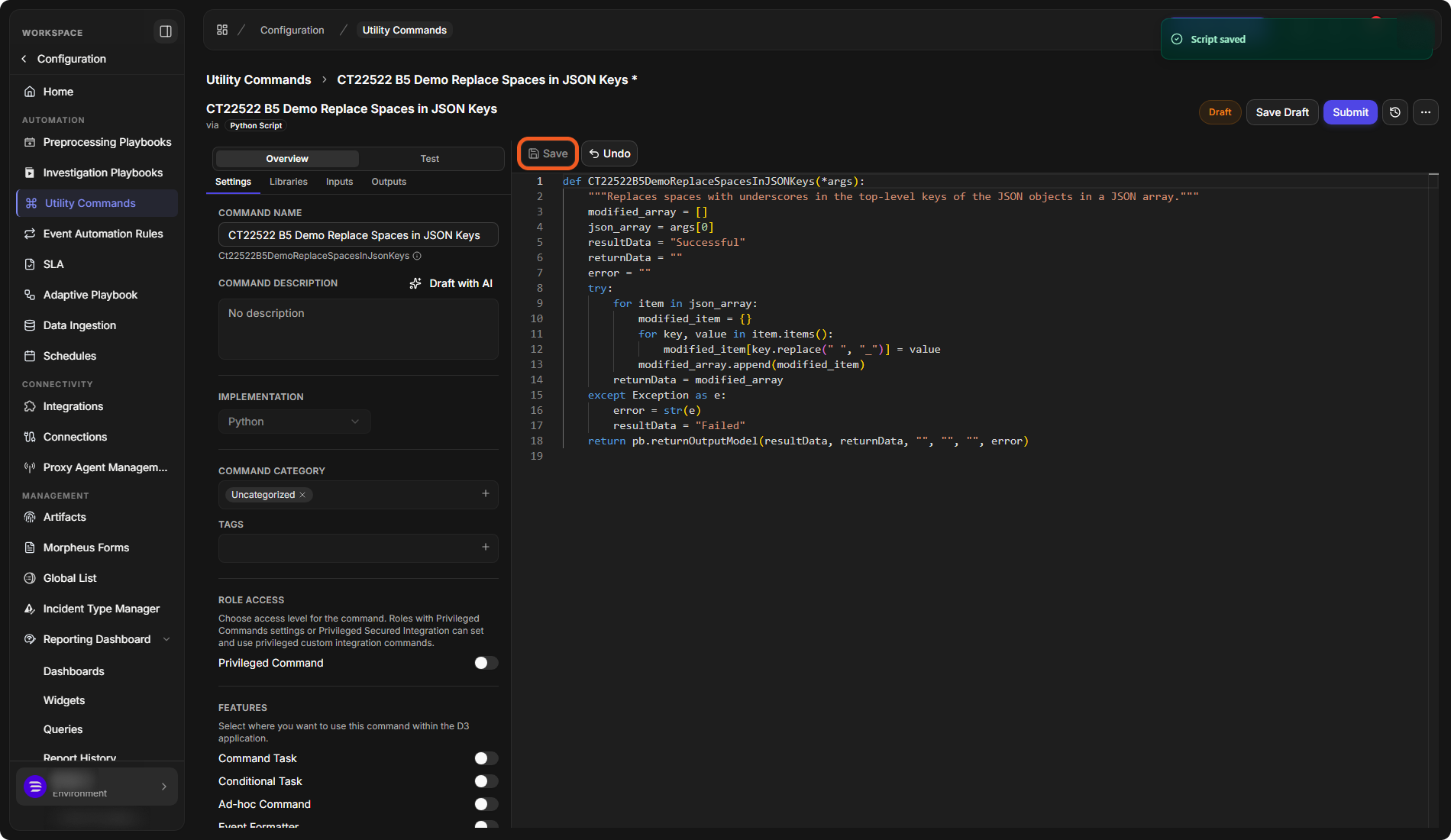
Replace the contents of the code editor with the code below. Keep the function name from your own editor (the name after
def); it must match the command's internal name. -
Select Save above the code editor.
def ReplaceSpacesInJSONKeys(*args):
    """Replaces spaces with underscores in the top-level keys of the JSON objects in a JSON array."""
    modified_array = []
    json_array = args[0]
    resultData = "Successful"
    returnData = ""
    error = ""
    try:
        for item in json_array:
            modified_item = {}
            for key, value in item.items():
                modified_item[key.replace(" ", "_")] = value
            modified_array.append(modified_item)
        returnData = modified_array
    except Exception as e:
        error = str(e)
        resultData = "Failed"
    return pb.returnOutputModel(resultData, returnData, "", "", "", error)
The function reads the first input parameter (args[0]), builds a new array with the renamed keys, and returns it as the command's return data with pb.returnOutputModel.
The code in the editor
Step 3: Add the Input Parameter
-
On the Overview tab, open Inputs.
-
Select New Input Parameter.
-
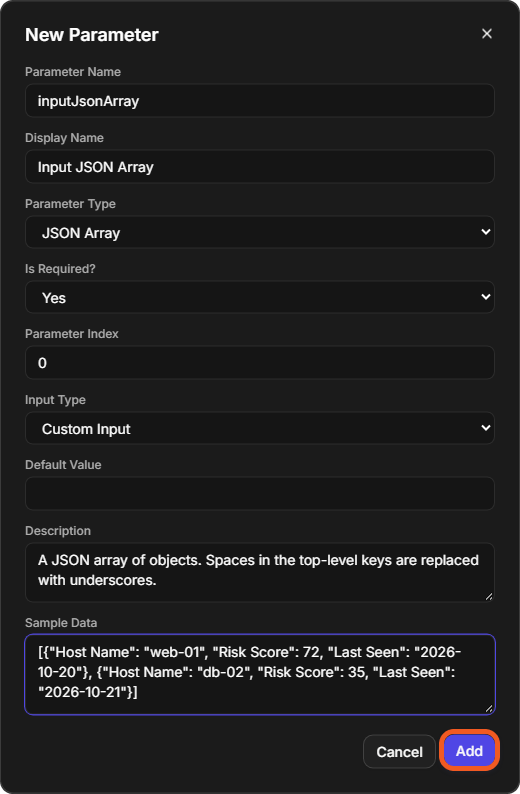
Fill in the New Parameter window:
-
Parameter Name:
inputJsonArray -
Display Name:
Input JSON Array -
Parameter Type: JSON Array
-
Is Required?: Yes
-
Description:
A JSON array of objects. Spaces in the top-level keys are replaced with underscores. -
Sample Data: the JSON array below
-
-
Select Add.
[
    {"Host Name": "web-01", "Risk Score": 72, "Last Seen": "2026-10-20"},
    {"Host Name": "db-02", "Risk Score": 35, "Last Seen": "2026-10-21"}
]
The New Parameter window
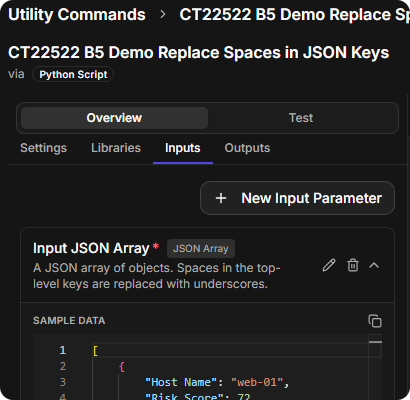
Input JSON Array is listed on the Inputs tab, marked required (\*), with its type, description and SAMPLE DATA. The copy button beside SAMPLE DATA copies the sample.
The new input parameter
Step 4: Test the Command
-
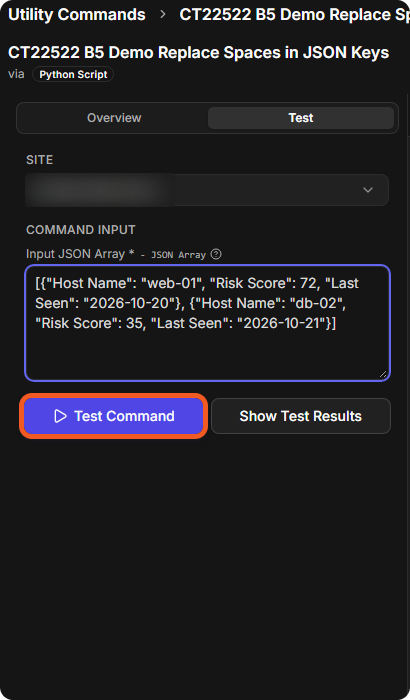
Select the Test tab.
-
Choose the SITE to test on.
-
Under COMMAND INPUT, paste the sample JSON array into Input JSON Array.
-
Select Test Command.
The Test tab
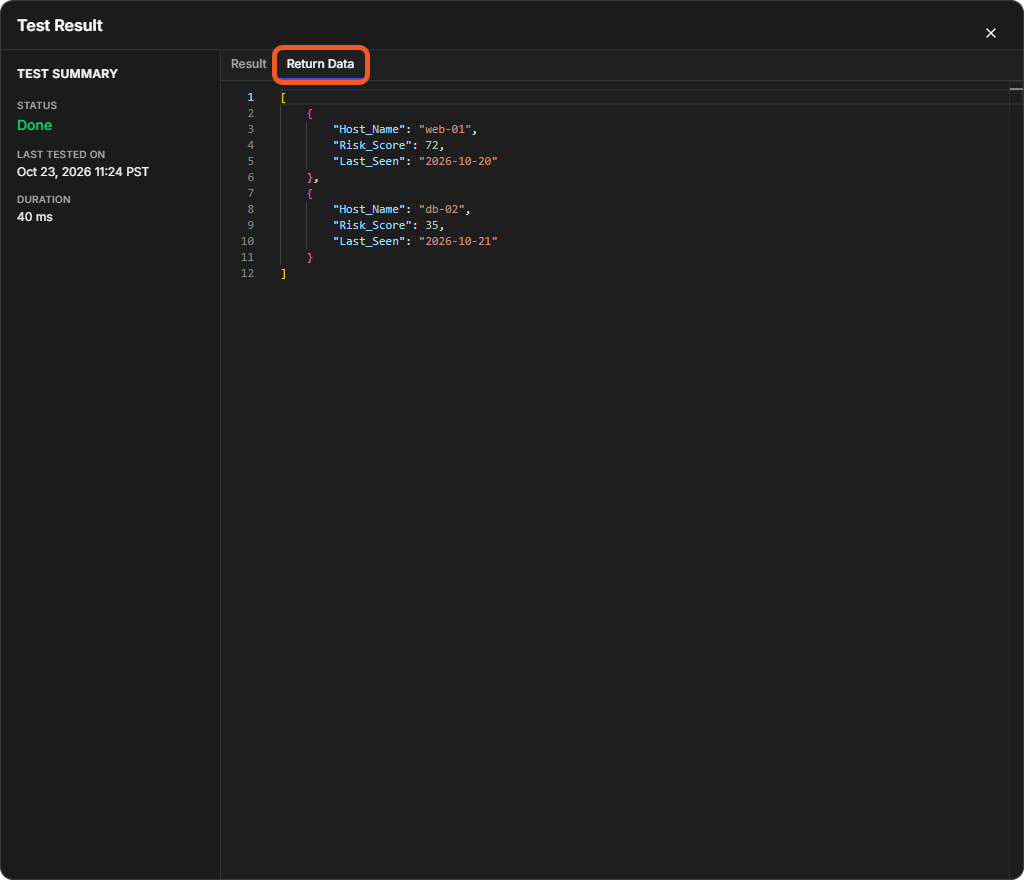
The Test Result window opens. TEST SUMMARY shows the STATUS (Done), LAST TESTED ON and DURATION. Select the Return Data tab to see the array with the renamed keys: Host_Name, Risk_Score and Last_Seen.
The Return Data tab
Next Steps
The command is still a Draft. To make it available to playbooks, submit it, and switch on where it can be used under FEATURES on its Settings tab. See Utility Commands.