
Last updated: October 14, 2026
Overview
A queue alert is one kind of notification. It arrives in the notification bell like any other, and this article covers only what is specific to queues: what raises one, how it repeats and escalates, and how somebody claims it. The bell, pop-ups and their settings are covered in Notifications.
A queue alert tells a team that a serious incident is sitting in its assignment group and nobody has picked it up. It is announced to everyone in the queue, repeated while it stays unclaimed, and finally escalated. Nothing is ever assigned automatically — the alert asks for a volunteer.
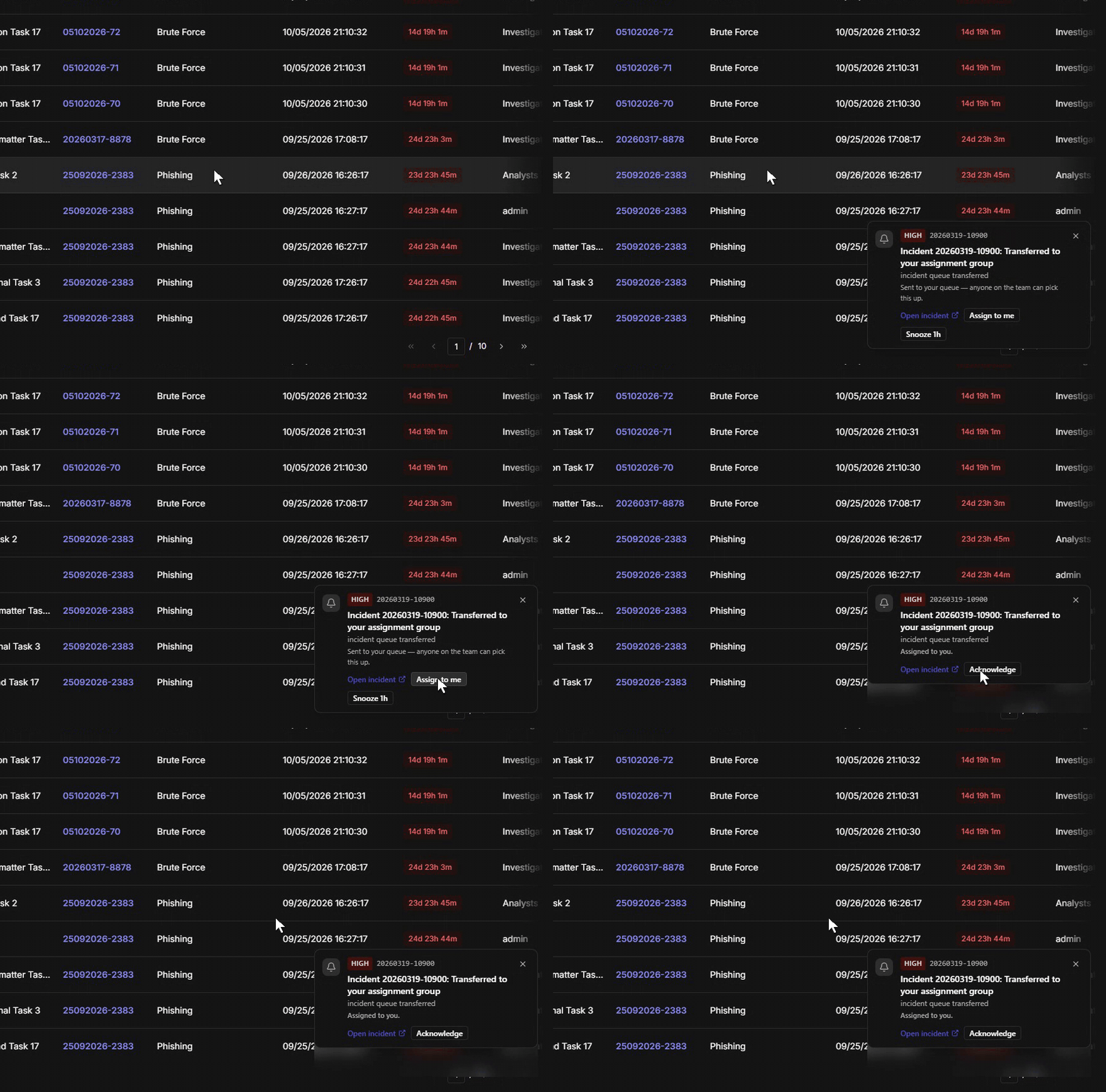
Only incidents whose severity is named High or Critical raise an alert, and only while nobody owns them. Claiming one stops its alerts immediately.
Like every notification, a queue alert always reaches the bell, and also pops up as a card or a desktop notification if you have switched those on in Notifications.
READER NOTE
Queue alerts are in-app only. There is no email channel. If you are not signed in, the alerts wait for you in the bell.
In short
|
# |
Stage |
Where it happens |
|---|---|---|
|
1 |
A High or Critical incident lands in your queue unclaimed |
Automatic, no action by anyone |
|
2 |
You are told |
The notification bell, and a pop-up card if you have switched them on |
|
3 |
Reminders repeat while it stays unclaimed |
Cadence is a site setting |
|
4 |
Nobody claims it, so it escalates |
The same people, told more urgently |
|
5 |
Somebody takes it |
Assign to me on the card. (From a list row it is Assign To Me & View — see Assignment Groups) |
|
6 |
Alerts for it stop |
Immediately on claim |
READER NOTE
This article assumes your team already has an assignment group. Queue alerts only exist for incidents filed into one. Creating a queue, filing incidents into it, finding queue work in the incident list and claiming from a list row are all covered in Assignment Groups. This article starts from the moment an incident is sitting in a queue unclaimed.
READER NOTE
Screenshots in this article were captured on an internal development site seeded with test data.
What Raises an Alert
An alert is raised when both things are true at once: the incident is in an assignment group, and nobody owns it. Severity decides whether it is loud enough to be worth saying.
|
Condition |
Detail |
|---|---|
|
In a queue |
The incident's Assignment group field names a group |
|
Unowned |
The incident has no individual owner |
|
Severity |
Named High or Critical. Nothing below that raises a queue alert |
Anyone who is an active member of the queue and can open the incident is alerted. A member who cannot reach the incident's site is not told about it, which is why a queue can be alerted and one of its members still see nothing.
The Alert Ladder
Seven things can be announced about a queue incident. Each arrives as a notification with its own wording, and the bell labels it in a shorter form.
|
Stage |
What arrives |
Shown in the bell as |
|---|---|---|
|
The incident lands unclaimed |
Incident <number>: Unassigned in your assignment group |
In your queue |
|
It is still unclaimed |
Incident <number>: Still unassigned |
Still unassigned |
|
The reminders run out |
Incident <number>: Escalated - still unassigned |
Escalated |
|
It was transferred into your queue |
Incident <number>: Transferred to your assignment group |
Transferred |
|
Your incident was moved away from you |
Incident <number>: Moved to another assignment group |
Moved away |
|
Nobody in the queue can open it |
Incident <number>: Nobody in its assignment group can open it |
Nobody can see it |
|
Several incidents were moved in at once |
Assignment group <queue>: Incidents moved in bulk |
Moved in bulk |
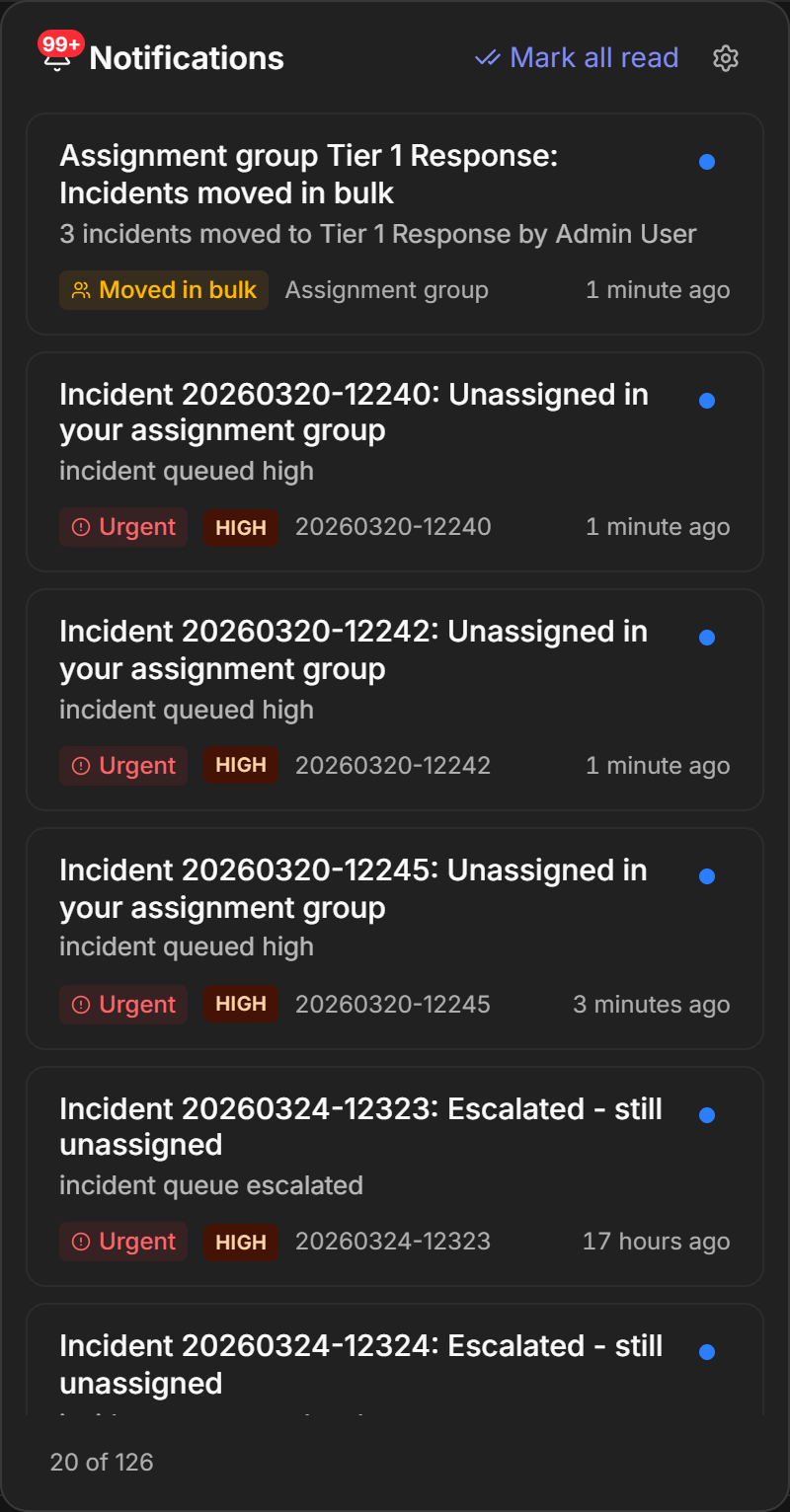
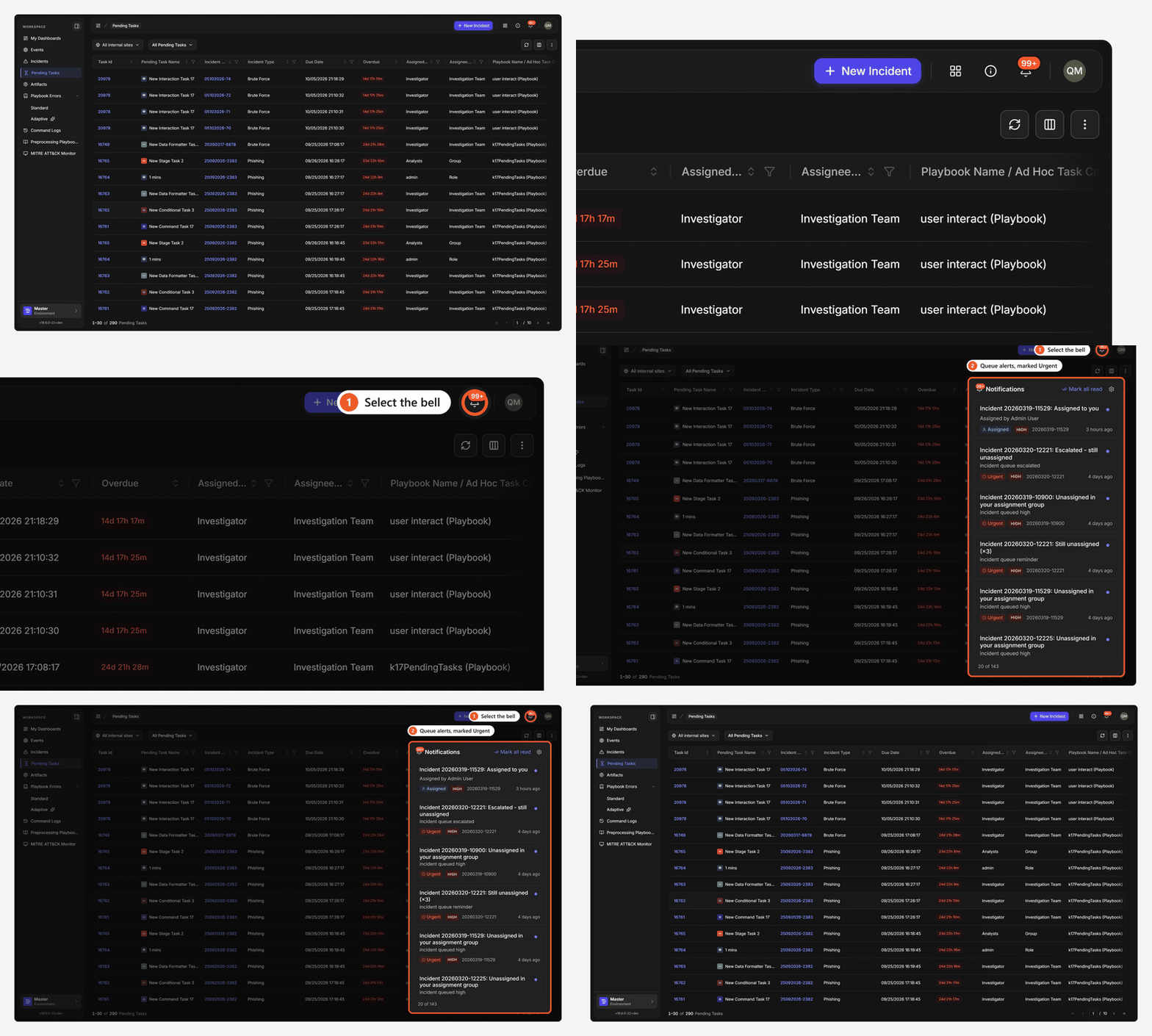
By default the first reminder is sent after 5 minutes, repeated every 15 minutes, and after 3 reminders the incident is escalated. Those three numbers are site settings, so your own cadence may differ — ask an administrator what yours is set to.
READER NOTE
Escalation raises the urgency of the alert. It does not send it to anybody new. The same people who received the reminders receive the escalation. There is no "escalate to a manager" step.
When Alerts Stop and Start Again
Alerts stop as soon as the question they are asking has been answered. Any one of these ends them: somebody claims the incident, it is closed, its severity is lowered out of range, it moves to another queue, or it escalates.
They start again only when the thing that stopped them is undone — the incident is unclaimed again, its owner is removed, or its severity is raised back into range.
ALERT
Two things do not come back. An escalated incident is not escalated a second time, and an incident that moved to a new queue is the new queue's alert to raise, not yours. If you are watching an incident you handed on, you will hear nothing more about it.
When Nobody Can Open an Incident
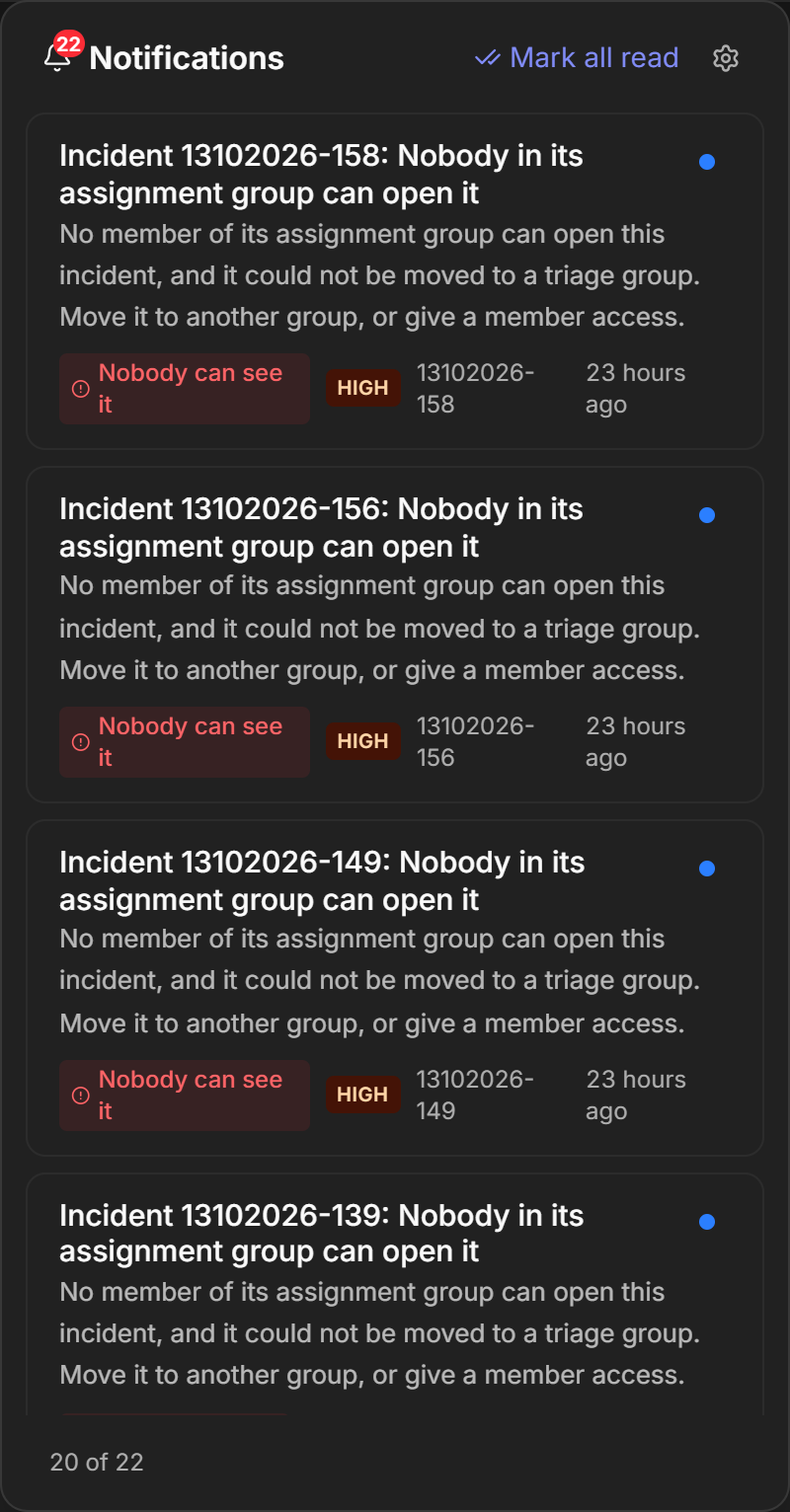
An incident can be filed into a queue whose members have no access to it. It is not lost, and it does not sit there silently — the person who filed it is told.
What happens next depends on whether your site names a triage assignment group:
|
If your site… |
Then… |
|---|---|
|
Names a triage assignment group |
The incident is moved there and keeps its owner |
|
Does not |
The incident stays where it is, and an alert reading Nobody in its assignment group can open it goes to whoever filed or moved it, or to the administrators |
READER NOTE
A weaker version of the same problem is reported as a caution at the moment of the move: Some members of <queue> can't see this incident's site. That one means part of the queue can work the incident and part cannot, so it will be alerted — just to fewer people than you might expect.
The Bulk-Move Digest
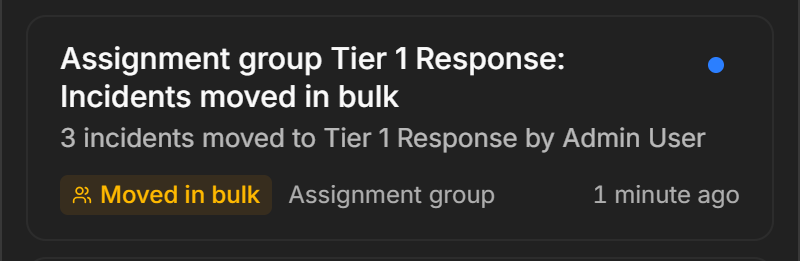
Moving a batch of incidents into one queue produces a single entry naming the queue, the count and who moved them, rather than one alert per incident. A later batch into the same queue updates that same entry with the new total instead of adding another.
Queue Alert Cards
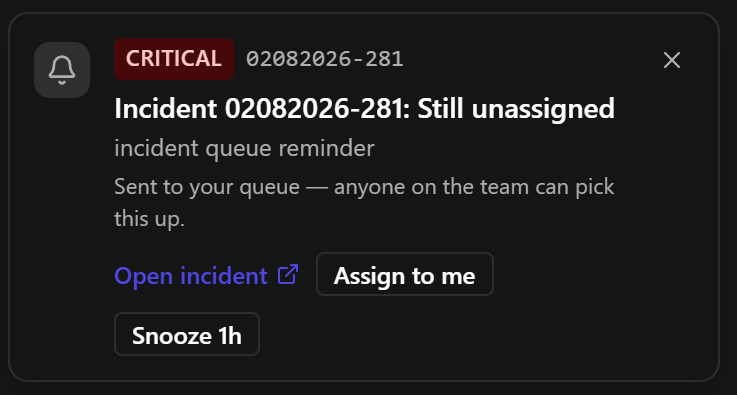
If you have pop-ups switched on, a queue alert also appears as a card in the bottom-right corner. It is the same card every notification uses, described in Notifications, with two differences that are specific to queues.
|
On a queue alert card |
What it means |
|---|---|
|
Sent to your queue — anyone on the team can pick this up. |
The incident belongs to the team, not to you. A card about an incident already assigned to you does not have this line |
|
Assign to me |
Takes the incident. Only queue alert cards have it |
The other buttons, Open incident, Snooze 1h and the close control (×), work as they do on every card. See Notifications. A snoozed queue alert comes back after the hour only if the incident is still unclaimed and still in your queue.
Claiming From the Card
-
Select Assign to me on the card.
RESULT
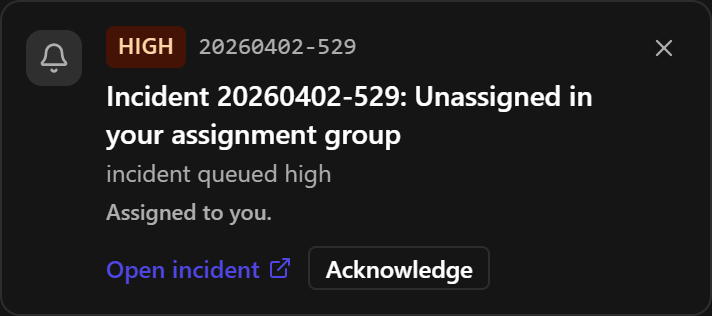
You own the incident, the card reads Assigned to you. and offers Acknowledge, which closes it. The queue alerts for the incident stop. The claim is recorded on the incident's activity feed.
READER NOTE
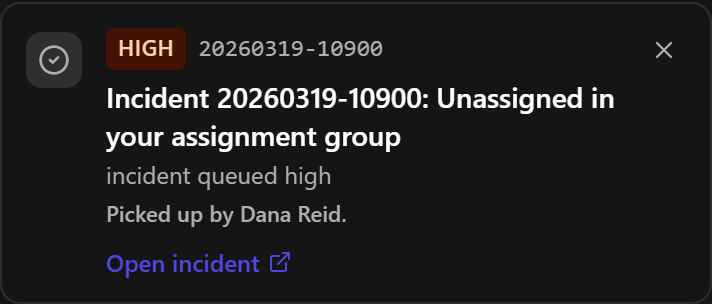
If somebody else takes the incident while your card is still up, the card is replaced rather than disappearing: it reads Picked up by <name>. so you know why the alert went away instead of wondering whether you missed it. The change can take up to a minute to reach you, so a card may stay up briefly after a colleague has already claimed the incident. Check the incident's owner before acting on a card that has been up for a while.
COMMON ERROR
If a claim is refused, the card stays up and shows the reason, or Could not assign this incident to you. when the server gives none. A refused snooze behaves the same way. In both cases nothing changed — the card staying up is the signal that it did not work.
Automation
An incident can be filed into an assignment group by a playbook as well as by a person: the Create Incident command takes an Assignment Group input, naming the queue by name or id, and files the new incident there. The alert that follows is no different from one raised by a person's move.
If the value does not name an active assignment group, the incident is still created — without an assignment group, and therefore without an alert.
READER NOTE
A playbook can also move an incident between queues, and a site can map an incoming field to an assignment group so that ingested incidents arrive in one. Both are configured by an administrator rather than from this tab. An escalation rule cannot file an incident into a queue.
Limits and Constraints
|
Constraint |
Detail |
|---|---|
|
What raises an alert |
Only an unowned incident whose severity is named High or Critical, and only while it is in an assignment group |
|
Who is alerted |
Every active member of the queue who can open the incident, up to 50 people by default. A larger queue is cut off at that number, which an administrator can raise |
|
Reminder cadence |
Site settings. By default: first reminder after 5 minutes, repeated every 15 minutes, escalation after 3 reminders |
|
Escalation |
Raises the urgency of the alert. It does not add recipients |
|
Delivery |
In-app only. There is no email channel |
|
Pop-ups and desktop notifications |
Off until each person switches them on. See Notifications |
|
Queue visibility |
Queue incidents require group-records access. Own-records-only users are not alerted and see nothing |
|
Surface |
New UI only |
RELATED ARTICLES