Last Updated: October 26, 2026
Command tasks refer to integration or utility commands, which can be D3-built or user-built (custom). Built-in and custom commands may be implemented through Python scripts or codeless playbooks.

Integration Commands
These commands execute actions related to external systems or services, such as retrieving threat intelligence, managing cloud resources, or automating tasks in areas like analytics, SIEM/XDR operations, and identity management.
Choosing an Integration Command
In a Playbook
Tip: you can also generate this playbook with AI. See Generating with AI.
-
Add a command task (point to the node it should follow, select +, then New Command Task), or select an existing command task to open its settings. See Playbook Tasks.
-
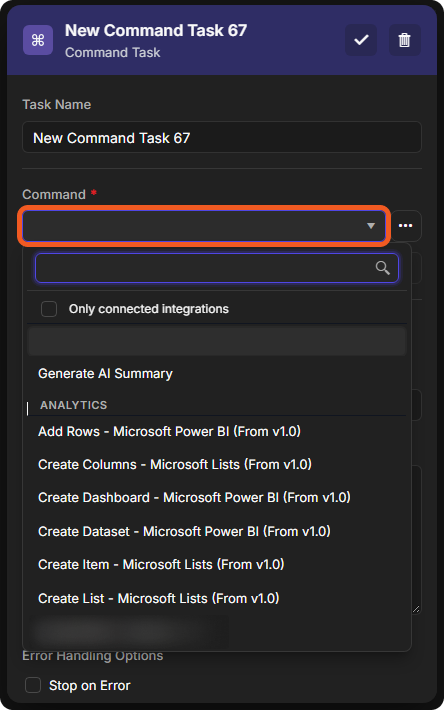
Open the Command list. Commands are grouped by category, and integration commands show their integration in the name, for example Create List - Microsoft Lists (From v1.0).
-
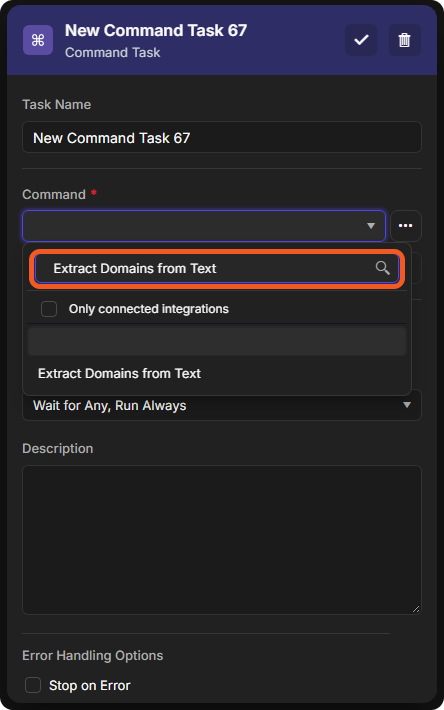
Type in the search box to find the command by name. The Only connected integrations box is under the search box.
-
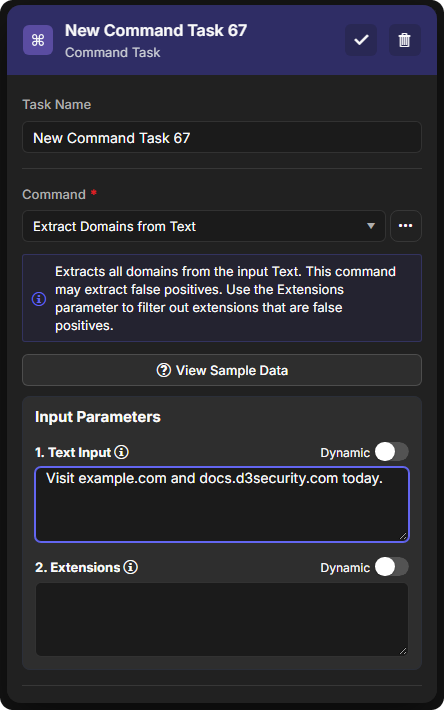
Select the command. Its description appears under it, with View Sample Data, and its input parameters are listed below. Type a fixed value, or switch on Dynamic to take the value from data that earlier tasks produced (see Dynamically Selecting Data).
-
Select the check mark at the top of the settings to save the task.
Integrations Page
To explore an integration's commands and run one outside a playbook:
-
Select Configuration > Integrations, then search for and open the integration (see Integrations).
-
Select a command.
-
On its Test tab, choose a connection under CONNECTION, enter the input parameters, then select Test Command.
READER NOTE
On the incident-level, commands can be executed on-the-fly using the Execute Command button in the general information header panel.
Utility commands
These commands primarily support internal operations, including data manipulation, updating incident details, and generating reports, with occasional exceptions like facilitating email communications.
Integration Command Examples
Checking the Reputation of a URL
Objective Set up and run a command task that checks the reputation of a URL.
-
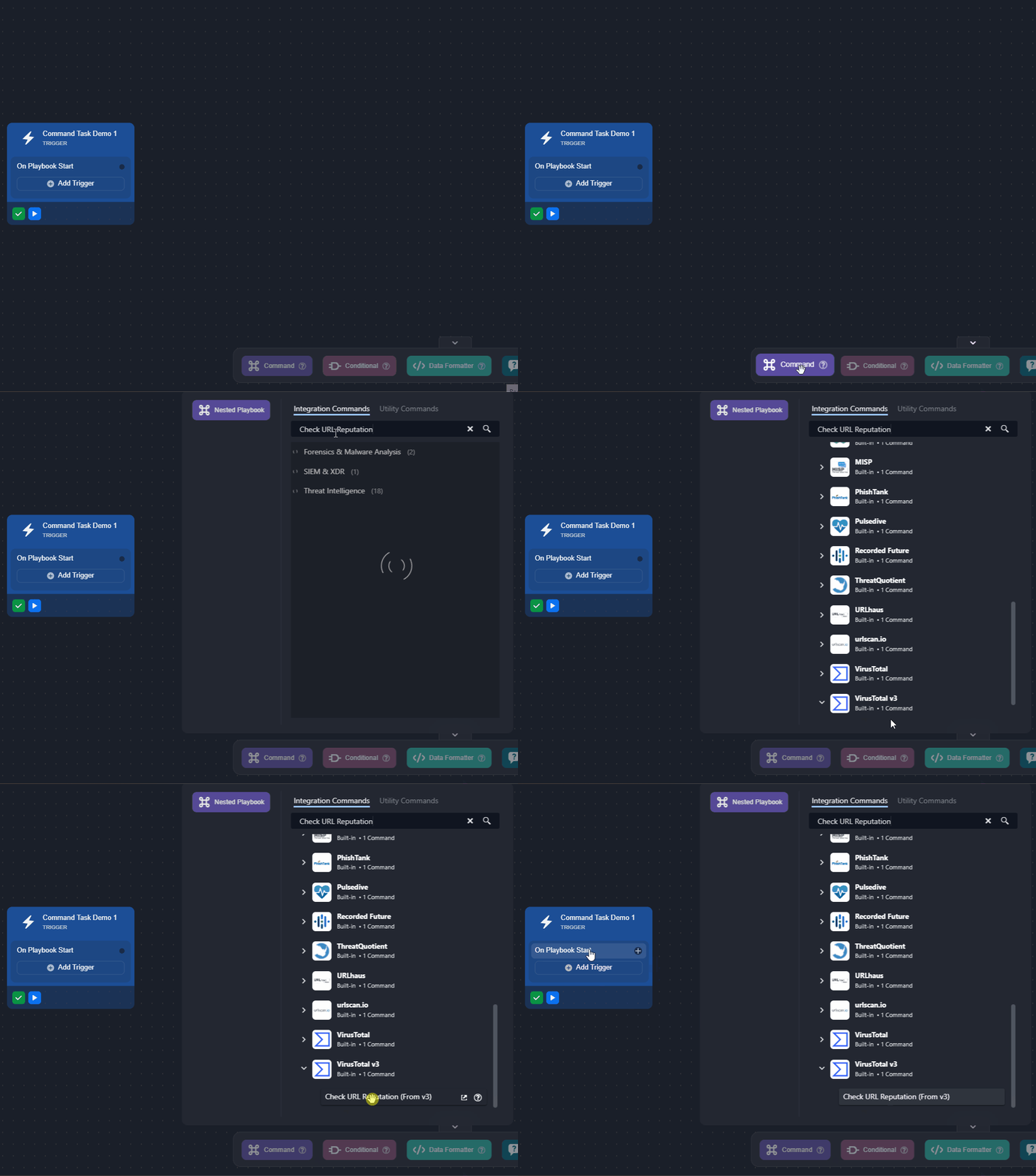
Add a command task to the On Playbook Start trigger. In its Command list, select Check URL Reputation from VirusTotal v3.
-
Name the task in Task Name.
.png?cb=5703275d00e504dea2122649ea0572f1)
-
Configure the task details, then save the task.
.png?cb=6b60d85cd5ea9782e15deab7a69eeb24)
-
Enter a URL in text array format.
For the demo, the data is hardcoded, but it should almost always be dynamically retrieved from a data source (e.g., an event or incident) using the Format Builder function. -
Select an existing connection to use or create a new one.
-
Select the Auto Run checkbox.
-
Select the check mark at the top of the settings to save the task.
-
-
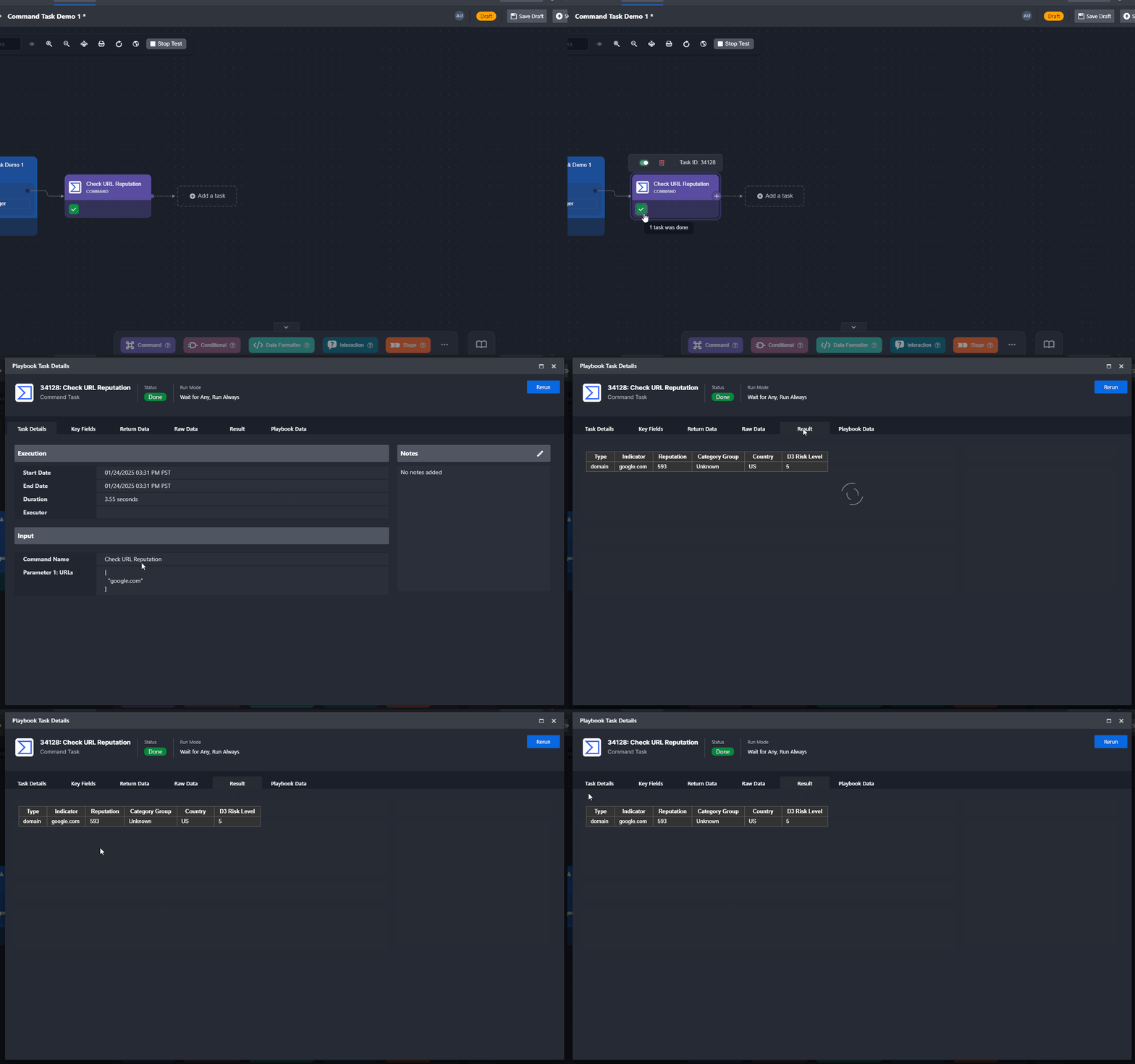
Select Test Playbook, then select Run Test in the Test Trigger window.
.png?cb=f23b58fb79ce1d86bce9a51242bc6b18)
RESULT
The Check URL Reputation command provides reputation data for a URL, enabling analysts to assess its safety and determine if blocking is necessary.
-20250127-220208.png?cb=f83e7968acfe58347bd5a208701f2bbe)
Interacting with Slack Interactivity Elements
-20250127-195833.png?cb=c18441b81d3360a8208329c18c972f10)
See Send Interactivity examples.
Utility Command Examples
Sending an Email with Attachments
.png?cb=a5af0731910303a504a3904361d9b7dc)
Objective Send an email from the vSOC platform, including any files attached to the incident as email attachments.
-
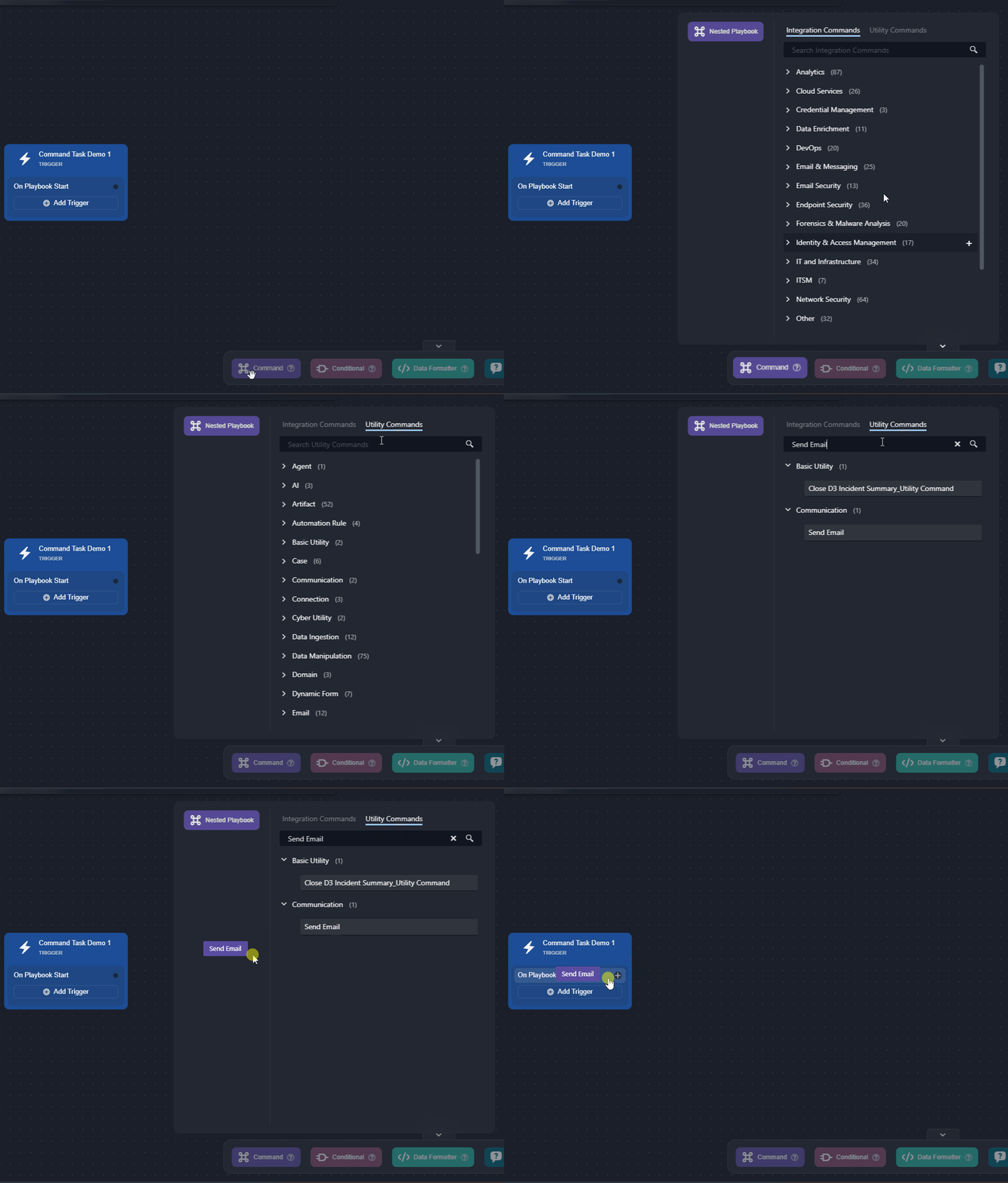
Add a command task to the On Playbook Start trigger, and select the Send Email utility command in its Command list.
-
Name the task in Task Name.
.png?cb=7f286fae9e0e805c8147472d2384cd14)
-
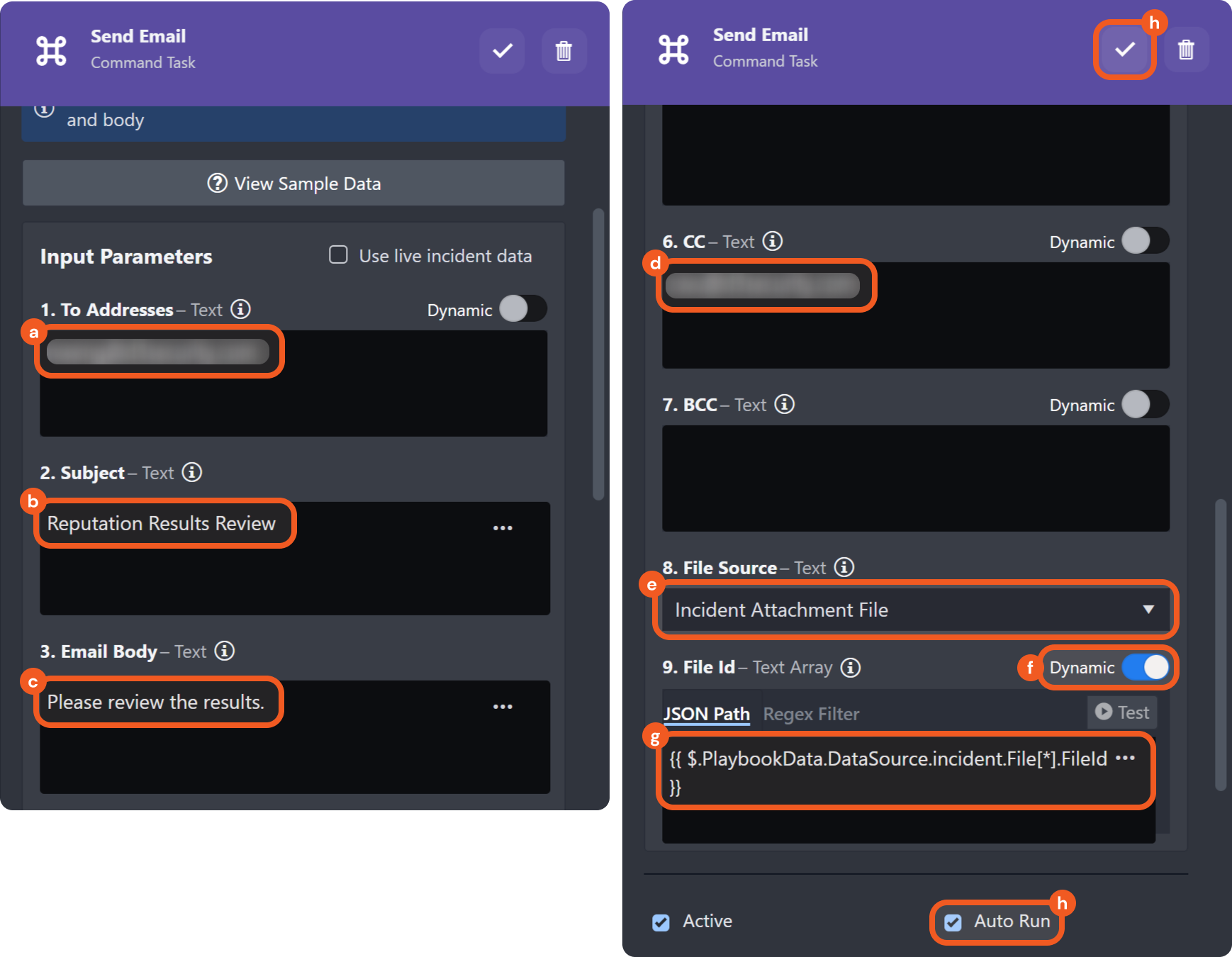
Configure the task details, then save the task.
-
Enter the recipient's email address.
-
Enter the email subject.
-
Enter the email body.
-
Enter the CC recipient.
-
Choose Incident Attachment File as the file source.
-
Select the Dynamic toggle.
-
Dynamically retrieve the value for the File ID. Refer to Dynamically Selecting Data for more information.
{{ $.PlaybookData.DataSource.incident.File[*].FileId }} -
Select the Auto Run checkbox.
For information about the Reply Mode and Reply Due Time parameters, refer to this documentation. -
Select the check mark at the top of the settings to save the task.
-
-
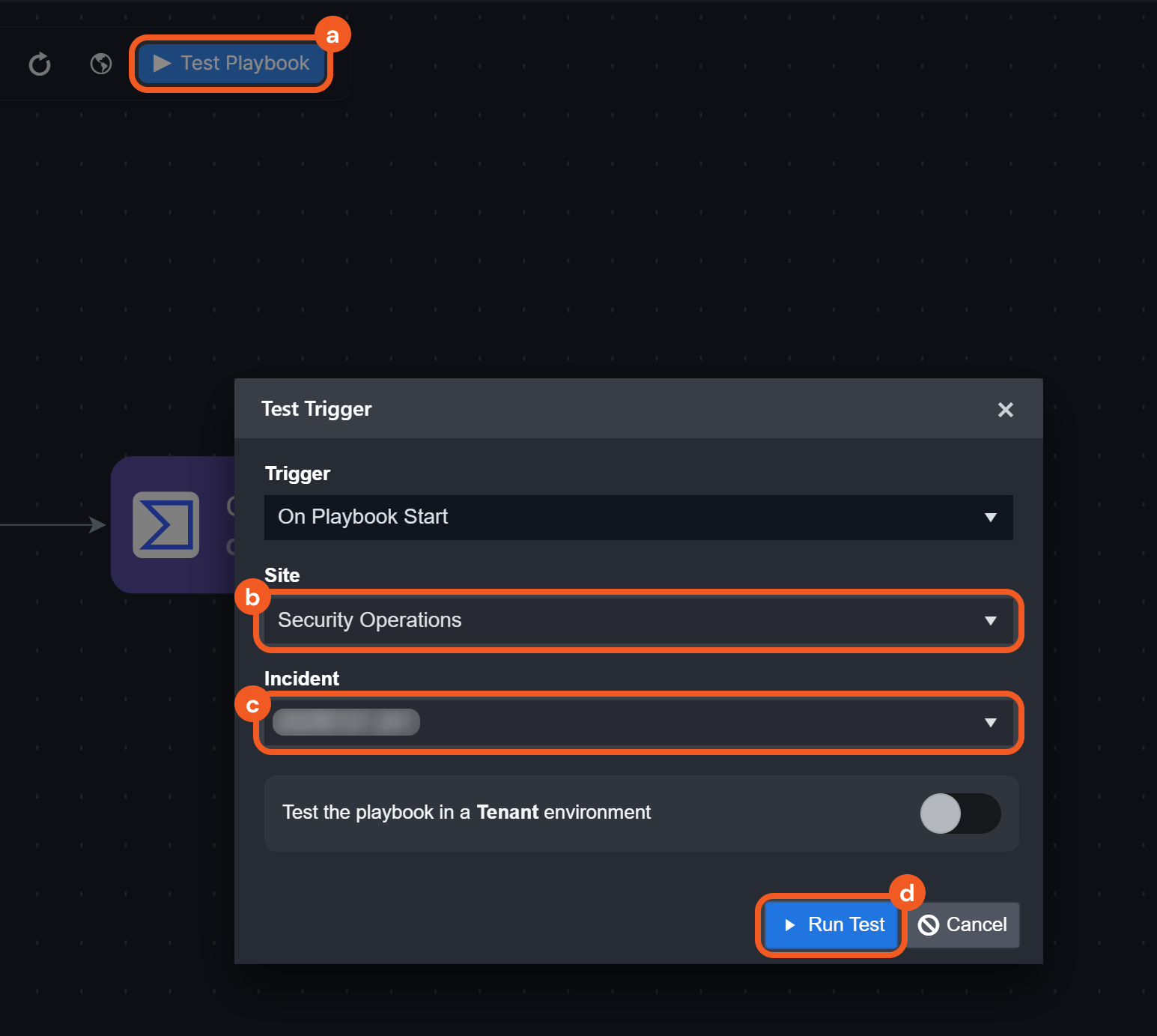
Test the playbook.
-
Select Test Playbook.
-
Select a site.
-
Select an incident.
Testing the playbook on an incident will impact the incident. To avoid unintended effects, perform all testing involving the Test Playbook functionality in a demo instance of vSOC. -
Click on the Run Test button.
-
RESULT
The Send Email command task sends an email based on the specified task configurations, delivering it to the primary recipient and any CC or BCC recipients defined. Any files uploaded to the incident workspace are included as an attachment.
Retrieving Global List Metadata
-20250127-201347.png?cb=fcc107285da8014530303e9ca1e5cbc3)
Objective Extract the description of a global list titled Demo Global List.
-
Ensure Demo Global List is available for use in select sites.
-20250127-205228.png?cb=1f9d062f5d5c843abb12df5352c79138)
-
Connect a command task to the On Playbook Start trigger.
-20250127-201909.png?cb=6c17a7046d24c7d365a4547ade1663fe)
-
Name the command task in Task Name.
-20250127-202132.png?cb=1aa330efbb0310b274b502148317fda9)
-
Select the Auto Run checkbox, then open the Command list.
-20250127-202409.png?cb=254de546349e4e66bdd266cb2d1a1902)
-
Select the Get Global List MetaData utility command.
-20250127-203126.png?cb=2f77c26759a7eb69e29d64153e88a959)
-
Specify the search type and global list name, then save the task.
-20250127-205712.png?cb=2b907af8515410c8e5f26507c34c3b45)
-
Select Test Playbook, then select Run Test in the Test Trigger window.
-
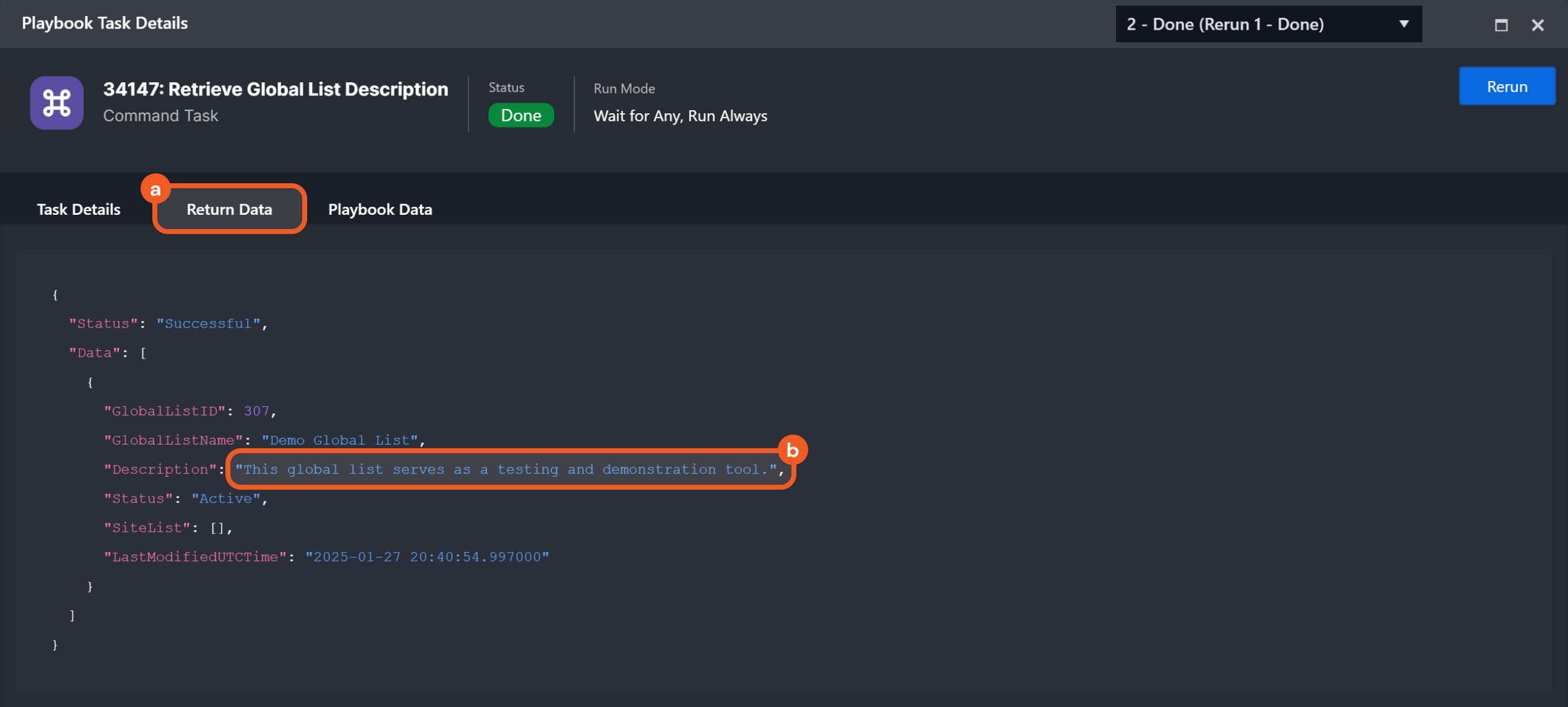
Select the status icon on the command task to open Playbook Task Details.
-20250127-210203.png?cb=9e5758f0281554e04c2ca4f0a5371b15)
-
Click on the Return Data tab to view the extracted description.
Mixed Command Use Example
Mixed Command Use Example - Generating a CSV File Using Domain IP Reputation Results
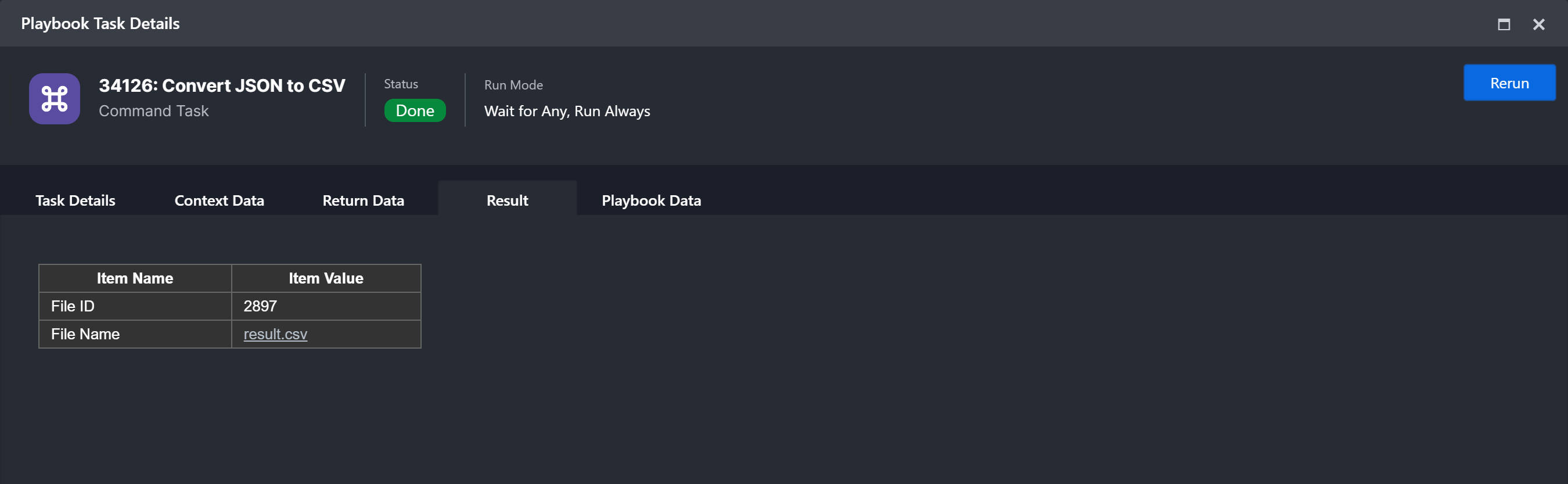
Objective Create a CSV file that includes information about the IP reputation linked to domain names.
-
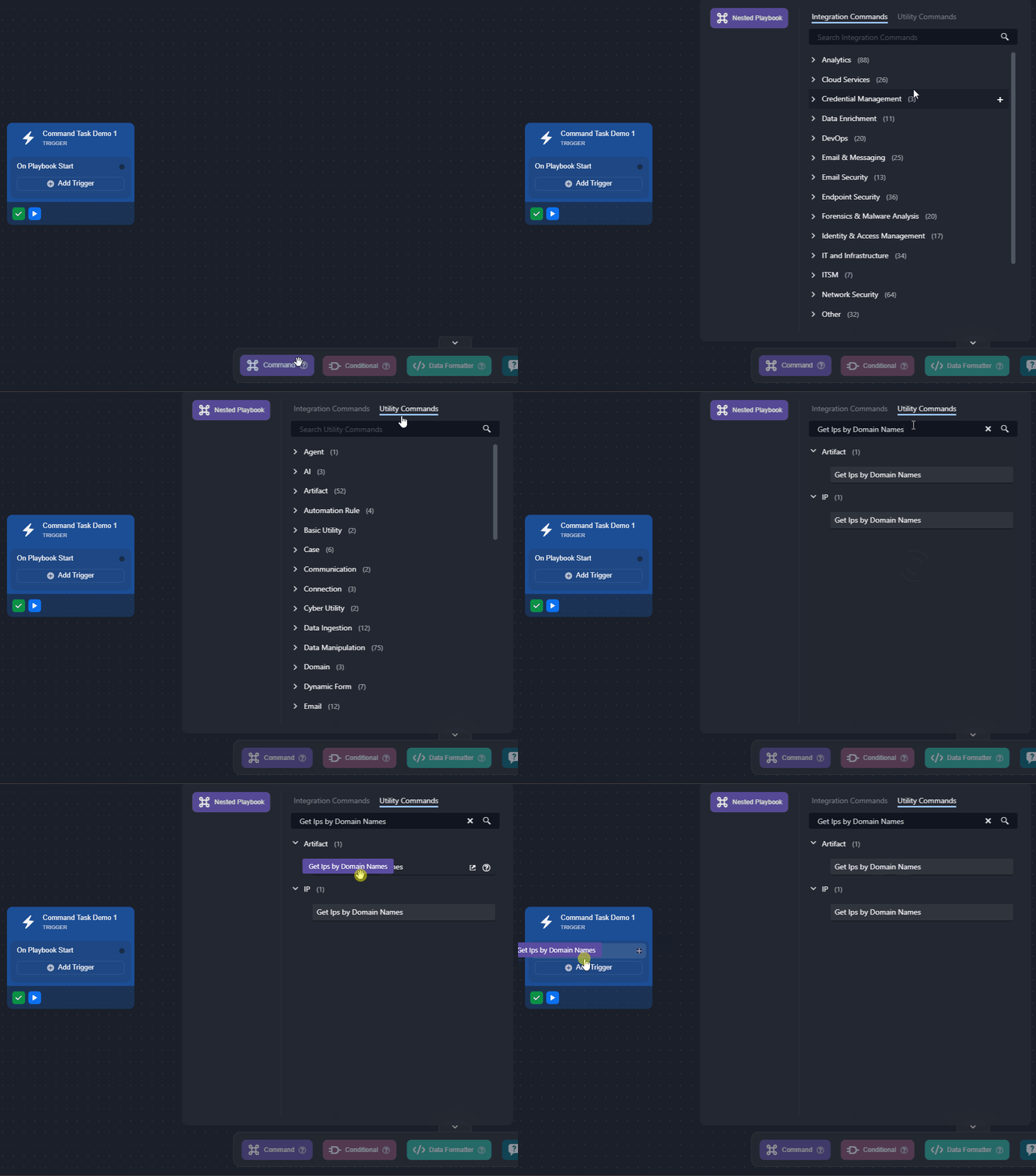
Add a command task to the On Playbook Start trigger, and select the Get Ips by Domain Names utility command in its Command list.
-
Name the task in Task Name.
.png?cb=2e4264ae01ad69964fc1c9668e21f69e)
-
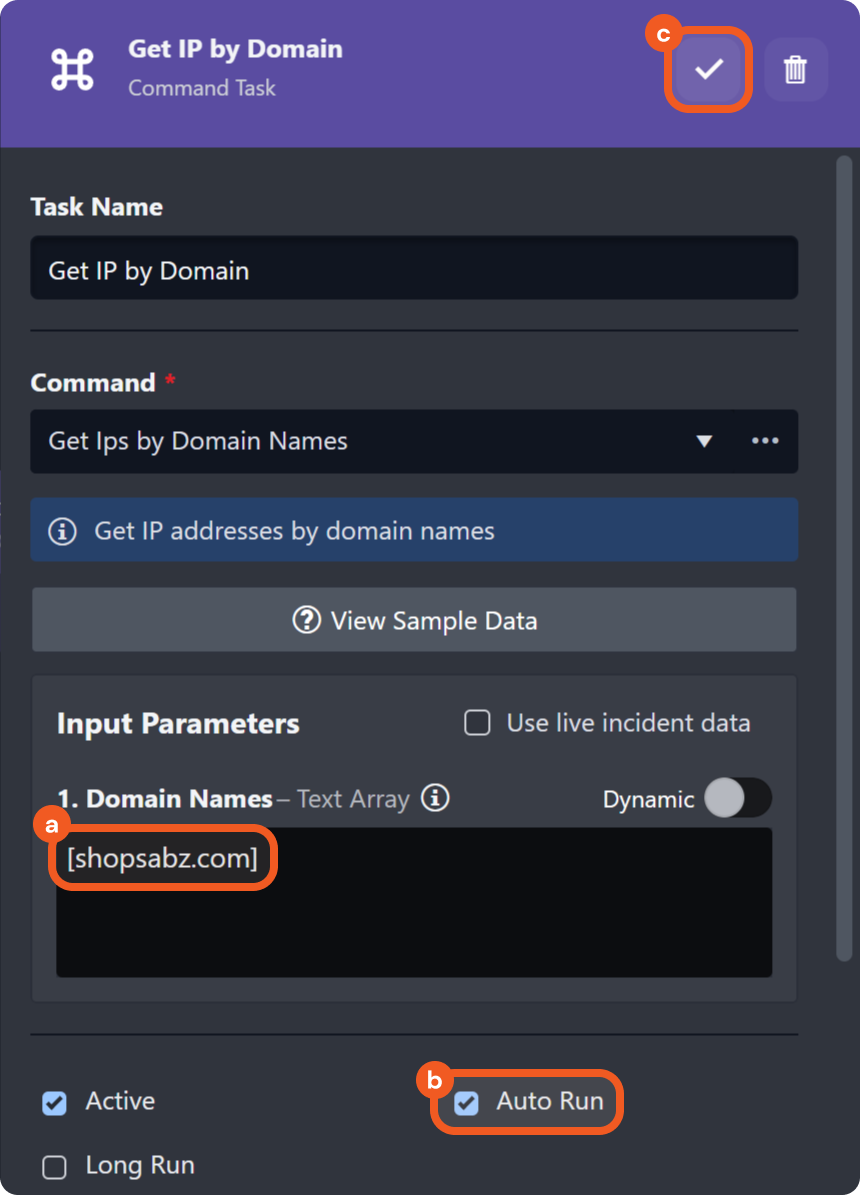
Configure the task details, then save the task.
-
Enter the domain names whose IPs will be retrieved, such as this compromised domain listed by NetAPI:
[shopsabz.com]For the demo, the data is hardcoded, but it should almost always be dynamically retrieved from a data source (e.g., an event or incident) using the Format Builder function.
-
Select the Auto Run checkbox.
-
Select the check mark at the top of the settings to save the task.
-
-
Repeat steps 1 and 2 to add the Get IP Reputation command task from the VirusTotal V3 integration to the previous task.
.png?cb=1a0f2f54f2ad74408d6bf5c72da8674c)
-
Configure the task details, then save the task.
.png?cb=786521d3c095cb3b73c3920fca7c3bf4)
-
Dynamically retrieve the value for the IPs, the output data of the previous task.
{{PlaybookData | jsonpath('$.["Get IP by Domain"].outputData.IPAddresses')}} -
Select an existing connection to use or create a new one.
-
Select the Auto Run checkbox.
-
Select the check mark at the top of the settings to save the task.
-
-
Repeat steps 1 and 2 to add the Convert HTML to JSON utility command task to the previous task.
.png?cb=f8711d755600299ce2cdae7d0971a54f)
-
Configure the task details, then save the task.
.png?cb=dc447e20774512a0f897675258fe1a4f)
-
Click on the Dynamic toggle.
-
Dynamically retrieve the value for the HTML Text, the result of the previous task.
{{ $.PlaybookData.["Get IP Reputation"].result }} -
Select the True option.
-
Select the Auto Run checkbox.
-
Select the check mark at the top of the settings to save the task.
-
-
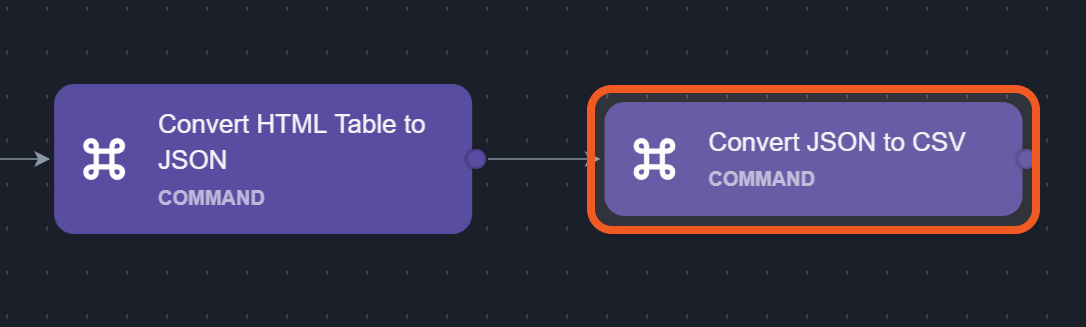
Repeat steps 1 and 2 to add the Convert JSON Array to CSV utility command task to the previous task.
-
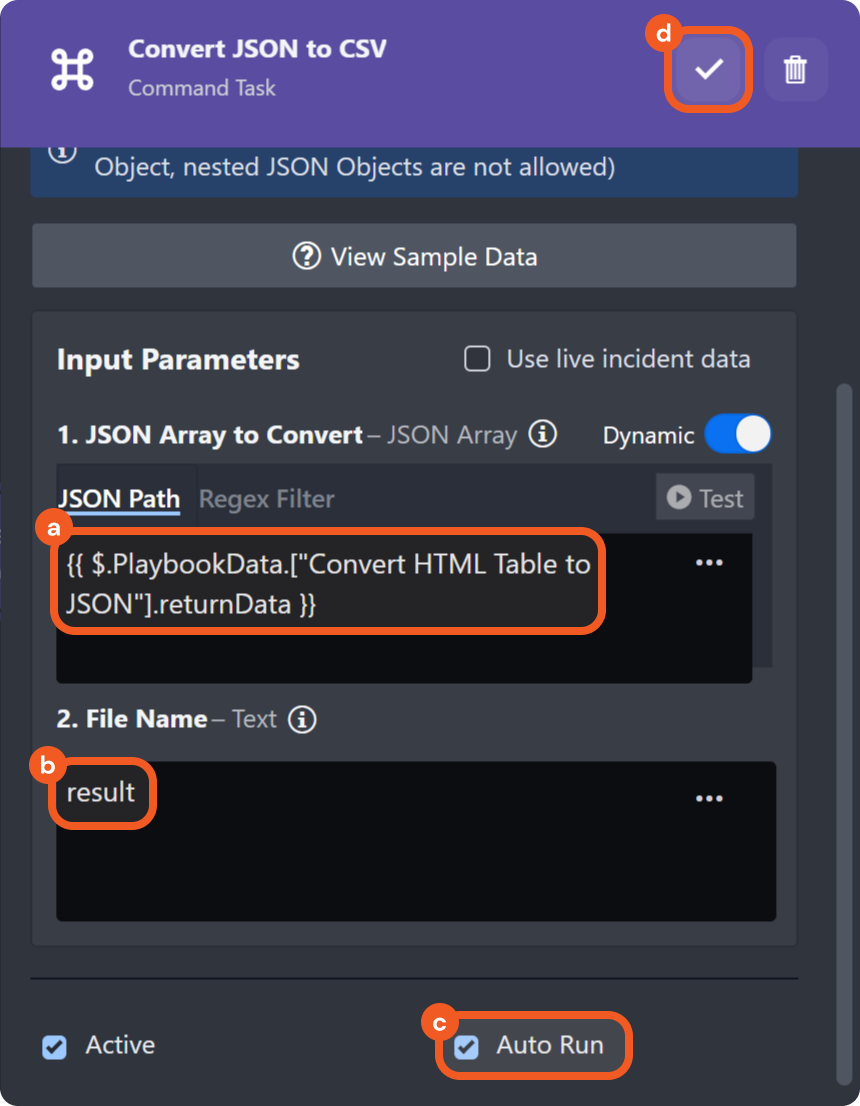
Configure the task details, then save the task.
-
Dynamically retrieve the value for the JSON Array to Convert the return data of the previous task.
{{ $.PlaybookData.["Convert HTML Table to JSON"].returnData }} -
(Optional) Rename the file.
-
Select the Auto Run checkbox.
-
Select the check mark at the top of the settings to save the task.
-
-
Select Test Playbook, then select Run Test in the Test Trigger window.
RESULT
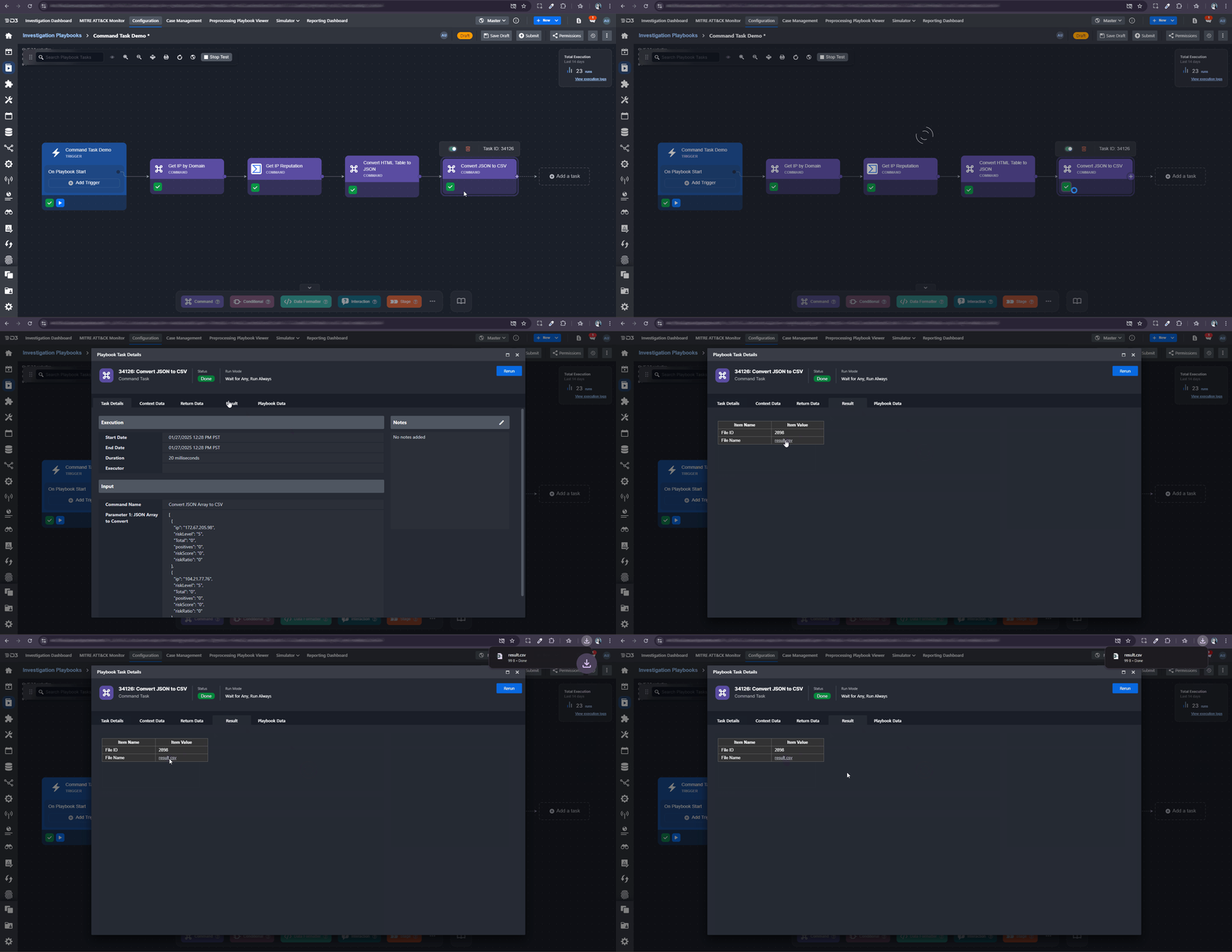
Users will be able to download the "result" CSV file by navigating to the playbook task details > Result tab, then clicking on the result.csv file.