
Last Updated: October 28, 2026
Overview
Modify with AI is AI-assisted playbook review and editing in the playbook editor. It reads a draft playbook the way an experienced reviewer would and proposes what to add, change, or remove. When you already know the change you want, you describe it in one sentence instead, and Morpheus (the D3 AI assistant) works out exactly that change.
Either way the answer is a short plan and a list of proposed changes that you approve one at a time. Nothing reaches the playbook until you say so. Use Generate with AI when you need a playbook that does not exist yet, and Modify with AI when a draft already exists — it works on drafts only, so what real incidents run stays as it is.
Availability
The AI playbook features are enabled per instance. If Modify with AI does not appear on the editor toolbar of a draft playbook, contact your D3 representative.
Two Ways to Ask
Suggest changes takes nothing: the draft is the whole request, and Morpheus reviews all of it. Use it when you are not sure what is wrong — before a draft goes live, after a large edit, or on a playbook someone else wrote. Describing the change yourself takes one sentence, and Morpheus works out that change and only that. Both produce the same kind of answer.
Opening Modify with AI
Open the tool from the editor of a draft playbook.
-
Go to Configuration > Automation > Investigation Playbooks or Configuration > Automation > Preprocessing Playbooks.
-
Open the playbook you want to change.
-
Check that the status pill beside the playbook's name reads Draft. If it reads Live, open the draft version instead.
-
On the canvas toolbar, select Modify with AI, between Show Local Shared Data and Test Playbook.
The Modify with AI button

RESULT The Modify playbook with AI dialog opens.
READER NOTE On a playbook whose status pill reads Live, the button is not shown, because a change there would alter what real incidents do. Preprocessing playbooks carry the same button in the same place, and a review reads them as something that runs on each incoming event.
The Findings Count
The Modify with AI button carries a number. It counts findings: problems found on the draft by a fixed set of checks, without running the AI at all, so you can tell before opening anything whether the draft needs a look. The count goes down as you fix things.
The Dialog
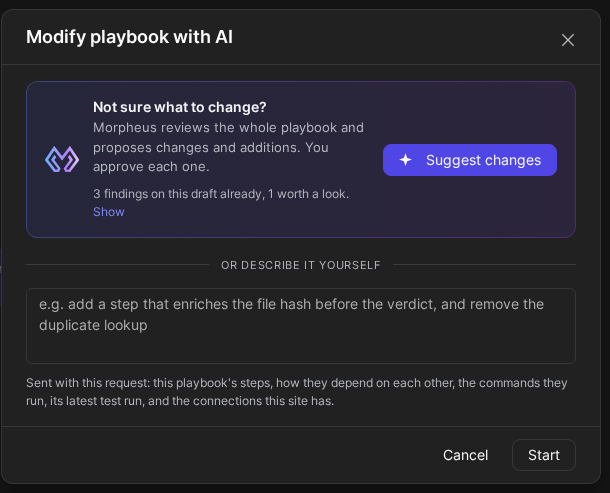
The dialog is where you choose between a review and a change you describe.
-
The top card, Not sure what to change?, holds the Suggest changes button and explains the review: *Morpheus reviews the whole playbook and proposes changes and additions. You approve each one.*
-
A line on the card counts what the checks found, for example *3 findings on this draft already, 1 worth a look.*, with a Show link beside it.
-
Below the divider OR DESCRIBE IT YOURSELF is a box for a change you describe in your own words.
-
Cancel and Start are at the bottom.
The dialog names what is sent with the request, in this line:
*Sent with this request: this playbook's steps, how they depend on each other, the commands they run, its latest test run, and the connections this site has.*
The Modify playbook with AI dialog
READER NOTE A draft that has been tested gives a better answer, because Morpheus can look at what the steps actually returned instead of assuming it.
Reviewing a Playbook
-
In the dialog, select Suggest changes.
-
Keep the editor on this playbook while the review runs. Leaving the editor stops it.
RESULT Morpheus reads the draft and returns proposed changes beside the canvas for you to approve. A review takes minutes.
Describing a Change Yourself
-
In the dialog, type what you want in the box below OR DESCRIBE IT YOURSELF. Name the steps, and say what should be true afterwards.
-
Select Start.
RESULT Morpheus works out that one change and returns it for you to approve, usually sooner than a review.
The sentence is the whole specification. Sentences that work well name the step and the outcome, such as *"Rename the step called 'Stage' to 'Start triage'"*. One that describes an editor session, such as *"open the enrichment task and set the IP field"*, works less well. Select Cancel to close the dialog without asking for anything.
What It Can Change
Within a draft, Modify with AI can add a step, change what an existing step reads and how it runs, rename a step together with every step that reads its output by that name, remove a step and join its neighbours back up, add an error handler, and change the playbook's name and description.
A playbook's triggers, and a task's due time and assignment, are set in their own settings rather than by this tool. Where a request cannot be carried out, the answer says so.
What It Does Not Do
These are the guarantees that make the tool safe to try on any draft:
-
It changes nothing before you apply a change. Asking for a review, starting a change, or closing the dialog writes nothing to the playbook.
-
It never touches a live playbook. Drafts only.
-
One decision per change. Every proposed change is its own decision and lands whole or not at all, so accepting one never forces another.
-
It shows its reasoning. Each answer opens with how it read the request, what it could not do, what could break downstream, and what it assumed without checking.
-
It discloses what it sends, in the line quoted above.
-
It never runs the playbook. It reads the latest test run if there is one; it never starts one.
-
It stops when you leave the editor.
Checking the Result
A generated change that has never run is exactly as unproven as one you made by hand and never ran.
-
Look at the canvas, and check that each change is where the answer said it would be.
-
Work through anything the answer said it could not do, and decide whether you accept the downstream risks it listed.
-
Select Save Draft.
-
Select Test Playbook and work through the run. The test run also makes the next review better.
-
Take the draft live with Go Live, the way you would any draft.
WARNING Step 4 is the one that gets skipped, and it should not be. A change that was applied cleanly has still never run.
RELATED ARTICLES
-
Generating a Playbook with Morpheus AI